
📦 Inventory Management v2
Welcome to the Laundro Portal Guide! 👋
This guide explains how to select an operator and outlet, view inventory machine cards, and retrieve historical records using a date range.
🎯 Purpose
Use Inventory Management v2 to:
-
🏪 Select the operator and outlet you want to view.
-
🗂️ View Bill Acceptor and Vending machines in card format.
-
📅 Retrieve records within a selected date range.
-
📸 Review the Snapshot and Remarks included in the report.
🧭 Quick Navigation
-
🏪 Part 1: Select Operator & Outlet
-
📅 Part 2: Filter by Date Range
-
🔍 Part 3: Review the Report
-
✅ Part 4: Quick Checklist
🔐 How to Access Inventory Management v2
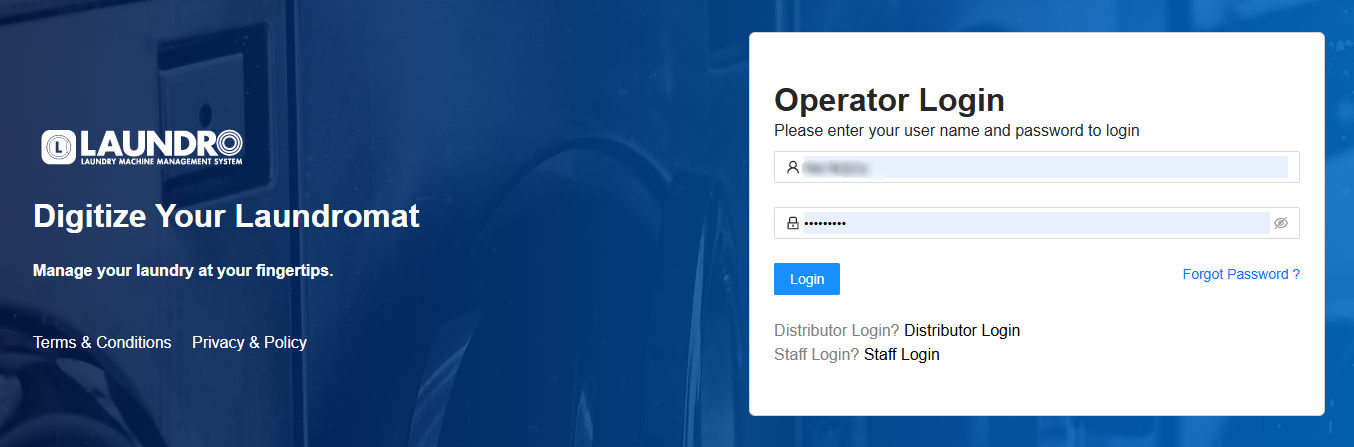
Log in to the Laundro Portal using your operator account and navigate to Inventory Management v2.
🔗 Portal Login: https://v2.thelaundro.com/operator_login
🏪 Part 1: Select Operator & Outlet
Purpose: Choose the operator and outlet before viewing the report.
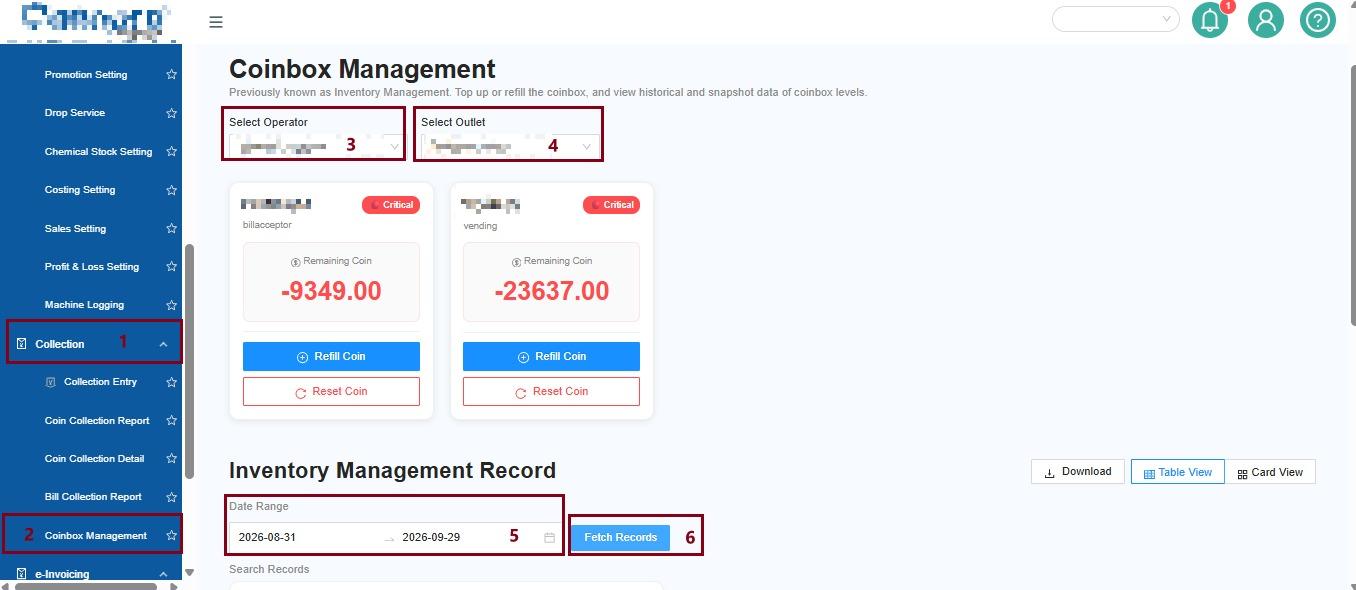
Step 1 — Select Operator
Choose the required operator from the Operator dropdown.
Step 2 — Select Outlet
Choose the outlet you want to view from the Outlet dropdown.
Step 3 — Click View Report
Click View Report to display the report.
Step 4 — View Machine Cards
The report will display individual cards for:
- 💳 Bill Acceptor
- 🛒 Vending Machine
Each machine is displayed as an individual card.
💡 Quick Tip: Select the correct operator and outlet before clicking View Report. These selections apply to the current query.
📅 Part 2: Filter by Date Range
Purpose: Retrieve records within a specific period.
Step 1 — Select the Date Range
Choose the start and end dates for the records you want to retrieve.
💡 Example: To check records for 1 October to 7 October, select those dates in the date-range filter.
Step 2 — Click Fetch Record
Click Fetch Record to retrieve records based on the selected date range.
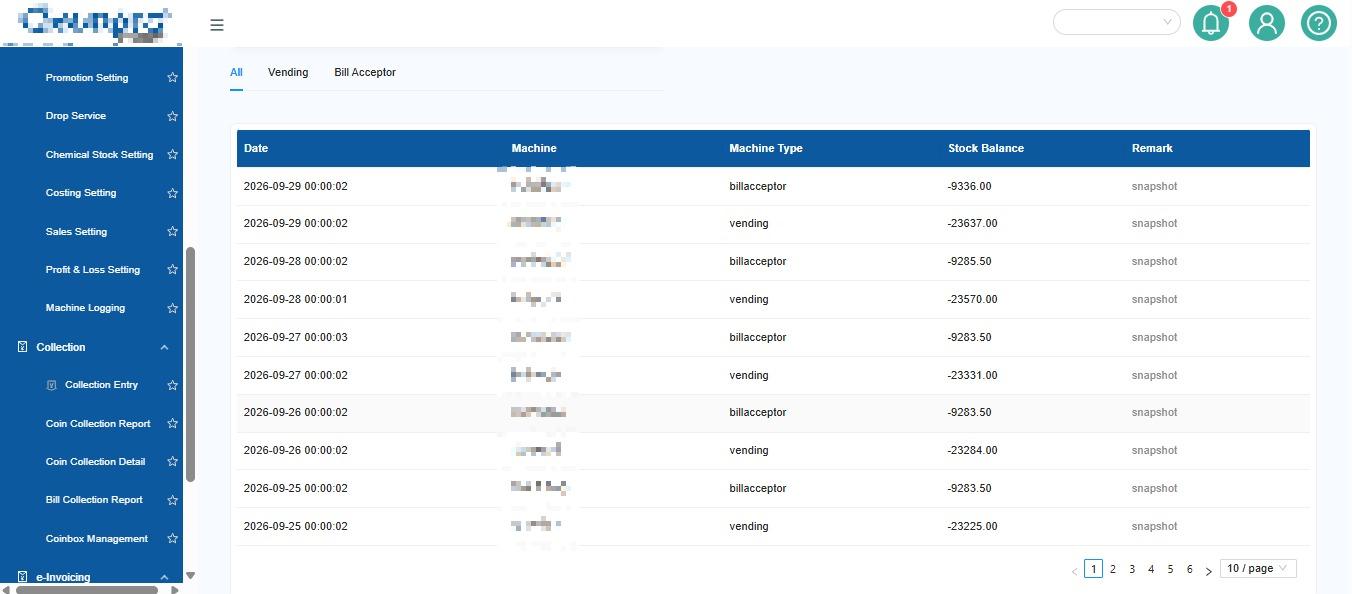
Step 3 — View the Report
The report will be displayed in table format for both:
- 💳 Bill Acceptor
- 🛒 Vending Machine
The report includes:
- 📸 Snapshot: The snapshot associated with the record.
- 📝 Remarks: Additional remarks recorded for the entry.
💡 Quick Tip: Make sure the date range is correct before clicking Fetch Record.
🔍 Part 3: How to Review the Report
After retrieving the records:
- Confirm that you selected the correct outlet and date range.
- Review the records displayed in the table.
- Check the Snapshot for visual information.
- Read the Remarks for any additional details.
If the expected records do not appear, check your filters and try fetching the records again.
Example
Operator: ABC Operator
Outlet: ABC Outlet
Date Range: 1 September – 30 September 2026
Select Operator → Select Outlet → View Report → Select Date Range → Fetch Record → Check Inventory Records
- Select the correct Operator and Outlet before viewing the inventory.
- Use Date Range when you need to check historical inventory records.
- Use Snapshot and Remarks to understand the details of each record.
📊 Quick Reference
| Feature | Purpose | Result |
|---|---|---|
| 🏪 Operator & Outlet | Select the required operator and outlet | Machine cards |
| 📅 Date Range | Specify the reporting period | Records for the selected period |
| 🔄 Fetch Record | Retrieve records matching the date range | Table report |
| 📸 Snapshot | Review the snapshot associated with a record | Visual reference |
| 📝 Remarks | Read recorded comments or details | Additional information |
✅ Final Checklist
Before finishing, make sure:
- 🏪 The correct operator is selected.
- 📍 The correct outlet is selected.
-
📅 The date range is correct.
- 🔄 You clicked Fetch Record to retrieve the records.
-
📋 You reviewed the returned table.
-
📸 You checked the Snapshot and Remarks where necessary.
🎉 You're Done!
You can now use Inventory Management v2 to view machine cards and retrieve records for your selected date range.
If you encounter any issues, contact Laundro Support and provide the outlet name, selected date range, and a screenshot of the problem.
No comments to display
No comments to display