
Unresolved Data
Unresolved Data lets you set a cutoff period for closing out a month's sales, so late-arriving transactions don't silently change figures you've already reported.
Why transactions can arrive late
- A device went offline, stored transactions locally, and uploaded them as backup data once it reconnected.
- A payment gateway had an issue and sent its transaction records late.
How it works
You configure a resolution window (in days). Any transaction that enters the system after that window has closed is parked in the Unresolved Data report instead of being posted directly into your records. It then needs to be manually resolved. This keeps the previous month's sales figures constant and unchanged by late data after the cutoff.
Enabling Unresolved Data
- Click your profile icon and select Settings from the dropdown menu.
- Go to the Security & System tab.
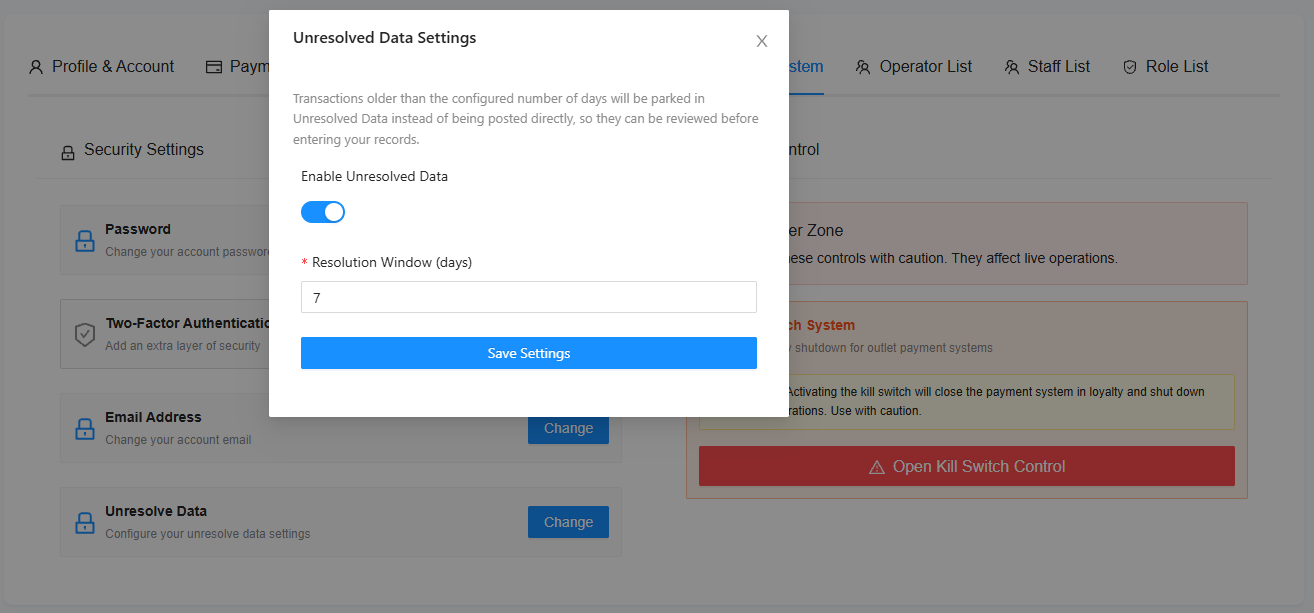
- In the Unresolved Data section, click Change.
- Toggle Enable Unresolved Data on.
- Set the Resolution Window (days), the number of days after a transaction's date before it's considered late and parked for review.
- Click Save Settings.
Using the Unresolved Data report
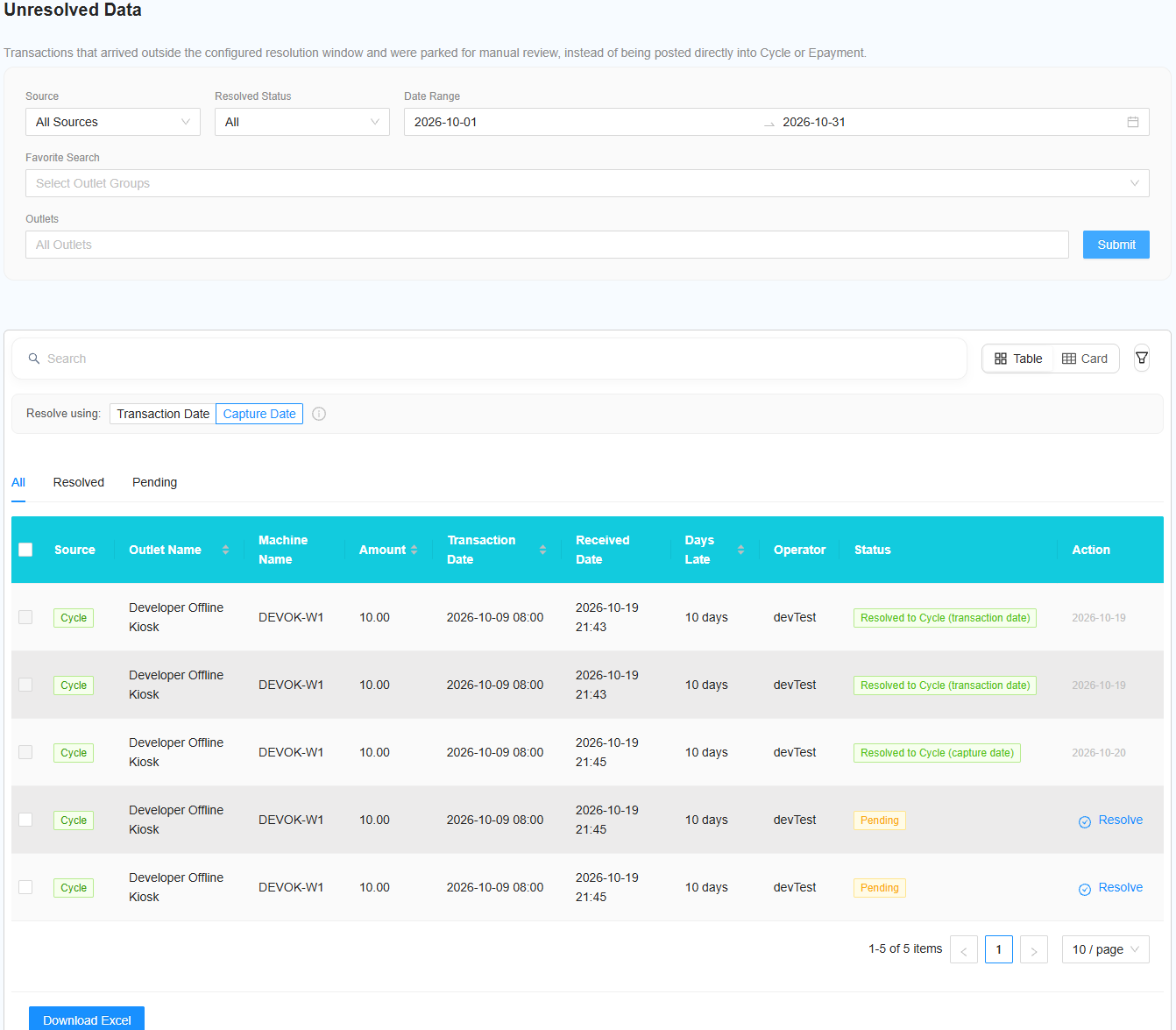
The Unresolved Data report is found under the Special Report category. It lists every late transaction together with its actual Transaction Date and its Received/Capture Date.
For each transaction, you can resolve it one of two ways:
- Resolve to Transaction Date — the transaction is posted into the sales report for its original transaction month. This will modify that previous month's sales data.
- Resolve to Capture Date — the transaction is posted into the sales report for the month it was captured in, and will appear in the sales report under the capture date instead.
Filtering and search
Use Source, Resolved Status, Date Range, Favorite Search (outlet groups), and Outlets to narrow the list, or use the search bar. You can also switch between Table and Card view, and toggle whether rows are matched by Transaction Date or Capture Date.
No comments to display
No comments to display