
Epayment Transaction Record: Filter & Download Guide
Learn how to filter epayment transaction records and download customized reports based on your table filters.
1. How to Filter Transaction Records
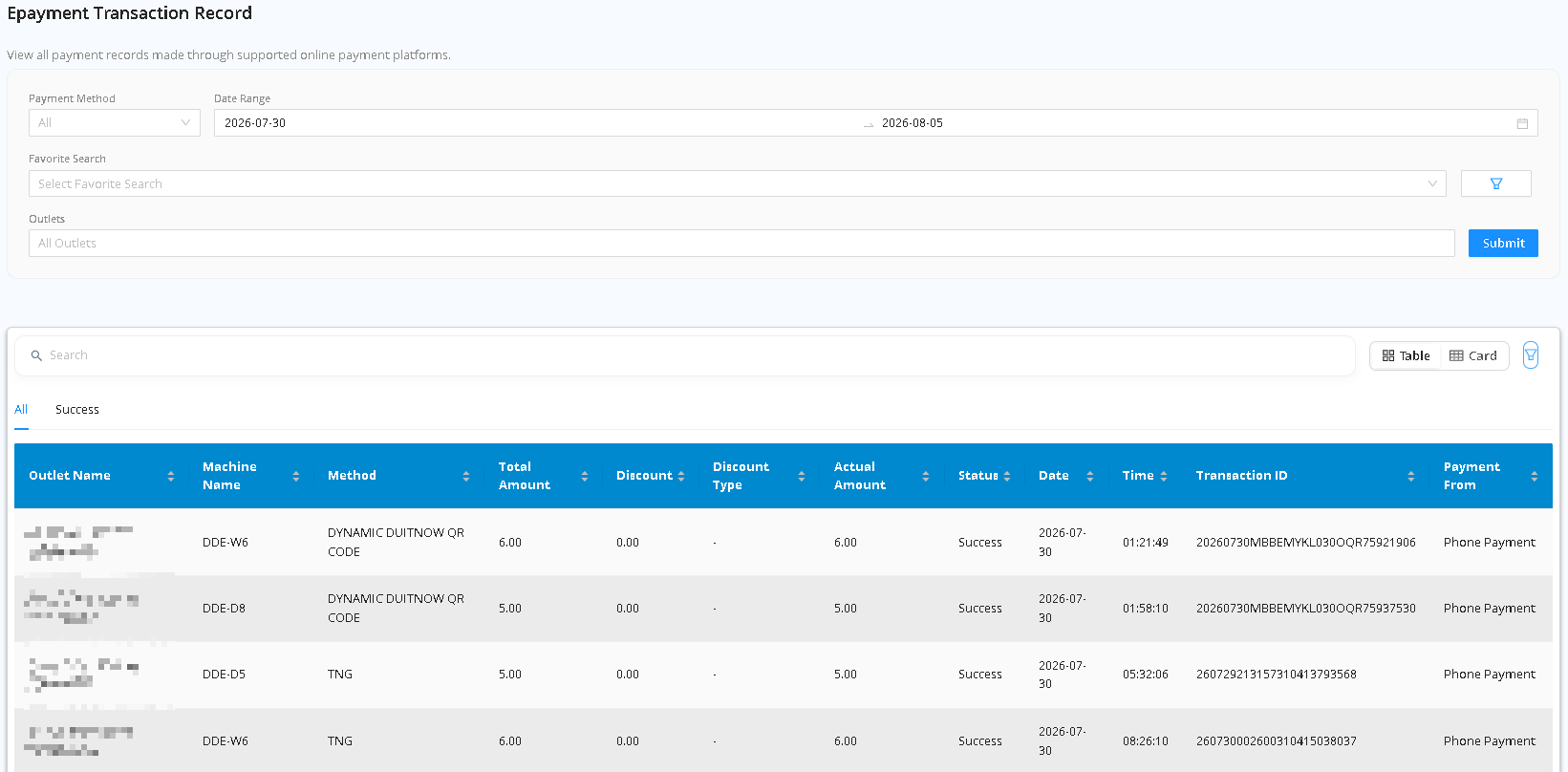
-
Select Payment Method
Click the Payment Method dropdown menu and select your target gateway (e.g., DYNAMIC DUITNOW QR CODE, TNG, etc.). Leave it set to All to view records from all payment channels.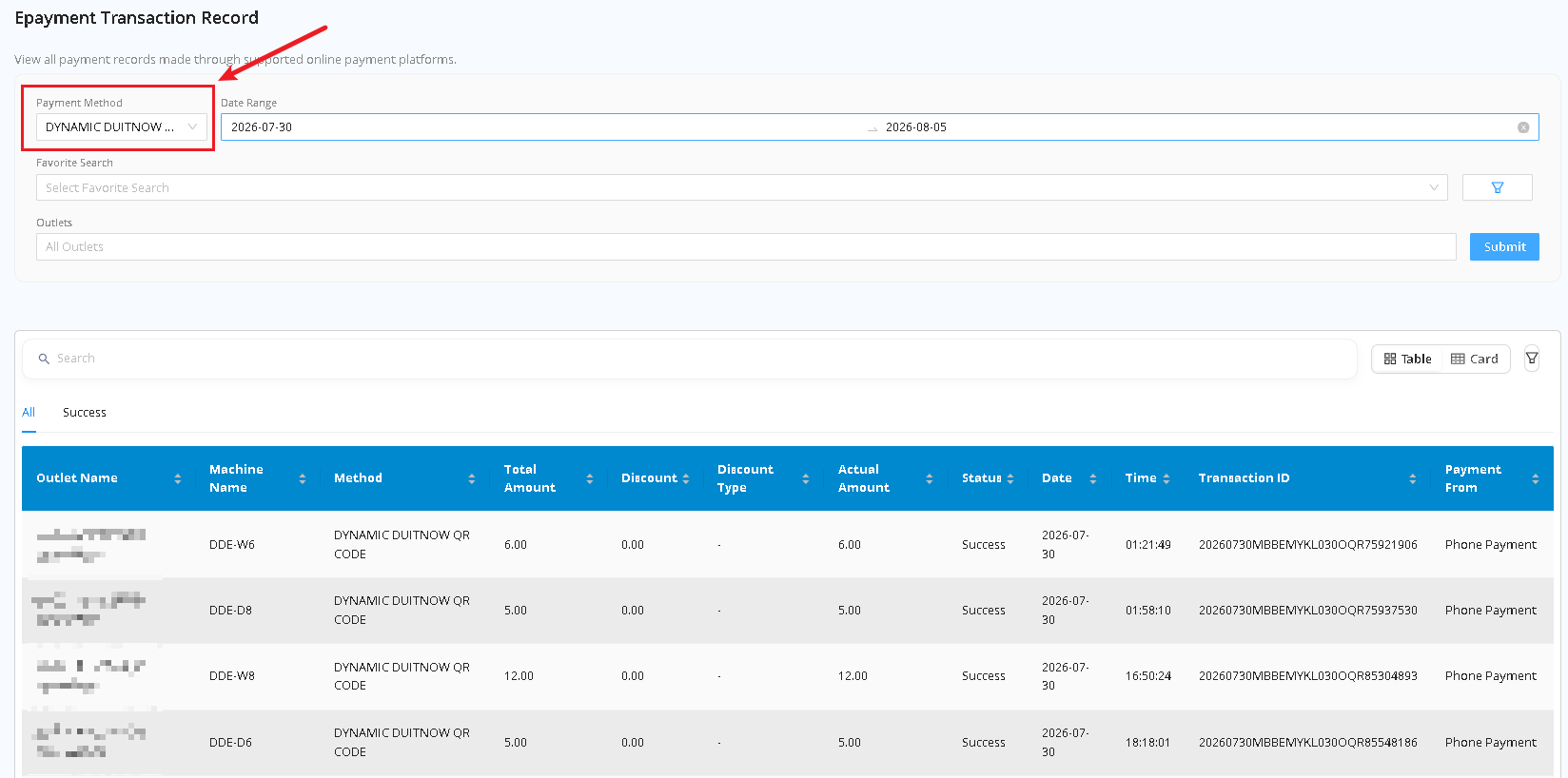
-
Set Date Range
Click the Date Range field to choose your desired start and end dates. -
Select Outlets (Optional)
Choose a specific location from the Outlets dropdown, or keep it set to All Outlets. -
Apply Filters
Click the blue Submit button to filter and update the transaction table.
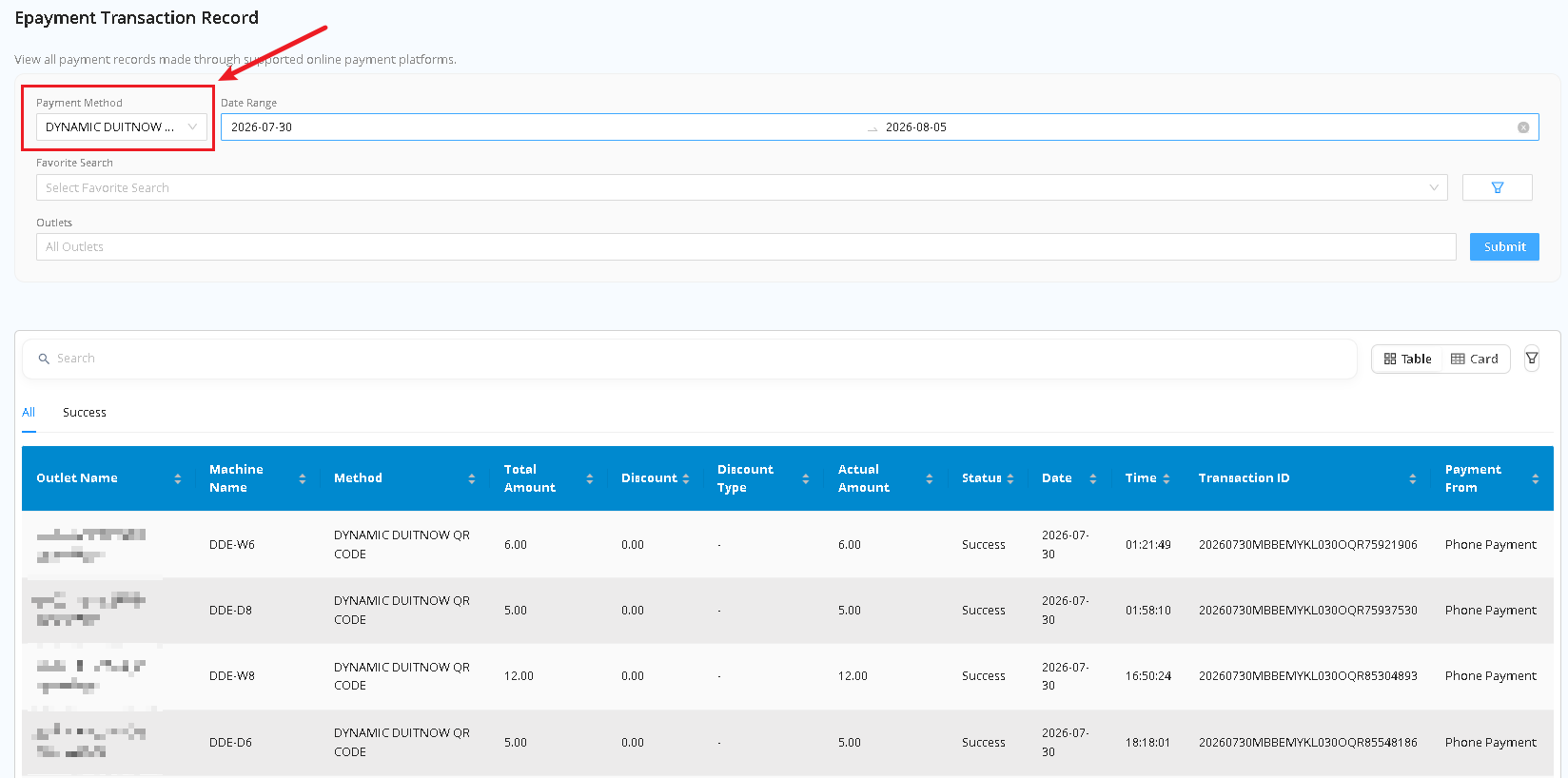
2. Downloading Reports Based on Filters
Note: Report downloads are generated dynamically based on the active filters applied to your table view.
- Filtered Export: The exported report only includes transactions matching your selected filters (Payment Method, Date Range, and Outlets).
- Table Search Context: Any search keywords entered into the inline table Search bar or tab selections (e.g., All vs. Success) will also determine which rows are included in the downloaded file.
- Full Export: To download a complete report of all transactions, set Payment Method and Outlets to All, clear any table search text, click Submit, and then perform the download.
3. Quick Search & View Options
- Keyword Search Bar: Located directly above the table to quickly search by Machine Name, Transaction ID, or Amount.
- View Toggle: Switch between Table and Card view using the view toggle buttons in the top-right corner.
- Favorite Searches: Save frequently used filter combinations under Select Favorite Search for fast one-click access in the future.
No comments to display
No comments to display