
🏪 How to Deactivate an Outlet
Welcome to the Laundro Portal Guide! 👋
Need to deactivate an outlet? Follow this step-by-step guide to deactivate the correct outlet through the Laundro Portal.
🧭 Quick Navigation
- 🔐 Step 1: Log In to Laundro Portal
- 🏪 Step 2: Open My Outlets
- 📋 Step 3: Select the Outlet
- ⚠️ Step 4: Deactivate the Outlet
- ✅ Step 5: Confirm Deactivation
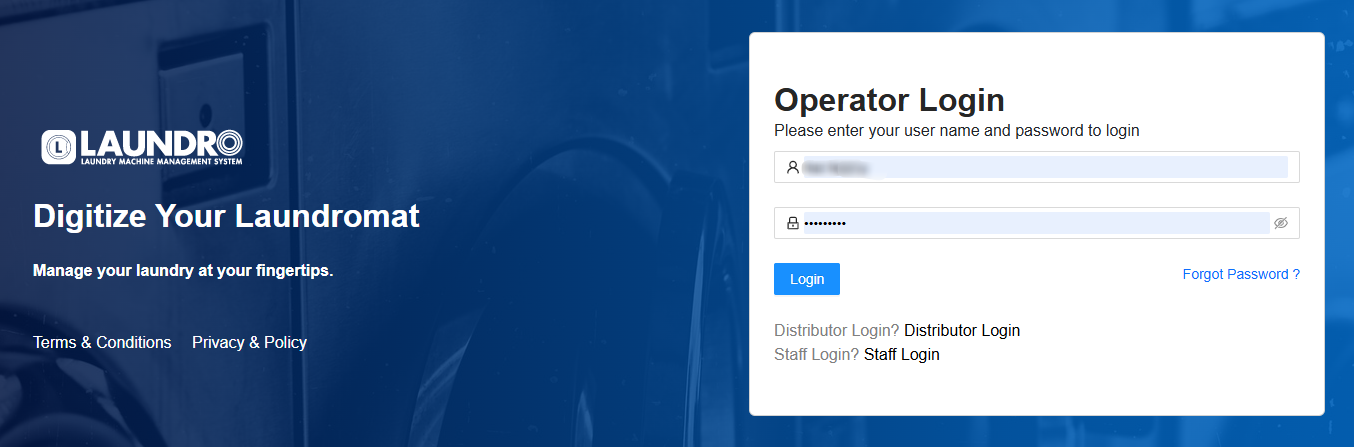
🔐 Step 1 — Log In to Laundro Portal
Open the Operator Login page and enter your username and password.
Click Log In to access the portal.
🏪 Step 2 — Open My Outlets
After logging in:
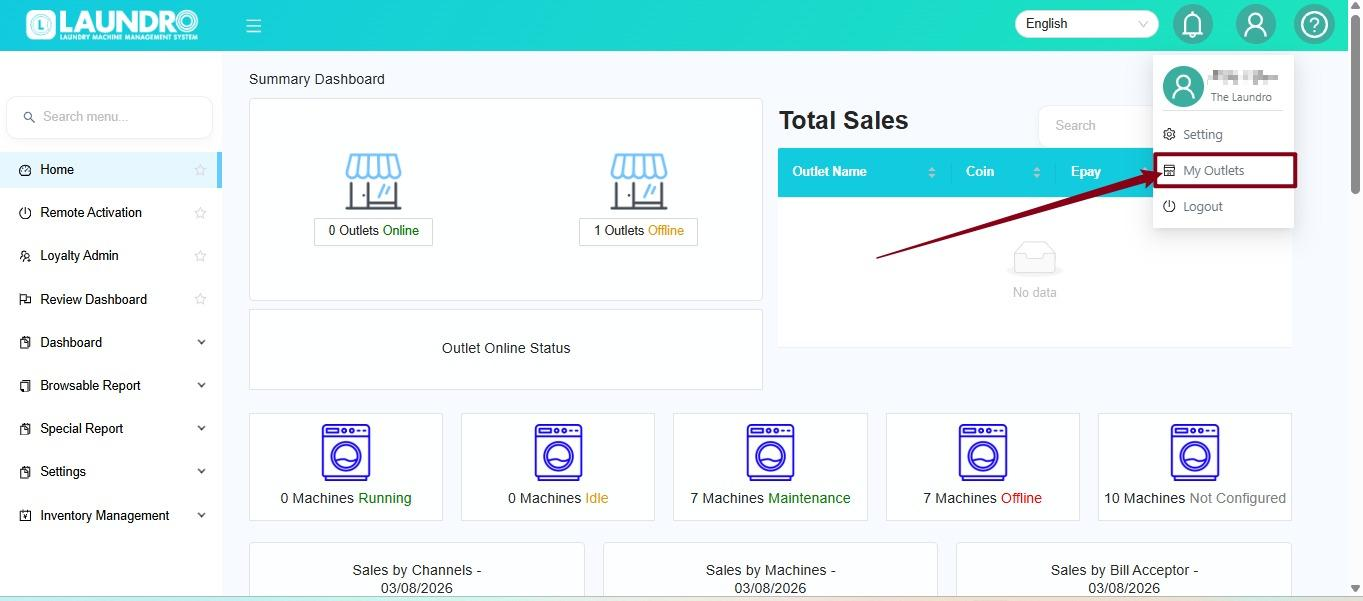
- Click the Profile icon at the top-right corner.
- Select My Outlets from the dropdown menu.
- Wait for the My Outlets page to load.
💡 Quick Tip: Make sure you are logged in to the correct operator account.
📋 Step 3 — Select the Outlet
On the My Outlets page:
- Find the outlet you want to deactivate.
- Click the outlet to open its details.
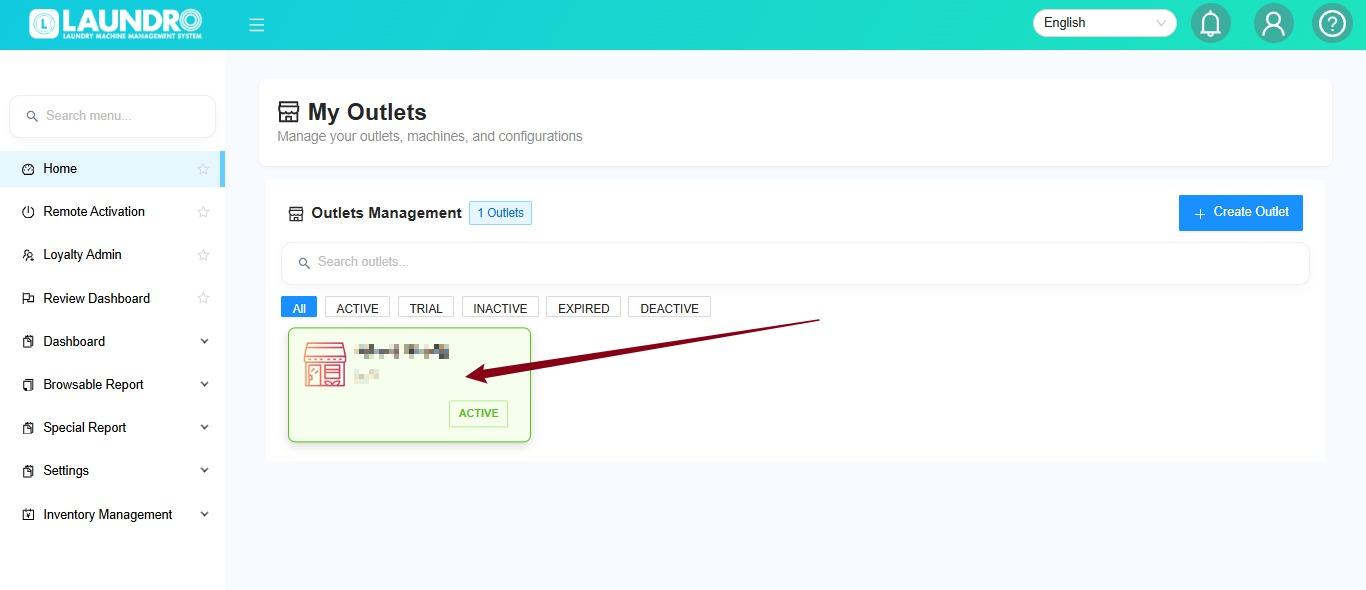
⚠️ Important: Double-check the outlet name before proceeding. Make sure you have selected the correct outlet.
⚠️ Step 4 — Click Deactivate
On the selected outlet page, click Deactivate.
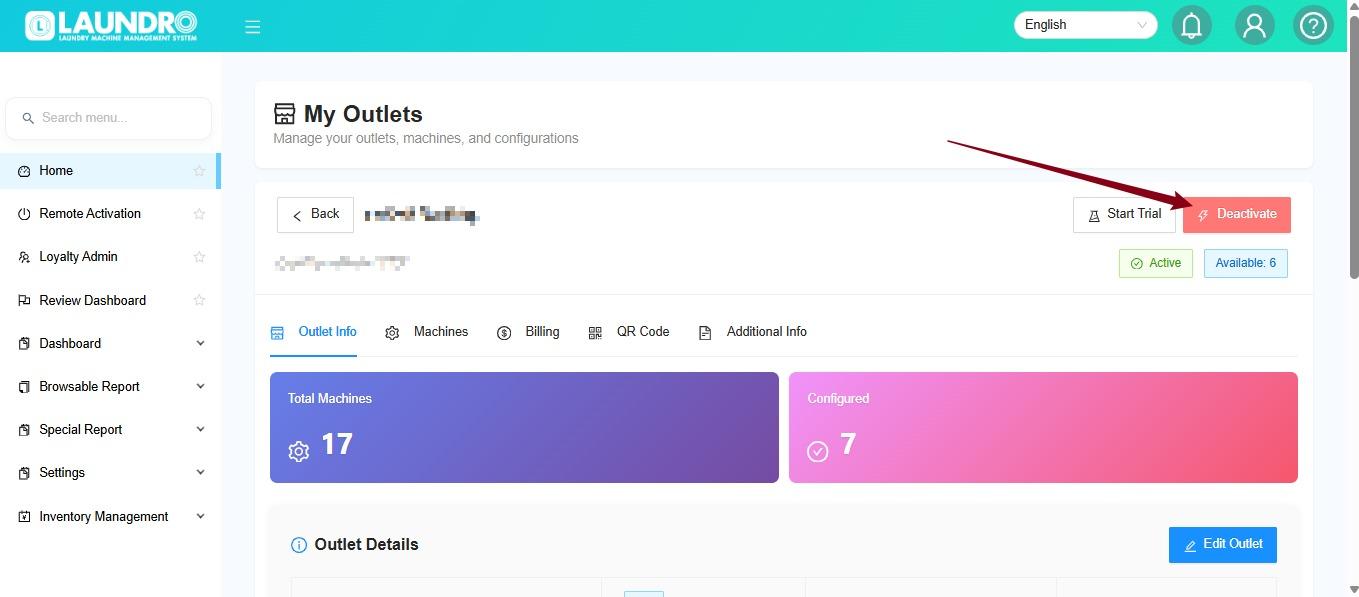
💡 Before proceeding: Make sure you intend to deactivate this outlet. Check with the relevant person in charge if you are unsure.
🔴 Step 5 — Confirm Deactivation
A confirmation prompt will appear.
- Review the confirmation prompt.
- If you are sure you want to proceed, click Yes, Deactivate.
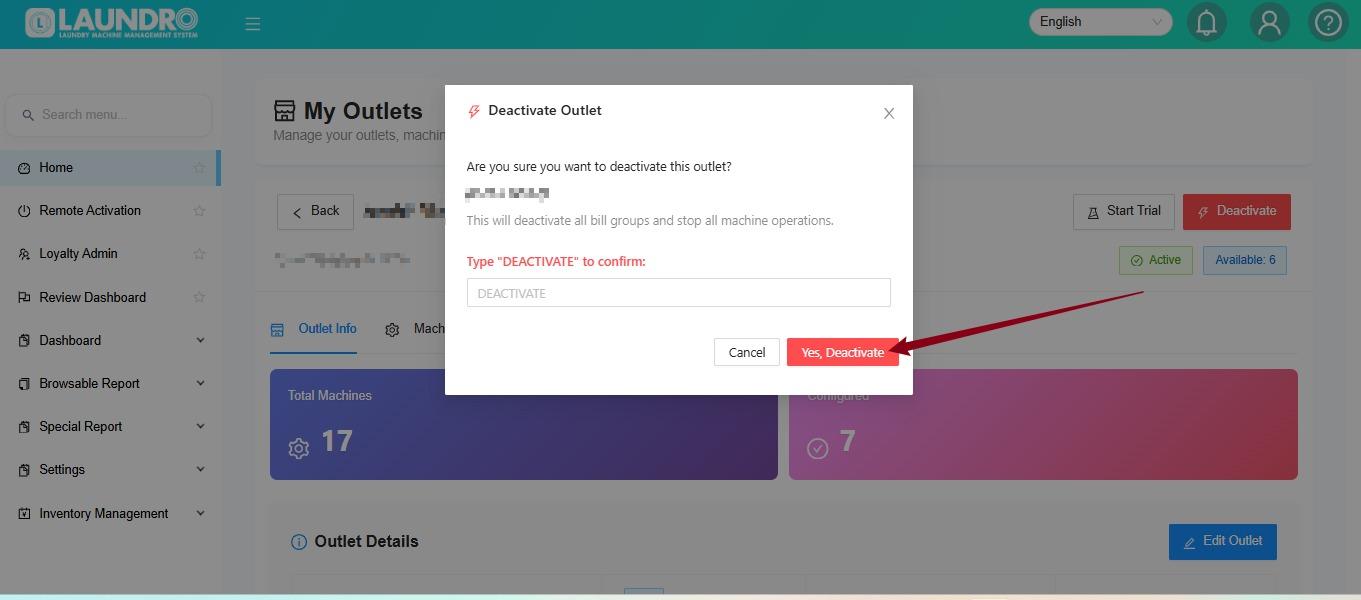
⚠️ Important Reminder: Deactivation may affect the outlet's availability or operations. Confirm the intended action before proceeding.
🎉 You're all set!
You have completed the outlet deactivation steps. Check the outlet status in the portal to verify the result.
Need help? Contact the Laundro support team if you encounter an issue during deactivation.
No comments to display
No comments to display