Skip to main content
PeGePay Setup Guide
Login
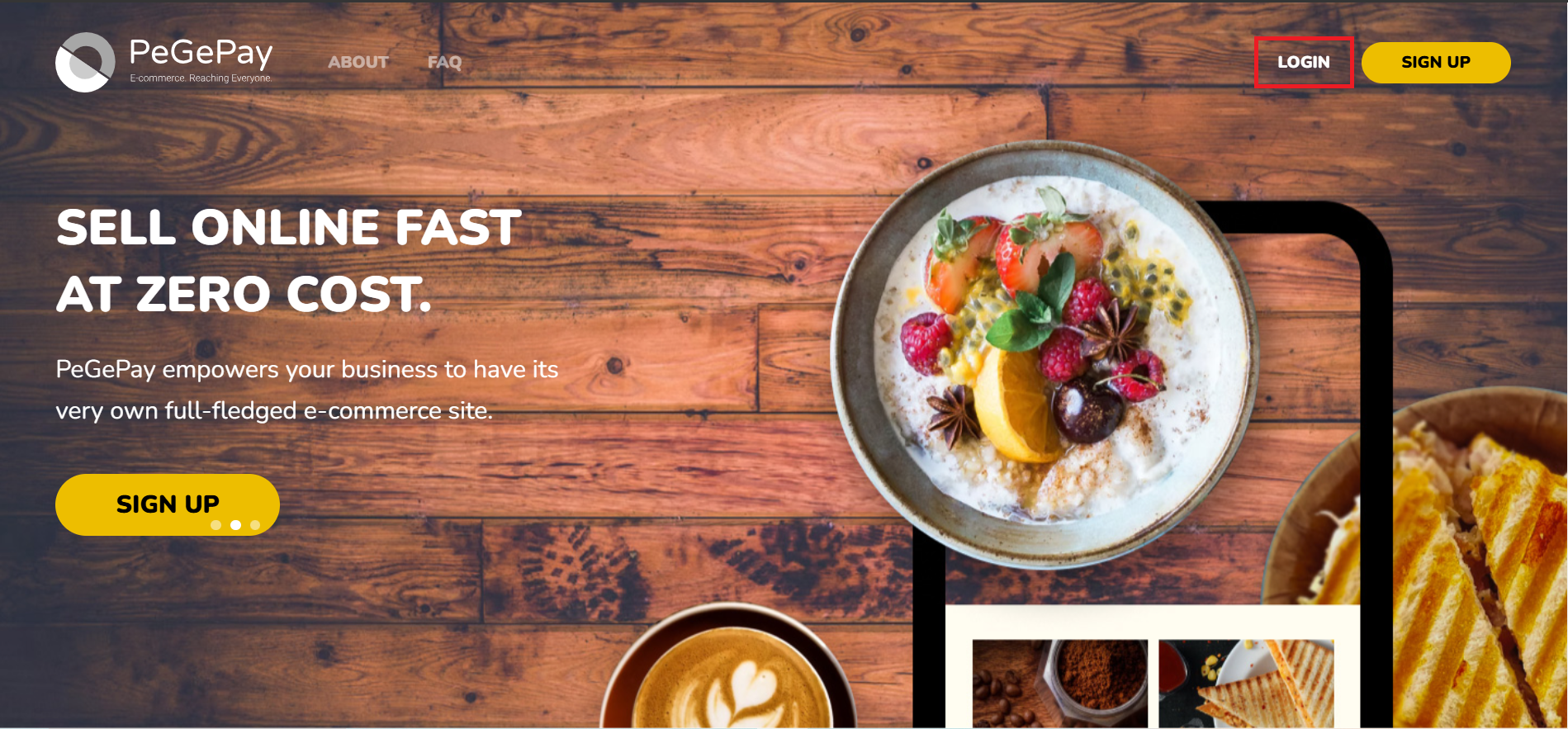
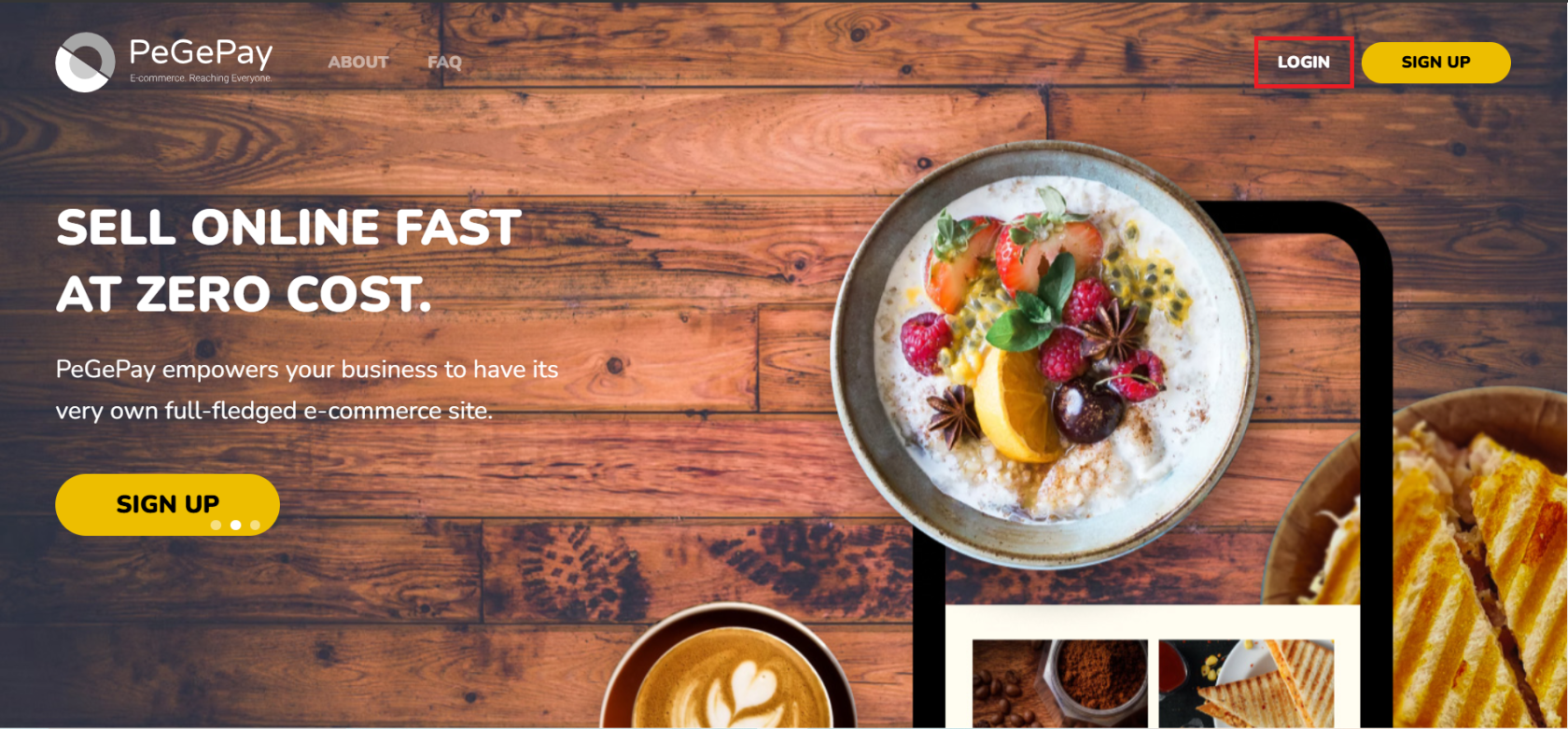
- Open URL PeGePay: https://pegepay.com/ Click LOGIN Button
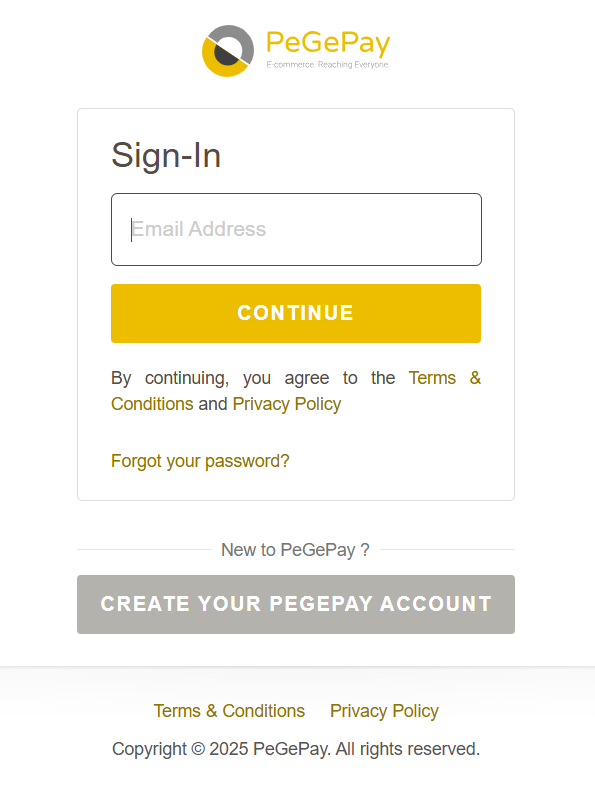
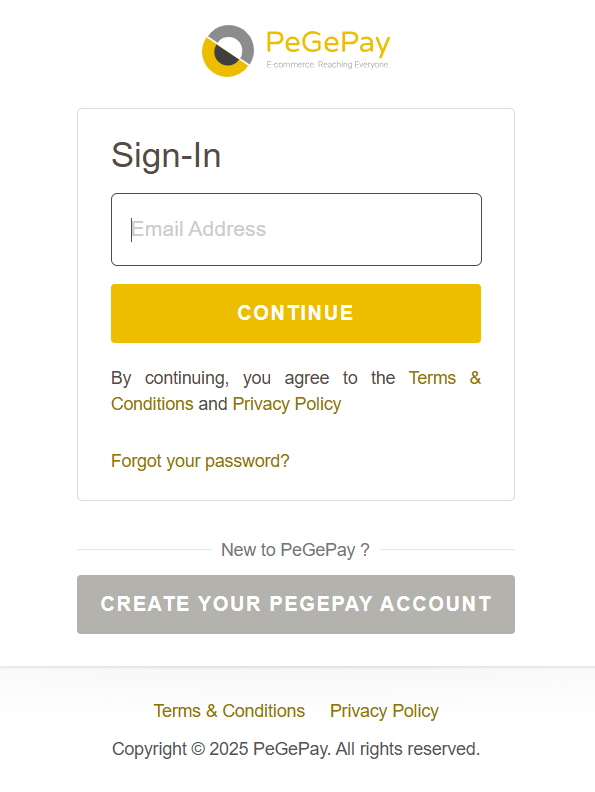
- Enter email address and click CONTINUE button
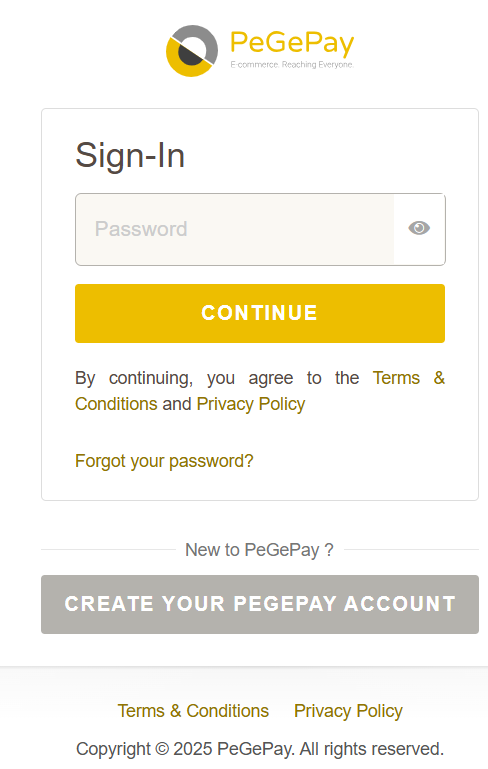
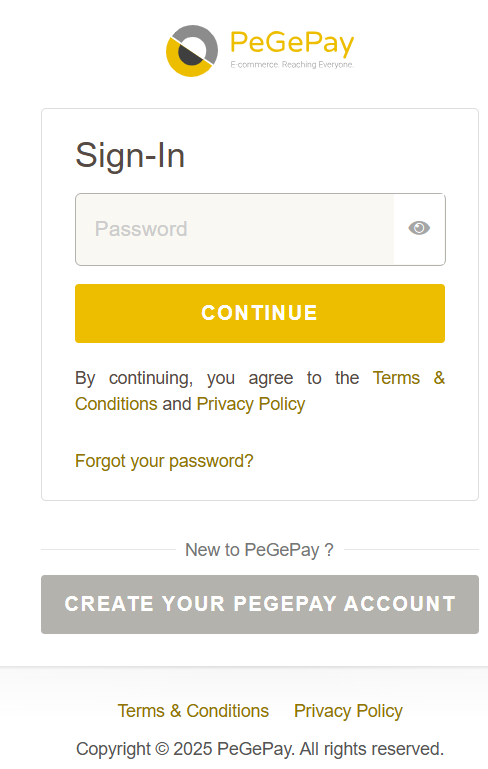
- Enter password and click CONTINUE button
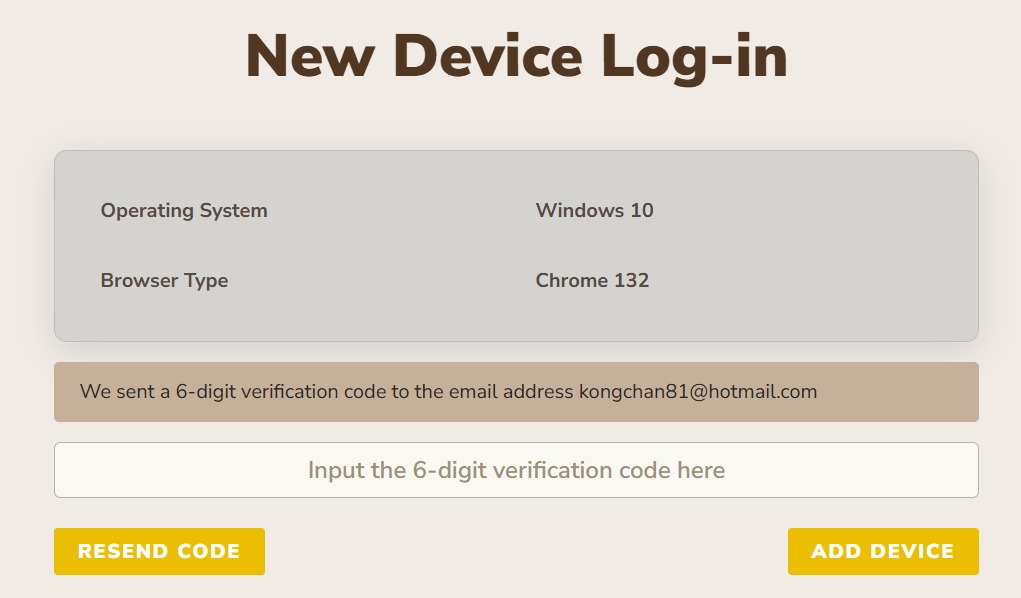
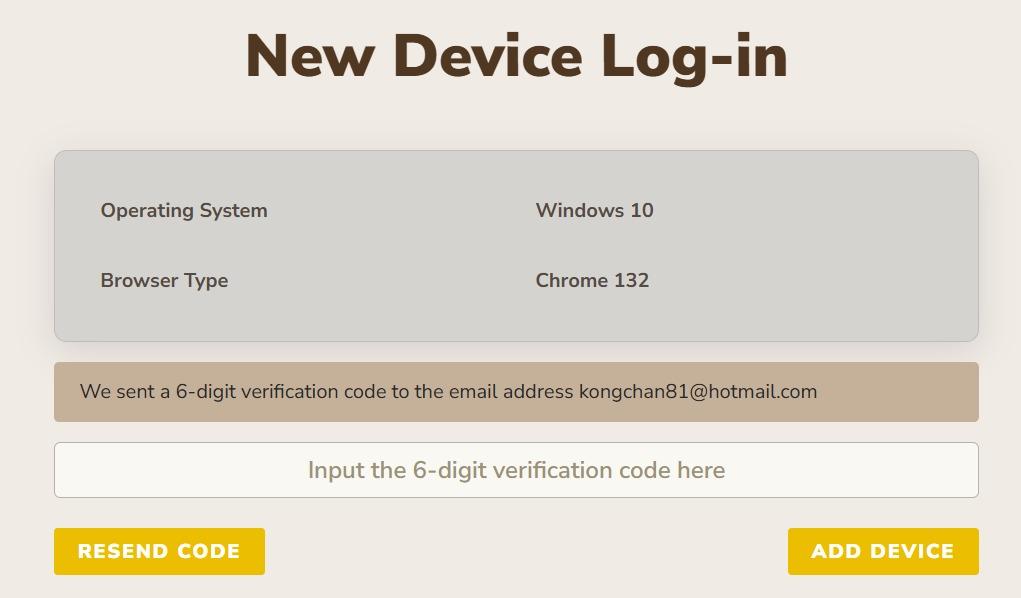
- Enter verification code and click ADD DEVICE button, if verification code expired, click RESEND CODE button
New Account Setup
- If it is a new account,
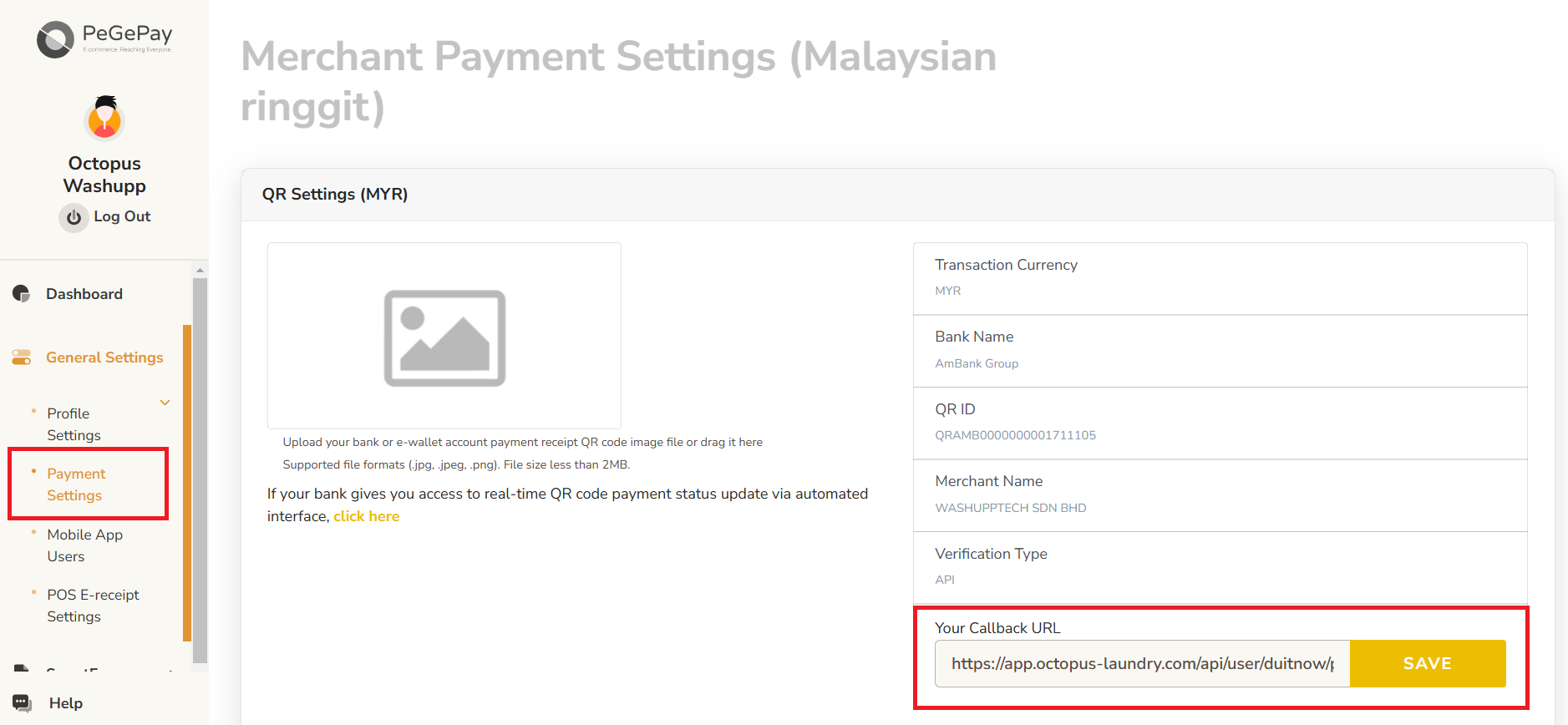
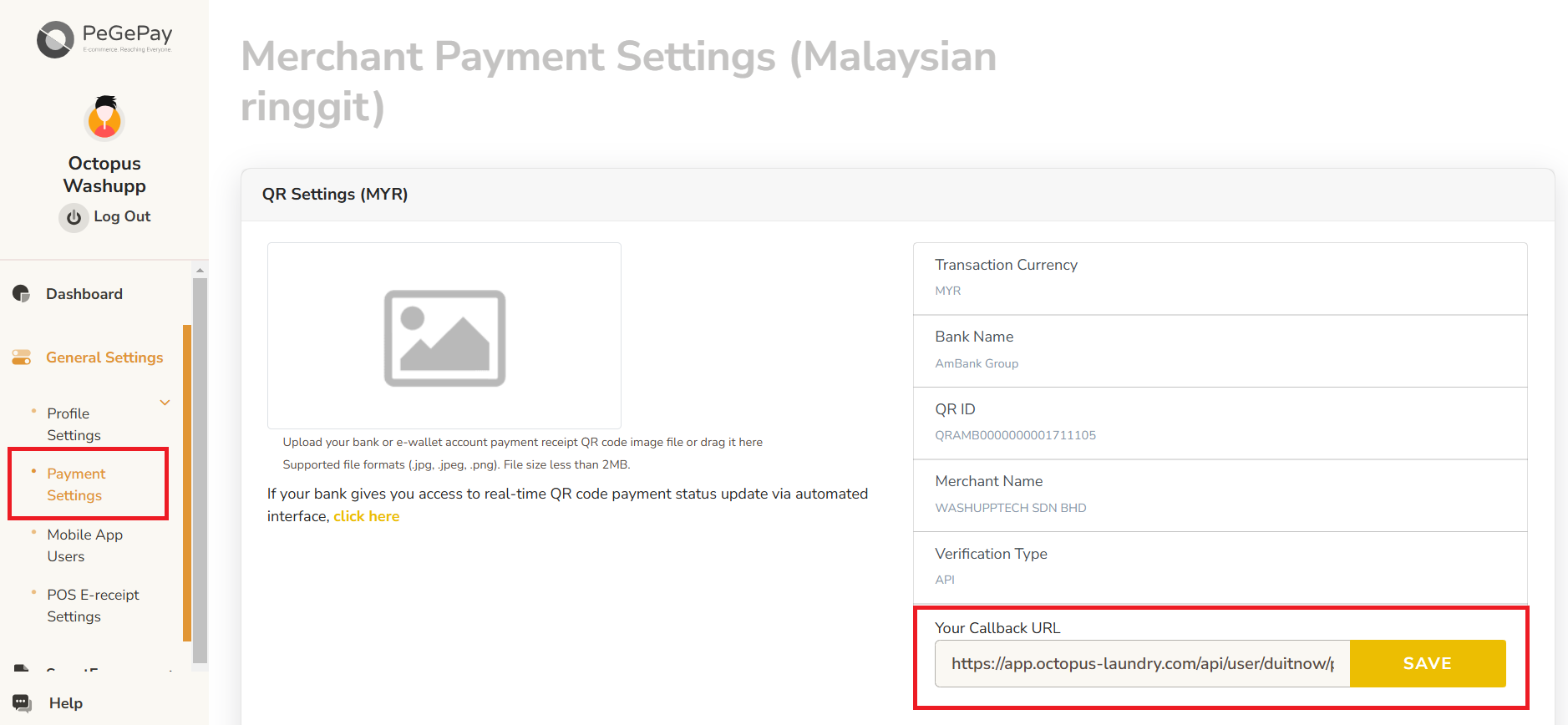
fromhave to set callback URL. From sidebar, click General Settings, click Payment Settings, enter callback URL and click SAVE button.
Different brand will using different callback URL:
Cuci Express
Washup / Octopus
Cleanpro
Laundro
Bubbles Pulse
Wash Studio
 Dynamic QR Code
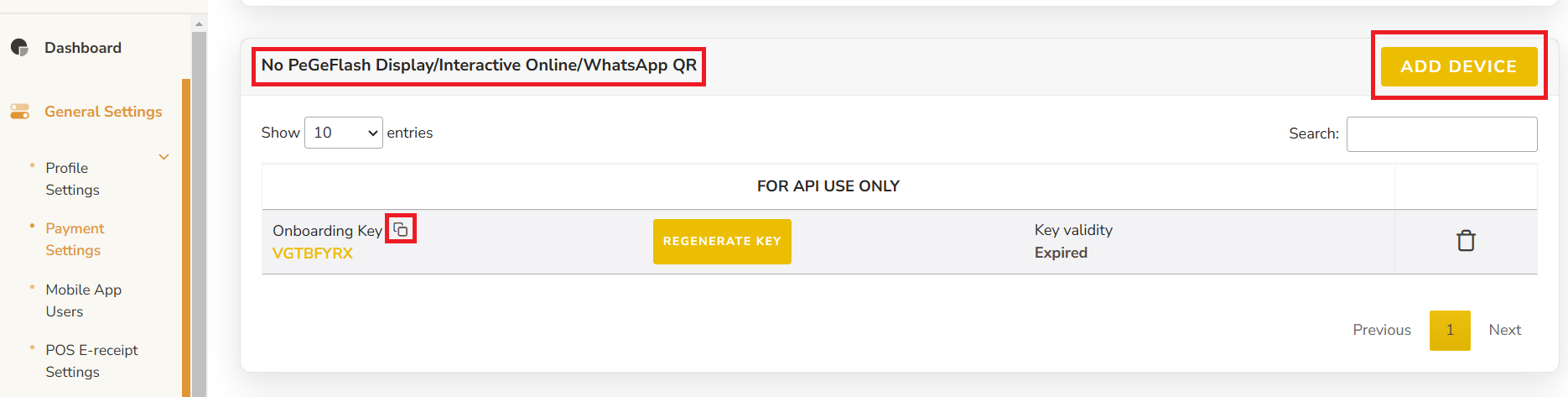
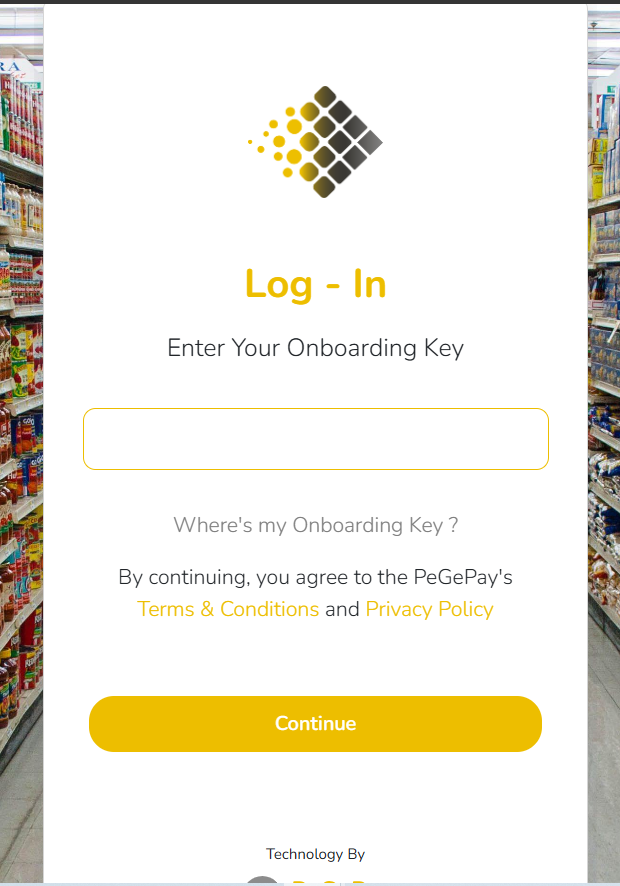
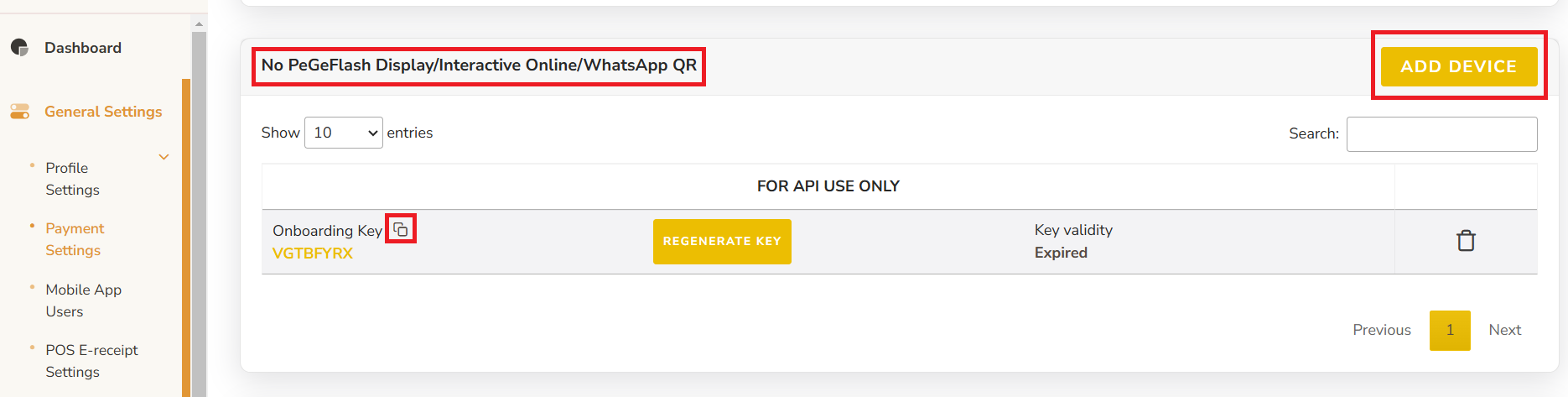
From Sidebar, click General Settings, click Payment Settings, under No PeGeFlash Display/Interactive Online/WhatsApp QR, click ADD DEVICE button, then copy the Onboarding Key and paste into Laundro Portal
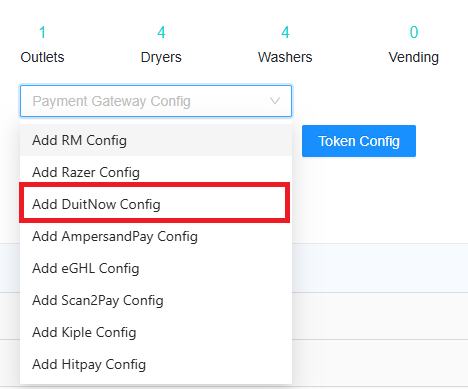
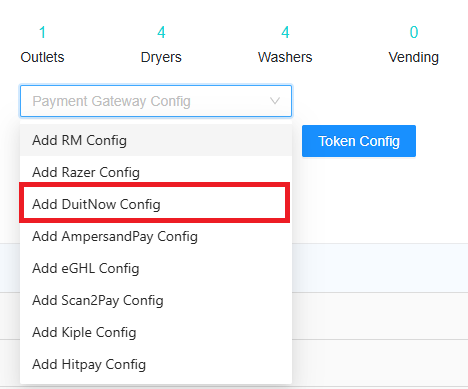
In Laundro Portal, go to Settings Page, under Payment Gateway Config, select Add DuitNow Config
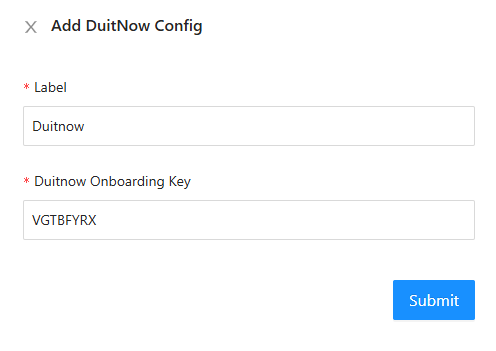
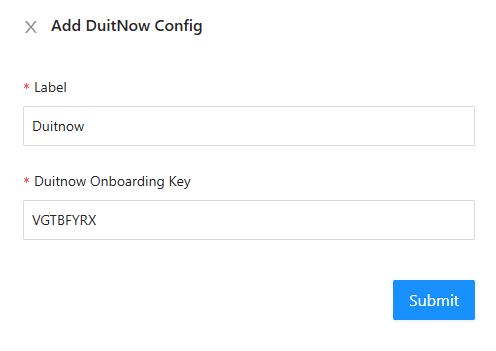
Input Label and paste the Onboarding Key from PeGePay into Duitnow Onboarding Key input, then click Submit button
To enable DuitNow in machine payment page in loyalty, in outlet settings page, under Duitnow Config, select the config and save

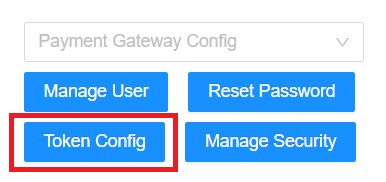
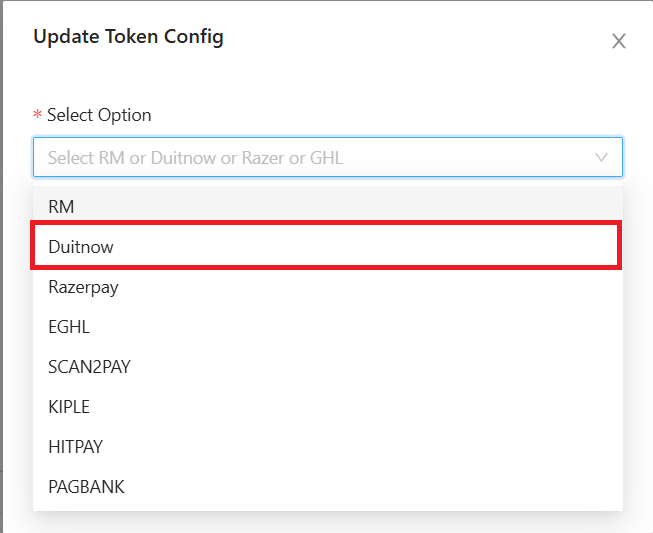
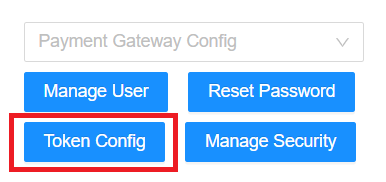
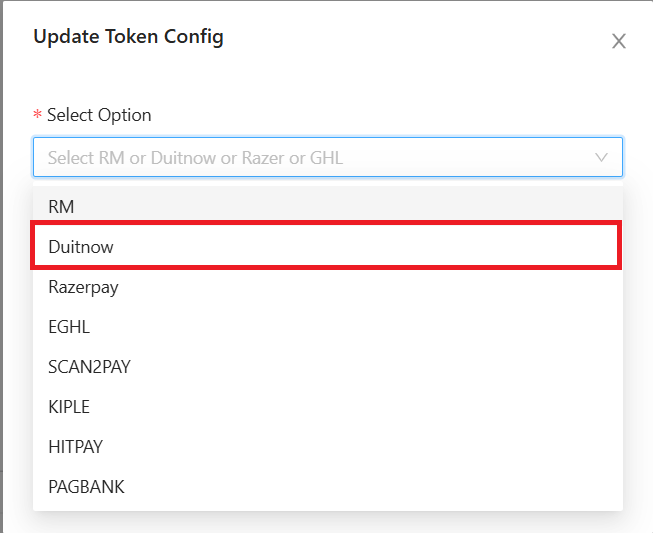
To enable Duitnow for eToken reload in loyalty, click Token Config button
Payment Gateway select Duitnow, and select the duitnow Config, then Submit button
Static QR Code
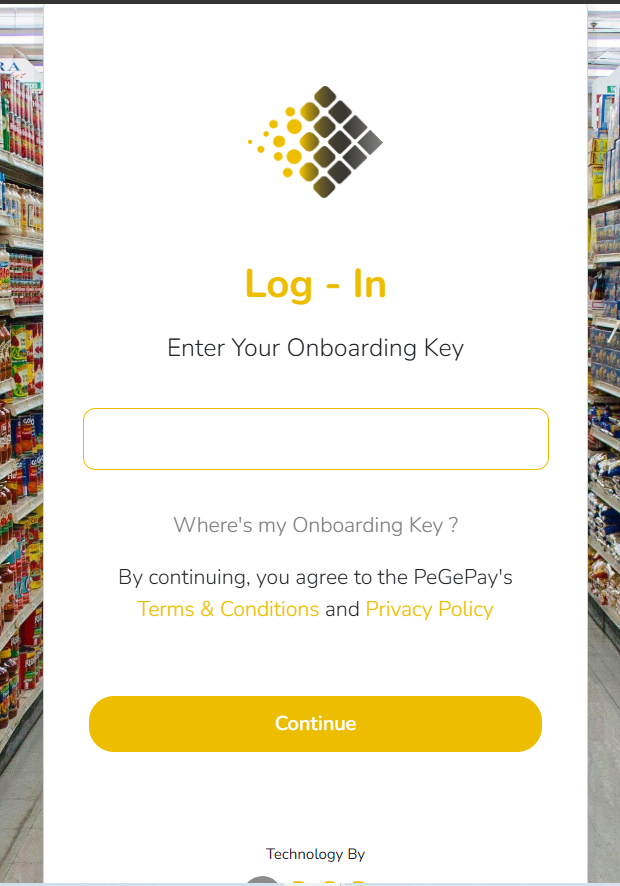
You can get the static QR code from https://pegepay.com/iframe.php?merchant_id=<merchantID>, replace <merchantID> with PeGePay merchant ID
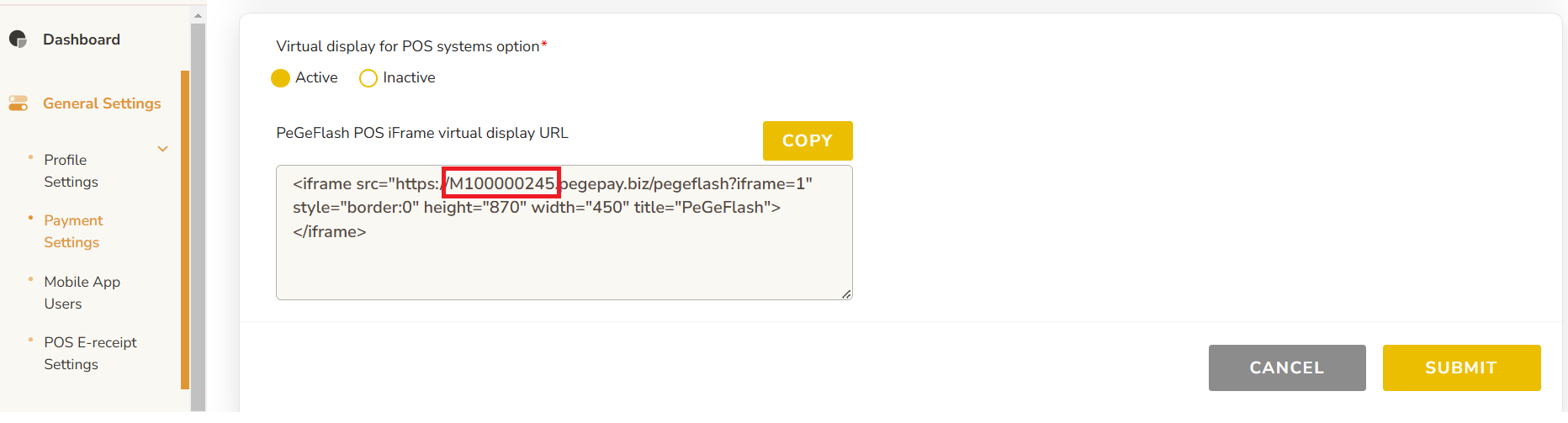
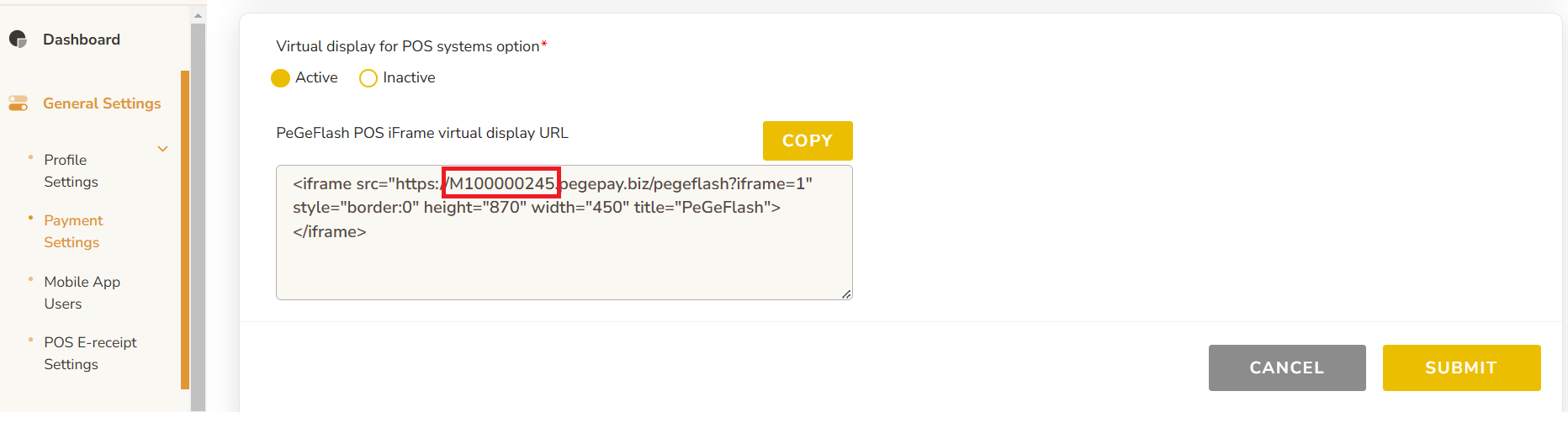
To get the PeGePay Merchant ID, you can get from Payment Settings Page, for example, M100000245 is the merchant ID and you can open the url: https://pegepay.com/iframe.php?merchant_id=M100000245
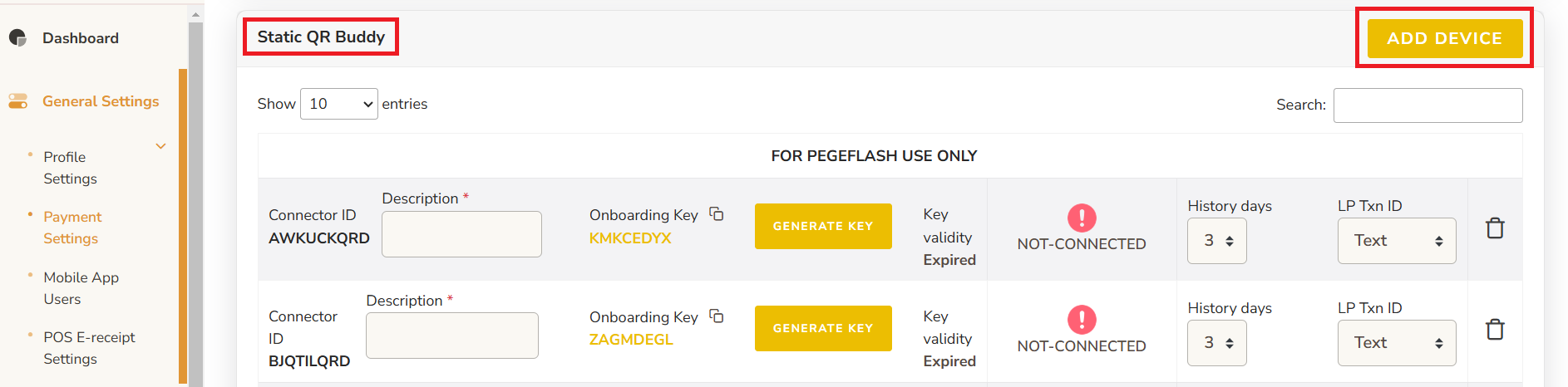
From Payment Settings page, under Static QR Buddy, Click ADD DEVICE button
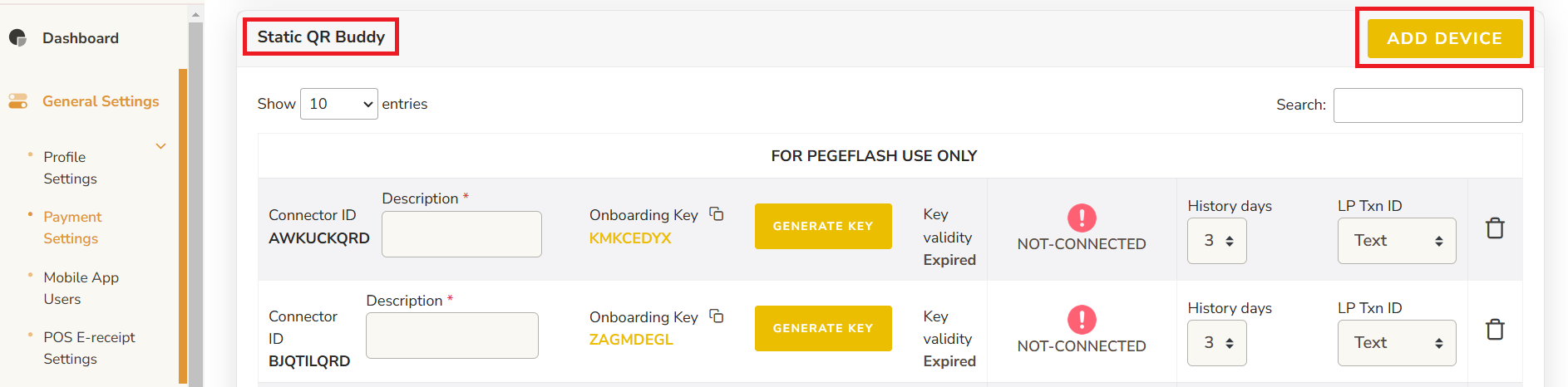
Enter the description and click GENERATE KEY button

Copy the Onboarding Key, the key expired time is showing on Key validity

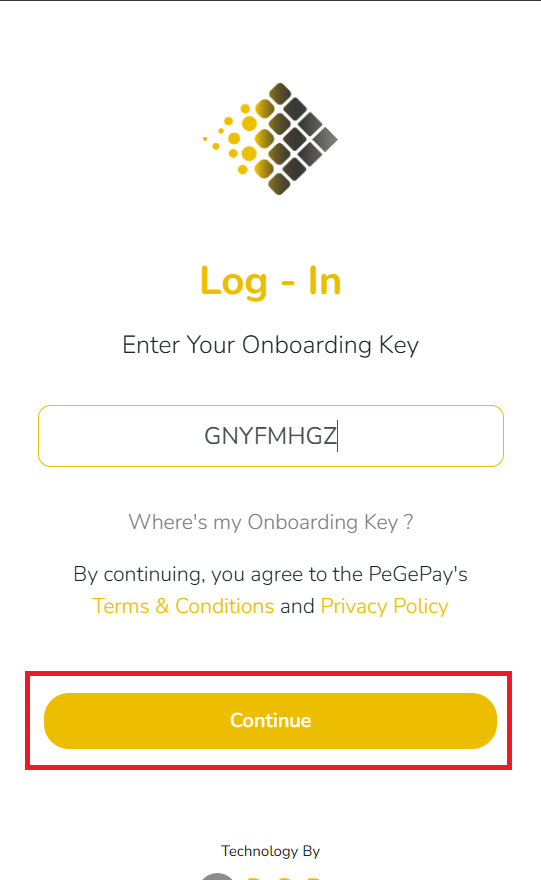
Paste the Onboarding Key to static QR code page and click Continue button
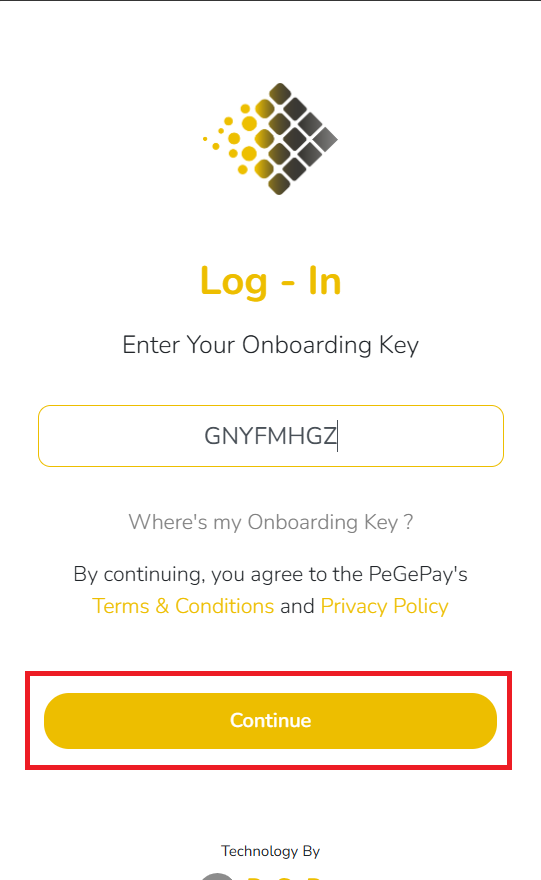
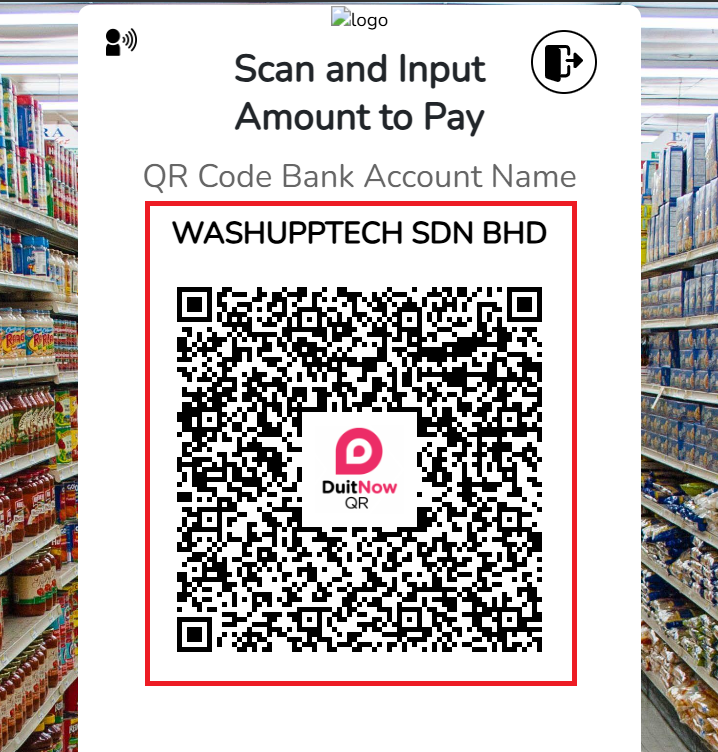
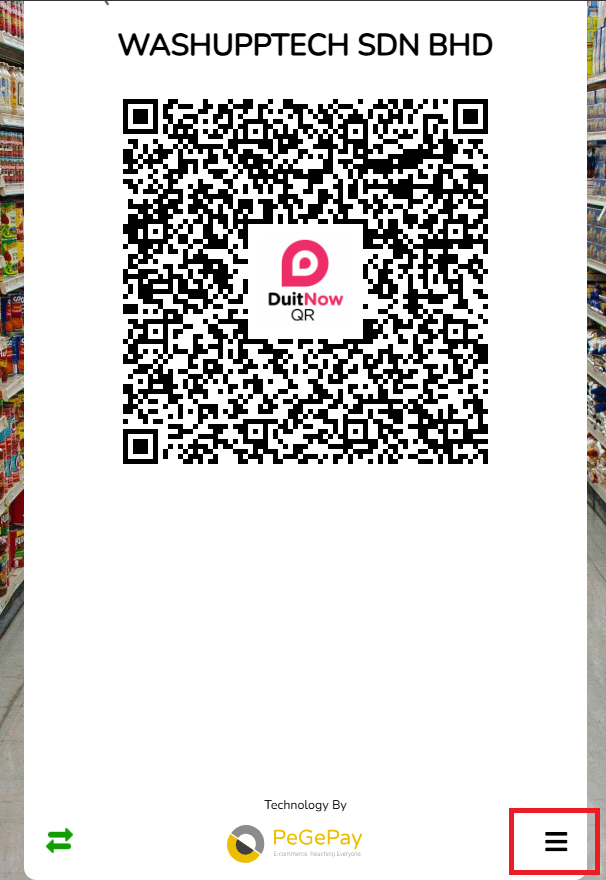
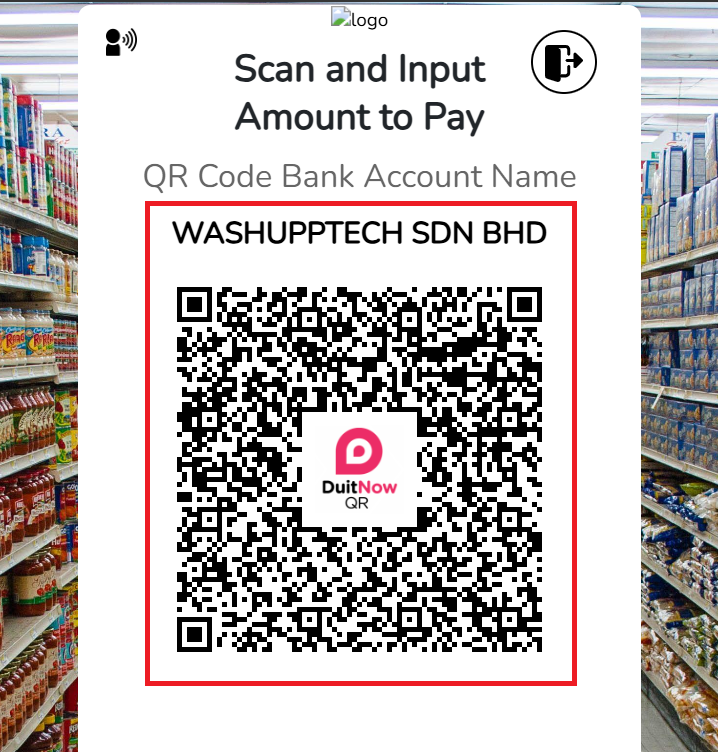
The Static QR Code is showing, you can screenshot the QR code with the company name
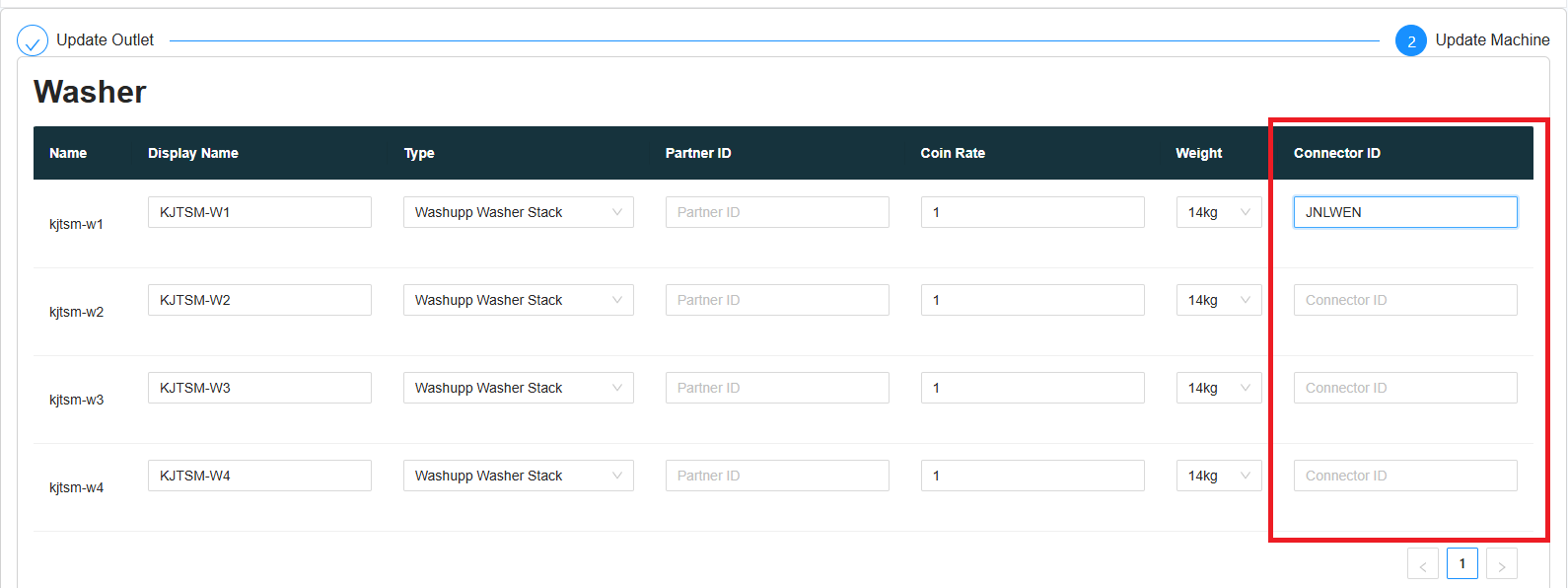
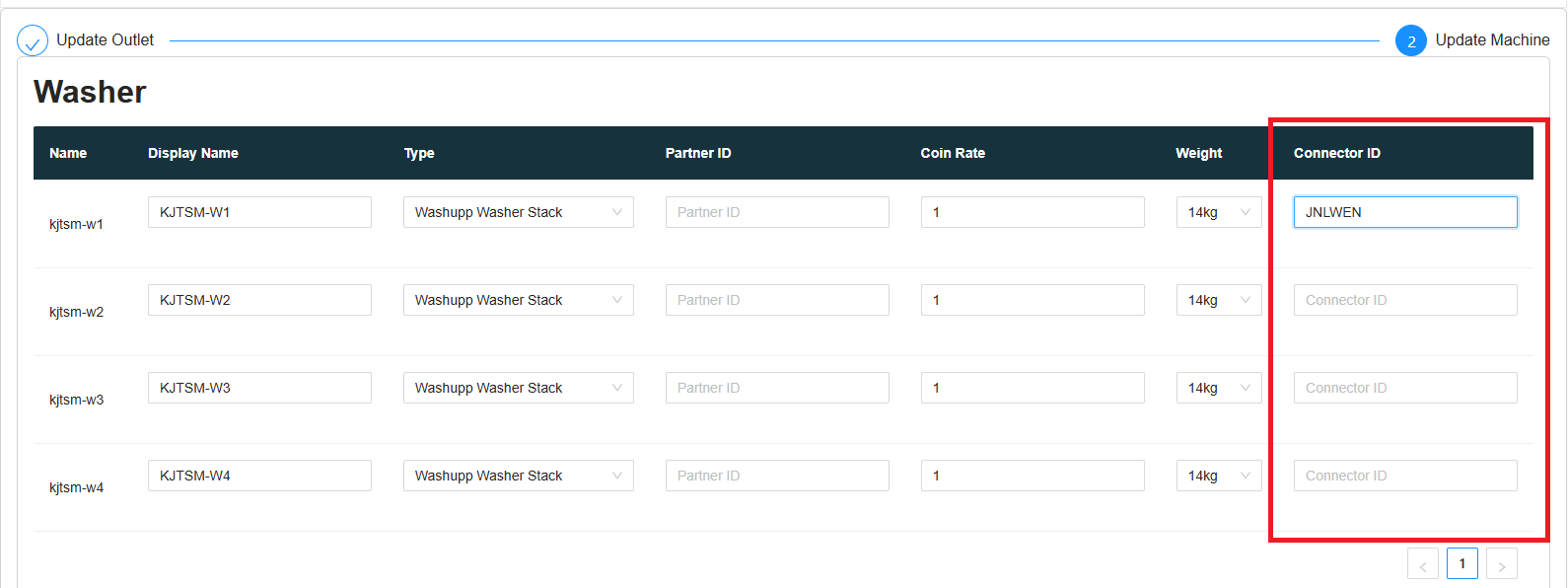
When the static QR code is showing, it will show CONNECTED, copy the first 6 character of Connector ID and paste into Laundro Portal, no need to copy the last three character (QRD), QRD is stand for QR Display

In Laundro Portal, in machine settings page, paste the Connector ID into the input and click save
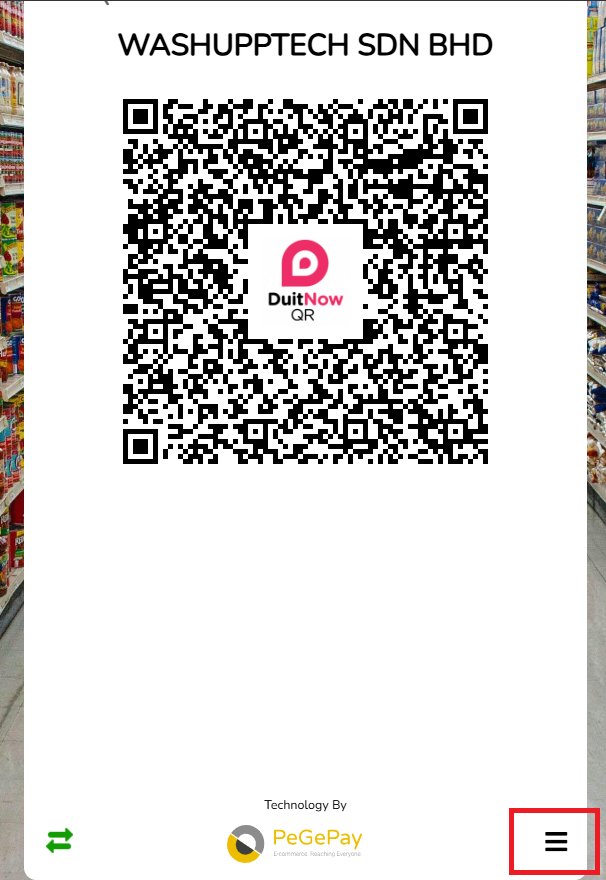
To generate the second machine static QR code, you can click the icon at the bottom of the page
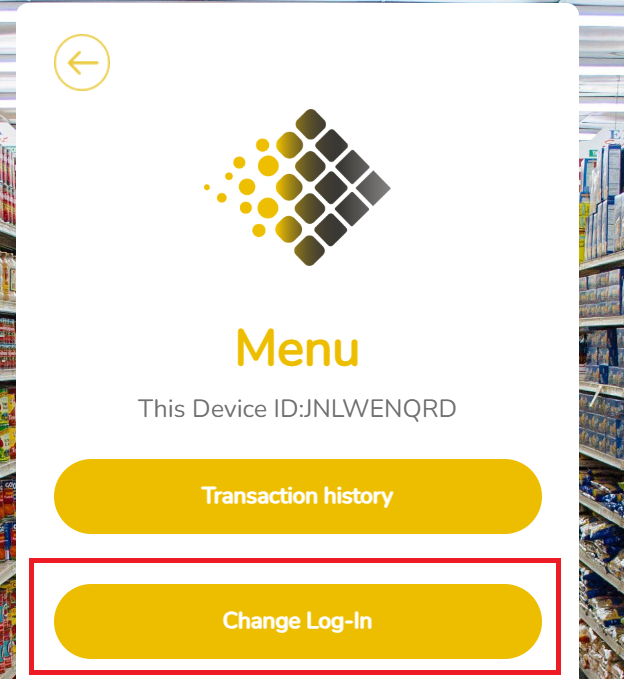
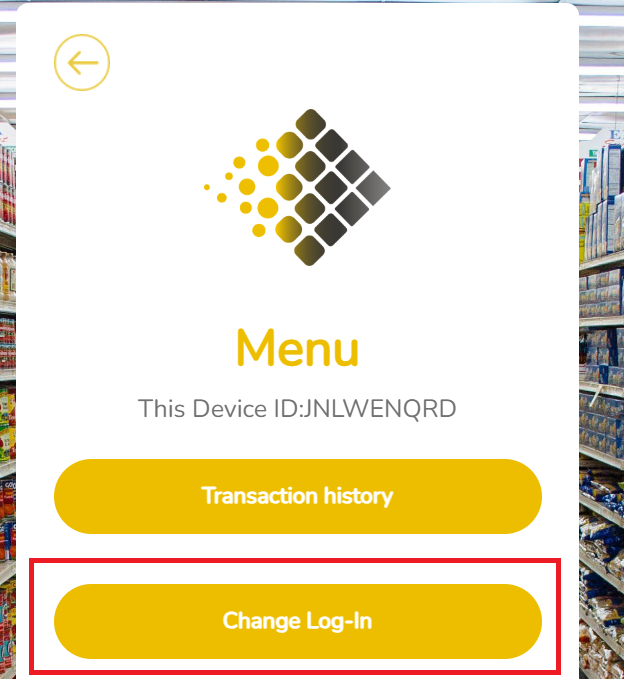
Click the Change Log-In button to logout
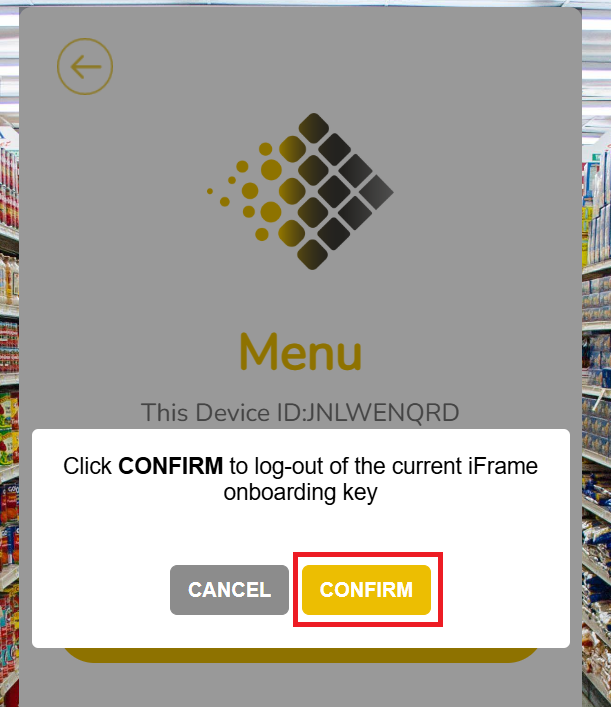
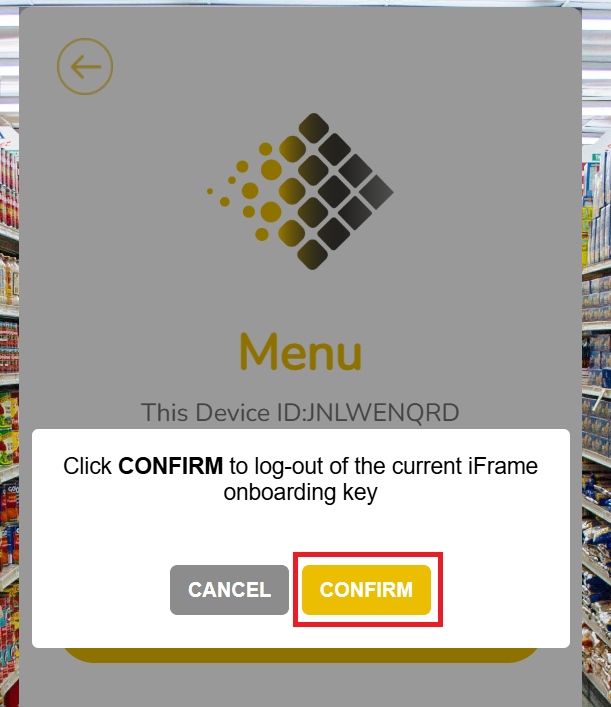
Click CONFIRM button to confirm logout
You can repeat the step to generate the static QR code for all the machine