Skip to main content
PeGePay Setup Guide
Login
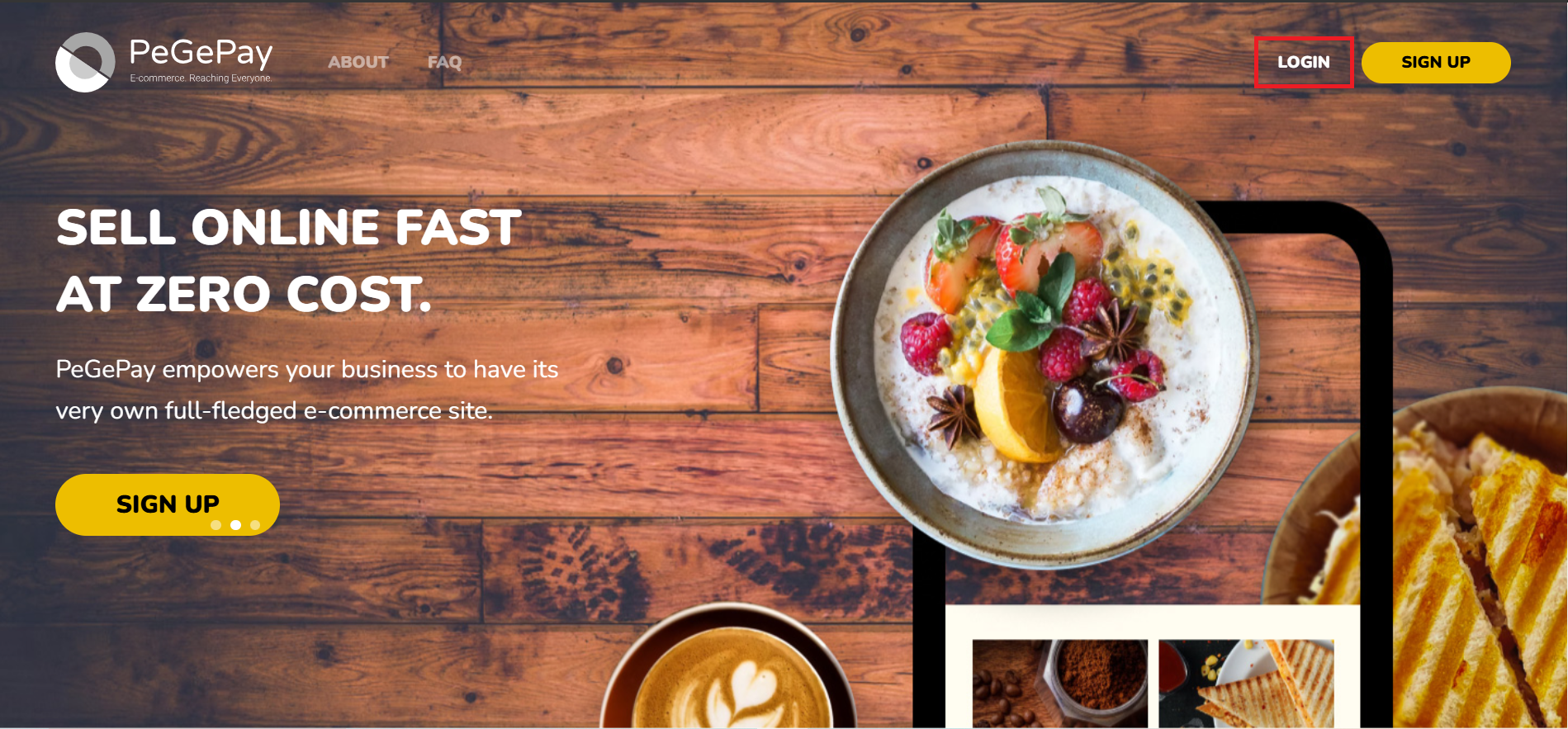
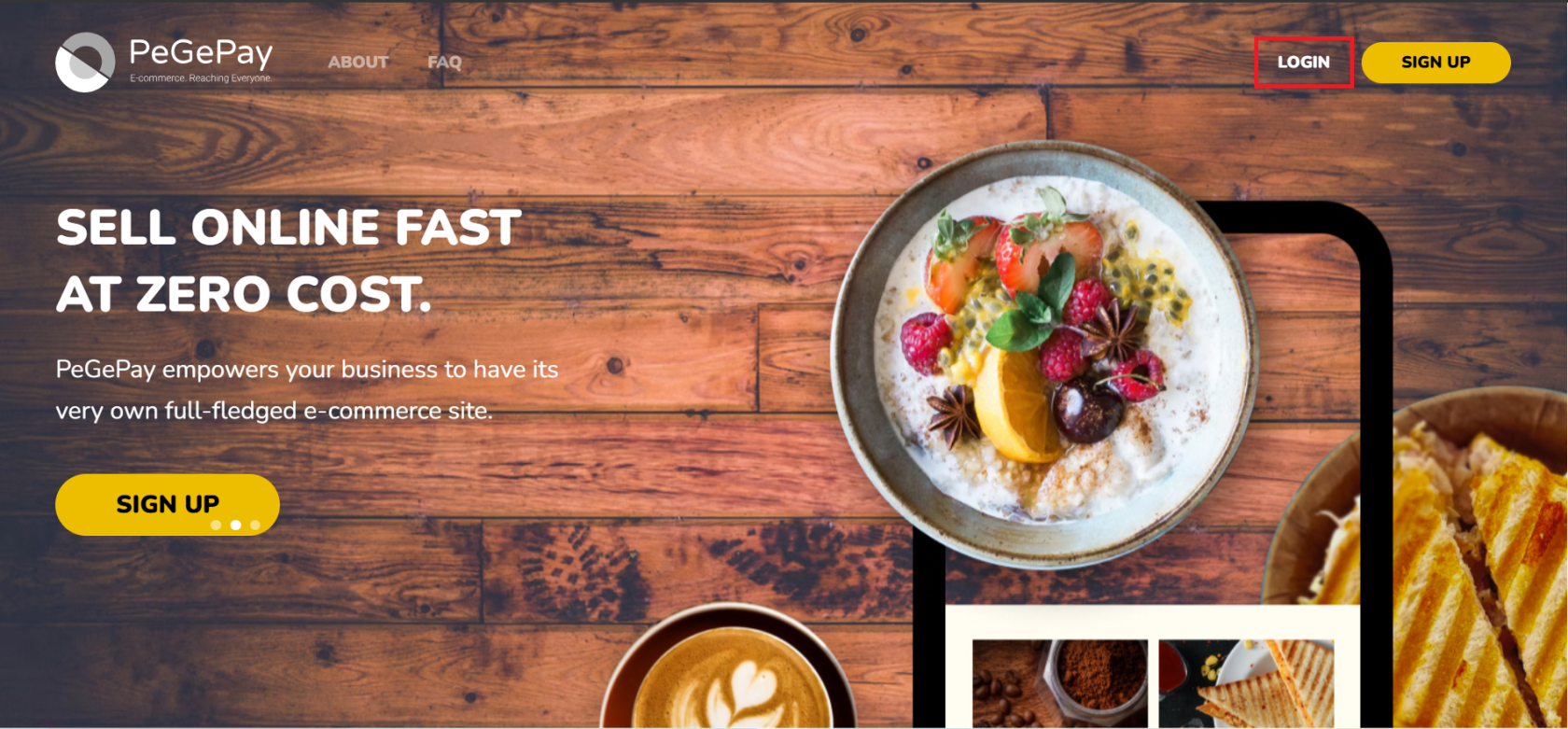
- Open URL PeGePay: https://pegepay.com/ Click LOGIN Button
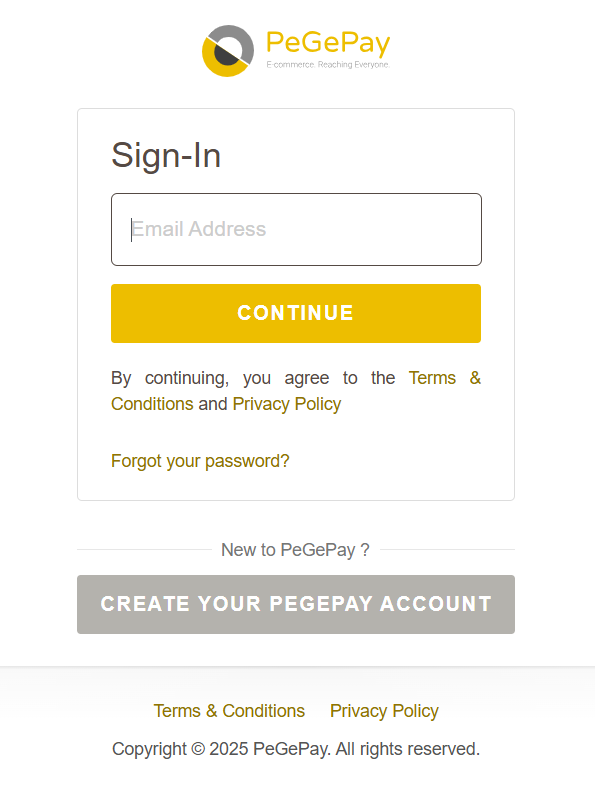
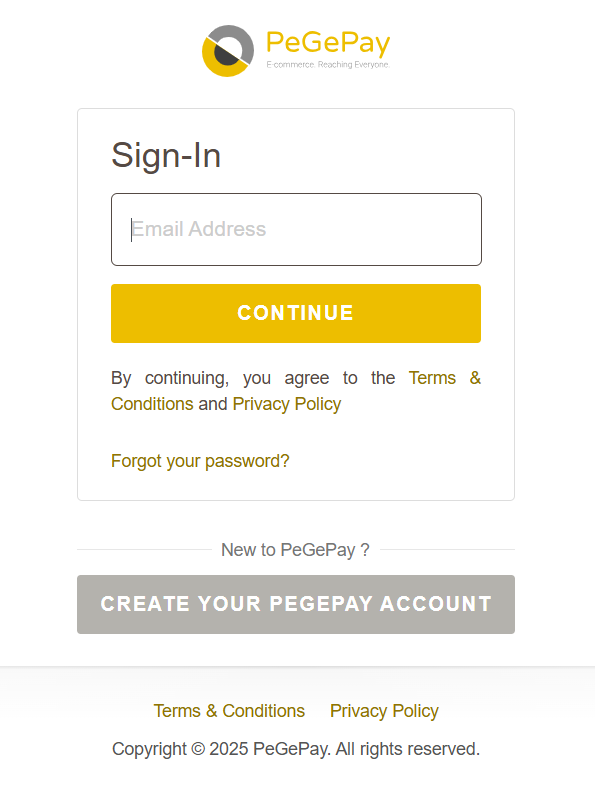
- Enter email address and click CONTINUE button
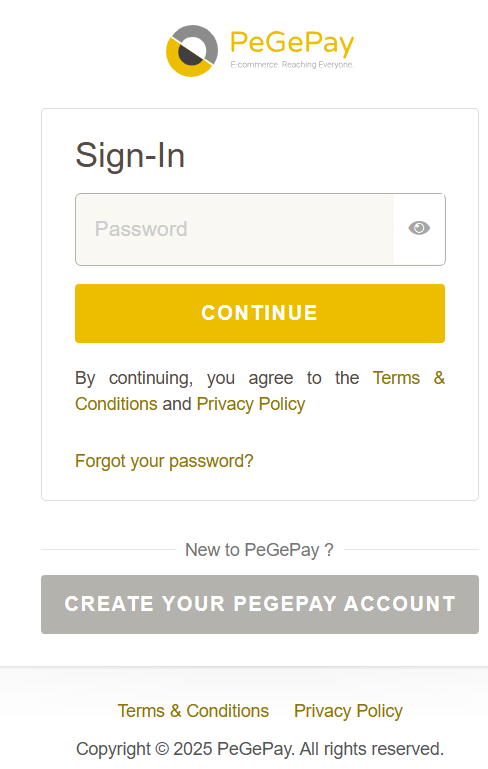
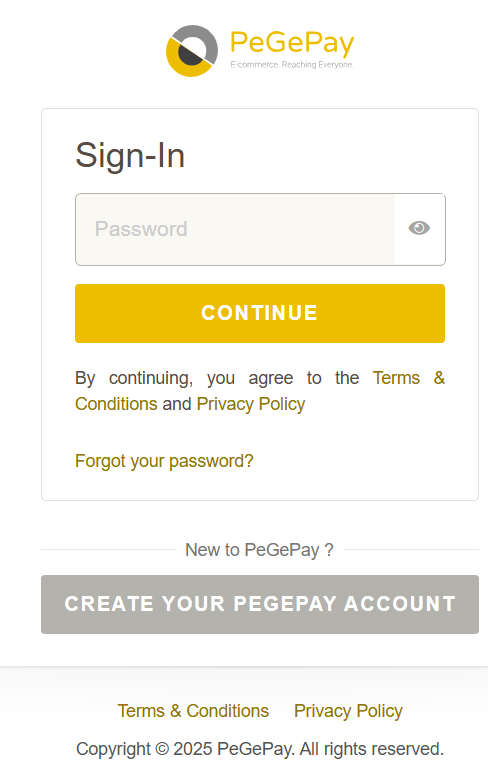
- Enter password and click CONTINUE button
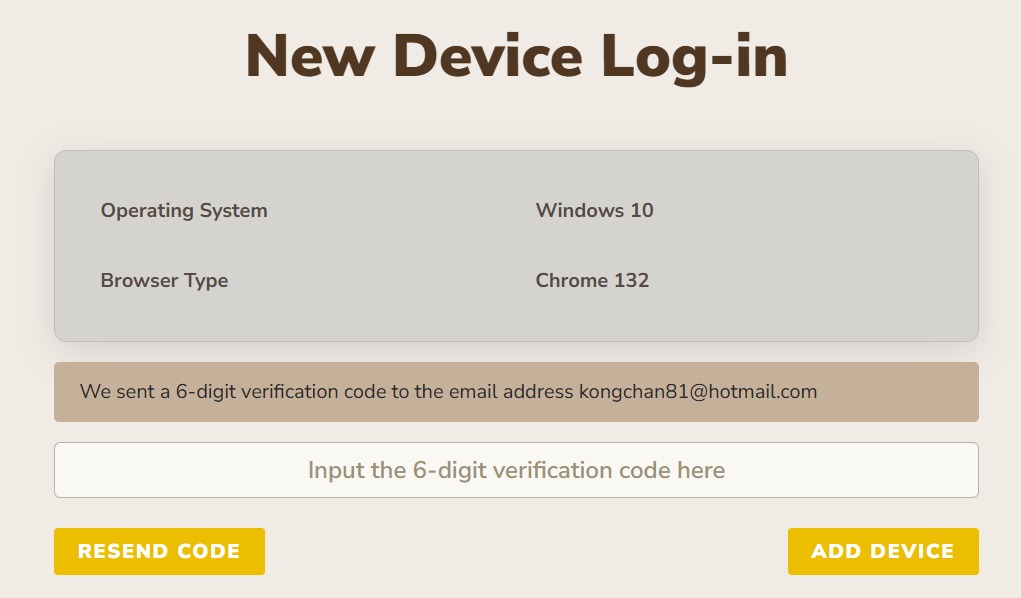
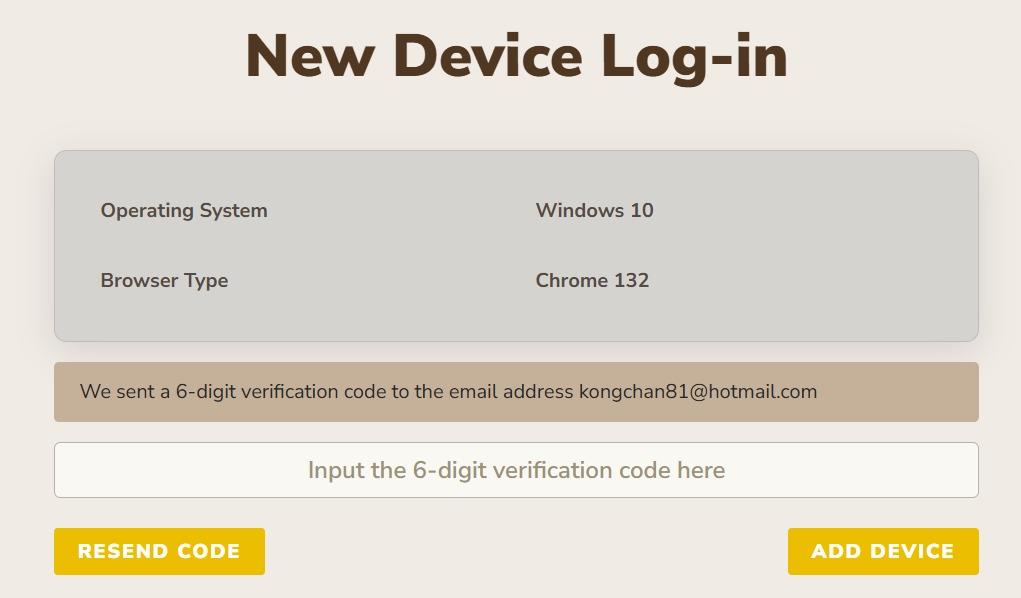
- Enter verification code and click ADD DEVICE button, if verification code expired, click RESEND CODE button
New Account Setup
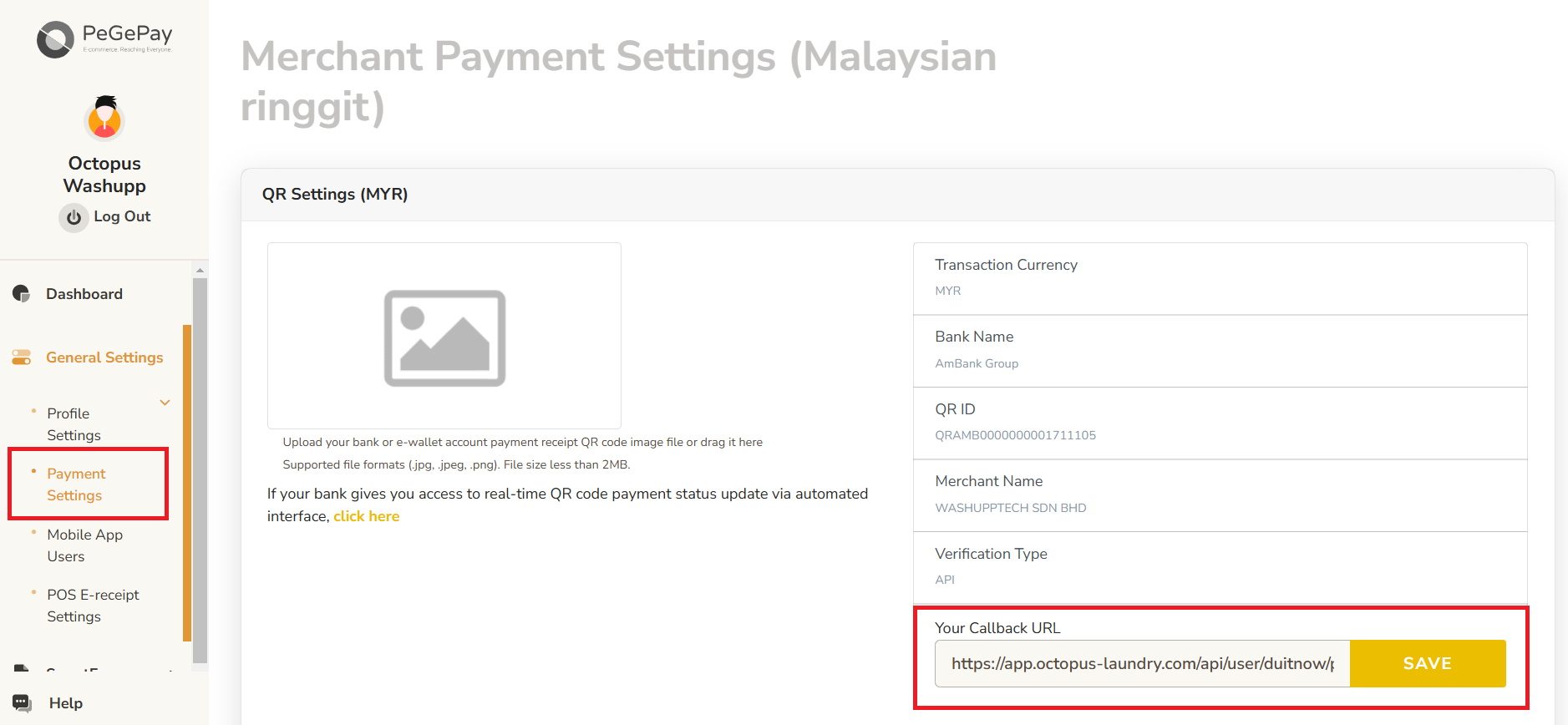
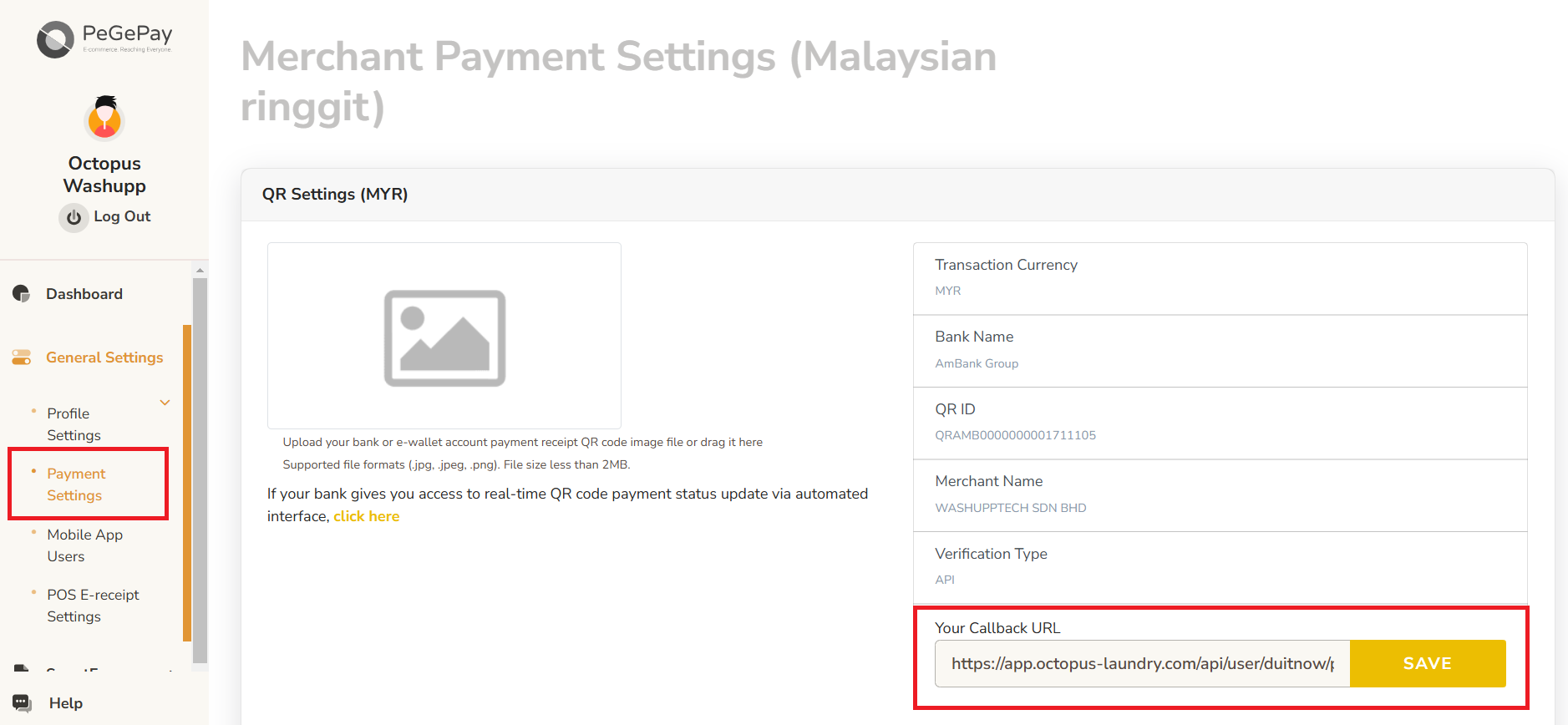
- If it is a new account, have to set callback URL. From sidebar, click General Settings, click Payment Settings, enter callback URL and click SAVE button.
Different brand will using different callback URL:
Cuci Express
Washup / Octopus
Cleanpro
Laundro
Bubbles Pulse
Wash Studio
 Dynamic QR Code
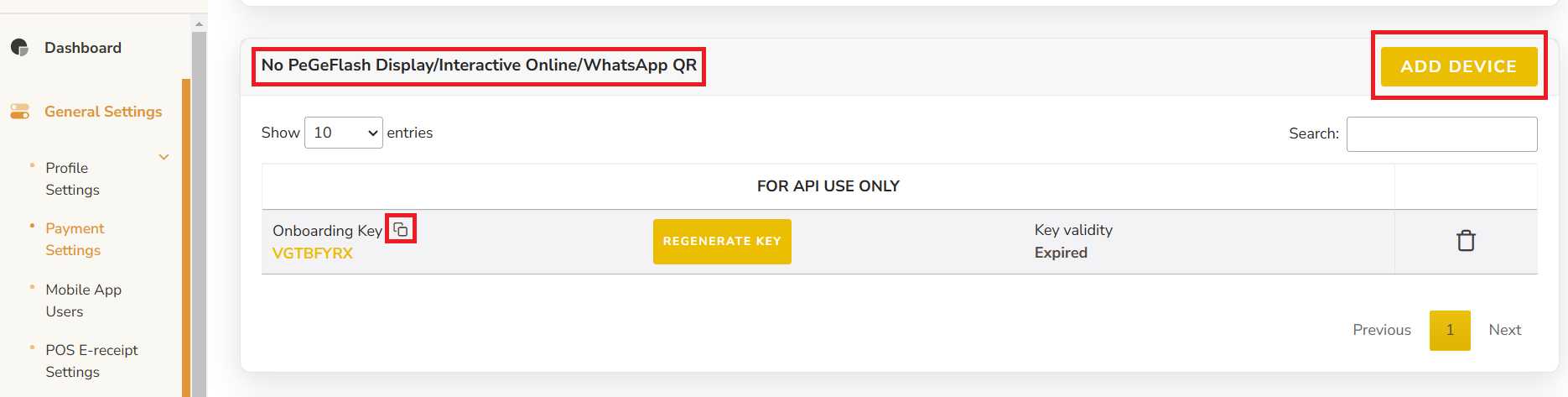
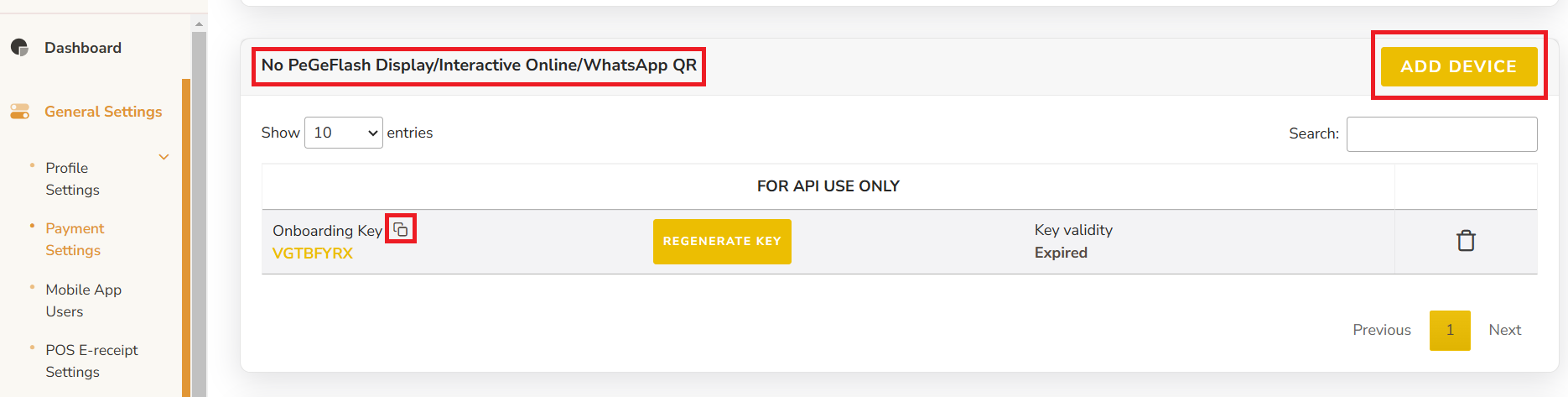
- From Sidebar, click General Settings, click Payment Settings, under No PeGeFlash Display/Interactive Online/WhatsApp QR, click ADD DEVICE button, then copy the Onboarding Key and paste into Laundro Portal
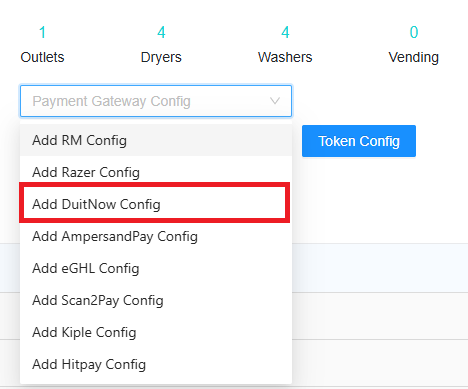
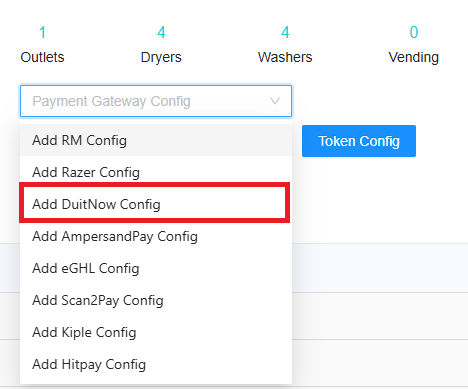
- In Laundro Portal, go to Settings Page, under Payment Gateway Config, select Add DuitNow Config
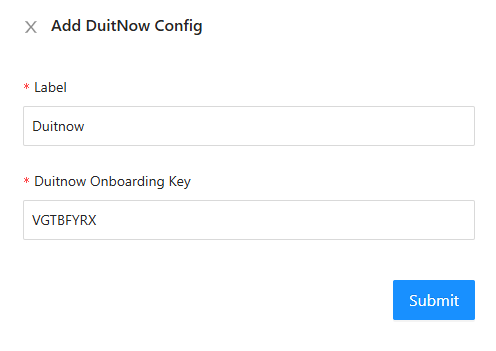
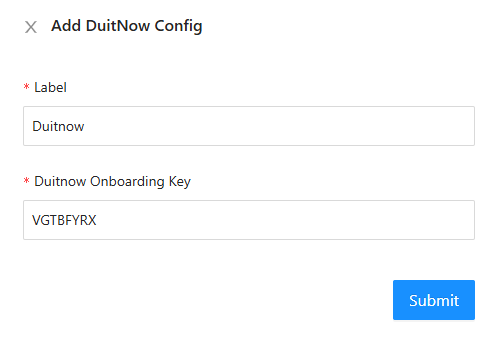
- Input Label and paste the Onboarding Key from PeGePay into Duitnow Onboarding Key input, then click Submit button
- To enable DuitNow in machine payment page in loyalty, in outlet settings page, under Duitnow Config, select the config and save

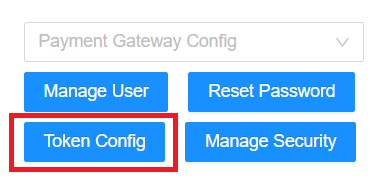
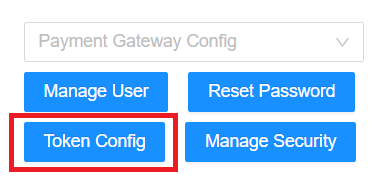
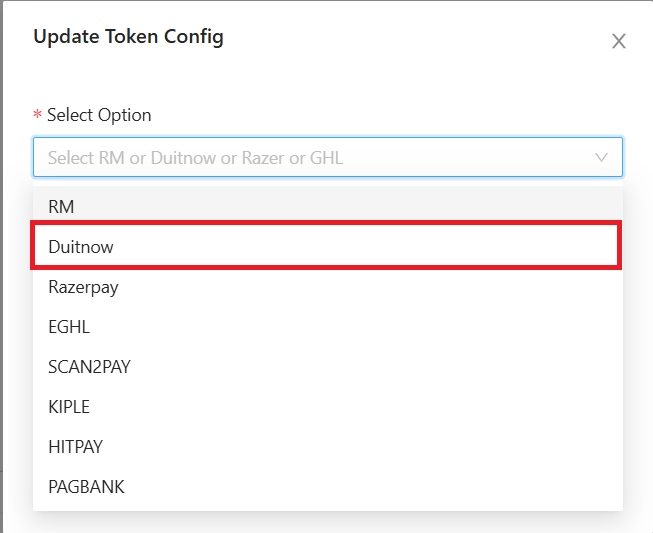
- To enable Duitnow for eToken reload in loyalty, click Token Config button
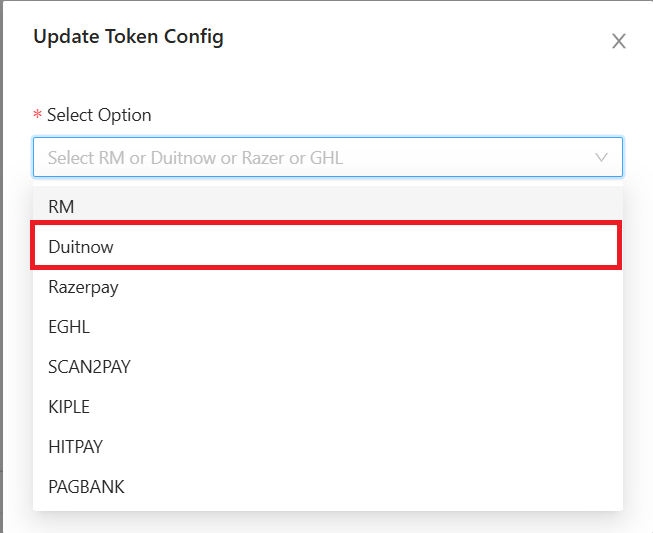
- Payment Gateway select Duitnow, and select the duitnow Config, then Submit button
Static QR Code
- You can get the static QR code from https://pegepay.com/iframe.php?merchant_id=<merchantID>, replace <merchantID> with PeGePay merchant ID
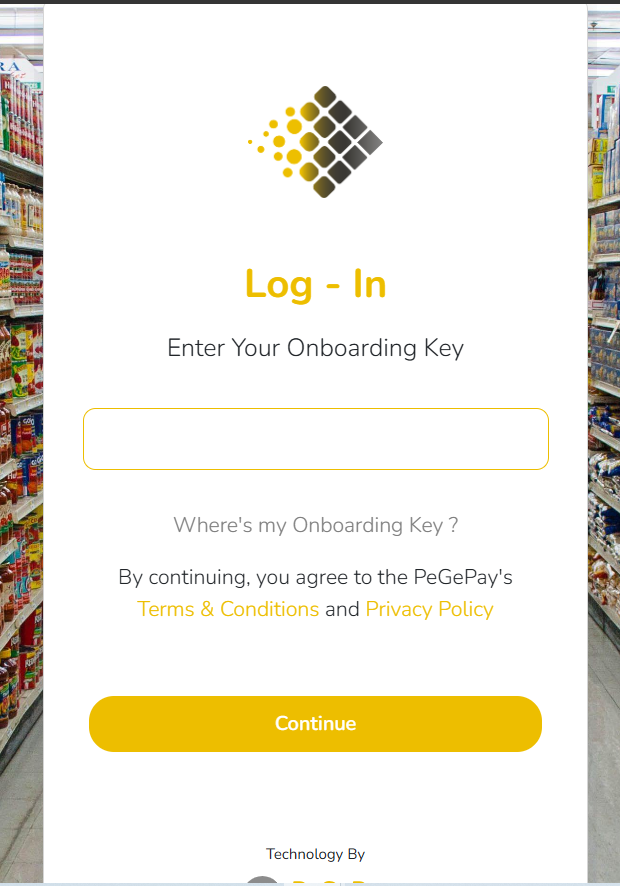
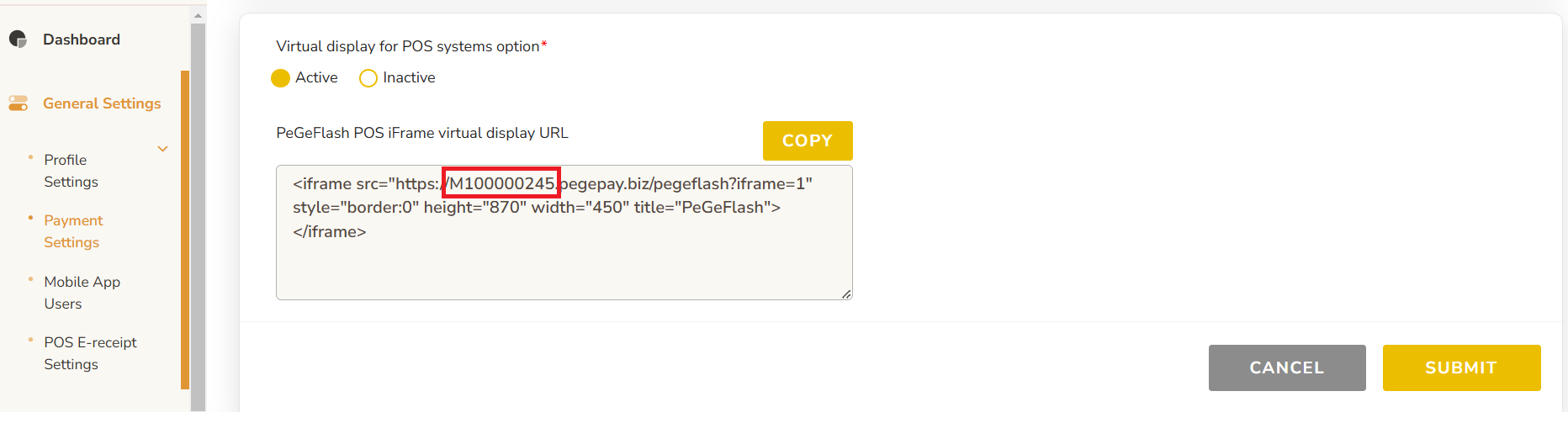
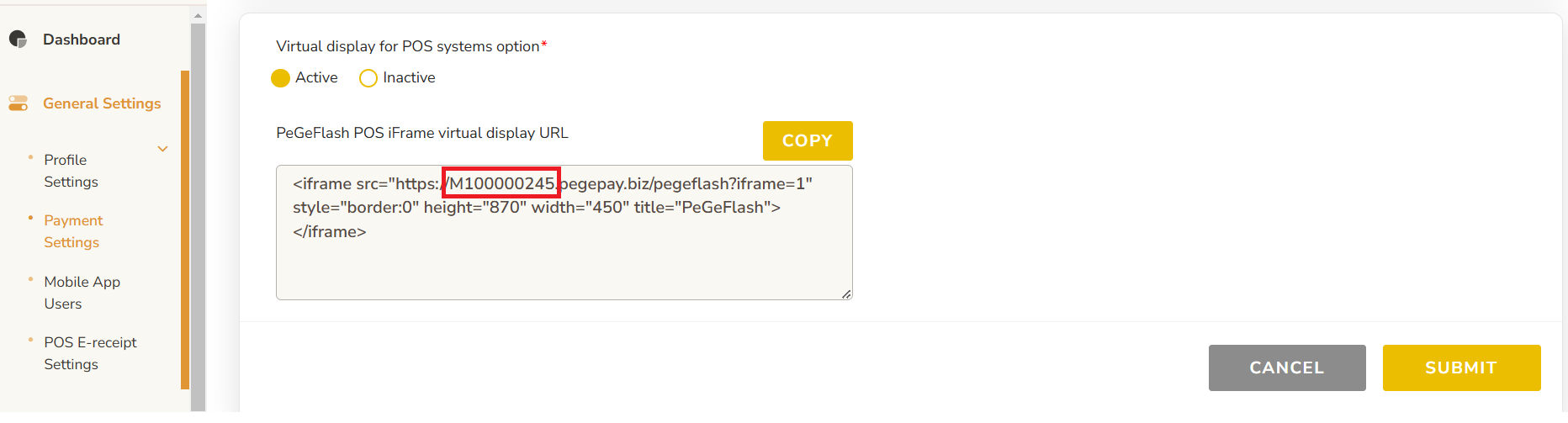
- To get the PeGePay Merchant ID, you can get from Payment Settings Page, for example, M100000245 is the merchant ID and you can open the url: https://pegepay.com/iframe.php?merchant_id=M100000245
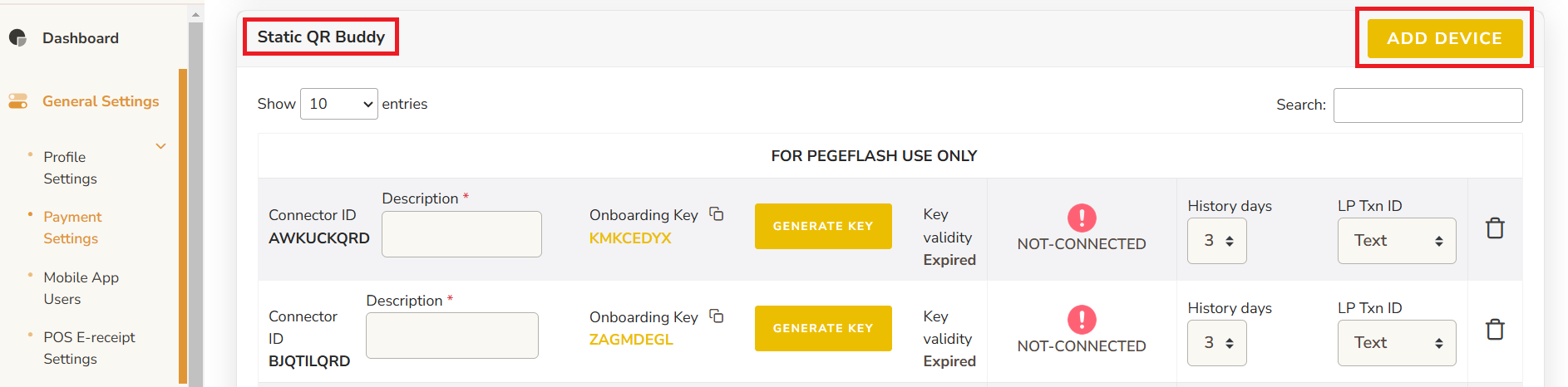
- From Payment Settings page, under Static QR Buddy, Click ADD DEVICE button
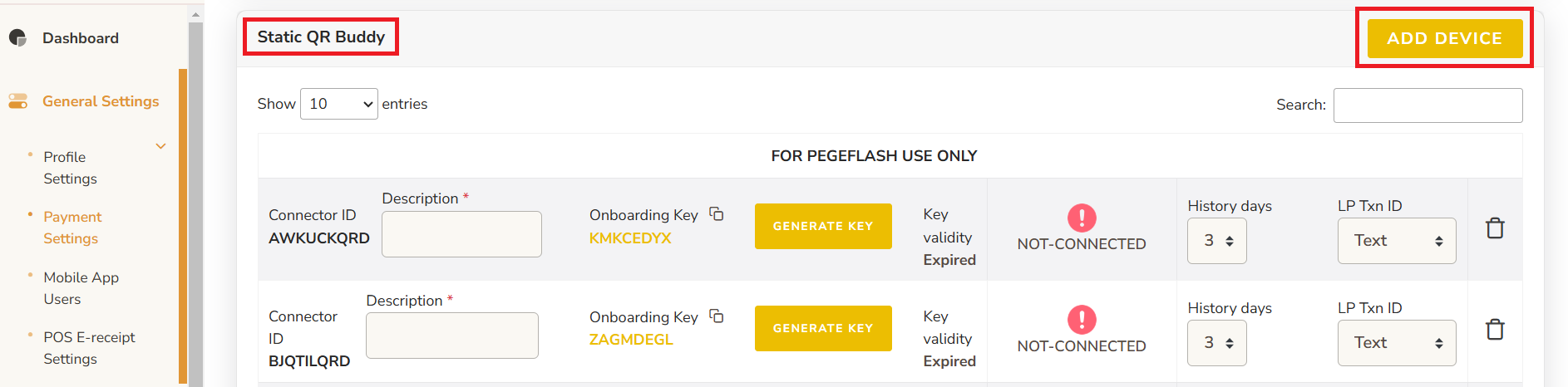
- Enter the description and click GENERATE KEY button

- Copy the Onboarding Key, the key expired time is showing on Key validity

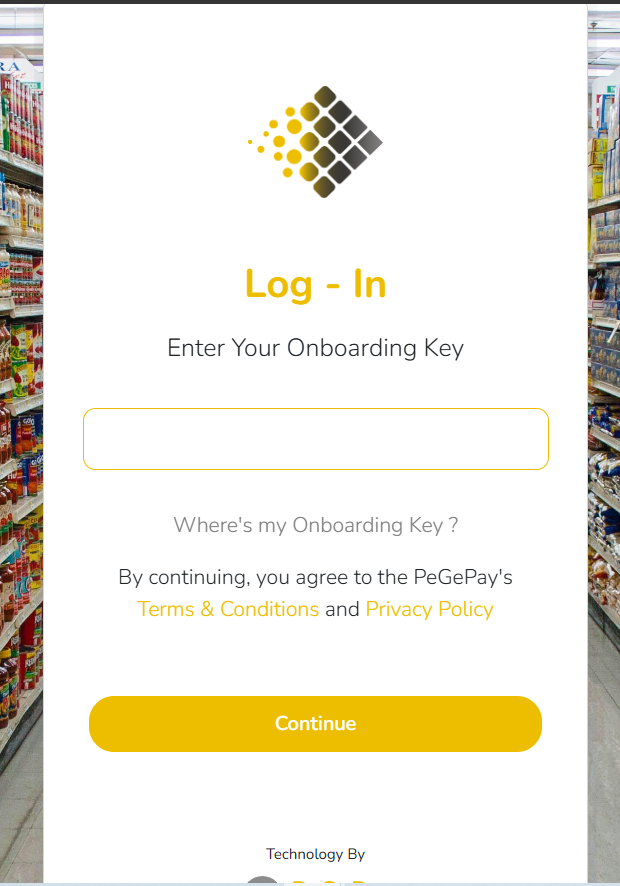
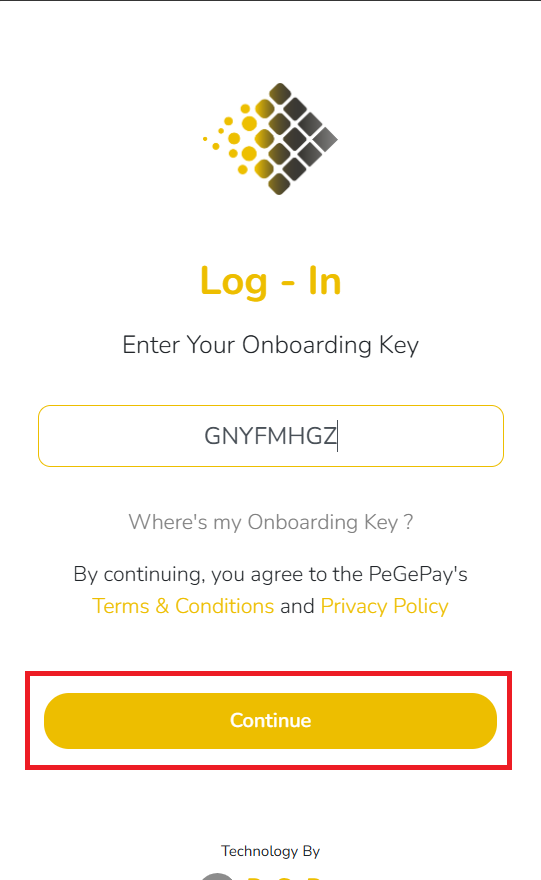
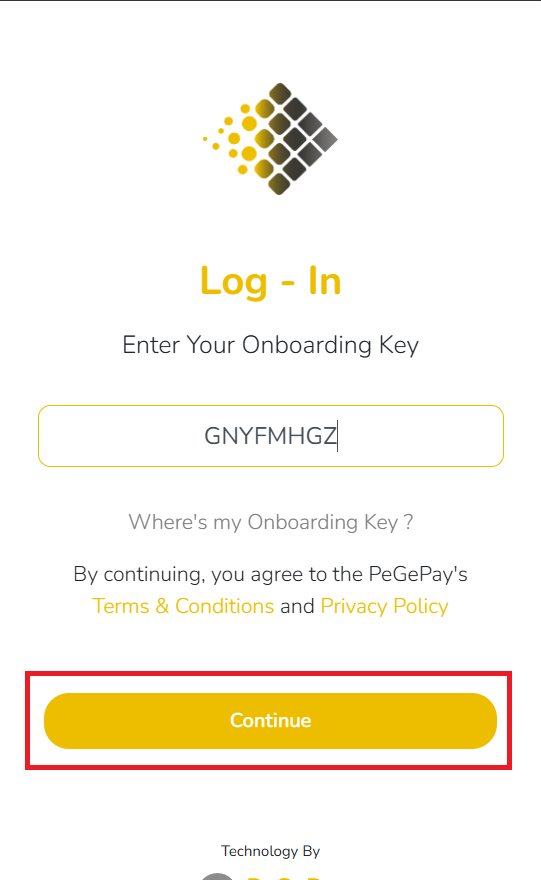
- Paste the Onboarding Key to static QR code page and click Continue button
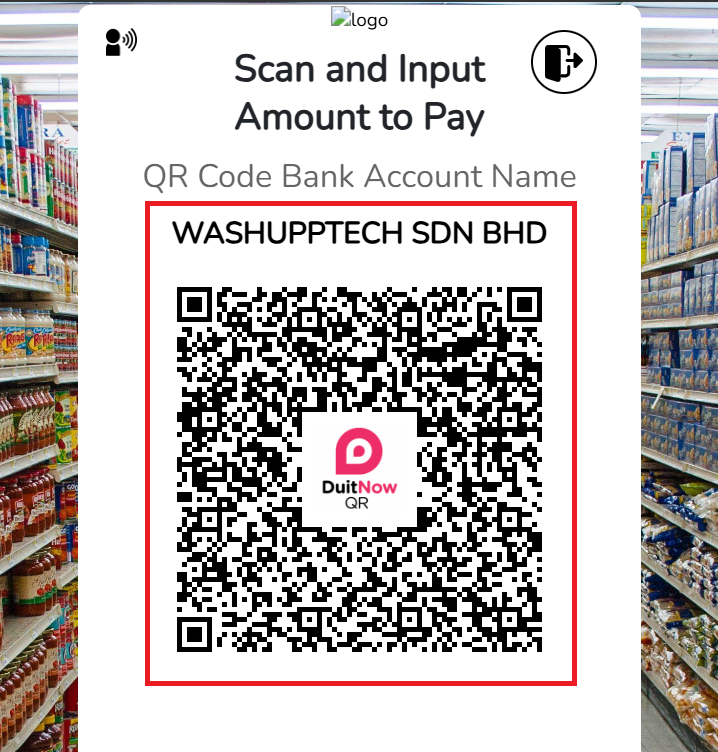
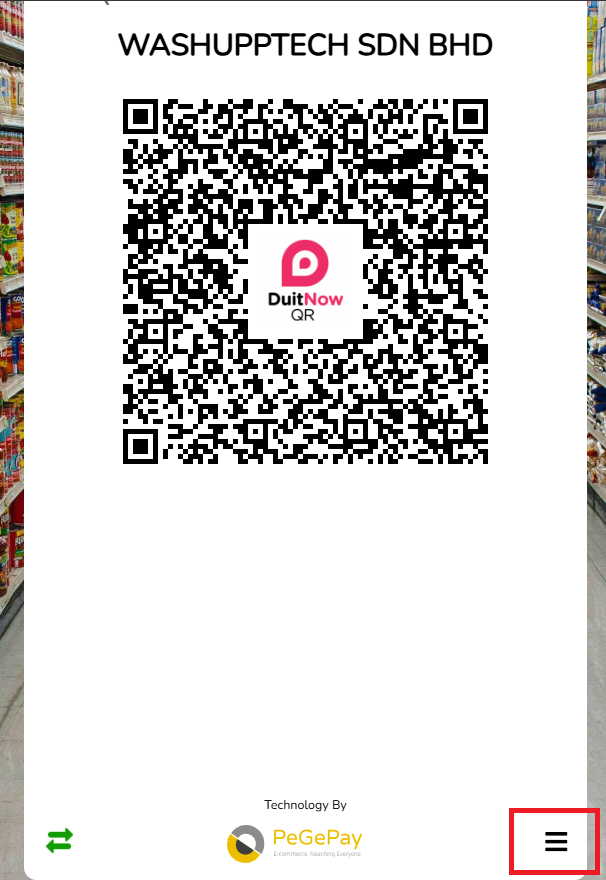
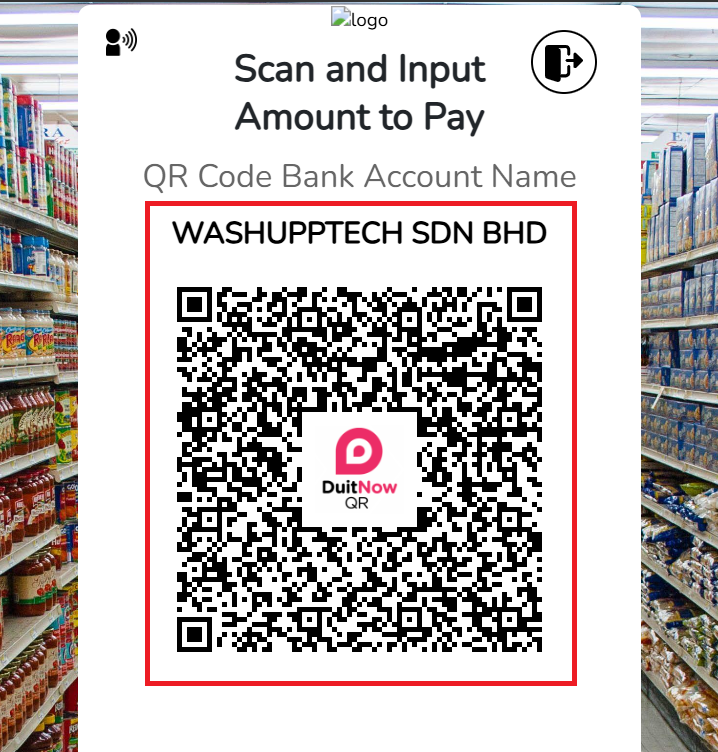
- The Static QR Code is showing, you can screenshot the QR code with the company name
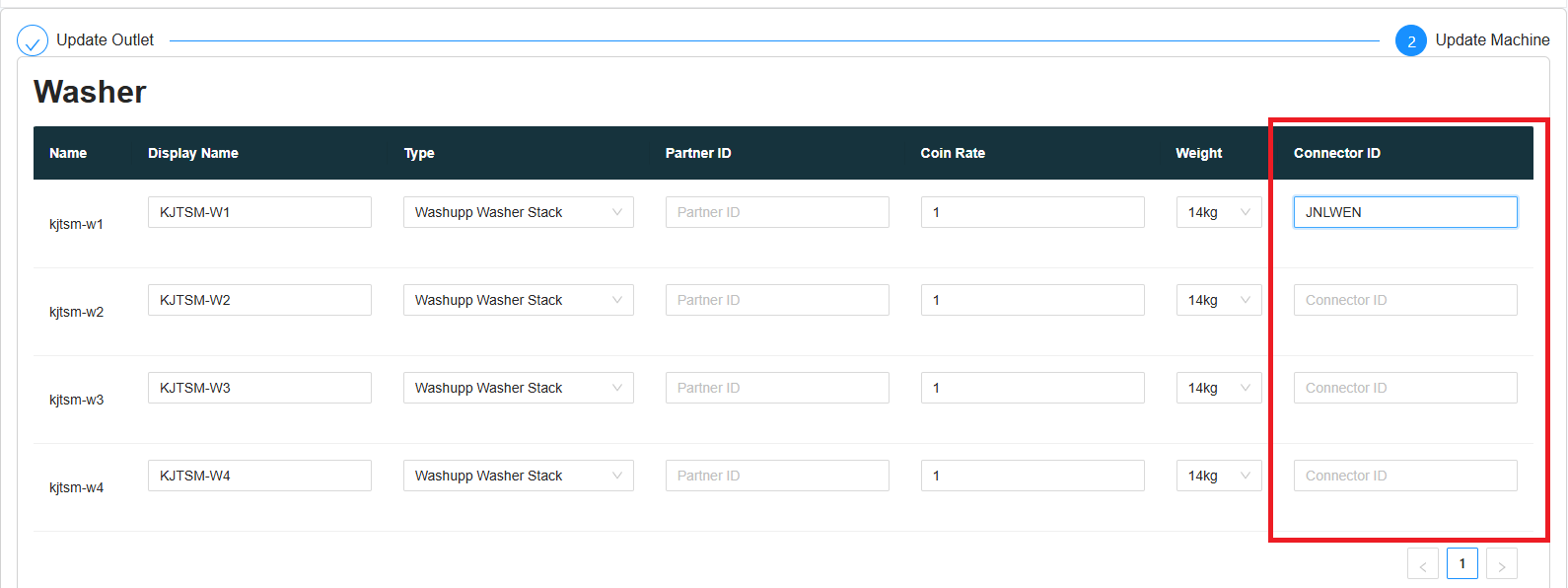
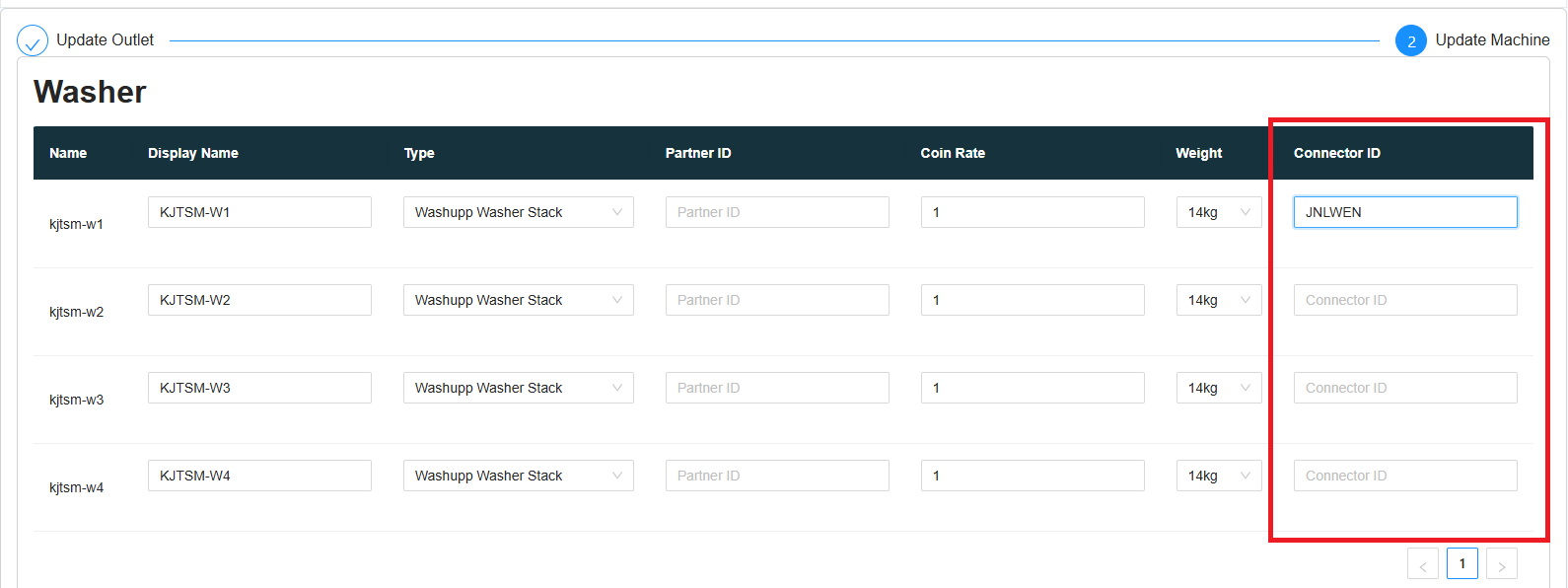
- When the static QR code is showing, it will show CONNECTED, copy the first 6 character of Connector ID and paste into Laundro Portal, no need to copy the last three character (QRD), QRD is stand for QR Display

- In Laundro Portal, in machine settings page, paste the Connector ID into the input and click save
- To generate the second machine static QR code, you can click the icon at the bottom of the page
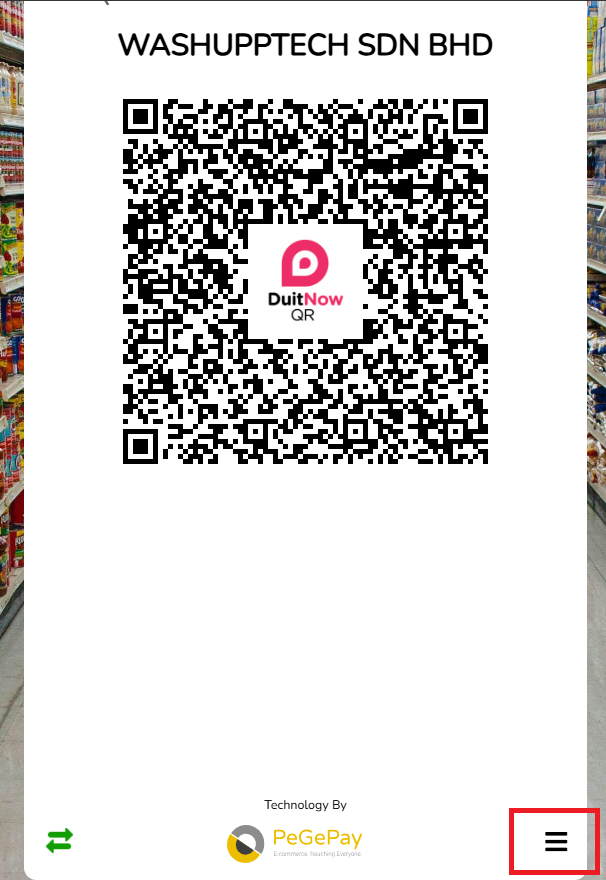
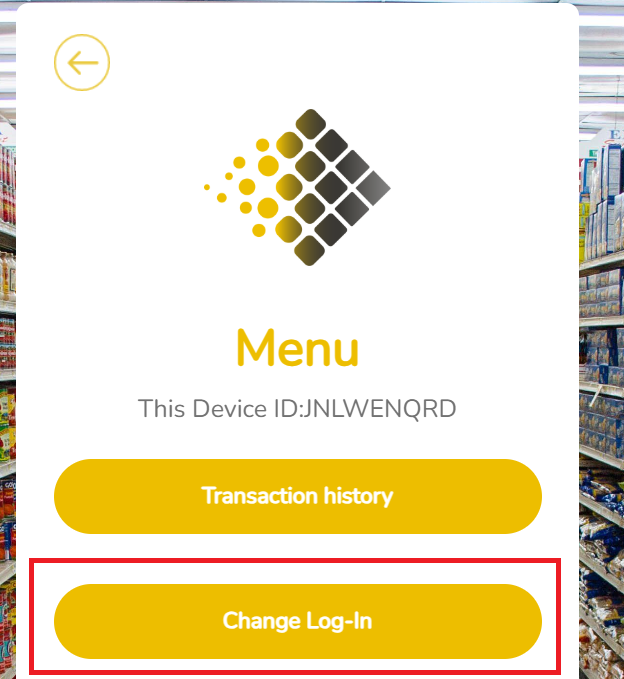
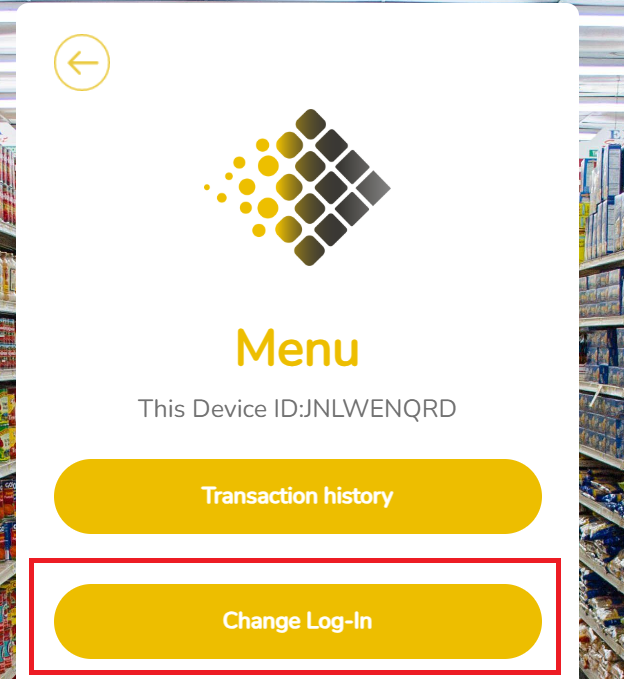
- Click the Change Log-In button to logout
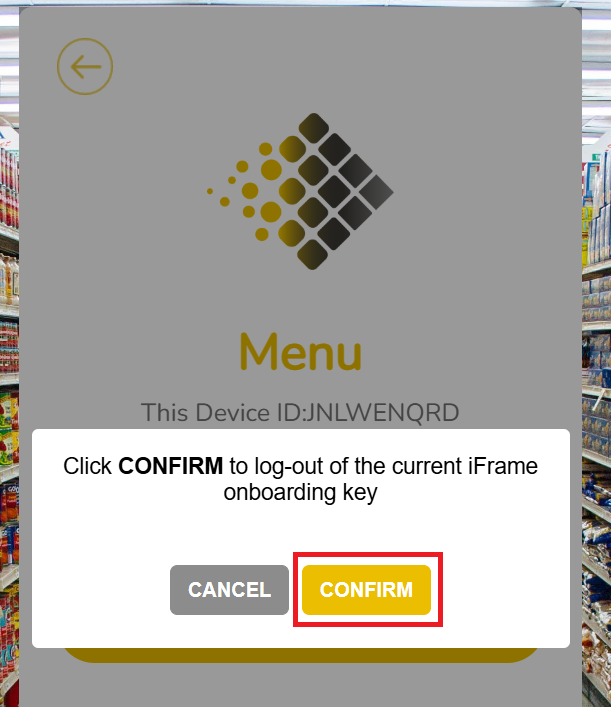
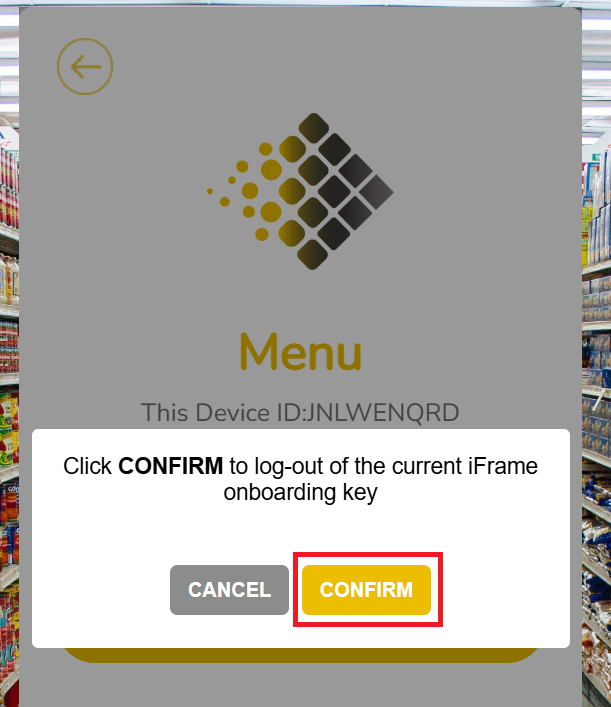
- Click CONFIRM button to confirm logout
- You can repeat the step to generate the static QR code for all the machine