
How To Set pricing
📍 How to Access
🔐 Step 1 — Login to Laundro Portal
Log in using your Username and Password. https://v2.thelaundro.com/operator_login
📍 Step 2 — Go to Price Setting
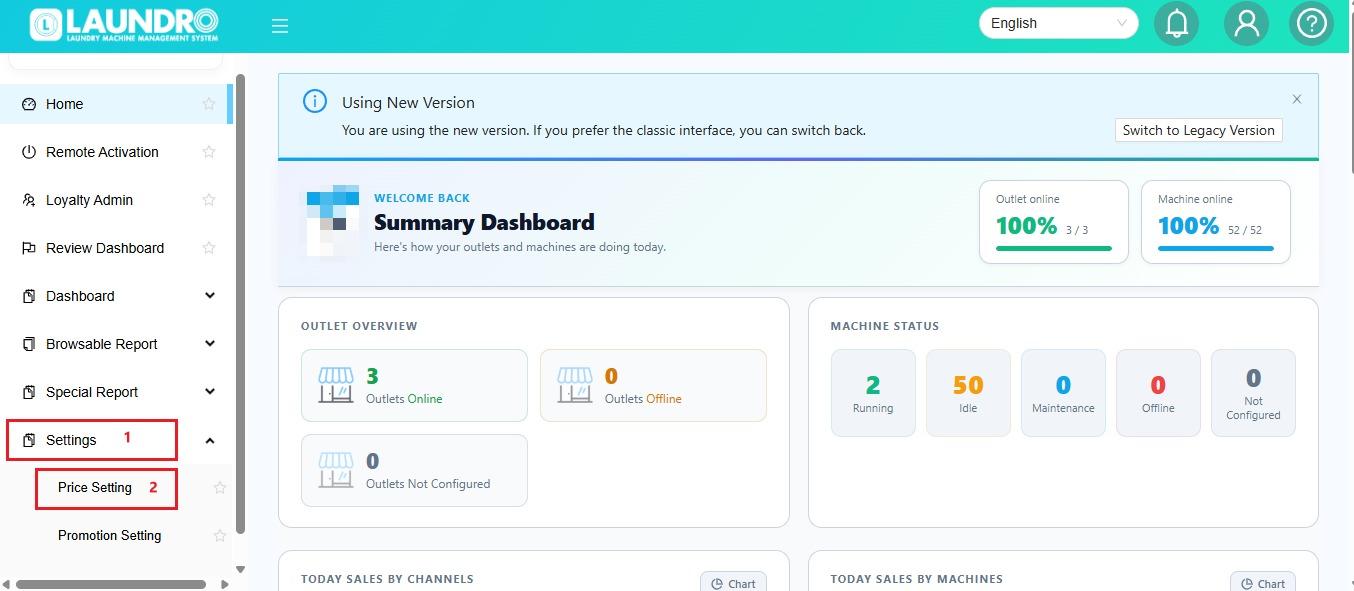
🏪💰 Step 3 — Set Your Machine Pricing
- Select
AddthePricingWasher-orForDryerNewandOutletenter the required price. - 🧺 Washer — Set the price according to the machine size / KG.
- 🔥 Dryer — Set the price according to the machine size / KG.
Click Add Pricing for New Outlet.
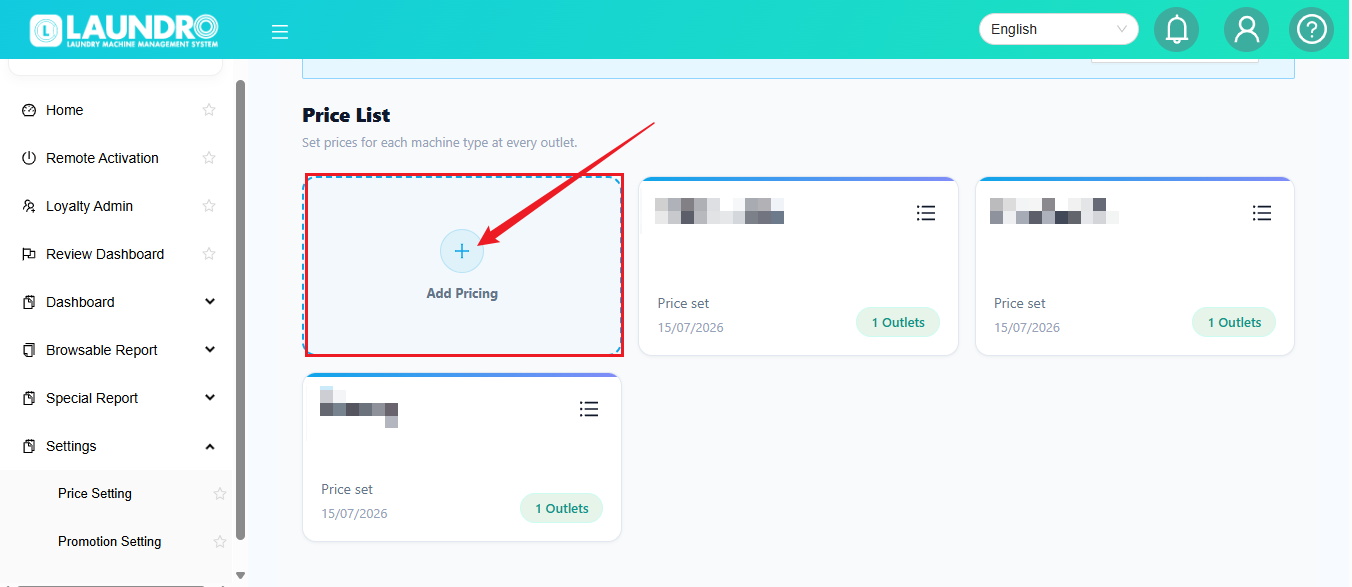
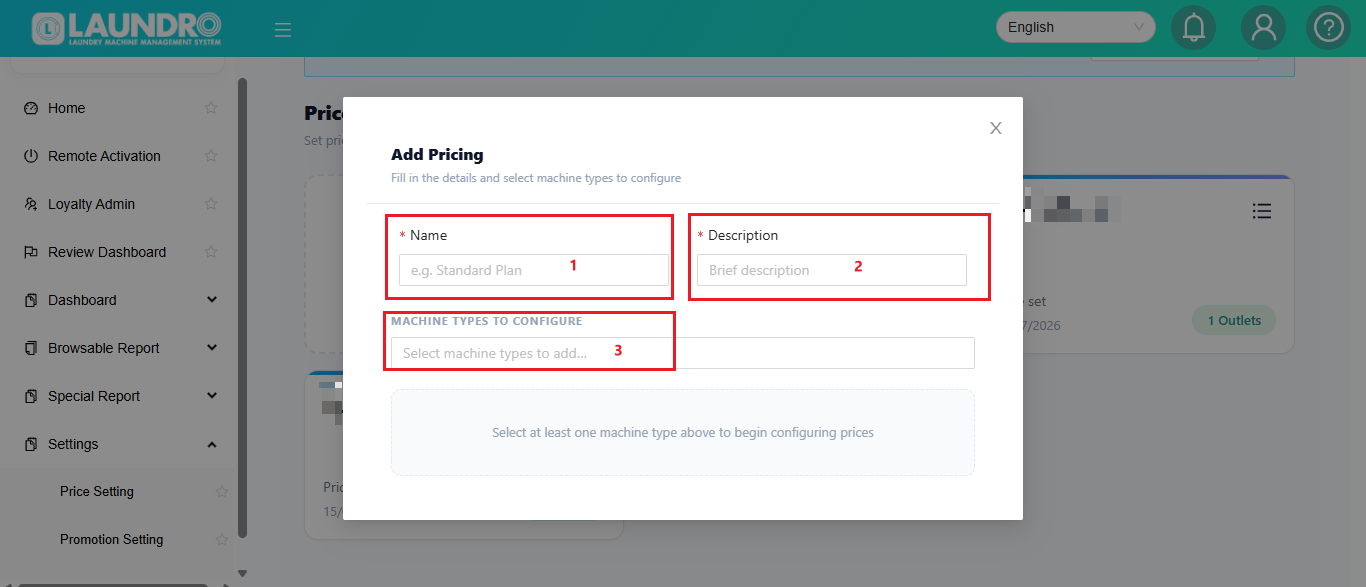
✏️ Step 4 — Fill in The Details
- 1. Fill-in Outlet Name
- Add Description
- Machine type to configure. Washer / Dryer.
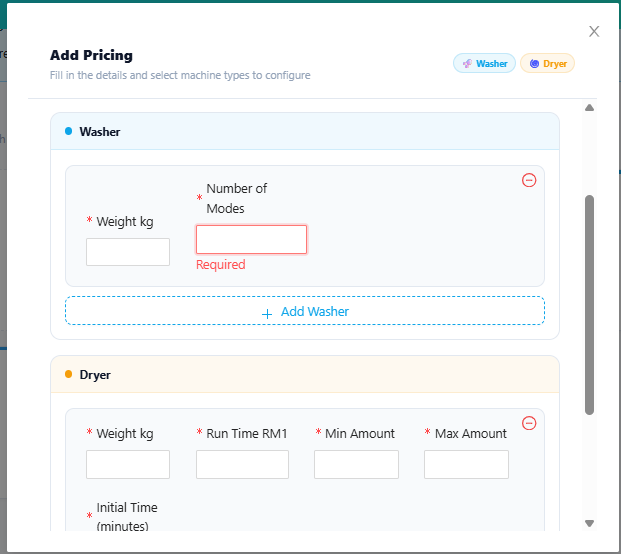
You may select how many Mode for Washer. If 1 Mode , Just put 1 & Fill-in.
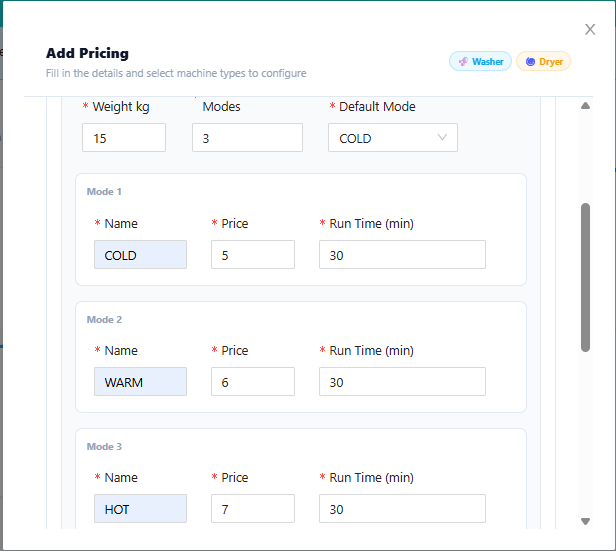
🔢
🆕 5Add-on —Machine Addwith MoreDifferent MachinesKG
NeedHave toyou addadded morea thannew onemachine typewith a different weight / KG?
No problem! 👇
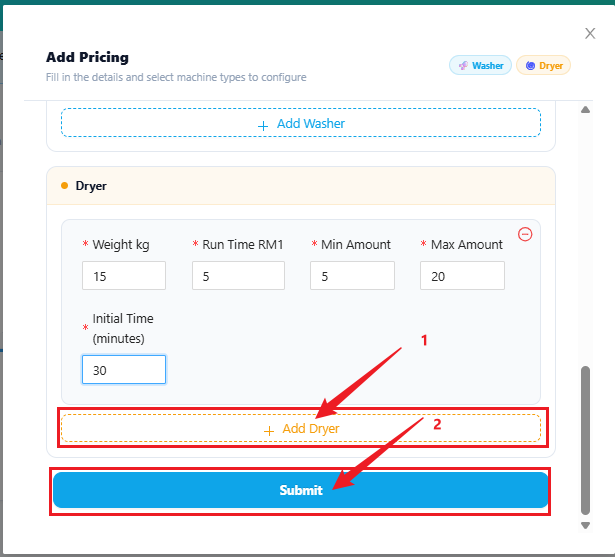
➕ScrollYoudowncantoalsofindclicktheAddAdd-on Machine section.- Select the required Dryer / Washer.
- Enter the desired price.
- 💾
repeatedly to add multiple units.↕️ClickScrollSaveup or downChangestowhenadd Dryer.finished.Continue Scroll Down for Fill-in Dryer.
💾 Save
🆕 For Existing Outlet
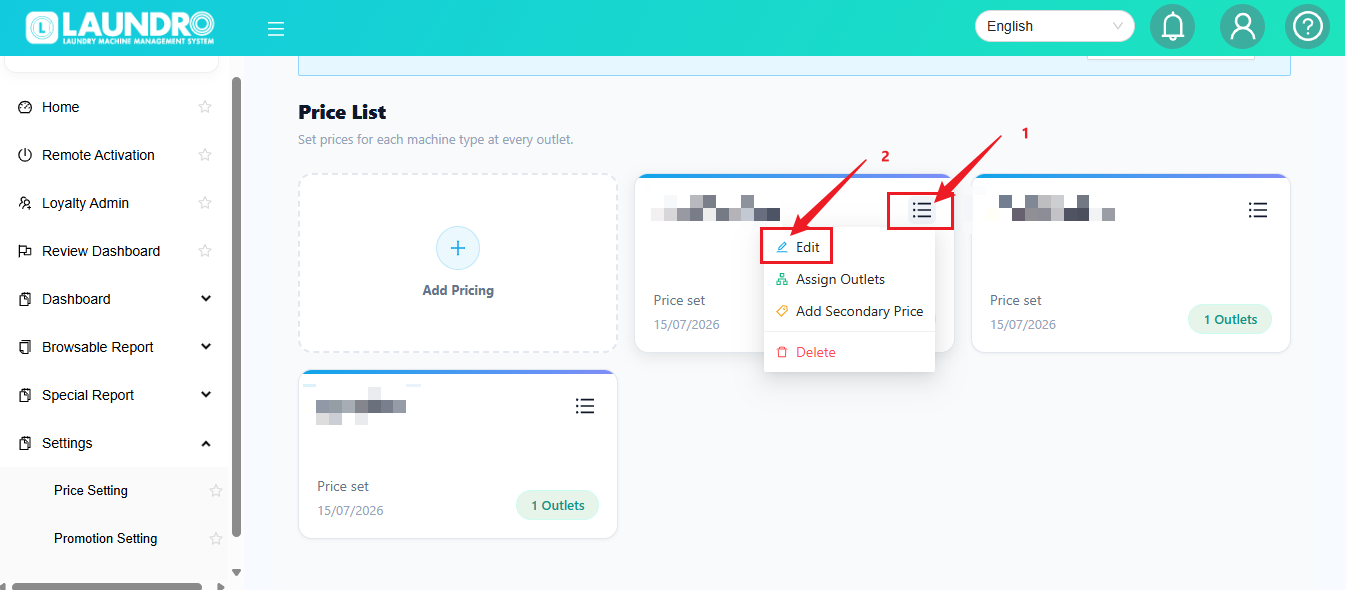
- For Existing Outlet ( If Add-on Machine With Different Weight / KG )
- Click icon on the top selecting outlet & Click Edit.
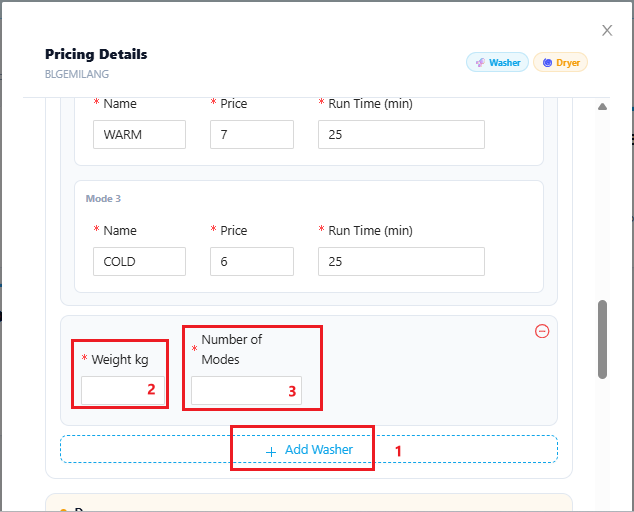
Scroll down To Add-on Foir Dryer & Click Save Changes when Finish adding :
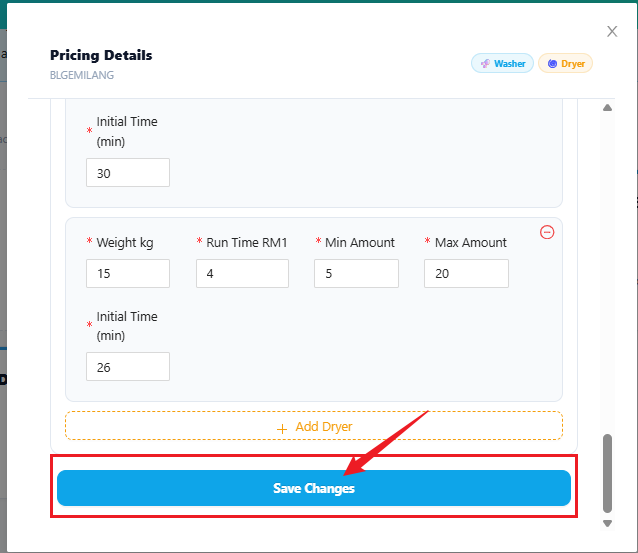
➕
🎁 Promotion Setting
Use Promotion Setting if you want to configure promotional pricing.
Click + Add Promotion
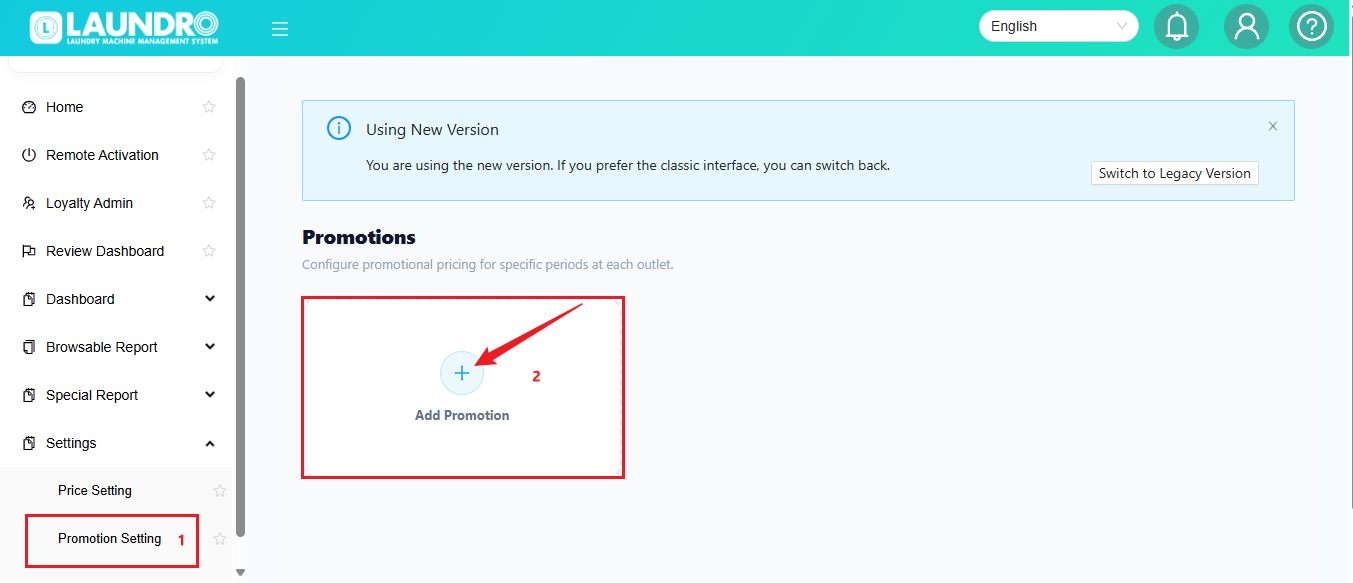
Fill-in Detail & Click Submit.
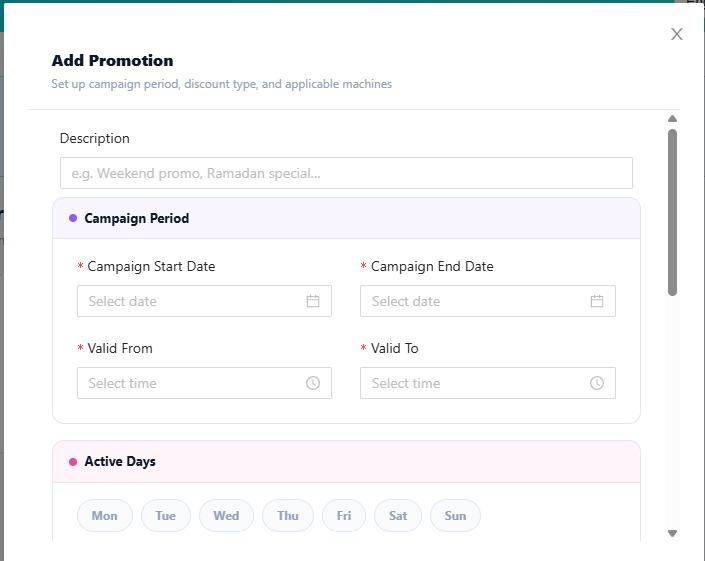
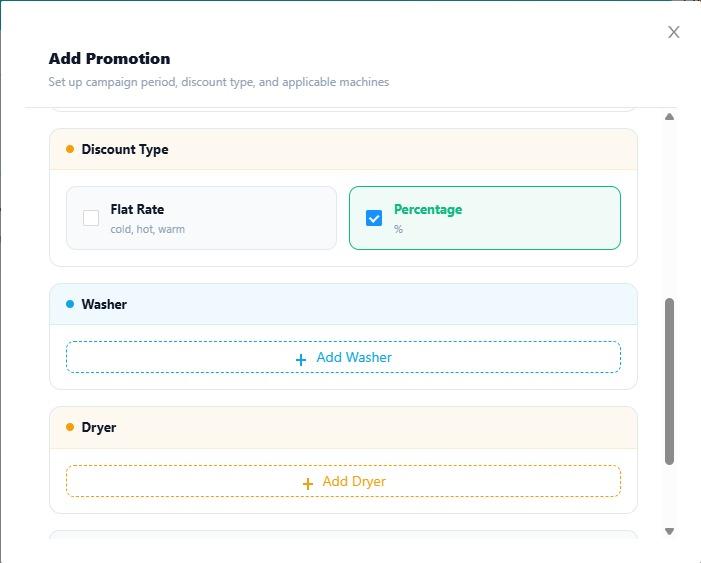
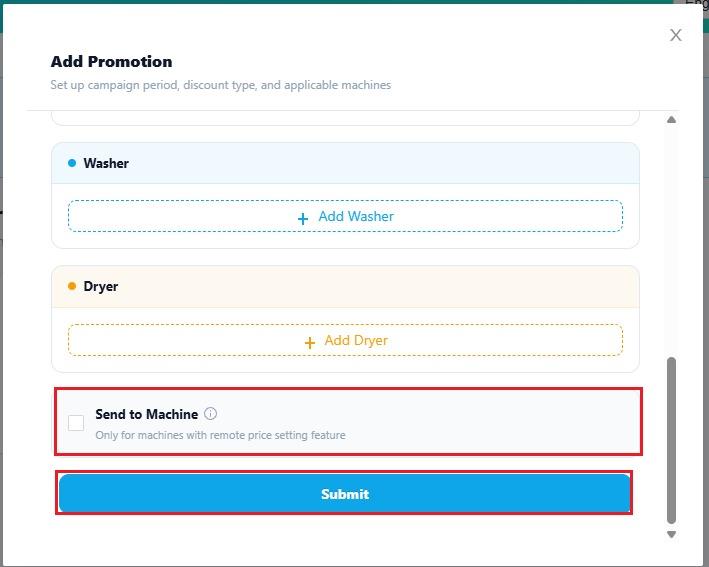
💡 Note: Make sure the promotion settings match the pricing you want to offer to customers.
✅ Done!
Your machine pricing has been updated successfully. 🎉
Remember: Always check the machine type, KG, and price before saving.