👥 How to Create a Staff User
Welcome to the Laundro Portal Guide! 👋
Want to give your staff access to the Laundro Portal? Follow this guide to create a staff role, set permissions, and create a staff account.
🛡️ Stage 1 — Create a Staff Role
A Staff Role determines which features and functions a staff member can access.
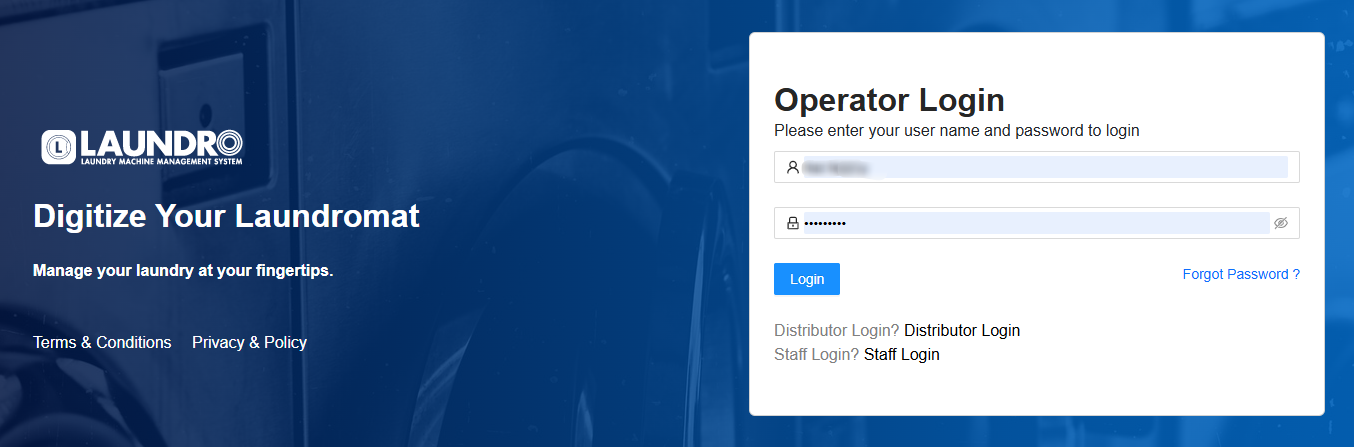
🔐 Step 1: Log In to Laundro Portal
Open the Laundro Portal and enter your operator username and password.
🔗 Portal Login: https://v2.thelaundro.com/operator_login
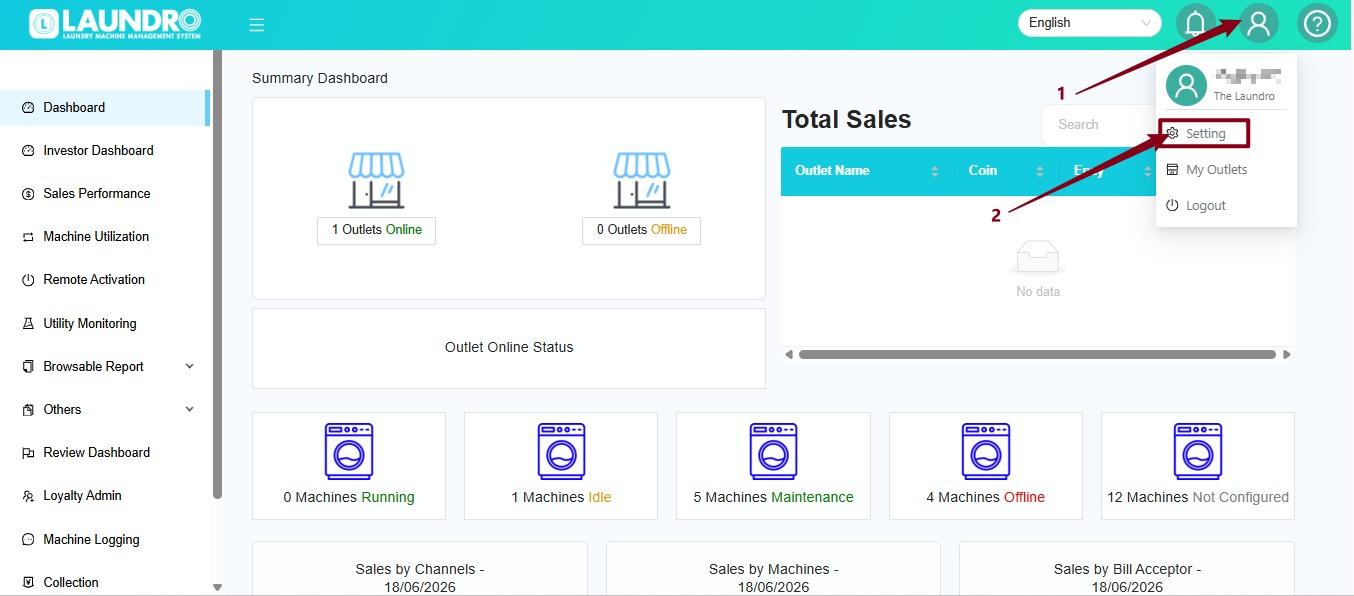
⚙️ Step 2: Open Settings
- Click the Profile icon at the top-right corner.
- Select Setting from the dropdown menu.
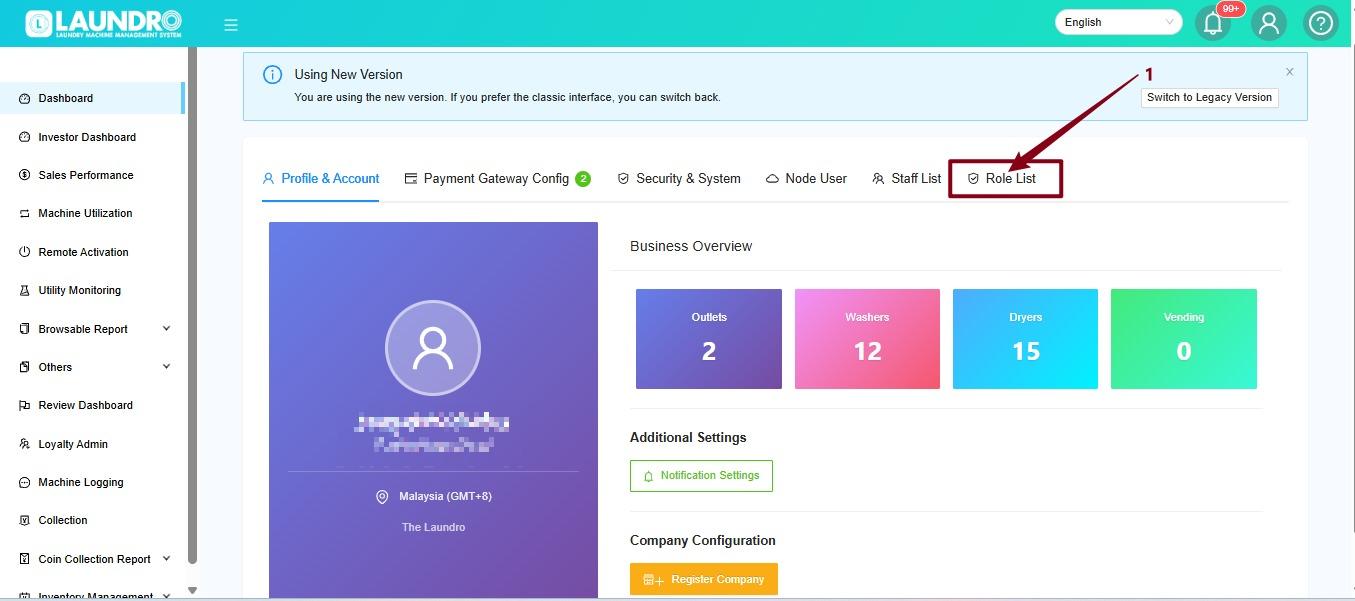
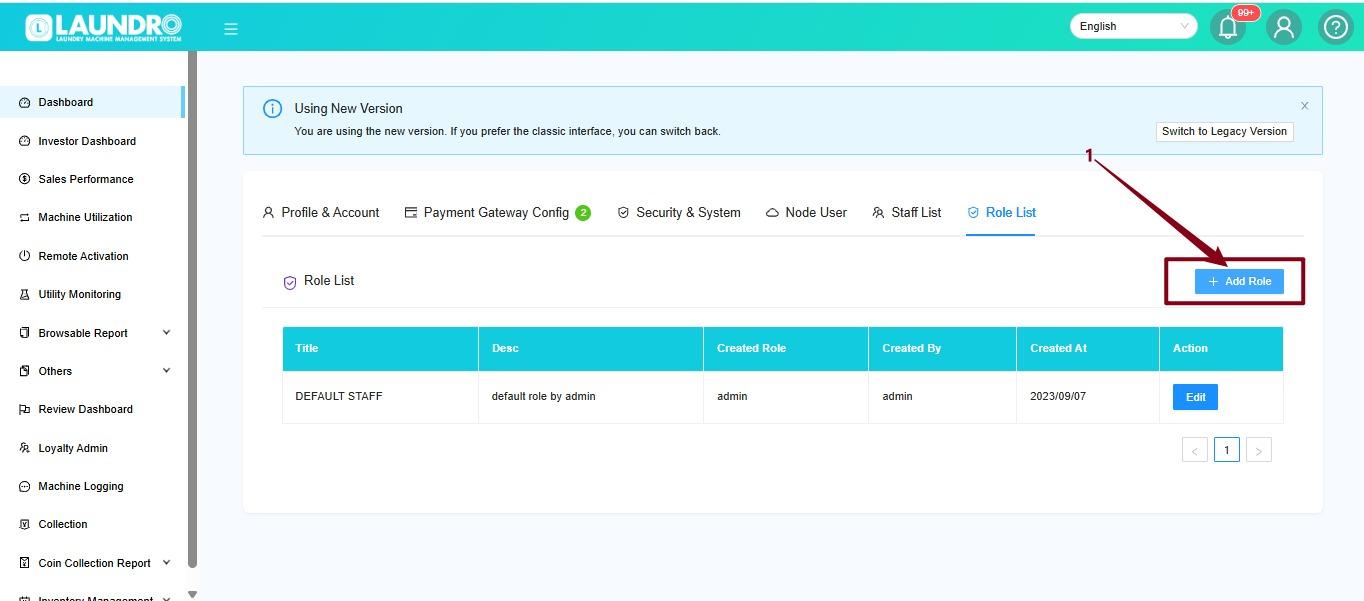
📋 Step 3: Open Role List
On the Setting page, click Role List.
➕ Step 4: Add a New Role
Click Add Role to create a new staff role.
✏️ Step 5: Enter the Role Details
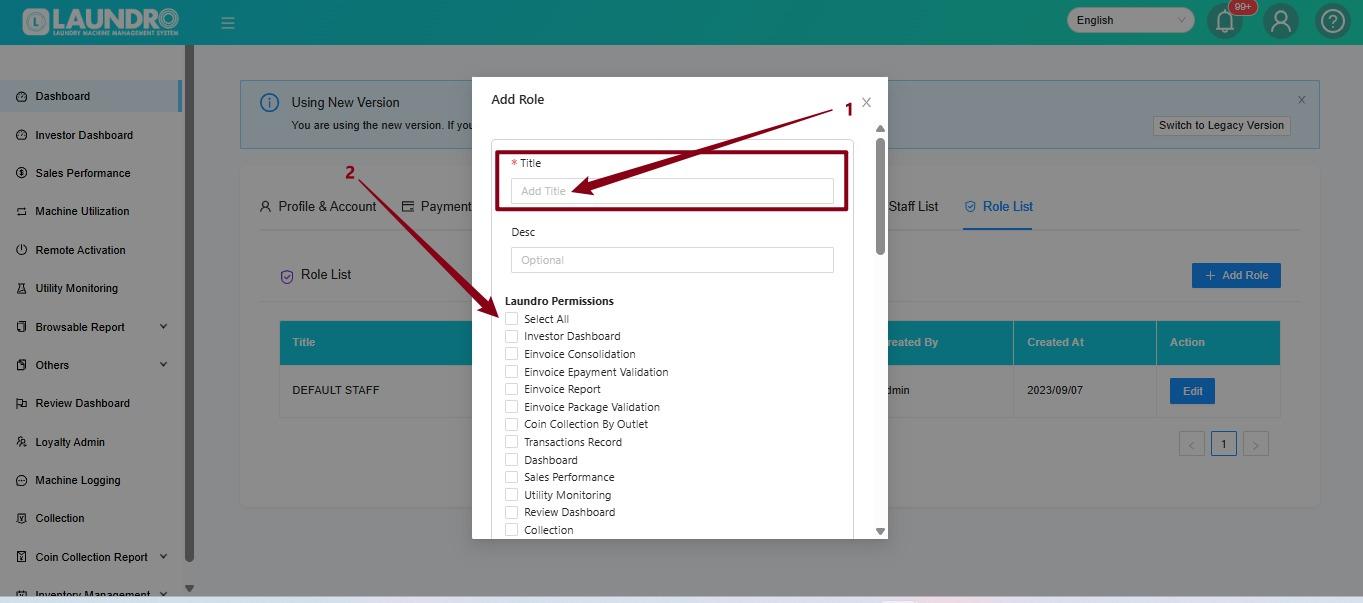
- Enter the role name in the Title field.
- Select the required permissions by checking the appropriate boxes.
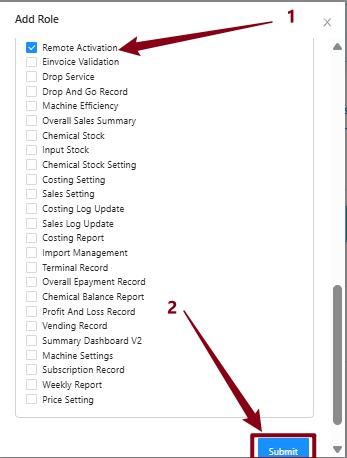
Example: Staff - Remote Activation Only
If the staff member only handles remote activation, select the Remote Activation permission.
💾 Step 6: Submit the Role
Review the selected permissions, then click Submit to create the role.
💡 Quick Tip: Only enable the permissions required for the staff member's duties.
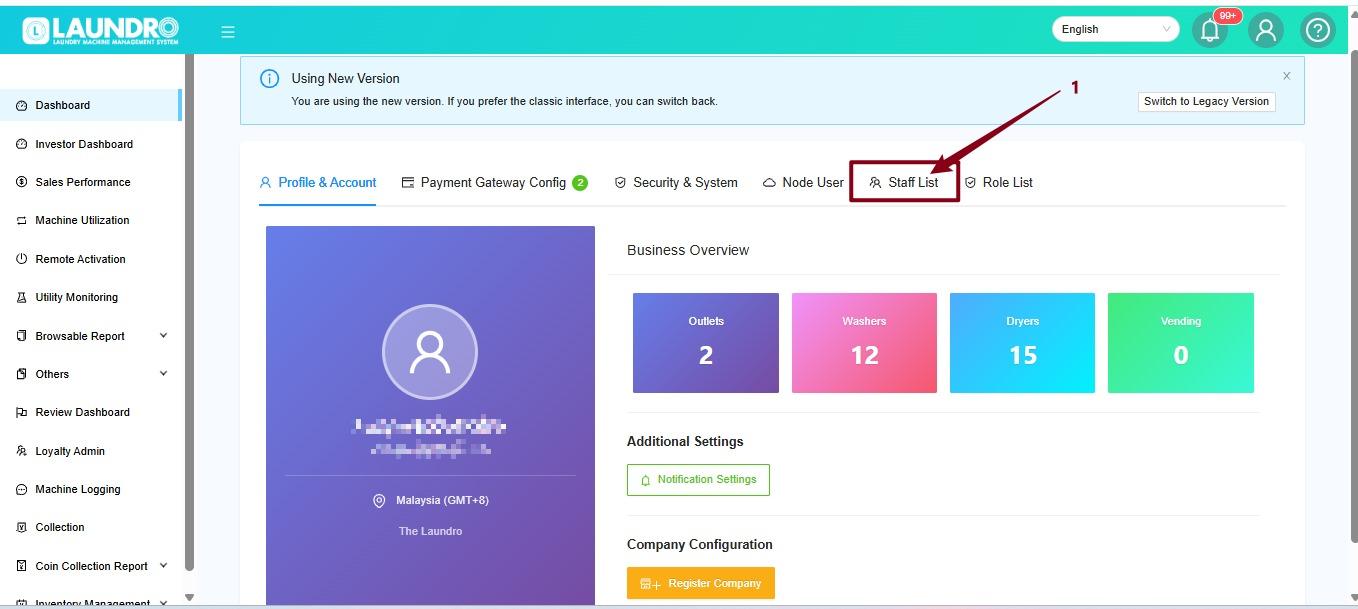
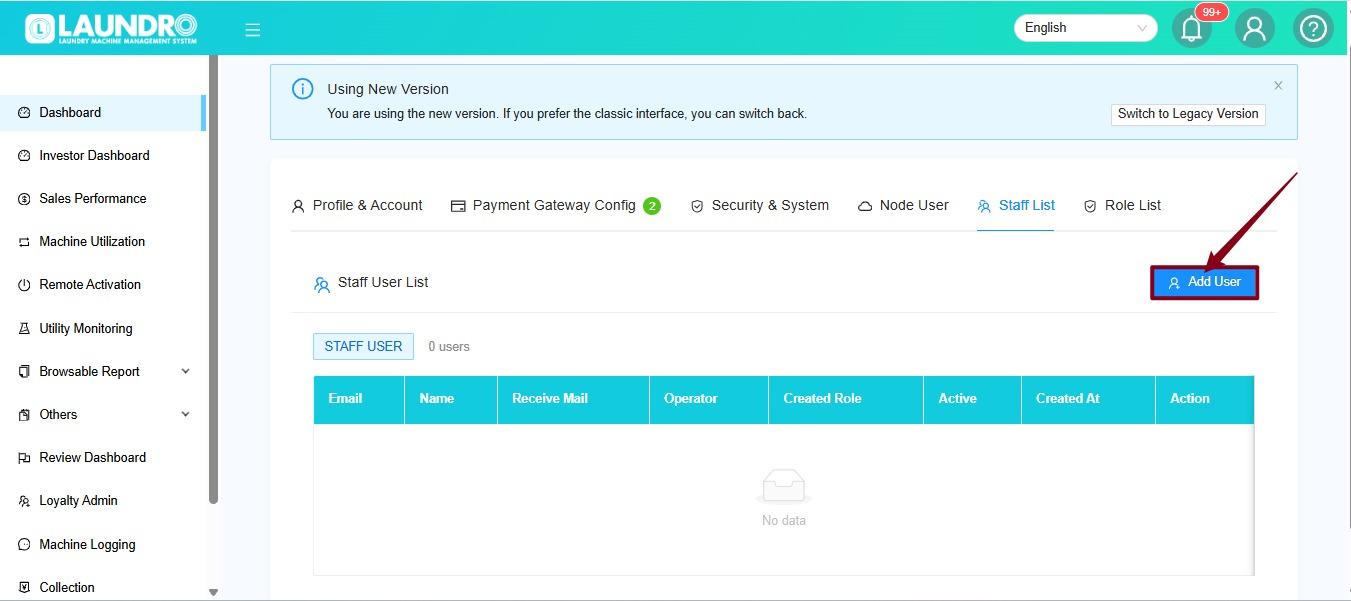
7. Next step. Click Staff List.
8. Click Add User.
9.
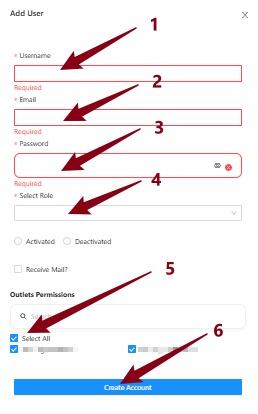
- Enter a username.
- Enter the user's email address.
- Create and enter a password.
- Select the appropriate role from the dropdown list.
- Select the outlet(s) the user can access.
- Click Create Account to add the new user.
10.
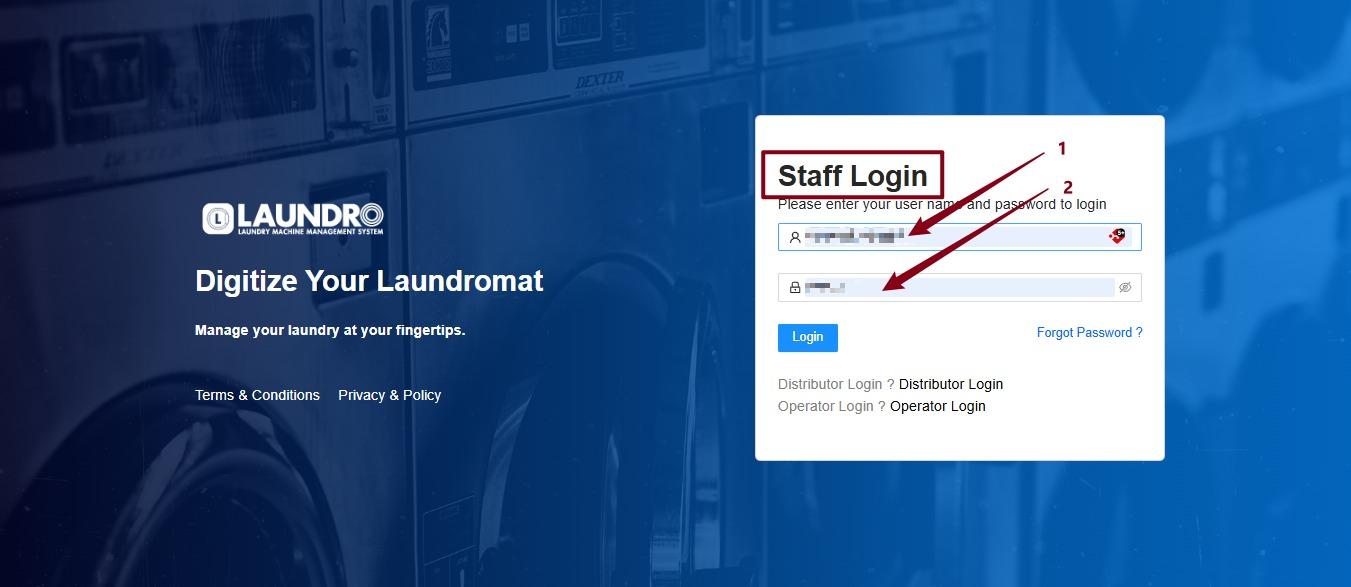
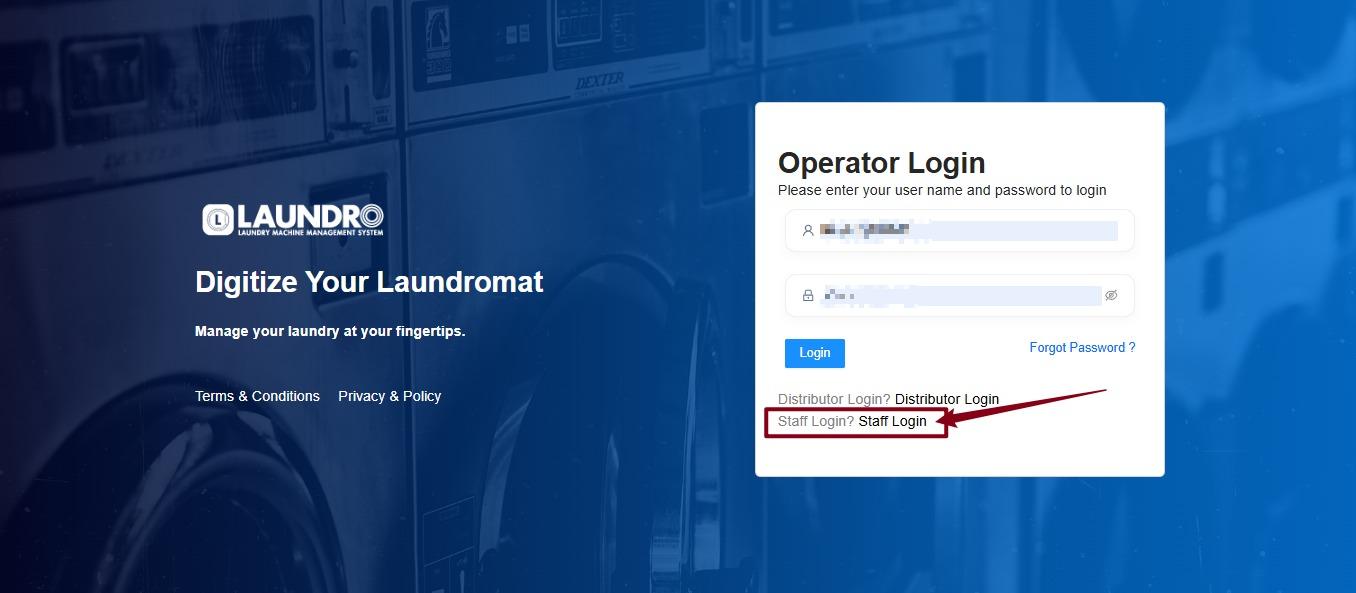
- Login into Laundro Portal. Click Staff Login. : https://v2.thelaundro.com/operator_login
11.
1. Put-in Username.
2. Password.