To Add-on Machine To The Existing Operator
📍 How to Access
🔐 Step 1 — Login to Laundro Portal
Log in using your Username and Password. https://v2.thelaundro.com/operator_login
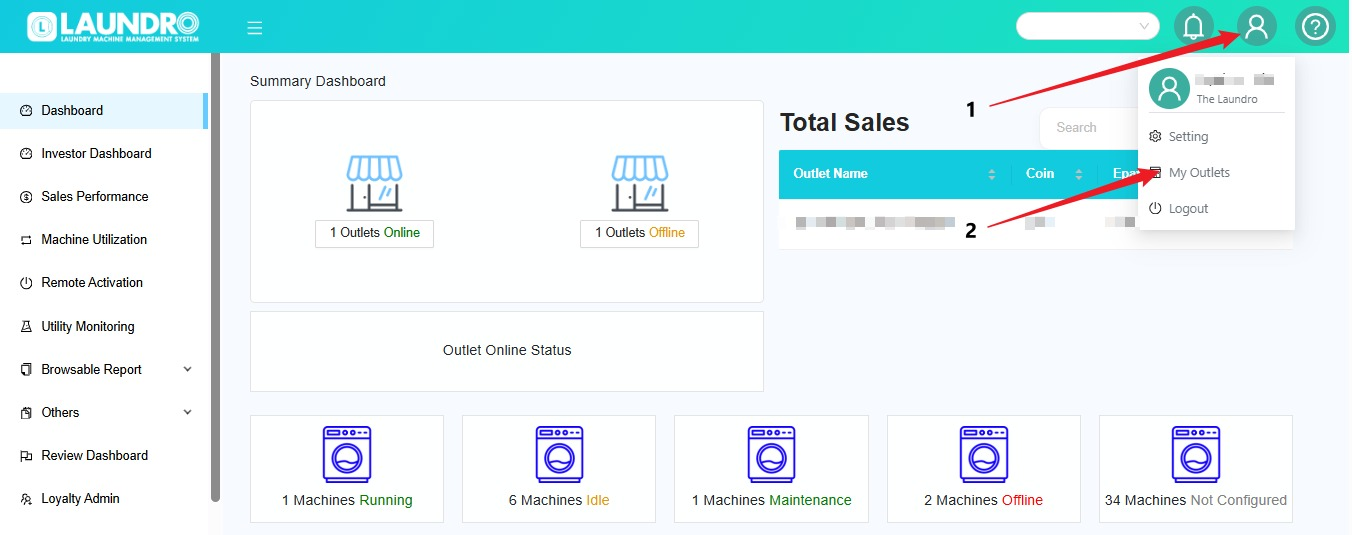
📍 Step 2 — Go to My Outlets
- Click the 👤 Profile icon.
- Select My Outlets.
- The list of your outlets will be displayed.
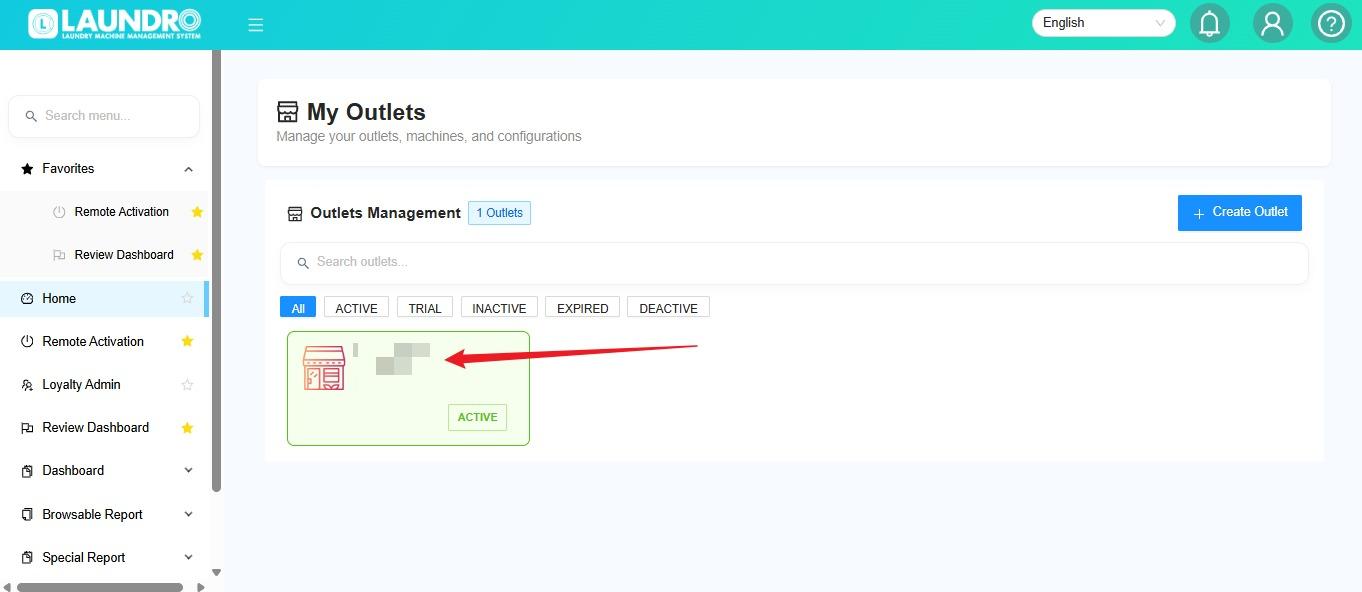
🏪 Step 3 — Select the Outlet
Click the outlet where you want to add the machine.
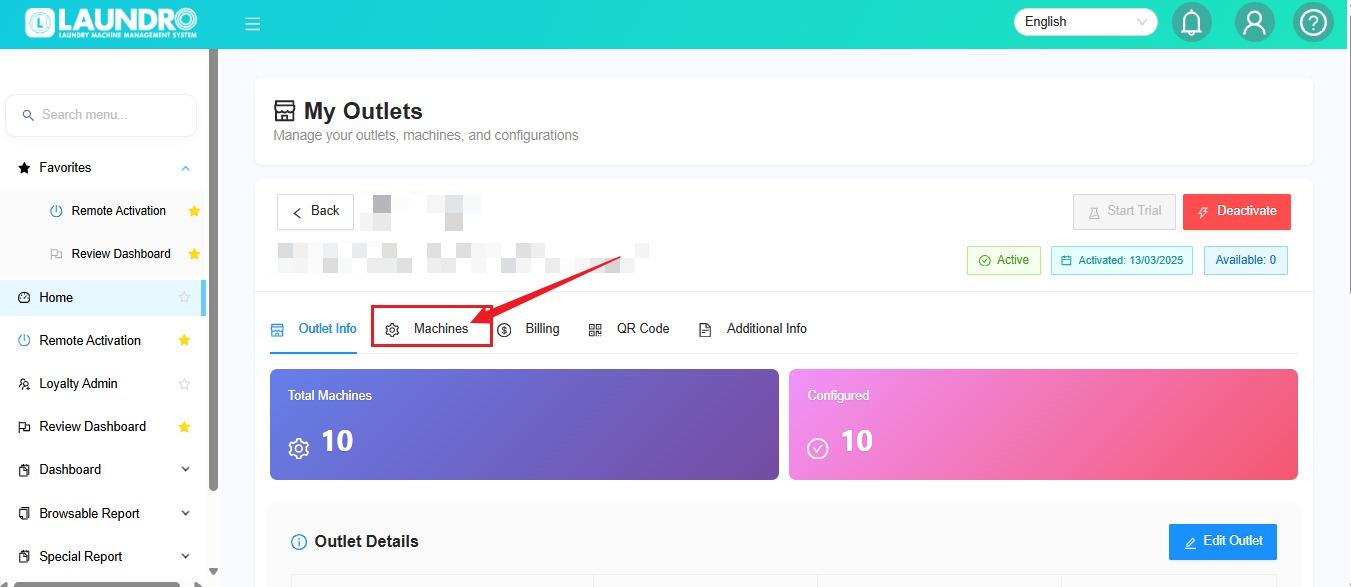
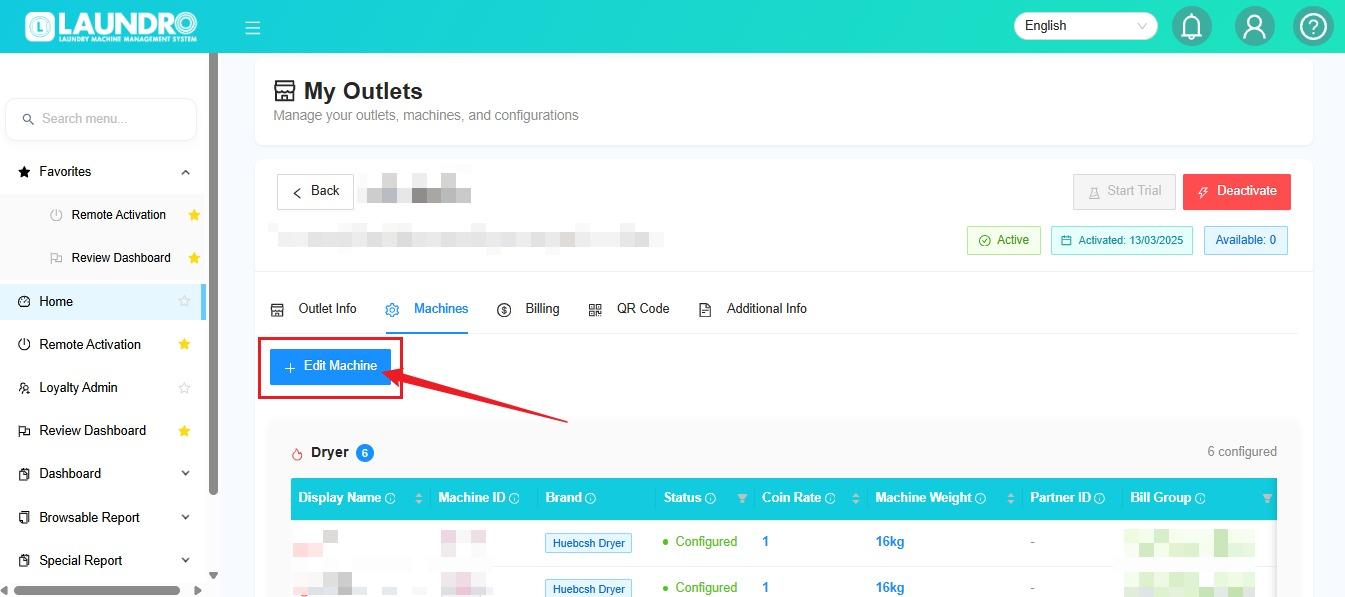
✏️ Step 4 — Edit Machine
Click Edit Machine to manage the machines in the selected outlet.
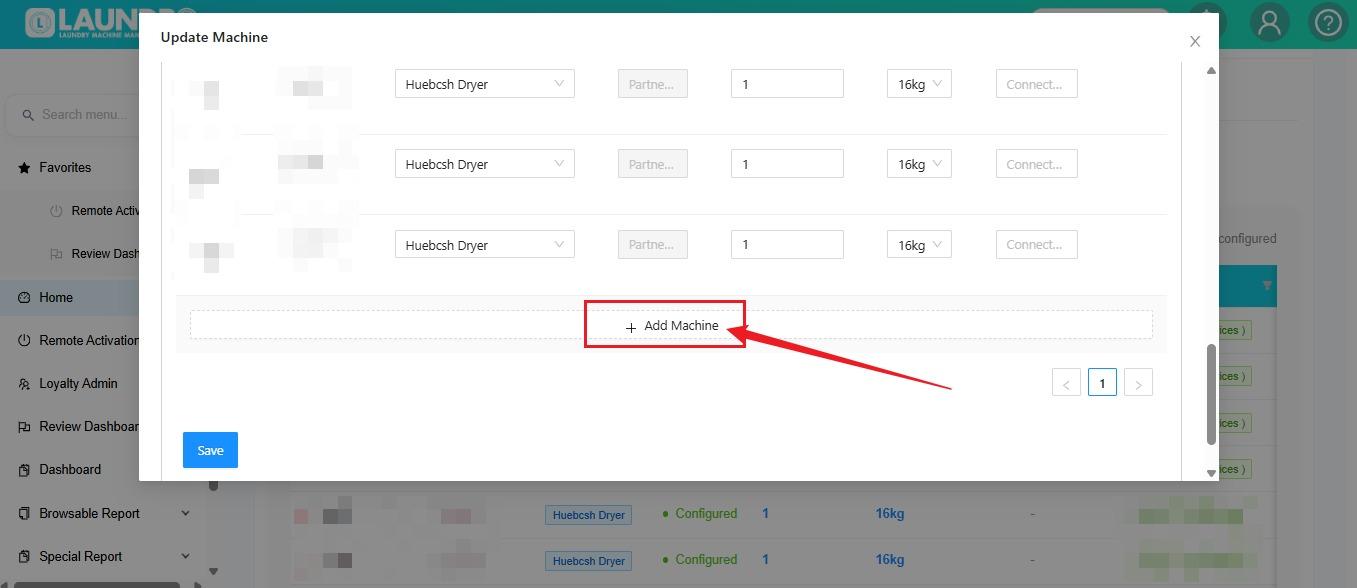
➕ Step 5 — Add Machine
Click + Add Machine.
Then choose the machine type:
- 🧺 Washer
- 🔥 Dryer
🔢 Step 6 — Add More Machines
Need to add more than one machine?
↕️ Scroll up or down to add additional machines.
➕ You can also click Add Machine repeatedly to add multiple units.
Click Add Machine, then select whether you want to add a Washer or Dryer.
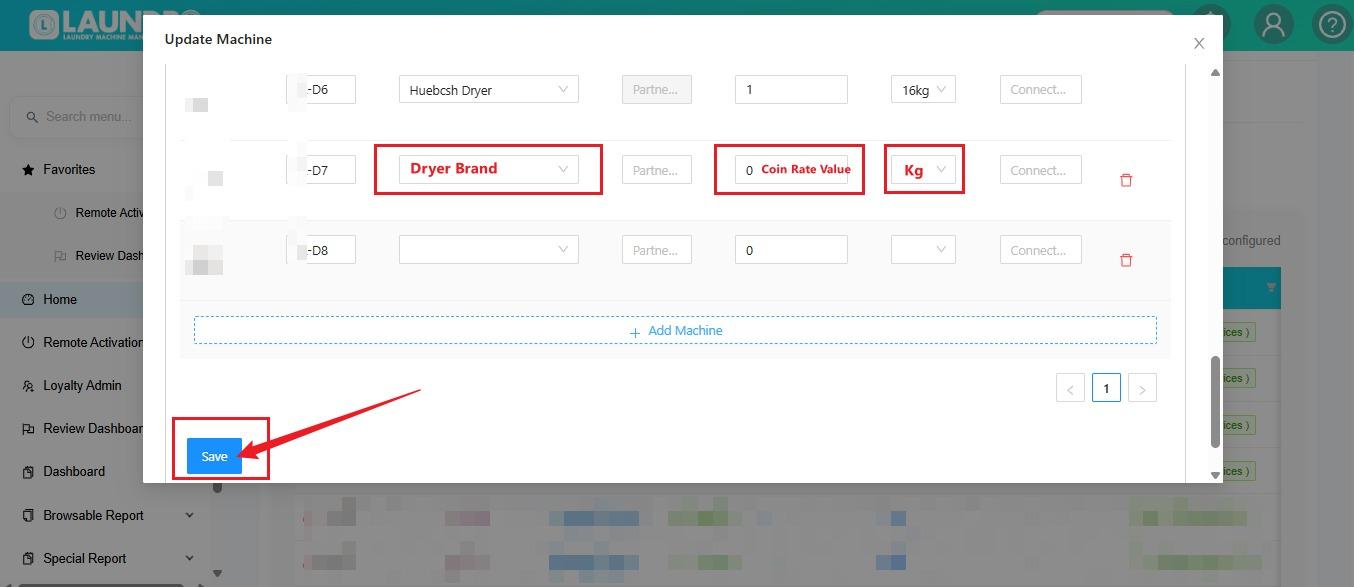
📝 Step 7 — Fill in Machine Information
Enter the required information for the Washer/Dryer.
When everything is completed, click:
💾 Save
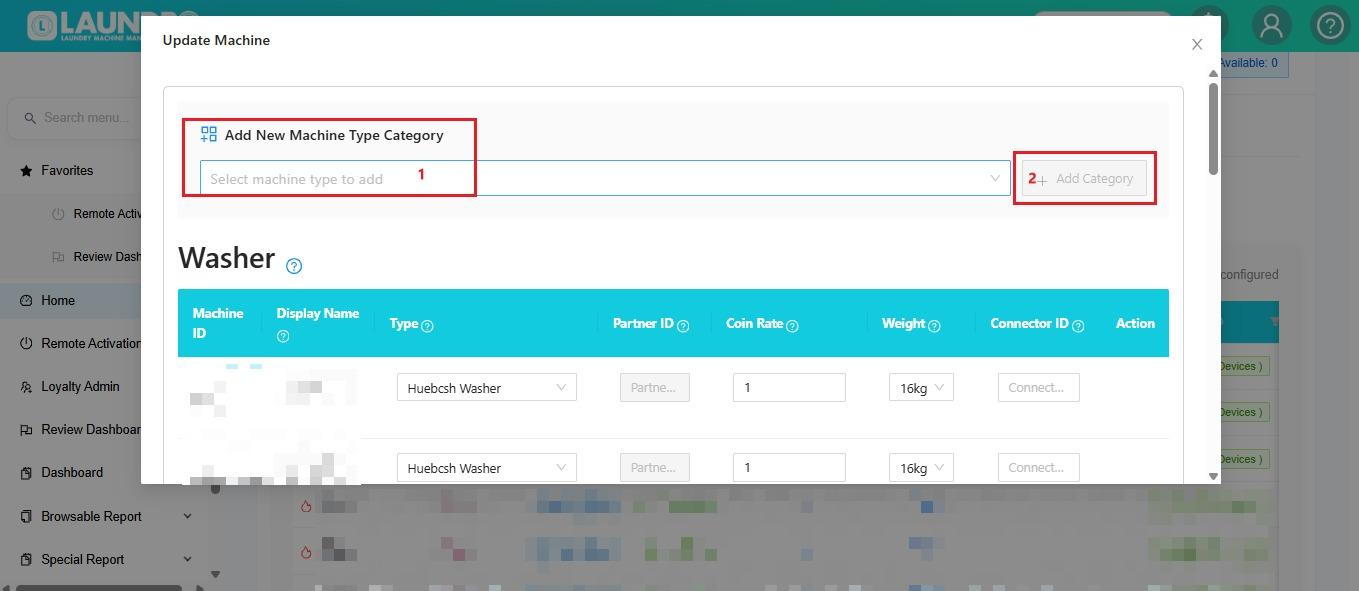
🆕 Add Other Machine Categories
If you need to add a machine other than a Washer or Dryer:
- 🔽 Click the Machine Type dropdown.
- Select the required machine category.
- Click Add Category.
💡 Important Note
Before clicking Save, make sure all machine information is correct.