To Add-on Machine To The Existing Operator
📍 How to Access
Step 1 — Open Laundro Portal
Log in to the Laundro Portal using your Username and Password. https://v2.thelaundro.com/operator_login
Step 2 — Go to My Outlet
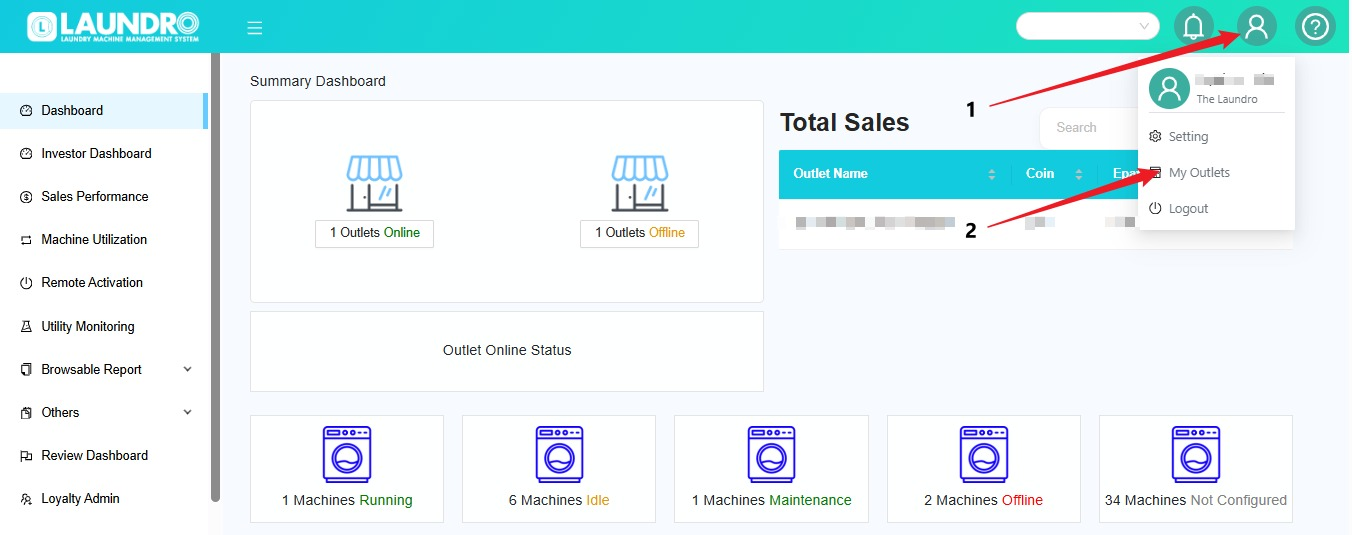
- Click the Profile icon at the top-right corner of the screen.
- Select My Outlets from the dropdown menu.
- The system will open the My Outlets page where you can view your outlets.
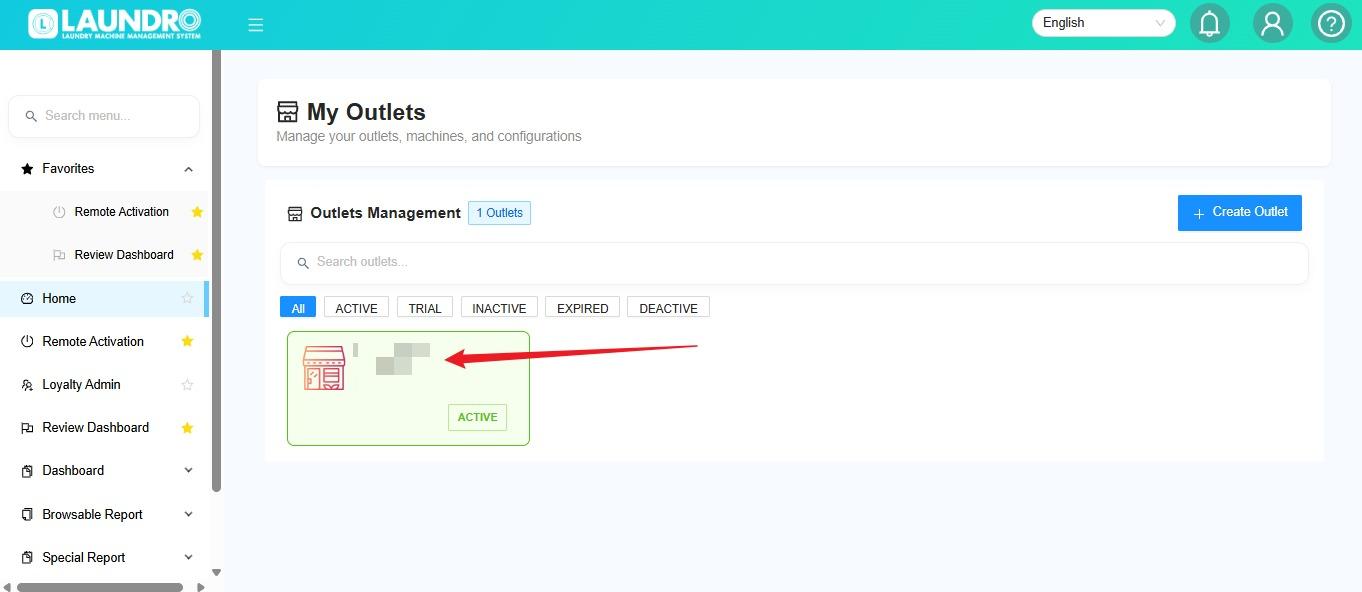
Step 3 — Select Outlet
Click on the outlet where you want to add the machine.
Step 4 — Select Machine
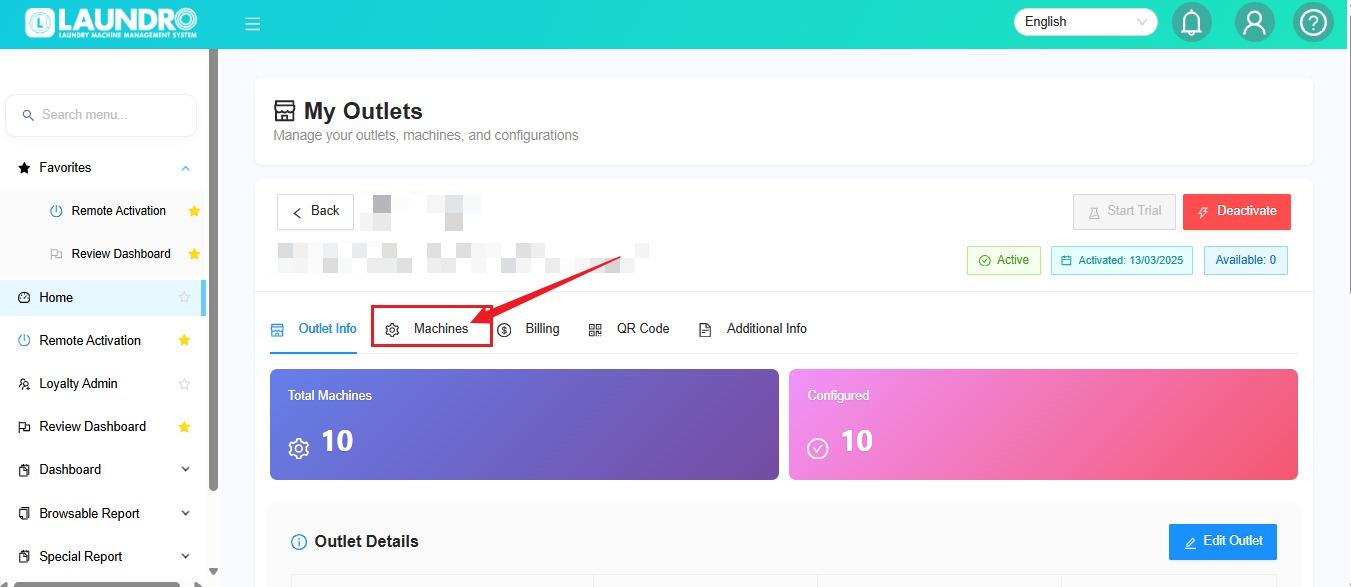
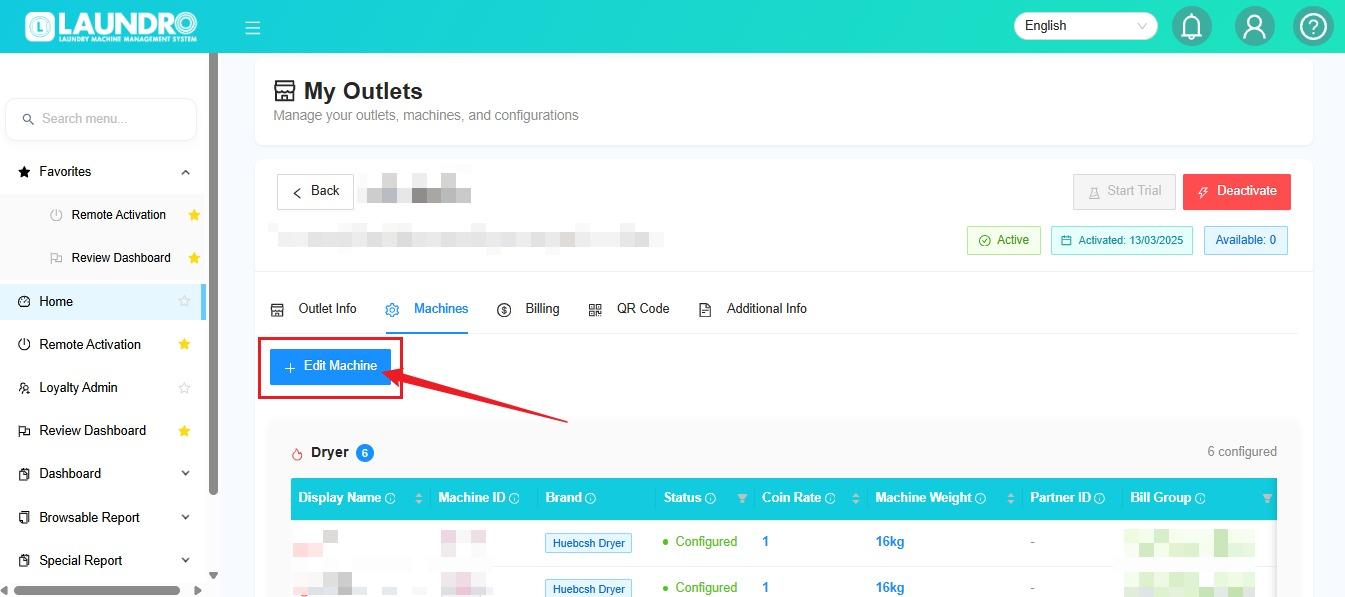
Step 5 — Select Edit Machine
Step 6 — Select +Add Machine
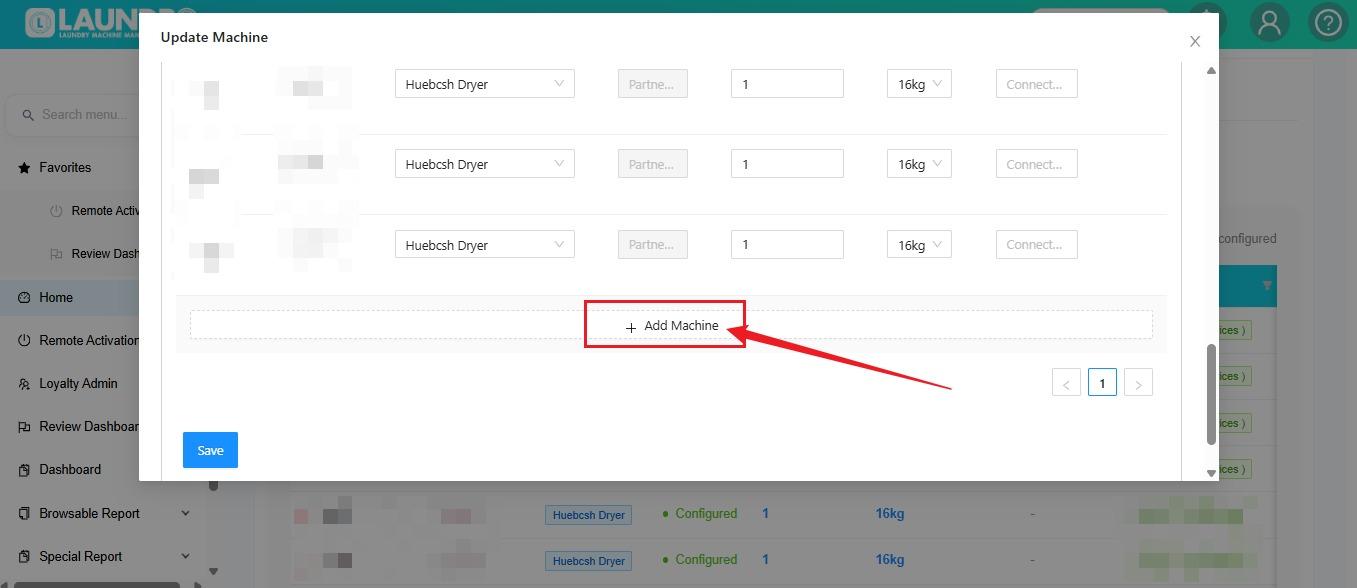
Click Add Machine, then select whether you want to add a Washer or Dryer.
Scroll up or down to add more Washer/Dryer machines.
You can also click “Add Machine” repeatedly to add more than one unit.
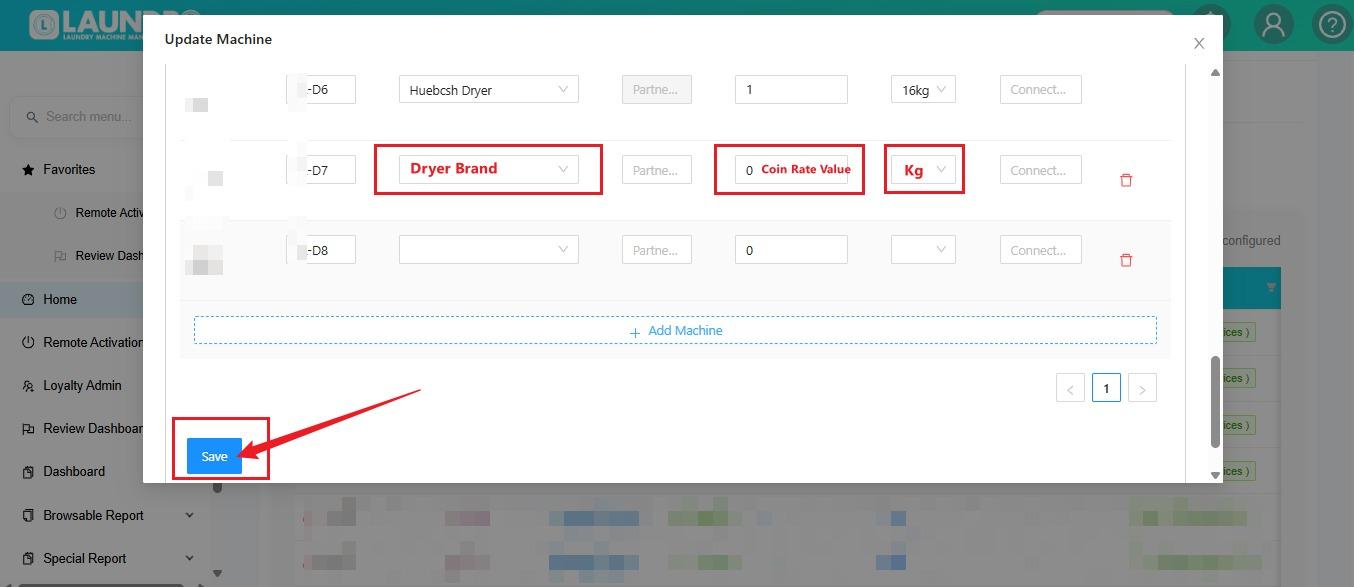
Step 7 — Fill in Dryer/Washer info
- Click
Save“Save”AfteronceFillyouinhaveWasherfinished/addingDryertheInfo.machines.
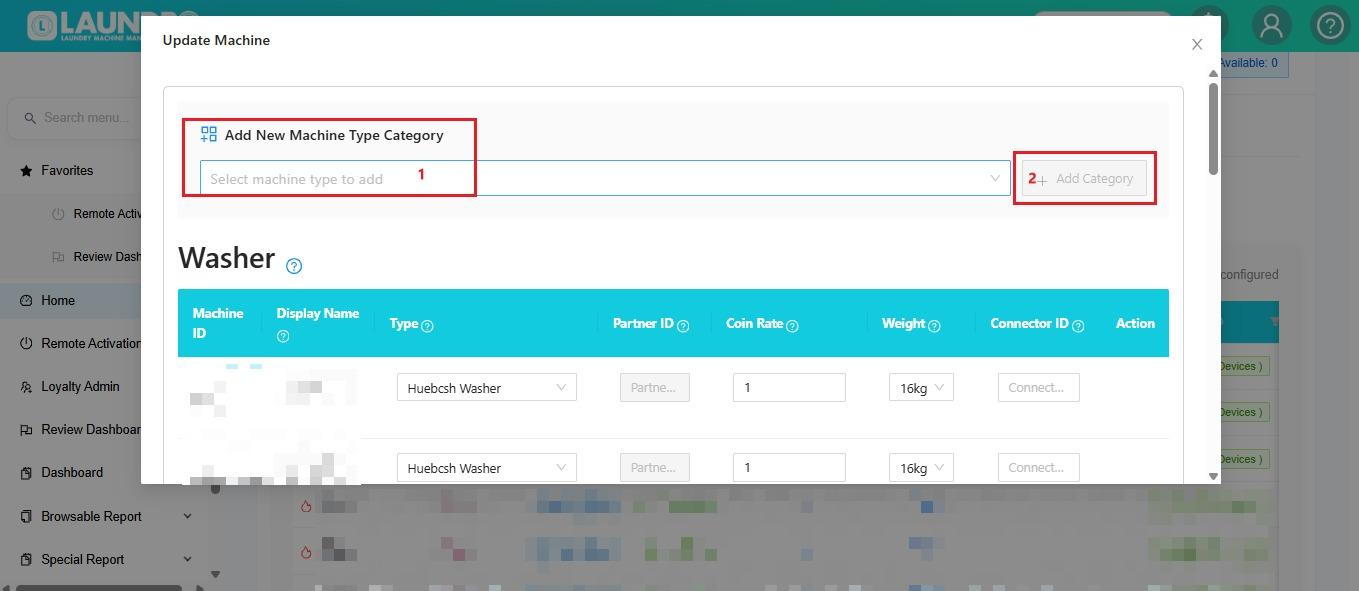
Add New Machine Type Category
- Select machine type – Click the dropdown and choose the machine category you want to add, other than Washer or Dryer.
- Add Category – After selecting the machine type, click Add Category to add the new category to the outlet.