
Rego Printer RG-P80B
Portal
URL: https://printsrv.quickticket.cn/
Username: Kar Yan
password: [email protected]
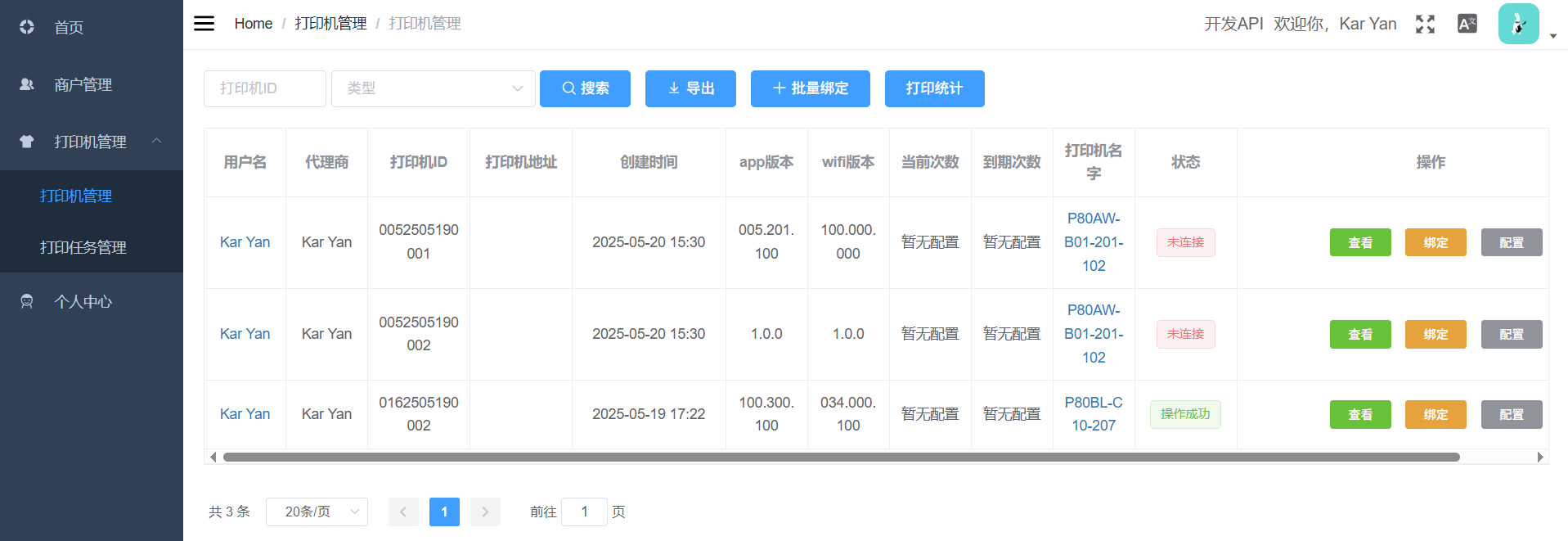
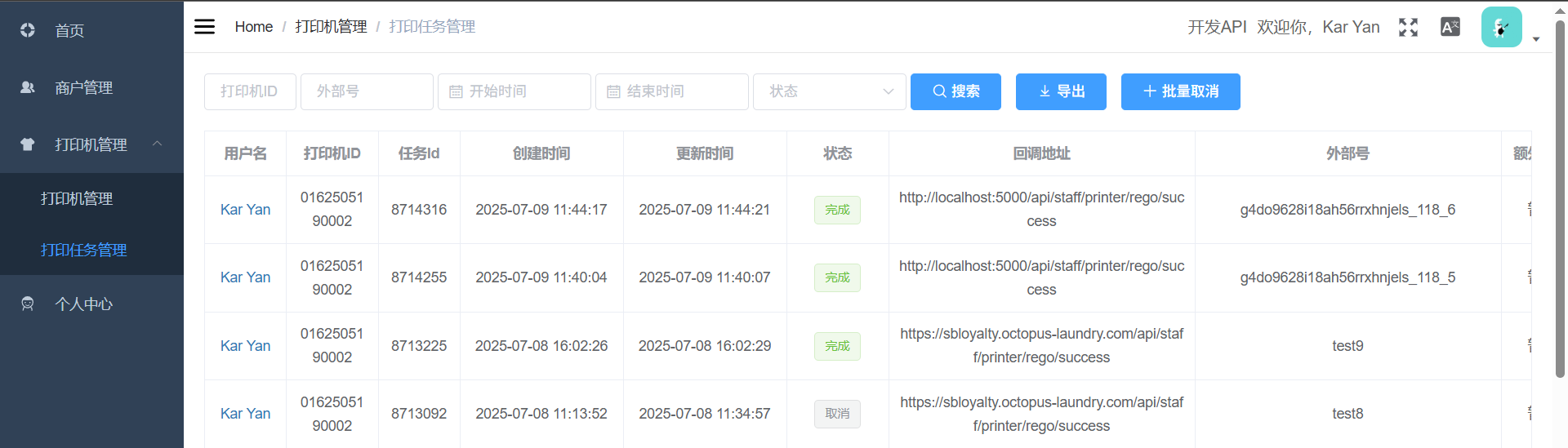
You can check your printer status and printer task status in the portal.
Printer Status:
Printer Task Status:
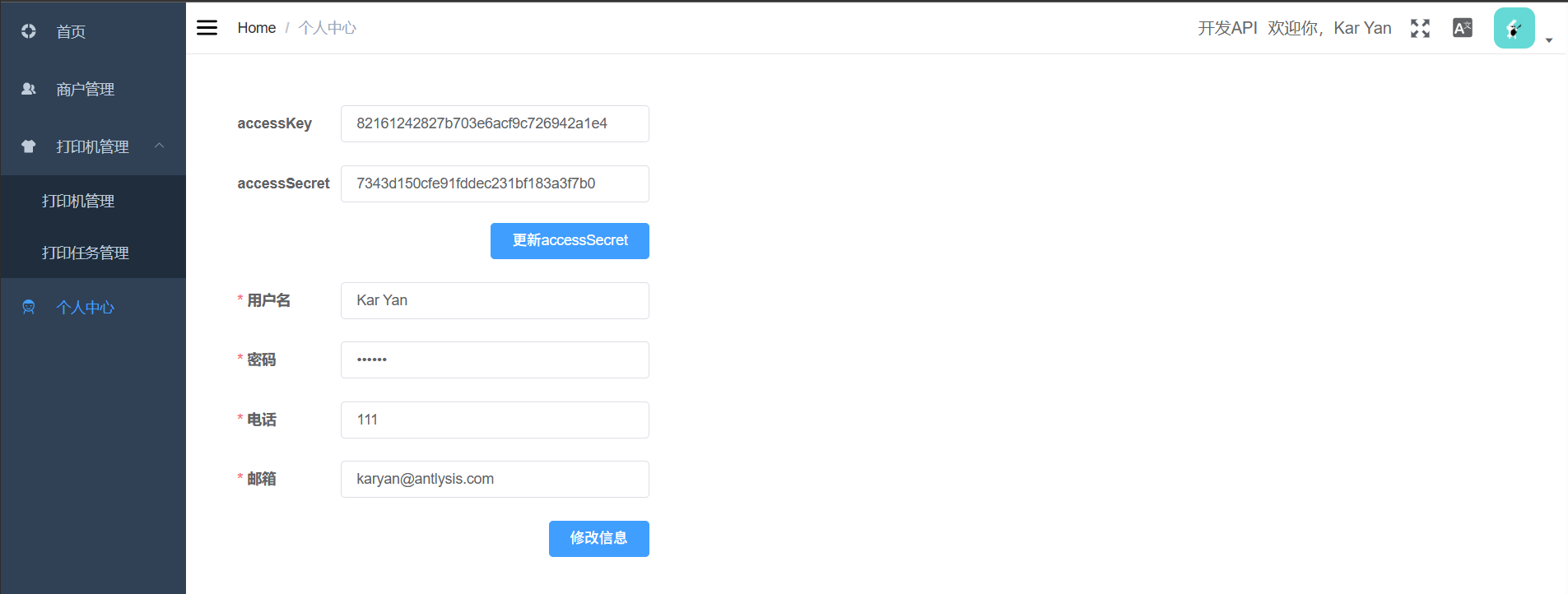
API access key and secret:
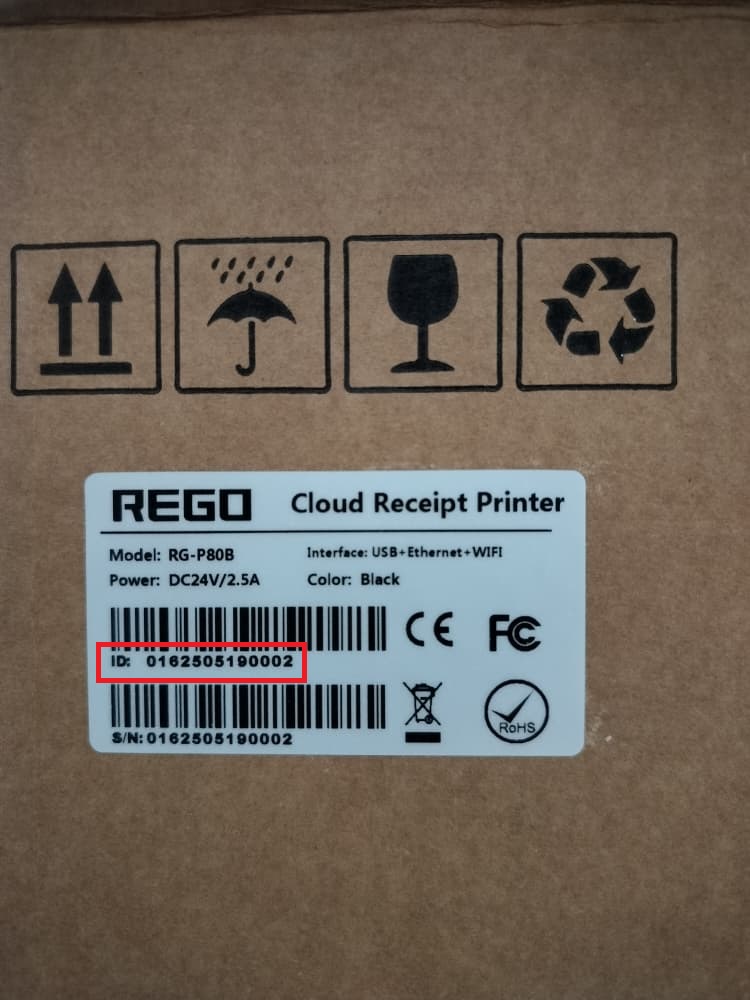
Device ID
The Printer Device ID can be found at the box. For example, this device ID is 0162505190002
Connect Wifi
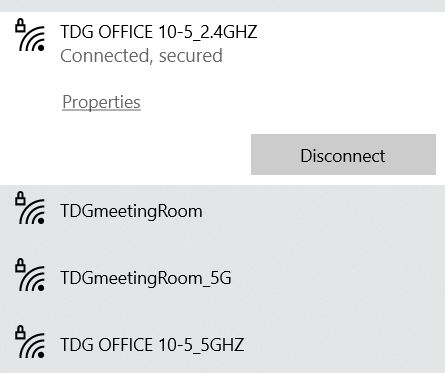
Make sure your PC is connected to 2.4G Wifi not 5G. You can click on the wifi properties to get your Wifi SSID.
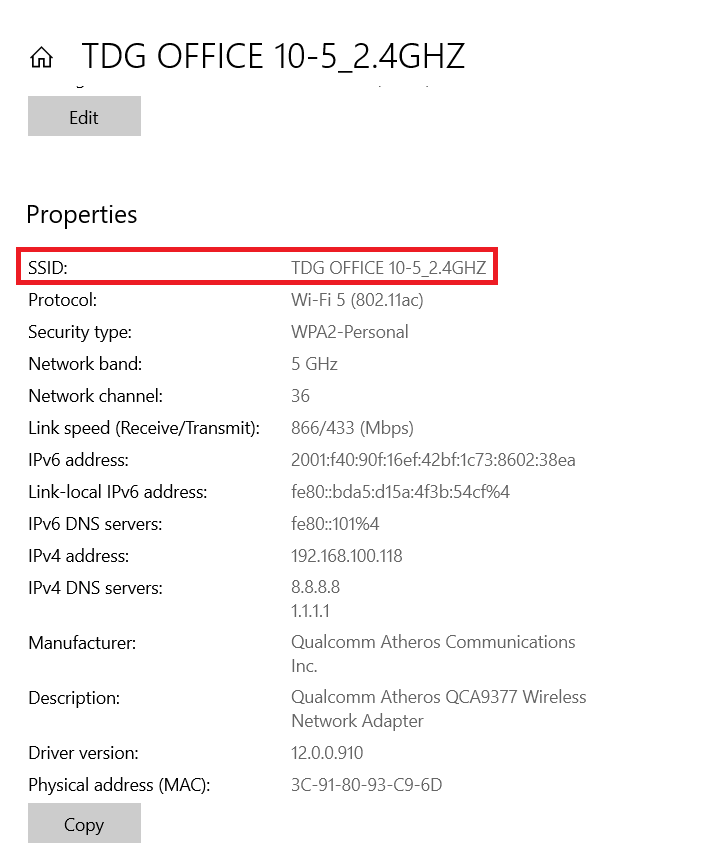
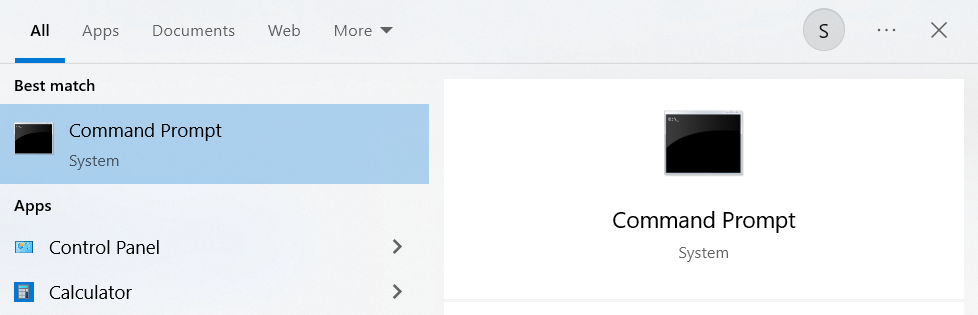
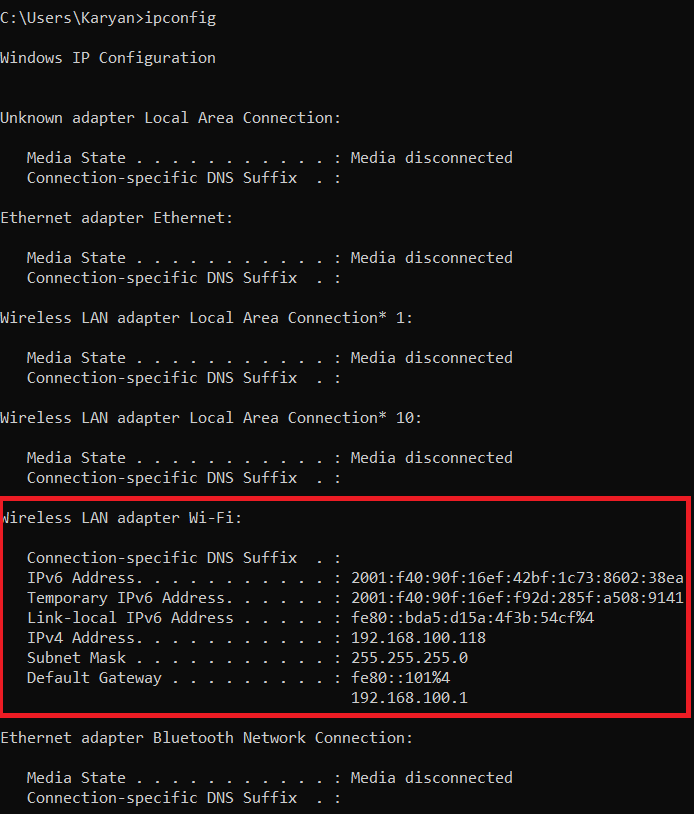
Search for Command Prompt and type ipconfig command, you can see the wifi details that your PC connected. You can get the subnet mask and gateway value from here.
Fill in the Wifi details into the tools and click the SET button to let the printer connect to Wifi. Note: Mask and Gateway input in tools have swap
SSID: Wifi SSID from properties
Key: Wifi password
IP address: Any ip address that is not use
Mask: Default Gateway value from ipconfig command
Gateway: Subnet Mask value from ipconfig command
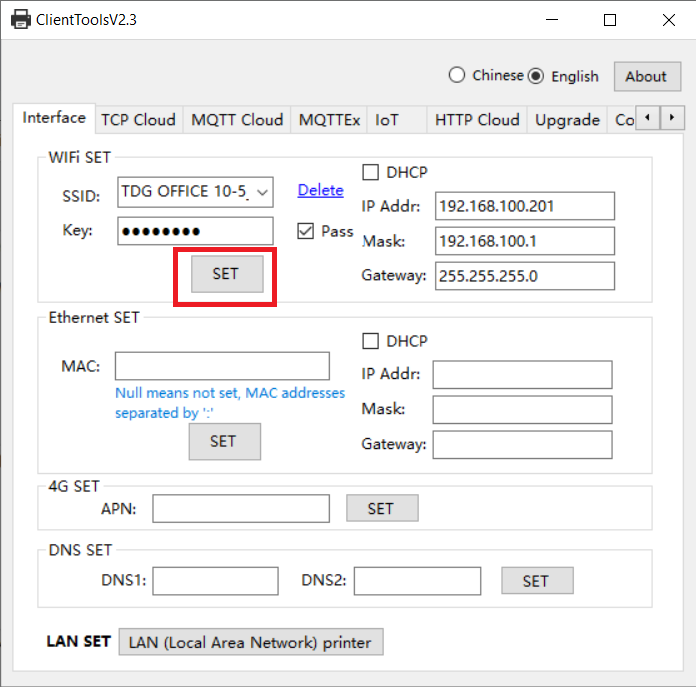
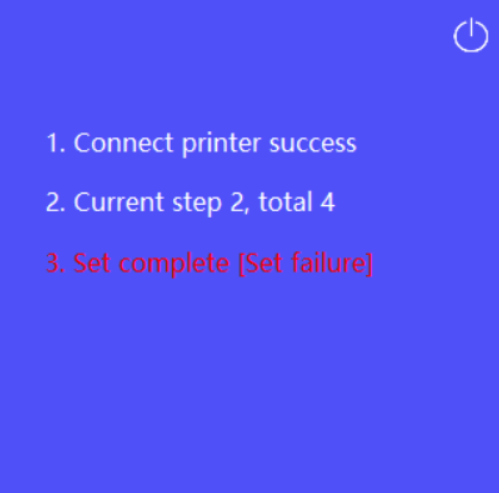
If failed to connect, try to restart the printer and click the SET button again.
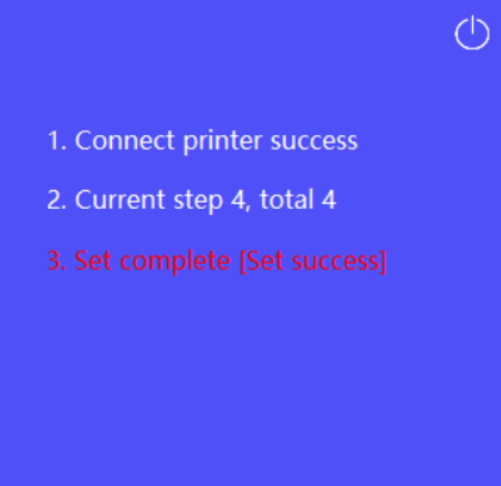
If success to connect will show Set success.
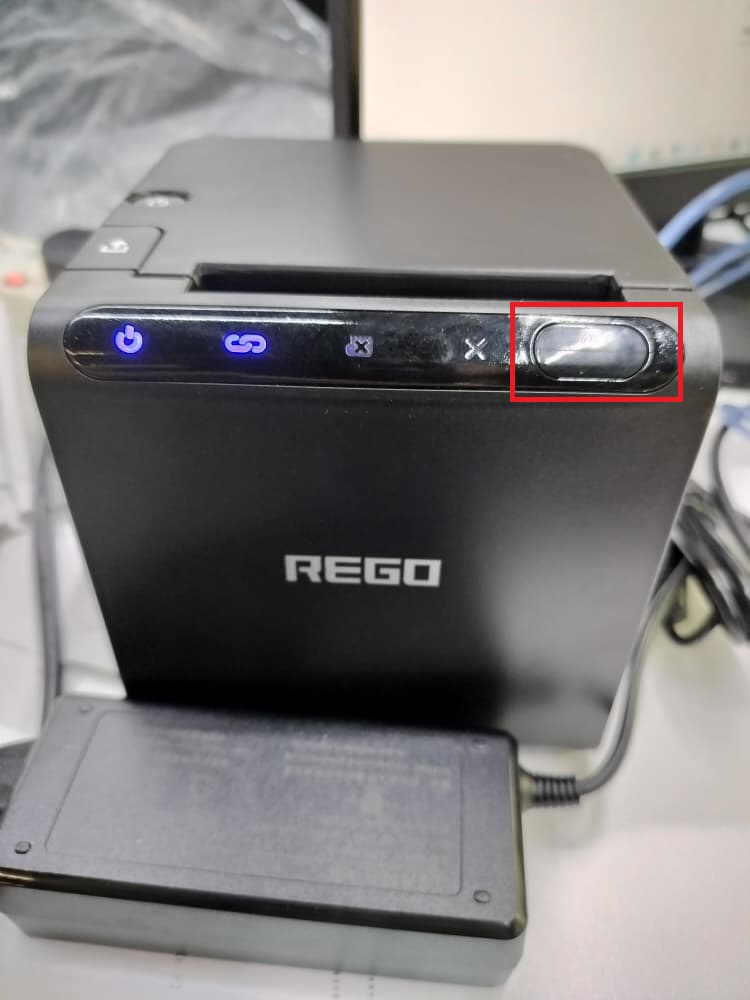
To verify whether connected to wifi success, when printer power on, press 2 times on the print button, it will print the printer network configure
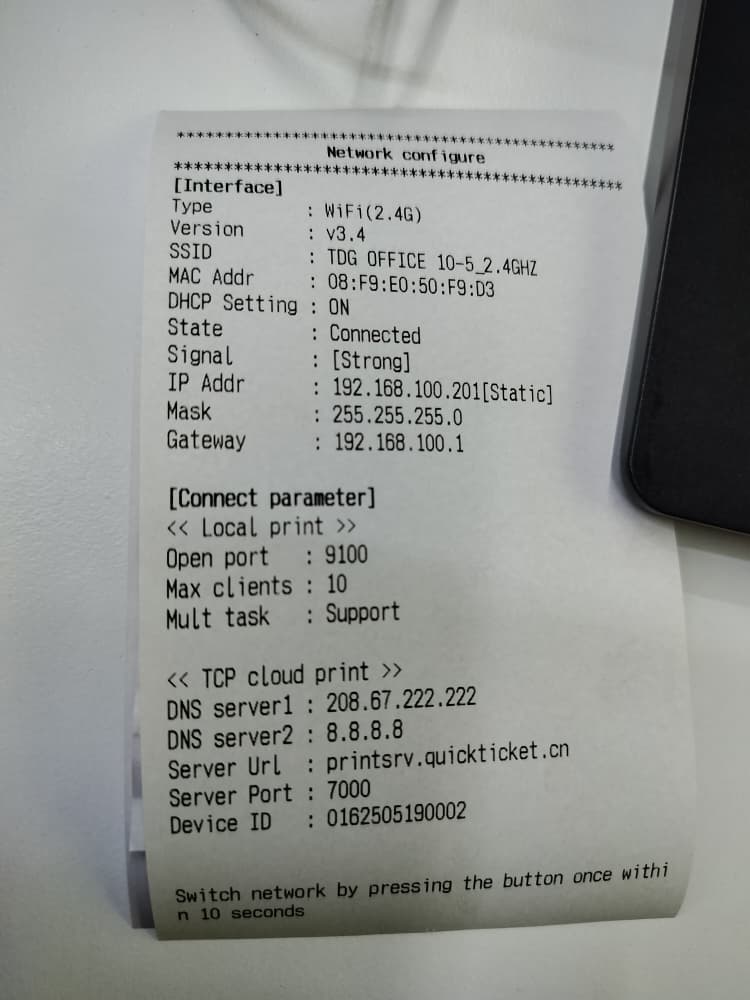
TCP Cloud Print (API)
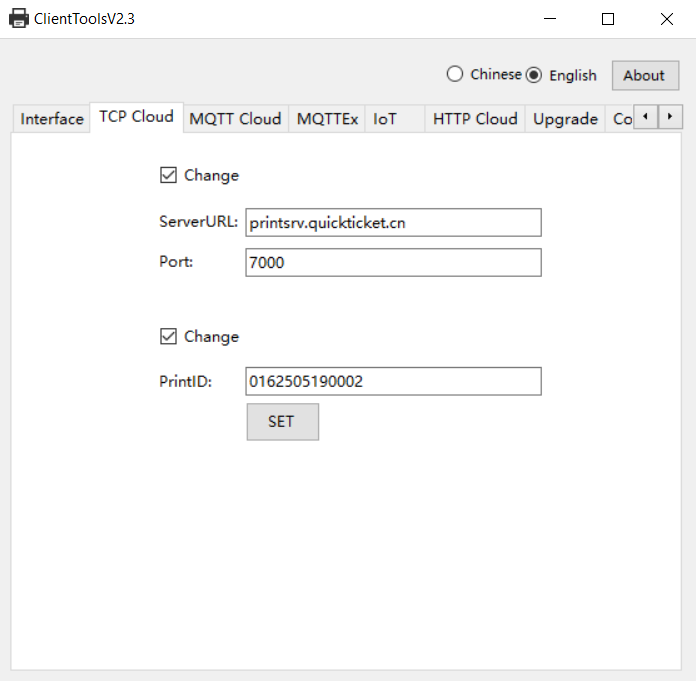
To use TCP cloud print, it can configure using tools. ServerURL is printsrv.quickticket.cn and the port is 7000. PrintID will be your printer device ID at the printer box. Click SET button to set TPC Cloud Print.
MQTT Cloud Print (MQTT)
To use MQTT cloud print, it can configure using tools.