Revenue Monster Setup
“First, open the LAUNDRO Operator link page.” - https://v2.thelaundro.com/operator_login
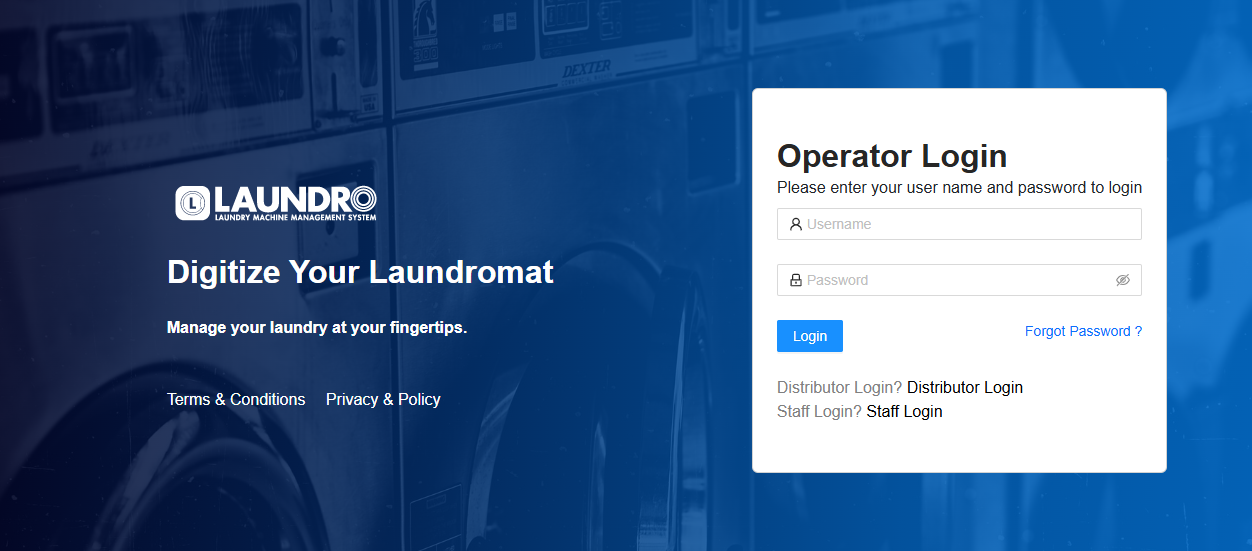
Operator Login
“Next, open the Revenue Monster link page as well.” - https://merchant.revenuemonster.my/
Revenue Monster Portal
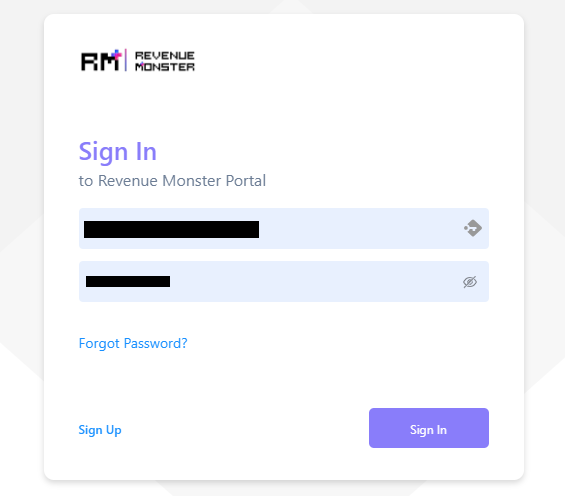
1) Open both links, then log in to the Revenue Monster portal using the details provided.
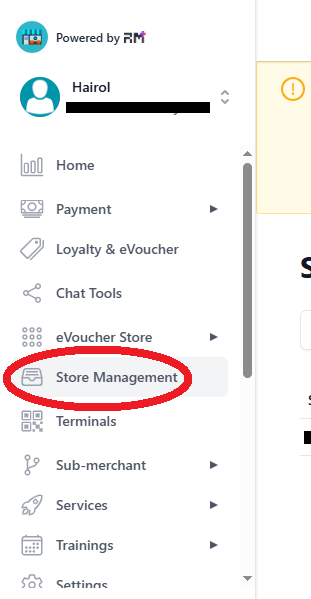
2) Click on ‘Store Management’ on the left sidebar.
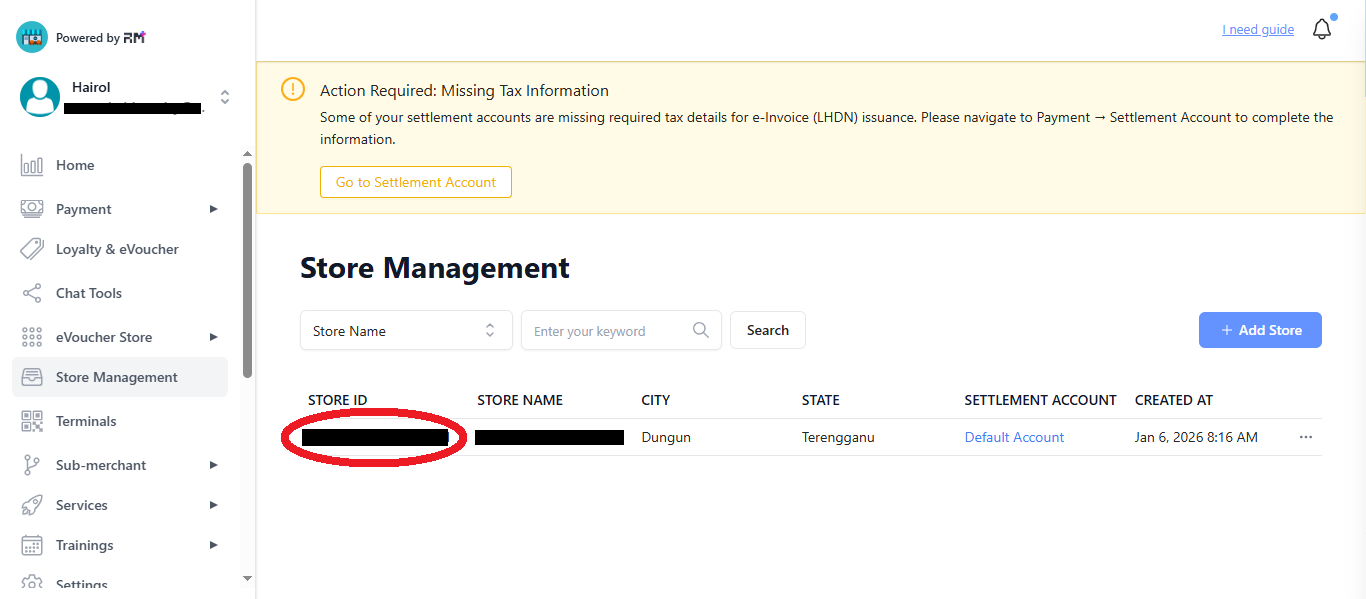
3) Below the Store ID, you will see a number. Click on it.
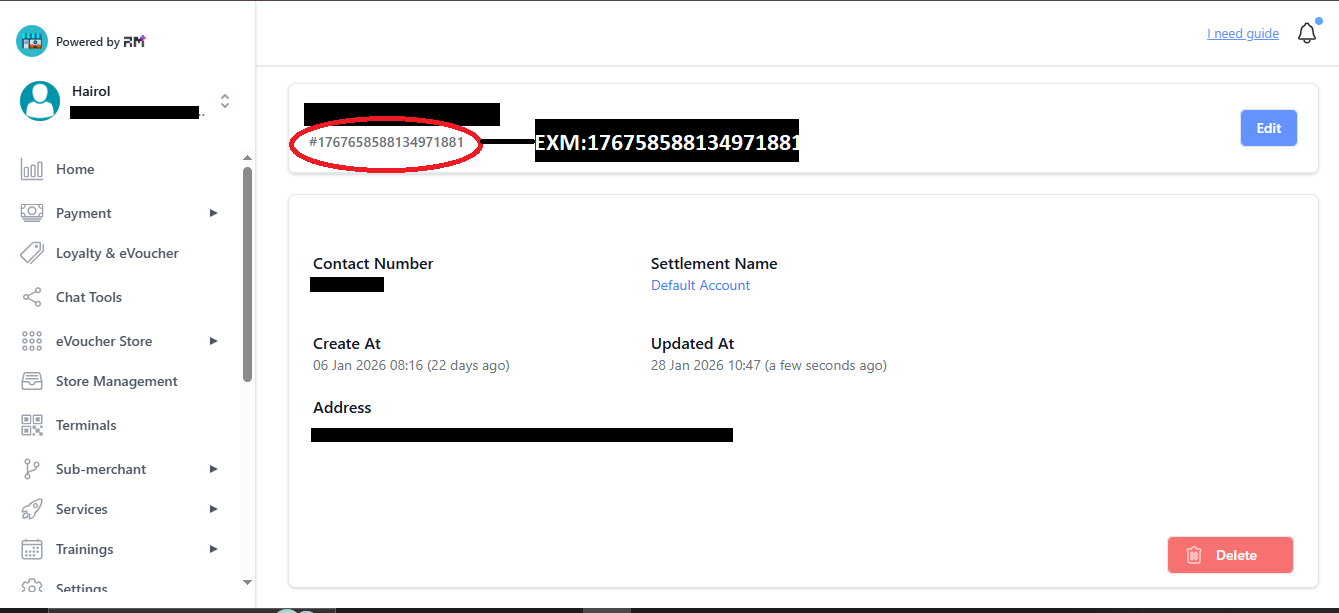
4) Copy the Store ID number without the ‘#’ symbol—numbers only.
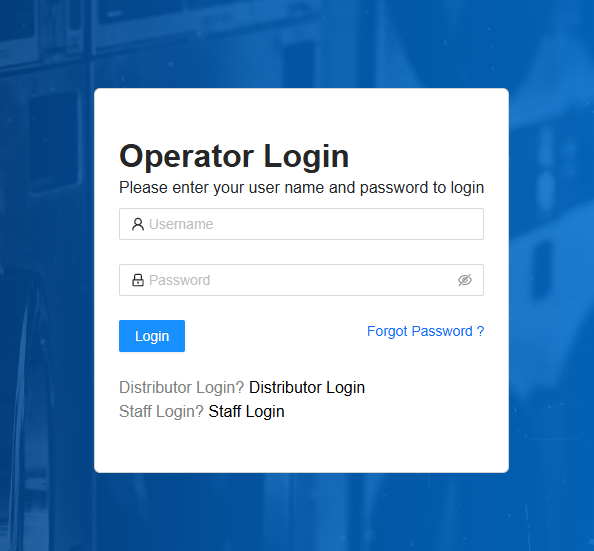
5) Before copying the Store ID number, go to the LAUNDRO ''operator login'' page and log in to the portal using the provided ID and PASSWORD.
6) On the top right, click on the user bar, then select ‘Setting.
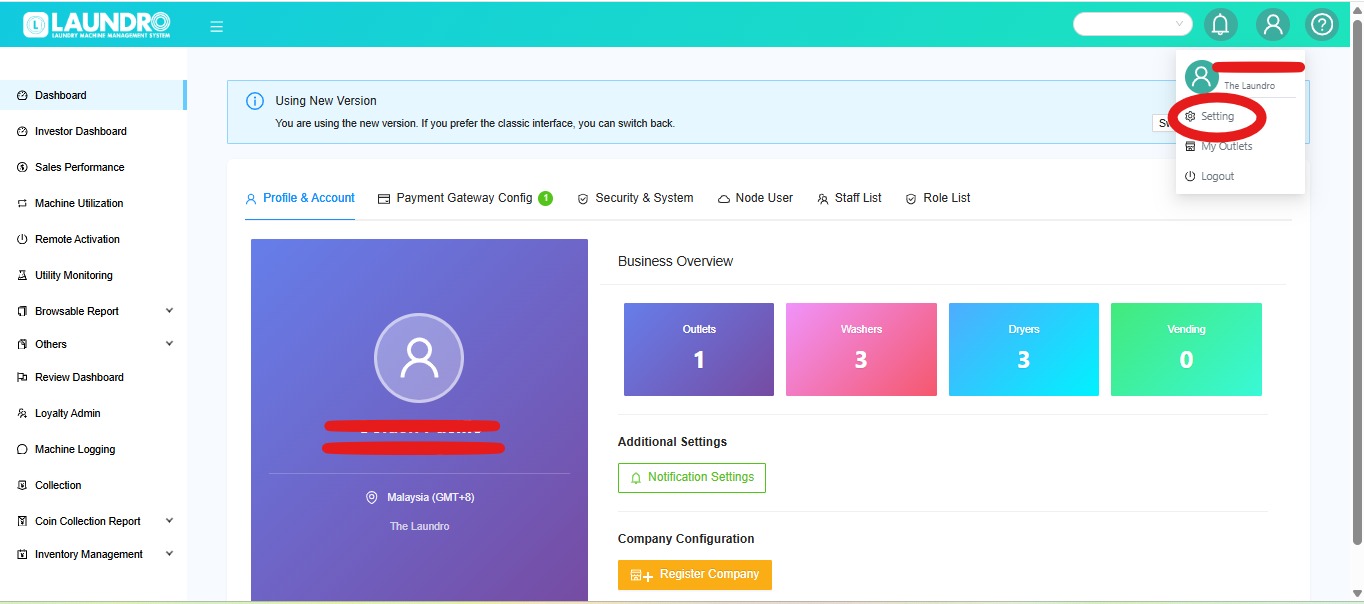
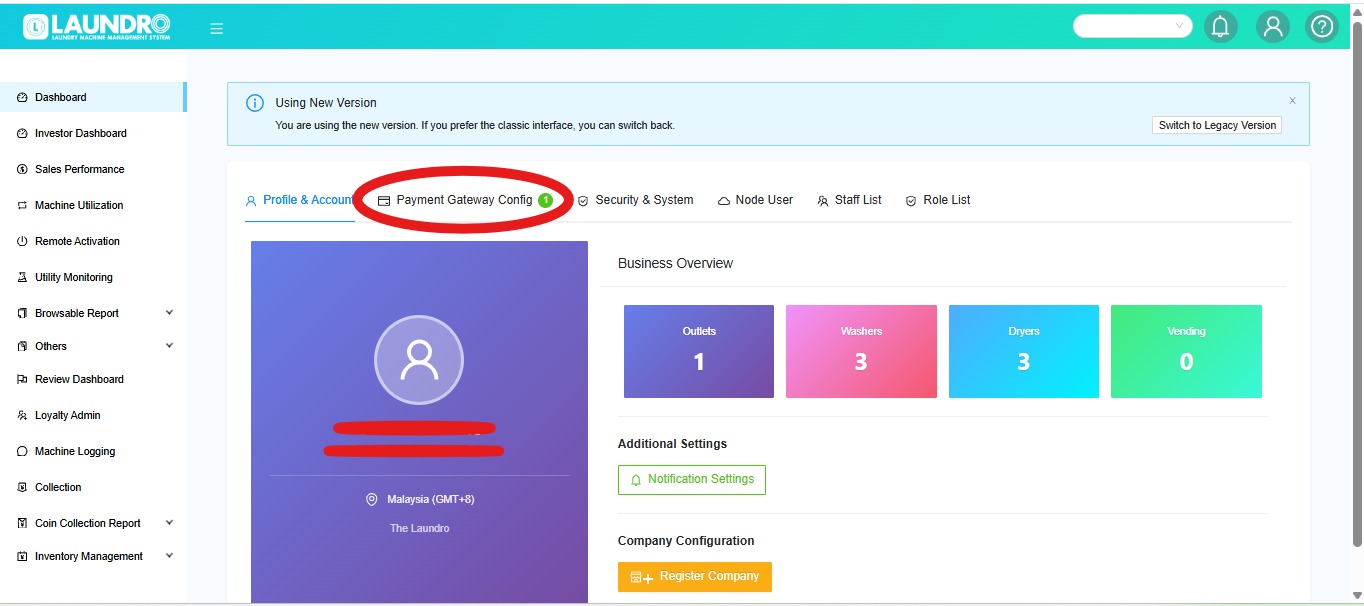
7) Now, you are on the Settings page. Select Payment Gateway Config.
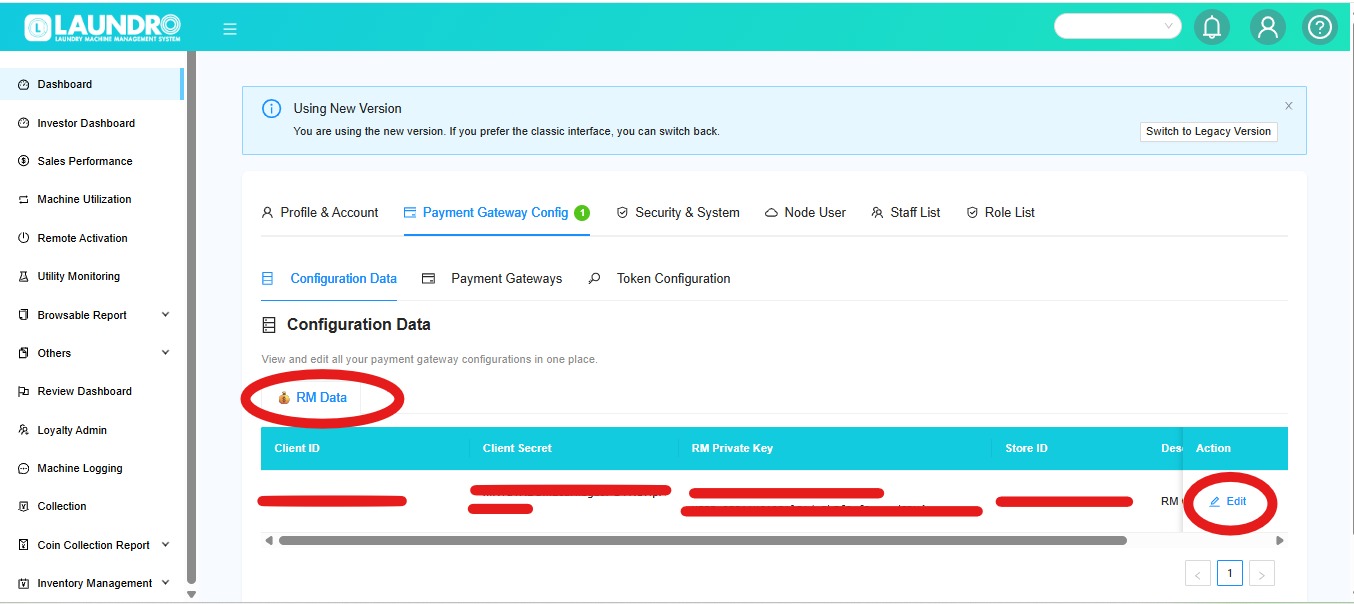
8) Scroll down until you see ‘RM DATA.’ Under ‘Action,’ click the pencil icon.
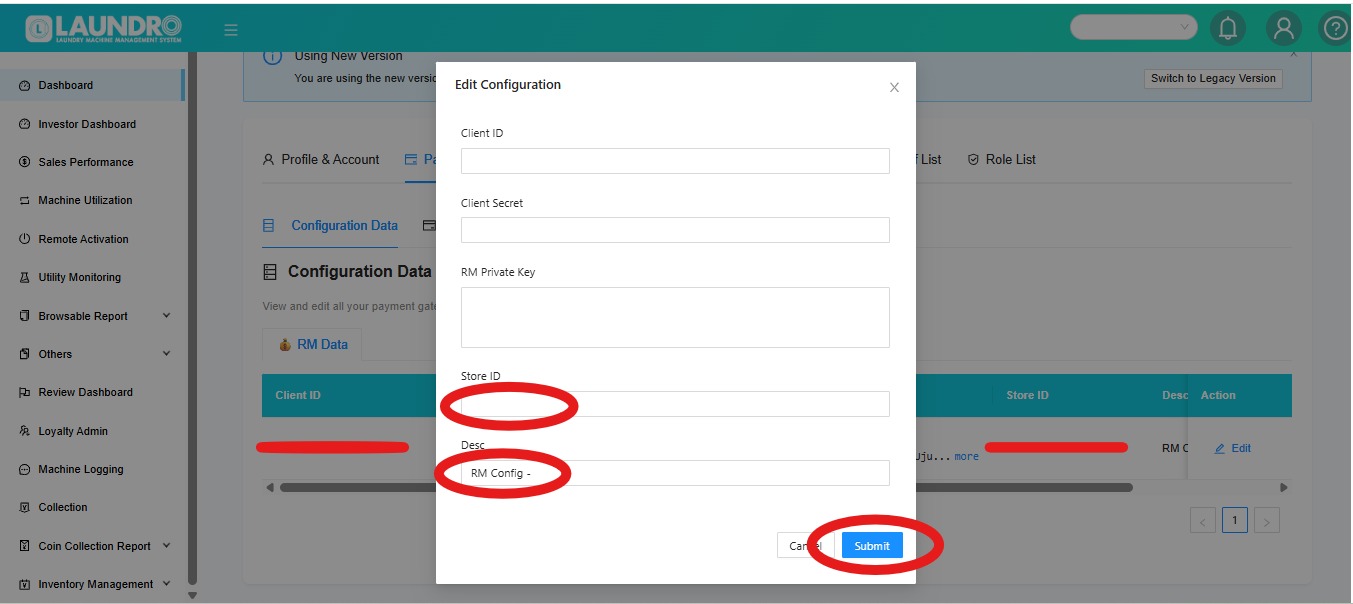
9)The Edit Configuration page will pop up.
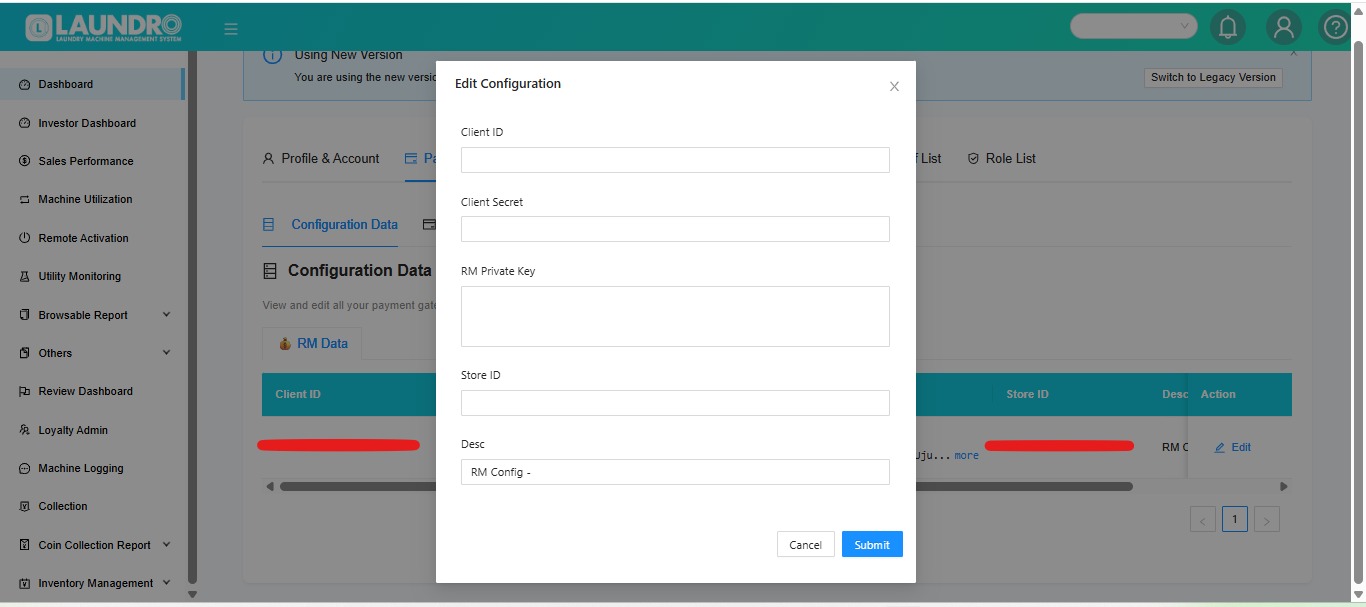
10) From step (4), copy the Store ID and paste it into the Laundro ‘Store ID’ field.
11) Update the description (DESC) to ‘RM Config'.
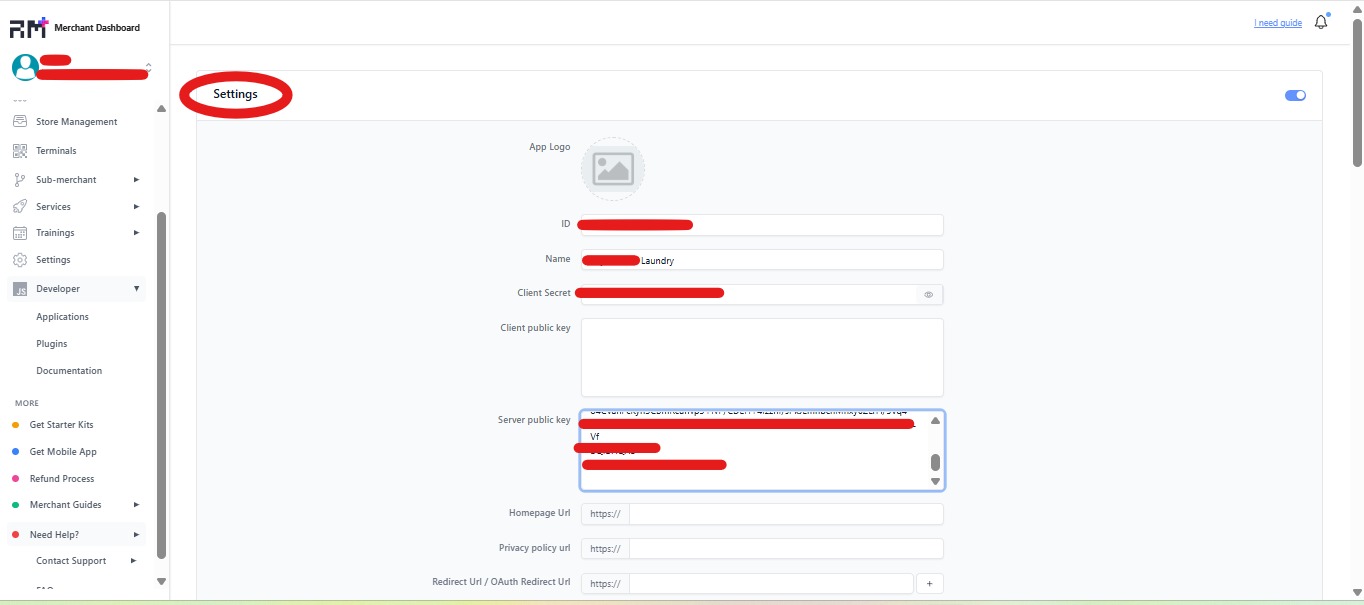
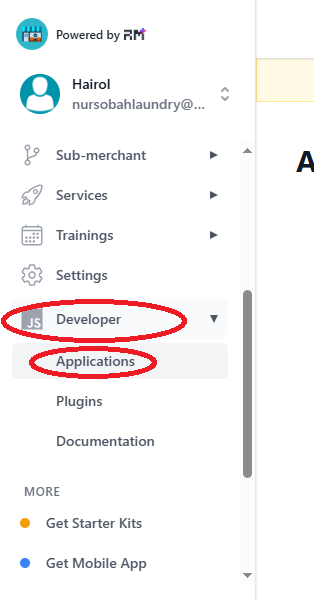
12) Leave it on the Laundro page. Now go back to the Revenue Monster page, click on ‘Developer,’ and select ‘Application.
13)On the Application page, below the Client ID, click on the number.
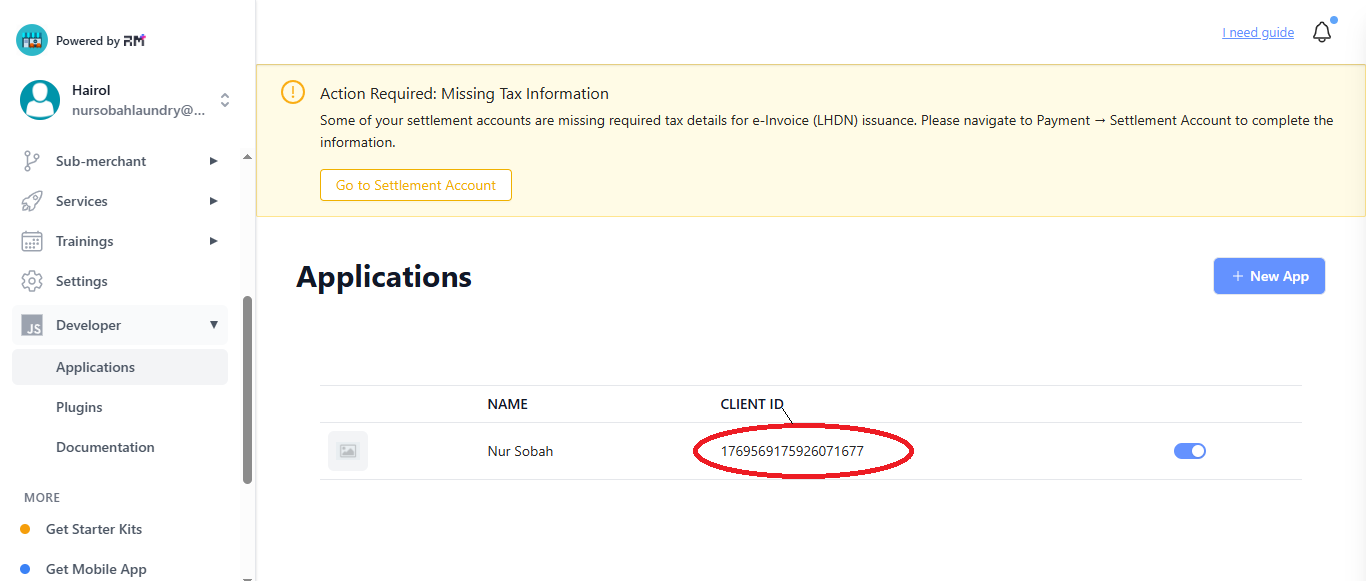
14) The page will appear like this.