Laundry Pass
What is 'Laundry Pass'
The Laundry Pass feature allows operators to create and manage prepaid packages that customers can use for washing and drying machines.
Laundry Pass Report
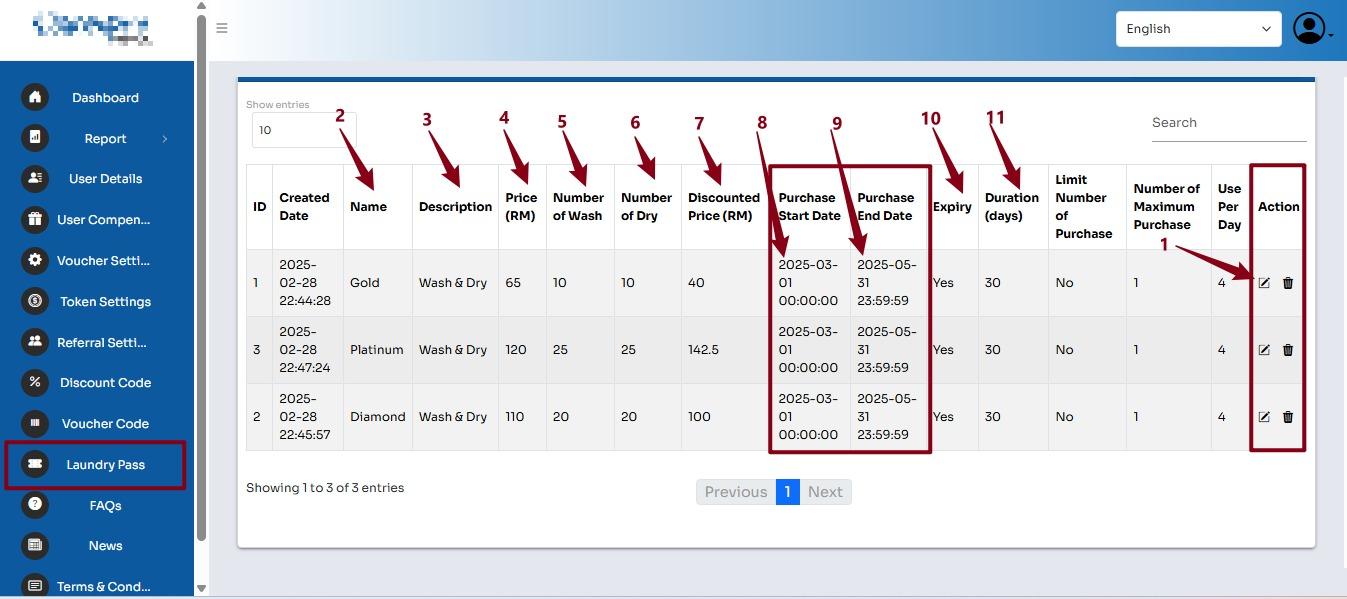
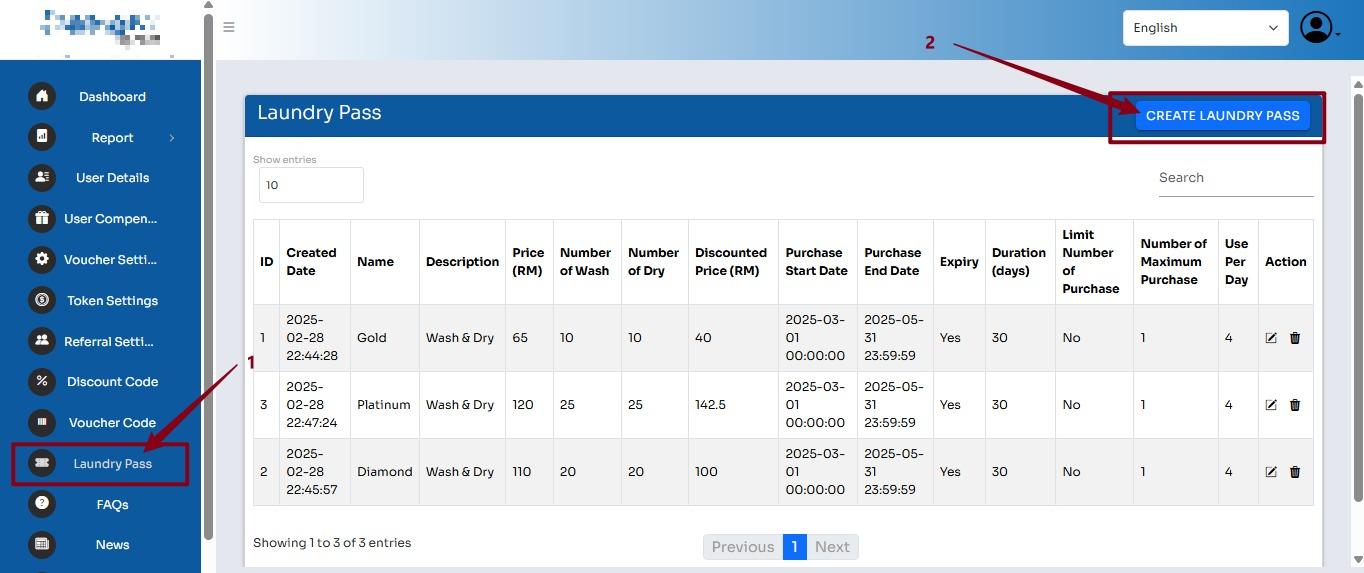
The Laundry Pass page displays all existing Laundry Pass packages and their details.
Package Information
- ID – Unique ID of the Laundry Pass.
- Created Date – Date and time when the package was created.
- Name – Name of the package, such as Gold, Platinum, or Diamond.
- Description – Description of the services included in the package.
- Price (RM) – Original price of the package.
- Number of Wash – Number of washing cycles included.
- Number of Dry – Number of drying cycles included.
- Discounted Price (RM) – Discounted or promotional price of the package.
- Purchase Start Date – Date when customers can start purchasing the package.
- Purchase End Date – Last date when customers can purchase the package.
- Expiry – Indicates whether the package has an expiry period.
- Duration (days) – Number of days the package remains valid.
- Limit Number of Purchase – Indicates whether there is a limit on the number of purchases.
- Number of Maximum Purchase – Maximum number of purchases allowed when a purchase limit is enabled.
- Use Per Day – Maximum number of times the package can be used per day.
- Action – Allows the operator to edit or delete the Laundry Pass.
Example
A Gold Laundry Pass can be configured as follows:
- Price: RM65
- Discounted Price: RM40
- Wash: 10
- Dry: 10
- Duration: 30 days
- Use Per Day: 4 times
This means the customer can purchase the Gold package at RM40 and receive 10 wash and 10 dry cycles, subject to the package's usage rules.
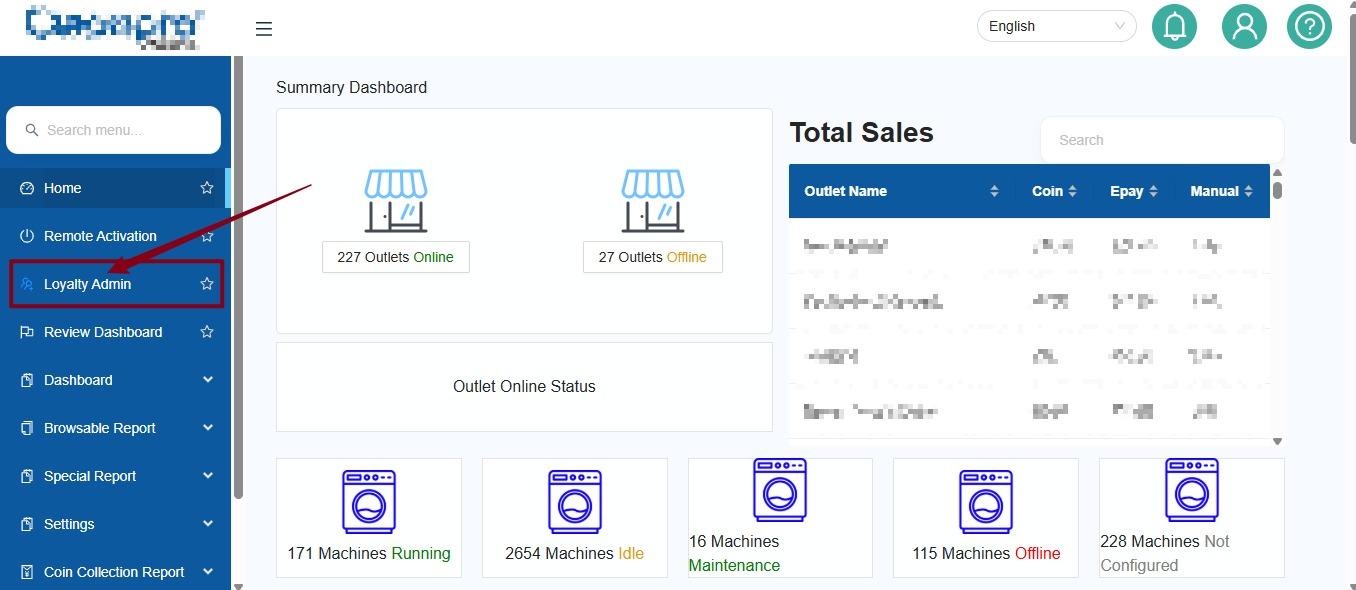
Click Loyalty Admin
2. Create a New Laundry Pass
To create a new Laundry Pass package, click Create Laundry Pass and enter the required information.
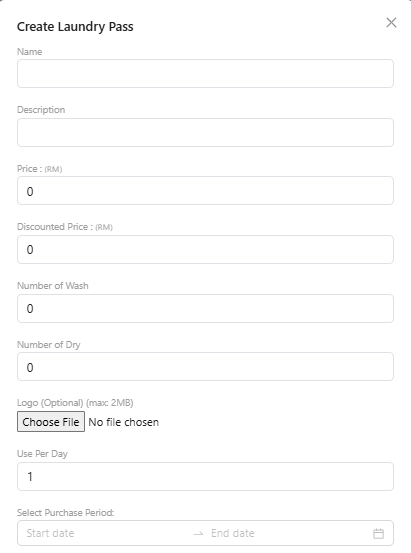
Basic Information
- Name – Enter the name of the Laundry Pass.
- Description – Enter a short description of the package.
- Price (RM) – Enter the original package price.
- Discounted Price (RM) – Enter the promotional or discounted price.
- Number of Wash – Enter the number of washing cycles included.
- Number of Dry – Enter the number of drying cycles included.
- Logo (Optional) – Upload a package logo. Maximum file size is 2 MB.
- Use Per Day – Set the maximum number of times the Laundry Pass can be used per day.
Purchase Period
Set the period when customers are allowed to purchase the Laundry Pass.
- Start Date – Date when the package becomes available for purchase.
- End Date – Last date when the package can be purchased.
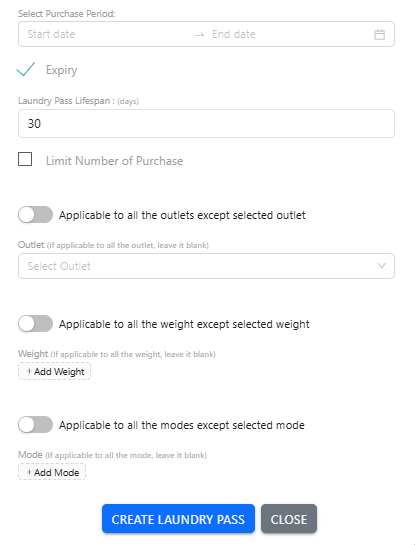
Expiry
Enable Expiry if the Laundry Pass should have a limited validity period.
- Laundry Pass Lifespan (days) – Enter the number of days the package remains valid after purchase.
Example:
If the lifespan is set to 30 days, the Laundry Pass will be valid for 30 days after purchase.
Limit Number of Purchase
Enable Limit Number of Purchase if you want to restrict the number of times the package can be purchased.
When enabled, set the maximum number of purchases allowed.
Outlet Settings
Applicable to all the outlets except selected outlet
Enable this option if the Laundry Pass should be available at all outlets except the selected outlet.
If this option is not enabled, select the specific outlet where the Laundry Pass should be applicable.
Weight Settings
Applicable to all the weight except selected weight
Enable this option if the Laundry Pass should apply to all machine weights except the selected weight.
Use + Add Weight to select the applicable machine weights.
Mode Settings
Applicable to all the modes except selected mode
Enable this option if the Laundry Pass should apply to all machine modes except the selected mode.
Use + Add Mode to select the applicable machine modes.
Create the Package
After completing all the settings:
- Review all Laundry Pass information.
- Check the price, wash/dry quantity, usage limit, purchase period, and expiry settings.
- Verify the applicable outlets, machine weights, and modes.
- Click CREATE LAUNDRY PASS to save the package.
- Click CLOSE to exit without creating the package.
Once successfully created, the new Laundry Pass will appear in the Laundry Pass list together with the other available packages.
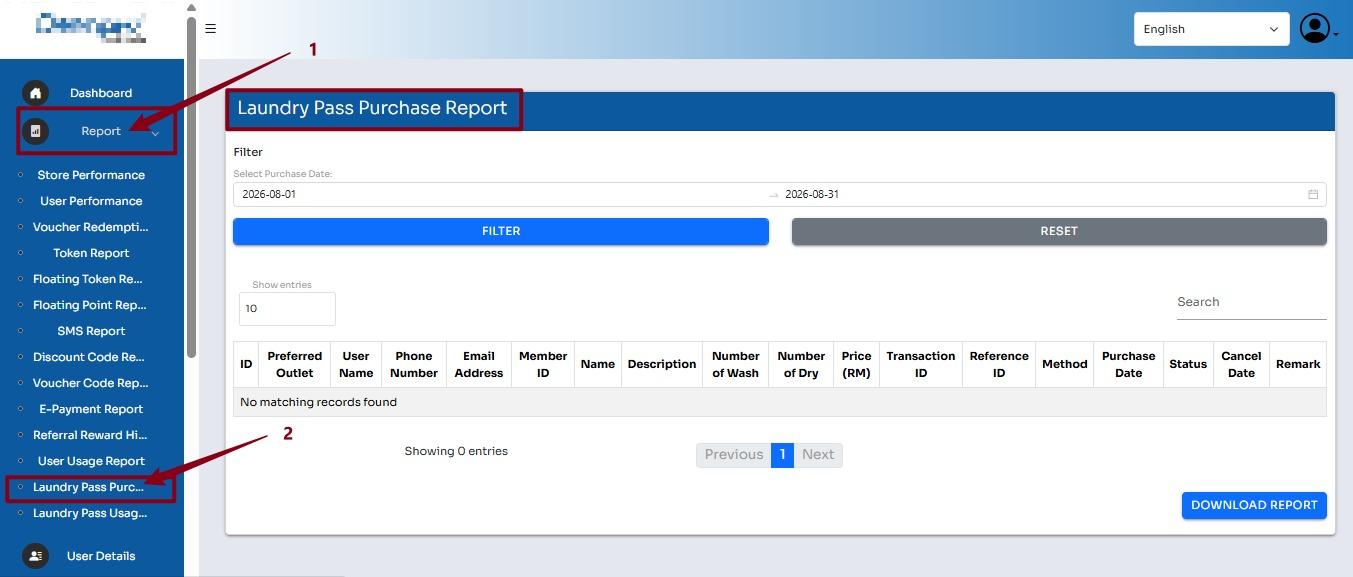
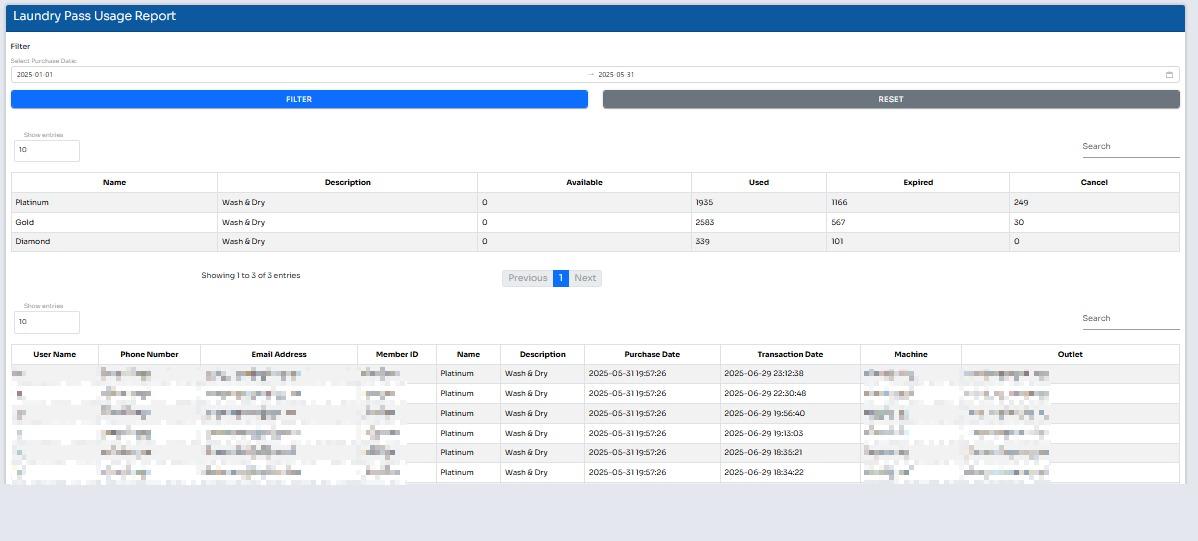
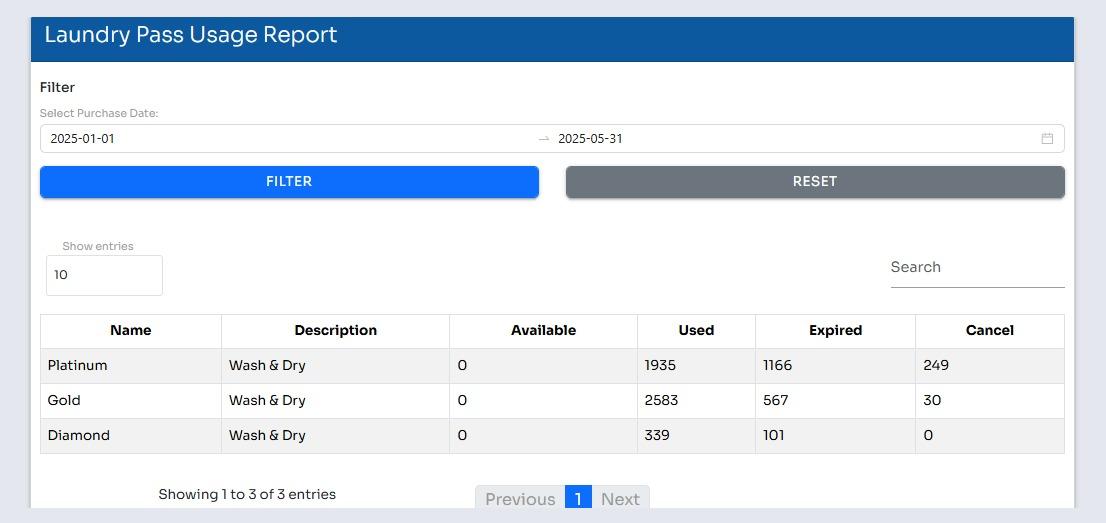
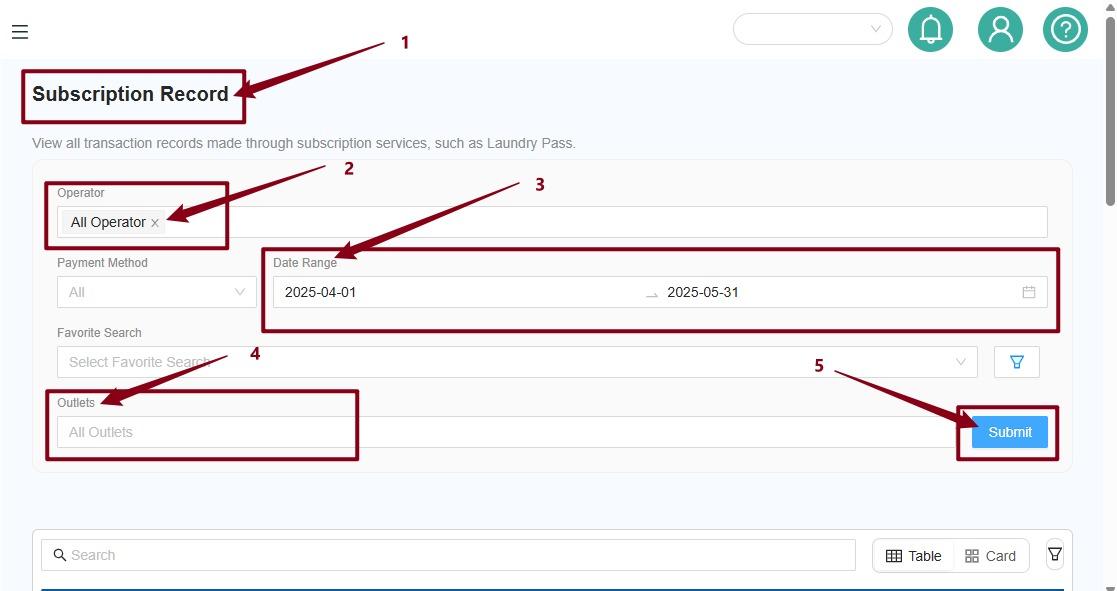
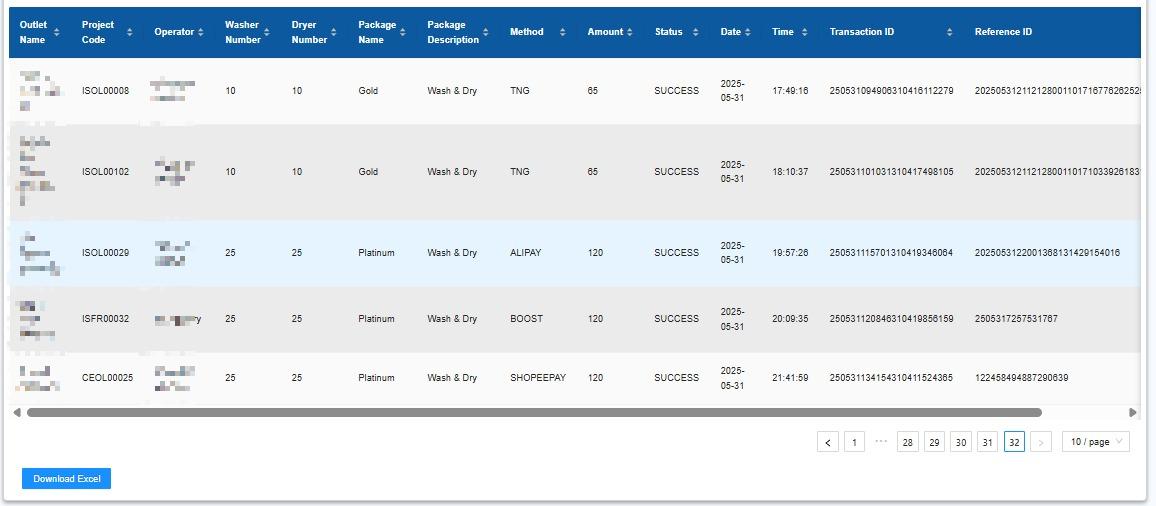
The Subscription Record page allows you to view transaction records made through subscription services, such as Laundry Pass.
- Subscription Record – Shows all subscription transaction records.
- Operator – Select the operator whose transactions you want to view.
- Date Range – Select the start and end date for the records.
- Outlets – Select the outlet you want to check.
- Submit – Click Submit to display the records based on the selected filters.
You can also use Payment Method and Favorite Search to further filter the records.