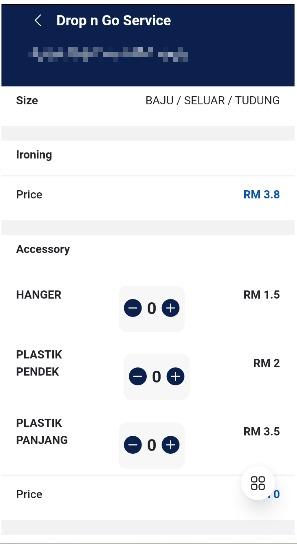
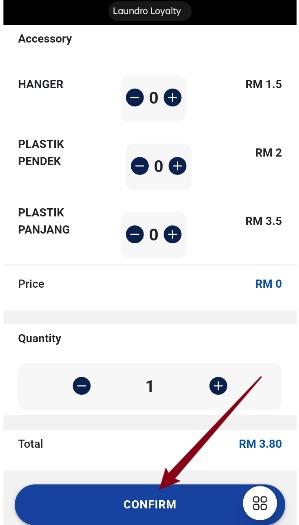
To Set Pricing Drop N Go Service
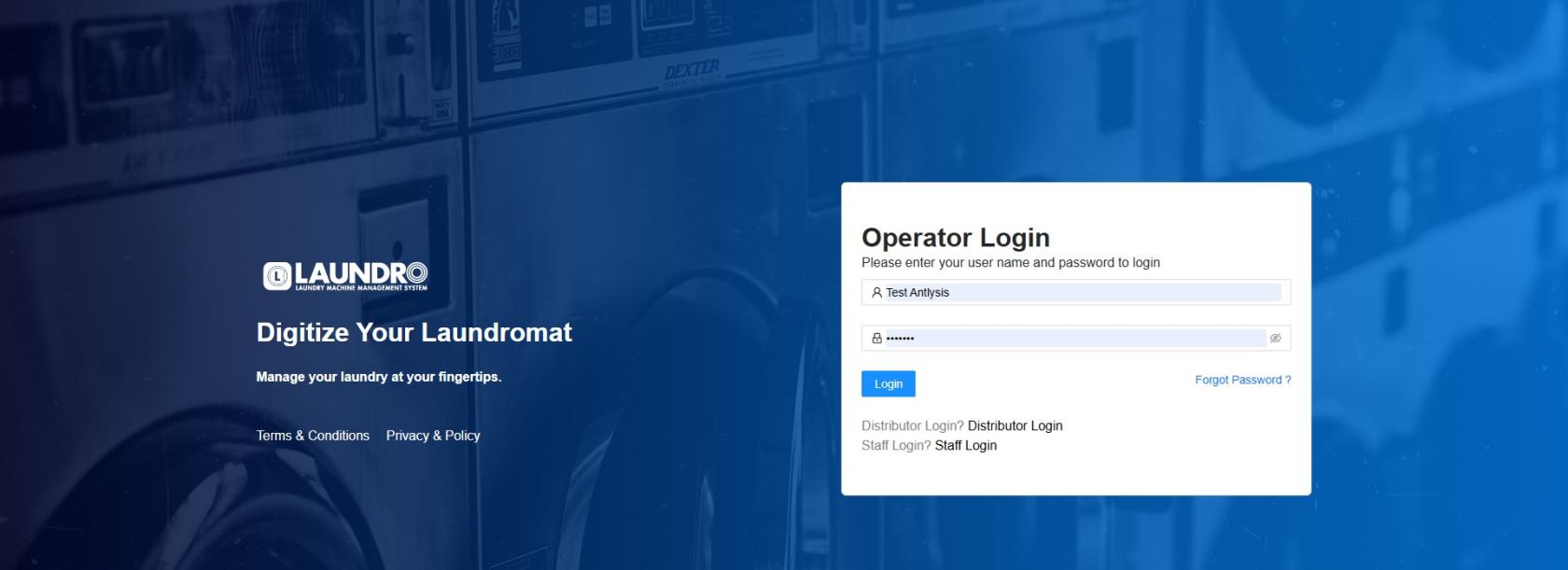
- Login into Laundro Portal & put-in Username / Password : https://v2.thelaundro.com/operator_login
2.
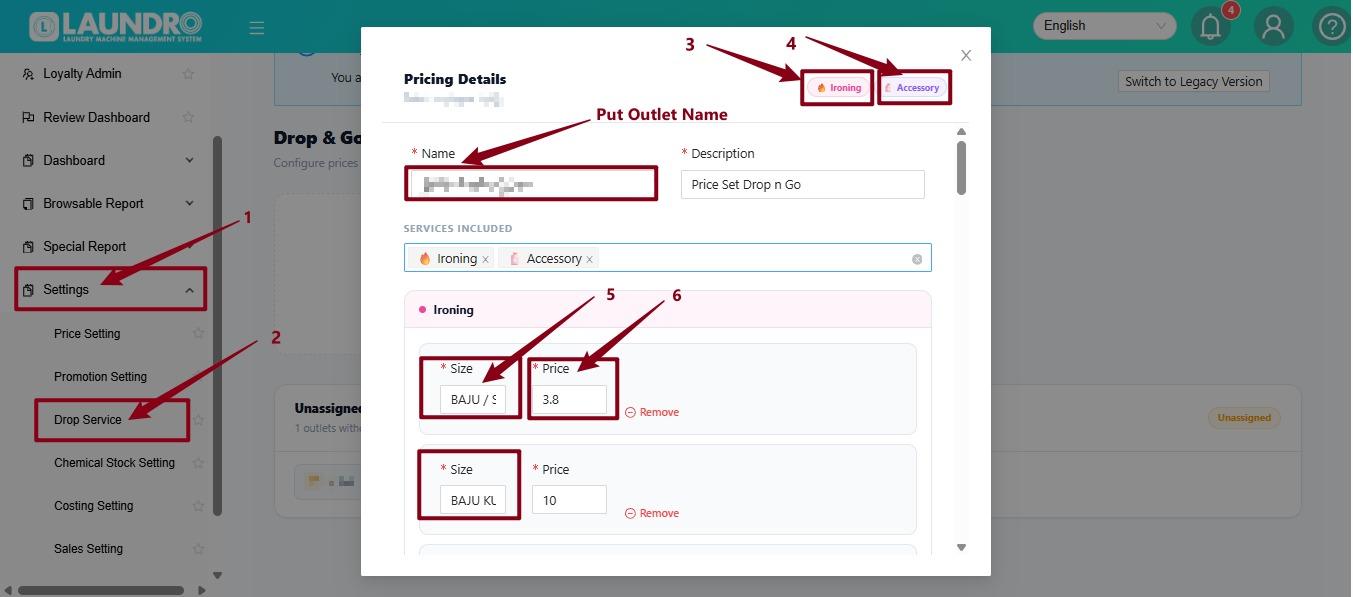
- Go to Settings.
- Select Drop Service.
- Enter the Outlet Name in the Name field.
- Select the service you want to add, such as Ironing or Accessory.
- Enter the Name for the service, for example BAJU / SELUAR.
- Enter the Price for that size, for example RM3.80.
You can add multiple sizes with different prices under the same service.
3.
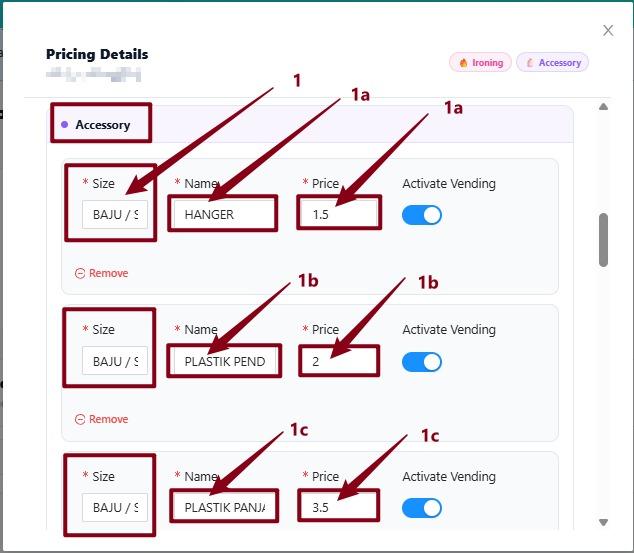
- Select Accessory to add accessory items.
- Enter the Size for the item, for example BAJU / SELUAR.
- Enter the Name of the accessory, for example HANGER.
- Enter the Price for the item, for example RM1.50.
- Activate Vending – Turn this ON if the item is available for vending.
You can add multiple accessory items, such as:
- HANGER – RM1.50
- PLASTIK PENDEK – RM2.00
- PLASTIK PANJANG – RM3.50
Each item can have its own size, name, price, and vending status.
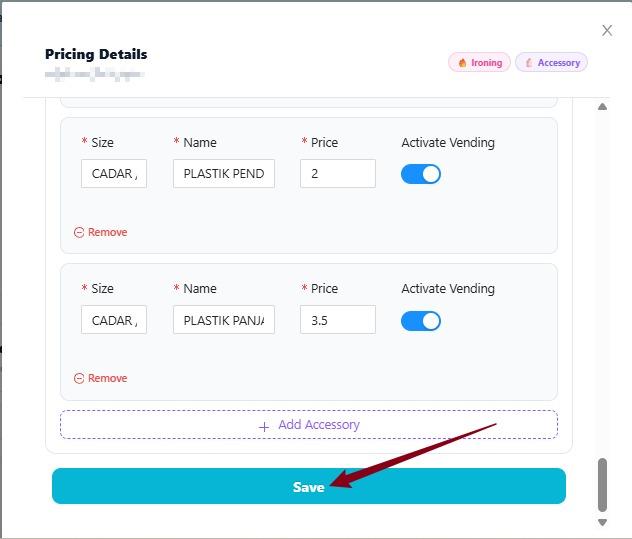
4. Click Save.
To Add-on Staff - Handle Drop N Go Service :
1. https://docs.antlysis.com/books/laundro-faq/page/how-to-create-staff-user
2. After creating the Staff ID, try logging in to the portal using the staff login by entering the username and password.
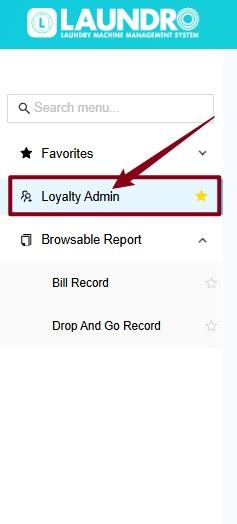
3. Click Loyalty Admin.
4.
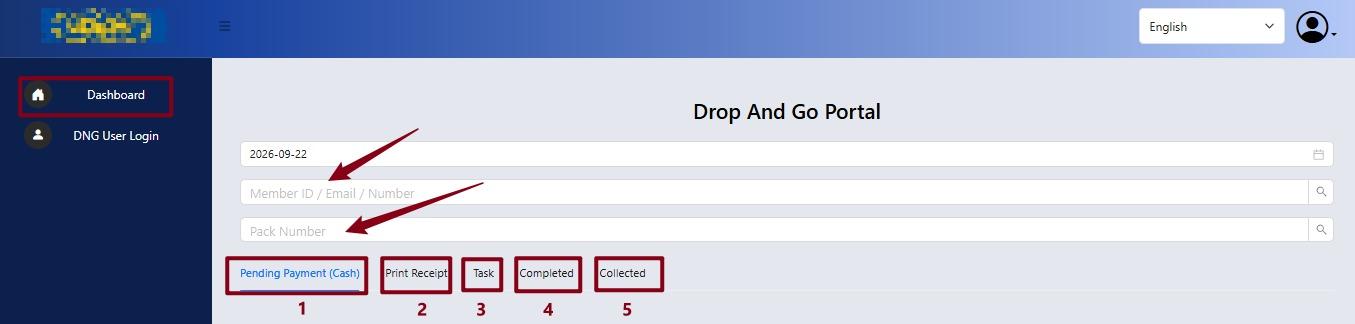
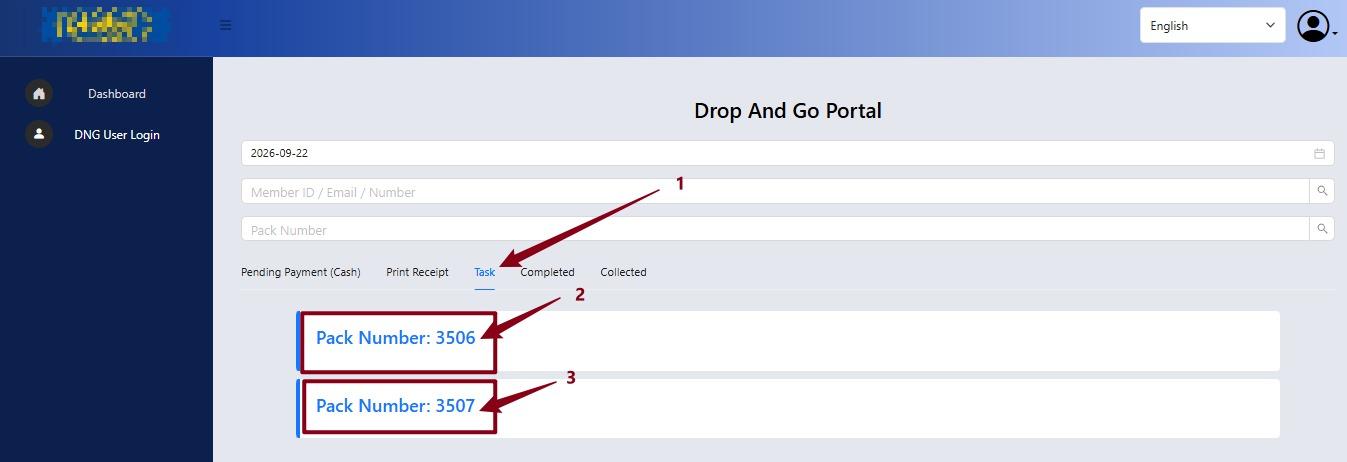
1.Pending Payment (Cash): Check orders that are waiting for cash payment.
2. Print Receipt: Print receipts for completed payments.
3. Task: Manage ongoing or pending customer orders.
4. Completed: View orders that have been completed.
5. Collected: View orders that have already been collected by customers.
Choose to Click Task - Then Select Pack Number [Example; Pack Number 3506]
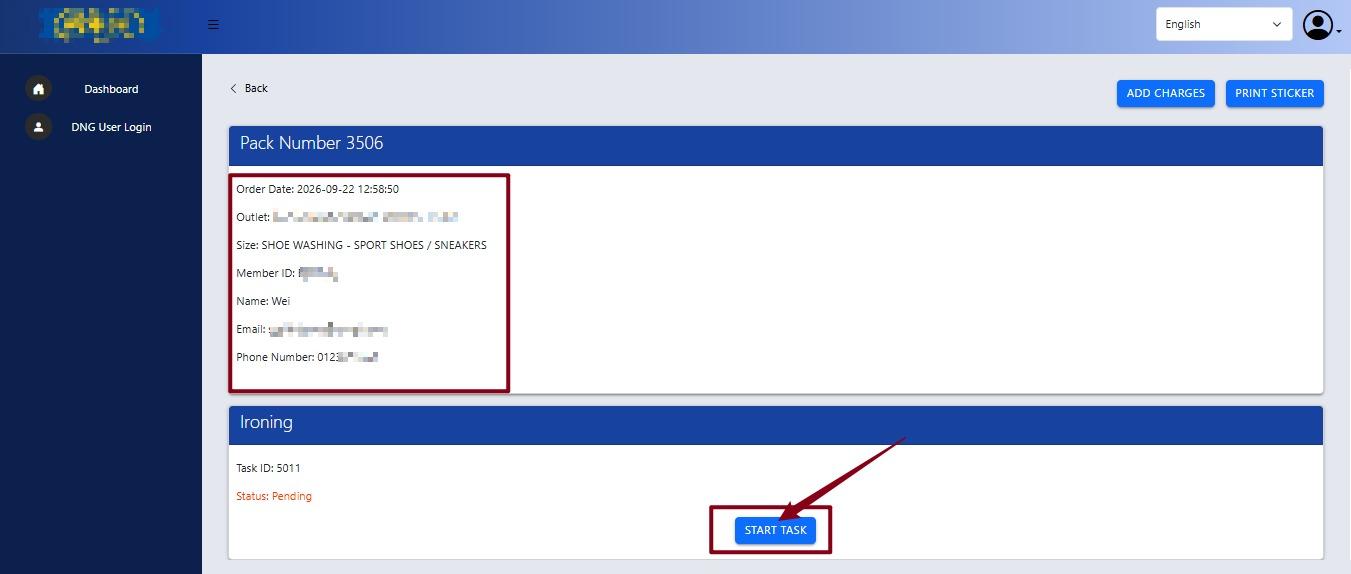
5. View the customer's details and the service they requested. Then, click to start the task.
From the customer’s perspective.
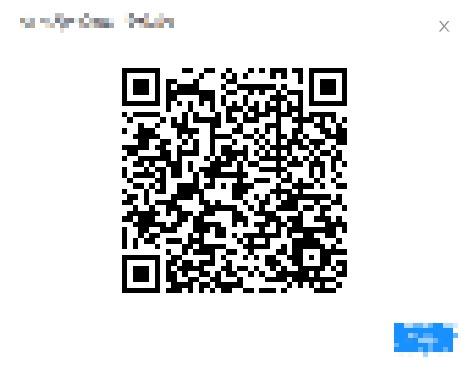
- Scan QR at Washer / Dryer at Outlet.
2.
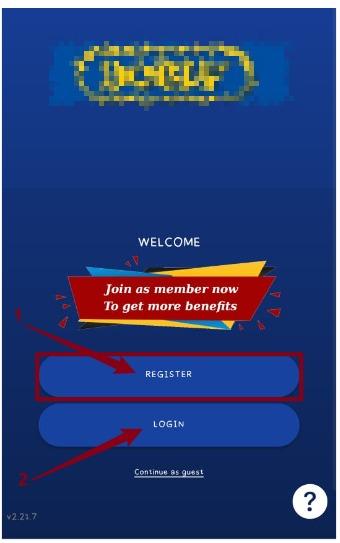
- REGISTER: For new users who want to create an account and enjoy member benefits.
- LOGIN: For existing users who already have an account.
- Continue as Guest: Use the app without creating an account or logging in.
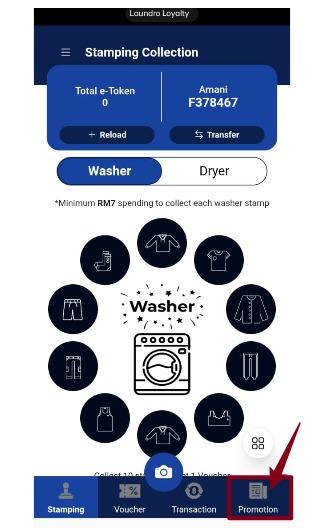
3. Click Promotion.
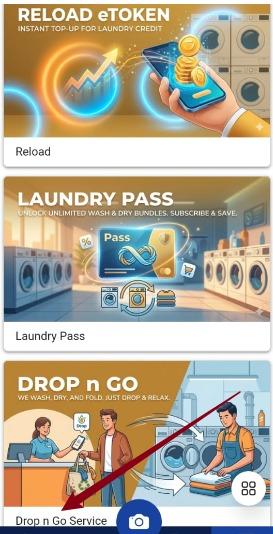
4. Click Drop N Go.
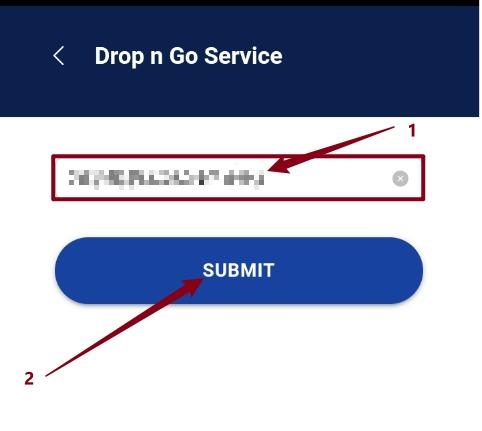
5. Select Outlet & Click Submit.
6. The available services will be displayed. Select the service you want to use.
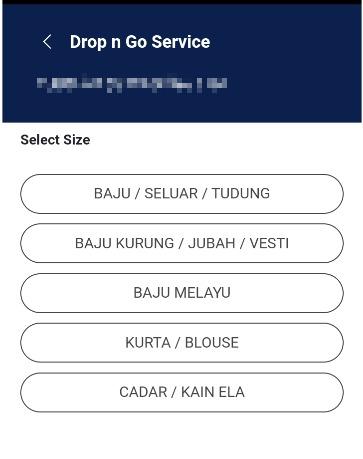
7. Select the desired service and click Submit.