
Outlet Group
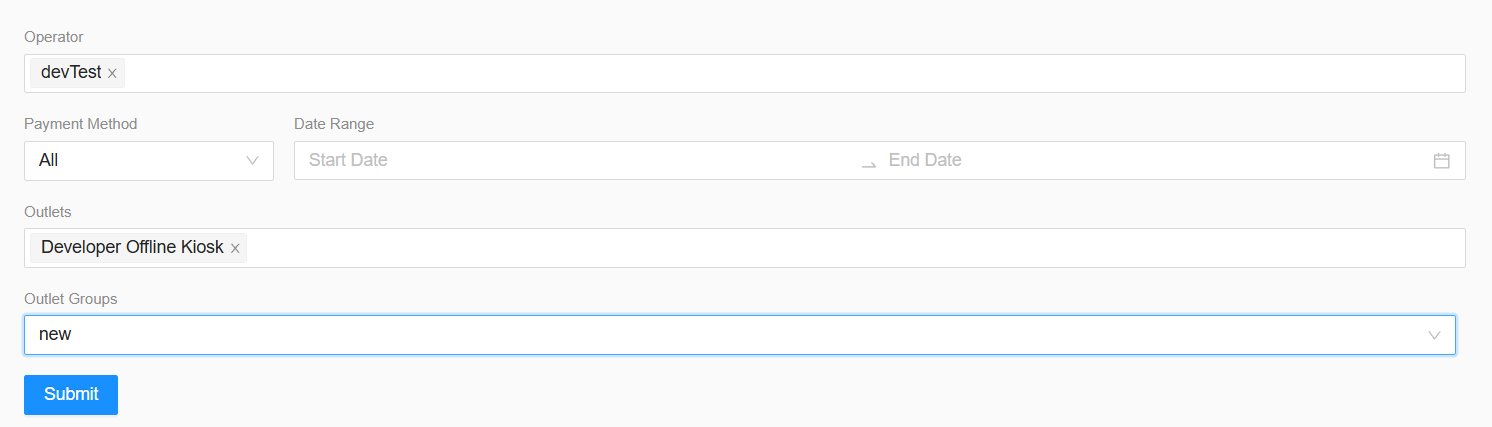
Outlet Group
What is Outlet Group?
Outlet Group allows you to save multiple operators and outlets as a group.
Once you create a group, you can use it in different reports without selecting the same operators and outlets again.
Example
If you regularly generate reports for:
You can createCreating an Outlet Group containingmakes theseit operatorseasier and outlets.faster to search for records under any payment type, such as Cycle, E-payment, Manual Pay or Others.
NextNormally, time,you need to select the Operator and Outlet manually every time you search for a record. However, if you create an Outlet Group in advance, you can simply select the savedgroup Outletwhen Groupsearching insteadfor records, saving you time and effort.
Under Browsable Report, you can select the type of selectingrecord everythingyou manually.want to view based on your needs.
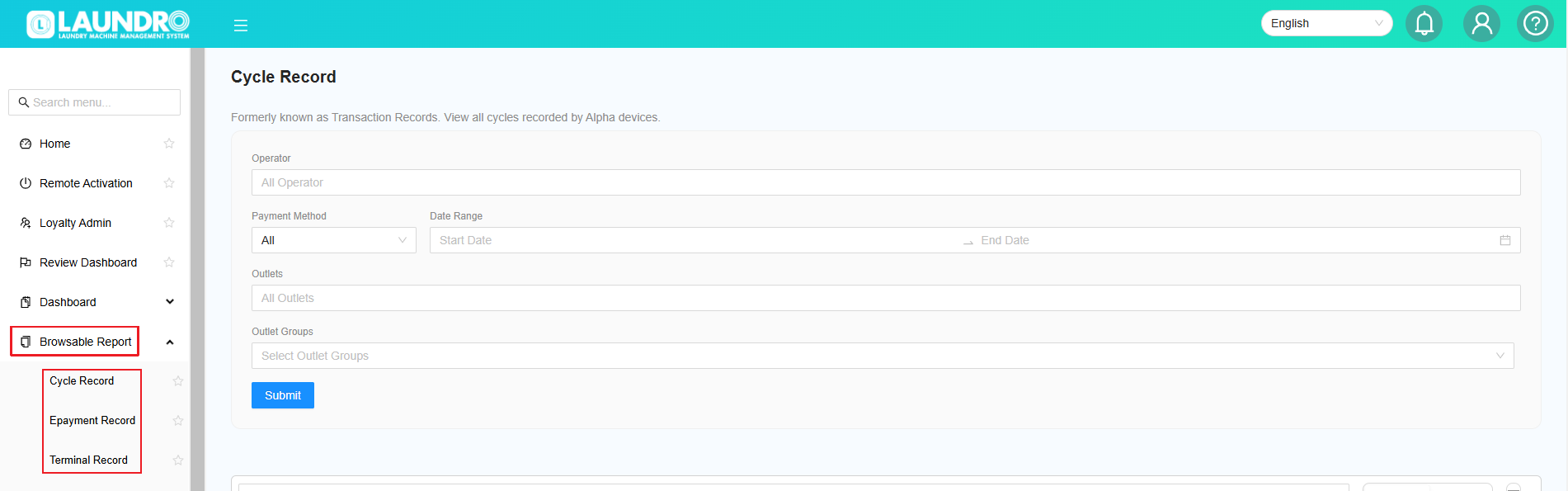
1.How Createto create an Outlet GroupGroup?
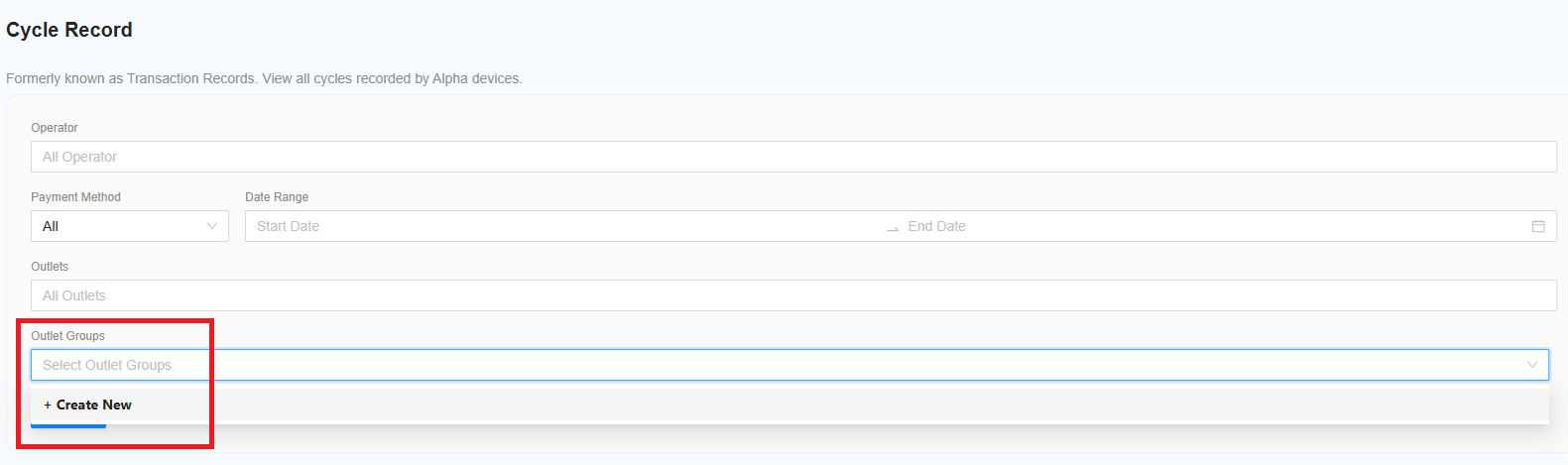
ToStep1 - Under Prefer Payment Record, locate Outlet Groups. Click on the blank row, then select Create New when it appears.
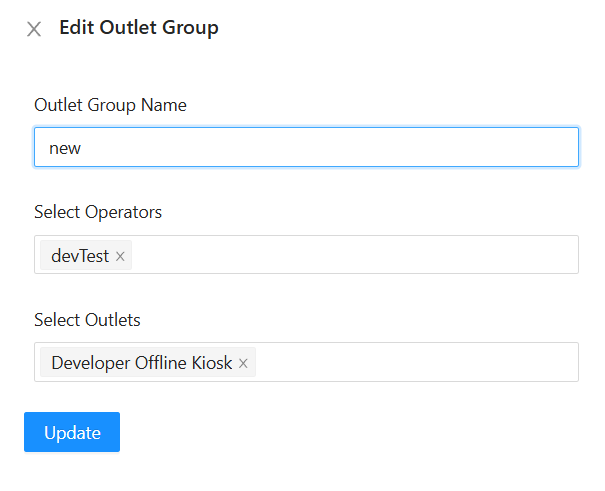
Step2 - Fill in the required details, then click Save to create a newyour Outlet Group:Group.
Step 1: Open Outlet Group
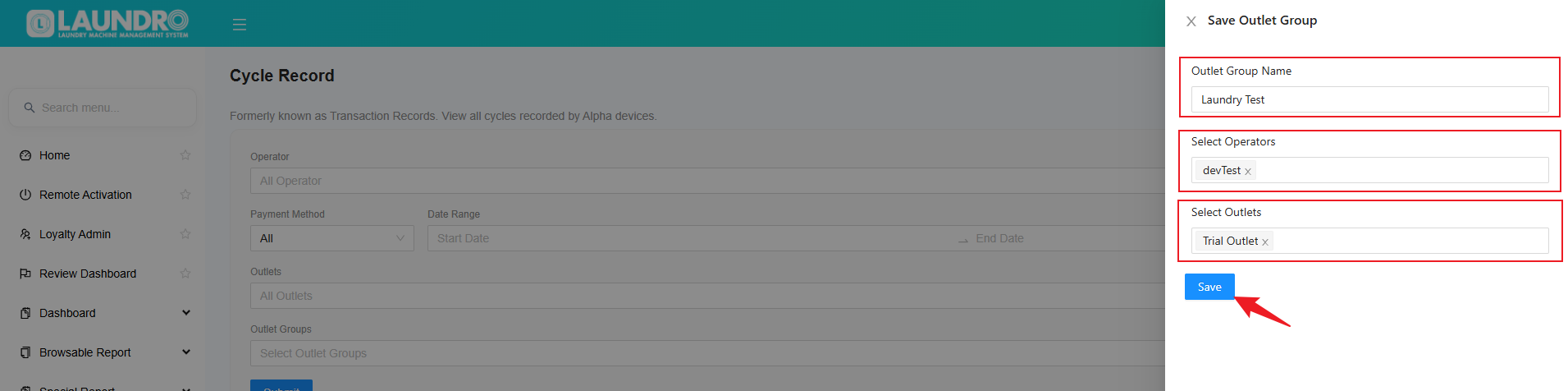
In the report, click theYour Outlet Group icon.
Stepbeen 2:created Entersuccessfully. GroupNext, Name
Enter a name that is easyproceed to identify.
Example:
Klang Valley Outlets
Step 3: Select Operator
Select the operator(s)Use you want to include in the group.
Step 4: Select Outlet
Select the outlet(s) you want to include in the group.
Step 5: Save the Group
Click Submit to save the Outlet Group.
Youran Outlet Group isin nowa readyReport section to use.learn how to use it when searching for records.
2. Use an Outlet Group in a Report
After successfully creating an Outlet Group, you can use it when generating reports.
Step
Step1 1:- Open the Report
Open the report you want to view.
Step 2: Select Outlet Group
In the filter section, select theUnder Outlet Group, click Select Outlet Group. A list of available outlet groups will appear below. Select the outlet group you created earlier.earlier to proceed.
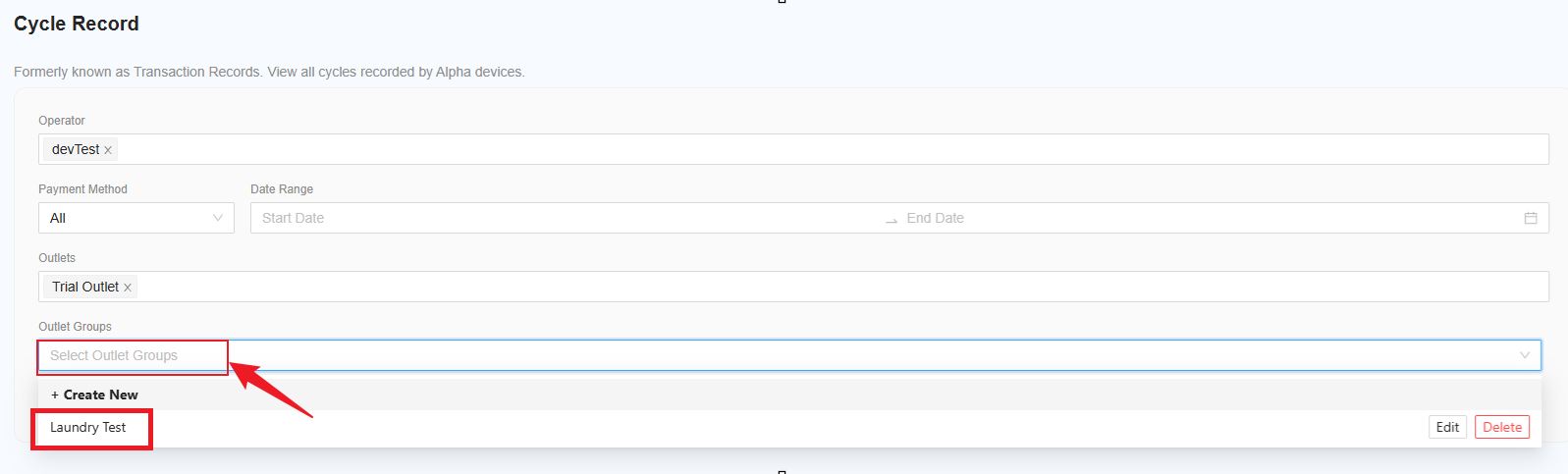
Step 3:2 Check- the Selection
After selecting the Outletoutlet Group,group, the system will automatically fill inselect the related:
Youon doyour notsaved needsettings. toNext, selectchoose themyour manually.
StepDate 4:Range Generateand the Report
Clickclick Submit to generateview the report.
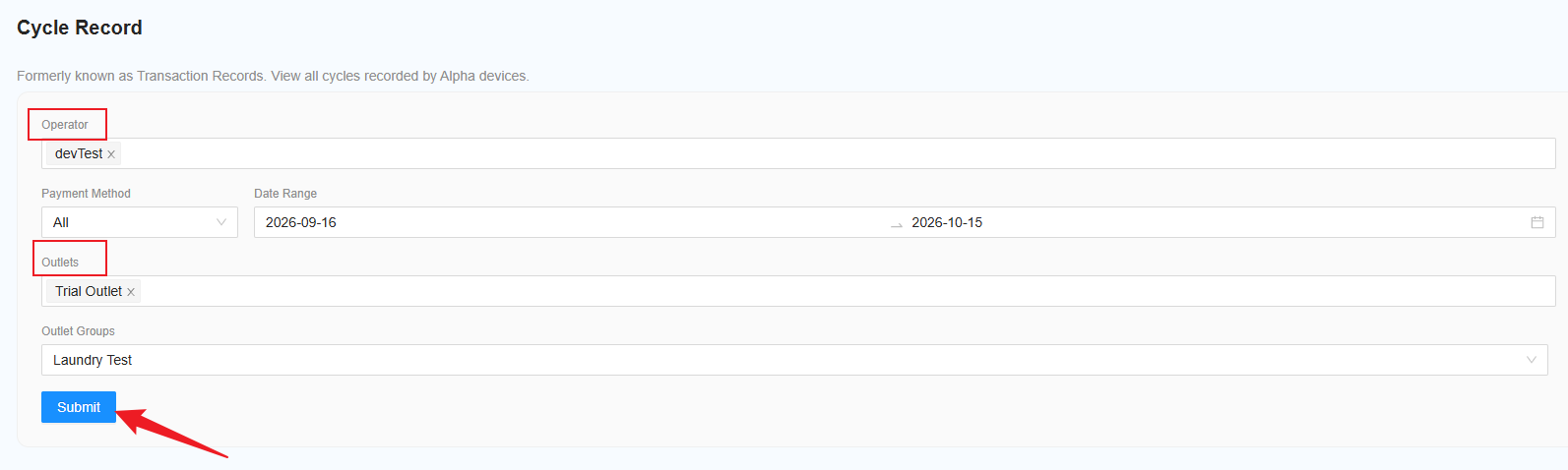
Step3 - The report will displaybe informationgenerated basedand ondisplayed below for you to review. You can also click Download Excel to download the operatorsreport andto outletsyour includedPC infor thefuture selectedreference.
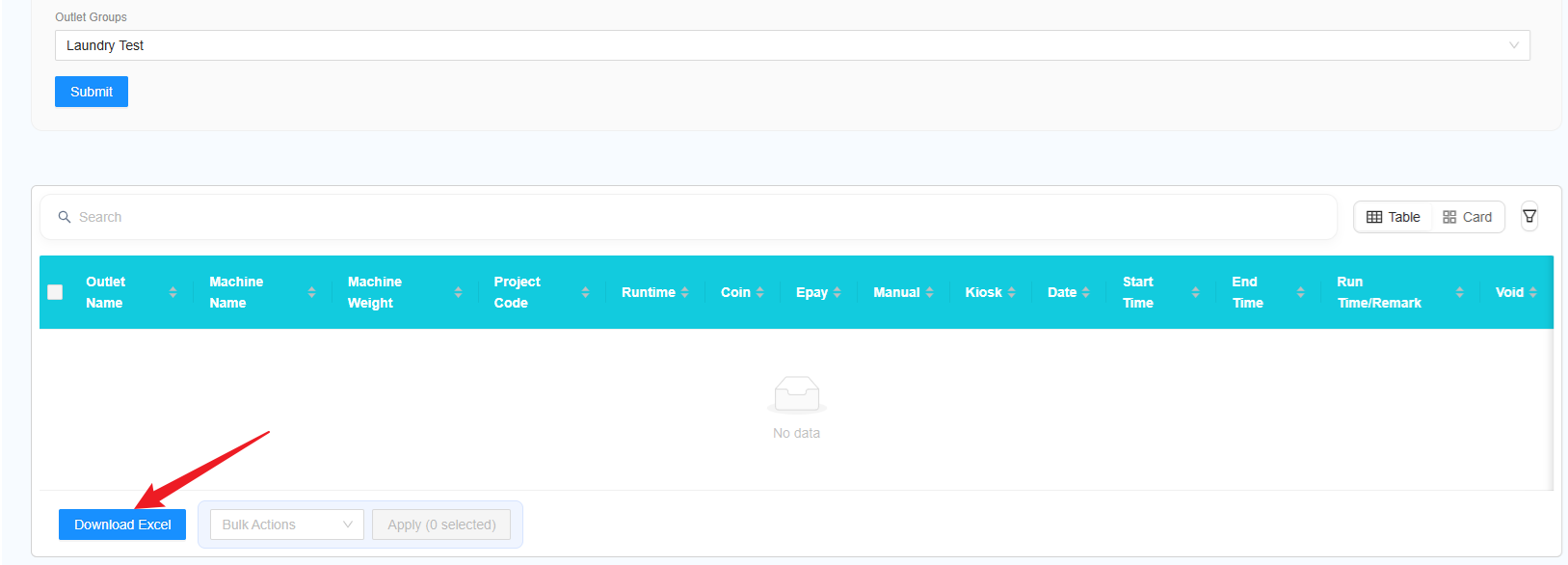
Why Use Outlet Group?
Outlet Group saves time when you regularly work with the same outlets.
Without Outlet Group
You need to select:
Operator →& OutletOutlets → Operator → Outlet → ...
every time you generate a report.
With Outlet Group
Simply select:
Outlet Group →that created and click Submit,
The system will automatically select the saved operators and outlets for you.
Important Note
Make sure the correct operators and outlets are selected when creating the Outlet Group.
If you need a different combination of operators or outlets, create a separate Outlet Group with a different name.
Quick Summary
Create once → Save the group → Reuse it in different reports.
This allows users to quickly apply the same operator and outlet selection across different reports without manually selecting them each time.