
Offline Dashboard
Offline Dashboard
The Offline Dashboard allows you to check the online and offline status of your outlet and machines.
You can use it to:
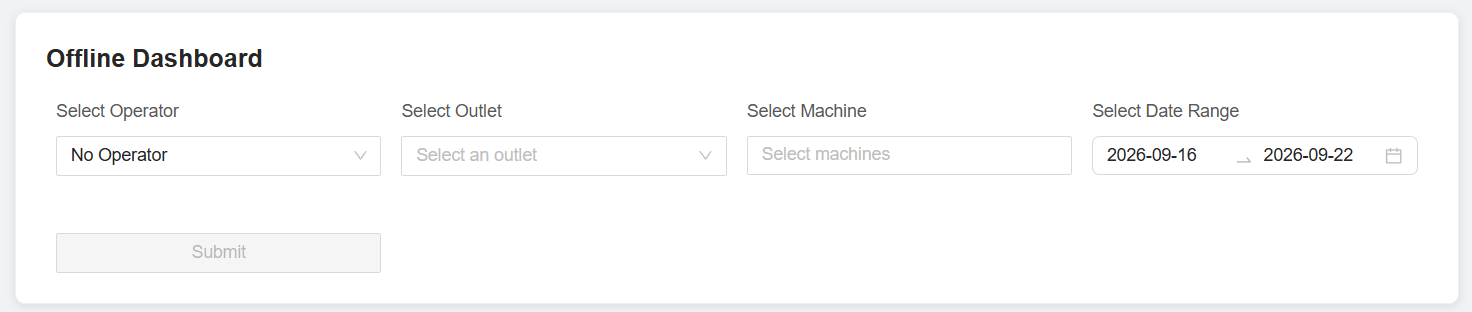
1. FilterSelect Your Filters
TheBefore dashboard should providechecking the followingdashboard, filters:select the information you want to view.
Step
1:Select Operator
Select the operatorOperator you want to view.
Step
2:Select Outlet
Select the outletOutlet you want to view.
Step
3:Select Machine
Select a specific machine if you want to check only one machine.
Note: Leave this filter unchanged if you want to view all machines
needintothebeoutlet.included.
Step
4:Select Date Range
Select the date range foryou want to check.
Once all filters are selected, the dashboard will display the corresponding data.
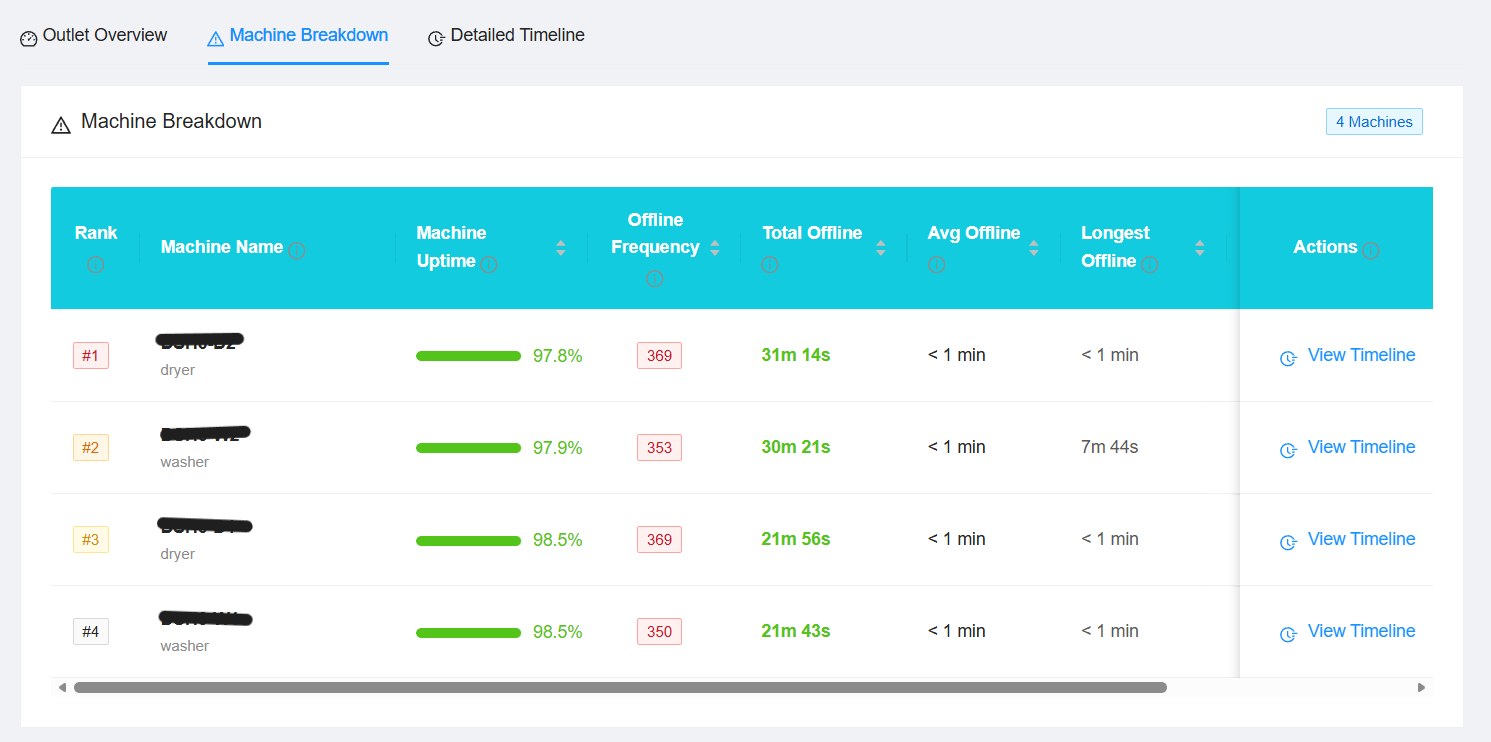
2. Outlet Overview
ProvidesThe anOutlet overallOverview summary ofshows the outlet'soverall online and offline status.status of the selected outlet.
You
can see:Total Online Time
DisplayThe statisticstotal for:
Total Offline Time
The total amount of time
Overall Uptime
The percentage of time the outlet was online.
Offline Frequency
The total number of times the outlet went offline.
Longest Offline Time
The longest continuous period that the outlet remained offline.
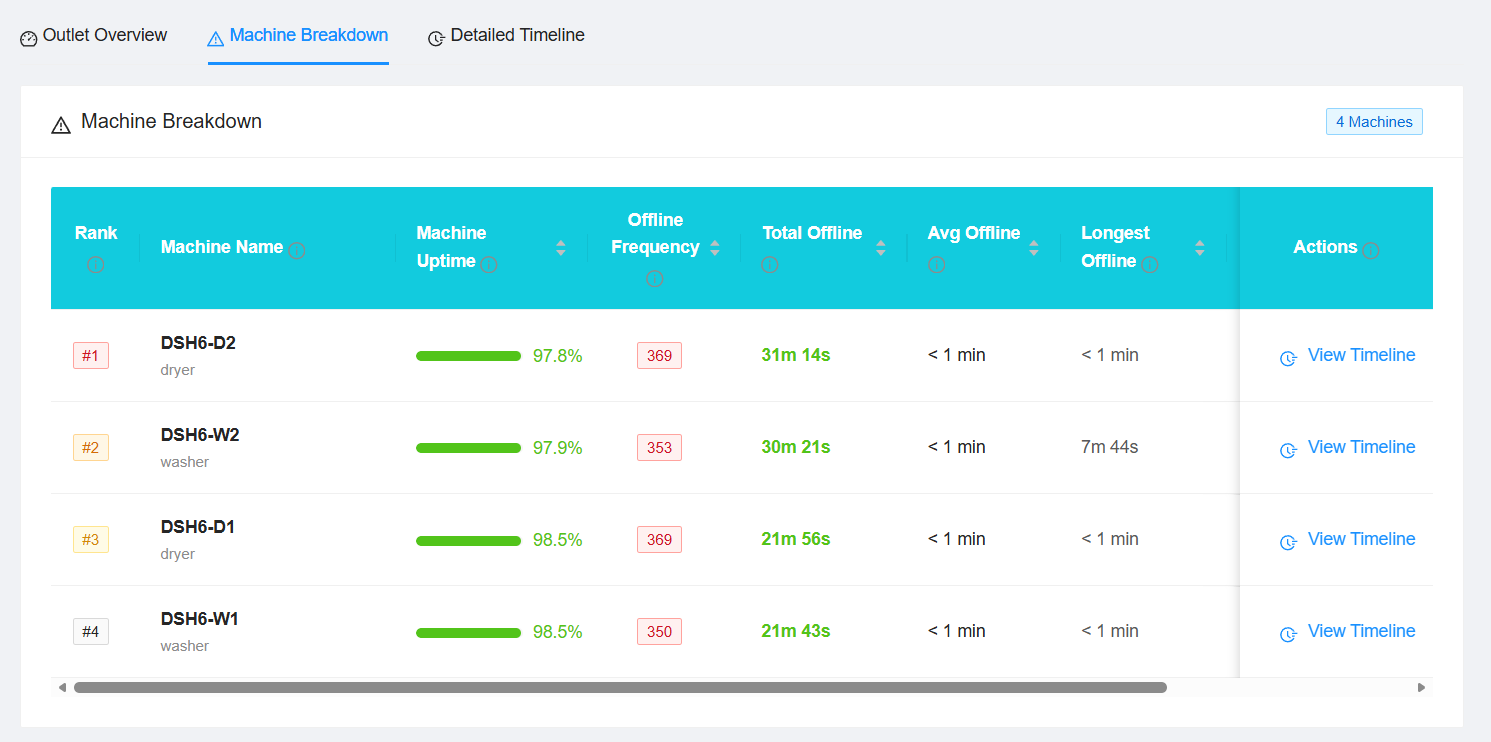
3. Machine Breakdown
The Machine Breakdown section shows the online and offline time
Display:For each machine, you can check:
OverallMachine Uptime – Percentage of time theoutletmachine was online.- Offline Frequency – Number of times the
outletmachine went offline. - Average Offline Duration – Average length of each offline period.
3.
View Machine Breakdown
Details
ProvidesClick Detailed next to a breakdownmachine ofto thesee online/more information about its online and offline status for each machine in the selected outlet.activity.
For each machine, display:
Machine Details
Users can click Detailed for a specific machine to view a more detailed breakdown of its online/offline activity.
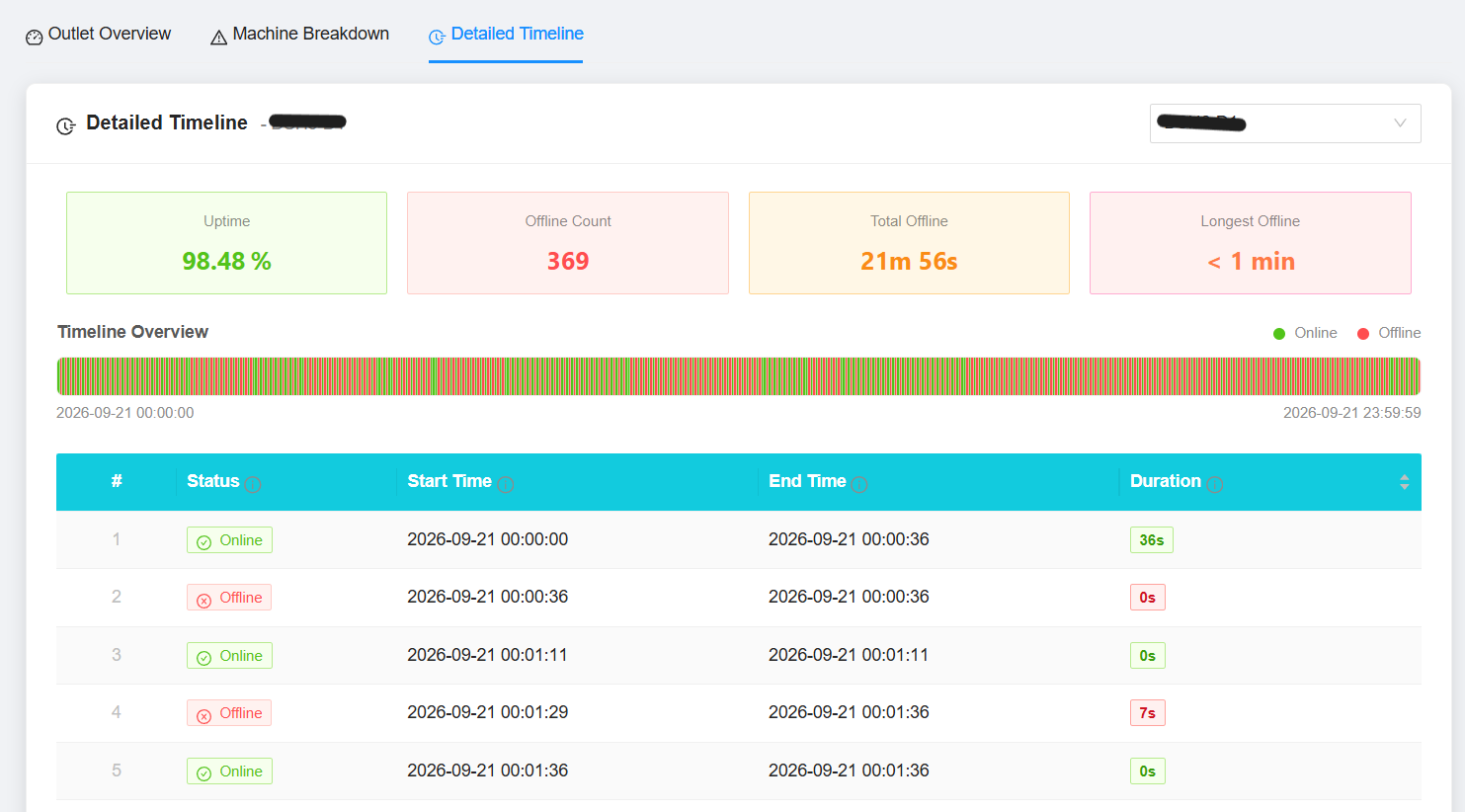
4. Detailed Timeline
DisplaysThe Detailed Timeline provides a more detailed timelineview of the selected machine's online and offline activity.
The timeline should show:shows:
- When the machine went offline.
- When the machine came back online.
DurationHowoflongeachthe machine was offlineperiod.DurationHowoflongeachthe machine was onlineperiod.- Total
online/online and offlinedurationduration. Any otherOther relevant statusinformationinformation.
This allowshelps usersyou identify when the machine went offline and how long the downtime lasted.
Example
For example, if a machine shows:
Offline: 10:00 AM
Online: 10:30 AM
The machine was offline for 30 minutes.
You can use the Detailed Timeline to clearlyidentify understandrepeated theor machine'slong availabilityoffline periods and identifyinvestigate periodspossible ofconnectivity downtime.or machine issues.