
🔳 How to Get QR Codes
LoginWelcome
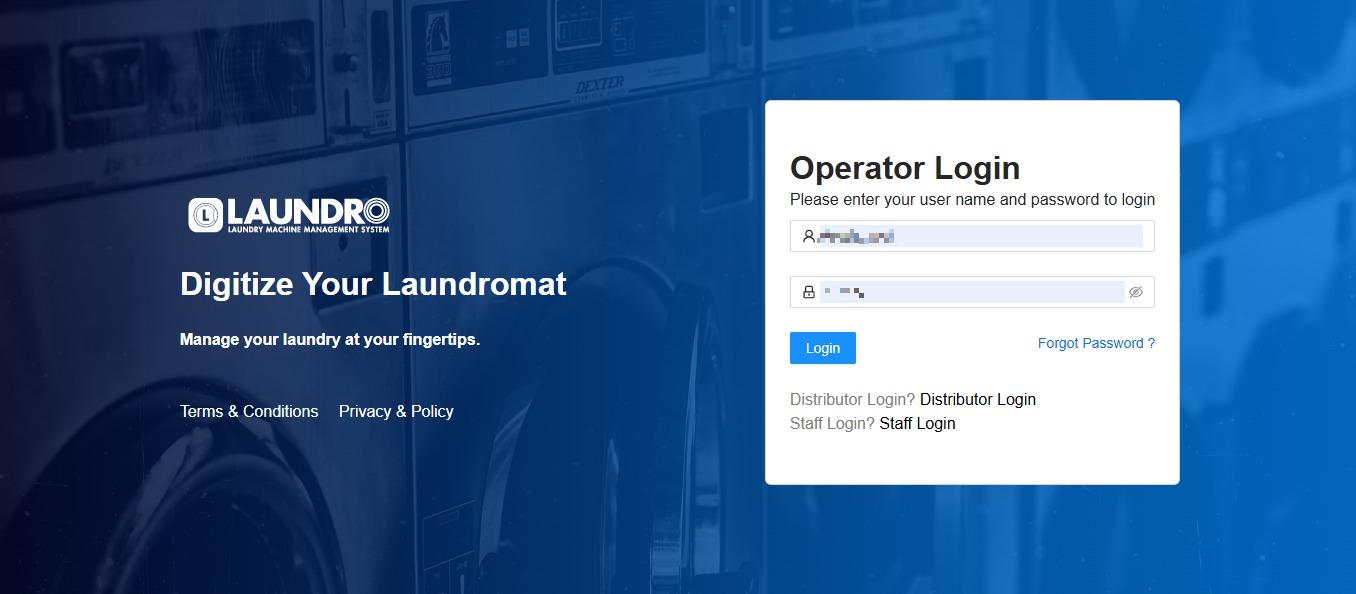
intoto the Laundro Portal&Guide!put-👋Need to download QR codes for your laundry outlet? Follow this simple guide to find your outlet's QR codes and download them for use.
🎯 Purpose
This guide explains how to:
- 🏪 Find your outlet in
Usernamethe/LaundroPasswordPortal. - 🔳
:Access
- 🏪 Find your outlet in
- ⬇️ Generate and download all QR codes.
🧭 Quick Navigation
- 🔐 Step 1: Log In to Laundro Portal
- 🏪 Step 2: Open My Outlets
- 🔳 Step 3: Select QR Codes
- ⬇️ Step 4: Download All
- ✅ Final Checklist: Verify Your Download
🔐 Step 1: Log In to Laundro Portal
- Open the Laundro Portal.
- Enter your operator username and password.
- Log in to your account.
🔗 Portal Login: https://v2.thelaundro.com/operator_login
2.
🏪 Step 2: Open My Outlets
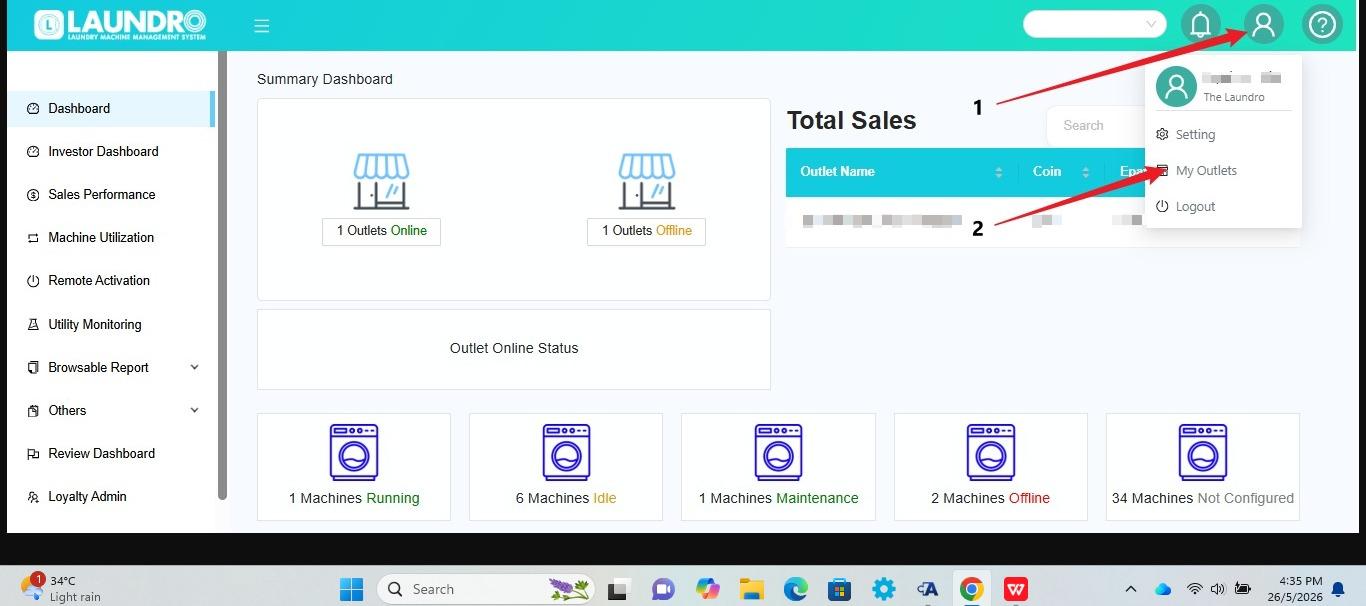
- Click the Profile icon at the top-right corner of the screen.
- Select My Outlets from the dropdown menu.
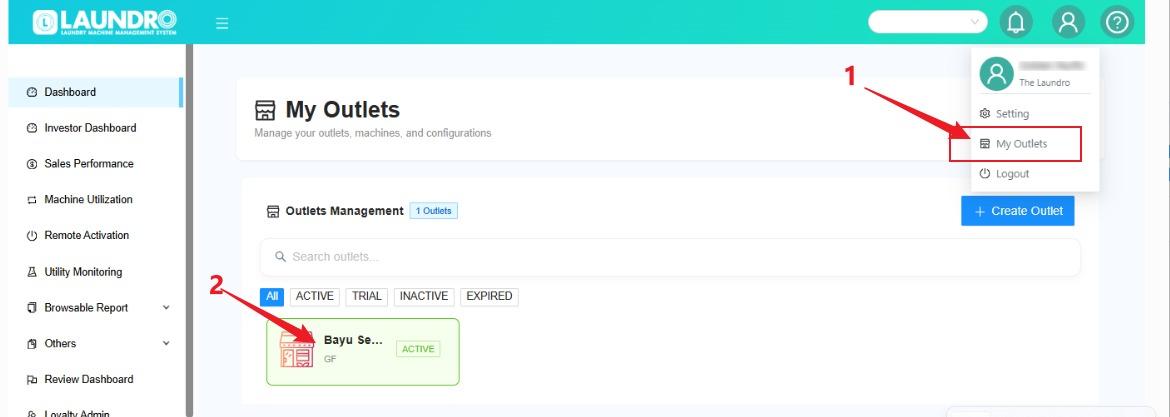
TheFindsystemthewilloutlet you want to access.- Click the outlet box to open
theitsMy Outletspage where you can view your outlets.details.
3.
ClickHighlight theprofileProfile icon andselect“MyOutlets.”Outlets option.ClickHighlight an outlet box on the My Outlets page.
💡 outletQuick boxTip: toMake opensure you select the correct outlet details.
4.
🔳
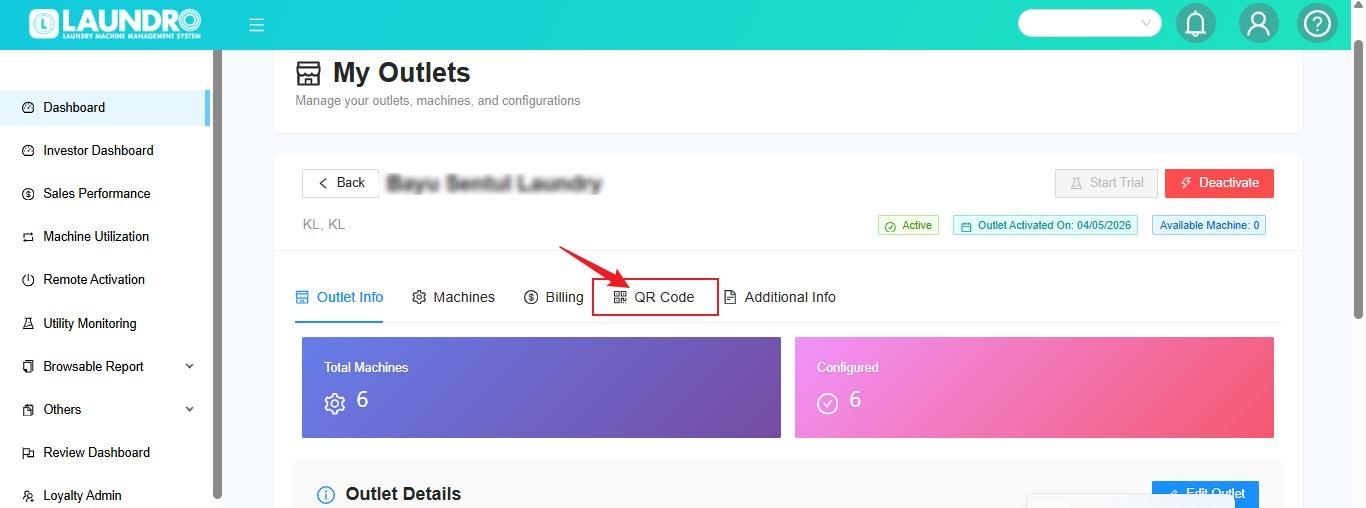
- Inside the selected outlet's details, click QR Codes
5.
⬇️
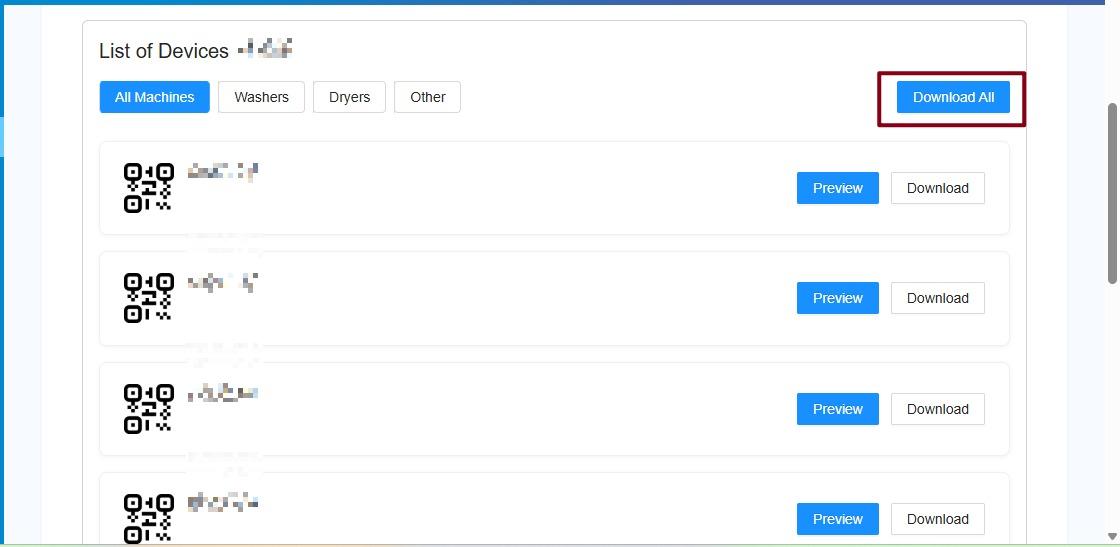
- On the QR Codes page, click Download All
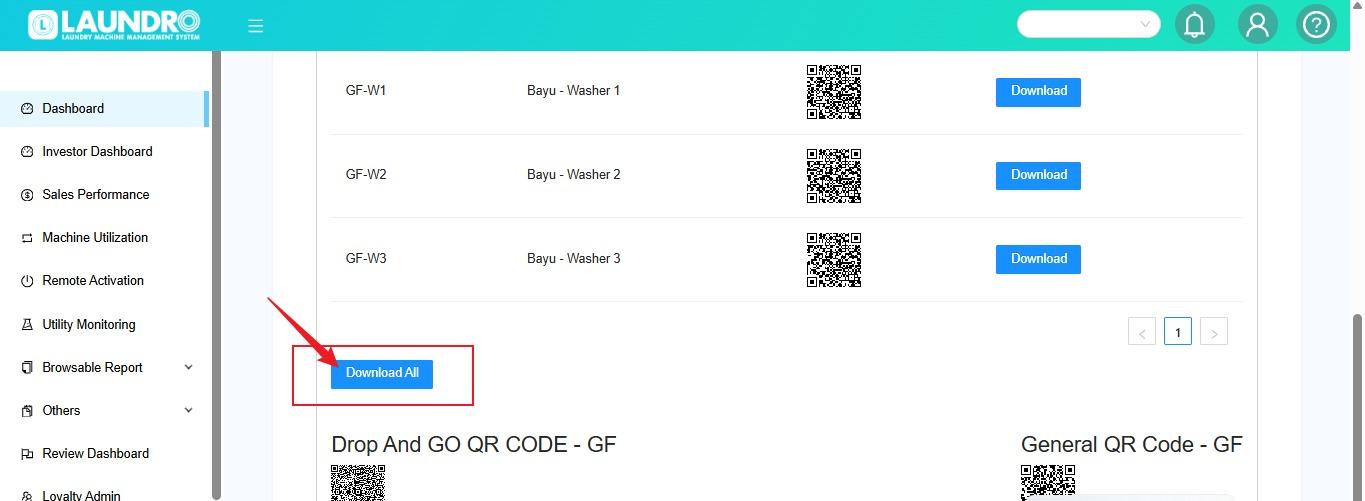
6. This is what our New Page looks like. You can click “Download All” to generate and download the QR codes.
💡 Quick Tip: Make sure the downloaded file is available before printing or distributing the QR codes.
⚠️ Important: Verify that the QR codes belong to the correct outlet before using them.
📋 Quick Reference
| Step | Action | What to Do |
|---|---|---|
1️⃣ | Log In | Access the Laundro Portal |
2️⃣ | My Outlets | Select the required outlet |
3️⃣ | QR Codes | Open the outlet's QR Codes page |
4️⃣ | Download All | Generate and download the QR codes |
✅ Final Checklist
Before finishing, make sure:
- 🔐 You are logged in to the correct account.
- 🏪 You selected the correct outlet.
- 🔳 You opened the QR Codes page.
- ⬇️ You clicked Download All.
- 📁 The downloaded file is available.
- 🔍 The QR codes are for the intended outlet before printing or sharing.
🎉 You're Done!
You have successfully completed the QR code download process.
If the download does not work, try again and check your browser's download settings. If the issue persists, contact Laundro Support and provide the outlet name and a screenshot of the issue.