
🔔 How to Enable Notification Centre
🎯 Purpose
Learn how to access Notification Settings and enable the notifications you want to receive.
🧭 Quick Navigation
1. Log in to Laundro Portal
2. Open Settings
3. Open Notification Settings
4. Enable notification options
5. Close and finish
📍 How to Access
🔐 Step 1 — LoginLog in to Laundro Portal
Log
- Open
intheusingLaundro Portal Login. - Enter your
Usernameusername and password. - Click
PasswordLogin..
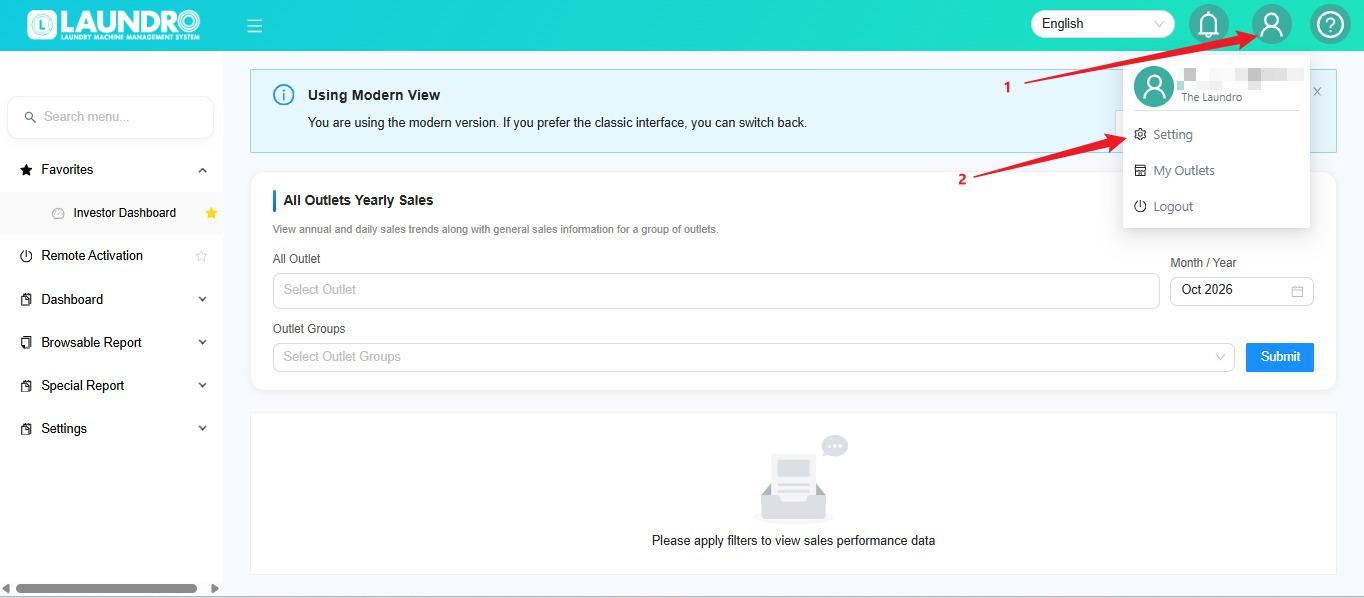
🏪⚙️ Step 2 — Open My OutletsSettings
- Click the
👤Profile icon. - Select Setting.
🔔 Step 3 — Open Notification Settings
stepFind 3the notification settings section where you can manage your notification preferences.
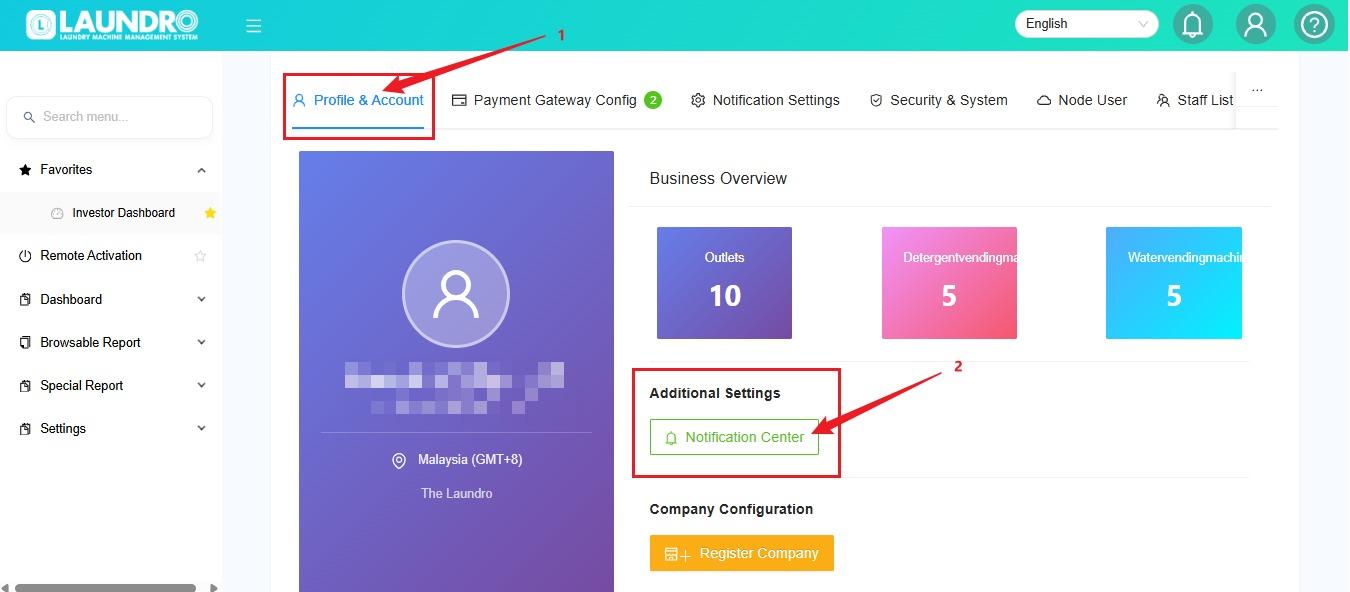
step
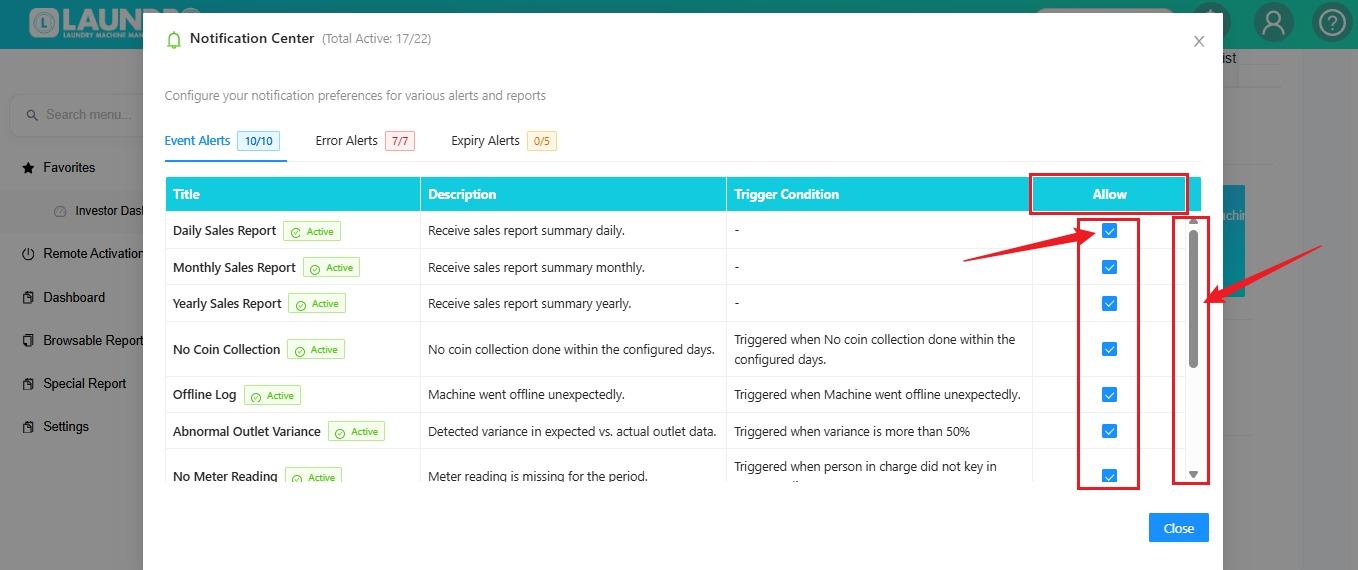
✅ Step 4 — Enable Your Notifications
- Review the available notification options.
- Tick
whichtheonecheckbox beside each notification you want toable &enable. To scrollScroll up/ordown.down to view additional options.ClickDouble-checkCloseyourwhenselectionsfinish.before proceeding.
Helpful Tip : Review the available options carefully and enable only the notifications you need.
🚪 Step 5 — Close the Settings
Once you have finished selecting your notification preferences, click Close.
🎉 You're Done!
Your notification preferences have been selected. If the portal requires a separate save or confirmation action, complete it before leaving the page.