
⚡ How to Do Remote Activation
Welcome to the Laundro Portal Guide! 👋
Need to remotely activate a Washer or Dryer? Follow this guide to select the correct outlet and machine, then proceed with the remote activation process.
🧭 Quick Navigation
- 🔐 Step 1: Log In to Laundro Portal
- ⚙️ Step 2: Open Remote Activation
- 🏪 Step 3: Select an Outlet
- 🧺 Step 4: Select a Machine Type
- 🔎 Step 5: Select the Machine
- ✅ Step 6: Complete Remote Activation
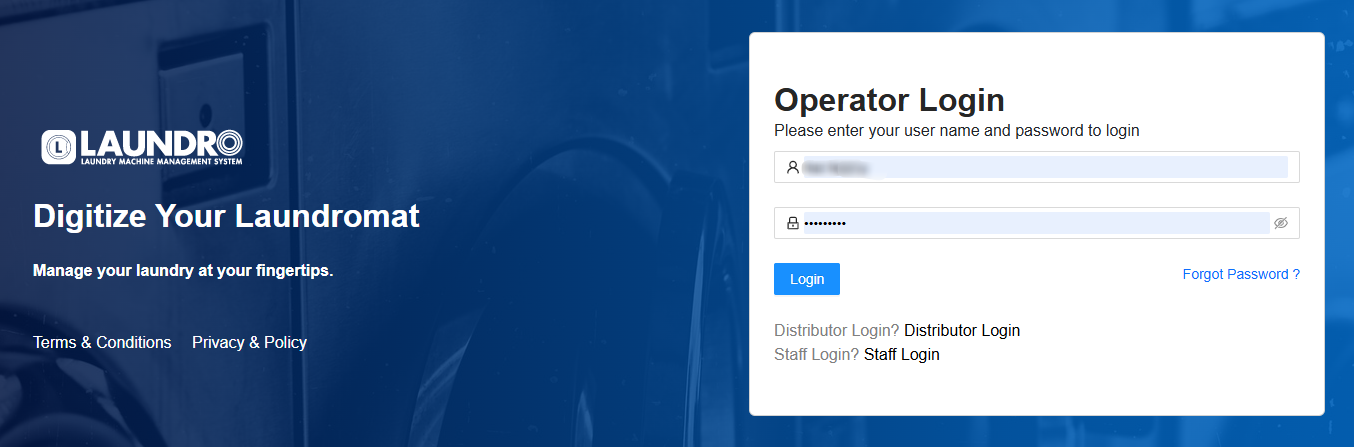
🔐 Step 1: Log In to Laundro Portal
Open the Laundro Portal and enter your operator username and password.
🔗 Portal Login: https://v2.thelaundro.com/operator_login
⚙️ Step 2 — Open Remote Activation
After logging in:
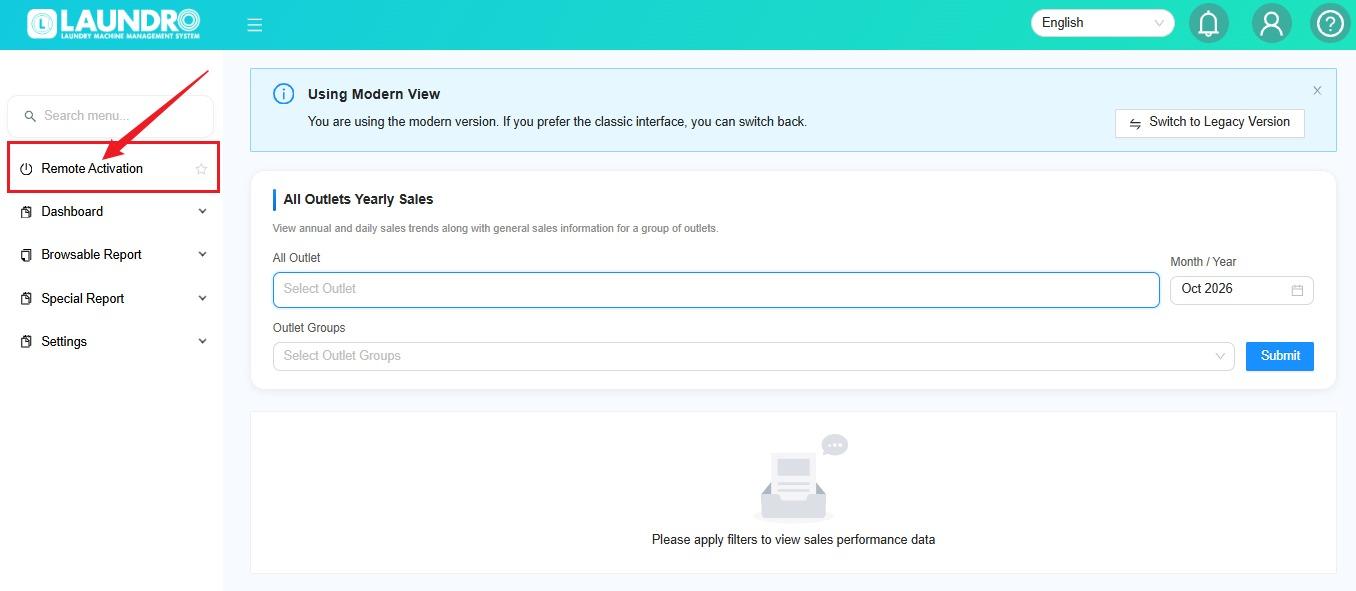
💡 Tip: Make sure you have the correct account permissions to access this feature.
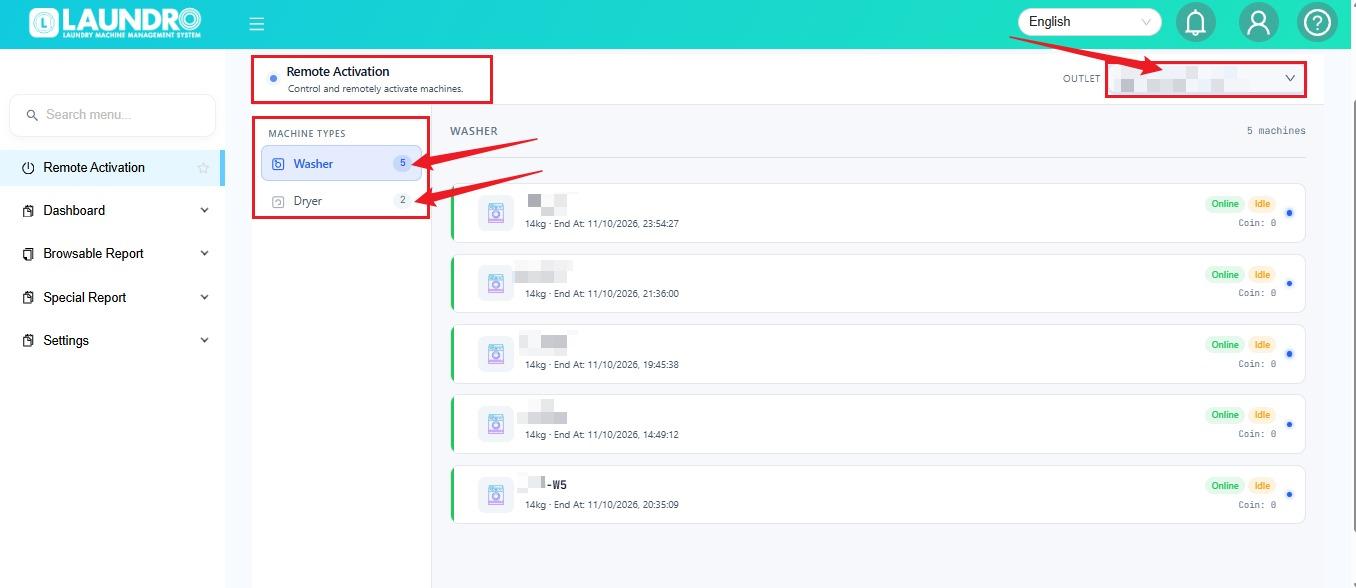
🏪 Step 3 — Select an Outlet
On the Remote Activation page:
- Click the Outlet dropdown.
- Select the outlet where the machine is located.
💡 Quick Tip: Always double-check the outlet before selecting a machine.
🧺 Step 4 — Select a Machine Type
Choose the required machine type:
- 🧺 Washer — to find a washing machine.
- 🔥 Dryer — to find a drying machine.
🔎 Step 5 — Select the Machine
- Select the specific machine you want to activate. ( Example: W1 refers to Washer 1, if that is how the machine is labelled in ) your outlet.
- Enter the Amount.
- Put some remark.
- Click Pay Now to Complete Remote Activation.
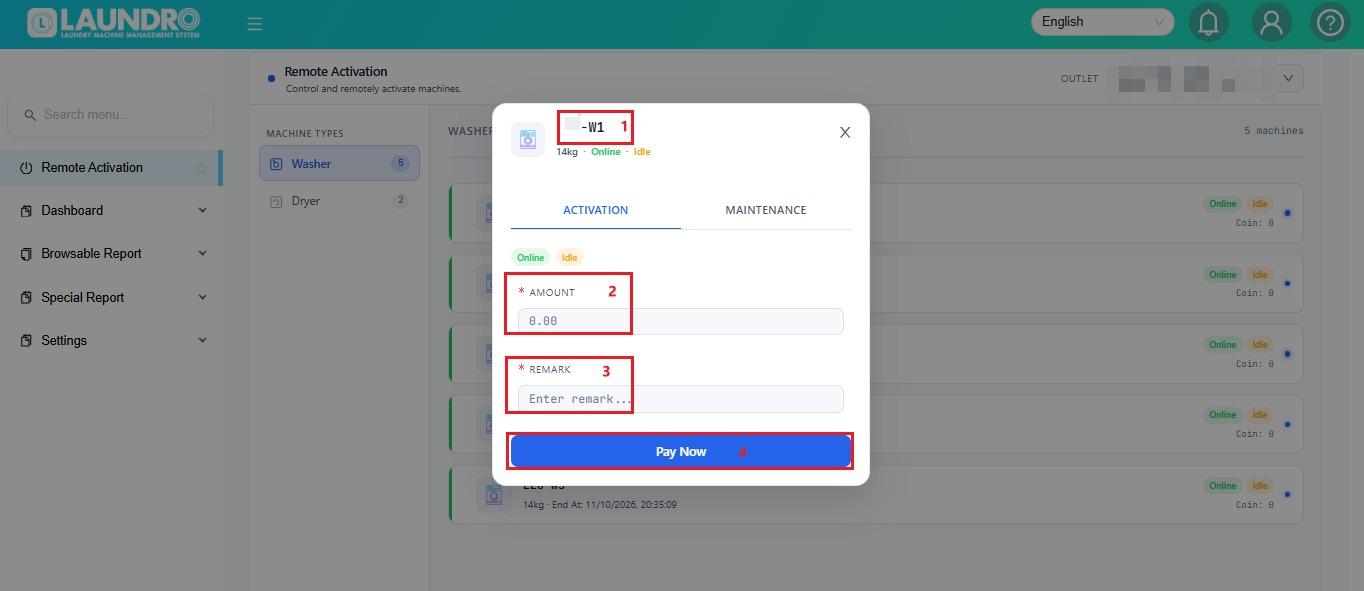
⚠️ Important: Confirm the machine number before proceeding to avoid activating the wrong machine.
✅ Step 6 — Complete Remote Activation
Follow the activation instructions displayed on the Remote Activation page.
💡 Important: Add the exact button name and any confirmation steps shown in your portal here. Verify that the machine has received the activation command before considering the process complete.
Need help? If remote activation fails, record the outlet, machine number, and error message, then contact the Laundro support team.
Activation Result
If the activation is successful:
Success – The machine will start.
If the activation fails, the machine will not start.
Possible reasons include:
- The machine/device is offline.
- The device cannot receive the activation request.
- There is a communication or device error.
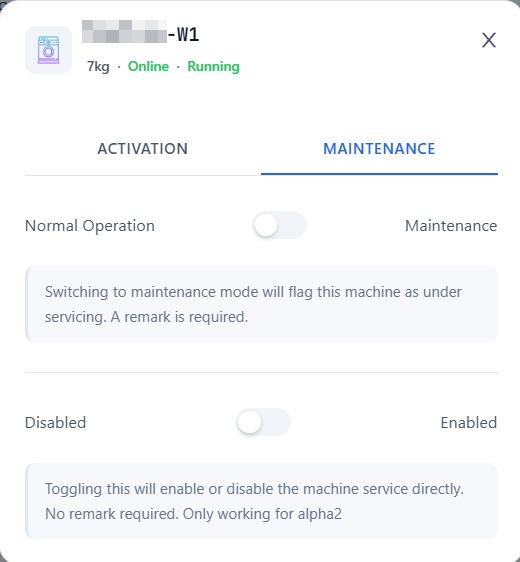
Put a Machine Under Maintenance
Use the Maintenance tab when you need to temporarily stop a machine from normal operation.
Step 1: Open Maintenance
Select the Maintenance tab.
Step 2: Turn On Maintenance Mode
Switch the machine to Maintenance Mode.
The machine will then be marked as: Under Maintenance
Add a Remark
Enter the reason for putting the machine into maintenance mode.
Example:
Machine is being repaired.
Important: A remark is required when changing the machine's maintenance status.
Remove a Machine from Maintenance
When the maintenance work is completed:
- Open the Maintenance tab.
- Turn off Maintenance Mode.
- Enter a remark explaining the reason for removing the machine from maintenance.
- Confirm the change.
The machine will no longer be marked as Under Maintenance.
Enable or Disable Service
The Service section allows you to directly enable or disable the machine's service.
Enable Service
Click Enable Service to turn the machine service on.
Disable Service
Click Disable Service to turn the machine service off.
Important: No remark is required when enabling or disabling Service.
Note: The Service feature is only available for machines running Alpha2 firmware.
Quick Reference
Action | What it does | Remark Required? |
|---|---|---|
Start | Remotely starts the machine | Yes |
Maintenance Mode ON | Marks the machine as Under Maintenance | Yes |
Maintenance Mode OFF | Removes the machine from maintenance | Yes |
Enable Service | Enables machine service | No |
Disable Service | Disables machine service | No |
Troubleshooting
Machine does not start after clicking Start
Check whether:
- The machine is online.
- The correct outlet was selected.
- The correct machine was selected.
- The device can receive remote commands.
If the device is offline, the remote activation request may fail.
Service option is not working
Check whether the machine is running Alpha2 firmware. The Service function is only supported on Alpha2 firmware.