
📩 How to Change E-mail
🎯 Purpose
Follow this guide to update your current email address to a new one in the Laundro Portal.
🧭 Quick Navigation
1. Log in to Laundro Portal
2. Open Settings
3. Go to Security & System
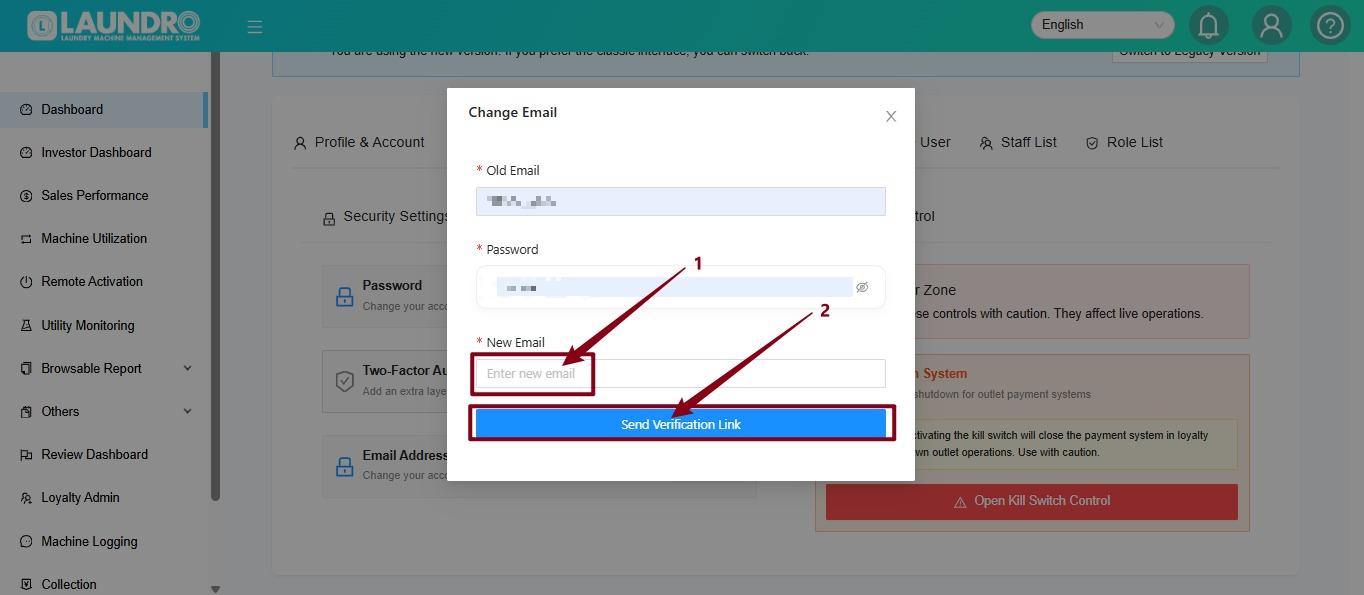
4. Change your email address
5. Verify your new email
Login🔐
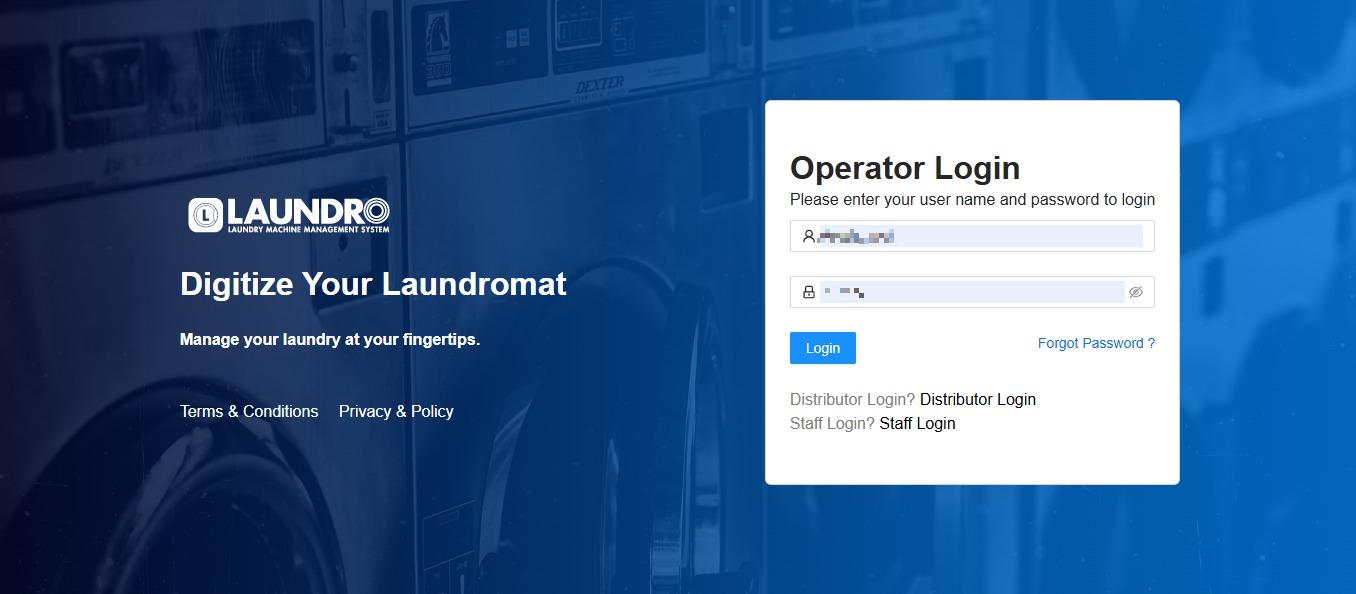
intoStep 1: Log in to Laundro Portal&- Open
put-intheUsernameLaundro/PortalPasswordLogin.:
- Open
- Enter your username and password.
- Click Login.
2.
⚙️
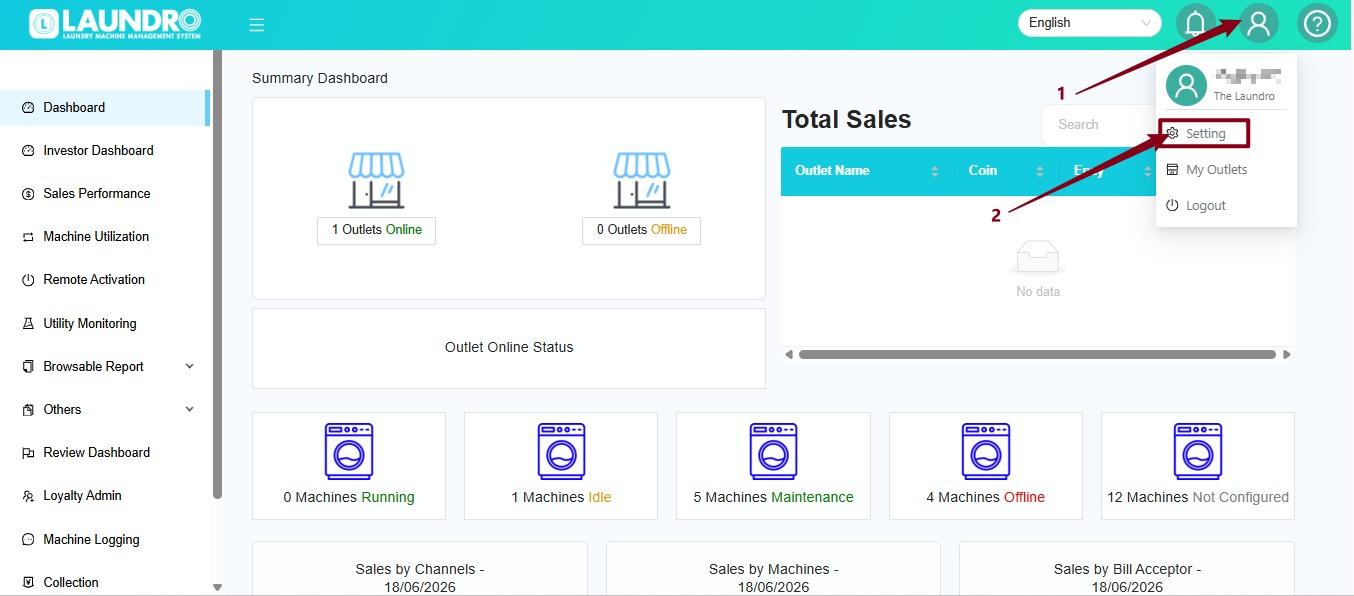
Step 2: Open Settings- Click the Profile icon at the top-right
corner of the screen.corner. - Select
SettingSettings from the dropdown menu. The system will open theSettingpage where you can view your setting.
3.
🛡️
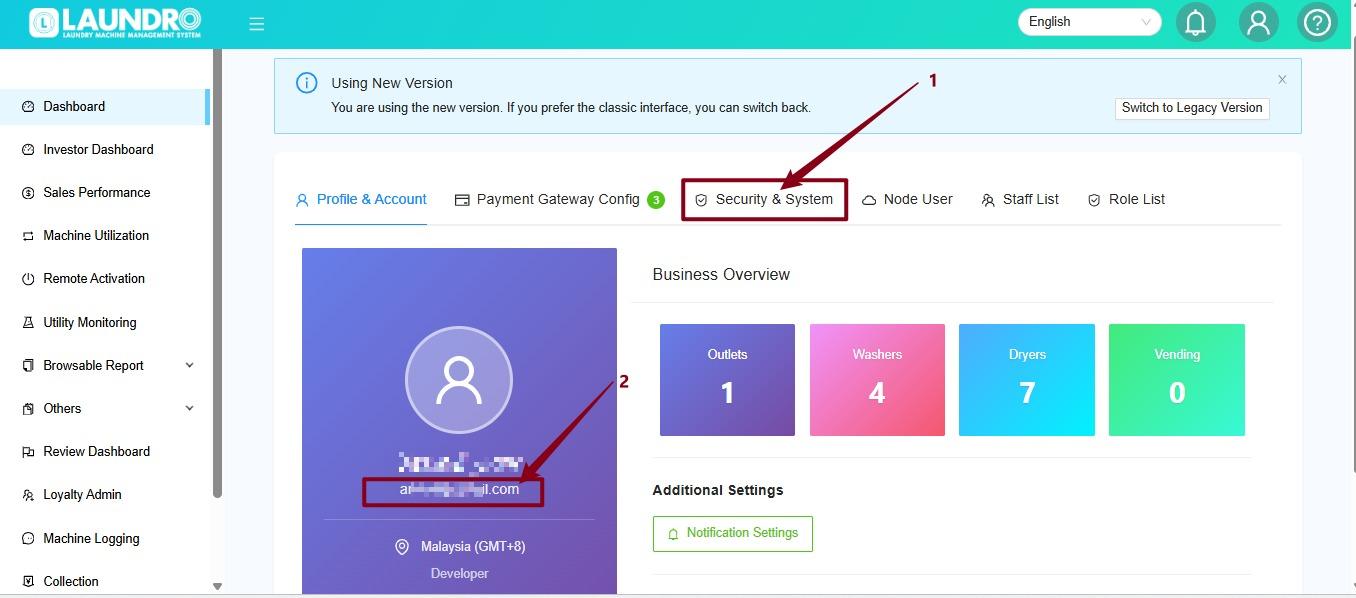
ClickOn the Settings page, click Security & System.YourLocateCurrentyoure-mail.current email address.
4.
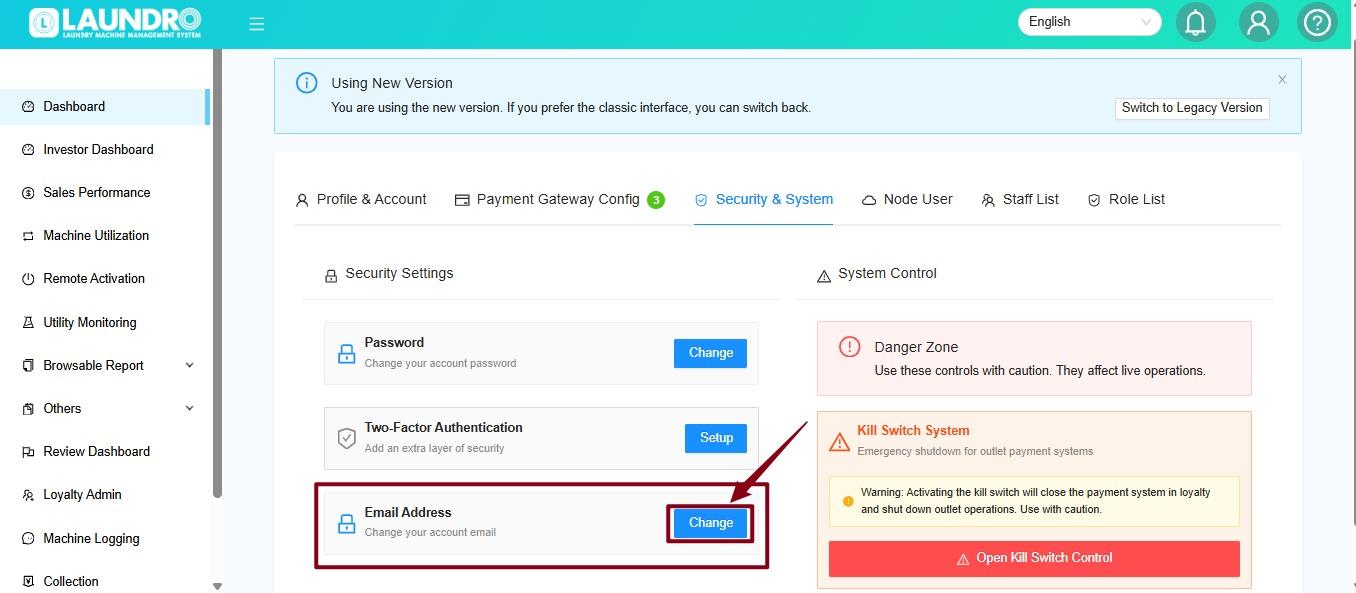
📩 Step 4: Enter Your New Email
- Click
5.
- Enter
NewyourE-Mail.new email address. - Double-check that the email address is correct.
- Click Send Verification
LinkLink.
✅ Step 5: Verify Your New Email
- Open the inbox of your new email address.
- Look for the verification email from the system.
- Follow the instructions in the email to complete verification.
- Return to the portal and check whether the email address has been updated.
If you cannot find the verification email, check your Spam/Junk folder and confirm that you entered the correct email address.
🎉 All Done!
Your email change is complete once the verification process succeeds and the portal reflects the new address.