
Einvoice Report v2
🎯 Purpose
The E-Invoice Report v2 allows you to view e-invoice records based on the selected Operator, Date Range, Outlet, and Company.
You can also view the Total Amount and download the generated report for further use.
📍 How to Access
Step 1 — Open Laundro Portal
Log in to the Laundro Portal using your Username and Password.
Step 2 — Open Report
Report
Step 3 — Select E-Invoice Report v2
Under the Report menu, click:
E-Invoice Report v2
You will be directed to the E-Invoice Report v2 page.
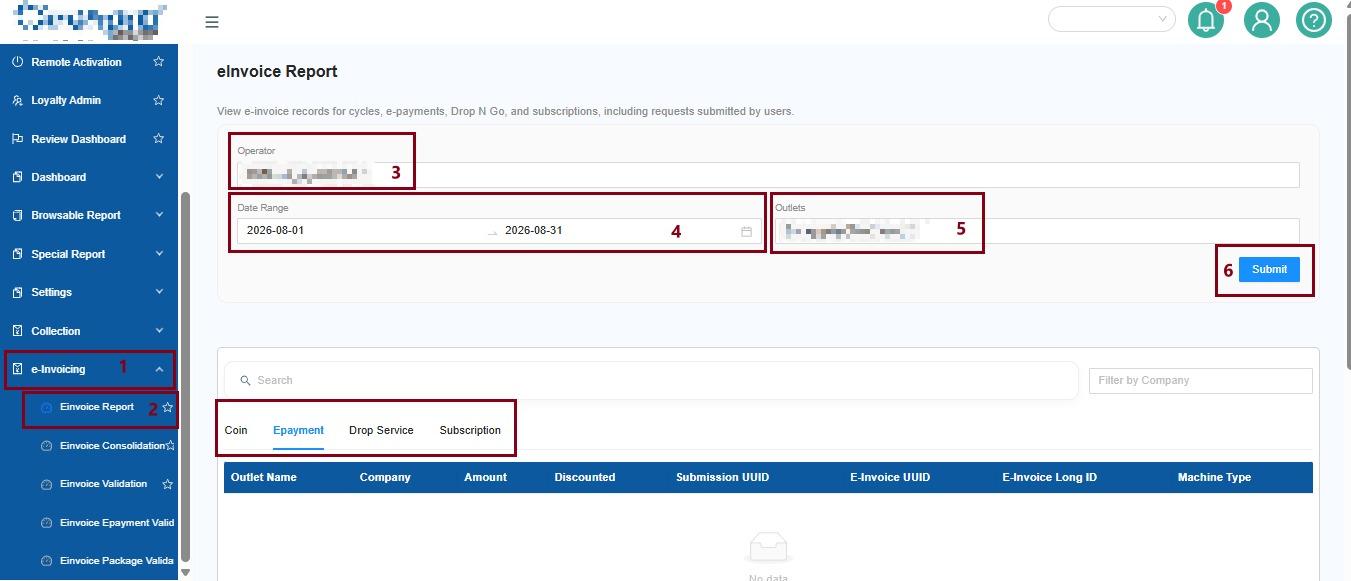
Filter1️⃣ Function
The following filters are available for generating the report:
Select Operator
Use the available filters to select the information you want to view.
👤 Operator
Select the SelectOperator you want to include in the report.
📅 Date Range
Select the date range for the e-invoice records you want to view.
You
🏪
Select Outlet
🏢 Company
[NEW] Filter by Company
This allows you to filter the report bybased on a specific company.
2️⃣
Generate the ReportAfter selecting all the required filters:
Click → Submit
The
Report
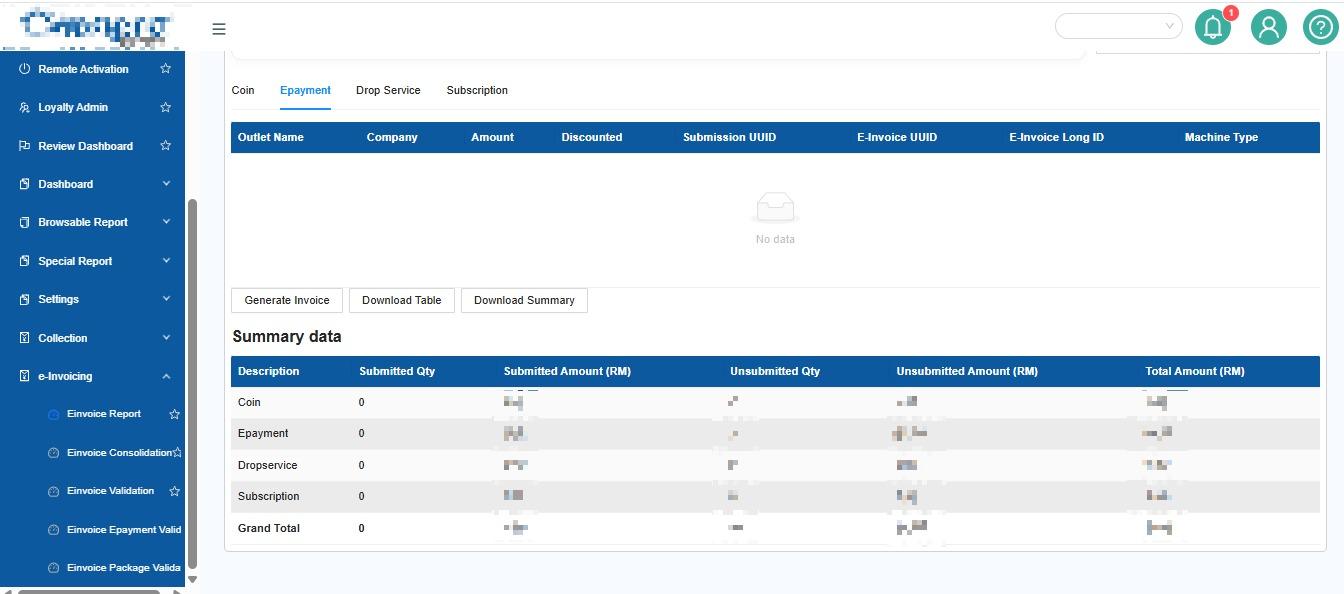
3️⃣ The report will includeCheck the following new features:
[NEW] Total Amount
After the report is generated, the Total Amount will be displayed based on your selected filters.
This
4️⃣ Download the Report
If you need to save or use the report for further processing:
[NEW]Click → Download Report
The generated report tocan then be downloaded for further use.
💡
ExampleScenario
You want to check the e-invoice records for Company A at Outlet A during September 2026.
Select:
| Filter | Selection |
|---|---|
Operator | Operator A |
Date Range | 1–30 September 2026 |
Outlet | Outlet A |
Company | Company A |
Then:
Click Submit → Review Total Amount → Download Report
The system will generate the e-invoice records based on your selected filters.
🧭 Quick Navigation
Laundro Portal → Report → E-Invoice Report v2 → Select Filters → Submit → View / Download Report.