
📊 Costing & Sales Report
Welcome to the Laundro Portal Guide! 👋
Want to review your Costing & Sales report? Follow this guide to select your filters, generate the report, and review the total based on your selected criteria.
Purpose
The Costing & Sales report allows you to view costing and sales information based on the selected Operator, Month, and Outlet.
How to Access
📍 Step 1 — Open Costing & Sales
Log in to the Laundro Portal using your operator account and navigate to the Costing & Sales report page.
- Log in to the Laundro Portal using your Username and Password.
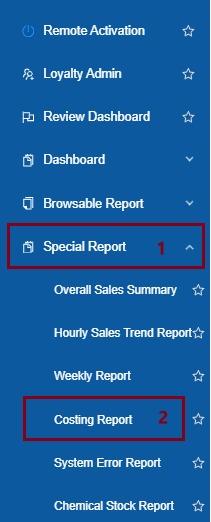
- From the sidebar menu,
- Go to Special Report.
- Select Costing Report.
Filter Function
Step-by-Step
The following filtersyou are availableusing forthe correct operator account before generating the report:report.
1.
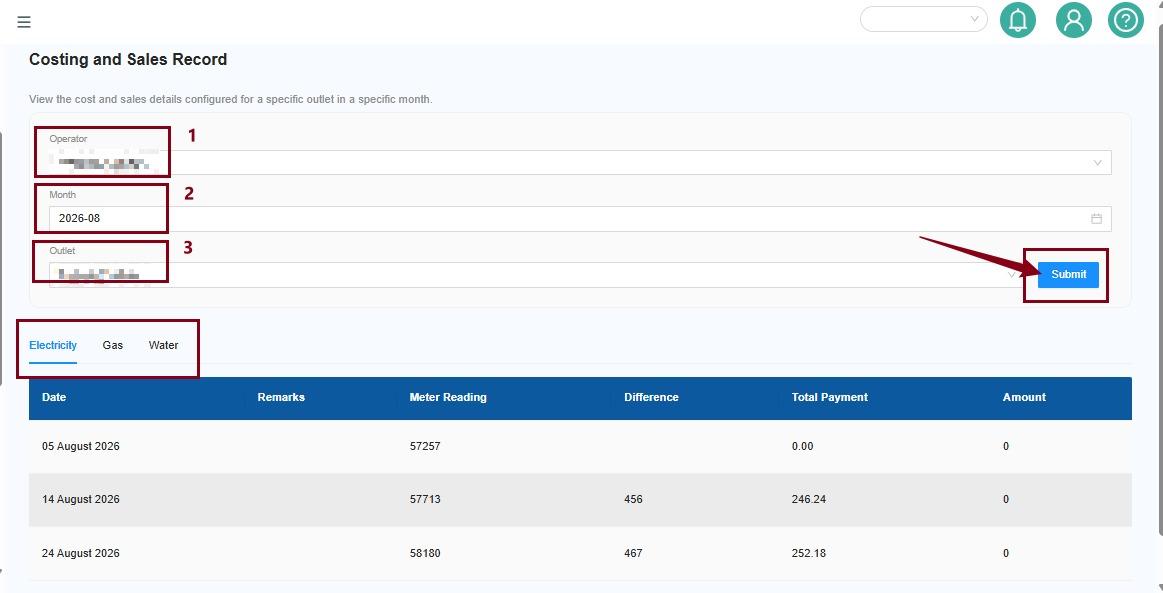
🔎 Step 2 — Select the Operator
SelectChoose the required Operator from the filter.
This determines which operator's report you want to view.
2.
Select
📅 Month
Step 3 — Select the Month
Choose the month you want to review.
💡 monthExample: forSelect September to review the report.report for September.
3.
📸 Insert Screenshot 3: Month filter highlighted.
🏪 Step 4 — Select the Outlet
SelectChoose the required Outlet from the filter.
Make sure you select the correct outlet for the report you want to view.
4.
📸 Insert Screenshot 4: Outlet filter highlighted.
📊 Step 5 — Generate the Report
Ready to view your results?
- Review your selected Operator, Month, and Outlet.
After selecting all the required filters, clickClick Submit.- Wait
The system will generatefor the reportbasedtoonload. - Review
yourtheselectedreportinformation.details and the displayed Total.
Report
Follow
🧮 Understanding the sameReport format as the existing report.Total
Additionally, theThe report willdisplays display thea Total based on the selected filters.
Report
Before Information
The generated report will displayreviewing the costingresults, andcheck salesthat informationyou basedhave onselected the selected:correct:
- 👤 Operator
- 📅 Month
- 🏪 Outlet
These filters determine which report data is displayed.
💡 Quick Tip: If the results do not look correct, check your filters and click Submit again.
⚠️ Troubleshooting Tips
The report willshows alsounexpected results
Check whether the correct Operator, Month, and Outlet have been selected.
The report does not show the Totalexpected data
Review onyour filters and click Submit again. If the selectedissue filters.persists, contact the Laundro support team for assistance.
Example
✅ You're All Set!
ForYou example,now select:
|
|
|---|---|
|
|
|
|
|
|
Click Submithow to generate theand report.
The system will displayreview the Costing & Sales information for Operator A, Outlet A, for September 2026.report.
Before TIPfinishing, :remember If you want to view a different operator, month, or outlet, change the filter and click Submit again to generate the updated report.to:
Make sure you select
- Select the correct
filters before reviewingOperator. - Choose the
report.required Month. - Select the correct Outlet.
- Click Submit.
- Review the report details and Total.