
Coin Collection V2
The Coin Collection V2 page allows you to record and manage coin collections for your outlet.
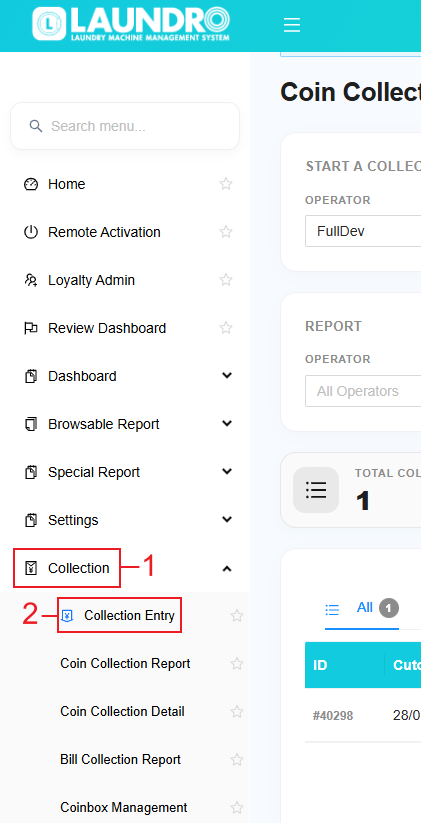
Log in to your account, then look for Collections in the left sidebar and click it. Select a Collection Entry to open its coin collection page.
1. Start a New Collection
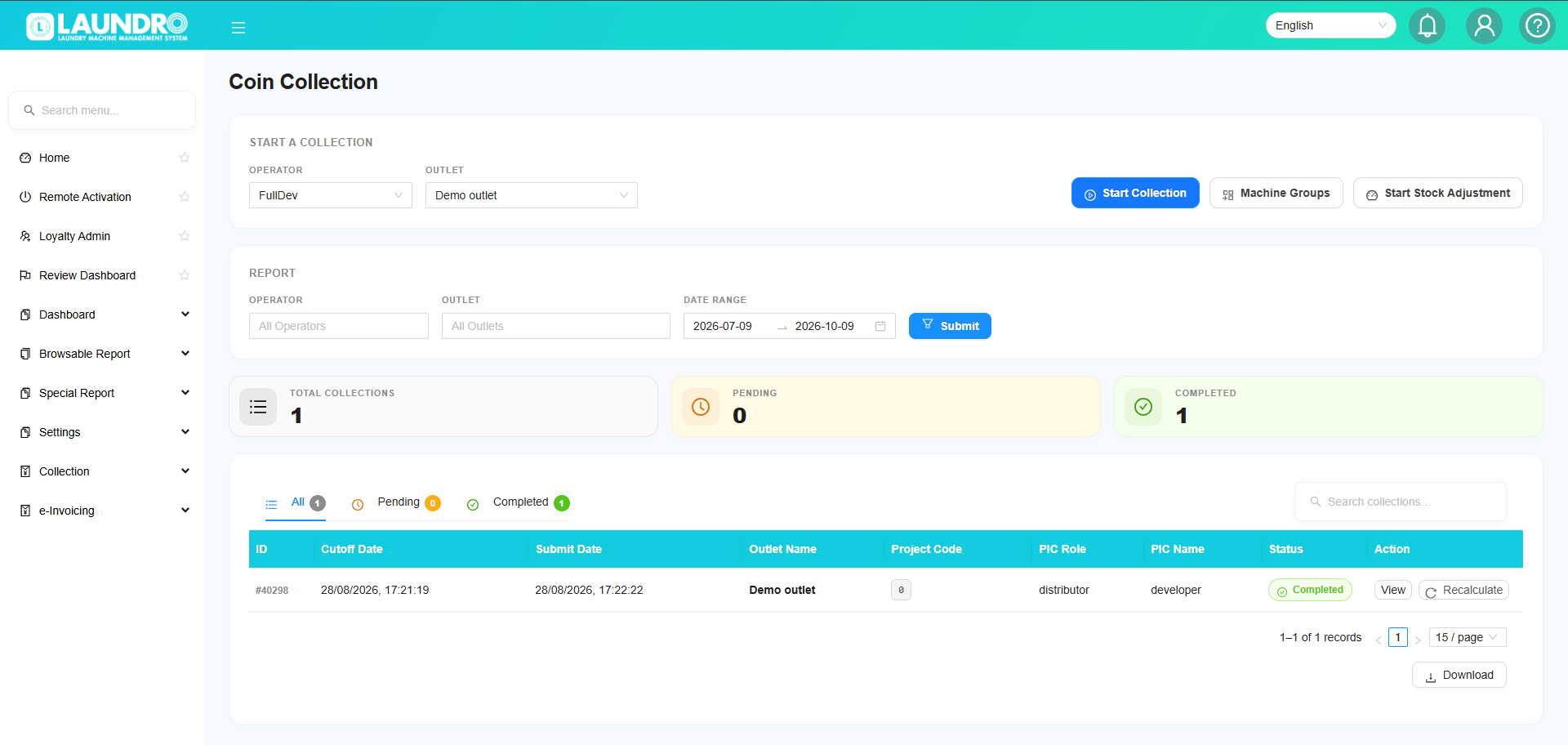
On the page, find Start a New Collection. Under it, select the Operator and Outlet you want, then click Submit.

Start Collection
Use this option to begin a new coin collection.
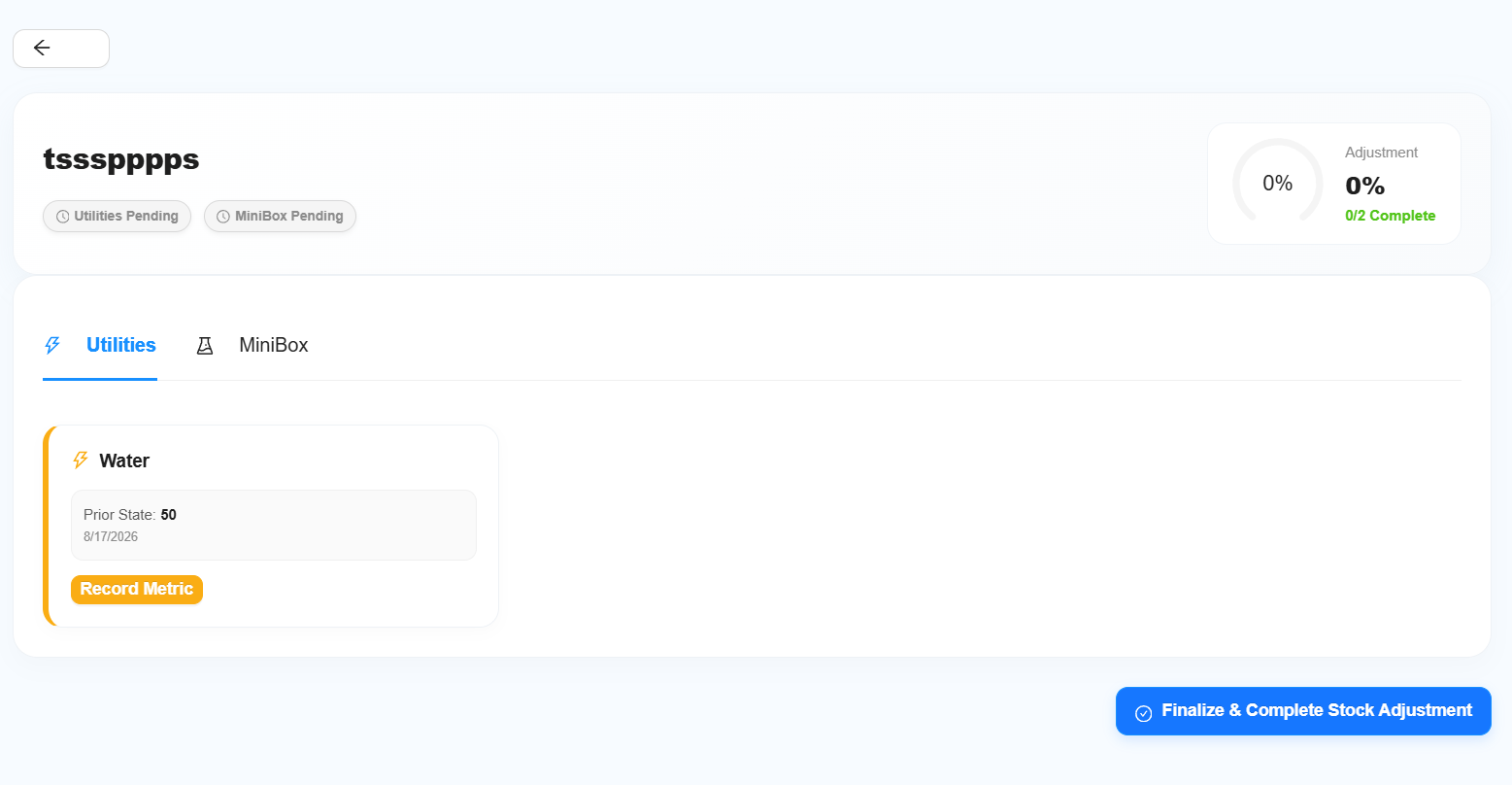
Stock Adjustment
Use this option when you need to update the outlet's Utilities or Chemical/Minibox stock.
Note: Stock Adjustment is separate from the normal coin collection process.
2. Search Previous Collections
Use the filter section to find existing coin collection records.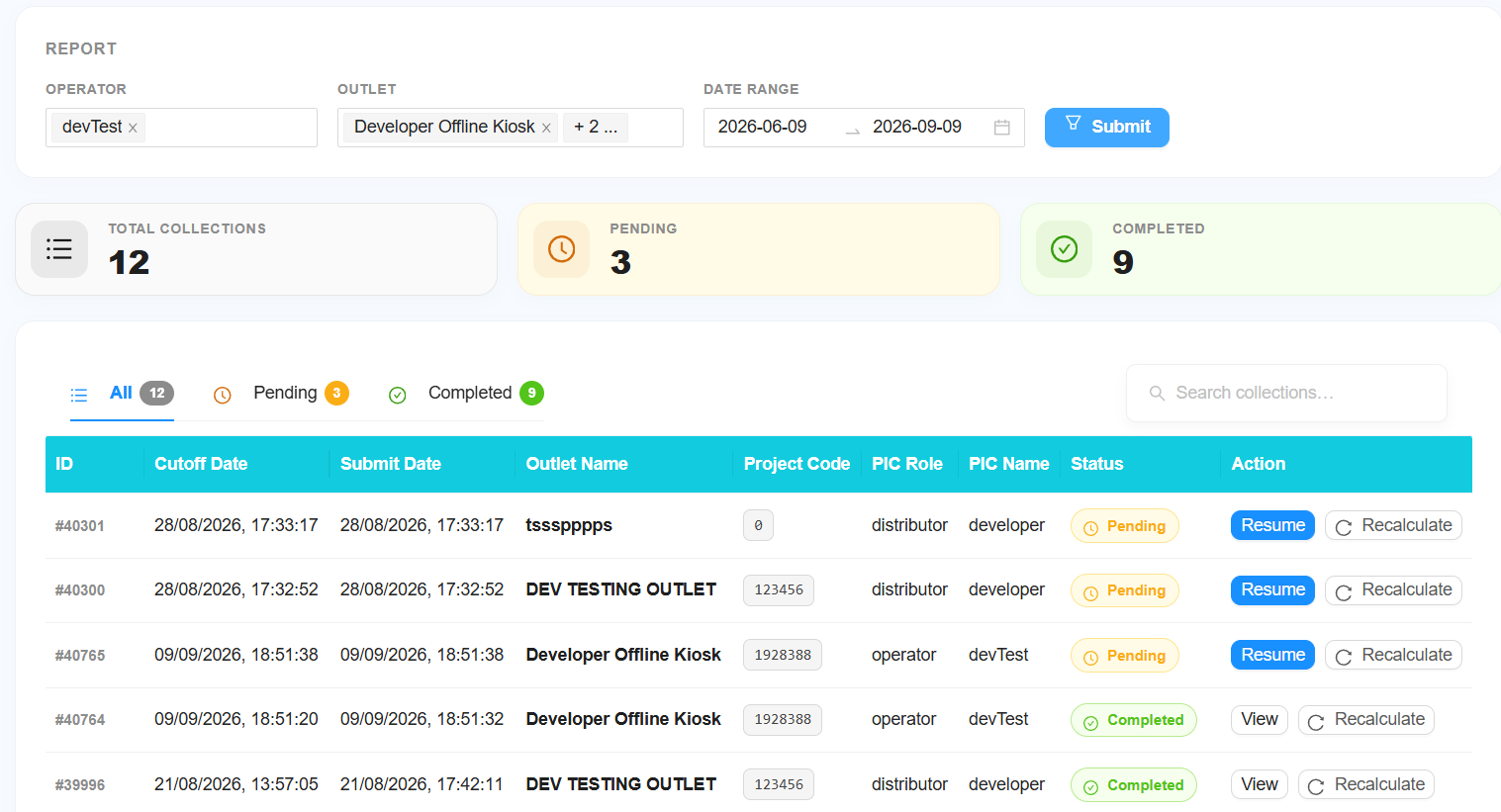
Step 1: Select Operator
- Select a specific operator, or
- Leave it unchanged to view All Operators.
Step 2: Select Outlet
- Select a specific outlet, or
- Leave it unchanged to view All Outlets.
Step 3: Select Date
Select the date or date range you want to check.
Step 4: Click Submit
Click Submit to display the collection records.
3. Collection Status
Each collection record will have a status.
All
Shows all collection records.
Pending
The collection has been started but has not been completed.
Completed
The collection has been successfully completed.
4. Actions
Depending on the collection status, you may see different actions.
View
Use View to check the details of a completed collection.
Resume
Use Resume to continue a collection that was started but not completed.
Recalculate
Use Recalculate when collection is done and there's old transaction being voided. It need to make sure the coin collection report is correct.
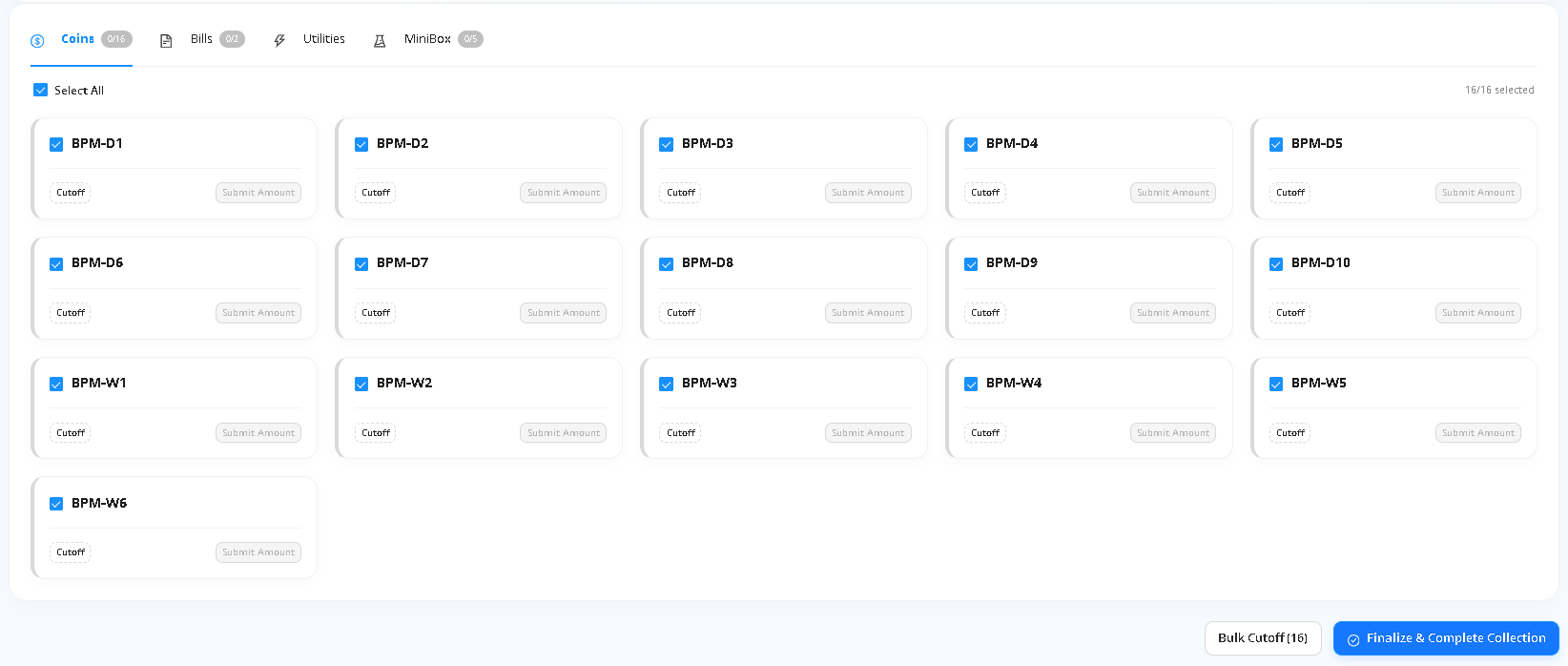
Bulk Cutoff Action
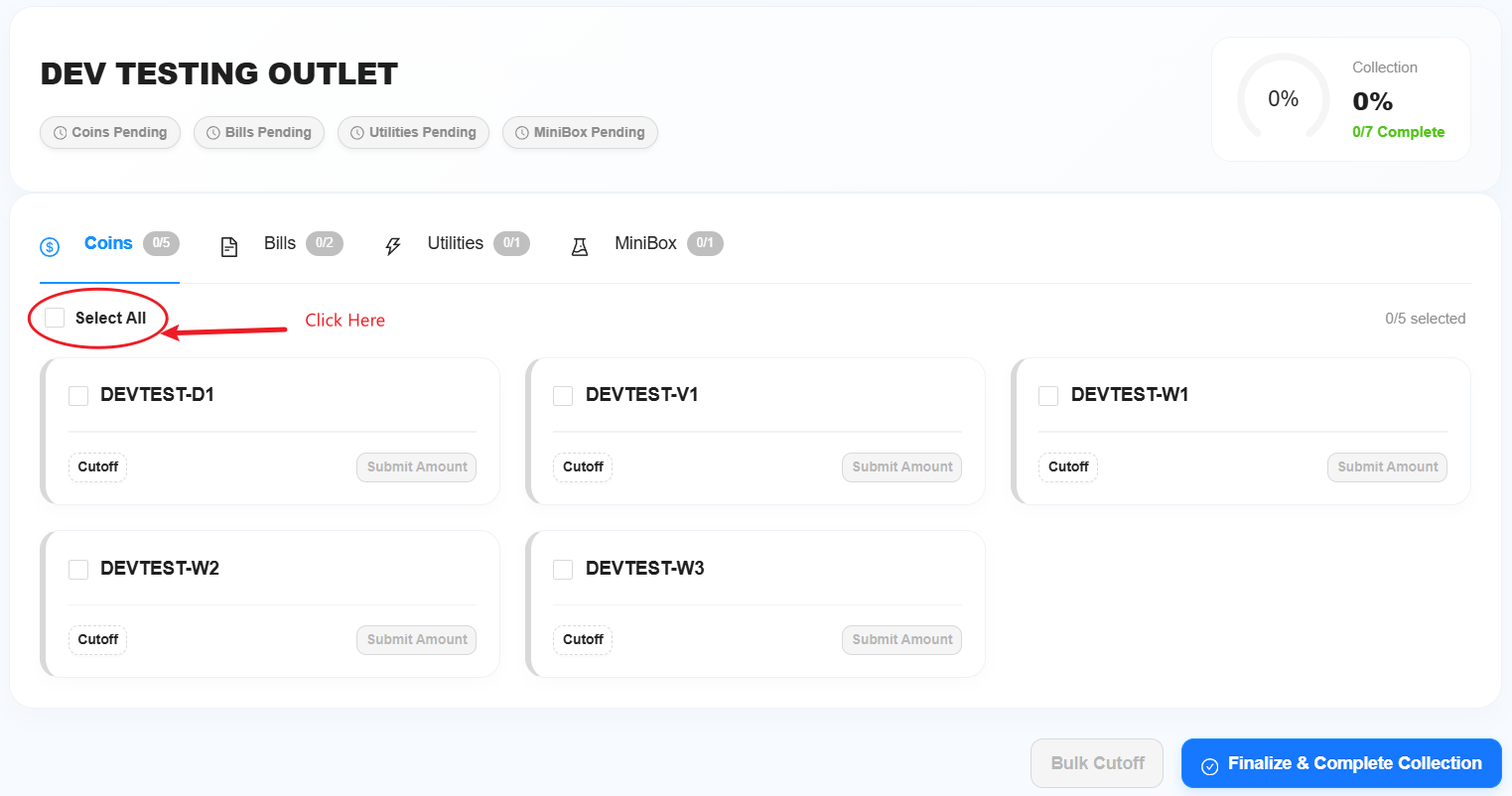
Use Select All to select all machine then click Cut Off to automatically calculate the collection cutoff amount.
5. Collection Information
The Coin Collection page is divided into four sections:
- Coin - Enter and submit the collected coin amount.
- Bill - Enter and submit the collected bill amount, if applicable.
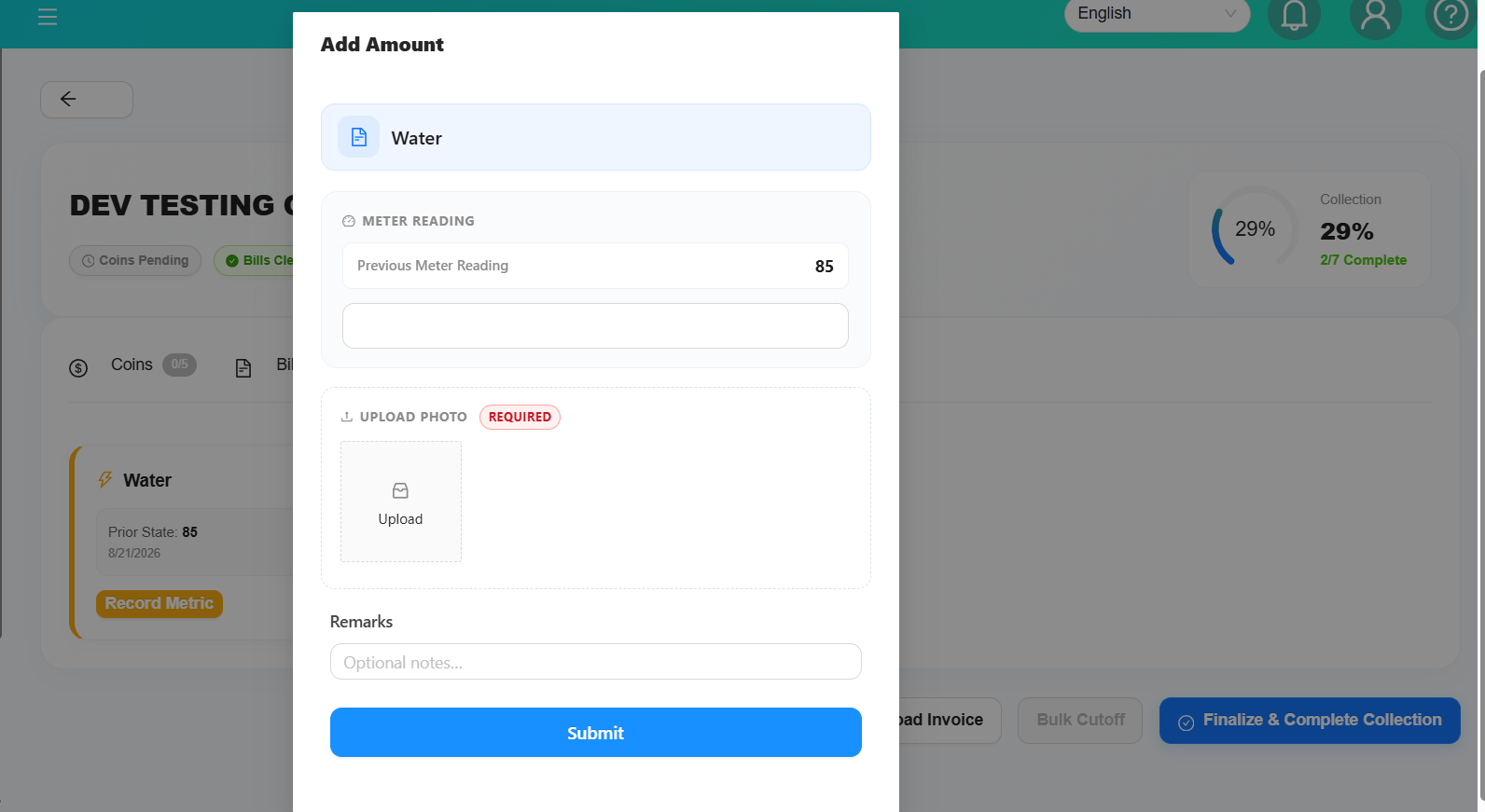
- Utilities - Enter utilities information used for costing.
- Chemical / Minibox - Update the chemical or Minibox stock balance.
- Upload Bank-in Slip
6. Bill Collection
If the selected outlet has bill collection data, complete the following steps:
Step 1: Complete Bill Cutoff
Enter the required bill cutoff information.
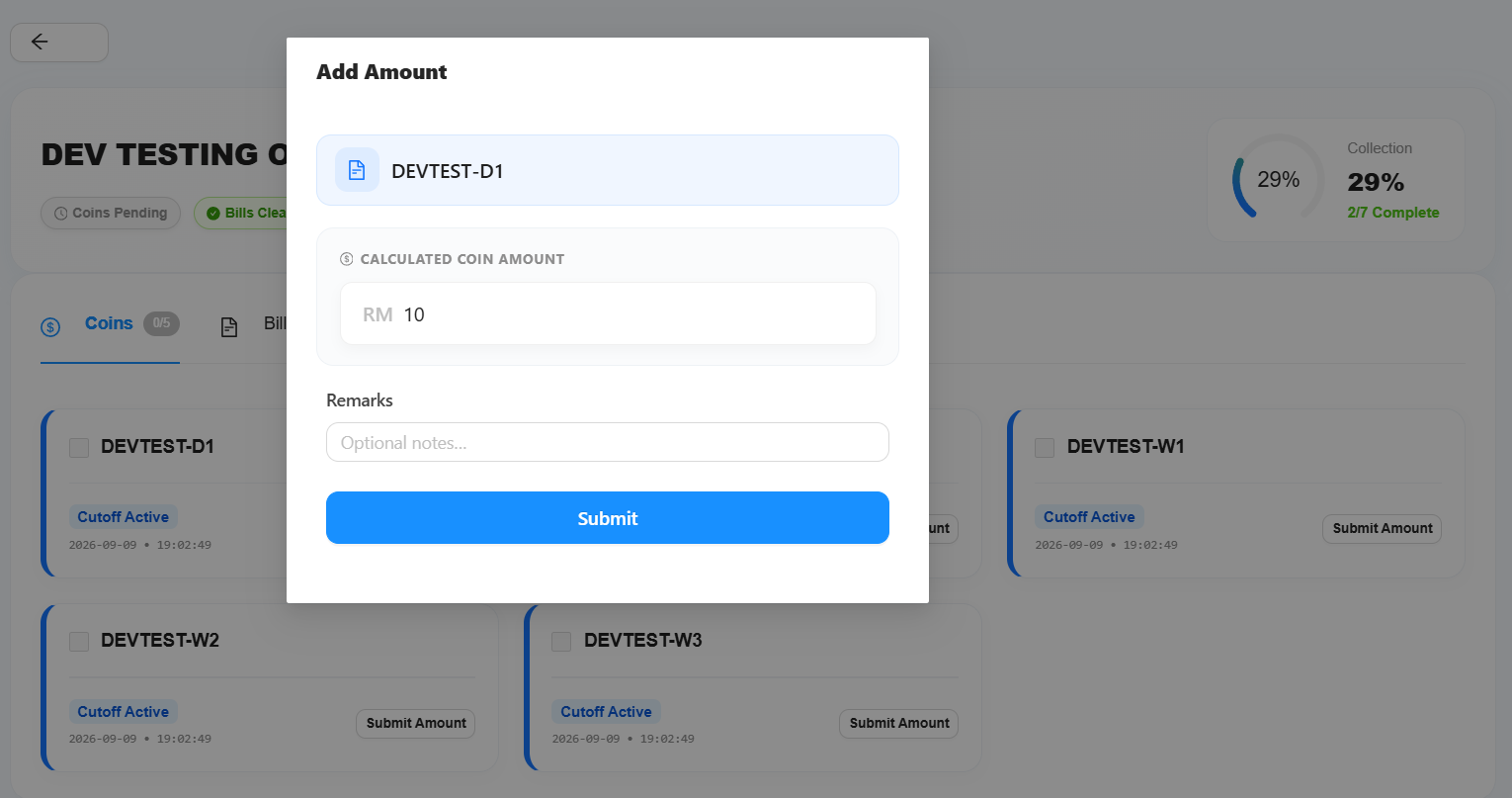
Step 2: Submit the Collected Amount
Enter the amount collected and submit it.
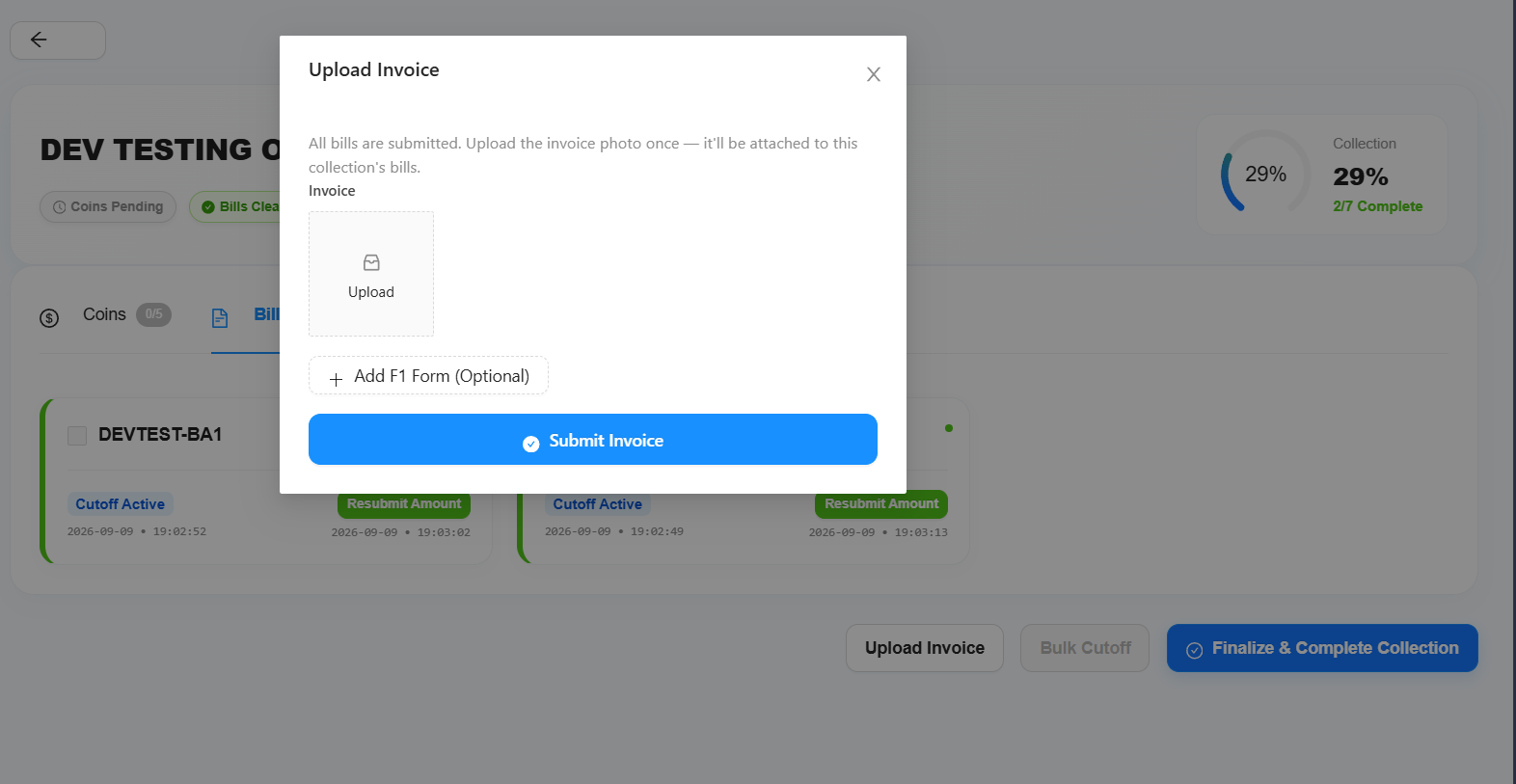
Step 3: Submit the Invoice
After submitting the bill collection, the Submit Invoice button will become available.
Upload the receipt or invoice provided by the bank or payment provider.
Add F1 Form or Remarks
- Add an F1 Form.
- Add additional remarks.
Important: If the outlet has bill collection data, an invoice is required before the collection can be completed.
7. Chemical / Minibox Balance
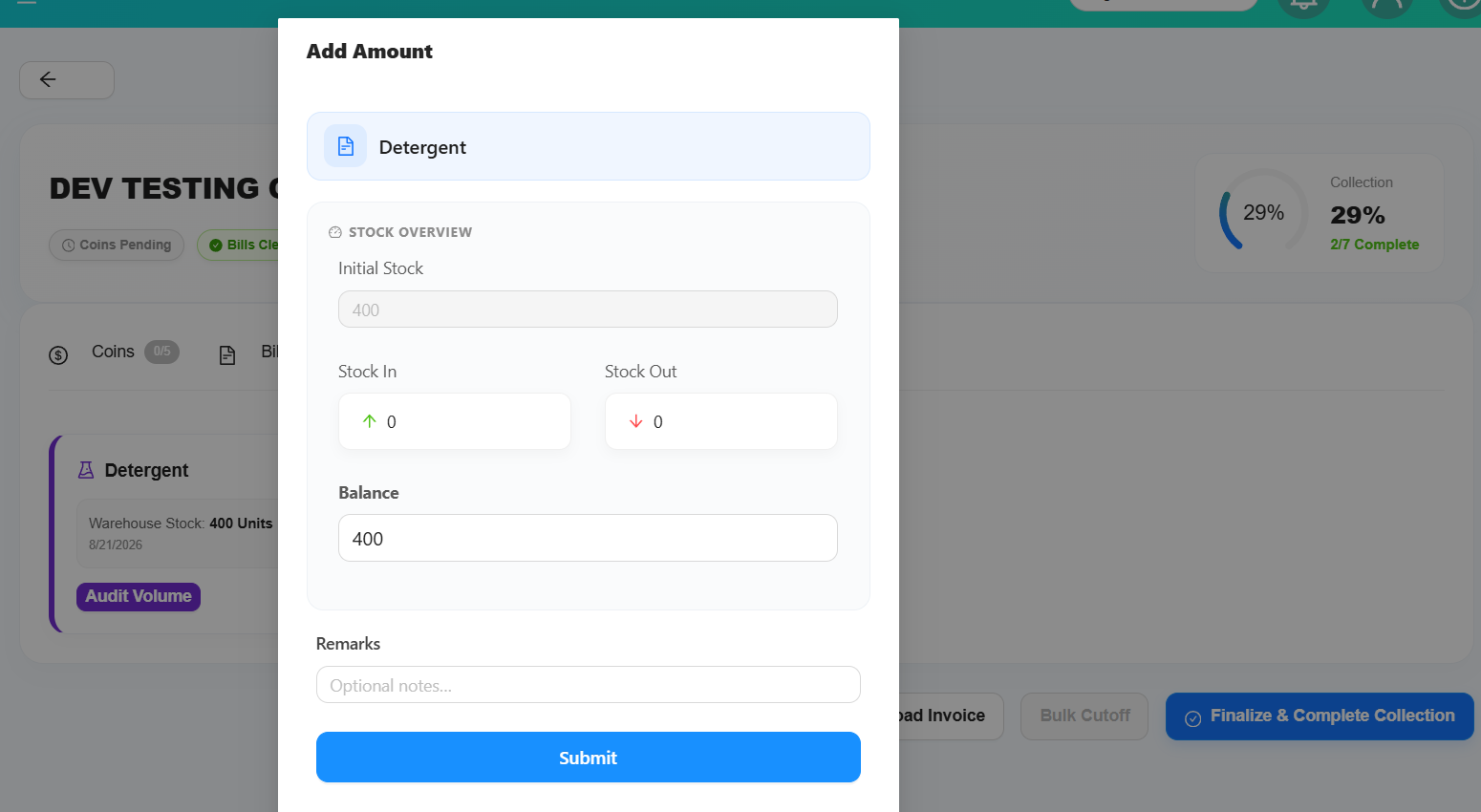
The Chemical / Minibox section includes a Balance field.
Enter the current balance directly into the Balance field.
The system will automatically calculate and update:
- Stock In
- Stock Out
8. Condition to Complete Collection
Before completing the collection, make sure all required information has been submitted.
Required
✓ All coin collections must be submitted.
✓ All bill collections must be submitted.
✓ If the outlet has bill collection data, the invoice must be submitted.
Optional
Utilities and Chemical/Minibox information are optional.
They will not prevent the collection from being completed.