
Coin Collection V2

1. Start Collection
To start a collection, the user must select an Operator and Outlet using the primary filter at the top of the page.
The user can then select one of the following actions:
-
Start Collection
- Follows the same collection flow as the current Coin Collection process.
-
Stock Adjustment
-
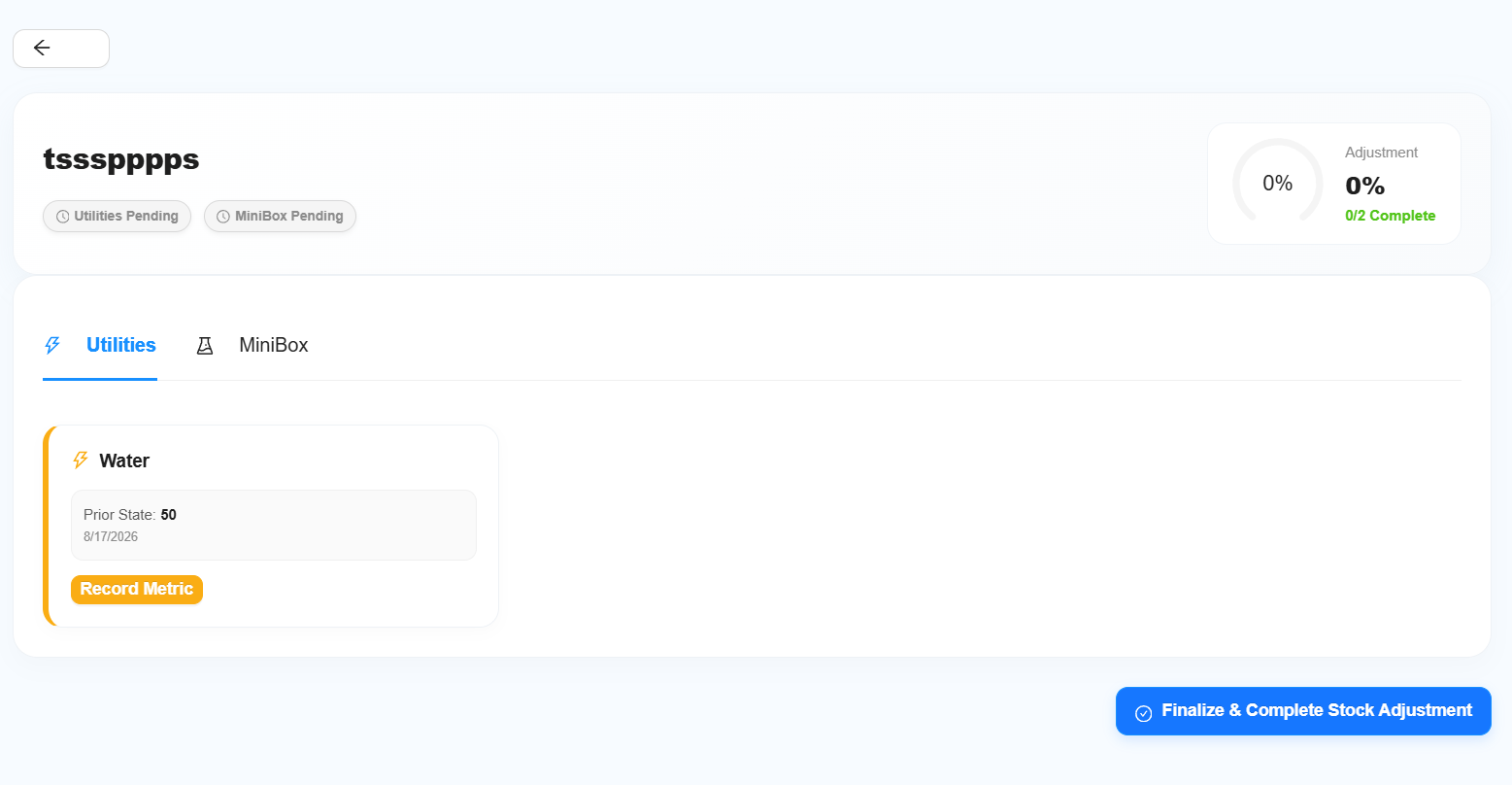
Allows the user to update the Utilities and Chemical stock and costing for the selected outlet.
-
Stock Adjustment
-
Stock Adjustment is separate from the normal collection flow.
Users can directly update:
- Utilities
- Minibox/Chemical
Stock Adjustment does not have any blocking requirements. The adjustment can be completed regardless of whether the Utilities or Minibox/Chemical information has been updated.
2. Coin Collection Filter
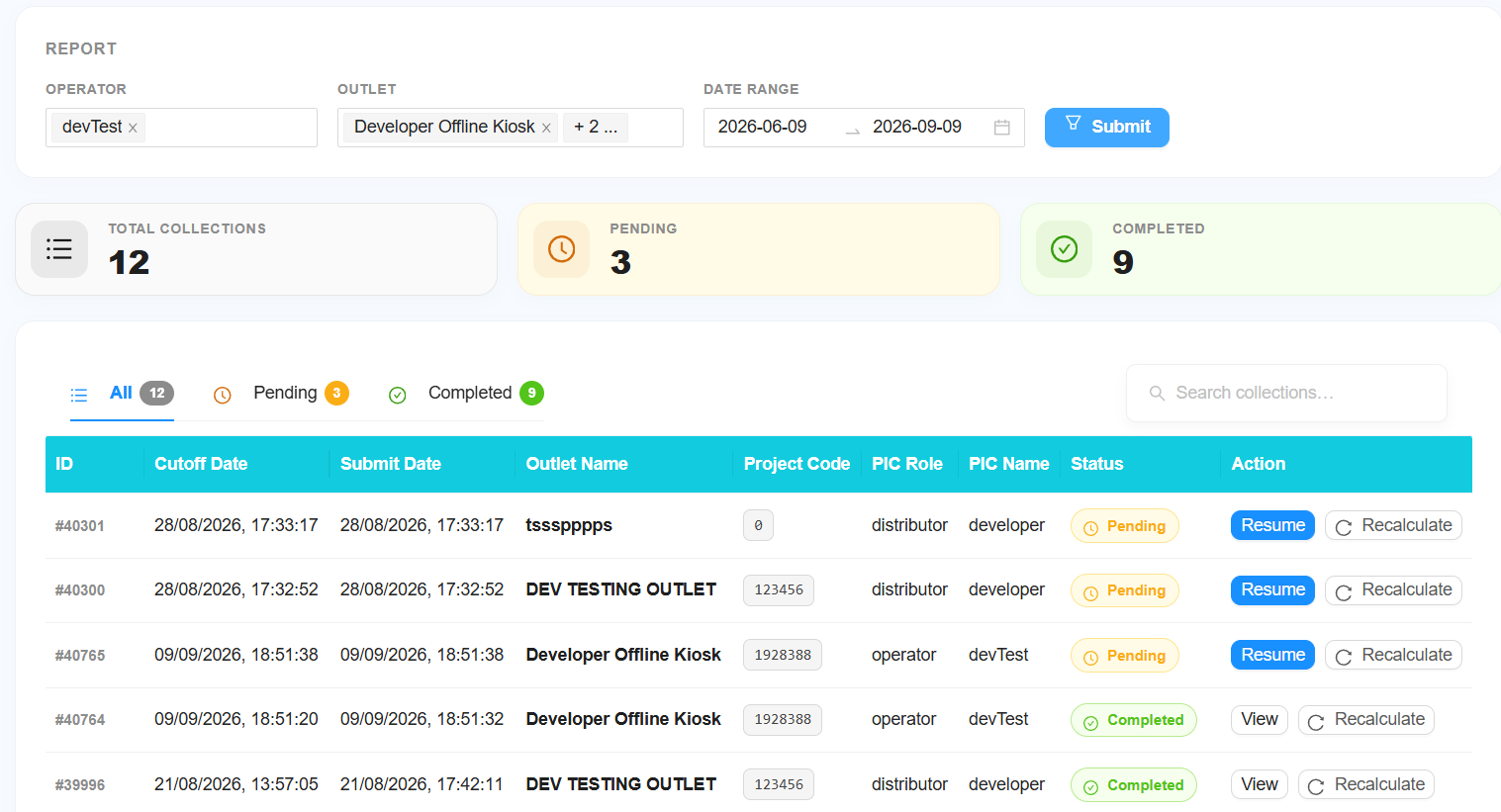
The second filter is used to search and view existing coin collections.
The following filters are available:
-
Select Operator
- For Staff and Distributor levels, select the required operator.
- Leave the filter unchanged to include All Operators.
-
Select Outlet
- Select the required outlet.
- Leave the filter unchanged to include All Outlets.
-
Select Date
- Select the required date or date range.
-
Submit
-
Click Submit to retrieve the coin collection records.
-
Coin Collection Table
The table will display all information related to the coin collections.
The collection status can be viewed as:
- All
- Pending
- Completed
Users can perform the following actions:
- View — View a completed coin collection.
- Resume — Resume a coin collection that was stopped before completion.
- Auto Calculate Cutoff — Automatically calculate the collection cutoff amount.
3. Coin Collection Sections
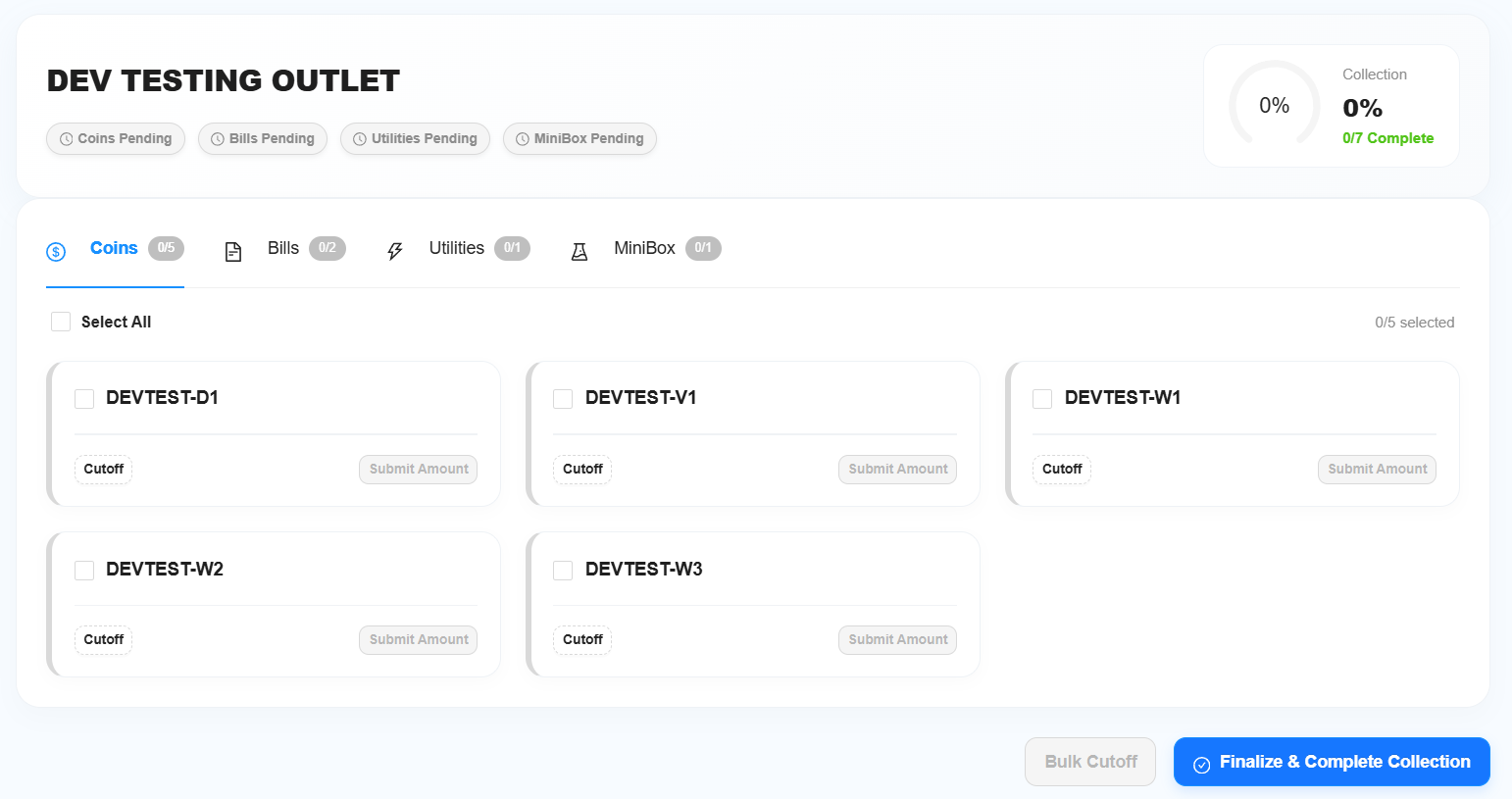
The Coin Collection page will be divided into four sections:
- Coin
- Bill
- Utilities — Used for costing.
- Chemical
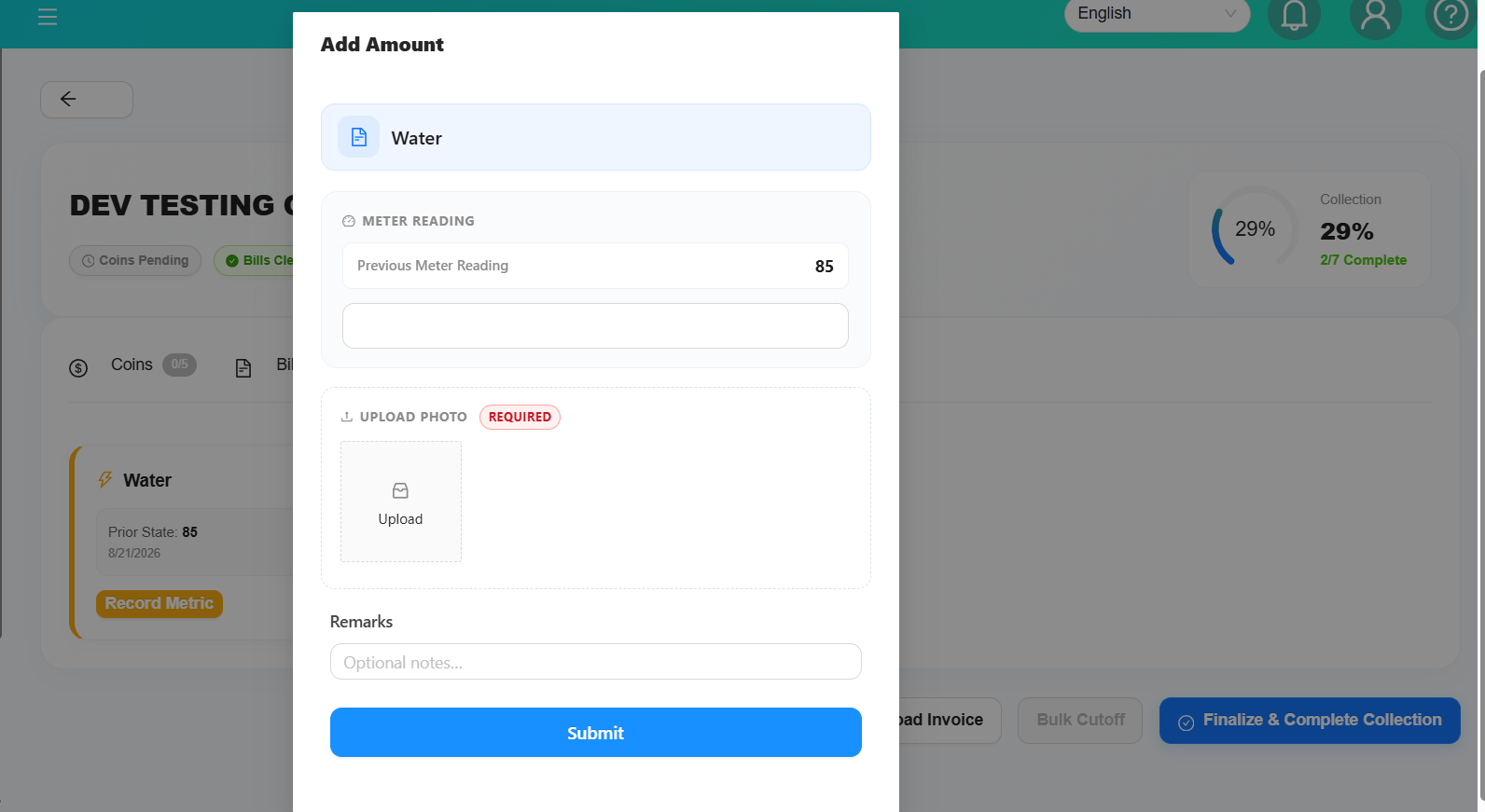
4. Bill Collection
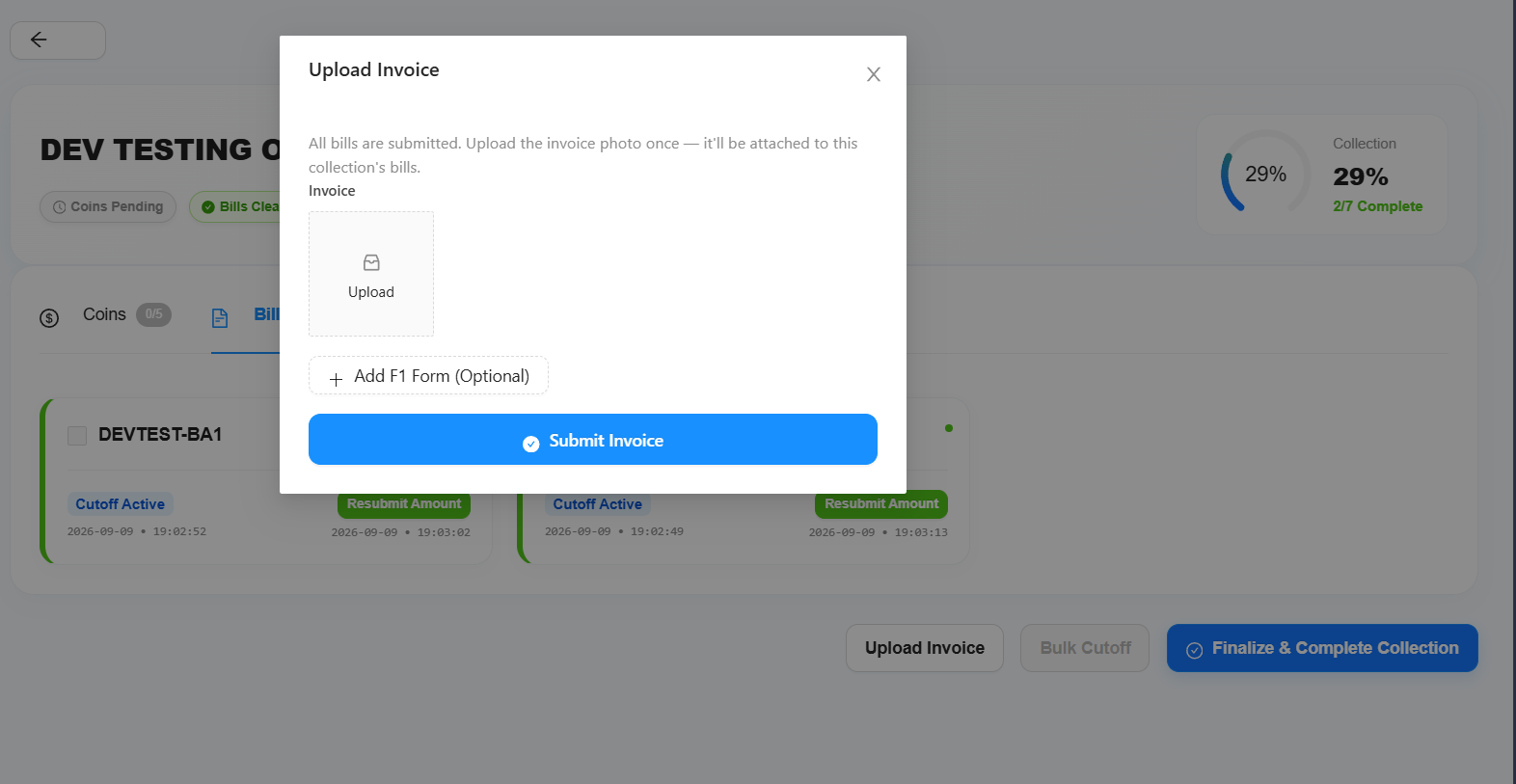
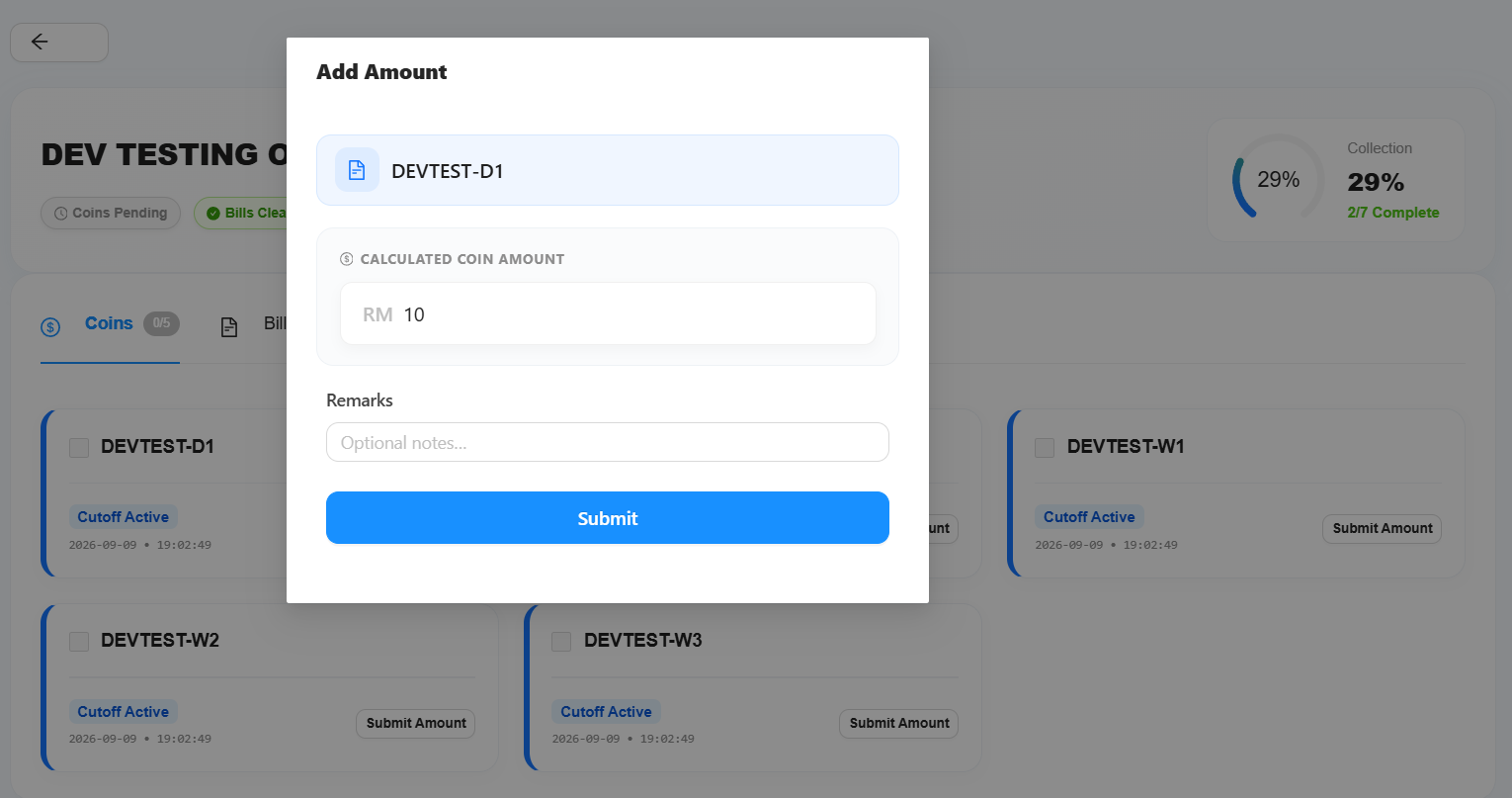
If the selected outlet contains bill collection data:
- Complete the Bill Cutoff.
- Submit the collected amount.
- The Submit Invoice button will be available.
- Upload or submit the receipt/invoice provided by the bank or relevant payment provider.
Additionally:
5. Chemical / Minibox Balance
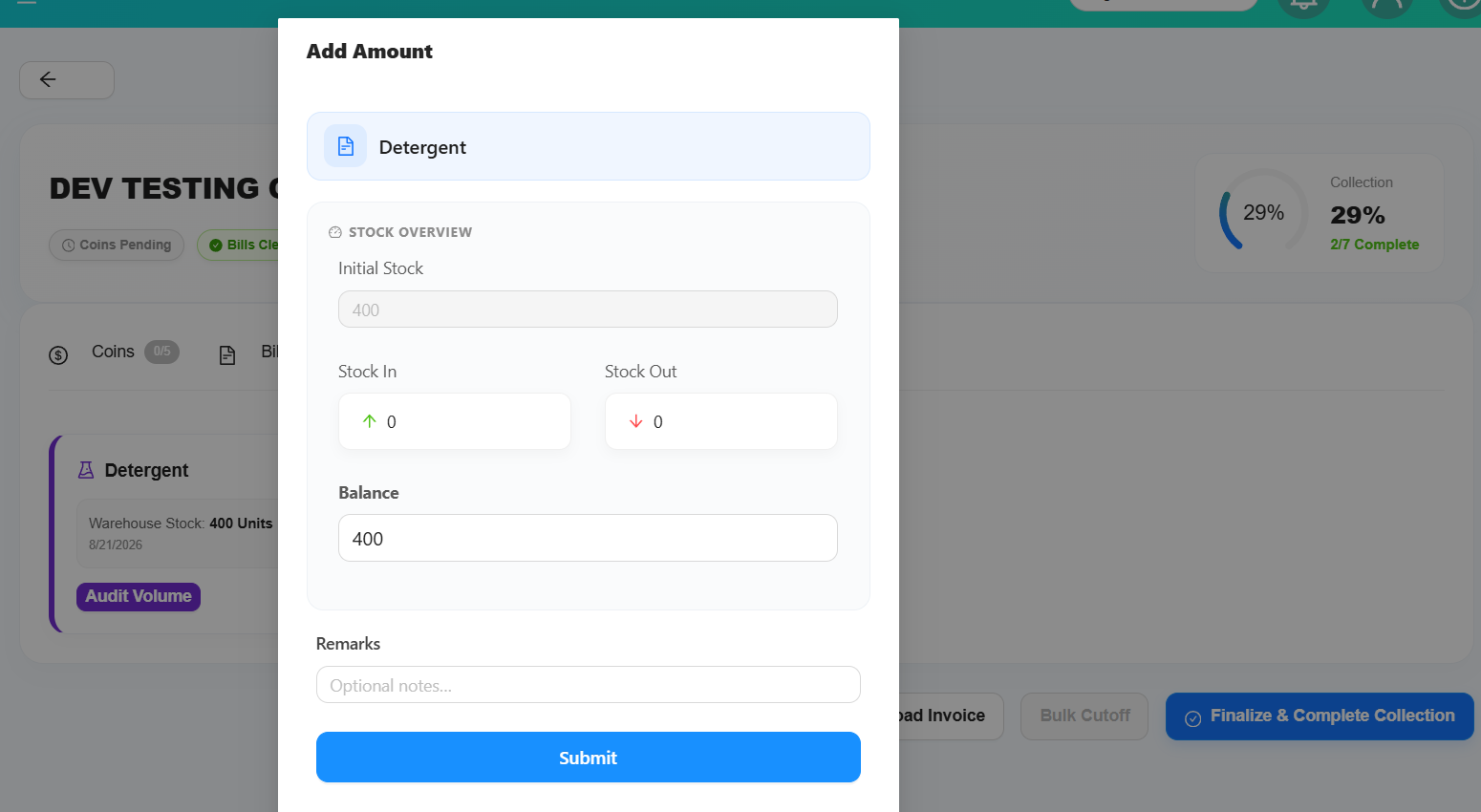
For Minibox/Chemical, a new Balance field will be available.
Users can update the balance directly. The system will automatically calculate and update:
- Stock In
- Stock Out
6. Collection Completion Requirements
A coin collection can only be completed when the required collection items have been submitted.
Required
- All Coin collections must be submitted.
- All Bill collections must be submitted.
- If the outlet contains bill collection data, an Invoice is required.
Optional
- Utilities
- Minibox/Chemical
Utilities and Minibox/Chemical do not prevent the collection from being completed.