
Chemical Report v2
🎯 Purpose
The Chemical Report v2 allows you to view chemical stock information based on the selected Operator, Outlet, Method, Date, and Item.
You can use the report to check either:
- Consume – how much chemical stock was consumed during a selected period.
- Balance – the stock balance on a specific date.
📍 How to Access
Step 1 — Open Laundro Portal
Log in to the Laundro Portal using your Username and Password.
Step 2 — Open Report
Step 3 — Select Chemical Report v2
Select Chemical Report v2 from the Report menu.
You will be directed to the Chemical Stock Report page.
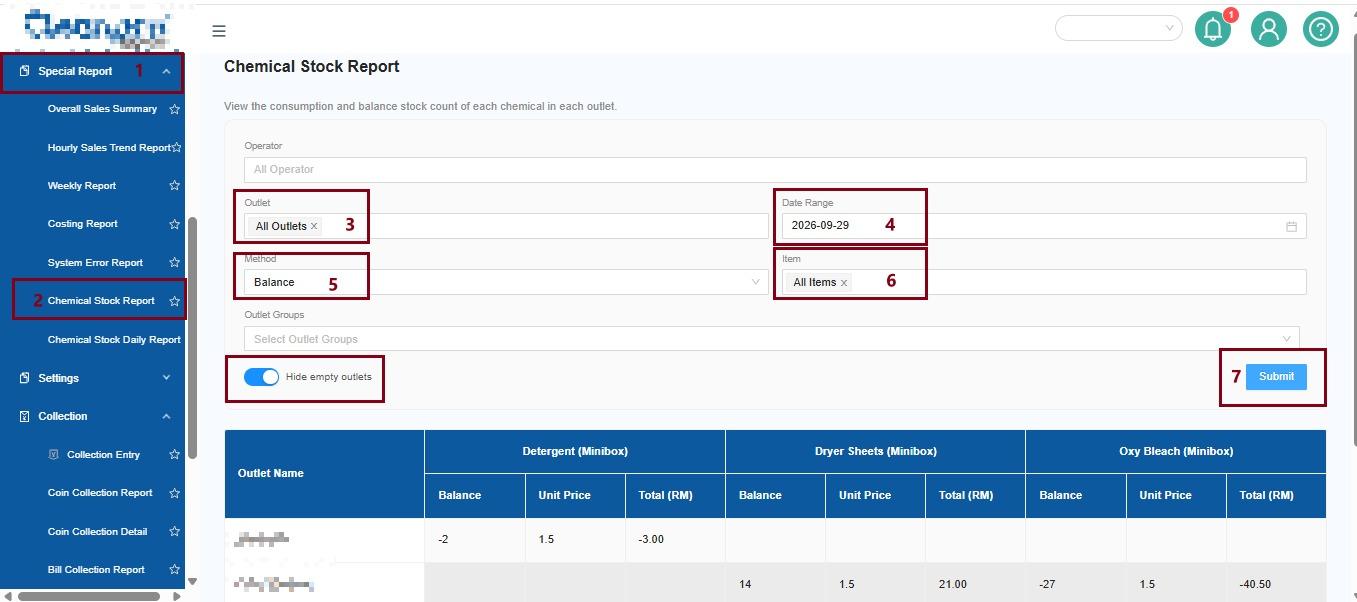
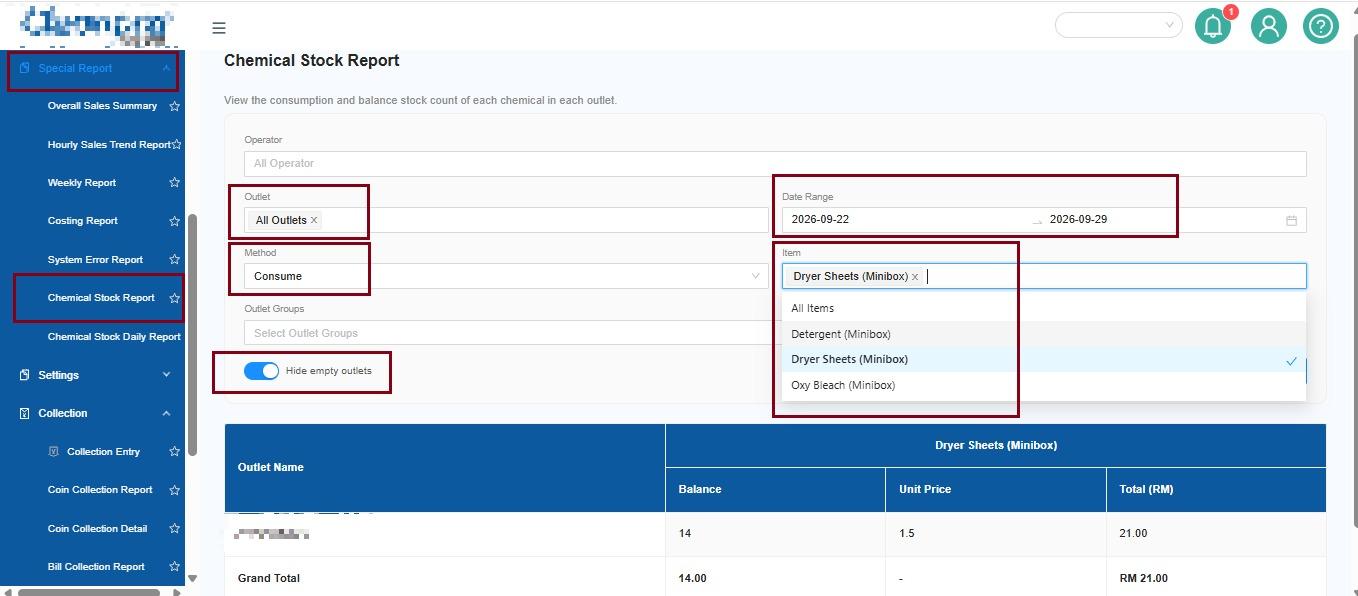
1️⃣ Select Operator
Select the Operator you want to include in the report.
To include all operators, select:
All Operator
2️⃣ Select Outlet
Select the Outlet you want to view.
To include all outlets, select:
All Outlet
3️⃣ Select Method
The Method determines what type of chemical information you want to view.
There are two options:
🧴 Consume
Select Consume when you want to check how much chemical stock was consumed during a specific period.
Date selection:
📅 Date Range
Example:
1 September 2026 → 30 September 2026
📦 Balance
Select Balance when you want to check the chemical stock balance on a specific date.
Date selection:
📅 Single Date
Example:
30 September 2026
💡 Easy Way to Remember
Want to know how much was USED?
→ Choose Consume
Want to know how much is LEFT?
→ Choose Balance
4️⃣ Select Date
The date selection depends on the Method you selected.
| Method | Date Selection | Purpose |
|---|---|---|
Consume | Date Range | View chemical consumption during a period |
Balance | Single Date | View stock balance on a specific date |
5️⃣ Select Item
Select the chemical item you want to include in the report.
To view all items, select:
All Item
You can select a specific item when you only want to check one chemical.
6️⃣ Hide Empty Outlet
Turn on Hide Empty Outlet if you do not want to display outlets with no chemical stock data.
This helps make the report cleaner and easier to read.
Example
OFF
→ All outlets are displayed.
ON
→ Outlets without chemical stock data are hidden.
7️⃣ Generate the Report
After selecting all the required filters, click:
Submit
The system will generate the Chemical Stock Report based on your selected filters.
📊 Understanding the Report
The report provides chemical stock information based on your selected method.
Consume Report
The report shows the amount of chemical stock consumed during the selected date range.
The report also provides Total Consumed information.
Balance Report
The report shows the stock balance for the selected date.
The report also provides totals based on the selected chemical type.
💡 Example 1 — Check Chemical Consumption
You want to know how much detergent was consumed during September.
Select:
| Filter | Selection |
|---|---|
Operator | All Operator |
Outlet | All Outlet |
Method | Consume |
Date | 1–30 September 2026 |
Item | Detergent |
Then click Submit.
The system will display the detergent consumption during the selected date range.
💡 Example 2 — Check Current Stock Balance
You want to check the chemical stock balance as of 30 September.
Select:
| Filter | Selection |
|---|---|
Operator | All Operator |
Outlet | All Outlet |
Method | Balance |
Date | 30 September 2026 |
Item | All Item |
Then click Submit.
The system will display the chemical stock balance for the selected date.