
Chemical Report v2
Filter Function
The following filters are available for generating the report:
-
Select Operator
- Select the required operator.
- Select All Operator to include all operators.
-
Select Outlet
- Select the required outlet.
- Select All Outlet to include all outlets.
-
Select Date Range
- Select the date range for the report.
-
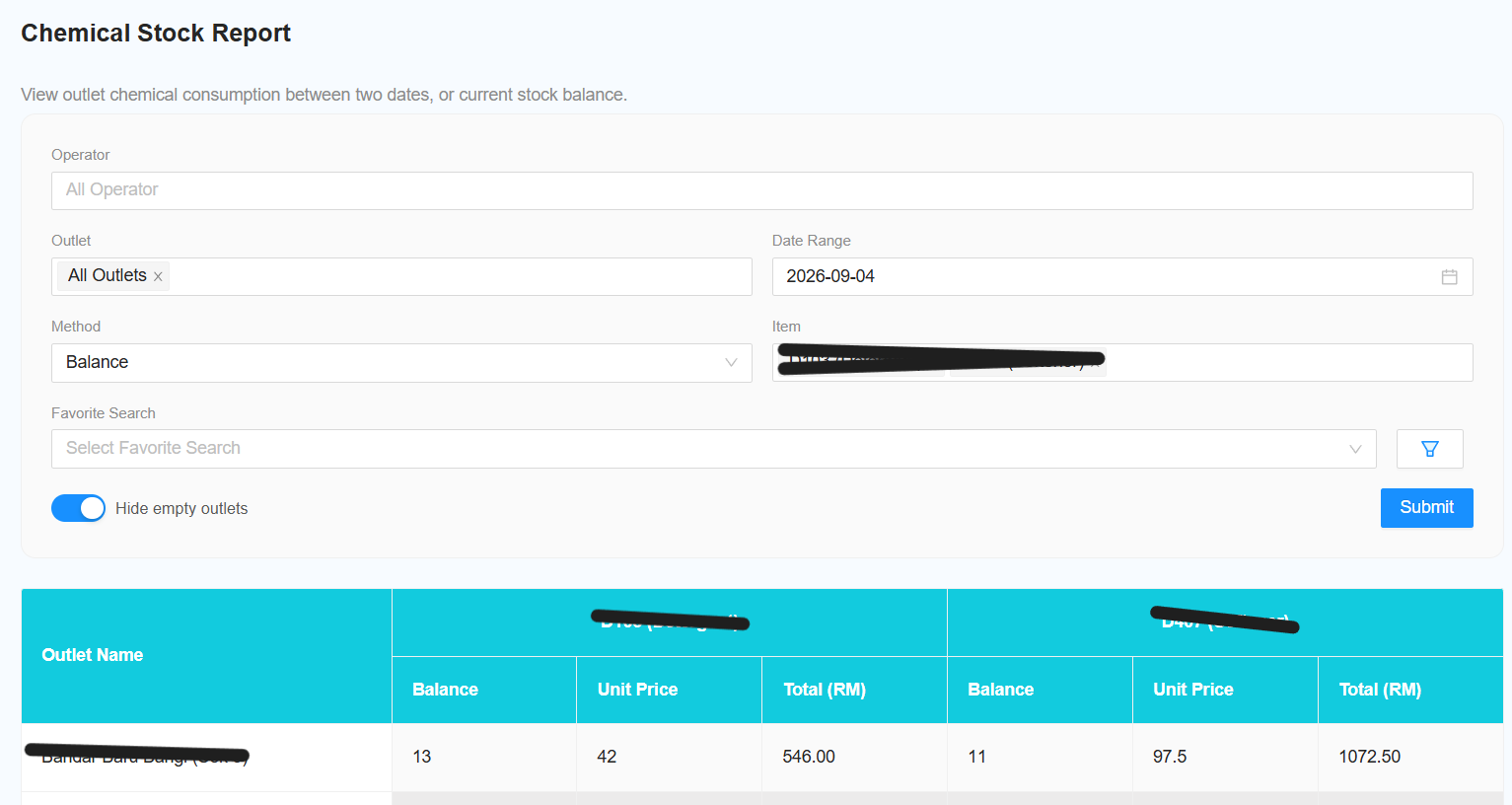
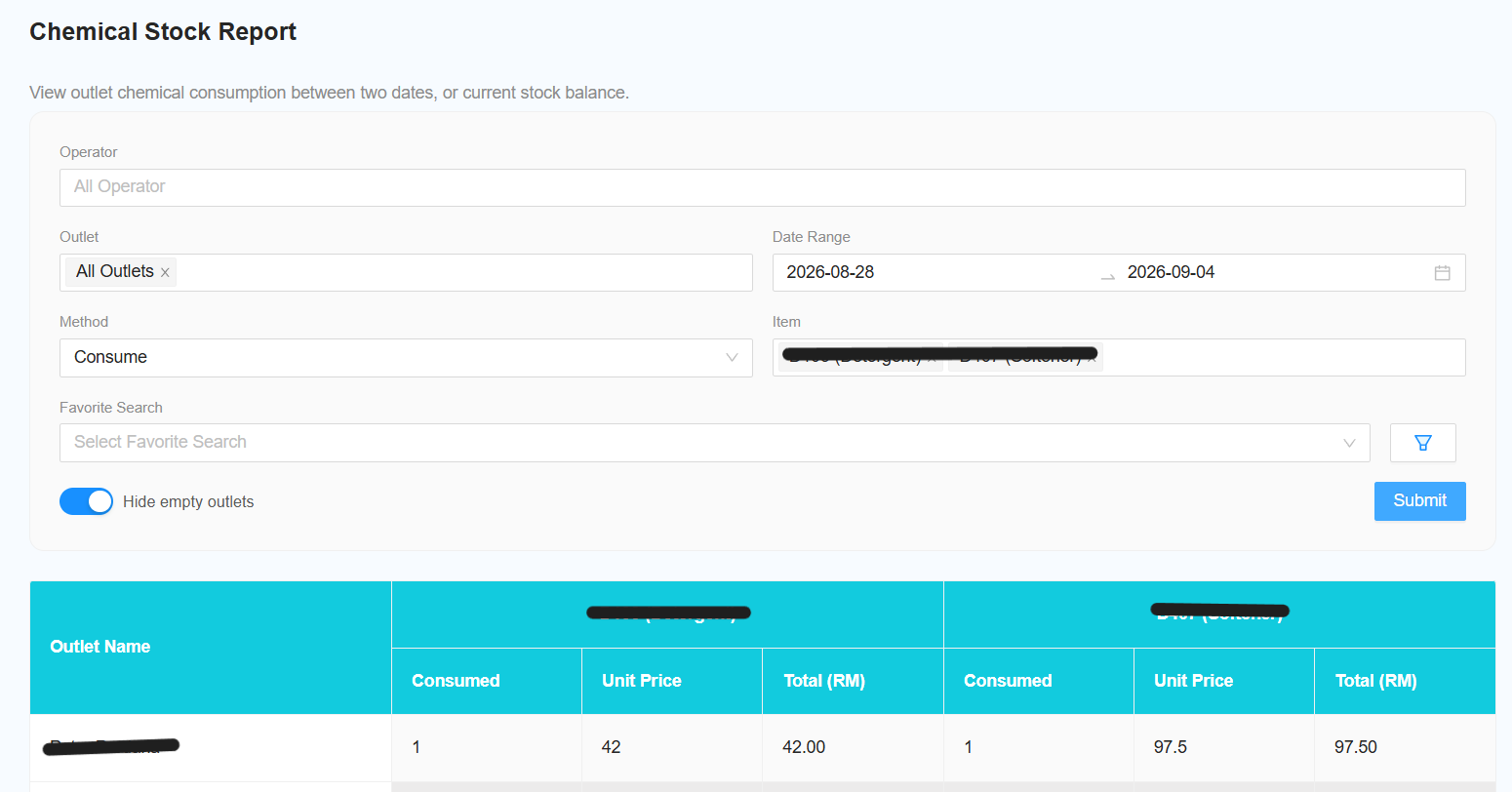
[NEW] Select Method
- Select the method to determine the stock value:
a. Consume
- Displays how many stocks were consumed during the selected date range.
b. Balance
- Displays the current balance of the stock.
-
Select Item
- Select the required item.
- Select All Item to include all items.
-
[NEW] Hide Empty Outlet
- Toggle this switch to hide outlets with no stock data.
- This helps to simplify the report and improve readability.
Reporting Changes
The following changes and improvements have been made to the report:
-
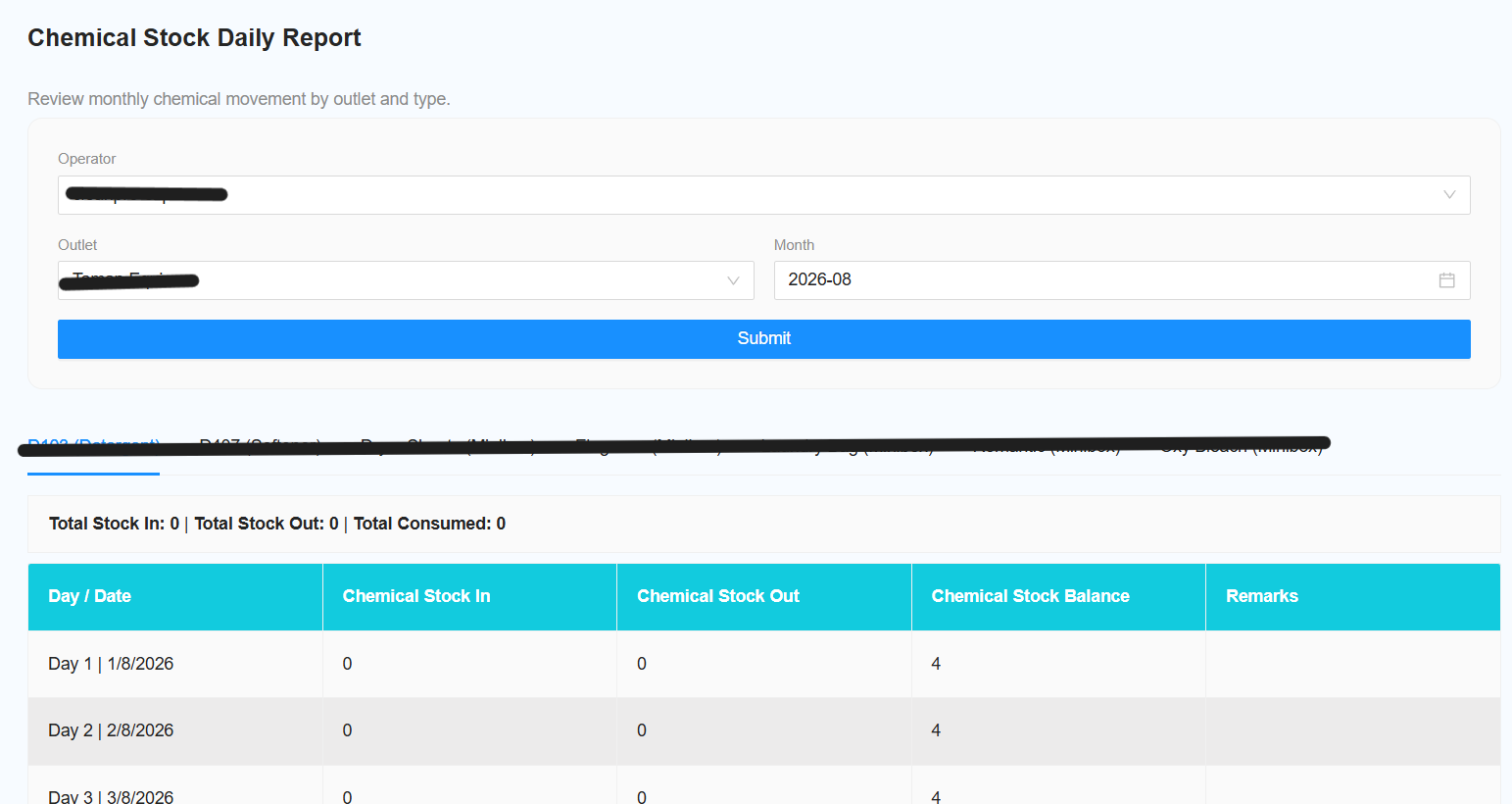
[NEW] Change Report Name
- Change the report name to Chemical Stock Daily Report.
-
[NEW] Remove Favourite Search
- Remove the favourite search function as only a single outlet can be selected.
-
[NEW] Remove Chemical Filter
- Remove the existing chemical filter.
-
[NEW] Move Total to Top
- Move the Total section to the top of the report.
-
[NEW] Add Total Consumed
- Add Total Consumed to the total count.
-
[NEW] Consumption Date Range Filter
- Add a filter to display consumption between two selected dates.
-
[NEW] Hide Empty Outlets
- Add an option to hide outlets with no chemical stock data.
-
[NEW] Item Filter
- Add a filter to select specific items.
- The default selection is All Items.
-
[NEW] Add Favourites Section
- Add a dedicated Favourites section.
-
[NEW] Change Tab and Title Name
- Change the tab and report title to Chemical Stock Report.
-
[NEW] Change Filter Name
- Change the View filter name to Method.
-
[NEW] Balance Method Date Selection
- When Method is set to Balance, the date selection changes to a single date.
-
[NEW] Consume Method Date Selection
- When Method is set to Consume, the date selection changes to a date range.
-
[NEW] Chemical Type Total
- Add a total for each Chemical Type at the bottom of the report.