Scan Token
1.Select the outlet in Node Cloud, then tap on the machine number you want to scan the token for.
2.After selecting the machine number, you need to set it to 'Under Maintenance' on the top right will appear the spanner logo.
Example Below:
Circle in RED is machine number
Circle in YELLOW is Under Maintenance
Circle in GREEN is spanner logo
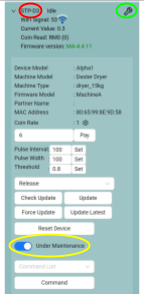
3.Next, tap 'Scan Token'—but before that, make sure you're standing near the machine with the token ready to drop into the coin slot.
4.Once you are ready, tap 'Scan Token'. When 'Please insert one token' appears, immediately insert the token into the coin acceptor.
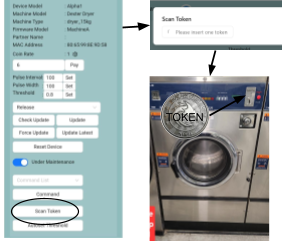
5.After successfully scanning the token, the system will display a number on the model. You can then adjust the 'Pulse Width' and 'Pulse Interval' based on the displayed value.
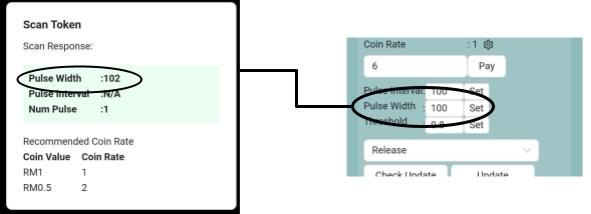
6.After updating the Pulse Width, tap 'Set'.The system will then be fully updated,
7.You can run a test, and you'll see that the coin will be detected during the test on ‘coin read’ .
8. If the test result displays 'No Pulse Detected', you will need to repeat the process.
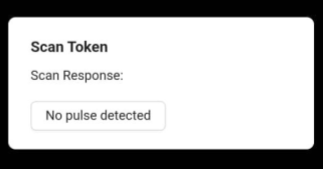
9.If the same message still appears, check your device’s input and output connections, along with the harness cables, to make sure everything is connected properly. Also, when inserting the token, ensure it’s accepted and deducted. If the coin acceptor rejects the token, it won’t be detected.