# Point System Setting
**A point system** is a loyalty program designed to reward customers for repeated business and encourage referrals. Customers earn points for each transaction, which can be redeemed as discounts of total transaction. The system is multilevel because it also rewards customers who refer new customers to the laundromat.
Point system will act as second wallet system. It can also be renamed according to user preference.
1. **Point is earned through**
- Referral Program
- Purchase of e-token package
- User Compensation
- Payment to machine in RM
2. **Point is deducted through**
- Exchange to currency during machine payment
### **Step To Set Point System :**
#### Step 1: Login to Laundro Portal
**Login into Laundro Portal** & put-in Username / Password : [https://v2.thelaundro.com/operator\_login](https://v2.thelaundro.com/operator_login)
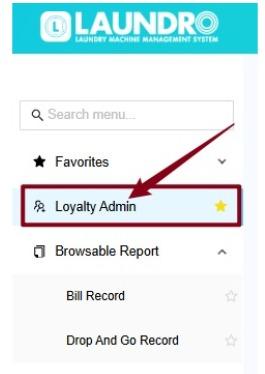
#### Step 2: Go to Loyalty Admin
From the sidebar menu:
Loyalty Admin → Token Setting
[](https://docs.antlysis.com/uploads/images/gallery/2026-09/scaled-1680-/Nt3t5Q0A1su3o1OU-whatsapp-image-2026-09-22-at-4-02-42-pm.jpeg)
#### Step 3: Find Point Settings
**Click Token Setting.** Scroll down until you find **Point Settings**.[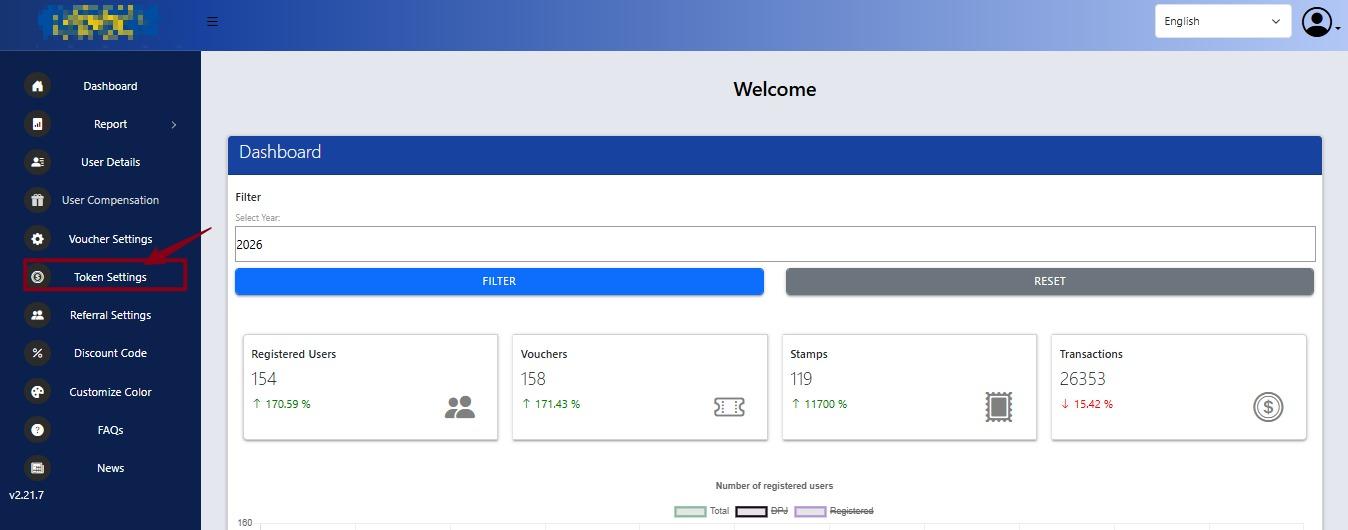](https://docs.antlysis.com/uploads/images/gallery/2026-09/scaled-1680-/NsaRKWX1gi08O4yz-whatsapp-image-2026-09-23-at-8-46-50-am.jpeg)
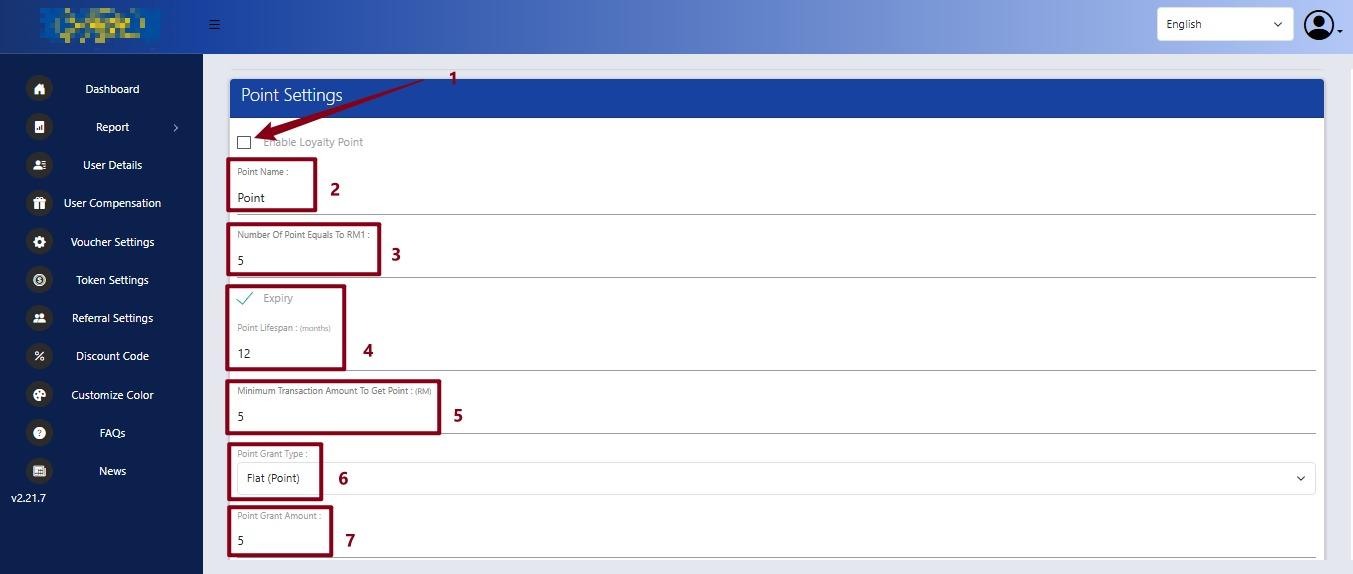
#### Step 4: Configure the Point Settings
**Enable Loyalty Point**
Tick this option to activate the loyalty points system. Untick it to disable the feature.
1. **Point Name**
Set the name of the points that customers will see, for example, **“Point”**.
2. **Number of Points Equals to RM1**
Set how many points are needed to get **RM1 discount**.
Example: **5 points = RM1**.
3. **Expiry / Point Lifespan (Months)**
Set how long the points are valid before they expire.
Example: **12 months** means the points are valid for 12 months.
4. **Minimum Transaction Amount to Get Point (RM)**
Set the minimum amount a customer must spend in one transaction to earn points.
Example: If set to **RM5**, the customer must spend at least RM5 to earn points.
5. **Point Grant Type**
Choose how the points are awarded to customers.
Example: **Flat (Point)** means customers receive a fixed number of points for each eligible transaction.
6. **Point Grant Amount**
Set the number of points customers will receive when the transaction meets the minimum amount.
Example: If set to **5 points**, the customer will receive 5 points for each eligible transaction.
[](https://docs.antlysis.com/uploads/images/gallery/2026-09/scaled-1680-/Ge3mhag6SE3MEoXL-whatsapp-image-2026-09-23-at-8-54-31-am.jpeg)
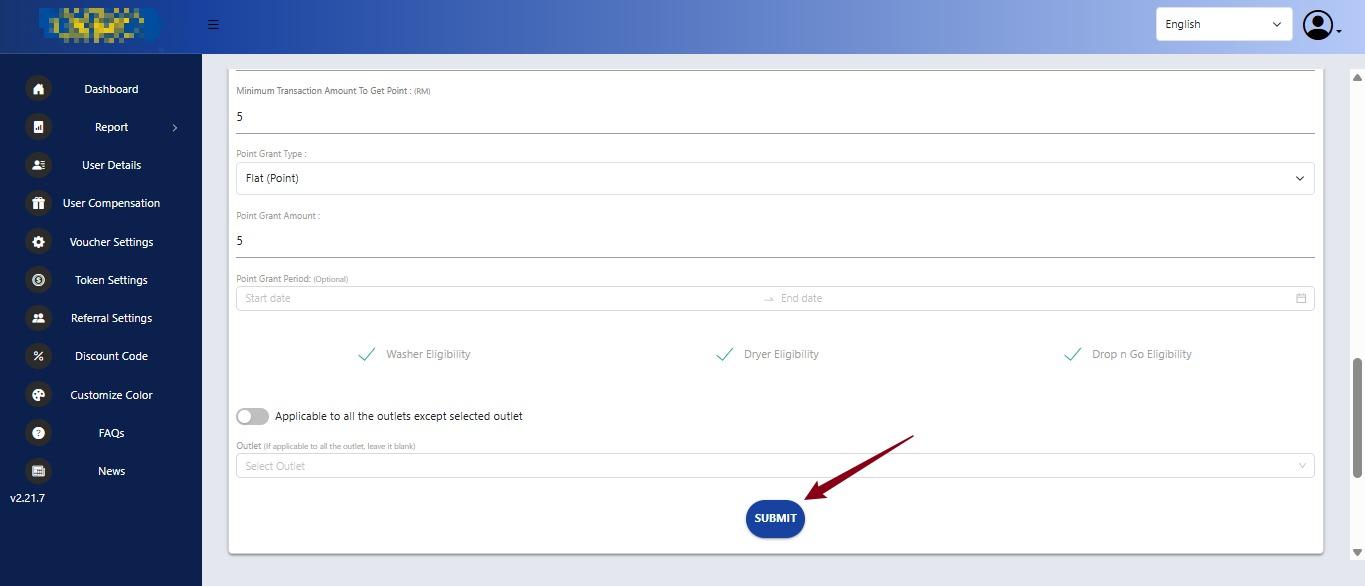
#### Step 5: Save the Settings
After completing the settings, scroll down and click **Submit**.
[](https://docs.antlysis.com/uploads/images/gallery/2026-09/scaled-1680-/hR3ZhiyDYig9v8UQ-whatsapp-image-2026-09-23-at-9-09-15-am.jpeg)