# Laundry Pass
##### **What is 'Laundry Pass'**
The **Laundry Pass** feature allows operators to create and manage prepaid packages that customers can use for washing and drying machines.
##### **Laundry Pass Report**
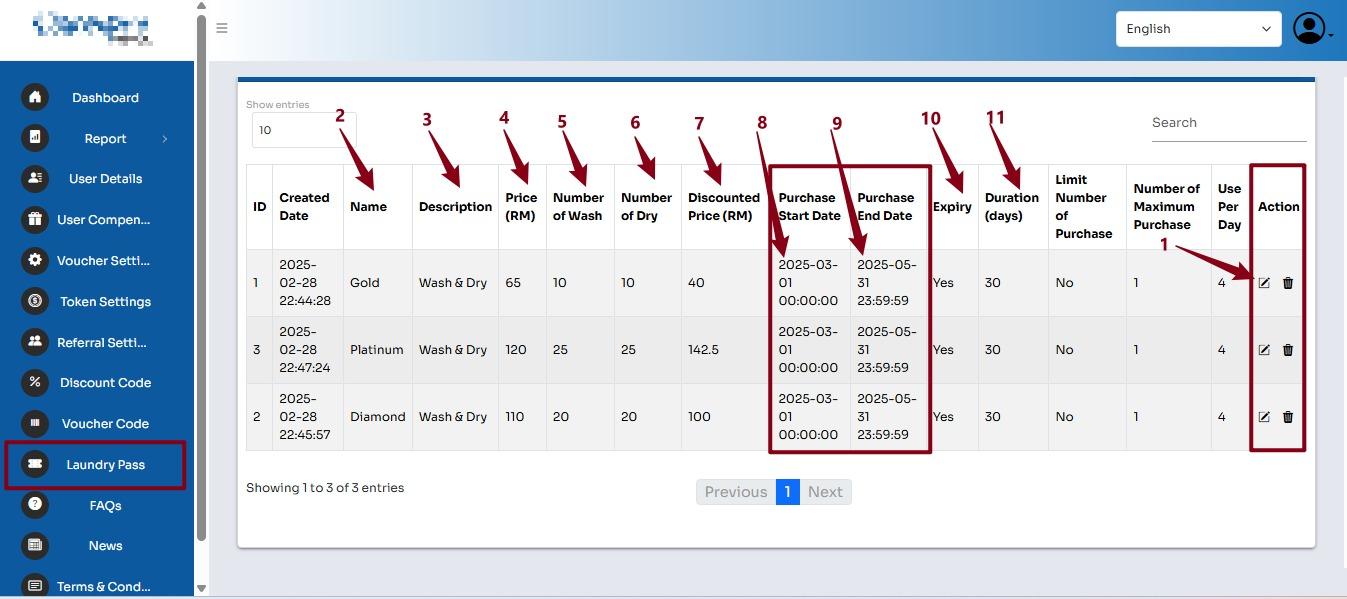
The Laundry Pass page displays all existing Laundry Pass packages and their details.
##### **Package Information**
- **ID** – Unique ID of the Laundry Pass.
- **Created Date** – Date and time when the package was created.
- **Name** – Name of the package, such as Gold, Platinum, or Diamond.
- **Description** – Description of the services included in the package.
- **Price (RM)** – Original price of the package.
- **Number of Wash** – Number of washing cycles included.
- **Number of Dry** – Number of drying cycles included.
- **Discounted Price (RM)** – Discounted or promotional price of the package.
- **Purchase Start Date** – Date when customers can start purchasing the package.
- **Purchase End Date** – Last date when customers can purchase the package.
- **Expiry** – Indicates whether the package has an expiry period.
- **Duration (days)** – Number of days the package remains valid.
- **Limit Number of Purchase** – Indicates whether there is a limit on the number of purchases.
- **Number of Maximum Purchase** – Maximum number of purchases allowed when a purchase limit is enabled.
- **Use Per Day** – Maximum number of times the package can be used per day.
- **Action** – Allows the operator to **edit** or **delete** the Laundry Pass.
##### **Example**
A **Gold Laundry Pass** can be configured as follows:
- Price: **RM65**
- Discounted Price: **RM40**
- Wash: **10**
- Dry: **10**
- Duration: **30 days**
- Use Per Day: **4 times**
This means the customer can purchase the Gold package at RM40 and receive 10 wash and 10 dry cycles, subject to the package's usage rules.
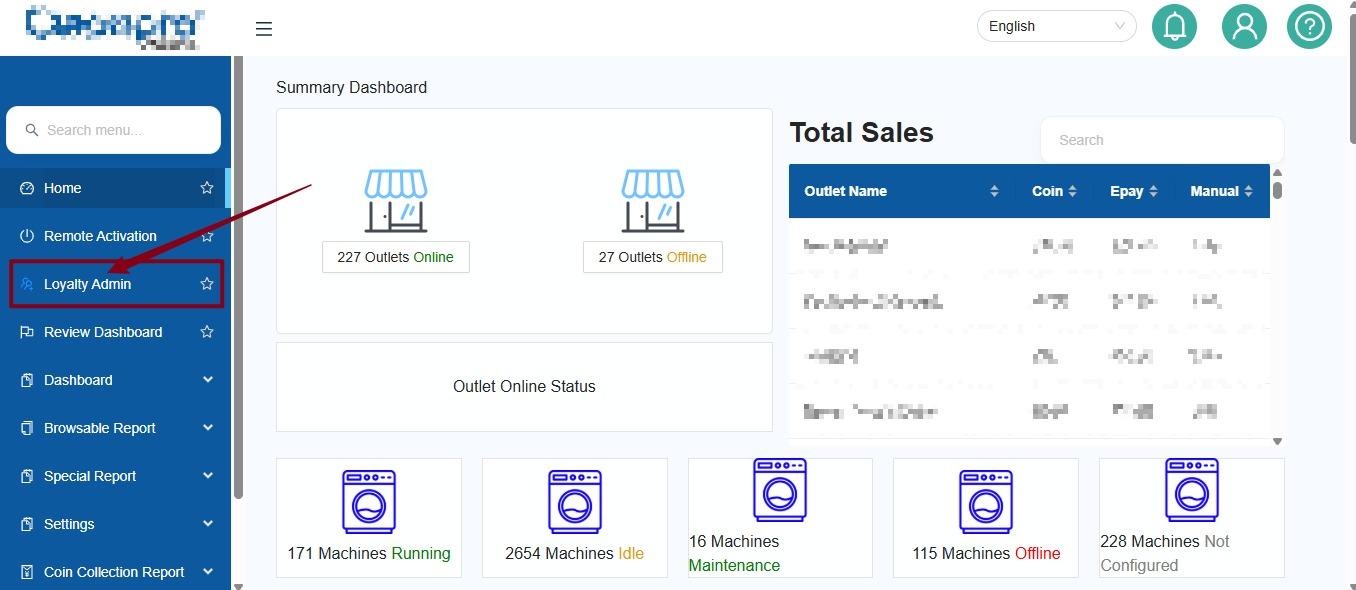
**Click Loyalty Admin**
[](https://docs.antlysis.com/uploads/images/gallery/2026-08/scaled-1680-/eKLjs79TsNV12r4D-whatsapp-image-2026-08-12-at-12-01-45-pm.jpeg)
#### **2. Create a New Laundry Pass**
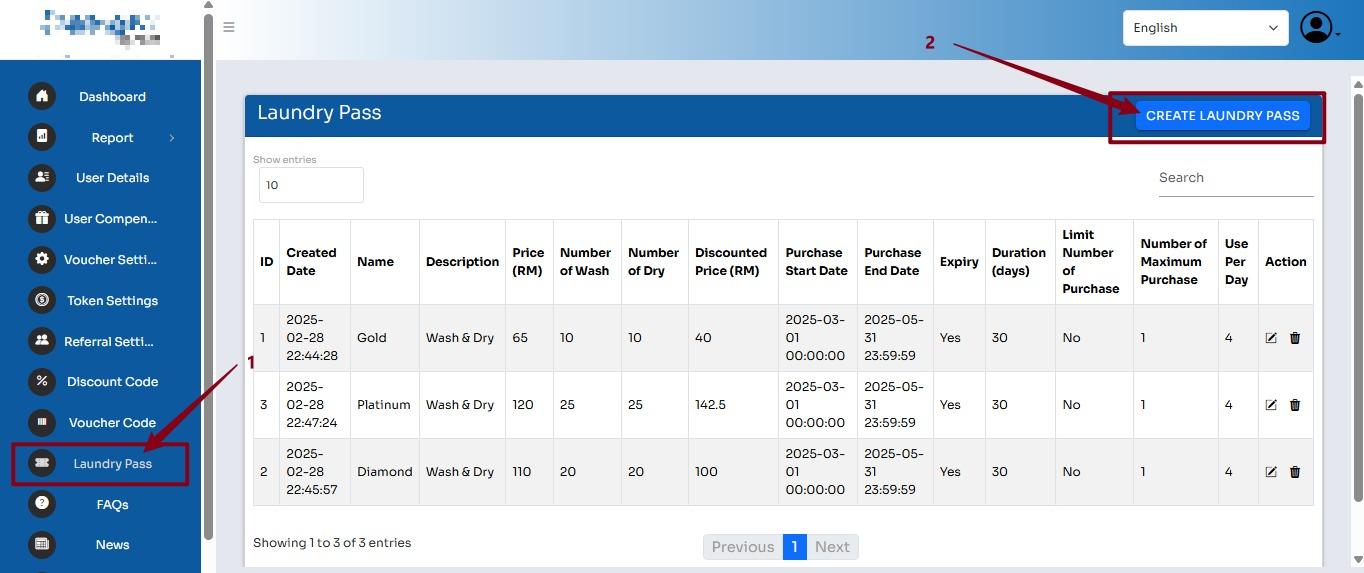
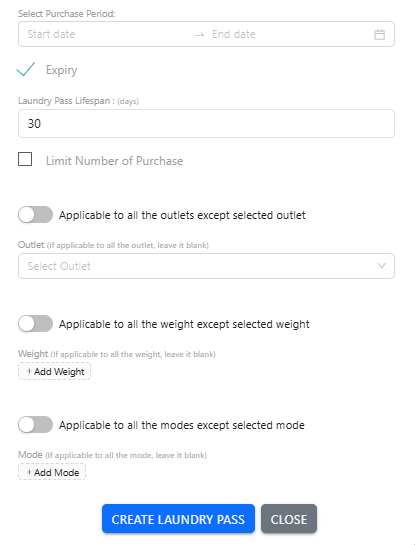
To create a new Laundry Pass package, click **Create Laundry Pass** and enter the required information.
##### **Basic Information**
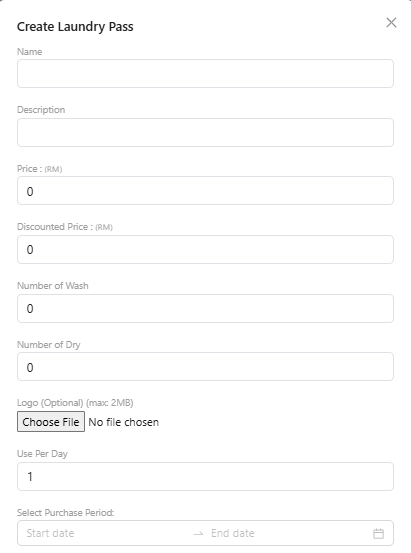
- **Name** – Enter the name of the Laundry Pass.
- **Description** – Enter a short description of the package.
- **Price (RM)** – Enter the original package price.
- **Discounted Price (RM)** – Enter the promotional or discounted price.
- **Number of Wash** – Enter the number of washing cycles included.
- **Number of Dry** – Enter the number of drying cycles included.
- **Logo (Optional)** – Upload a package logo. Maximum file size is **2 MB**.
- **Use Per Day** – Set the maximum number of times the Laundry Pass can be used per day.
##### **Purchase Period**
Set the period when customers are allowed to purchase the Laundry Pass.
- **Start Date** – Date when the package becomes available for purchase.
- **End Date** – Last date when the package can be purchased.
Expiry
Enable **Expiry** if the Laundry Pass should have a limited validity period.
- **Laundry Pass Lifespan (days)** – Enter the number of days the package remains valid after purchase.
**Example:**
If the lifespan is set to **30 days**, the Laundry Pass will be valid for 30 days after purchase.
##### **Limit Number of Purchase**
Enable **Limit Number of Purchase** if you want to restrict the number of times the package can be purchased.
When enabled, set the **maximum number of purchases** allowed.
##### **Outlet Settings**
**Applicable to all the outlets except selected outlet**
Enable this option if the Laundry Pass should be available at all outlets **except the selected outlet**.
If this option is not enabled, select the specific outlet where the Laundry Pass should be applicable.
##### **Weight Settings**
**Applicable to all the weight except selected weight**
Enable this option if the Laundry Pass should apply to all machine weights except the selected weight.
Use **+ Add Weight** to select the applicable machine weights.
##### **Mode Settings**
**Applicable to all the modes except selected mode**
Enable this option if the Laundry Pass should apply to all machine modes except the selected mode.
Use **+ Add Mode** to select the applicable machine modes.
[](https://docs.antlysis.com/uploads/images/gallery/2026-08/scaled-1680-/fZNmEzqKGtAYPrYF-whatsapp-image-2026-08-14-at-3-59-14-pm.jpeg)
[](https://docs.antlysis.com/uploads/images/gallery/2026-08/scaled-1680-/C3gsnRKyyQEWlVSX-laundry-pass-create-1.png)
[](https://docs.antlysis.com/uploads/images/gallery/2026-08/scaled-1680-/hwO4bh3zO5KOGcOM-laundry-pass-create-2.png)
#### **Create the Package**
After completing all the settings:
1. Review all Laundry Pass information.
2. Check the price, wash/dry quantity, usage limit, purchase period, and expiry settings.
3. Verify the applicable outlets, machine weights, and modes.
4. Click **CREATE LAUNDRY PASS** to save the package.
5. Click **CLOSE** to exit without creating the package.
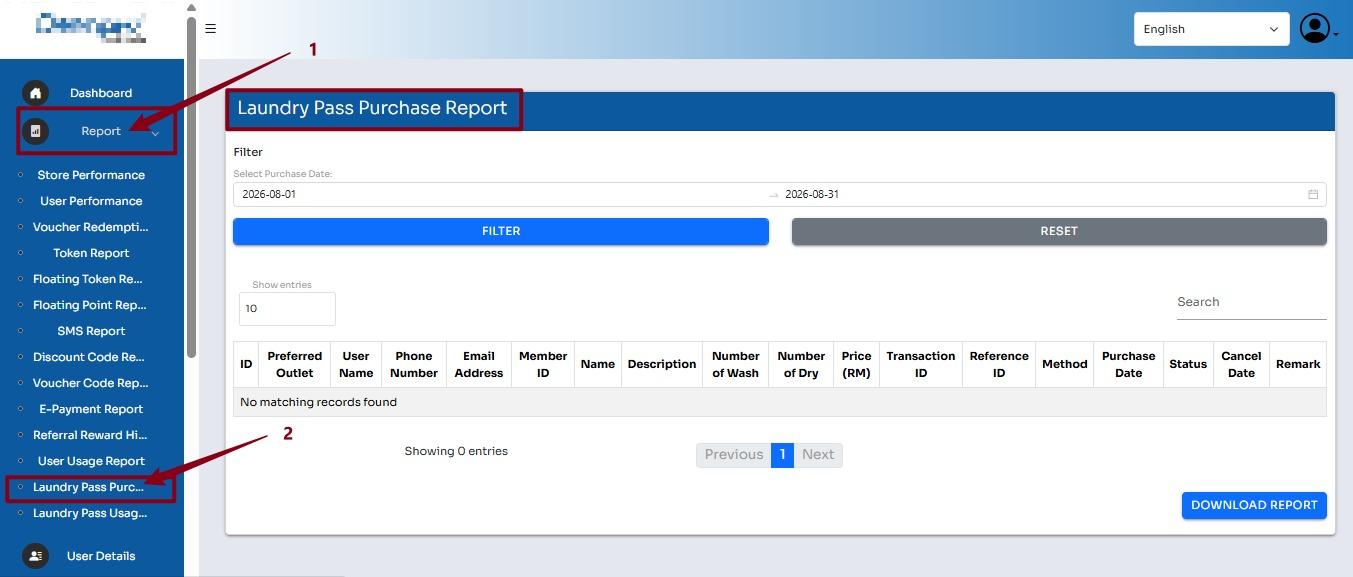
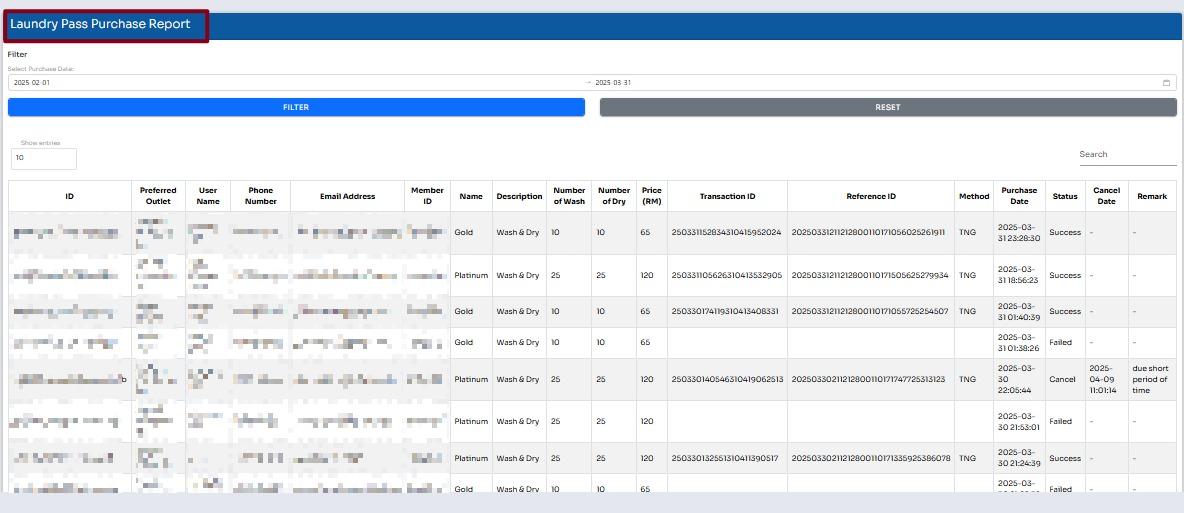
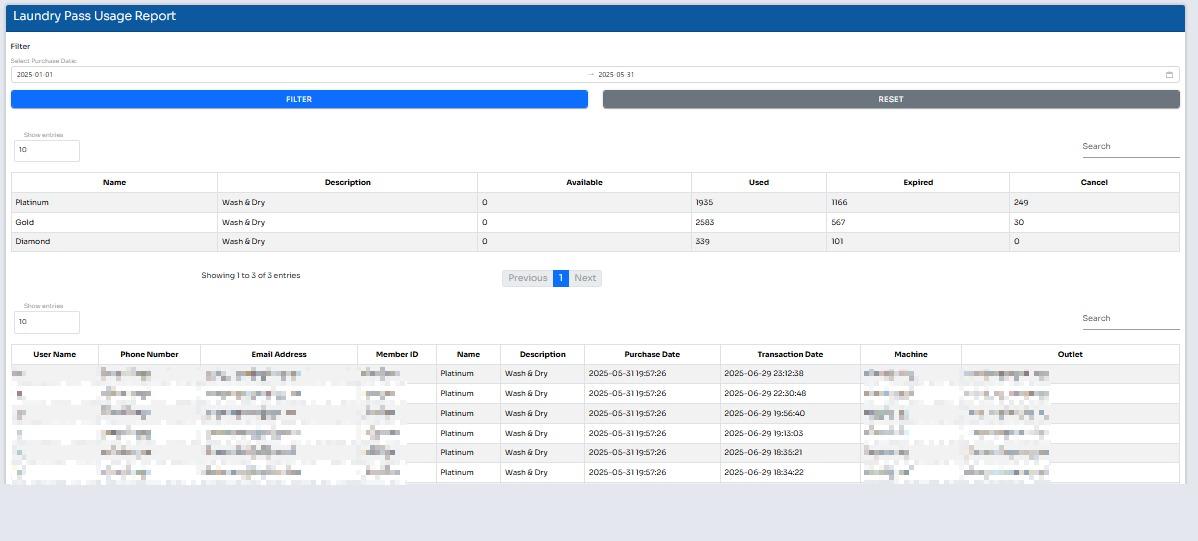
Once successfully created, the new Laundry Pass will appear in the **Laundry Pass list** together with the other available packages.
[](https://docs.antlysis.com/uploads/images/gallery/2026-08/scaled-1680-/oNK97dEYqHp2G3FW-whatsapp-image-2026-08-14-at-4-22-05-pm.jpeg)
[](https://docs.antlysis.com/uploads/images/gallery/2026-08/scaled-1680-/okrpQsBVCINImDeH-whatsapp-image-2026-08-14-at-12-19-20-pm.jpeg)
[](https://docs.antlysis.com/uploads/images/gallery/2026-08/scaled-1680-/0t2thG8Lun4TZt5g-whatsapp-image-2026-08-14-at-12-24-01-pm.jpeg)
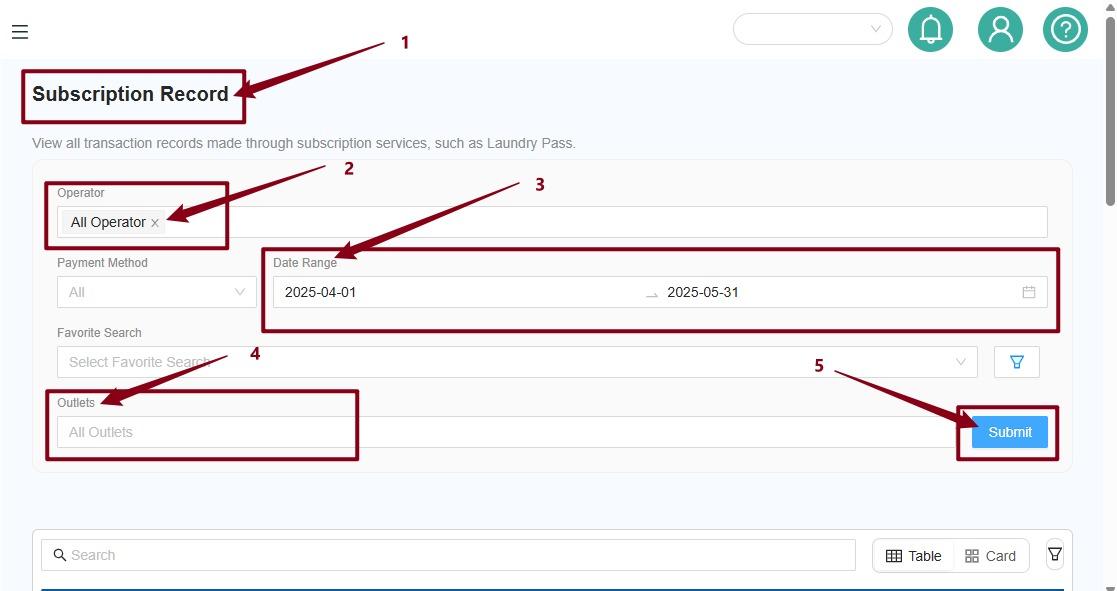
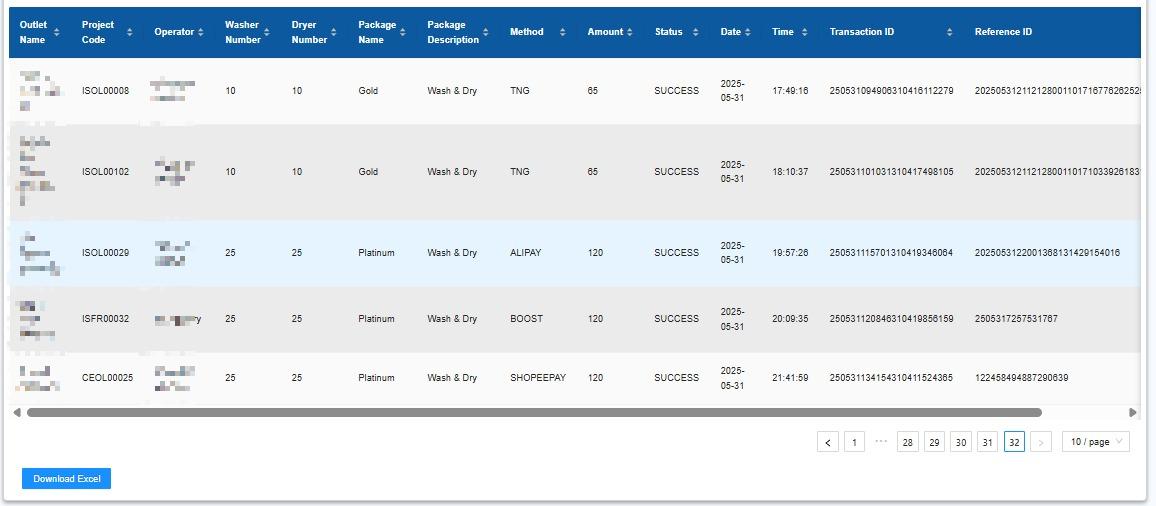
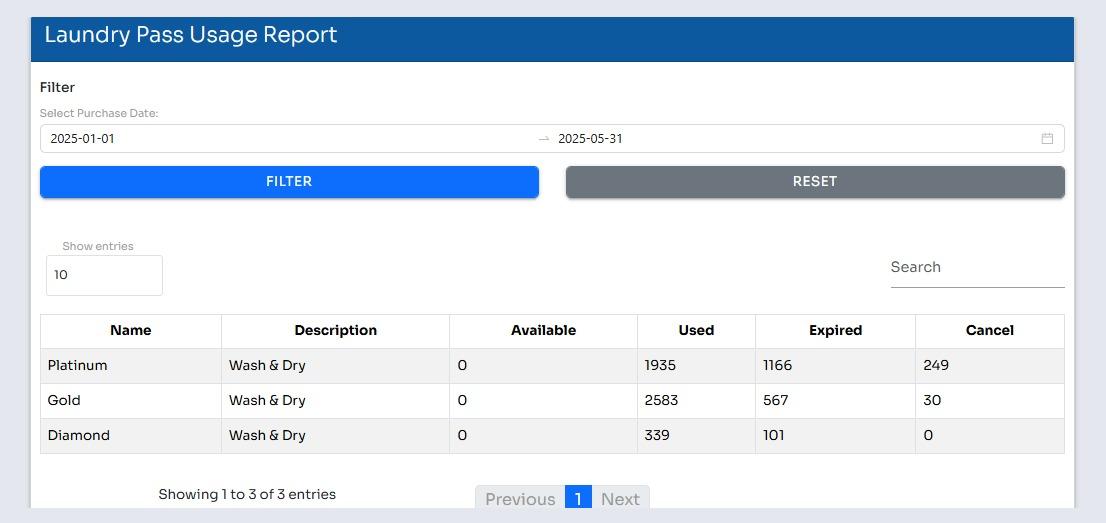The **Subscription Record** page allows you to view transaction records made through subscription services, such as **Laundry Pass**.
1. **Subscription Record** – Shows all subscription transaction records.
2. **Operator** – Select the operator whose transactions you want to view.
3. **Date Range** – Select the start and end date for the records.
4. **Outlets** – Select the outlet you want to check.
5. **Submit** – Click **Submit** to display the records based on the selected filters.
You can also use **Payment Method** and **Favorite Search** to further filter the records.
[](https://docs.antlysis.com/uploads/images/gallery/2026-08/scaled-1680-/kuQKmpy5N1L8X32U-whatsapp-image-2026-08-14-at-2-57-07-pm-1.jpeg)
[](https://docs.antlysis.com/uploads/images/gallery/2026-08/scaled-1680-/qzqMuWKrVjaRAyto-whatsapp-image-2026-08-14-at-3-00-11-pm.jpeg)