# Outlet Group
## What is Outlet Group?
Creating an **Outlet Group** makes it easier and faster to search for records under any payment type, such as **Cycle, E-payment, Manual Pay or Others.**
Normally, you need to select the Operator and Outlet manually every time you search for a record. However, if you create an Outlet Group in advance, you can simply select the group when searching for records, saving you time and effort.
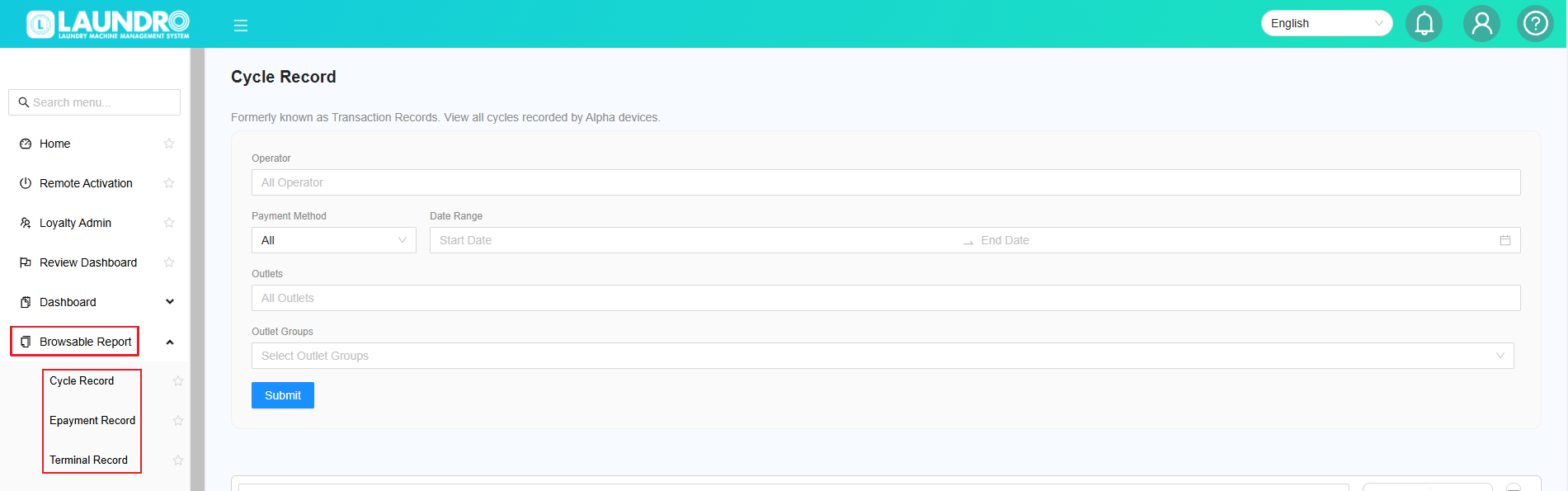
- Under **Browsable Report**, you can select the type of record you want to view based on your needs.
[](https://docs.antlysis.com/uploads/images/gallery/2026-10/bAXpXFm3A5tW4nqK-image.png)
---
# How to create an Outlet Group?
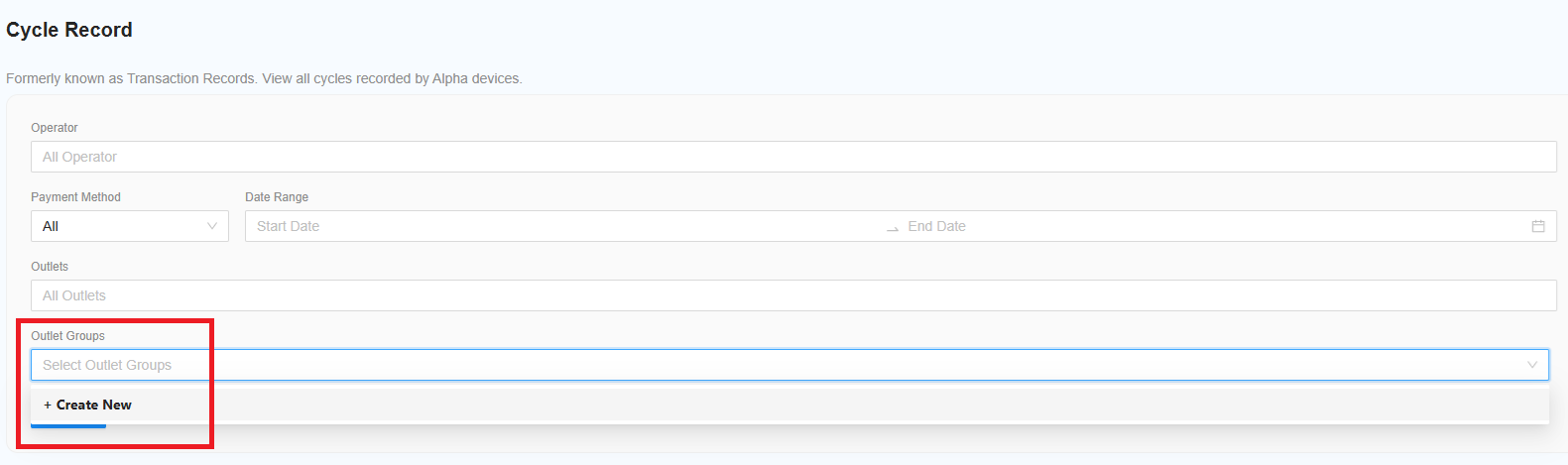
**Step1 -** Under **Prefer Payment Record**, locate **Outlet Groups**. Click on the blank row, then select **Create New** when it appears.
[](https://docs.antlysis.com/uploads/images/gallery/2026-10/cnbisakVdaSwmblr-image.png)
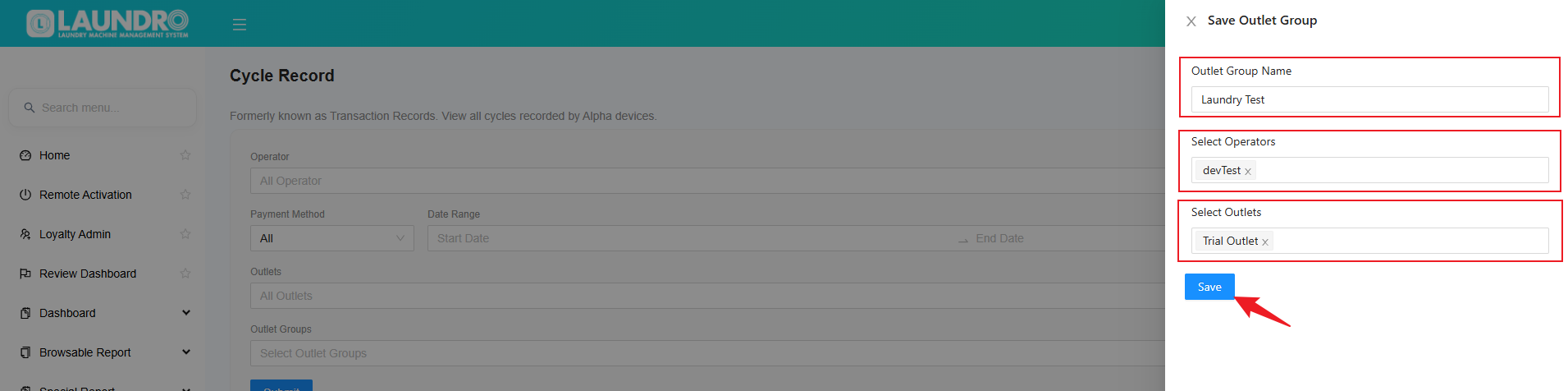
**Step2 -** Fill in the required details, then click **Save** to create your Outlet Group.
[](https://docs.antlysis.com/uploads/images/gallery/2026-10/OVprC0EbblqOBJ5F-image.png)
Your **Outlet Group** has been created successfully. Next, proceed to the **Use an Outlet Group in a Report** section to learn how to use it when searching for records.
---
# Use an Outlet Group in a Report
After successfully creating an Outlet Group, you can use it when generating reports.
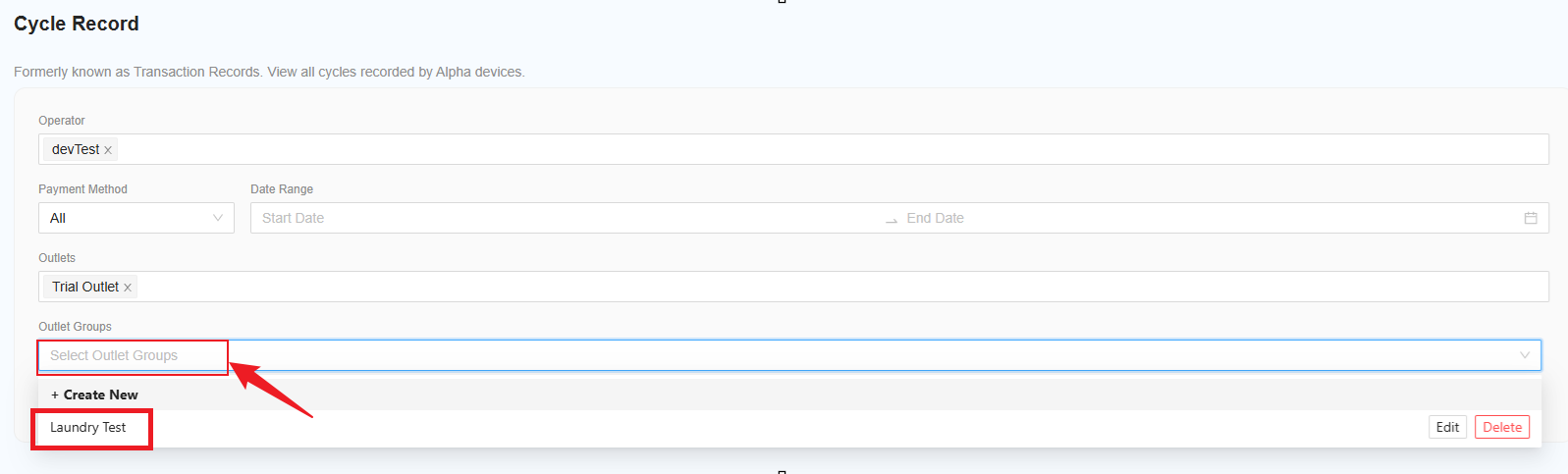
**Step1** **-** Under **Outlet Group**, click **Select Outlet Group**. A list of available outlet groups will appear below. Select the outlet group you created earlier to proceed.
[](https://docs.antlysis.com/uploads/images/gallery/2026-10/HZ8x68hzDGpCxhxG-image.png)
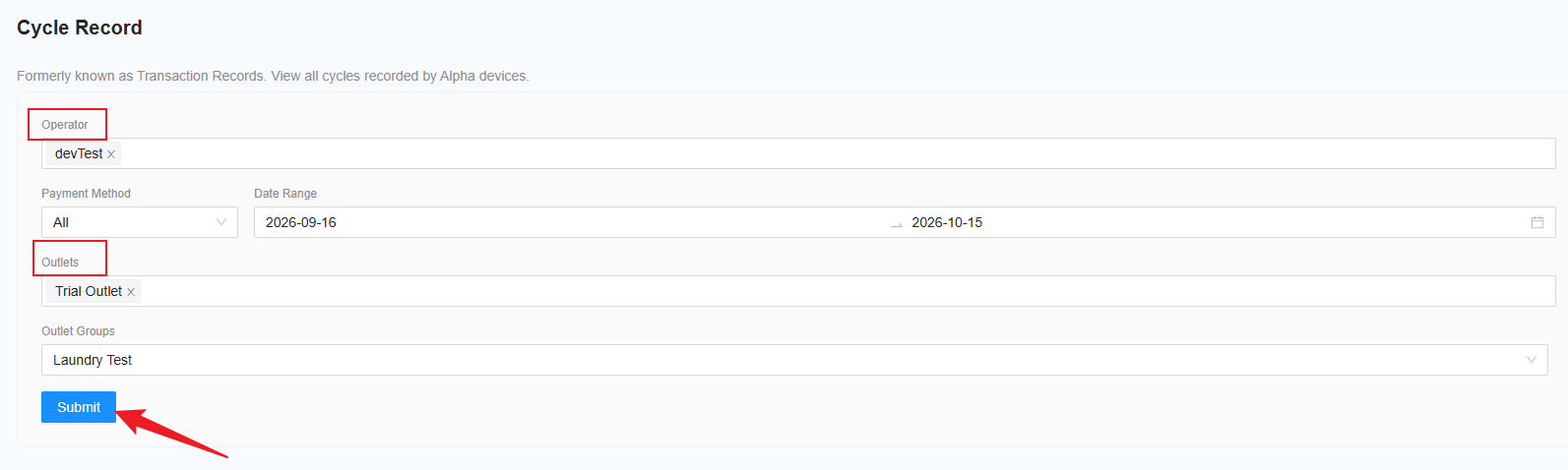
**Step 2 -** After selecting the outlet group, the system will automatically select the corresponding **Operator** and **Outlets** based on your saved settings. Next, choose your preferred **Date Range** and click **Submit** to view the report.
[](https://docs.antlysis.com/uploads/images/gallery/2026-10/DRKIv76LHzJ1z8qx-image.png)
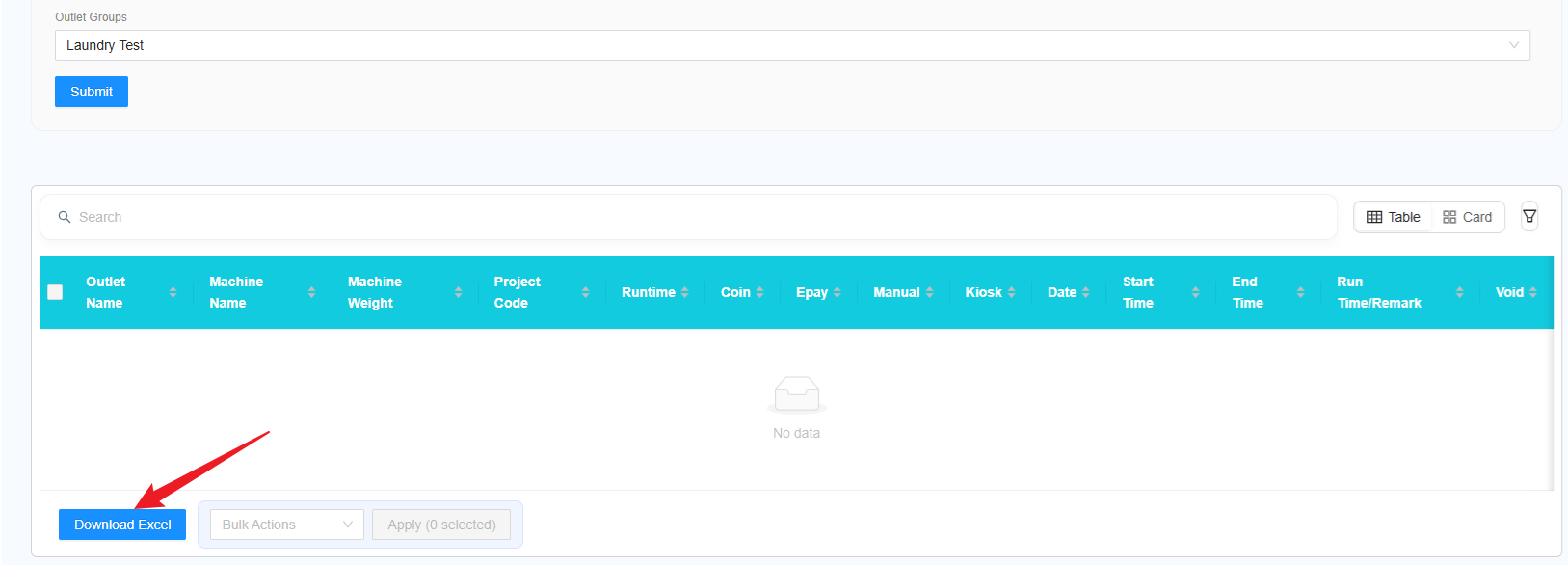
**Step3 -** The report will be generated and displayed below for you to review. You can also click **Download Excel** to download the report to your PC for future reference.
[](https://docs.antlysis.com/uploads/images/gallery/2026-10/dnAldmwKEdov2ByB-image.png)
Important Note
- Make sure the correct operators and outlets are selected when creating the Outlet Group.
- If you need a different combination of operators or outlets, create a separate Outlet Group with a different name.