# 💰 How to Set Pricing

## 🎯 Purpose

This guide explains how to:

🆕 Create pricing for a new outlet.

🏪 Edit pricing for an existing outlet.

➕ Add additional Washer/Dryer configurations.

🎁 Configure promotions.

## 🧭 Quick Navigation

🆕 [New Outlet Pricing](#new-outlet-pricing)

🏪 [Existing Outlet Pricing](#existing-outlet-pricing)

➕ [Add More Machines](#add-more-machines)

🎁 [Promotion Setting](#promotion-setting)

# 🔐 How to Access

### 🔐 Step 1 — Login to Laundro Portal

Log in using your **Username** and **Password**. [https://v2.thelaundro.com/operator\_login](https://v2.thelaundro.com/operator_login)

---

### 📍 Step 2 — Go to Price Setting

From the sidebar menu, **Click** : **Setting &amp; Click Price Setting.**

[![WhatsApp Image 2026-10-08 at 12.18.22 PM.jpeg](https://docs.antlysis.com/uploads/images/gallery/2026-10/scaled-1680-/M0doOvOuOKS6GVjt-whatsapp-image-2026-10-08-at-12-18-22-pm.jpeg)](https://docs.antlysis.com/uploads/images/gallery/2026-10/scaled-1680-/M0doOvOuOKS6GVjt-whatsapp-image-2026-10-08-at-12-18-22-pm.jpeg)

---

### 💰 Step 3 — Set Your Machine Pricing

1. Select the **Washer or Dryer** and enter the required price.
2. 🧺 **Washer** — Set the price according to the machine size / KG.
3. 🔥 **Dryer** — Set the price according to the machine size / KG.

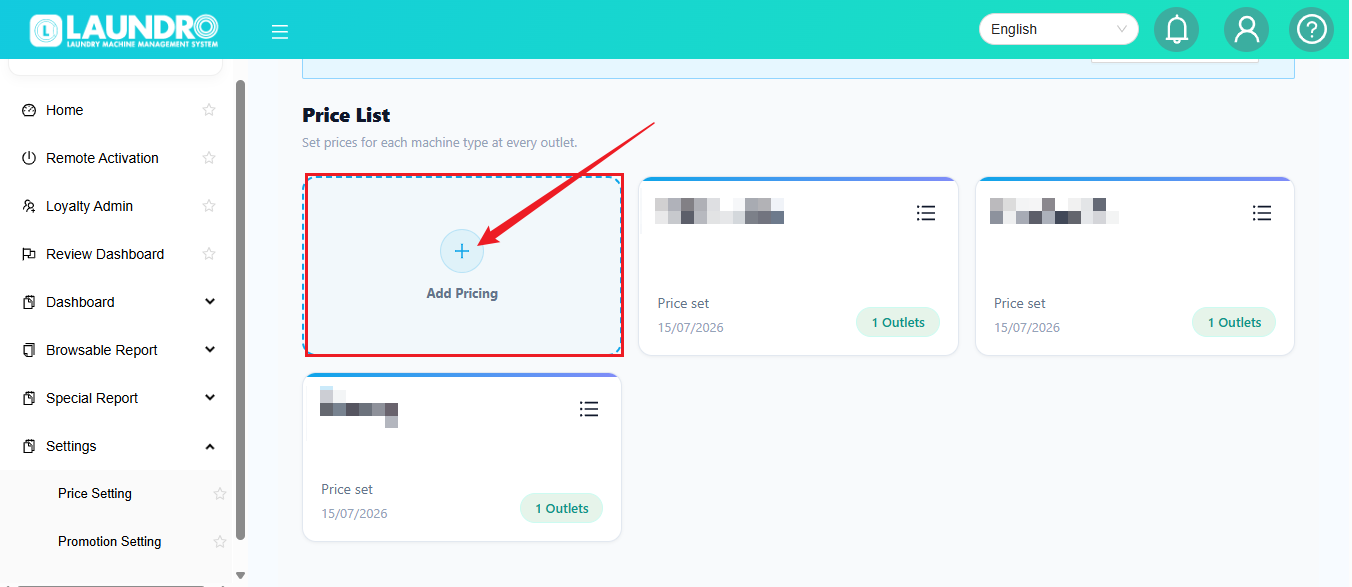
<p class="callout info">**Click Add Pricing for New Outlet.**</p>

[![image.png](https://docs.antlysis.com/uploads/images/gallery/2026-10/scaled-1680-/hxCLvXeil9GRmZLQ-image.png)](https://docs.antlysis.com/uploads/images/gallery/2026-10/hxCLvXeil9GRmZLQ-image.png)

---

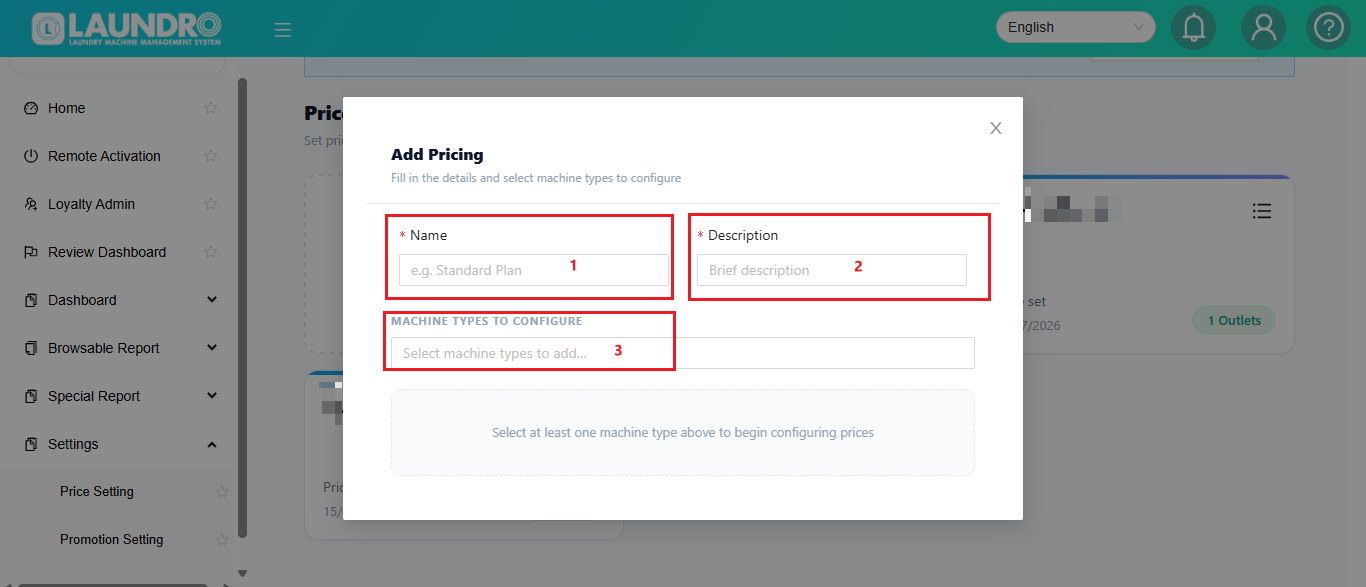
### ✏️ Step 4 — Fill in the Details

Complete the required information:

**1️⃣ Outlet Name**  
Enter the outlet name.

**2️⃣ Description**  
Add a description if needed.

**3️⃣ Machine Type**  
Choose **Washer** or **Dryer**.

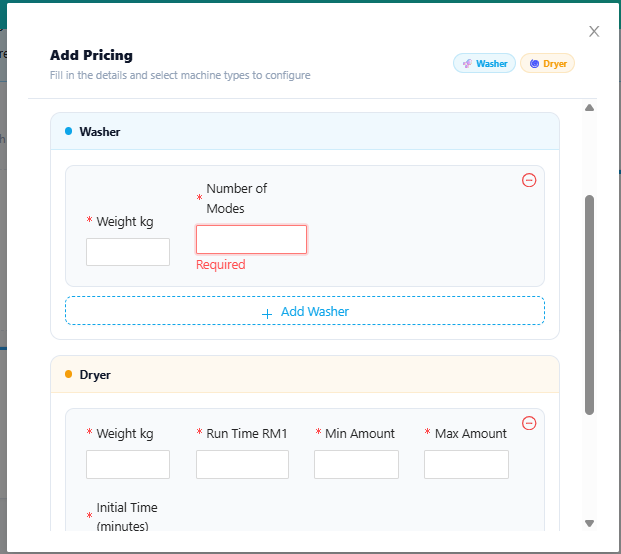
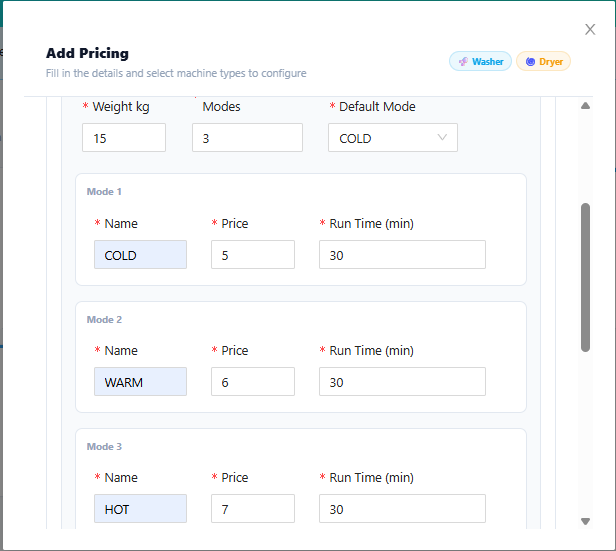
**4️⃣ Washer Mode**  
If the Washer only has **1 Mode**, enter **1** and fill in the required pricing.

[![image.png](https://docs.antlysis.com/uploads/images/gallery/2026-10/scaled-1680-/7AbcHbDMdH3qujnH-image.png)](https://docs.antlysis.com/uploads/images/gallery/2026-10/7AbcHbDMdH3qujnH-image.png)
---

[![image.png](https://docs.antlysis.com/uploads/images/gallery/2026-10/scaled-1680-/QnLmSV681gBdEtLR-image.png)](https://docs.antlysis.com/uploads/images/gallery/2026-10/QnLmSV681gBdEtLR-image.png)
---

[![image.png](https://docs.antlysis.com/uploads/images/gallery/2026-10/scaled-1680-/7juMH87BxJMEPsZf-image.png)](https://docs.antlysis.com/uploads/images/gallery/2026-10/7juMH87BxJMEPsZf-image.png)
---

## 🆕 Add-on Machine with Different KG

Have you added a new machine with a **different weight / KG**?

No problem! 👇

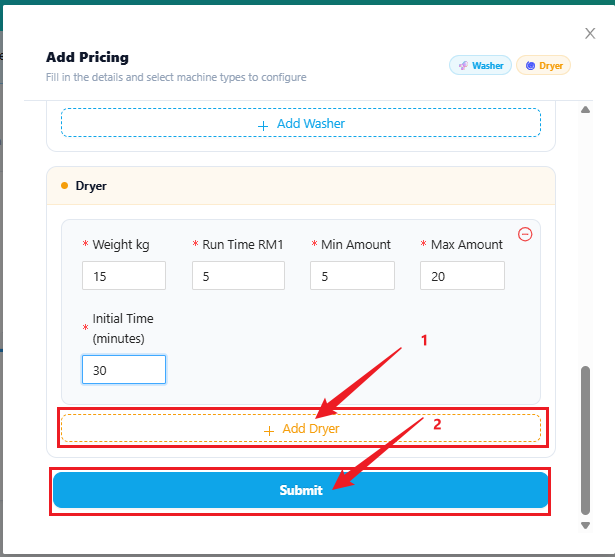
1. Scroll down to find the **Add-on Machine** section.
2. Select the required **Dryer / Washer**.
3. Enter the desired price.
4. 💾 Click **Save Changes** when finished.

<p class="callout success"><span style="color: rgb(1, 70, 108);">💾 </span>**Save**</p>

[![image.png](https://docs.antlysis.com/uploads/images/gallery/2026-10/scaled-1680-/8iq27cgQlRZiKoLb-image.png)](https://docs.antlysis.com/uploads/images/gallery/2026-10/8iq27cgQlRZiKoLb-image.png)

---

# 🆕 Existing Outlet

Already have an outlet and want to add a new machine with a different **KG / weight**?

Follow these steps 👇

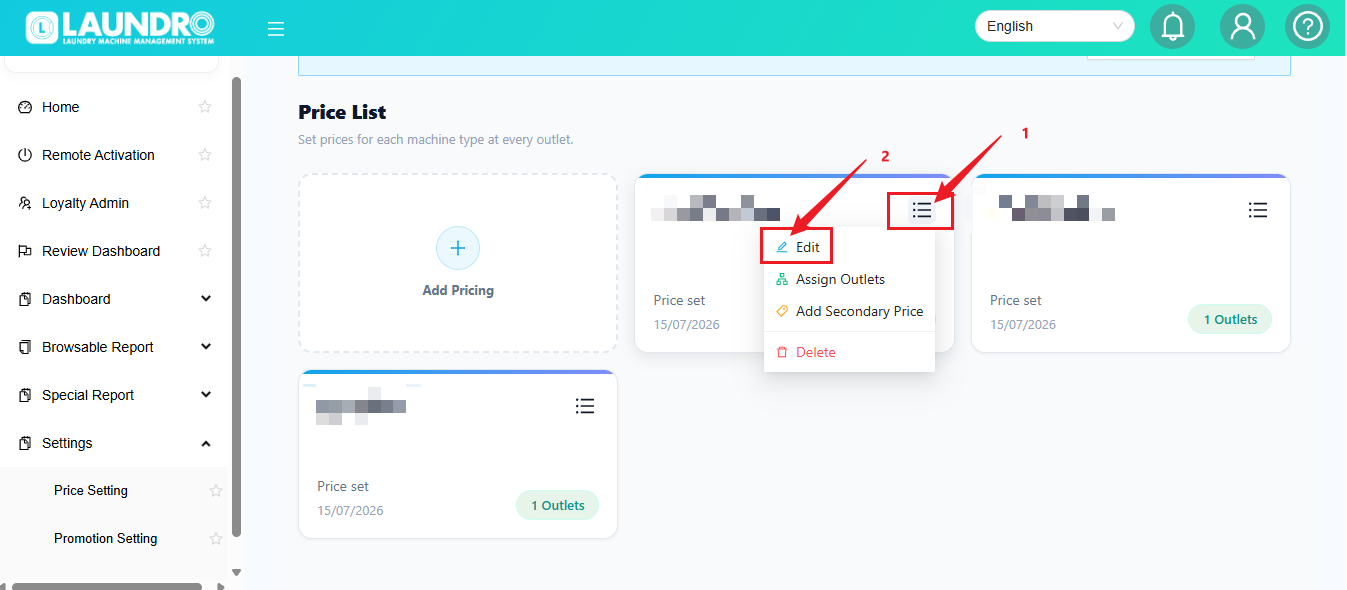
### 🏪 Step 1 — Select the Outlet

Click the **Outlet Selector** at the top and choose the outlet you want to edit.

Then click **✏️ Edit**.

### [![image.png](https://docs.antlysis.com/uploads/images/gallery/2026-10/scaled-1680-/tbbHgSyb0TDMrRhh-image.png)](https://docs.antlysis.com/uploads/images/gallery/2026-10/tbbHgSyb0TDMrRhh-image.png)
---

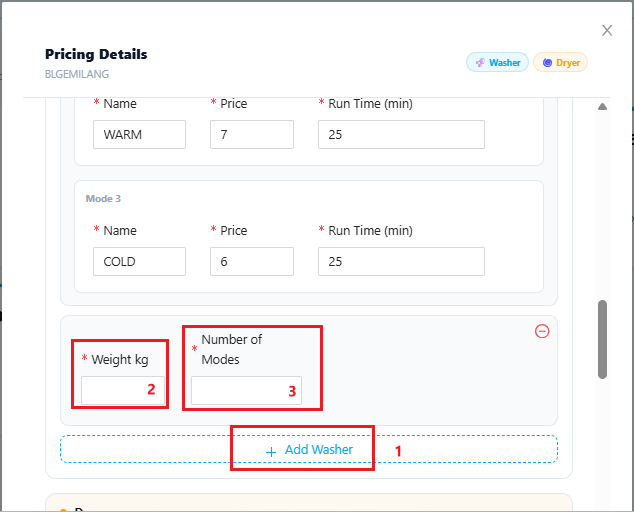
### ➕ Step 2 — Add the Machine

Scroll down to the **Add-on Machine** section.

Select the required **Washer / Dryer** and configure the pricing.

[![image.png](https://docs.antlysis.com/uploads/images/gallery/2026-10/scaled-1680-/lRZDUN3PdS8rVa57-image.png)](https://docs.antlysis.com/uploads/images/gallery/2026-10/scaled-1680-/lRZDUN3PdS8rVa57-image.png)
---

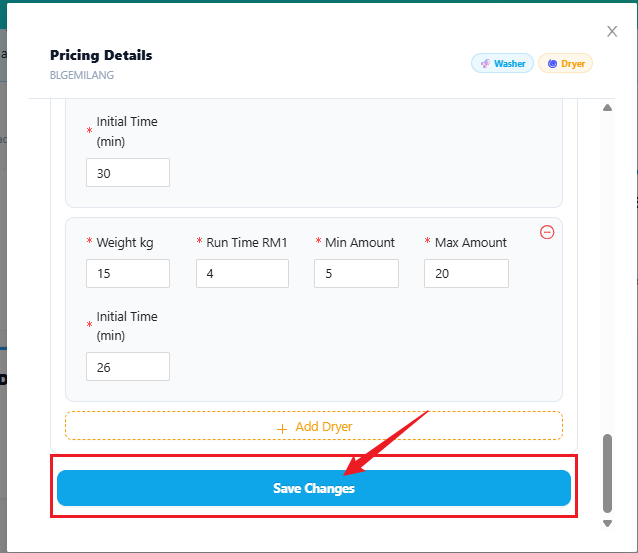
### 💾 Step 3 — Save Changes

Finished adding the machine?

Click **Save Changes**.

> <p class="callout info">💡 **Quick Tip:** Before saving, double-check the **machine type, KG, and price**.</p>

[![image.png](https://docs.antlysis.com/uploads/images/gallery/2026-10/scaled-1680-/92dkmtOyMQVxY08V-image.png)](https://docs.antlysis.com/uploads/images/gallery/2026-10/92dkmtOyMQVxY08V-image.png)

---

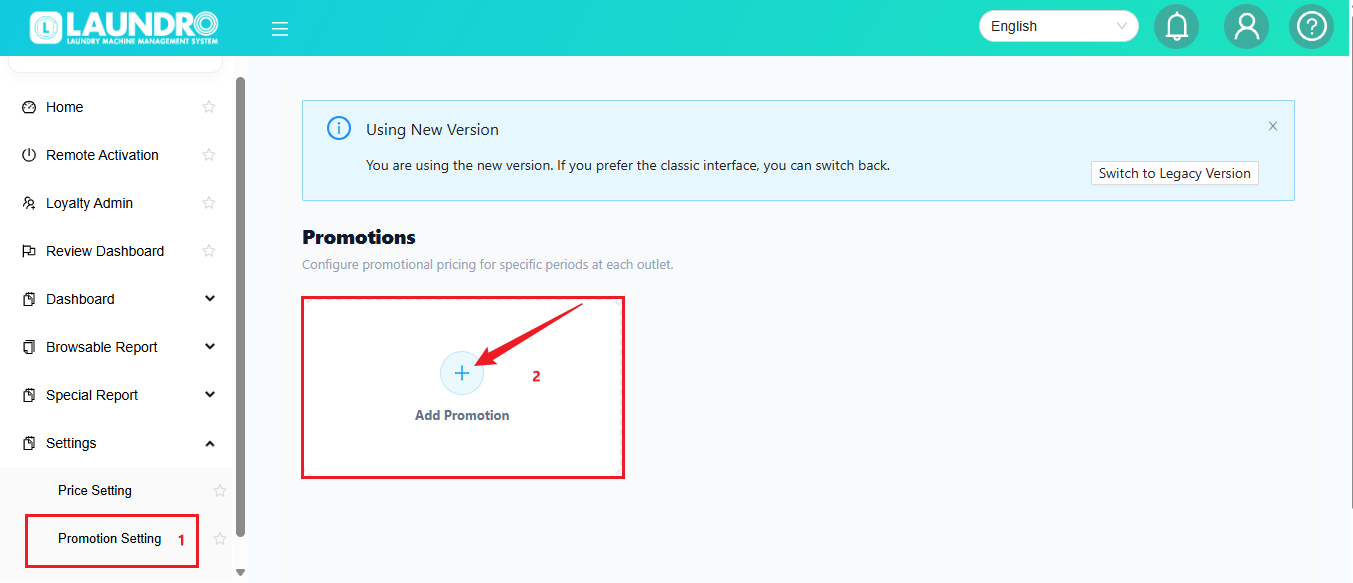
# 🎁 Promotion Setting

Want to create a special price or promotion?

Click:

**➕ Add Promotion**

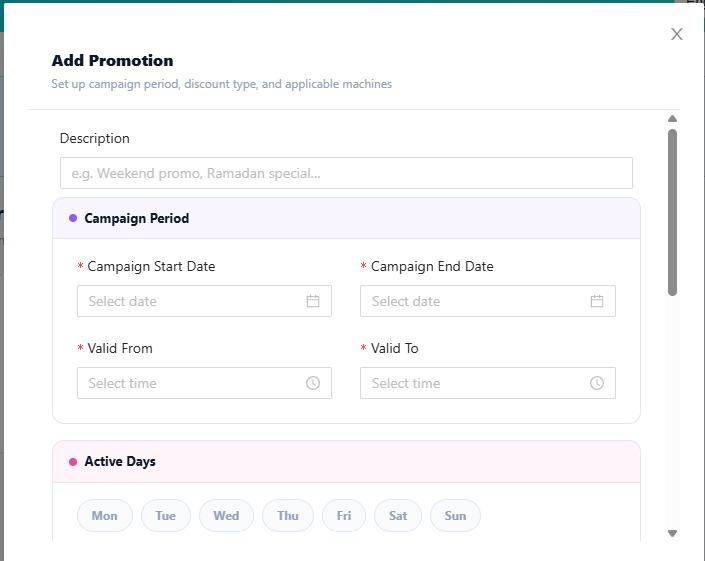
Then:

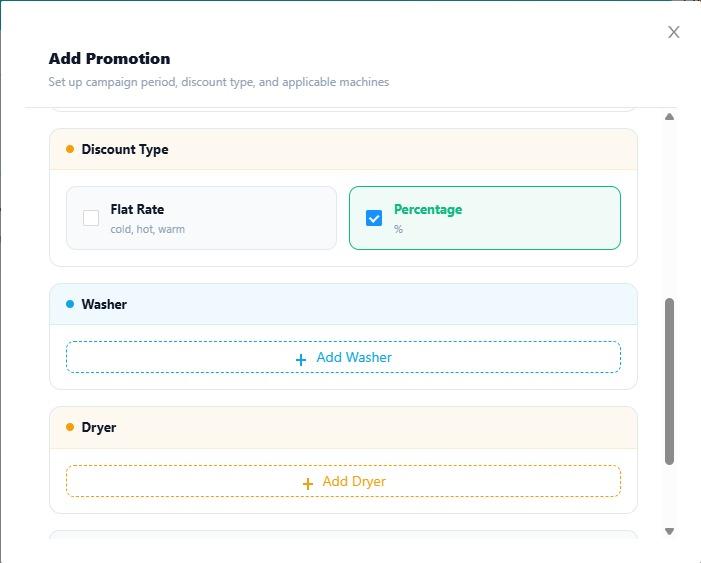
1️⃣ Fill in the promotion details.  
2️⃣ Check the information.  
3️⃣ Click **Submit**.

[![image.png](https://docs.antlysis.com/uploads/images/gallery/2026-10/scaled-1680-/P8a5euit7RWdOQ3Y-image.png)](https://docs.antlysis.com/uploads/images/gallery/2026-10/P8a5euit7RWdOQ3Y-image.png)
---

[![WhatsApp Image 2026-10-08 at 12.13.52 PM.jpeg](https://docs.antlysis.com/uploads/images/gallery/2026-10/scaled-1680-/AH6Pn4tIyLAgrWhp-whatsapp-image-2026-10-08-at-12-13-52-pm.jpeg)](https://docs.antlysis.com/uploads/images/gallery/2026-10/scaled-1680-/AH6Pn4tIyLAgrWhp-whatsapp-image-2026-10-08-at-12-13-52-pm.jpeg)
---

[![WhatsApp Image 2026-10-08 at 12.14.34 PM.jpeg](https://docs.antlysis.com/uploads/images/gallery/2026-10/scaled-1680-/UsHuIvkEsHzDpNwg-whatsapp-image-2026-10-08-at-12-14-34-pm.jpeg)](https://docs.antlysis.com/uploads/images/gallery/2026-10/scaled-1680-/UsHuIvkEsHzDpNwg-whatsapp-image-2026-10-08-at-12-14-34-pm.jpeg)
---

[![WhatsApp Image 2026-10-08 at 12.15.43 PM.jpeg](https://docs.antlysis.com/uploads/images/gallery/2026-10/scaled-1680-/bem6KpUotnW06U9z-whatsapp-image-2026-10-08-at-12-15-43-pm.jpeg)](https://docs.antlysis.com/uploads/images/gallery/2026-10/scaled-1680-/bem6KpUotnW06U9z-whatsapp-image-2026-10-08-at-12-15-43-pm.jpeg)
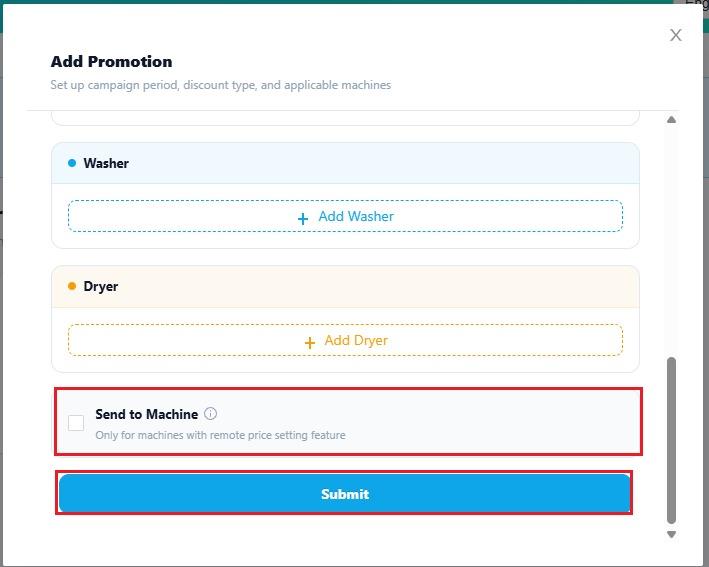
> 💡 **Note:** Make sure the promotion settings match the pricing you want to offer to customers.

---

## 🎉 You're Done!

Your pricing setup is complete! ✅

> 💡 **Before you leave:**  
> ✔️ Check Outlet  
> ✔️ Check Machine Type  
> ✔️ Check KG  
> ✔️ Check Price  
> ✔️ Click Save

##   


---