# 👥 How to Create a Staff User

<span style="white-space: pre-wrap;">Welcome to the </span>**Laundro Portal Guide!**<span style="white-space: pre-wrap;"> 👋</span>

Want to give your staff access to the Laundro Portal? Follow this guide to create a staff role, set permissions, and create a staff account.

## 🛡️ Stage 1 — Create a Staff Role

<span style="white-space: pre-wrap;">A </span>**Staff Role**<span style="white-space: pre-wrap;"> determines which features and functions a staff member can access.</span>

---

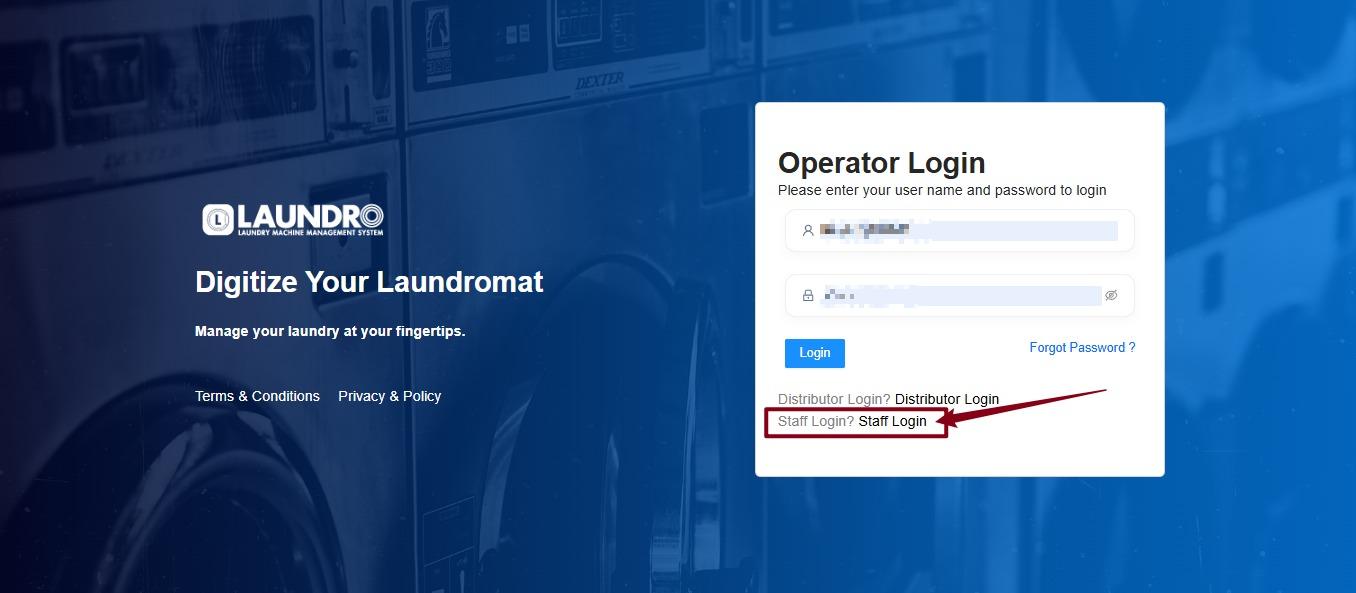
### 🔐 Step 1: Log In to Laundro Portal

Open the Laundro Portal and enter your operator username and password.

<span style="white-space: pre-wrap;">🔗 </span>**Portal Login:**<span style="white-space: pre-wrap;"> </span>[https://v2.thelaundro.com/operator\_login](https://v2.thelaundro.com/operator_login)

[![image.png](https://docs.antlysis.com/uploads/images/gallery/2026-06/scaled-1680-/5Lox6xEr0ZIGcrIV-image.png)](https://docs.antlysis.com/uploads/images/gallery/2026-06/scaled-1680-/5Lox6xEr0ZIGcrIV-image.png)
---

### ⚙️ Step 2: Open Settings

1. <span style="white-space: pre-wrap;">Click the </span>**Profile**<span style="white-space: pre-wrap;"> icon at the top-right corner.</span>
2. <span style="white-space: pre-wrap;">Select </span>**Setting**<span style="white-space: pre-wrap;"> from the dropdown menu.</span>

[![WhatsApp Image 2026-06-18 at 11.31.44 AM.jpeg](https://docs.antlysis.com/uploads/images/gallery/2026-06/scaled-1680-/ZoqA1YLkTxdfDM28-whatsapp-image-2026-06-18-at-11-31-44-am.jpeg)](https://docs.antlysis.com/uploads/images/gallery/2026-06/scaled-1680-/ZoqA1YLkTxdfDM28-whatsapp-image-2026-06-18-at-11-31-44-am.jpeg)

---

### 📋 Step 3: Open Role List

<span style="white-space: pre-wrap;">On the Setting page, click </span>**Role List**.

[![WhatsApp Image 2026-06-22 at 9.57.21 AM.jpeg](https://docs.antlysis.com/uploads/images/gallery/2026-06/scaled-1680-/OoFOqj0zSjUtZ6QX-whatsapp-image-2026-06-22-at-9-57-21-am.jpeg)](https://docs.antlysis.com/uploads/images/gallery/2026-06/scaled-1680-/OoFOqj0zSjUtZ6QX-whatsapp-image-2026-06-22-at-9-57-21-am.jpeg)

---

### ➕ Step 4: Add a New Role

<span style="white-space: pre-wrap;">Click </span>**Add Role**<span style="white-space: pre-wrap;"> to create a new staff role.</span>

[![WhatsApp Image 2026-06-22 at 10.06.18 AM.jpeg](https://docs.antlysis.com/uploads/images/gallery/2026-06/scaled-1680-/uzH0JOiH4CpFj9jn-whatsapp-image-2026-06-22-at-10-06-18-am.jpeg)](https://docs.antlysis.com/uploads/images/gallery/2026-06/scaled-1680-/uzH0JOiH4CpFj9jn-whatsapp-image-2026-06-22-at-10-06-18-am.jpeg)

---

### ✏️ Step 5: Enter the Role Details

1. <span style="white-space: pre-wrap;">Enter the role name in the </span>**Title**<span style="white-space: pre-wrap;"> field.</span>
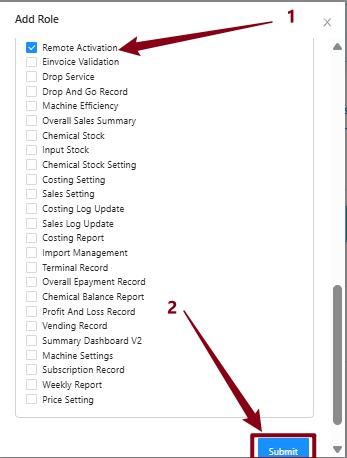
2. Select the required permissions by checking the appropriate boxes.

**Example: Staff - Remote Activation Only**

<span style="white-space: pre-wrap;">If the staff member only handles remote activation, select the </span>**Remote Activation**<span style="white-space: pre-wrap;"> permission.</span>

[![WhatsApp Image 2026-06-22 at 9.55.21 AM.jpeg](https://docs.antlysis.com/uploads/images/gallery/2026-06/scaled-1680-/D9P3jhGxQ54aNya3-whatsapp-image-2026-06-22-at-9-55-21-am.jpeg)](https://docs.antlysis.com/uploads/images/gallery/2026-06/scaled-1680-/D9P3jhGxQ54aNya3-whatsapp-image-2026-06-22-at-9-55-21-am.jpeg)

---

### 💾 Step 6: Submit the Role

<span style="white-space: pre-wrap;">Review the selected permissions, then click </span>**Submit**<span style="white-space: pre-wrap;"> to create the role.</span>

<p class="callout info"><span style="white-space: pre-wrap;">💡 </span>**Quick Tip:**<span style="white-space: pre-wrap;"> Only enable the permissions required for the staff member's duties.</span></p>

[![WhatsApp Image 2026-06-22 at 10.12.24 AM.jpeg](https://docs.antlysis.com/uploads/images/gallery/2026-06/scaled-1680-/y89rGE6PAA9zQXEe-whatsapp-image-2026-06-22-at-10-12-24-am.jpeg)](https://docs.antlysis.com/uploads/images/gallery/2026-06/scaled-1680-/y89rGE6PAA9zQXEe-whatsapp-image-2026-06-22-at-10-12-24-am.jpeg)

---

## 👤 Stage 2 — Create a Staff Account

Now that the role is ready, let's create the staff account!

### 📋 Step 7: Open Staff List

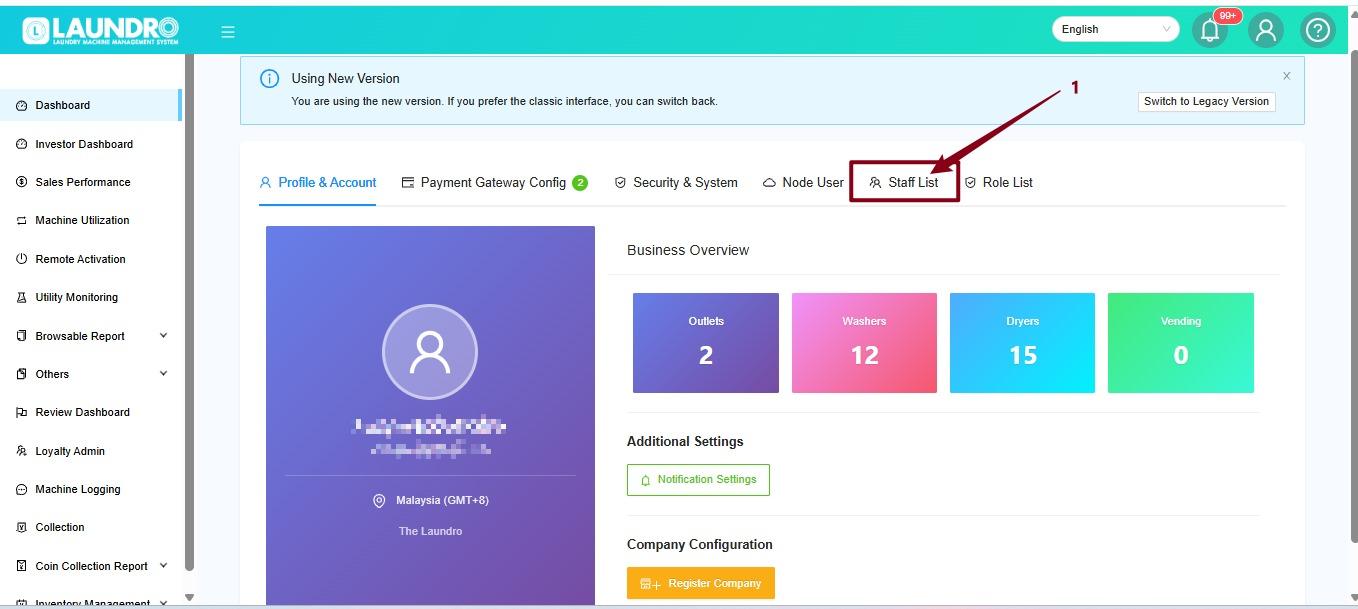
<span style="white-space: pre-wrap;">Return to the Setting page and click </span>**Staff List**.

[![WhatsApp Image 2026-06-22 at 9.49.09 AM.jpeg](https://docs.antlysis.com/uploads/images/gallery/2026-06/scaled-1680-/PXcic7cREDp5kEKC-whatsapp-image-2026-06-22-at-9-49-09-am.jpeg)](https://docs.antlysis.com/uploads/images/gallery/2026-06/scaled-1680-/PXcic7cREDp5kEKC-whatsapp-image-2026-06-22-at-9-49-09-am.jpeg)

---

### ➕ Step 8: Add a User

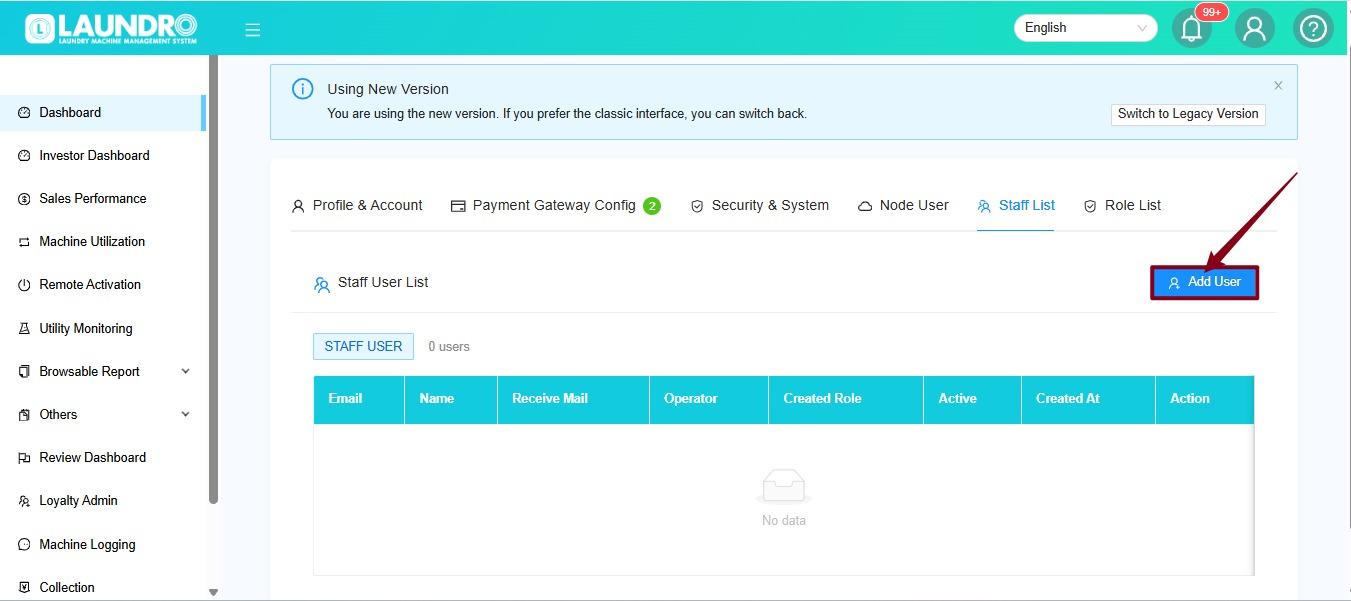
<span style="white-space: pre-wrap;">Click </span>**Add User**<span style="white-space: pre-wrap;"> to open the new staff account form.</span>

[![WhatsApp Image 2026-06-22 at 10.20.10 AM.jpeg](https://docs.antlysis.com/uploads/images/gallery/2026-06/scaled-1680-/iUlkP8mznXVIaIoE-whatsapp-image-2026-06-22-at-10-20-10-am.jpeg)](https://docs.antlysis.com/uploads/images/gallery/2026-06/scaled-1680-/iUlkP8mznXVIaIoE-whatsapp-image-2026-06-22-at-10-20-10-am.jpeg)

---

### 📝 Step 9: Fill In the Staff Details

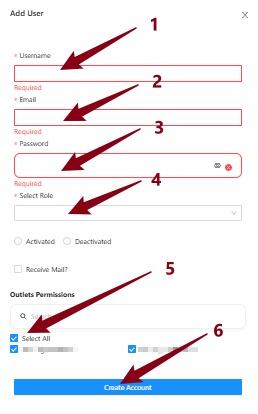
Complete the required fields:

1. **Username**<span style="white-space: pre-wrap;"> — Enter the staff member's username.</span>
2. **Email Address**<span style="white-space: pre-wrap;"> — Enter the staff member's email address.</span>
3. **Password**<span style="white-space: pre-wrap;"> — Create a password for the account.</span>
4. **Role**<span style="white-space: pre-wrap;"> — Select the role created earlier.</span>
5. **Outlet Access**<span style="white-space: pre-wrap;"> — Select the outlet or outlets the staff member is allowed to access.</span>

<span style="white-space: pre-wrap;">Once all details are complete, click </span>**Create Account**.

[![WhatsApp Image 2026-06-22 at 10.25.49 AM.jpeg](https://docs.antlysis.com/uploads/images/gallery/2026-06/scaled-1680-/9Ho7eQiicP8LSF58-whatsapp-image-2026-06-22-at-10-25-49-am.jpeg)](https://docs.antlysis.com/uploads/images/gallery/2026-06/scaled-1680-/9Ho7eQiicP8LSF58-whatsapp-image-2026-06-22-at-10-25-49-am.jpeg)

<p class="callout info"><span style="white-space: pre-wrap;">⚠️ </span>**Important:**<span style="white-space: pre-wrap;"> Double-check the selected role and outlet access before creating the account.</span></p>

---

## 🔐 Stage 3 — Log In as Staff

The staff account has been created. Now, let's log in!

### 🚪 Step 10: Open the Login Page

<span style="white-space: pre-wrap;">Go to the Laundro Portal login page and select </span>**Staff Login**.

<span style="white-space: pre-wrap;">🔗 </span>[https://v2.thelaundro.com/operator\_login](https://v2.thelaundro.com/operator_login)

[![WhatsApp Image 2026-06-24 at 10.55.53 AM.jpeg](https://docs.antlysis.com/uploads/images/gallery/2026-06/scaled-1680-/HqVqwIQcLn67AoCp-whatsapp-image-2026-06-24-at-10-55-53-am.jpeg)](https://docs.antlysis.com/uploads/images/gallery/2026-06/scaled-1680-/HqVqwIQcLn67AoCp-whatsapp-image-2026-06-24-at-10-55-53-am.jpeg)

---

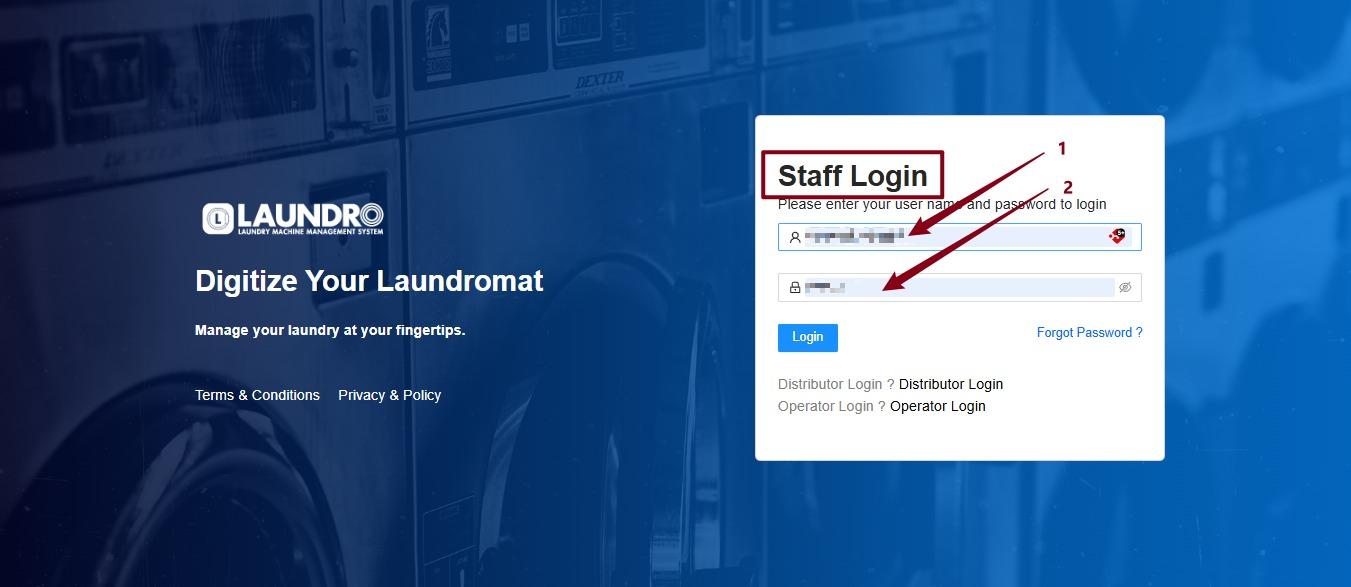
### 🔑 Step 11: Enter Login Details

1. <span style="white-space: pre-wrap;">Enter the staff </span>**Username**.
2. <span style="white-space: pre-wrap;">Enter the staff </span>**Password**.
3. Follow the on-screen instructions to log in.

[![WhatsApp Image 2026-06-25 at 8.55.33 AM.jpeg](https://docs.antlysis.com/uploads/images/gallery/2026-06/scaled-1680-/khhXHZoOem8cw1z4-whatsapp-image-2026-06-25-at-8-55-33-am.jpeg)](https://docs.antlysis.com/uploads/images/gallery/2026-06/scaled-1680-/khhXHZoOem8cw1z4-whatsapp-image-2026-06-25-at-8-55-33-am.jpeg)
<p class="callout success"><span style="white-space: pre-wrap;">🎉 </span>**Success!**<span style="white-space: pre-wrap;"> The staff member can now log in using the account created for them, with access based on the assigned role and outlet permissions.</span></p>

<p class="callout info"><span style="white-space: pre-wrap;">💡 </span>**Need help?**<span style="white-space: pre-wrap;"> Contact the Laundro support team if you encounter any issues while creating the staff account.</span></p>

---