# How to Cancel Voucher / Remove Credit or Stamp

### **A)** How To Chancel Voucher

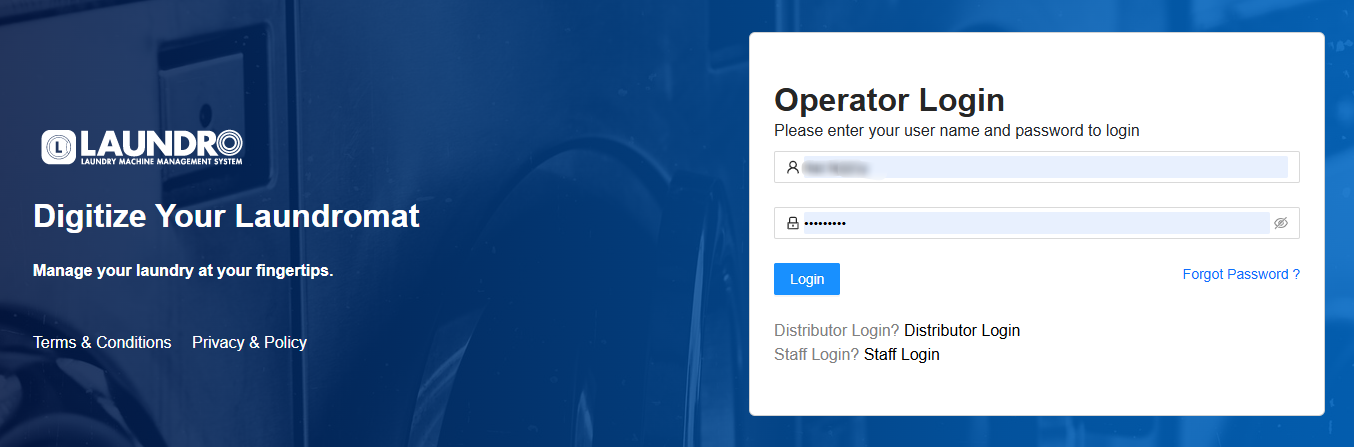
**1)** Log in to your Laundro Operator account.

[![image.png](https://docs.antlysis.com/uploads/images/gallery/2026-06/scaled-1680-/5Lox6xEr0ZIGcrIV-image.png)](https://docs.antlysis.com/uploads/images/gallery/2026-06/5Lox6xEr0ZIGcrIV-image.png)
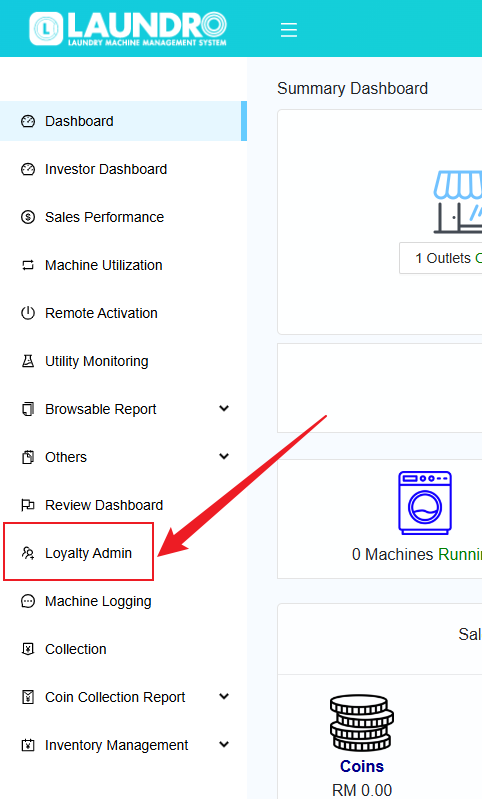
**2)**<span style="white-space: pre-wrap;"> On the page, click on </span>**"Loyalty Admin"**<span style="white-space: pre-wrap;"> in the left-hand column.</span>

[![image.png](https://docs.antlysis.com/uploads/images/gallery/2026-06/scaled-1680-/DLWDJU09GB1jaq0W-image.png)](https://docs.antlysis.com/uploads/images/gallery/2026-06/DLWDJU09GB1jaq0W-image.png)

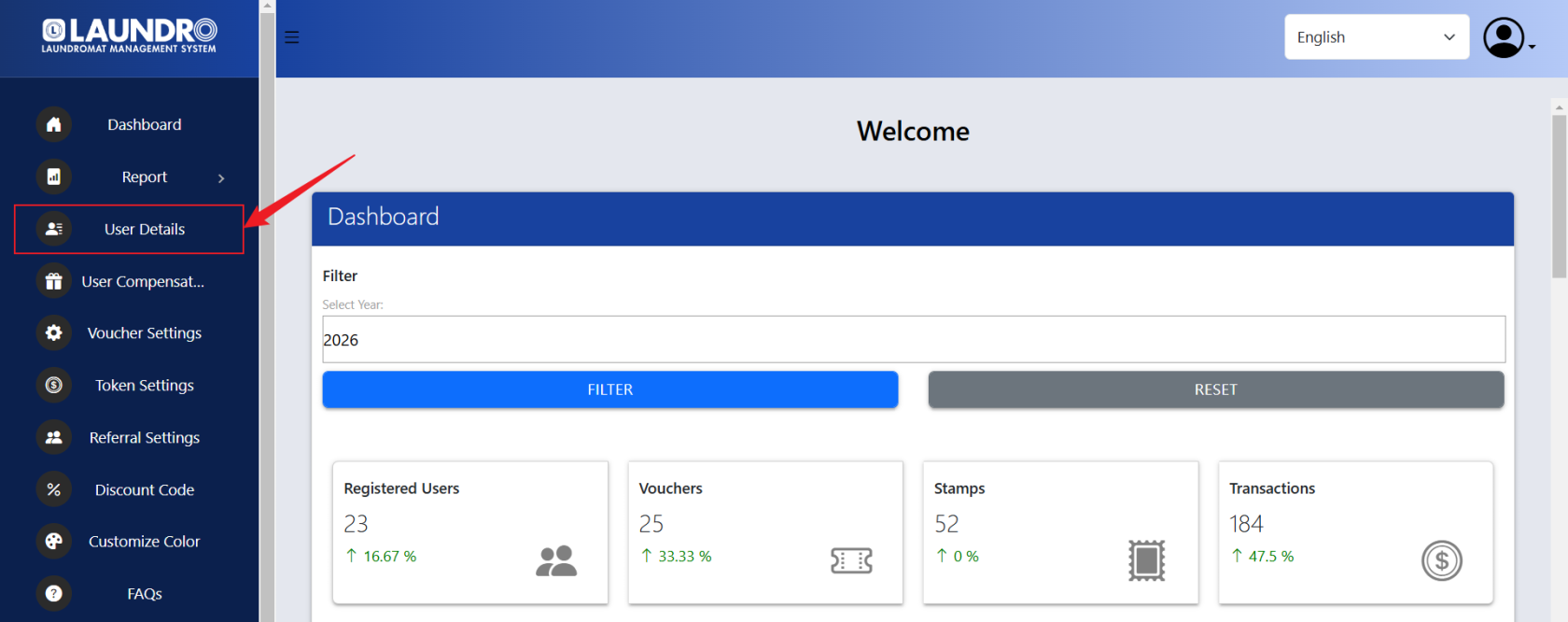
**3)**<span style="white-space: pre-wrap;"> On the Loyalty Admin page, click on "User Details".</span>

[![image.png](https://docs.antlysis.com/uploads/images/gallery/2026-06/scaled-1680-/iXrPsksX8f2HbYR7-image.png)](https://docs.antlysis.com/uploads/images/gallery/2026-06/iXrPsksX8f2HbYR7-image.png)

**4)**<span style="white-space: pre-wrap;"> Under </span>**"User Details"**<span style="white-space: pre-wrap;">, you can search for a user using their </span>**Phone Number**<span style="white-space: pre-wrap;">, </span>**Member ID**<span style="white-space: pre-wrap;">, or </span>**Email Address.**

[![image.png](https://docs.antlysis.com/uploads/images/gallery/2026-06/scaled-1680-/wY2wIub0Gq9yAEZd-image.png)](https://docs.antlysis.com/uploads/images/gallery/2026-06/wY2wIub0Gq9yAEZd-image.png)

**5)** <span style="white-space: pre-wrap;">Under </span>**"Member Details Report"**<span style="white-space: pre-wrap;">, click on </span>**"REPORT"**.

[![image.png](https://docs.antlysis.com/uploads/images/gallery/2026-06/scaled-1680-/aHqqtYMj2dj8660B-image.png)](https://docs.antlysis.com/uploads/images/gallery/2026-06/aHqqtYMj2dj8660B-image.png)

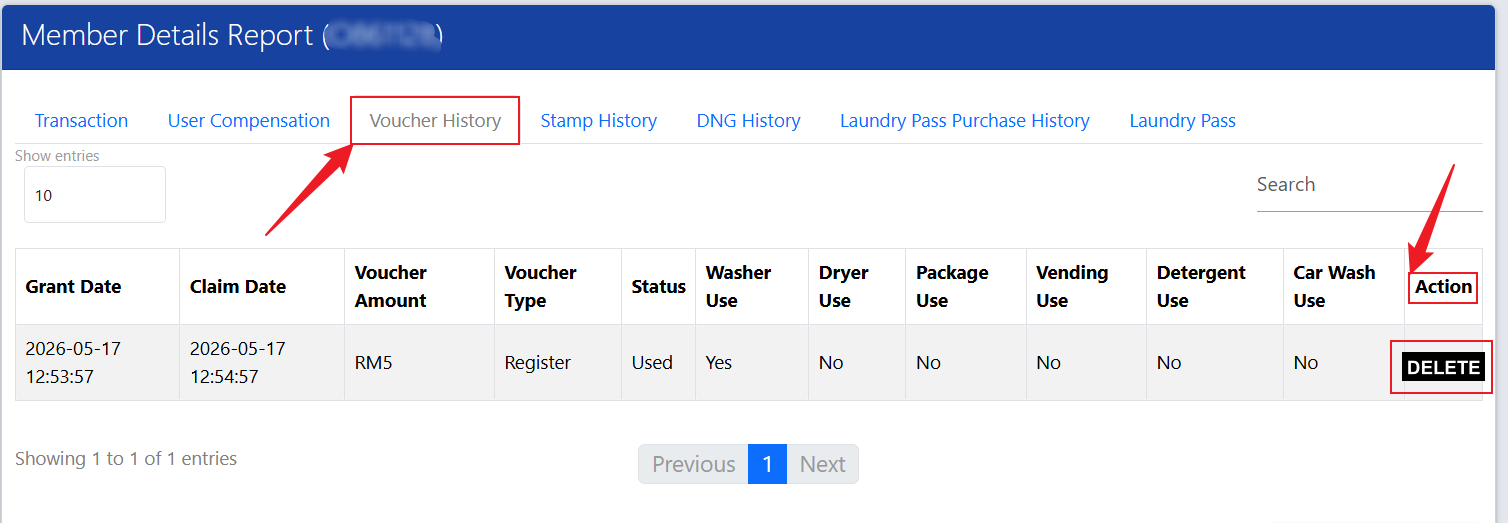
**6)** <span style="white-space: pre-wrap;">Click on </span>**"Voucher History"**<span style="white-space: pre-wrap;">. Under the </span>**"Action"**<span style="white-space: pre-wrap;"> column, click the Delete icon to remove the voucher.</span>

[![image.png](https://docs.antlysis.com/uploads/images/gallery/2026-06/scaled-1680-/eMSm7ZnkFGu7OB9w-image.png)](https://docs.antlysis.com/uploads/images/gallery/2026-06/eMSm7ZnkFGu7OB9w-image.png)

---

### **B)** Remove Credit Or Stamp

**1)** Log in to your Laundro Operator account.

[![image.png](https://docs.antlysis.com/uploads/images/gallery/2026-06/scaled-1680-/5Lox6xEr0ZIGcrIV-image.png)](https://docs.antlysis.com/uploads/images/gallery/2026-06/5Lox6xEr0ZIGcrIV-image.png)

**2)**<span style="white-space: pre-wrap;"> On the page, click on </span>**"Loyalty Admin"**<span style="white-space: pre-wrap;"> in the left-hand column.</span>

[![image.png](https://docs.antlysis.com/uploads/images/gallery/2026-06/scaled-1680-/DLWDJU09GB1jaq0W-image.png)](https://docs.antlysis.com/uploads/images/gallery/2026-06/DLWDJU09GB1jaq0W-image.png)

**3)**<span style="white-space: pre-wrap;"> On the Loyalty Admin page, click on "User Details".</span>

[![image.png](https://docs.antlysis.com/uploads/images/gallery/2026-06/scaled-1680-/iXrPsksX8f2HbYR7-image.png)](https://docs.antlysis.com/uploads/images/gallery/2026-06/iXrPsksX8f2HbYR7-image.png)

**4)**<span style="white-space: pre-wrap;"> Under </span>**"User Details"**<span style="white-space: pre-wrap;">, you can search for a user using their </span>**Phone Number**<span style="white-space: pre-wrap;">, </span>**Member ID**<span style="white-space: pre-wrap;">, or </span>**Email Address.**

[![image.png](https://docs.antlysis.com/uploads/images/gallery/2026-06/scaled-1680-/wY2wIub0Gq9yAEZd-image.png)](https://docs.antlysis.com/uploads/images/gallery/2026-06/wY2wIub0Gq9yAEZd-image.png)

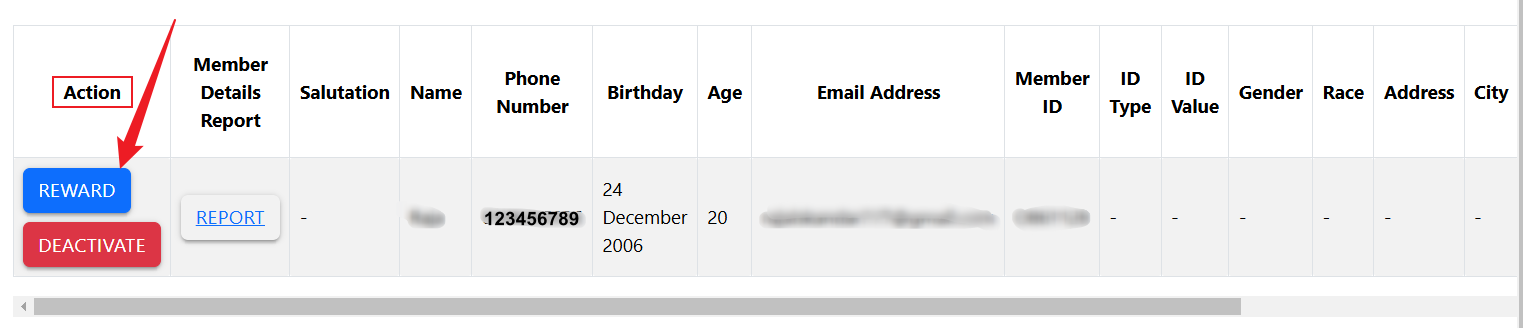
**5)**<span style="white-space: pre-wrap;"> Under the "</span>**Action**" column, click on "**REWARD**".

[![image.png](https://docs.antlysis.com/uploads/images/gallery/2026-06/scaled-1680-/MaV4zWnvxXy8UjPD-image.png)](https://docs.antlysis.com/uploads/images/gallery/2026-06/MaV4zWnvxXy8UjPD-image.png)
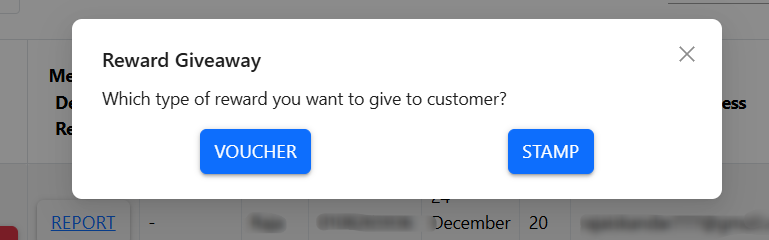
**6)**<span style="white-space: pre-wrap;"> Click on prefer reward VOUCHER or STAMP.</span>

[![image.png](https://docs.antlysis.com/uploads/images/gallery/2026-06/scaled-1680-/SGkrMfdD92G54mSy-image.png)](https://docs.antlysis.com/uploads/images/gallery/2026-06/SGkrMfdD92G54mSy-image.png)

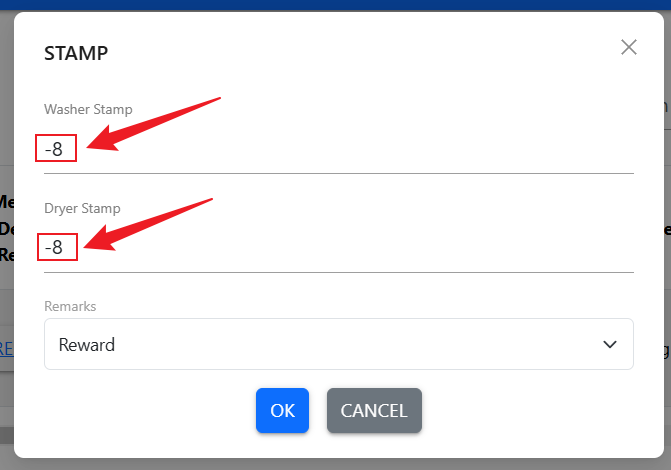
**7)**<span style="white-space: pre-wrap;"> To remove credit, enter a negative </span>**(-)**<span style="white-space: pre-wrap;"> sign before the amount shown, then click </span>**"OK"**.

[![image.png](https://docs.antlysis.com/uploads/images/gallery/2026-06/scaled-1680-/3CO0mBmwok2xvfYW-image.png)](https://docs.antlysis.com/uploads/images/gallery/2026-06/3CO0mBmwok2xvfYW-image.png)

**8)**<span style="white-space: pre-wrap;"> Once the process is completed, the credit will be removed.</span>