# 📊 Costing & Sales Report

<span style="white-space: pre-wrap;">Welcome to the </span>**Laundro Portal Guide!**<span style="white-space: pre-wrap;"> 👋</span>

Want to review your Costing &amp; Sales report? Follow this guide to select your filters, generate the report, and review the total based on your selected criteria.

#### <u>**Purpose**</u>

<span style="white-space: pre-wrap;">The </span>**Costing &amp; Sales**<span style="white-space: pre-wrap;"> report allows you to view costing and sales information based on the selected </span>**Operator, Month, and Outlet**.

#### <u>**How to Access**</u>

## 📍 Step 1 — Open Costing &amp; Sales

<span style="white-space: pre-wrap;">Log in to the </span>**Laundro Portal**<span style="white-space: pre-wrap;"> using your operator account and navigate to the </span>**Costing &amp; Sales**<span style="white-space: pre-wrap;"> report page.</span>

- <span style="white-space: pre-wrap;">Log in to the </span>**Laundro Portal**<span style="white-space: pre-wrap;"> using your Username and Password.</span>

[](https://docs.antlysis.com/books/laundro-faq/page/how-to-create-a-staff-user/edit?content-id=bkmrk-%F0%9F%94%97-portal-login%3A-http&content-text=%F0%9F%94%97%20Portal%20Login%3A%20https%3A%2F%2Fv2.thelaundro.com%2Foperato "Jump to section in editor")

<span style="white-space: pre-wrap;">🔗 </span>**Portal Login:**<span style="white-space: pre-wrap;"> </span>[https://v2.thelaundro.com/operator\_login](https://v2.thelaundro.com/operator_login)

- From the **sidebar menu,**
- <span style="white-space: pre-wrap;">Go to </span>**Special Report**.
- <span style="white-space: pre-wrap;">Select </span>**Costing Report.**

[![WhatsApp Image 2026-09-25 at 11.26.28 AM.jpeg](https://docs.antlysis.com/uploads/images/gallery/2026-09/scaled-1680-/cSQrfb38oVk7PWZQ-whatsapp-image-2026-09-25-at-11-26-28-am.jpeg)](https://docs.antlysis.com/uploads/images/gallery/2026-09/scaled-1680-/cSQrfb38oVk7PWZQ-whatsapp-image-2026-09-25-at-11-26-28-am.jpeg)

<p class="callout info"><span style="white-space: pre-wrap;">💡 </span>**Tip:**<span style="white-space: pre-wrap;"> Make sure you are using the correct operator account before generating the report.</span></p>

---

## 🔎 Step 2 — Select the Operator

<span style="white-space: pre-wrap;">Choose the required </span>**Operator**<span style="white-space: pre-wrap;"> from the filter.</span>

This determines which operator's report you want to view.

---

## 📅 Step 3 — Select the Month

Choose the month you want to review.

<span style="white-space: pre-wrap;">💡 </span>**Example:**<span style="white-space: pre-wrap;"> Select September to review the report for September.</span>

<span style="white-space: pre-wrap;">📸 </span>**Insert Screenshot 3: Month filter highlighted.**

---

## 🏪 Step 4 — Select the Outlet

<span style="white-space: pre-wrap;">Choose the required </span>**Outlet**<span style="white-space: pre-wrap;"> from the filter.</span>

Make sure you select the correct outlet for the report you want to generate.

<span style="white-space: pre-wrap;">📸 </span>**Insert Screenshot 4: Outlet filter highlighted.**

---

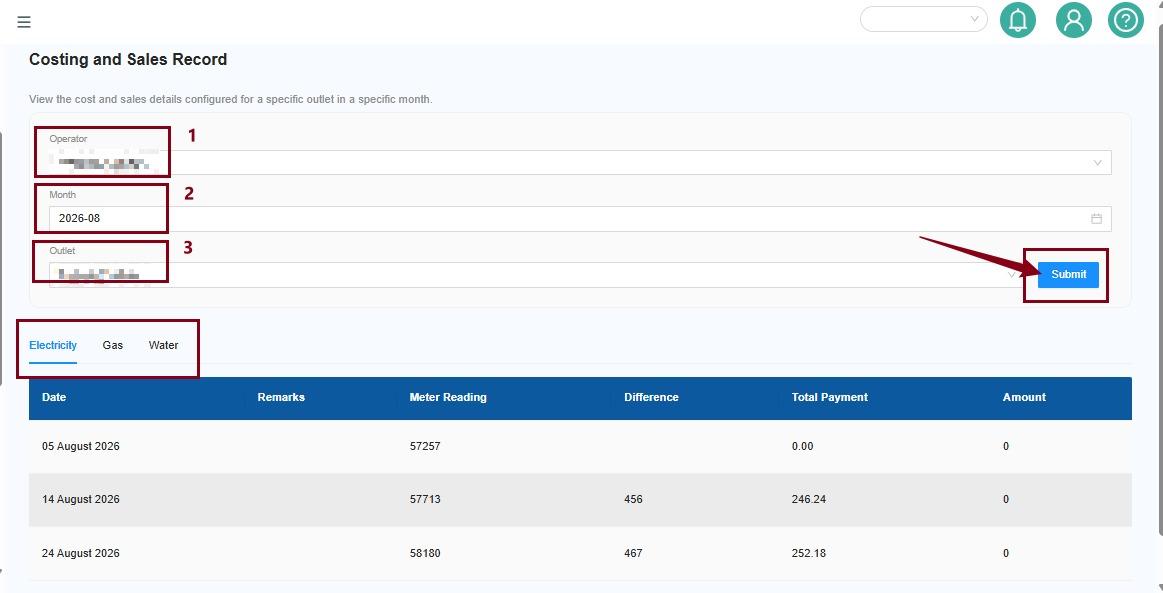
## 📊 Step 5 — Generate the Report

Ready to view your results?

1. Review your selected Operator, Month, and Outlet.
2. <span style="white-space: pre-wrap;">Click </span>**Submit**.
3. Wait for the report to load.
4. Review the report details and the displayed Total.

[![WhatsApp Image 2026-09-25 at 11.39.26 AM.jpeg](https://docs.antlysis.com/uploads/images/gallery/2026-09/scaled-1680-/kSdgZ552mLOiGsw6-whatsapp-image-2026-09-25-at-11-39-26-am.jpeg)](https://docs.antlysis.com/uploads/images/gallery/2026-09/scaled-1680-/kSdgZ552mLOiGsw6-whatsapp-image-2026-09-25-at-11-39-26-am.jpeg)
---

## 🧮 Understanding the Report Total

<span style="white-space: pre-wrap;">The report displays a </span>**Total**<span style="white-space: pre-wrap;"> based on the selected filters.</span>

Before reviewing the results, check that you have selected the correct:

- 👤 Operator
- 📅 Month
- 🏪 Outlet

These filters determine which report data is displayed.

<p class="callout info"><span style="white-space: pre-wrap;">💡 </span>**Quick Tip:**<span style="white-space: pre-wrap;"> If the results do not look correct, check your filters and click Submit again.</span></p>

---

## ⚠️ Troubleshooting Tips

**The report shows unexpected results**

Check whether the correct Operator, Month, and Outlet have been selected.

**The report does not show the expected data**

Review your filters and click Submit again. If the issue persists, contact the Laundro support team for assistance.

---

## ✅ You're All Set!

You now know how to generate and review the Costing &amp; Sales report.

<p class="callout info">Before finishing, remember to:</p>

- Select the correct Operator.
- Choose the required Month.
- Select the correct Outlet.
- Click Submit.
- Review the report details and Total.

### <span style="white-space: pre-wrap;">🎉 </span>**Happy reporting!**