# Coin Collection V2
##### The **Coin Collection V2** page allows you to record and manage coin collections for your outlet.
Log in to your account, then look for **Collections** in the left sidebar and click it. Select a **Collection Entry** to open coin collection page[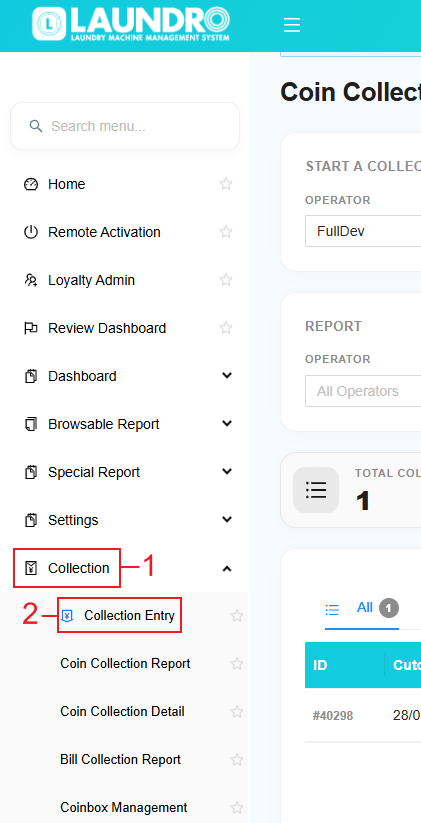 ](https://docs.antlysis.com/uploads/images/gallery/2026-10/SSsHVJz8o7Uq4snT-image.png)[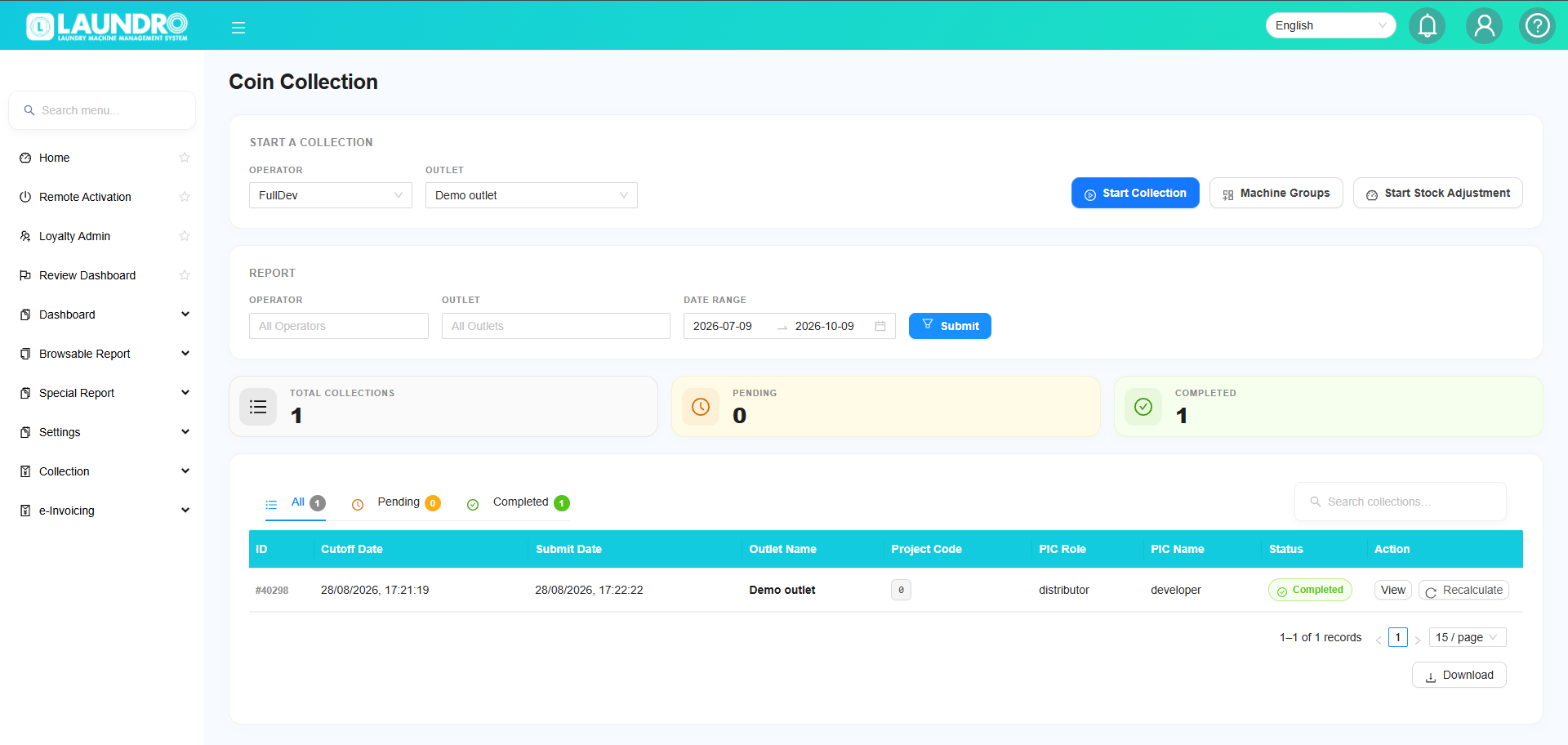](https://docs.antlysis.com/uploads/images/gallery/2026-10/NloYbHf4ry53duZe-image.png)
---
## Start a New Collection
**Step 1** - On the page, find **Start a New Collection**. Under it, select the **Operator** and **Outlet** you want, then click **Start Collection**.
[](https://docs.antlysis.com/uploads/images/gallery/2026-10/kVMIKTIgXo4AGBXF-image.png)
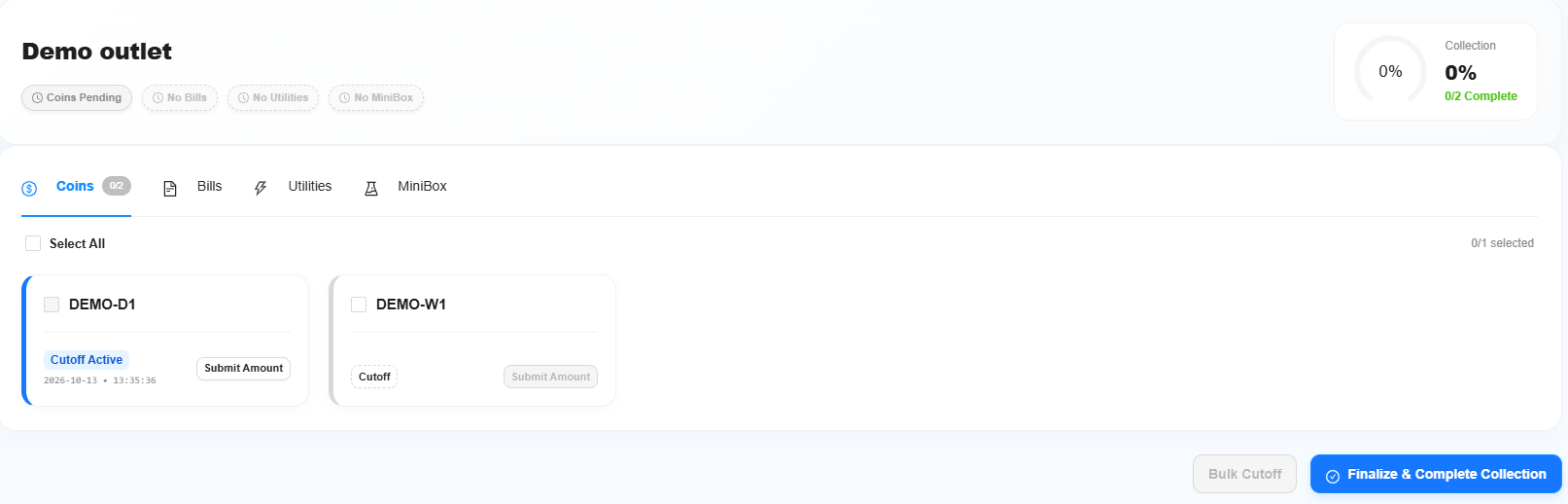
**Step 2** - Once you click **Start Collection**, you will be redirected to the Outlet Coin Collection page.
[](https://docs.antlysis.com/uploads/images/gallery/2026-10/tWbfxMCJ3SkgrPE1-image.png)
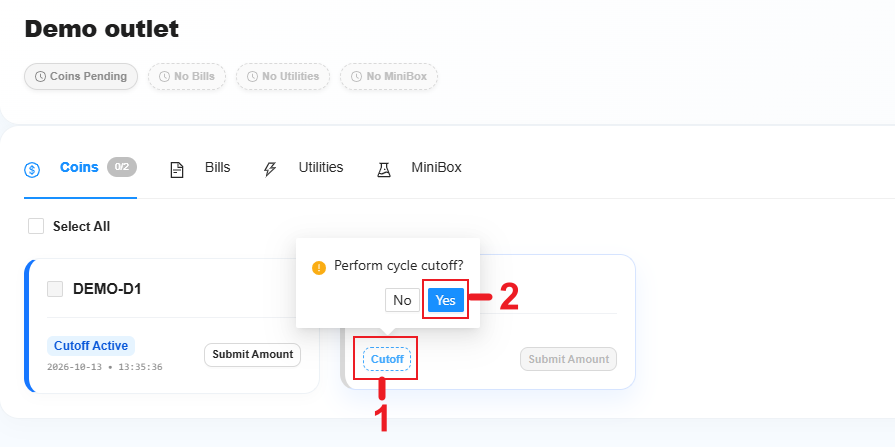
**Step 3** - Under **Machine ID**, you will see the **Cut Off** option. Click on it, then click **Yes** to confirm. The cut-off function will then be activated.
[](https://docs.antlysis.com/uploads/images/gallery/2026-10/BLSiHDVBmmcOijHf-image.png)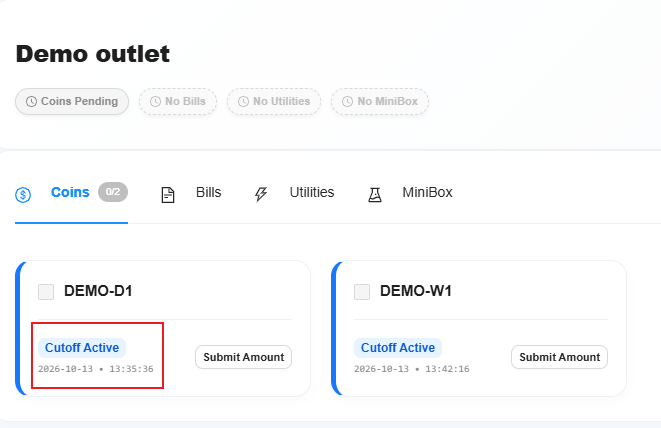
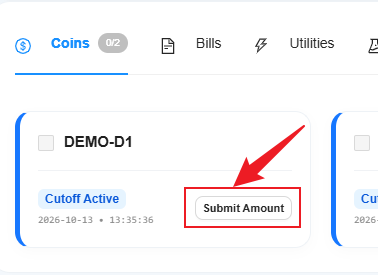
**Step 4** - Click **Submit Amount**, enter the coin collection amount for each Machine ID, and then click **SUBMIT** to proceed.
[](https://docs.antlysis.com/uploads/images/gallery/2026-10/KdCiLsaNkNYi4Yky-image.png)[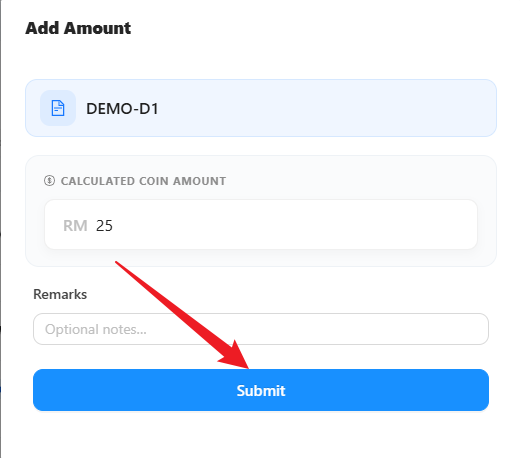](https://docs.antlysis.com/uploads/images/gallery/2026-10/f4fAuvqOFoAUl1J3-image.png)
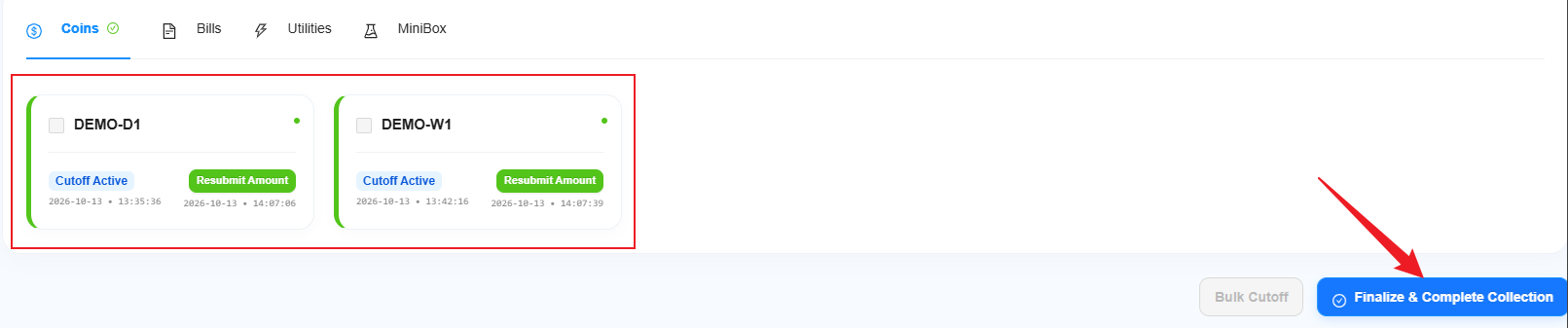
**Step - 5** After confirming the amount, the machine status will turn **green**, indicating that it is ready to complete the coin collection process.
**-** Click **Finalize & Complete Collection** to complete the coin collection process.
[](https://docs.antlysis.com/uploads/images/gallery/2026-10/LEHUCeSr8QQaWNc9-image.png)
A confirmation message, **“Coin collection was completed,”** will appear. You can click **Download Receipt (PDF)** below to download the receipt containing the completed coin collection details.
[](https://docs.antlysis.com/uploads/images/gallery/2026-10/DrYu3o5zkj4dyi3R-image.png)
**Stock Adjustment**
Use this option when you need to update the outlet's **Utilities** or **Chemical/Minibox stock**.
**Note:** Stock Adjustment is separate from the normal coin collection process.
---
Search Previous Collections
##### To check previous or pending coin collections, you can view the **REPORT** on this page.
- Select your preferred Operator and Outlet, choose the date range, and click **SUBMIT** to generate the report.
[](https://docs.antlysis.com/uploads/images/gallery/2026-10/O4J1L9atdQJE4N8l-image.png)
- After clicking **SUBMIT**, all the details will be displayed below.
[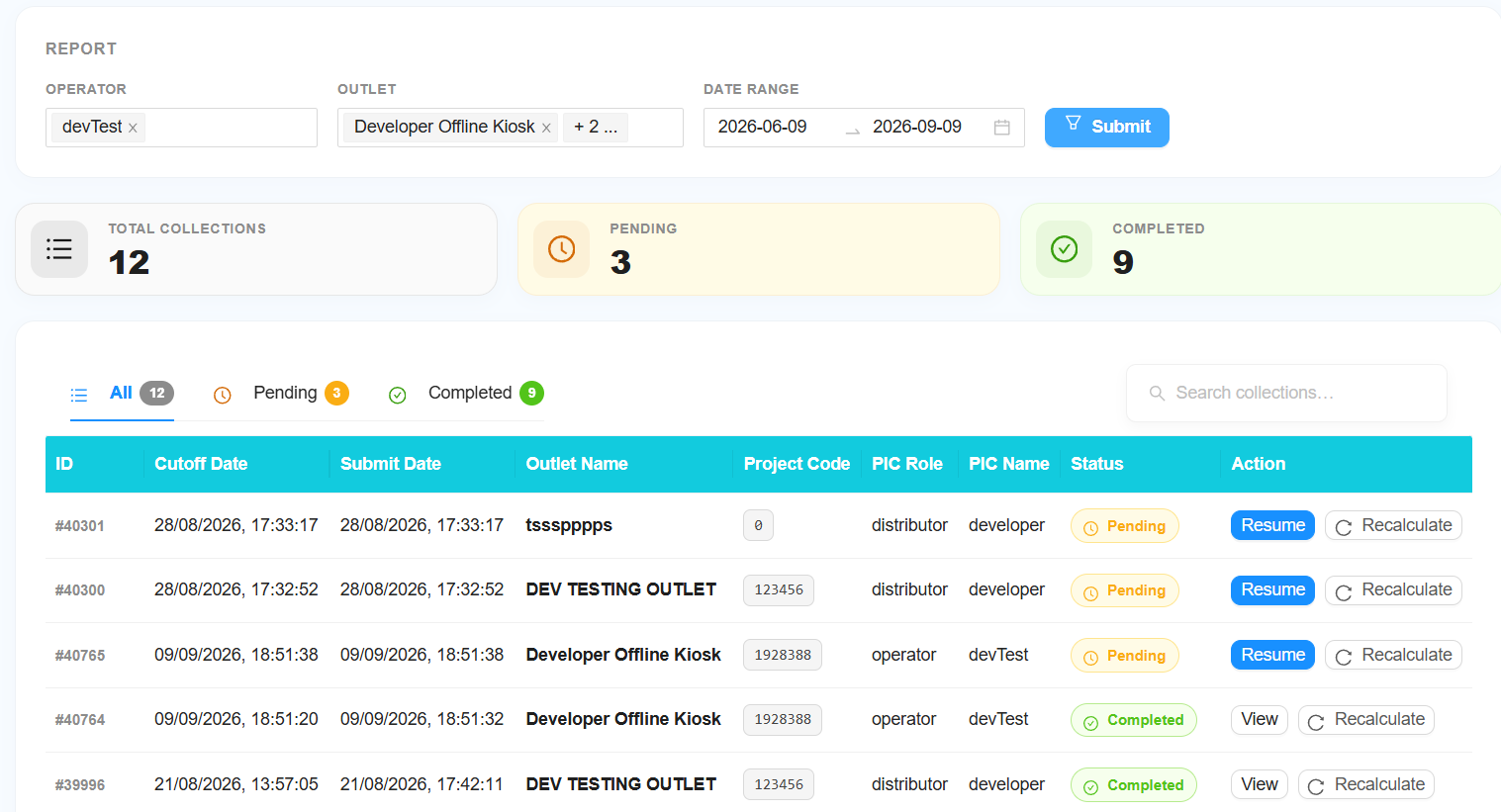](https://docs.antlysis.com/uploads/images/gallery/2026-09/VBREgmMMToCtrGcZ-image-1788951905829.png)
- As shown below, the **Status** column indicates whether the coin collection is **Pending** or **Completed**.
[](https://docs.antlysis.com/uploads/images/gallery/2026-10/MafD7regMEKLP5y6-image.png)
---
# Actions
- Under the **Action** column, pending coin collections will show the **RESUME** option. Click **RESUME** to continue the collection process. If click on **Recalculate** it will recalculate coin collection amount from scratch.
- For **Completed** coin collections, the **Action** column will display the **VIEW** option. Click **VIEW** to access and review the coin collection report.
- Depending on the collection status, you may see different actions.
[](https://docs.antlysis.com/uploads/images/gallery/2026-10/lLQ3SEghUQUx4RGO-image.png)
---
## Bulk Cutoff
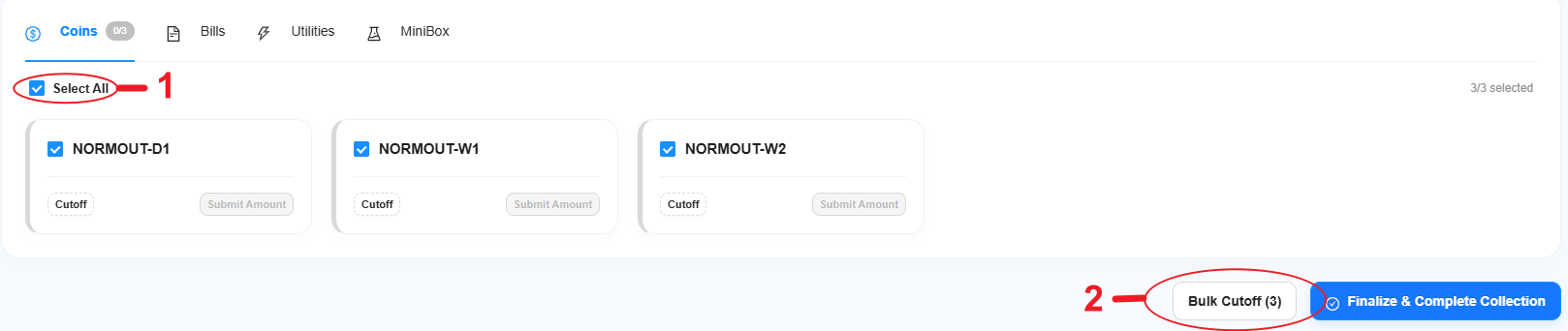
Allows you to cutoff multiple machines at once instead of cutting them off one by one. Since an outlet usually has multiple machines, you can use this feature to update the coin collection amounts for the correct machine ID. This saves time and makes the coin collection process faster and easier.
⚠️ **Warning:** By clicking **Bulk Cutoff**, make sure no additional coins or tokens are inserted into any machine. Otherwise, the coin collection report may be inaccurate.
**Step1 -** Click **Select All**, then click **Bulk Cutoff** at the bottom-right corner of the page to proceed.
[](https://docs.antlysis.com/uploads/images/gallery/2026-10/vf9Iriajs2puwptB-image.png)
**Step 2** - Click **Submit Amount**, enter the coin collection amount for each Machine ID, and then click **SUBMIT** to proceed.
[](https://docs.antlysis.com/uploads/images/gallery/2026-10/KdCiLsaNkNYi4Yky-image.png)[](https://docs.antlysis.com/uploads/images/gallery/2026-10/f4fAuvqOFoAUl1J3-image.png)
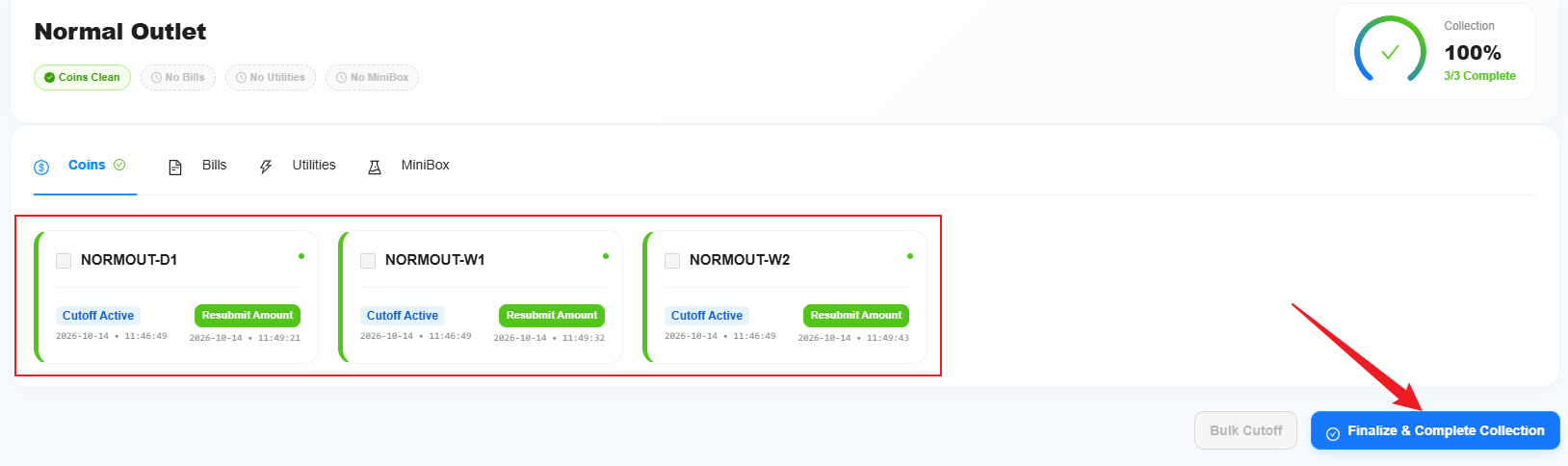
**Step - 3** After confirming the amount, the machine status will turn **green**, indicating that it is ready to complete the coin collection process.
**-** Click **Finalize & Complete Collection** to complete the coin collection process.
[](https://docs.antlysis.com/uploads/images/gallery/2026-10/Pw8BTXLUtBBfgaqL-image.png)
A confirmation message, **“Coin collection was completed,”** will appear. You can click **Download Receipt (PDF)** below to download the receipt containing the completed coin collection details.
[](https://docs.antlysis.com/uploads/images/gallery/2026-10/DrYu3o5zkj4dyi3R-image.png)
---
# Collection Information
## How to Update Collection Information
Under **Collection Information**, you can update the details for each collection type to keep accurate records and make it easier to track and compare information in future reports.
You can choose any of the four collection types based on your needs, or use all four collection types if required.
1. **Coins/Bills** – Update the total amount of coins or token collected from the machines.
2. **Utilities** – Update the utility expenses, such as electricity and water bills, to monitor the outlet's operating costs.
3. **Chemicals** – Update the details of detergent or softener used or restocked, including the quantity or cost, to track chemical usage and expenses.
4. **Mini Box** – Update the collection details for the Mini Box to keep a record of the amount collected.
**Note:** Make sure all information is entered correctly and updated regularly to maintain accurate records for future tracking and report comparisons.
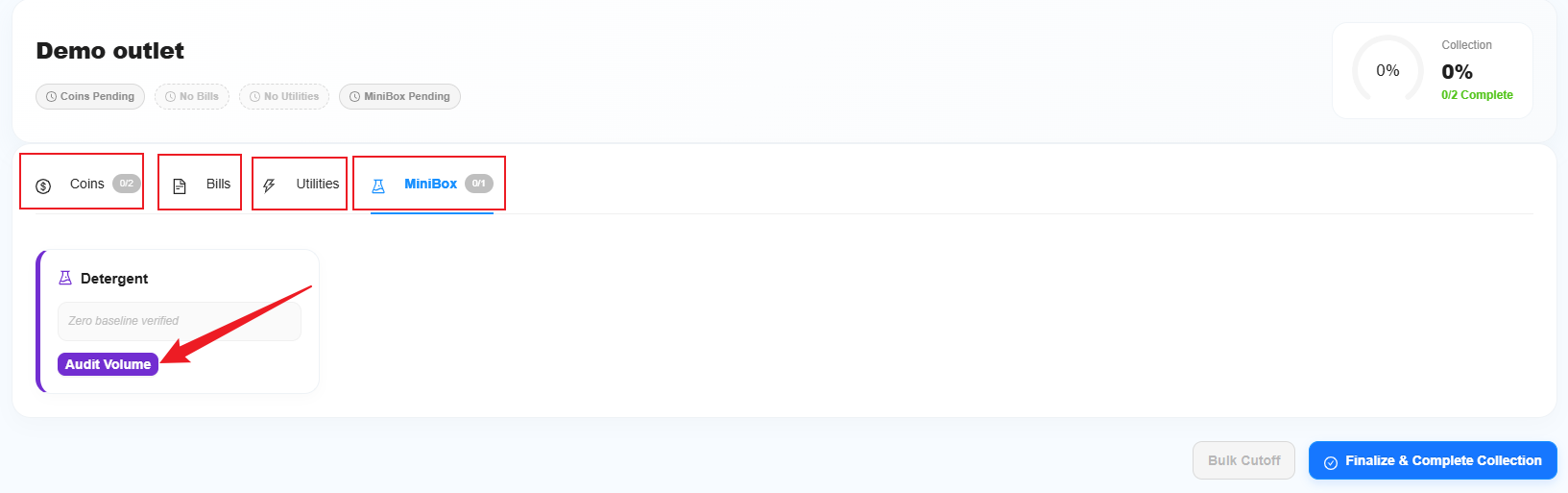
## **Mini Box & Chemical**
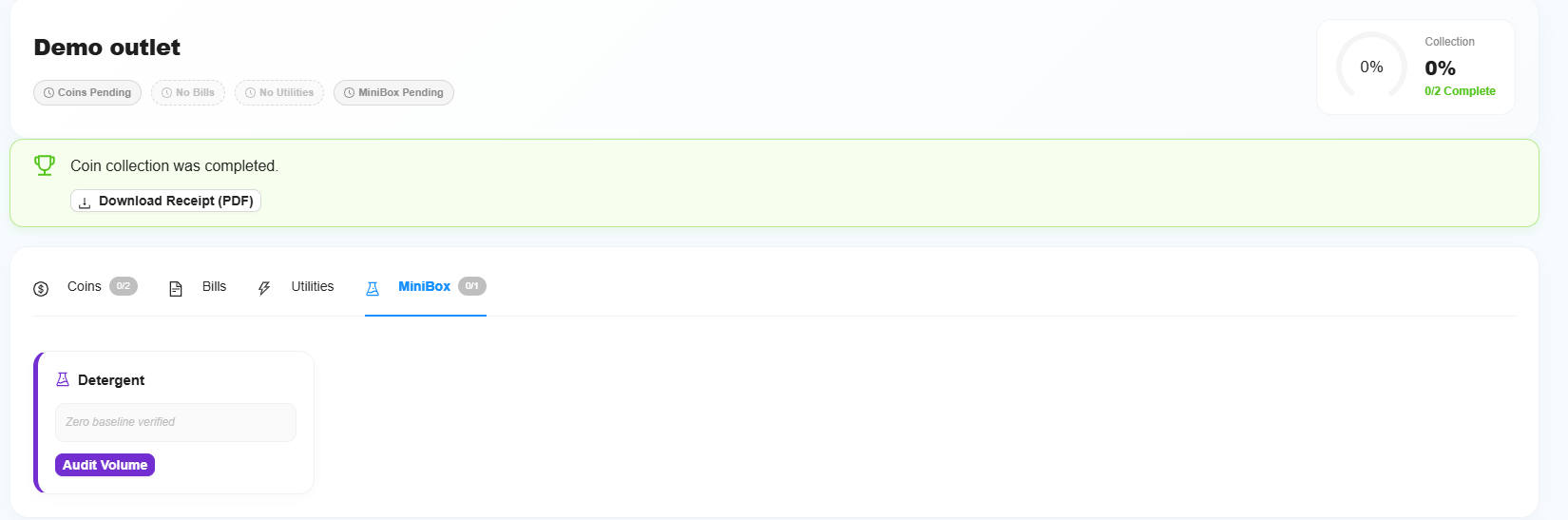
Step1 - Click Audit Volume
[](https://docs.antlysis.com/uploads/images/gallery/2026-10/87CRkNR0nIiySeN0-image.png)
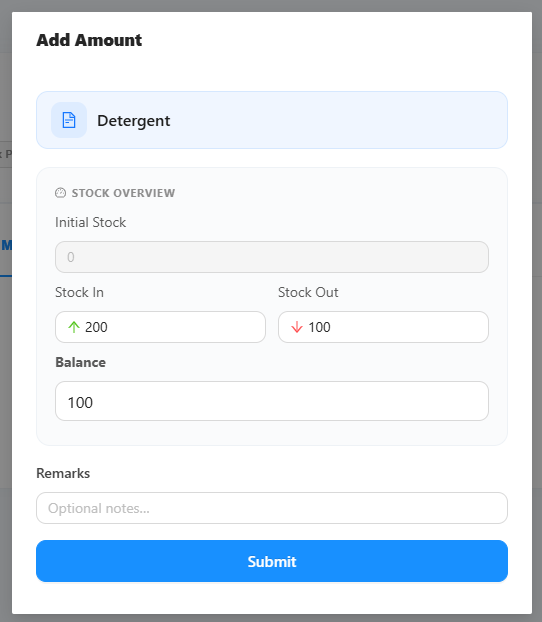
**Step2 -** Enter the **Stock In** and **Stock Out** amounts, and the system will automatically calculate the **Balance** for you. You can also update the **Remarks** section with any additional notes or information you want to record.
[](https://docs.antlysis.com/uploads/images/gallery/2026-10/NPSrab2UpkSfUtFS-image.png)
**Step3 -** A confirmation message, **“Coin collection was completed,”** will appear. You can click **Download Receipt (PDF)** below to download the receipt containing the completed coin collection details.
[](https://docs.antlysis.com/uploads/images/gallery/2026-10/FTtf0cnJaSgpRtvX-image.png)
Note: This process should be completed after the coin collection to update the remaining collection information. Once all the necessary details have been updated, click **Finalize & Complete Collection** to complete the process.
---
# Bill Collection
If the selected outlet has bill collection data, complete the following steps:
#### Step 1: Complete Bill Cutoff
Enter the required bill cutoff information.
### Step 2: Submit the Collected Amount
Enter the amount collected and submit it.
### Step 3: Submit the Invoice
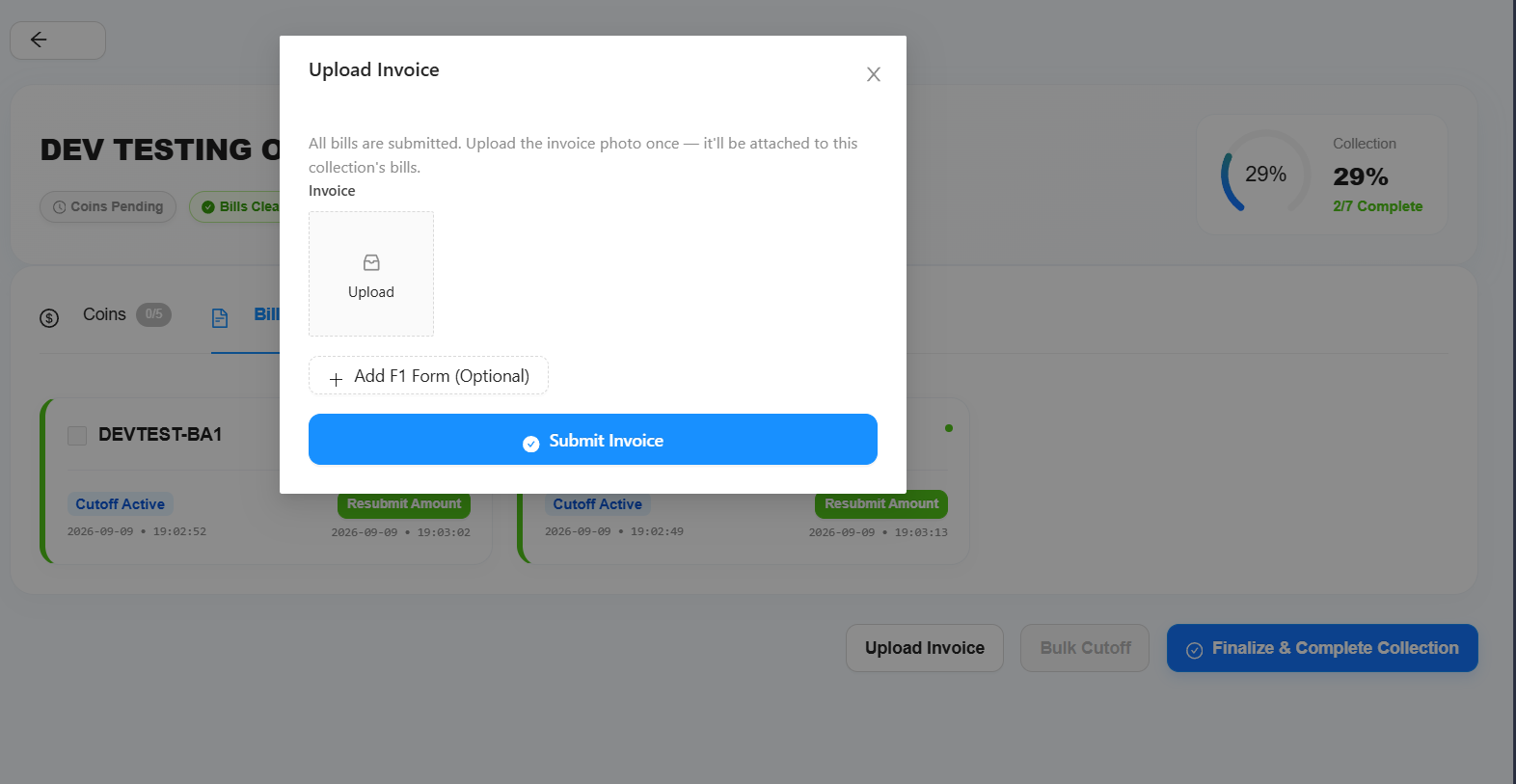
After submitting the bill collection, the **Submit Invoice** button will become available.
Upload the receipt or invoice provided by the bank or payment provider.
### Add F1 Form or Remarks
Click the **+** button to:
- Add an F1 Form.
- Add additional remarks.
**Important:** If the outlet has bill collection data, an invoice is required before the collection can be completed.
[](https://docs.antlysis.com/uploads/images/gallery/2026-09/v1gRqJm3TR3ceNEf-image-1788951905823.png)