# Chemical Report v2
## 🎯 Purpose
The **Chemical Report v2** allows you to view chemical stock information based on the selected **Operator, Outlet, Method, Date, and Item**.
You can use the report to check either:
- **Consume** – how much chemical stock was consumed during a selected period.
- **Balance** – the stock balance on a specific date.
# 📍 How to Access
### Step 1 — Open Laundro Portal
Log in to the **Laundro Portal** using your Username and Password.https://v2.thelaundro.com/operator\_login
### Step 2 — Open Report
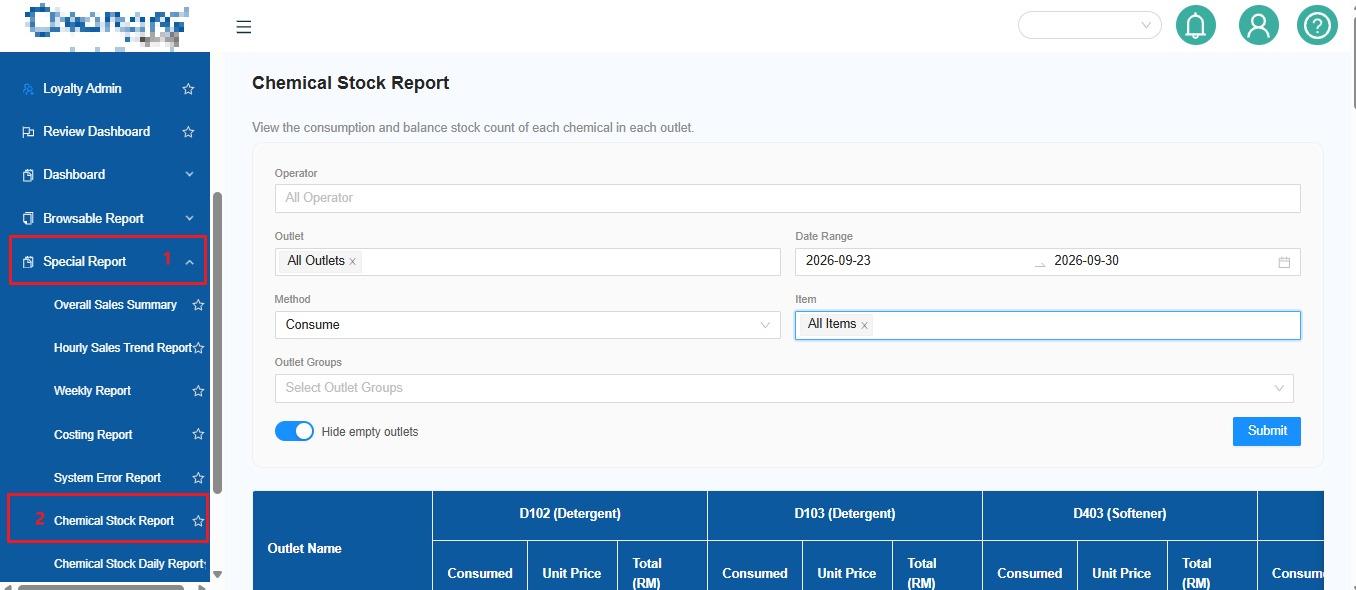
From the sidebar menu, click **Special** **Report**.
### Step 3 — Select Chemical Report v2
Select **Chemical Report v2** from the Report menu.
You will be directed to the **Chemical Stock Report** page.
[](https://docs.antlysis.com/uploads/images/gallery/2026-09/scaled-1680-/G8fPDD13JYzkQQ8g-whatsapp-image-2026-09-30-at-8-51-02-am.jpeg)
[](https://docs.antlysis.com/uploads/images/gallery/2026-09/scaled-1680-/dEAXrB4ZIgdXPILf-whatsapp-image-2026-09-30-at-8-56-24-am.jpeg)
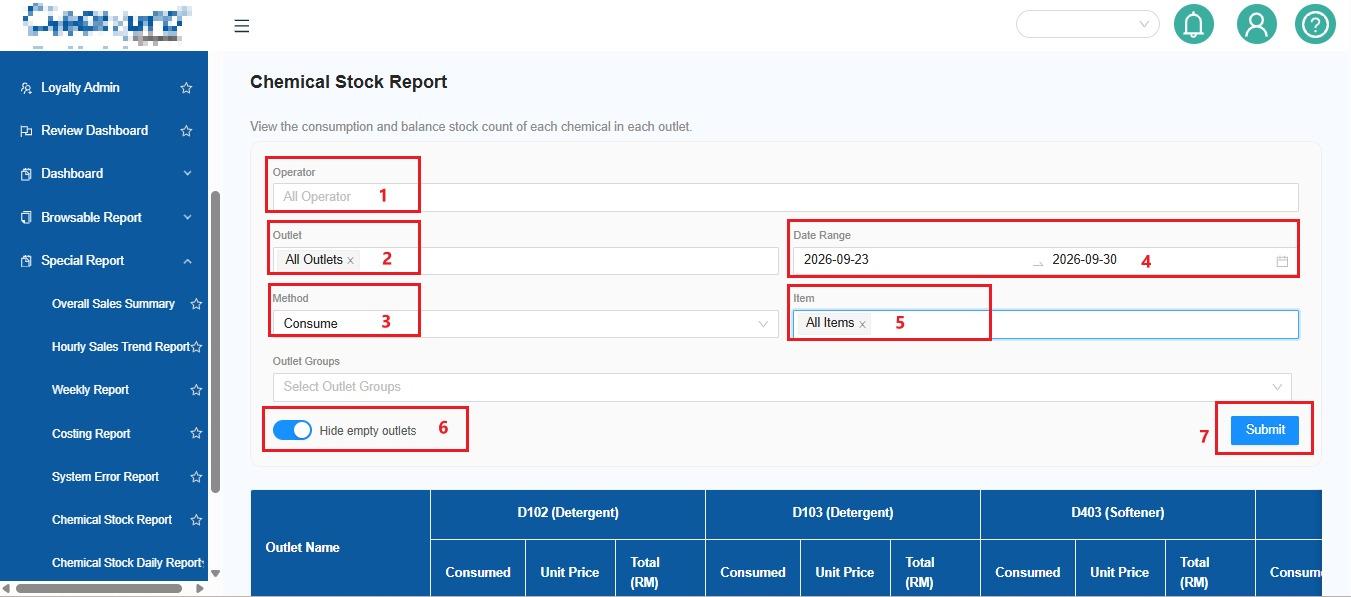
# 1️⃣ Select Operator
Select the **Operator** you want to include in the report.
To include all operators, select:
**All Operator**
# 2️⃣ Select Outlet
Select the **Outlet** you want to view.
To include all outlets, select:
**All Outlet**
# 3️⃣ Select Method
The **Method** determines what type of chemical information you want to view.
There are two options:
### 🧴 Consume
Select **Consume** when you want to check how much chemical stock was consumed during a specific period.
**Date selection:**
📅 **Date Range**
**Example:**
1 September 2026 → 30 September 2026
### 📦 Balance
Select **Balance** when you want to check the chemical stock balance on a specific date.
**Date selection:**
📅 **Single Date**
**Example:**
30 September 2026
💡 Easy Way to Remember
**Want to know how much was USED?**
→ Choose **Consume**
**Want to know how much is LEFT?**
→ Choose **Balance**
# 4️⃣ Select Date
The date selection depends on the **Method** you selected.
| Method
| Date Selection
| Purpose
|
|---|
| Consume
| Date Range
| View chemical consumption during a period
|
| Balance
| Single Date
| View stock balance on a specific date
|
# 5️⃣ Select Item
Select the chemical item you want to include in the report.
To view all items, select:
**All Item**
You can select a specific item when you only want to check one chemical.
# 6️⃣ Hide Empty Outlet
Turn on **Hide Empty Outlet** if you do not want to display outlets with no chemical stock data.
This helps make the report **cleaner and easier to read**.
### Example
**OFF**
→ All outlets are displayed.
**ON**
→ Outlets without chemical stock data are hidden.
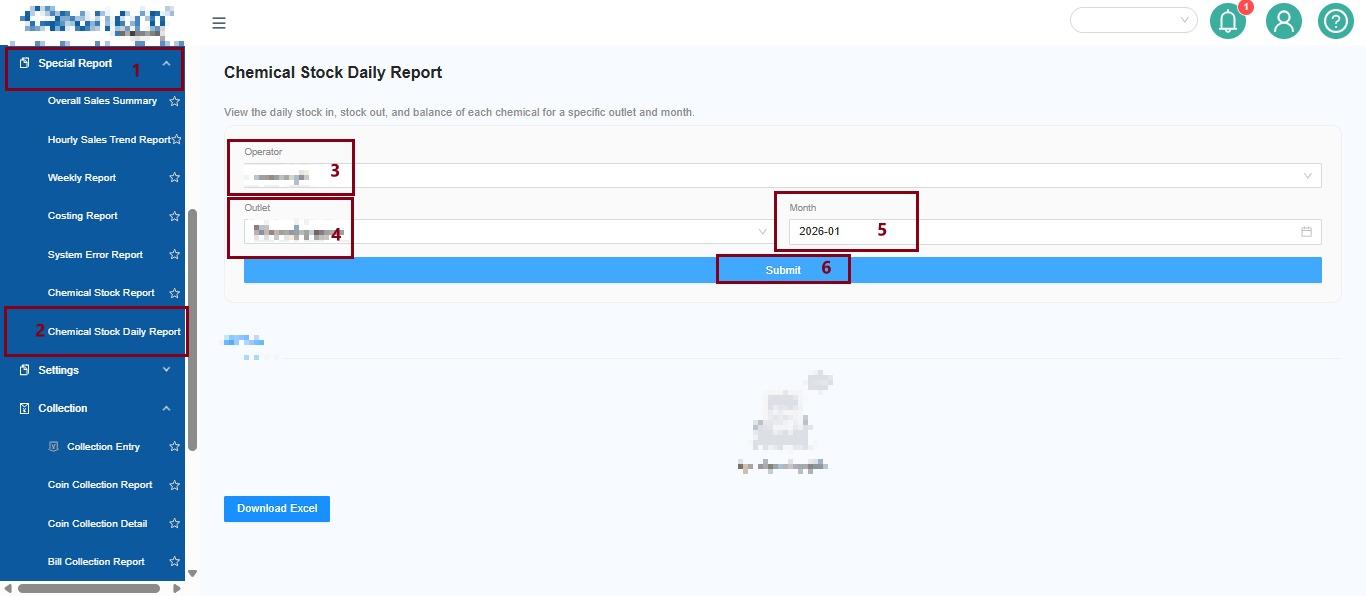
# 7️⃣ Generate the Report
After selecting all the required filters, click:
**Submit**
The system will generate the Chemical Stock Report based on your selected filters.
[](https://docs.antlysis.com/uploads/images/gallery/2026-09/scaled-1680-/0q6TGkW8d2ztrZBL-whatsapp-image-2026-09-29-at-9-42-21-am.jpeg)
# 📊 Understanding the Report
The report provides chemical stock information based on your selected method.
### Consume Report
The report shows the amount of chemical stock **consumed during the selected date range**.
The report also provides **Total Consumed** information.
### Balance Report
The report shows the **stock balance for the selected date**.
The report also provides totals based on the selected chemical type.
---
💡 Example 1 — Check Chemical Consumption
You want to know how much detergent was consumed during September.
Select:
| Filter
| Selection
|
|---|
| Operator
| All Operator
|
| Outlet
| All Outlet
|
| Method
| Consume
|
| Date
| 1–30 September 2026
|
| Item
| Detergent
|
Then click **Submit**.
The system will display the detergent consumption during the selected date range.
---
💡 Example 2 — Check Current Stock Balance
You want to check the chemical stock balance as of 30 September.
Select:
| Filter
| Selection
|
|---|
| Operator
| All Operator
|
| Outlet
| All Outlet
|
| Method
| Balance
|
| Date
| 30 September 2026
|
| Item
| All Item
|
Then click **Submit**.
The system will display the chemical stock balance for the selected date.