# Check Fiuu Payment Records
(ENG)
👉**Step 1:** Log in to the FIUU portal using your existing ID and password.
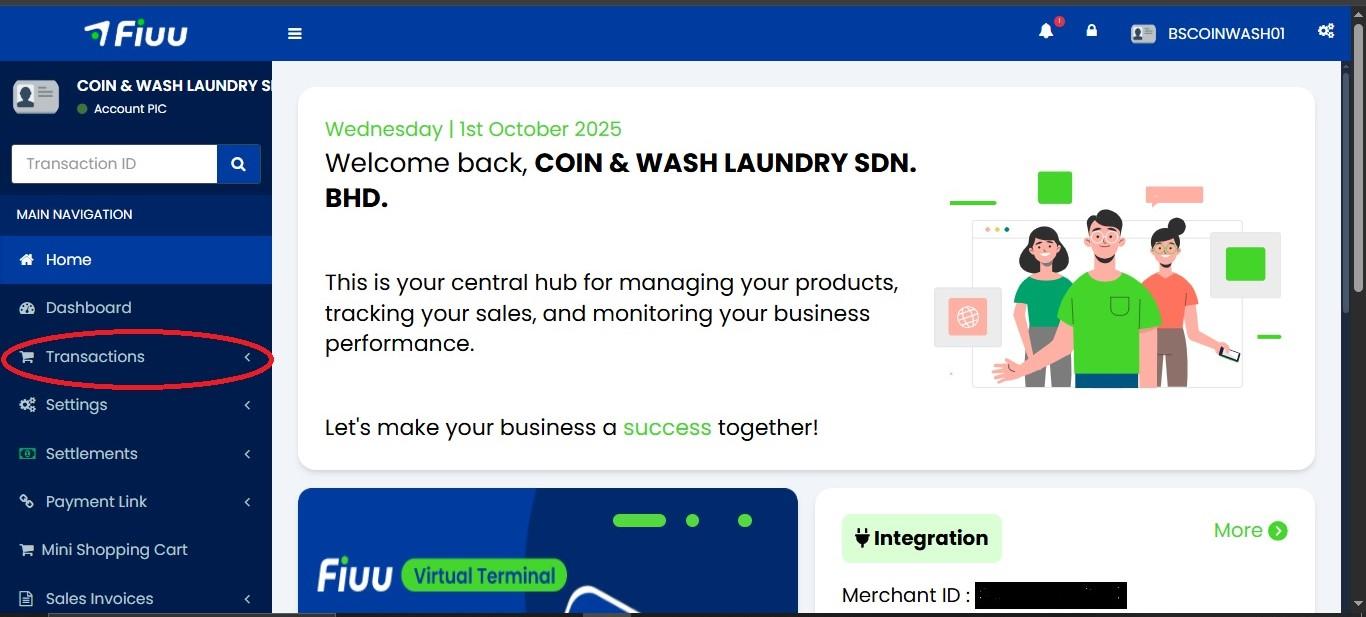
👉**Step 2:** Click on **"Transactions"**.
[](https://docs.antlysis.com/uploads/images/gallery/2025-10/scaled-1680-/fhNB5t20yfRQgNuI-fiuu-1.jpg)
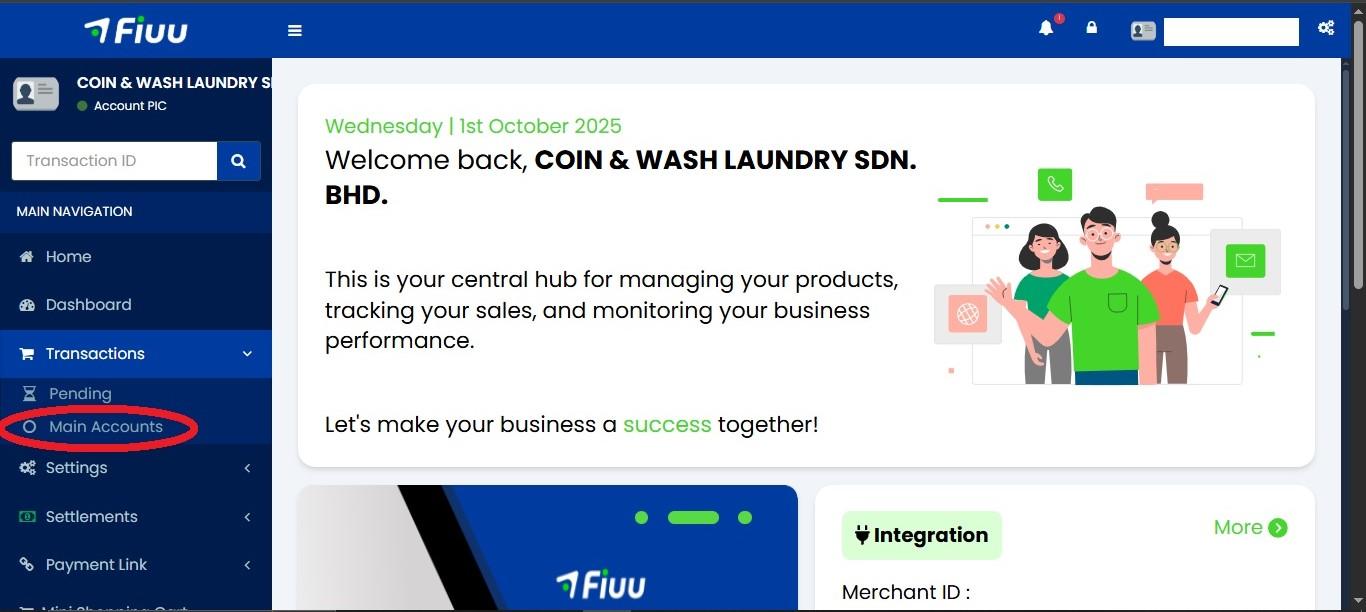
👉**Step 3:** Click on **"Main Accounts"**.
[](https://docs.antlysis.com/uploads/images/gallery/2025-10/scaled-1680-/sFlXtZAuV4osMdhn-fiuu-2.jpg)
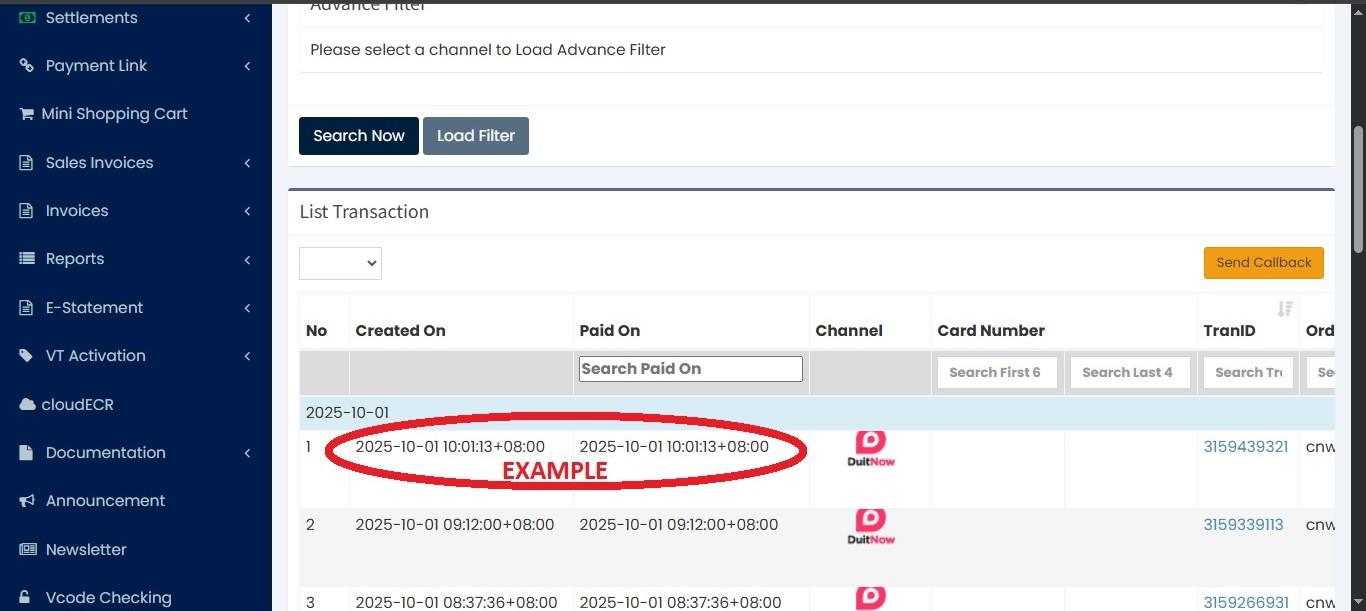
👉Step 4: Now you can view the transaction date and time.
[](https://docs.antlysis.com/uploads/images/gallery/2025-10/scaled-1680-/ucQsvyDWIL8DSaHZ-fiuu-3.jpg)
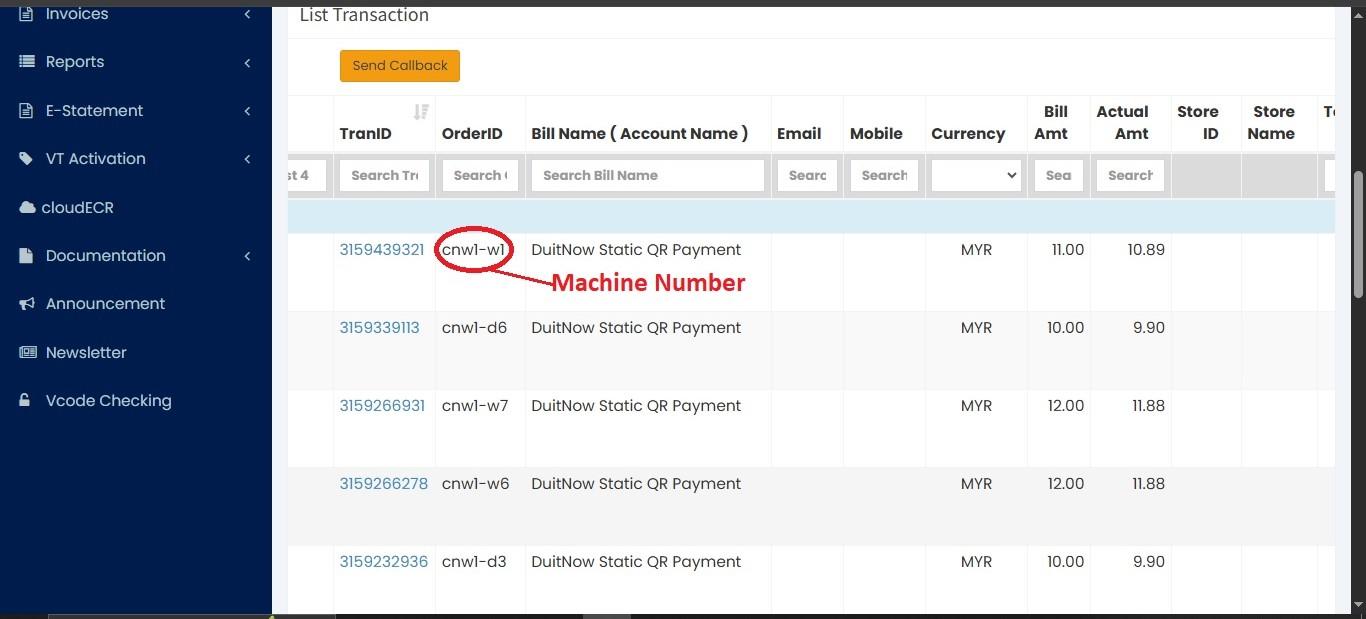
👉Step 5: Scroll to the right to view the machine details and the transaction amount.
[](https://docs.antlysis.com/uploads/images/gallery/2025-10/scaled-1680-/y9fJlvm8RWShc9BT-fiuu-4.jpg)
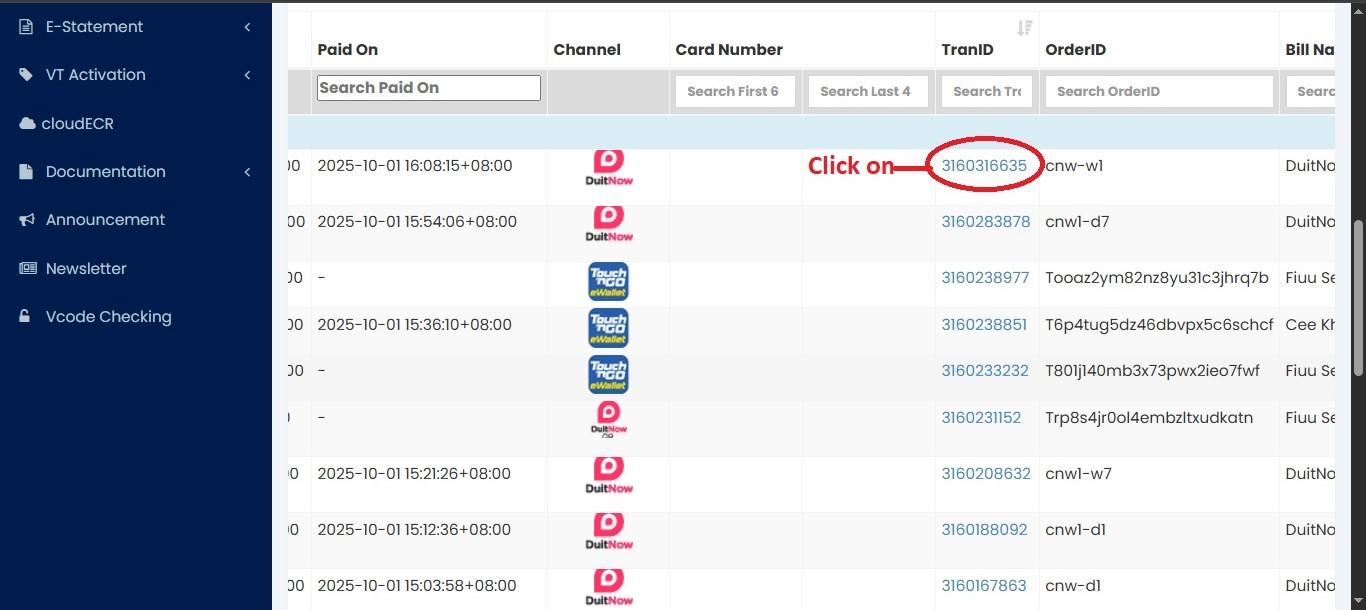
👉**Step 6:** Click on the **"Transaction ID"** to view the transaction details.
[](https://docs.antlysis.com/uploads/images/gallery/2025-10/scaled-1680-/FNK5oy53hCvUToIV-fiuu-5.jpg)
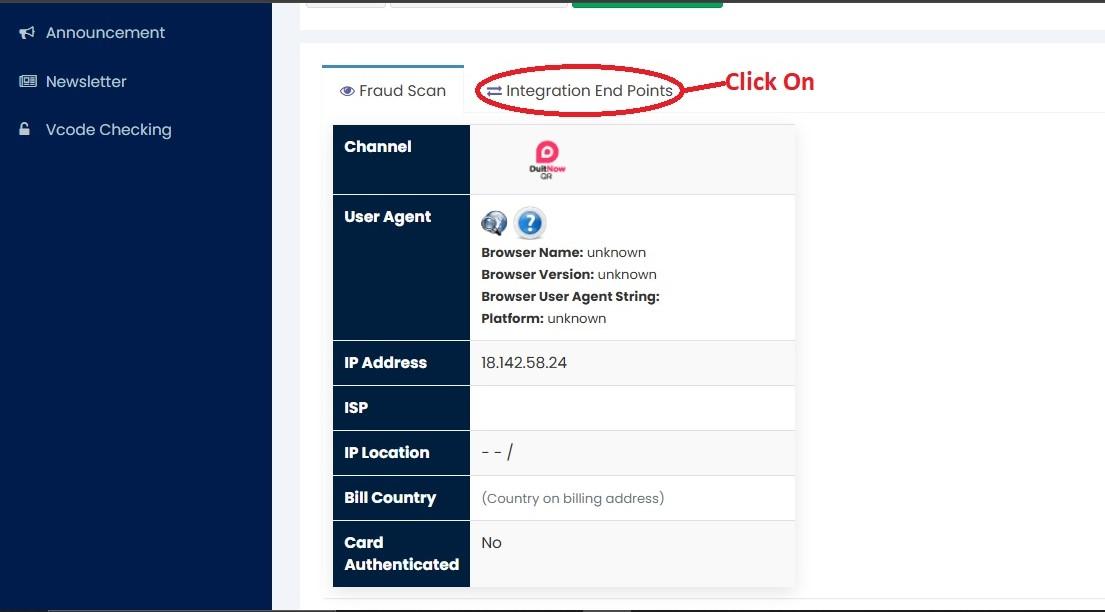
👉**Step 7:** Click on "Integration End Points".
[](https://docs.antlysis.com/uploads/images/gallery/2025-10/scaled-1680-/9MCU8yNljAfk5rIm-fiuu-6.jpg)
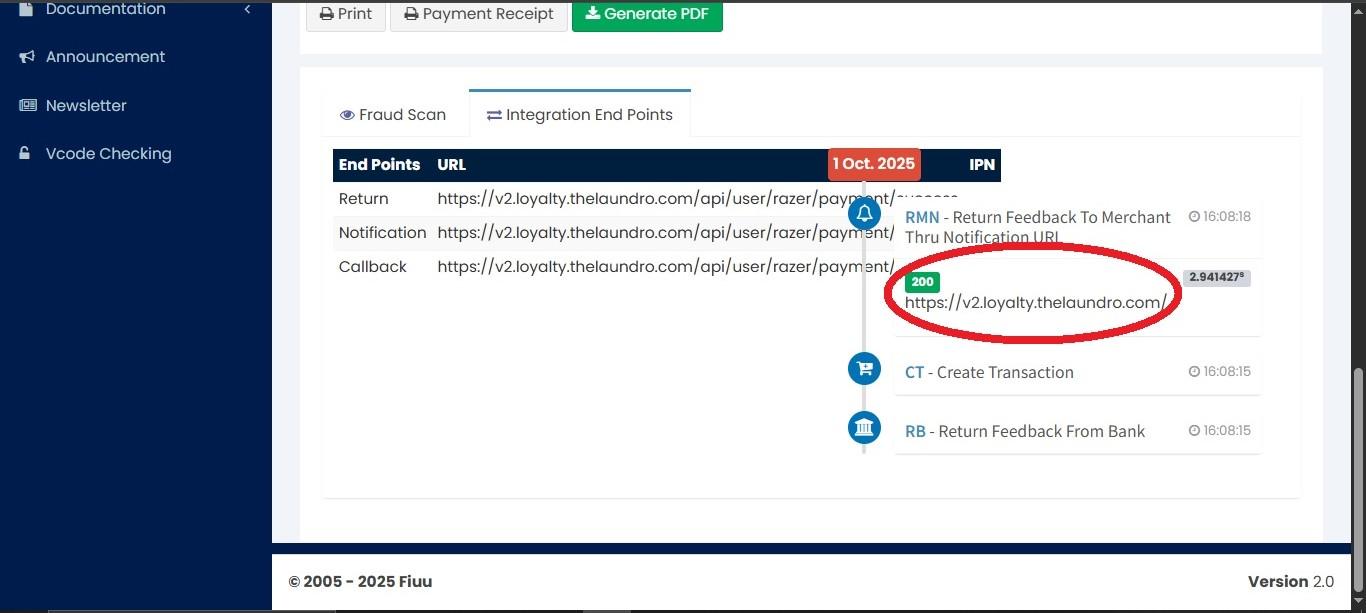
**Step 8:** You will see the transaction details. From there, look for the green icon with [**https://v2loyalty.thelaundro.com**](https://v2loyalty.thelaundro.com) — this indicates that LAUNDRO has received the transaction.
[](https://docs.antlysis.com/uploads/images/gallery/2025-10/scaled-1680-/8YhlzTj9glILbeKe-fiuu-7.jpg)
(BM)
👉 **Langkah 1:** Log masuk ke portal FIUU menggunakan ID dan kata laluan sedia ada anda.
👉 **Langkah 2:** Klik pada **"Transactions"**.
[](https://docs.antlysis.com/uploads/images/gallery/2025-10/scaled-1680-/fhNB5t20yfRQgNuI-fiuu-1.jpg)
👉 **Langkah 3:** Klik pada **"Main Accounts"**.
[](https://docs.antlysis.com/uploads/images/gallery/2025-10/scaled-1680-/sFlXtZAuV4osMdhn-fiuu-2.jpg)
👉 Sekarang anda boleh melihat tarikh dan masa transaksi.
[](https://docs.antlysis.com/uploads/images/gallery/2025-10/scaled-1680-/ucQsvyDWIL8DSaHZ-fiuu-3.jpg)
👉 Tatal ke kanan untuk melihat butiran mesin dan jumlah transaksi.
👉**Langkah 6:** Klik pada **"Transaction ID"**.
[](https://docs.antlysis.com/uploads/images/gallery/2025-10/scaled-1680-/FNK5oy53hCvUToIV-fiuu-5.jpg)
👉**Langkah 7:** Klik pada **"Integration End Points"**.
[](https://docs.antlysis.com/uploads/images/gallery/2025-10/scaled-1680-/9MCU8yNljAfk5rIm-fiuu-6.jpg)
**Langkah 8:** Anda akan melihat **butiran transaksi**. Dari situ, cari ikon berwarna **hijau** dengan pautan [**https://v2loyalty.thelaundro.com**](https://v2loyalty.thelaundro.com) — ini menunjukkan bahawa **Laundro telah menerima transaksi**.
[](https://docs.antlysis.com/uploads/images/gallery/2025-10/scaled-1680-/8YhlzTj9glILbeKe-fiuu-7.jpg)