# Change connected WiFi

**1)**<span style="white-space: pre-wrap;"> Follow the steps below to connect the device to a Wi-Fi network. Ensure that the Wi-Fi network is available and that you have the correct Wi-Fi ID/Name and password before proceeding.</span>

<p class="callout info">Device support only 2.4gh.</p>

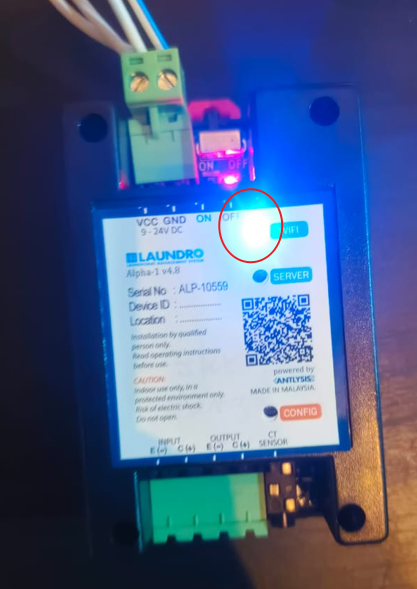
<span style="white-space: pre-wrap;">Step 1- To connect the device to a new Wi-Fi network, first ensure the device is in </span>**Configuration Mode**. The blue LED indicator should be blinking.

[![image.png](https://docs.antlysis.com/uploads/images/gallery/2026-05/scaled-1680-/NAIjdBl50p1jX2uL-image.png)](https://docs.antlysis.com/uploads/images/gallery/2026-05/NAIjdBl50p1jX2uL-image.png)
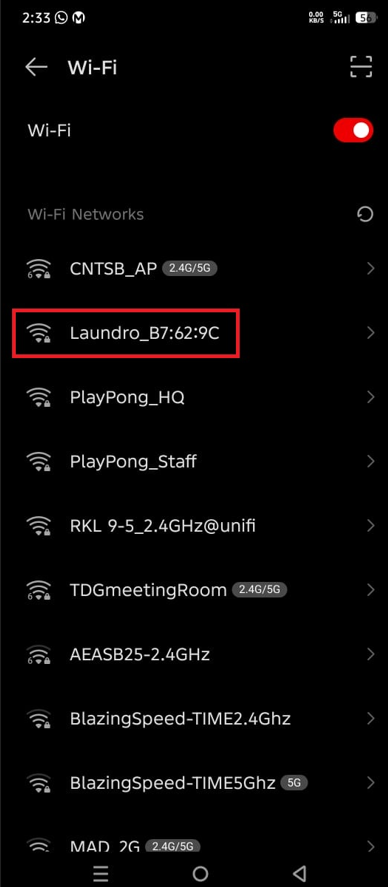
<span style="white-space: pre-wrap;">Step 2- Open the </span>**Wi-Fi Settings**<span style="white-space: pre-wrap;"> page on your mobile phone and search for available Wi-Fi name </span>**Example:**<span style="white-space: pre-wrap;">'' </span>**Laundro\_##:##:##**''.

[![image.png](https://docs.antlysis.com/uploads/images/gallery/2026-05/scaled-1680-/AfgJBq3XCDoCW8oA-image.png)](https://docs.antlysis.com/uploads/images/gallery/2026-05/AfgJBq3XCDoCW8oA-image.png)

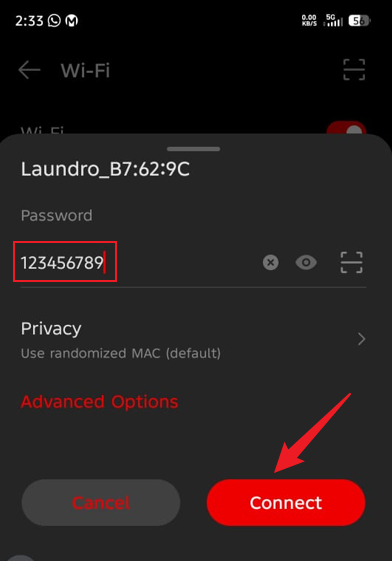
<span style="white-space: pre-wrap;"> </span>**Step 3:**<span style="white-space: pre-wrap;"> Select the </span>**Laundro**<span style="white-space: pre-wrap;"> Wi-Fi network from the list of available networks. When prompted, enter the password:</span>

<span style="white-space: pre-wrap;">Step4 - Once the correct password has been entered, tap </span>**Connect**<span style="white-space: pre-wrap;"> to proceed.</span>

**Password:**<span style="white-space: pre-wrap;"> </span>`<span class="editor-theme-code">123456789</span>`

[![image.png](https://docs.antlysis.com/uploads/images/gallery/2026-05/scaled-1680-/x8wOJVpTgNdeH90s-image.png)](https://docs.antlysis.com/uploads/images/gallery/2026-05/x8wOJVpTgNdeH90s-image.png)

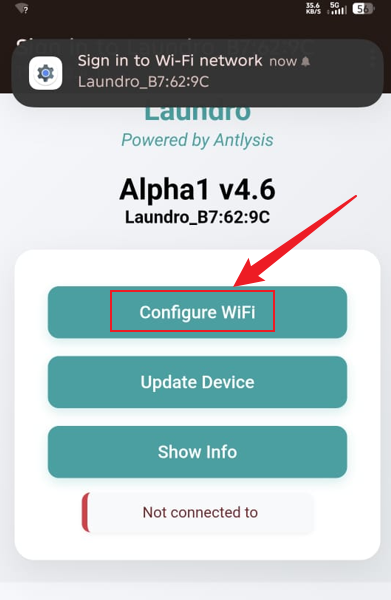
**Step 5:**<span style="white-space: pre-wrap;"> After connecting to the Wi-Fi network, you will be redirected to the </span>**Configuration Page**.

**Step 6:**<span style="white-space: pre-wrap;"> Click </span>**Configure Wi-Fi**<span style="white-space: pre-wrap;"> to open the </span>**Wi-Fi Configuration**<span style="white-space: pre-wrap;"> page.</span>

[![image.png](https://docs.antlysis.com/uploads/images/gallery/2026-05/scaled-1680-/cyAAkB0l7Ym3R3BX-image.png)](https://docs.antlysis.com/uploads/images/gallery/2026-05/cyAAkB0l7Ym3R3BX-image.png)<span style="white-space: pre-wrap;"> </span>

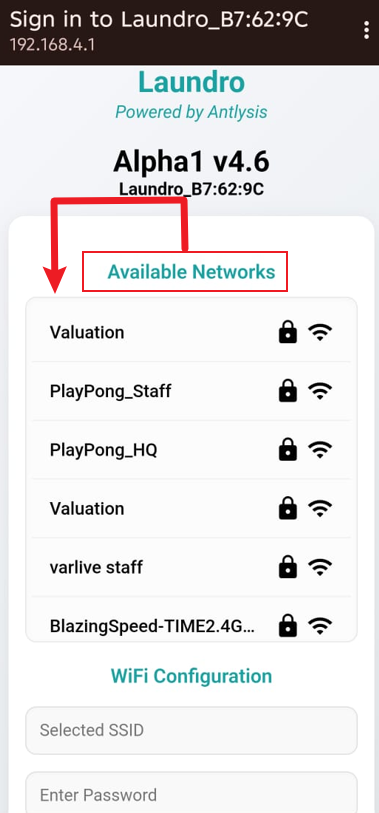
**Step 7:**<span style="white-space: pre-wrap;"> From the list of available networks, choose the Wi-Fi network you want to connect to, then scroll down the page.</span>

[![image.png](https://docs.antlysis.com/uploads/images/gallery/2026-05/scaled-1680-/x0Lrv4pe1rKD4nYR-image.png)](https://docs.antlysis.com/uploads/images/gallery/2026-05/x0Lrv4pe1rKD4nYR-image.png)

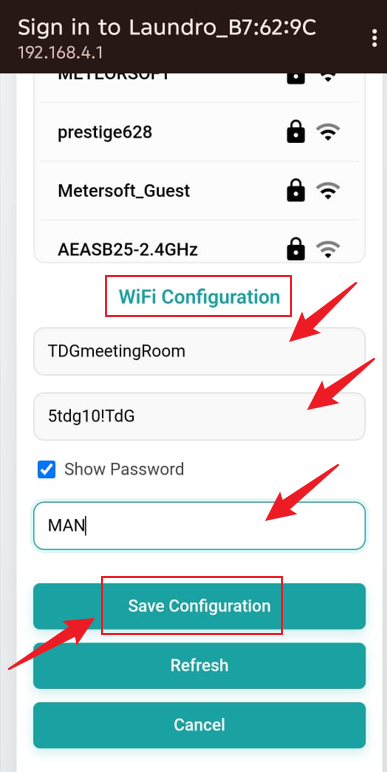
**Step 8:**<span style="white-space: pre-wrap;"> Under </span>**Wi-Fi Configuration**<span style="white-space: pre-wrap;">, confirm the selected </span>**SSID (Wi-Fi Name)**<span style="white-space: pre-wrap;">, enter the Wi-Fi password, and then enter the provided </span>**Outlet ID**<span style="white-space: pre-wrap;">. Ensure all information is correct click on </span>**Save Configuration**<span style="white-space: pre-wrap;"> .</span>

<p class="callout warning"><span style="white-space: pre-wrap;">Before selecting </span>**Save Configuration**<span style="white-space: pre-wrap;">, double-check the </span>**Wi-Fi password**<span style="white-space: pre-wrap;"> and </span>**Outlet ID**. Ensure all information is correct and that no hidden spaces have been entered.</p>

[![image.png](https://docs.antlysis.com/uploads/images/gallery/2026-05/scaled-1680-/K1dbm18Td6GNxTlV-image.png)](https://docs.antlysis.com/uploads/images/gallery/2026-05/K1dbm18Td6GNxTlV-image.png)

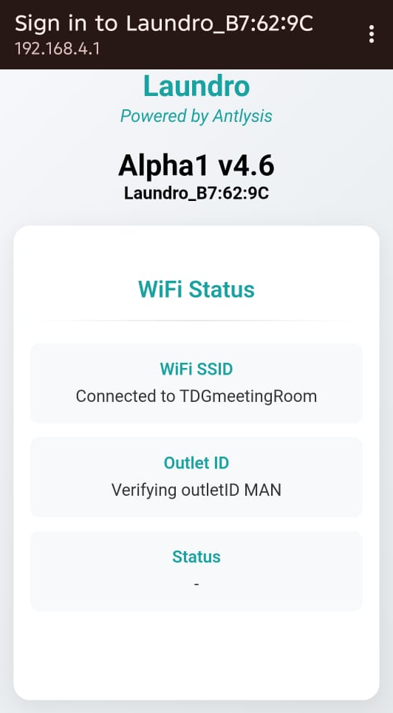
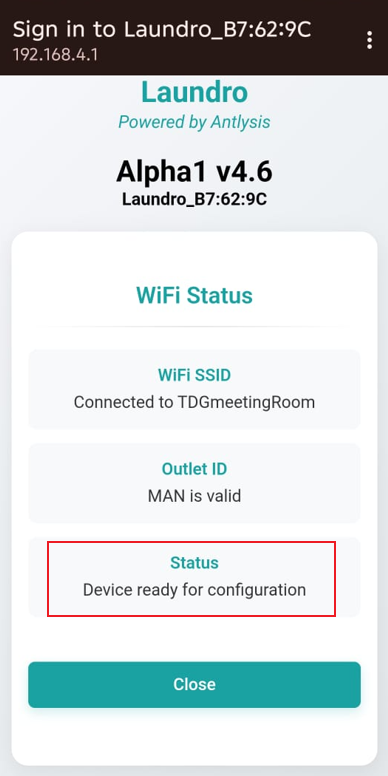
**Step 9:**<span style="white-space: pre-wrap;">The </span>**Wi-Fi Status**<span style="white-space: pre-wrap;"> page will be displayed, and the device will start configuring automatically. Please wait until the status message reads </span>**"Device Ready for Configuration"**.

[![image.png](https://docs.antlysis.com/uploads/images/gallery/2026-05/scaled-1680-/HvoCN9NBYRp8PYuS-image.png)](https://docs.antlysis.com/uploads/images/gallery/2026-05/HvoCN9NBYRp8PYuS-image.png)

[![image.png](https://docs.antlysis.com/uploads/images/gallery/2026-05/scaled-1680-/f2S9kbQWUbAOk3tA-image.png)](https://docs.antlysis.com/uploads/images/gallery/2026-05/f2S9kbQWUbAOk3tA-image.png)
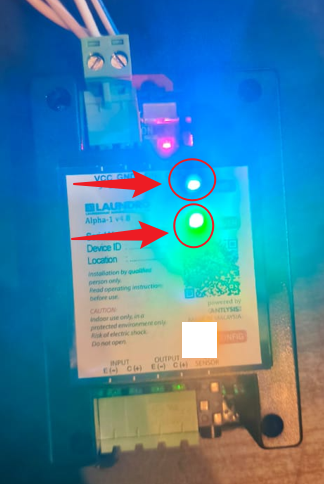
**Step10:**<span style="white-space: pre-wrap;"> Once the configuration process has been completed successfully, the </span>**Wi-Fi (Blue)**<span style="white-space: pre-wrap;"> and </span>**Internet (Green)**<span style="white-space: pre-wrap;"> indicator lights on the device will turn on.</span>

[![image.png](https://docs.antlysis.com/uploads/images/gallery/2026-05/scaled-1680-/ZSdhaXsc2GRN8bQn-image.png)](https://docs.antlysis.com/uploads/images/gallery/2026-05/ZSdhaXsc2GRN8bQn-image.png)

**2)** <span style="white-space: pre-wrap;">It is all done now. You can check the dashboard page to ensure the machine shows as </span>**Online**. For confirmation, you can also try testing a remote activation on the machine.