Change connected WiFi
1) Follow the steps below to connect the device to a Wi-Fi network. Ensure that the Wi-Fi network is available and that you have the correct Wi-Fi ID/Name and password before proceeding.
Device support only 2.4gh.
Step 1- To connect the device to a new Wi-Fi network, first ensure the device is in Configuration Mode. The blue LED indicator should be blinking.
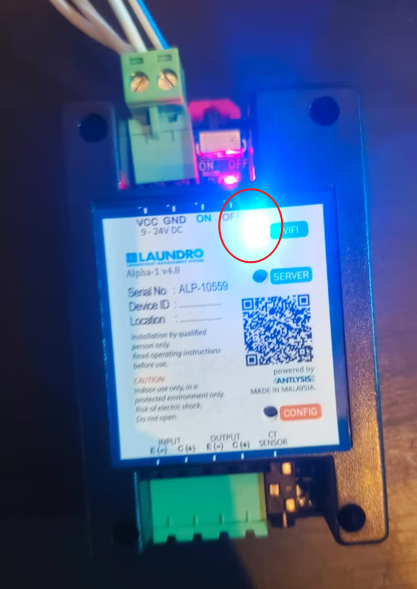
Step 2- Open the Wi-Fi Settings page on your mobile phone and search for available Wi-Fi name Example:'' Laundro_##:##:##''.
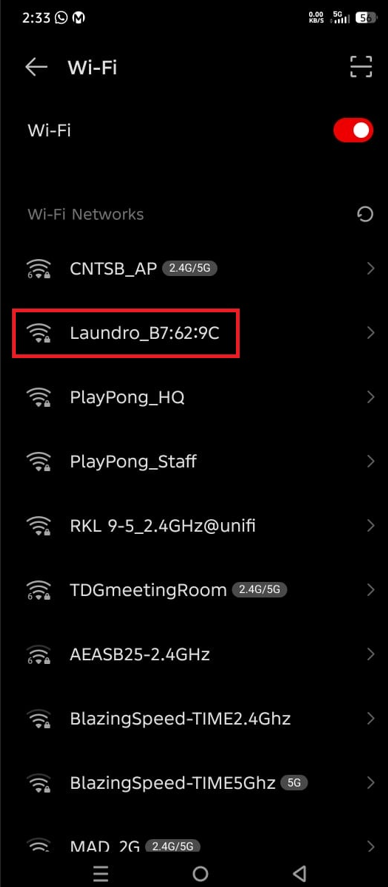
Step 3: Select the Laundro Wi-Fi network from the list of available networks. When prompted, enter the password:
Step4 - Once the correct password has been entered, tap Connect to proceed.
Password: 123456789
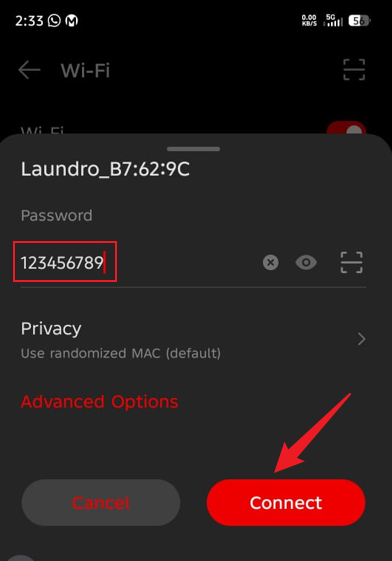
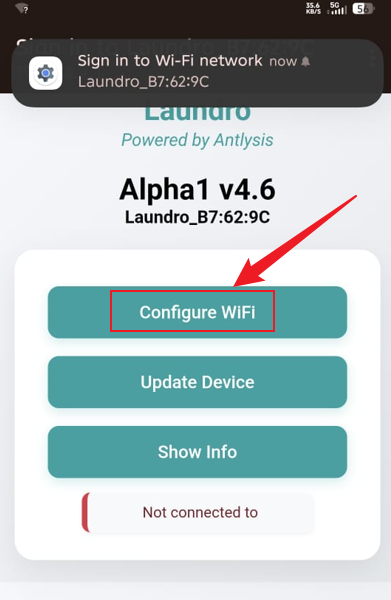
Step 5: After connecting to the Wi-Fi network, you will be redirected to the Configuration Page.
Step 6: Click Configure Wi-Fi to open the Wi-Fi Configuration page.
Step 7: From the list of available networks, choose the Wi-Fi network you want to connect to, then scroll down the page.
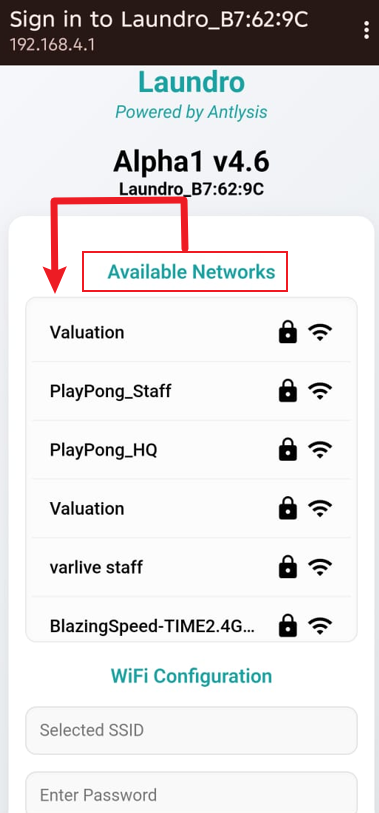
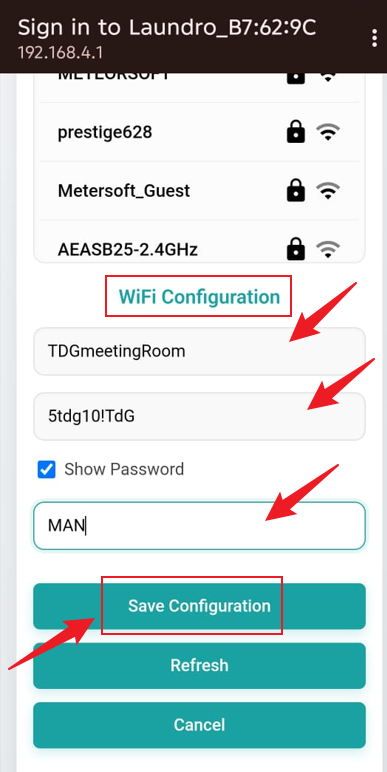
Step 8: Under Wi-Fi Configuration, confirm the selected SSID (Wi-Fi Name), enter the Wi-Fi password, and then enter the provided Outlet ID. Ensure all information is correct click on Save Configuration .
Before selecting Save Configuration, double-check the Wi-Fi password and Outlet ID. Ensure all information is correct and that no hidden spaces have been entered.
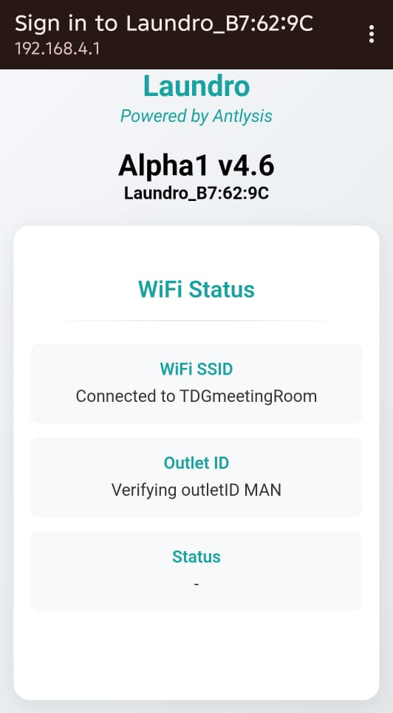
Step 9:The Wi-Fi Status page will be displayed, and the device will start configuring automatically. Please wait until the status message reads "Device Ready for Configuration".
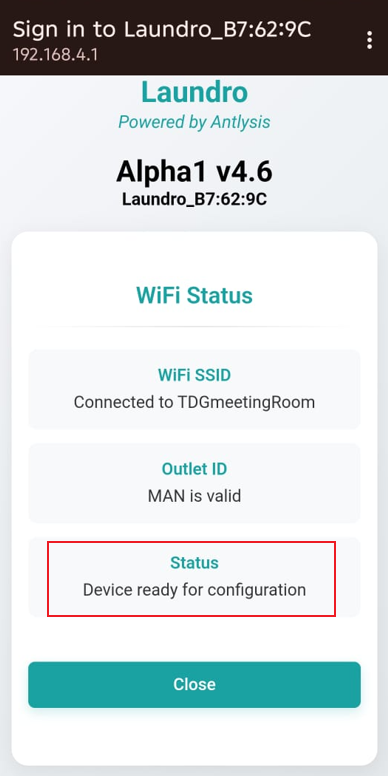
Step10: Once the configuration process has been completed successfully, the Wi-Fi (Blue) and Internet (Green) indicator lights on the device will turn on.
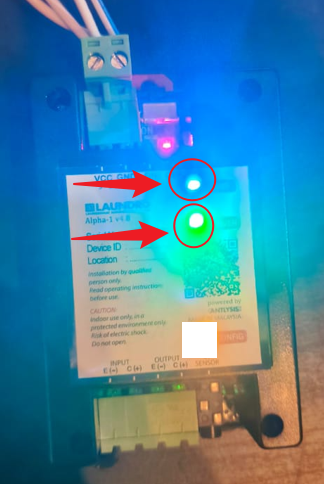
2) It is all done now. You can check the dashboard page to ensure the machine shows as Online. For confirmation, you can also try testing a remote activation on the machine.