Bill Collection v2
🎯 Purpose
The Bill Collection v2 report allows you to view and manage bill collection records by Operator, Outlet, Date Range, and View Type.
You can also select multiple outlets, customize the displayed columns, and view the related F1 Form and Collection Slip.
📍 How to Access
Step 1 — Open Laundro Portal
Log in to the Laundro Portal using your Username and Password.
Step 2 — Open Report
Report
Step 3 — Select Bill Collection v2
Under the Report menu, select:
Bill Collection v2
You will be directed to the Bill Collection v2 page.
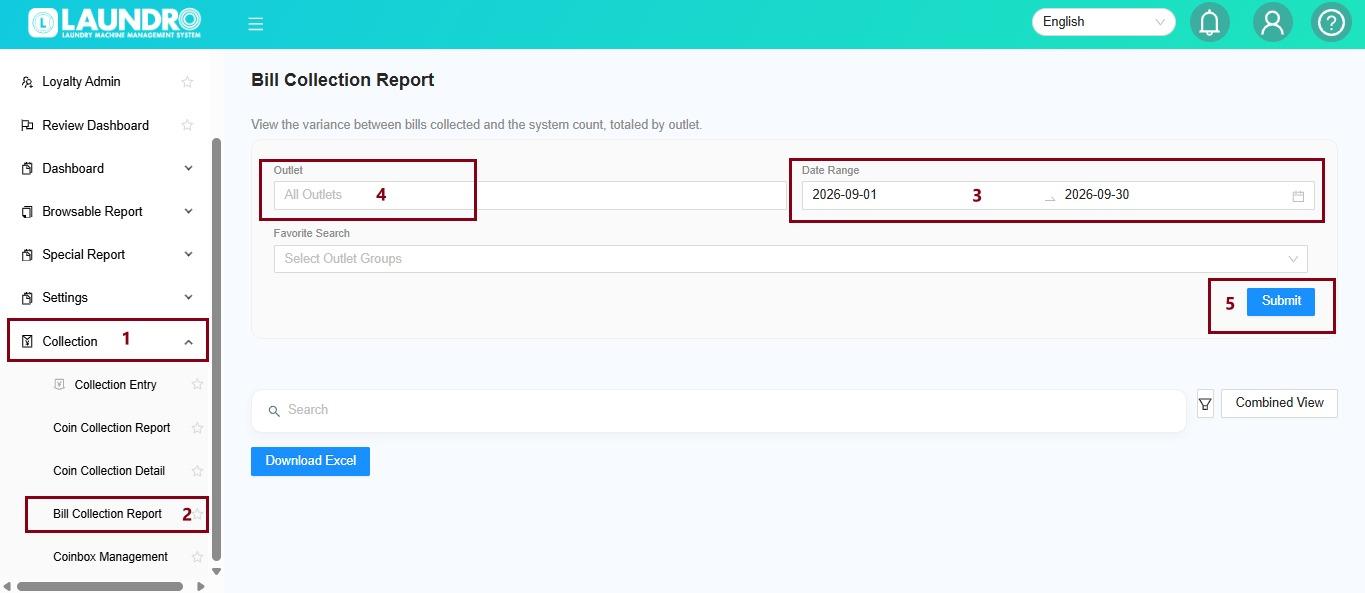
1️⃣ Select Your Filters
Before generating the report, select the information you want to view.
👤 Operator
Select the required Operator.
If you want to include all operators, leave the filter unchanged.
🏪 Outlet
Select the required Outlet.
You can select multiple outlets if you want to view several outlets in the same report.
📅 Date Range
Select the date range for the collection records you want to view.
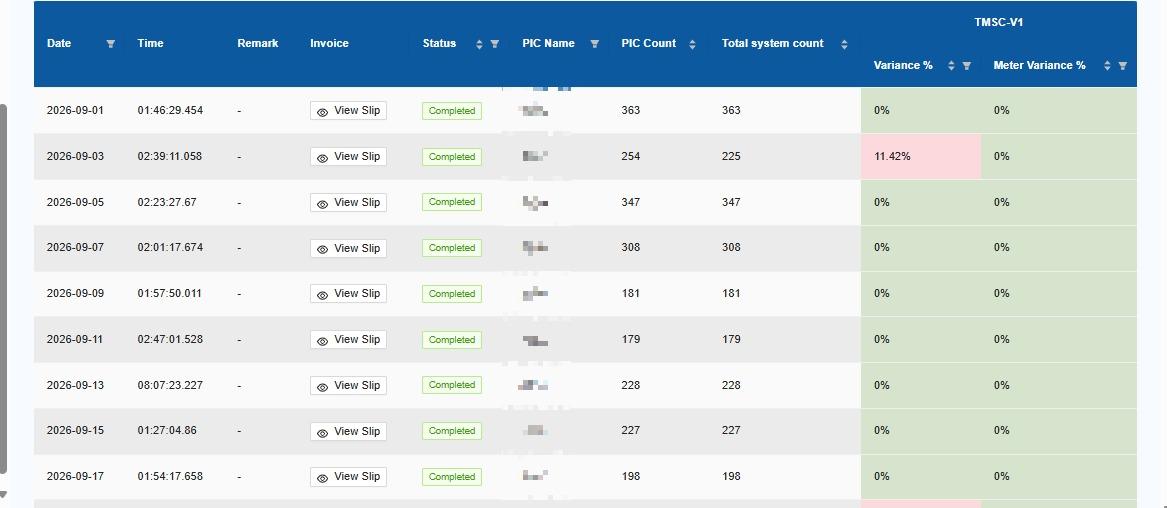
2️⃣ Choose the View Type
Select how you want the report to be displayed.
Combined View
Displays data from all selected outlets together in one report.
Split by Outlet
Displays the data separately for each outlet.
💡 Which one should I choose?
Want to see everything together?
→ Select Combined View
Want to check each outlet separately?
→ Select Split by Outlet
3️⃣ Generate the Report
After selecting all the required filters:
Click → Submit
The system will generate the Bill Collection report based on your selections.
4️⃣ Use the Report
Once the report is generated, you can use the available actions to view additional information.
🔎 View Remark
Click View Remark to view the corresponding F1 Form.
🧾 View Slip
Click View Slip to open the corresponding Collection Slip.
The slip preview will open when you click the button.
5️⃣ Customize the Report
⭐ Add Favourite
You can mark the report as a Favourite for easier access.
☷ Column Filter
Use the Column Filter to select which columns you want to display.
This allows you to focus only on the information you need.
📊 Available Information
The report includes additional information such as:
- Outlet Name
- PIC Name
- PIC Count
- Total Count
🧾 Collection Slip
In Bill Collection v2, the Collection Slip is generated per collection instead of per machine.
The slip preview is not displayed directly in the report.
To view it:
Click → View Slip → View Collection Slip
💡 Example
Scenario
You want to check the bill collection records for two outlets for September 2026.
Select:
| Filter | Selection |
|---|---|
Operator | All Operators |
Outlet | Outlet A + Outlet B |
Date Range | 1–30 September 2026 |
View Type | Combined View |
Then:
Click Submit → View Report
The system will display the collection records from both outlets in one report.
💡 Quick Tips
Need several outlets?
→ Select multiple outlets.
Want all outlets together?
→ Choose Combined View.
Want to compare outlets separately?
→ Choose Split by Outlet.
Need specific columns only?
→ Use Column Filter.
Need the collection document?
→ Click View Slip.