# Add Outlet In Operator
## Create New Outlet In Operator
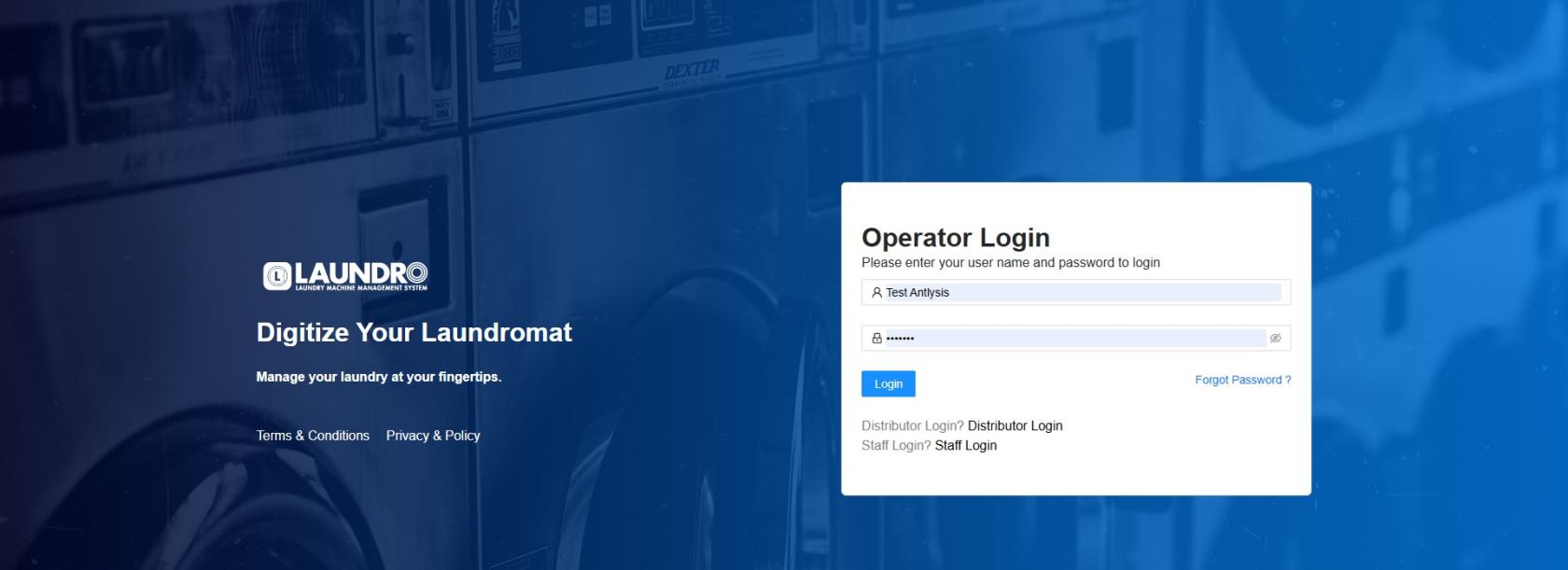
Laundro login link: [https://v2.thelaundro.com/operator\_login](https://v2.thelaundro.com/operator_login)
**1)** Please log in to this page using the provided ID and password.
[](https://docs.antlysis.com/uploads/images/gallery/2026-09/scaled-1680-/wzgMoM6sBrDgeWko-op-1.jpg)
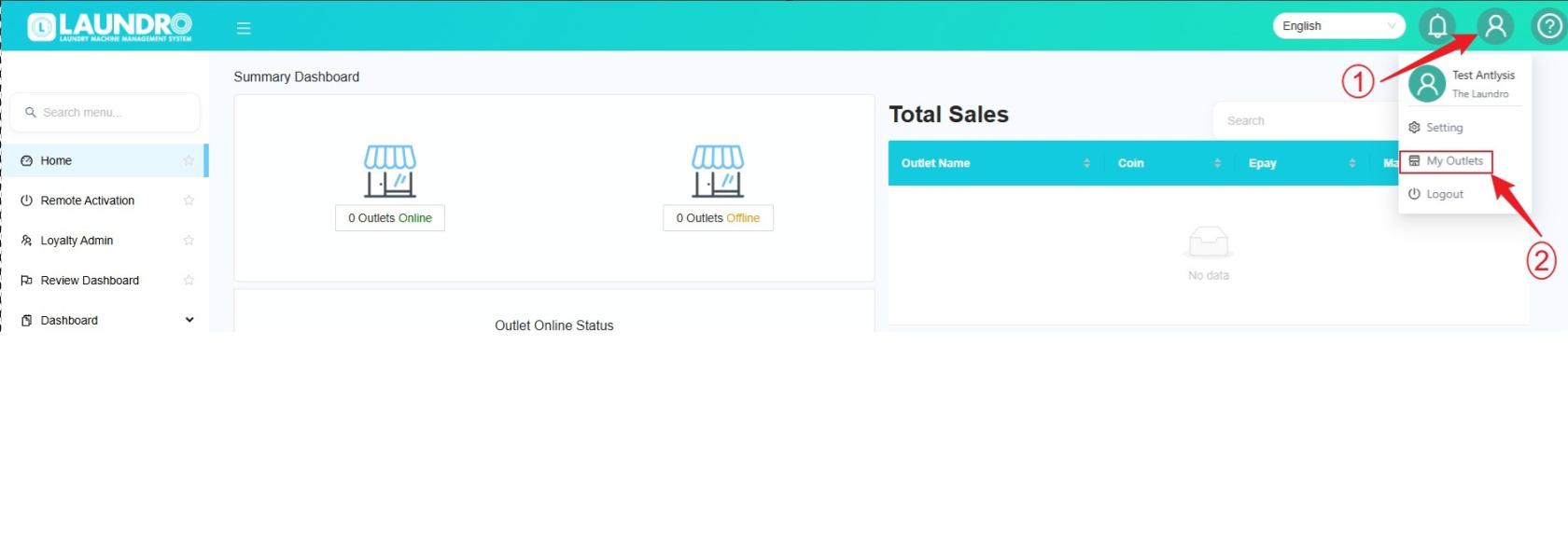
**2)** Please click on the **Account** icon and select **“My Outlet.”**
[](https://docs.antlysis.com/uploads/images/gallery/2026-09/scaled-1680-/XwQV3QjqXZLR4Q3r-op-2.JPG)
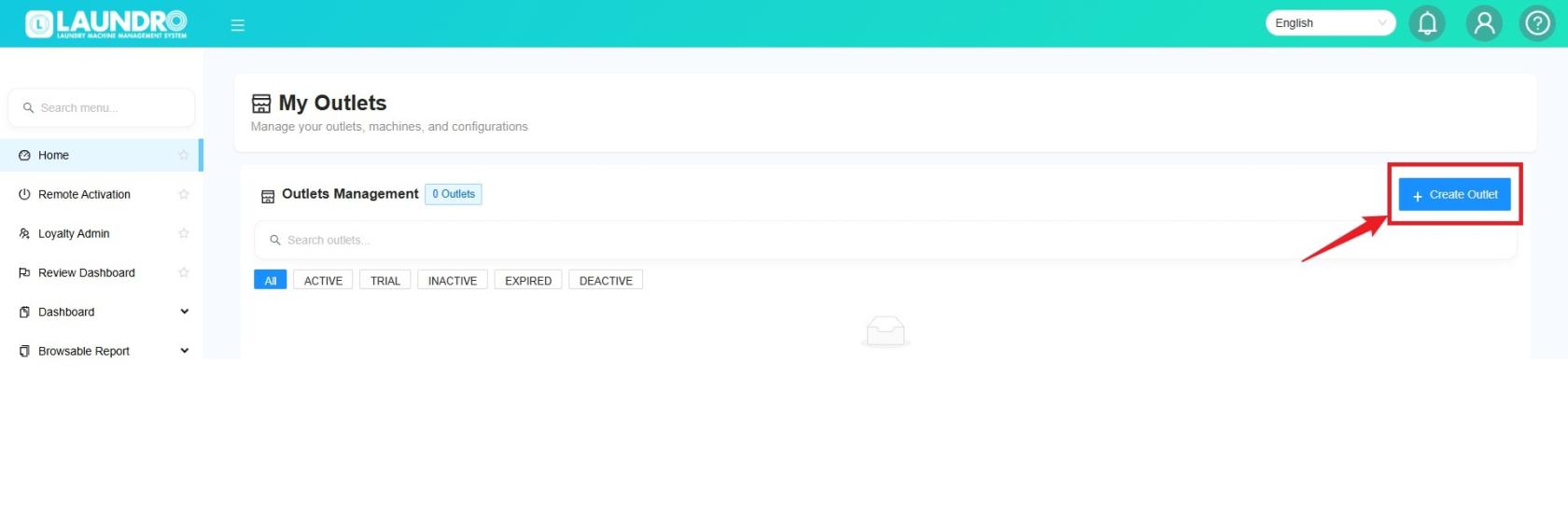
**3)** Please click on **“Create Outlet.”**
[](https://docs.antlysis.com/uploads/images/gallery/2026-09/scaled-1680-/tMtWA67Agmju5jsE-op-3.JPG)
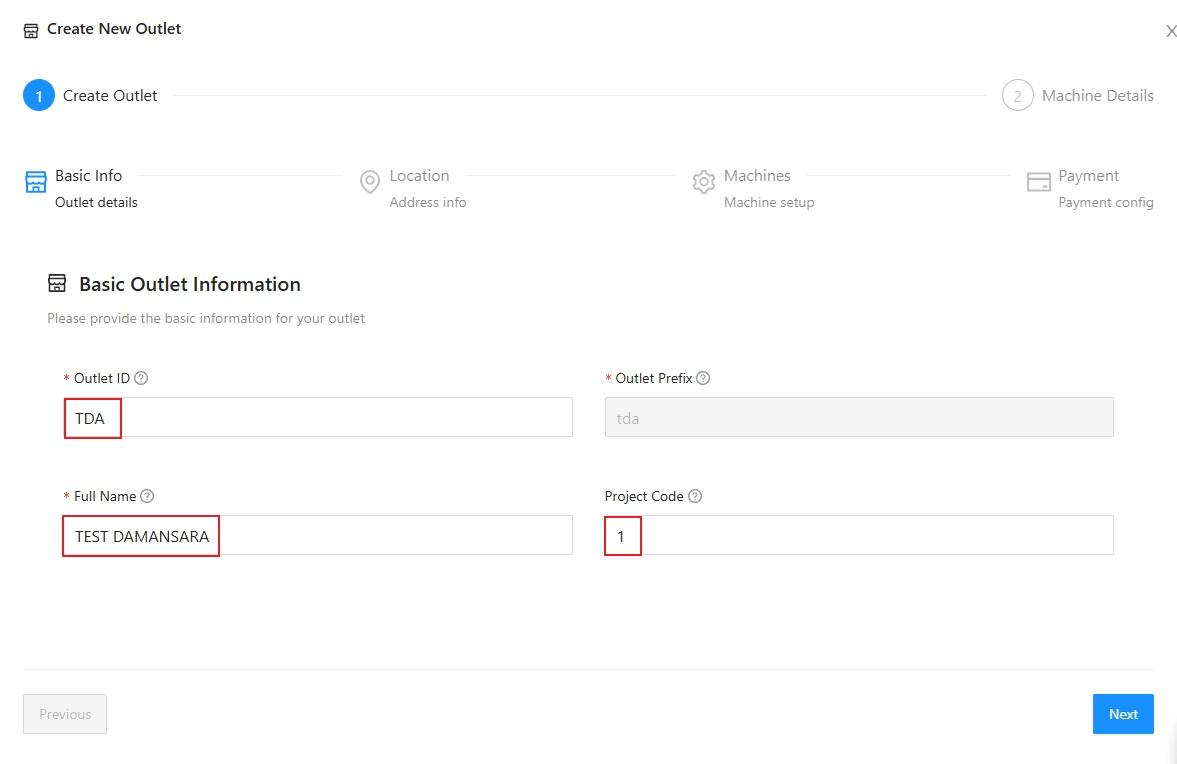
**4)** The **“Create New Outlet”** page will appear. Please proceed by filling in the required details.
**Full Name:** Enter the name you would like to use for the outlet.
**Outlet ID:** Enter a short ID for the outlet, as shown in the example picture below.
**Project Code:** Enter **1** for the first outlet, **2** for the second outlet, and continue numbering sequentially for each additional outlet.
Click ''**Next''**
[](https://docs.antlysis.com/uploads/images/gallery/2026-09/scaled-1680-/X8gkwctylPqN0qPF-op-4.jpg)
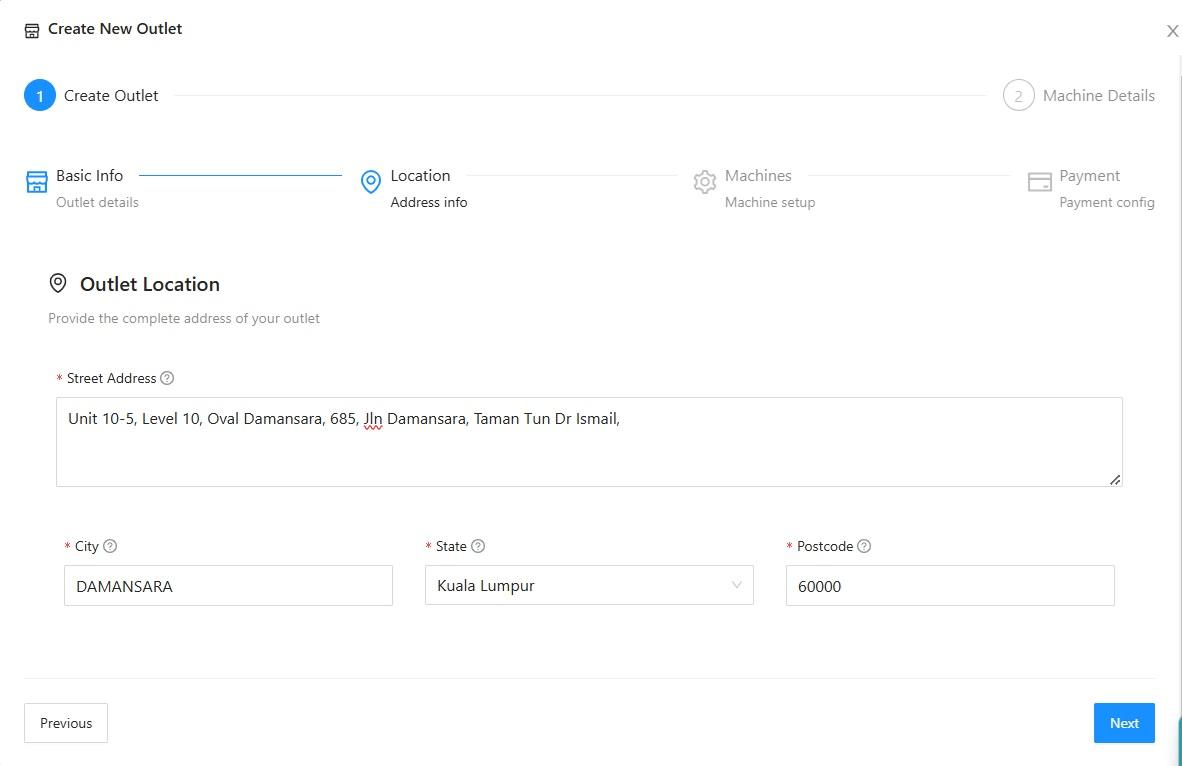
**5)** Enter the outlet location as shown in the picture below.
Click ''**Next''**
[](https://docs.antlysis.com/uploads/images/gallery/2026-09/scaled-1680-/VKoPSTFrWOB1IihY-op-5.jpg)
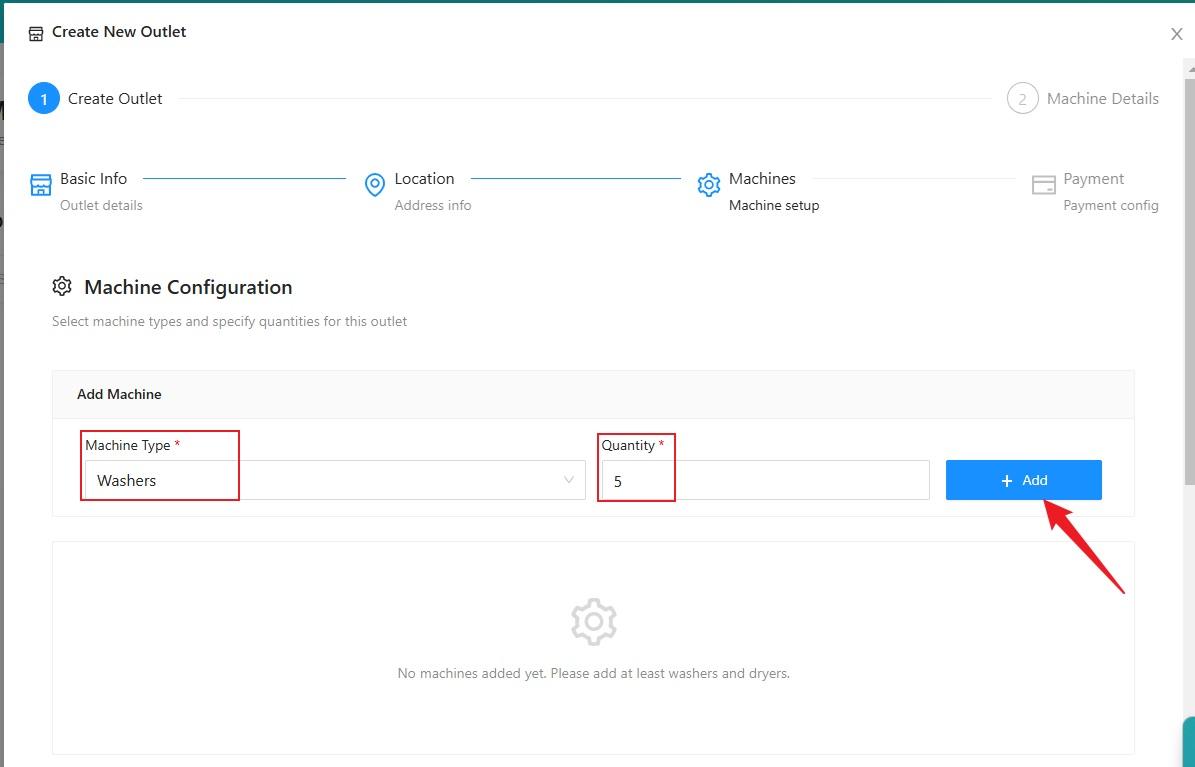
**6)** For machine configuration, select the machine type, enter the quantity of machines, then click **“ADD.”**
If you have other types of machines at the same outlet that you would like to add, repeat the same process.
[](https://docs.antlysis.com/uploads/images/gallery/2026-09/scaled-1680-/bjRC4bNViNrfwn3V-op-6.jpg)
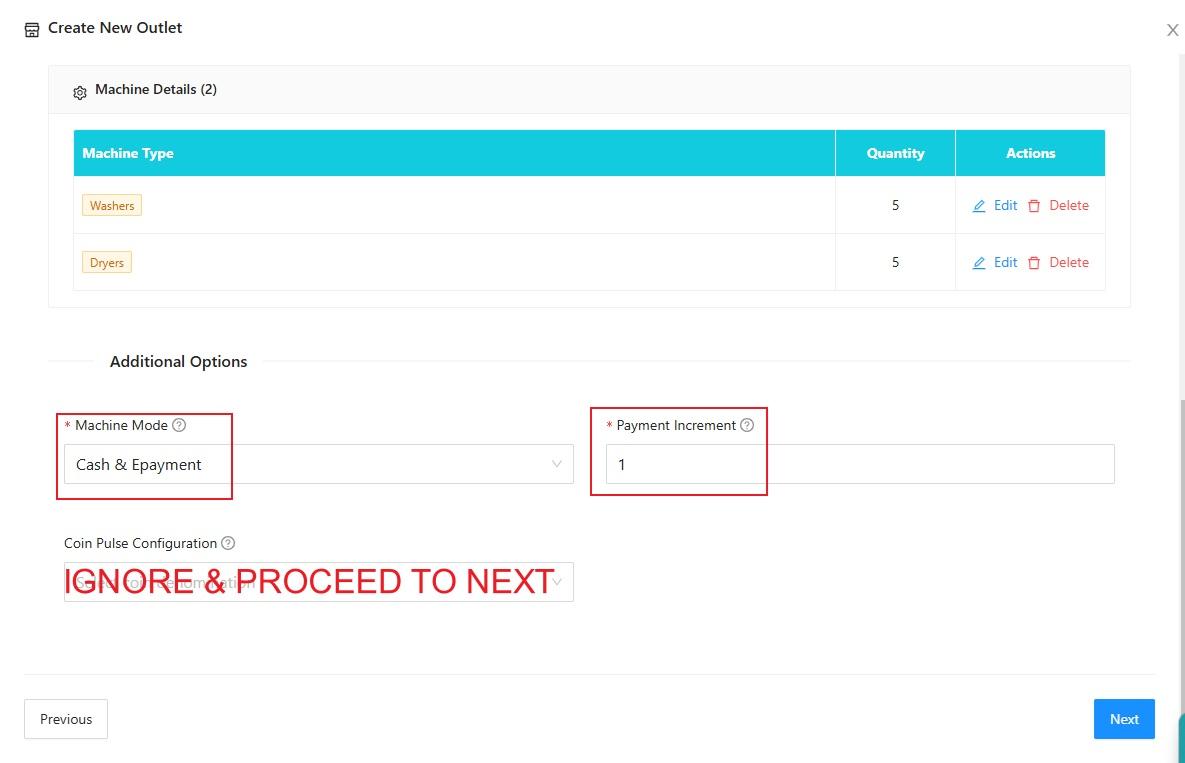
**7)** Scroll down to view the details you have selected. If you entered the wrong quantity, you can adjust it under **“Action.”**
Under **Additional Options**, select **“Cash & E-Payment”** for Machine Mode and enter **1** for Payment Increment.
Click ''**Next''**
[](https://docs.antlysis.com/uploads/images/gallery/2026-09/scaled-1680-/QByTOq4njRCHDR7V-op-7.jpg)
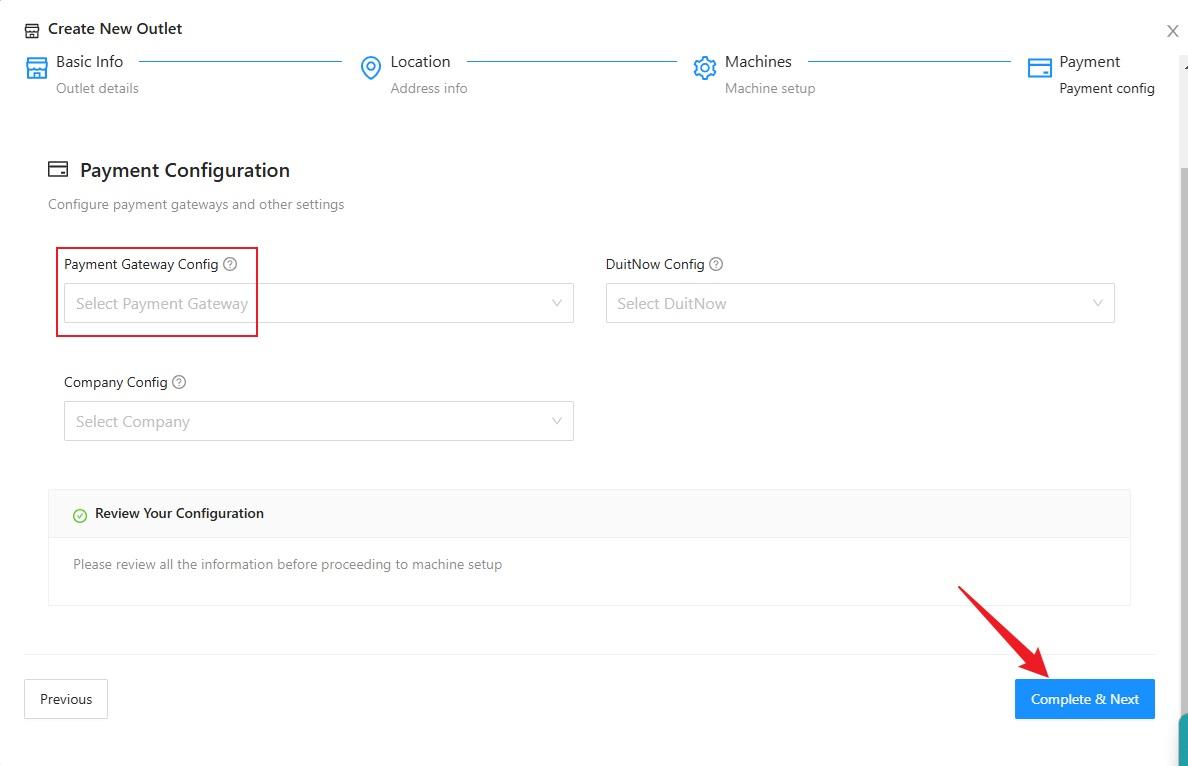
**8)** If a payment gateway is already available, you can select it. If the payment gateway is not ready or you are not using the current payment gateway, leave it blank for now and proceed to the next step.
For **Payment gateway** details kindly contact our person in charge.
Click **''Complete & Next''**
[](https://docs.antlysis.com/uploads/images/gallery/2026-09/scaled-1680-/n6pJvkTRr9soAeVN-op-8.jpg)
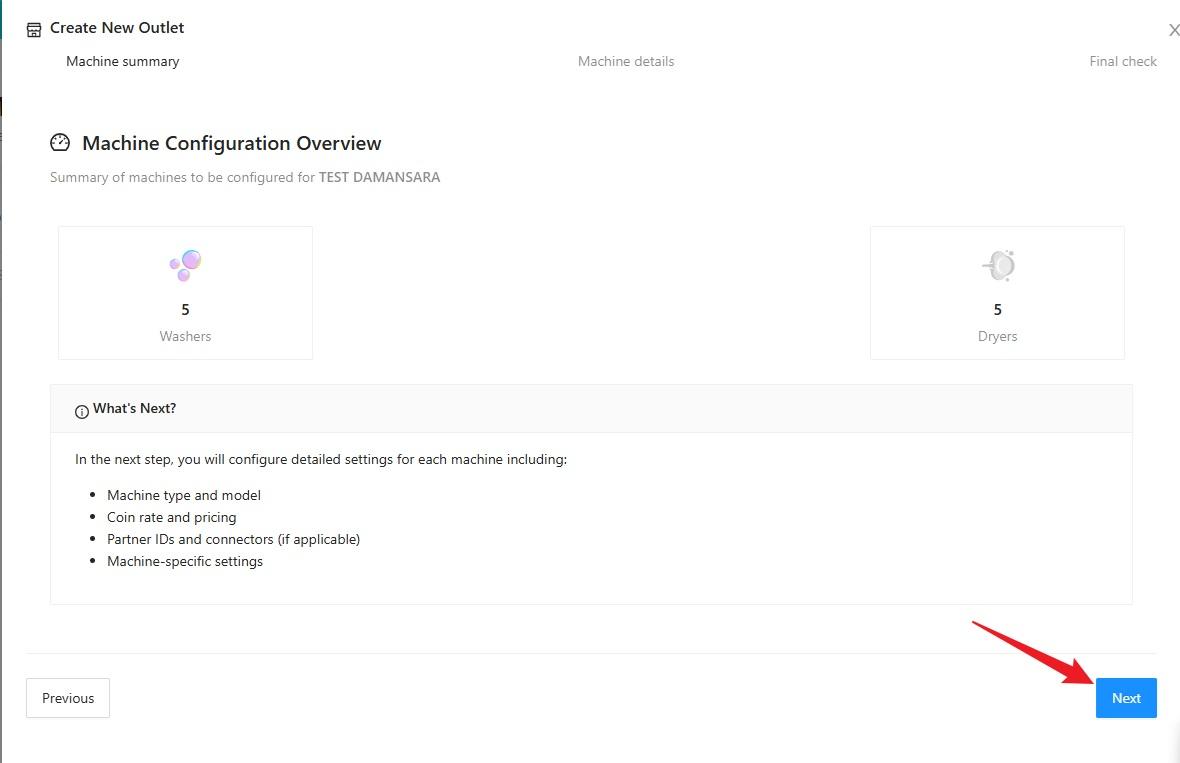
**9)** If the machine numbers are correct, proceed to the next step.
Click ''**Next''**
[](https://docs.antlysis.com/uploads/images/gallery/2026-09/scaled-1680-/v9OPsiuLAxDvKEGr-op-9.jpg)
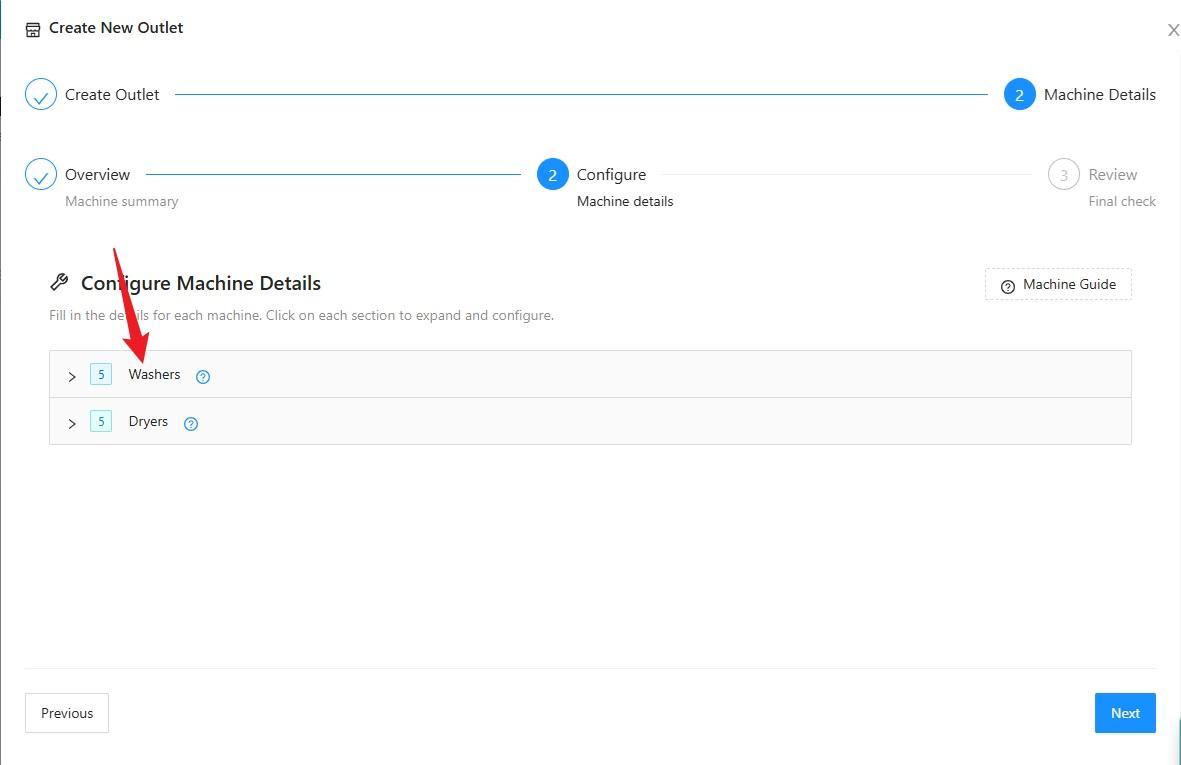
**10)** Click on the machine you selected.
[](https://docs.antlysis.com/uploads/images/gallery/2026-09/scaled-1680-/j3KjbaKTXF4VjhAn-op-10.jpg)
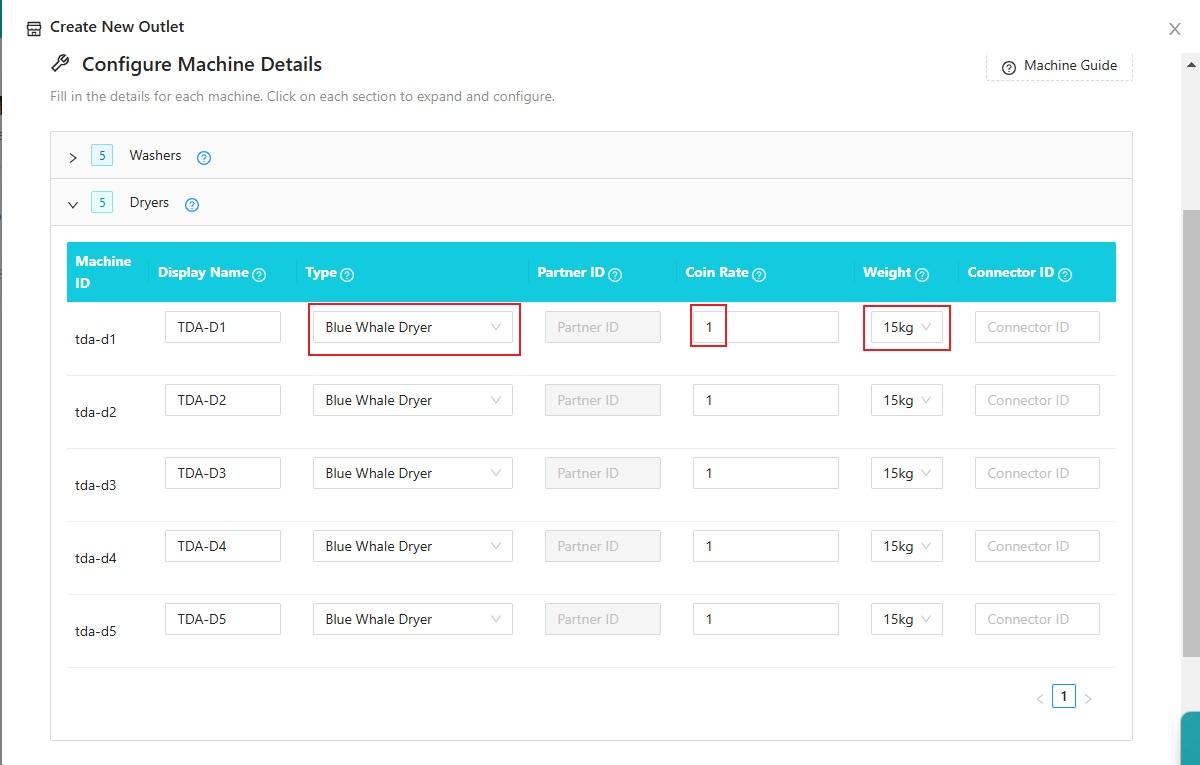
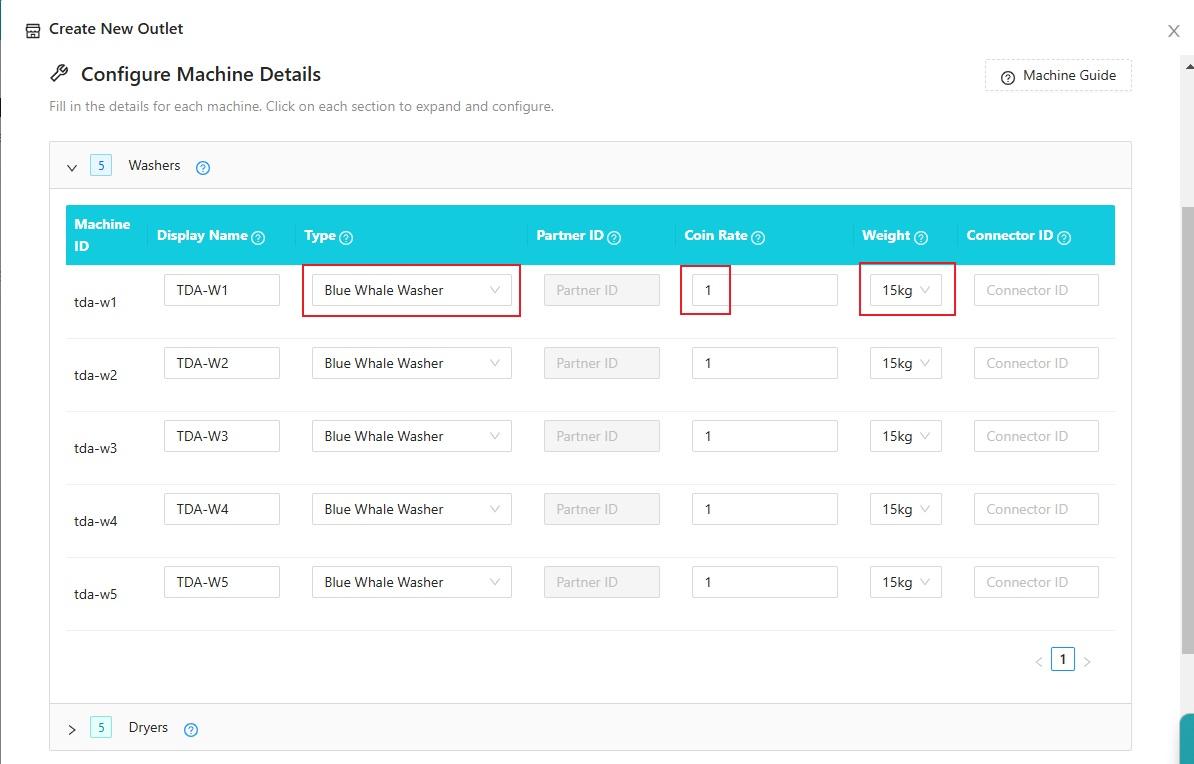
**11)** For **Machine Details**, select the machine brand and machine weight. For the **Coin Rate**, enter **1**.
Click ''**Next''**
[](https://docs.antlysis.com/uploads/images/gallery/2026-09/scaled-1680-/fusvqszwqoqelYzQ-op-11w.jpg)**12)** Before clicking **“Complete,”** check the machine details and outlet name to make sure all the information is correct. Then click **“Complete.”**
[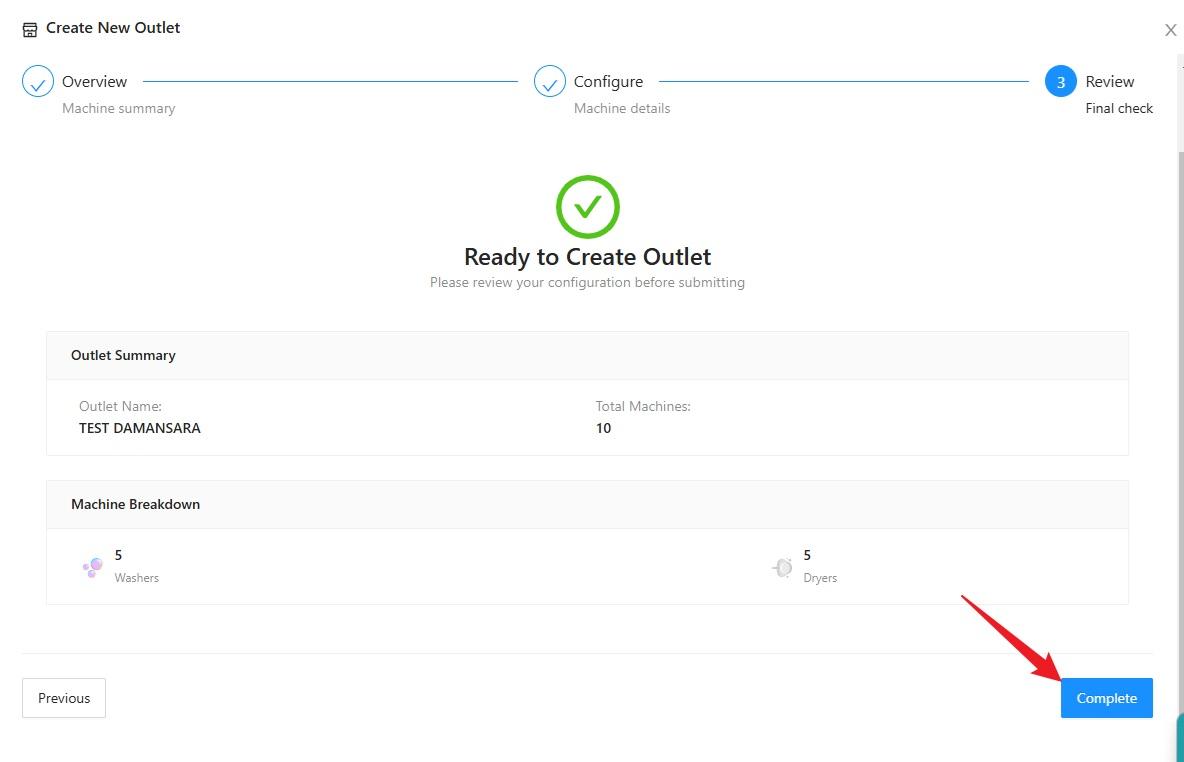](https://docs.antlysis.com/uploads/images/gallery/2026-09/scaled-1680-/syhJmXWg3bO7lble-op-12.jpg)
**13)** The new outlet account has been created successfully. Click **“OK”** to complete the process.
[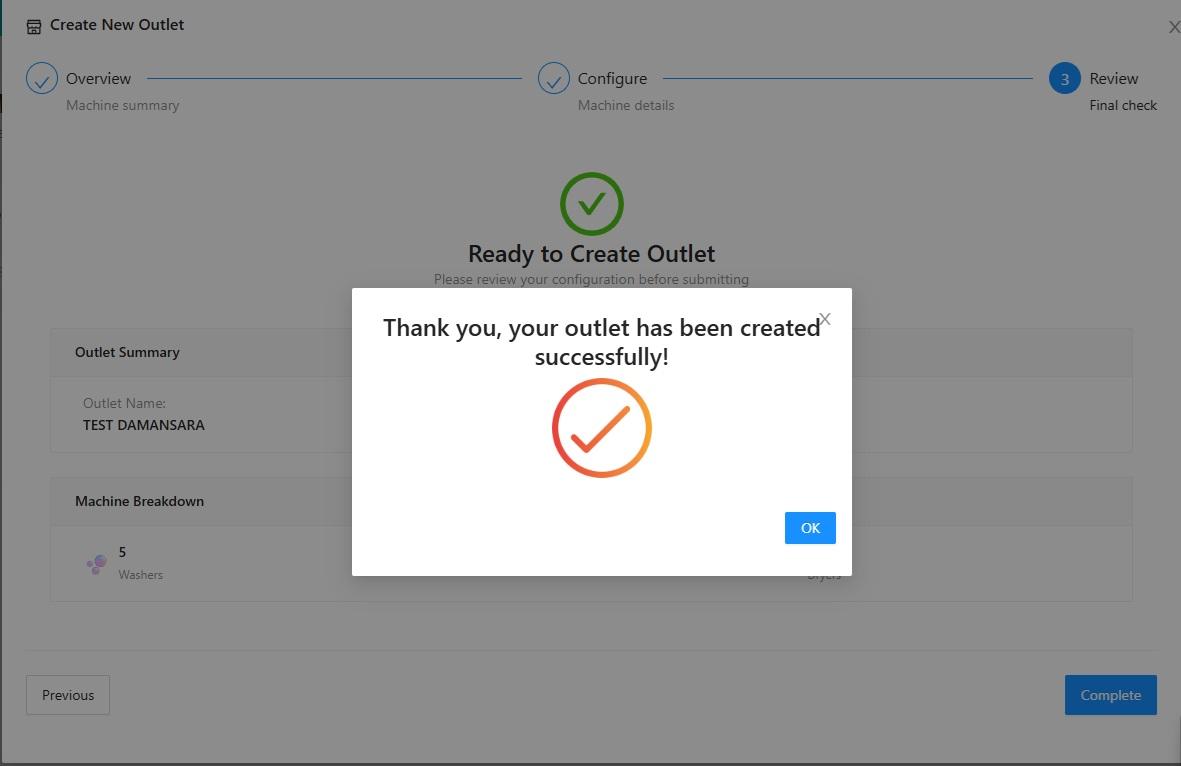](https://docs.antlysis.com/uploads/images/gallery/2026-09/scaled-1680-/KV6Py8UqbalQohQN-op-13.jpg)
**14)** You will now see the newly created outlet on the **“My Outlet”** page.
[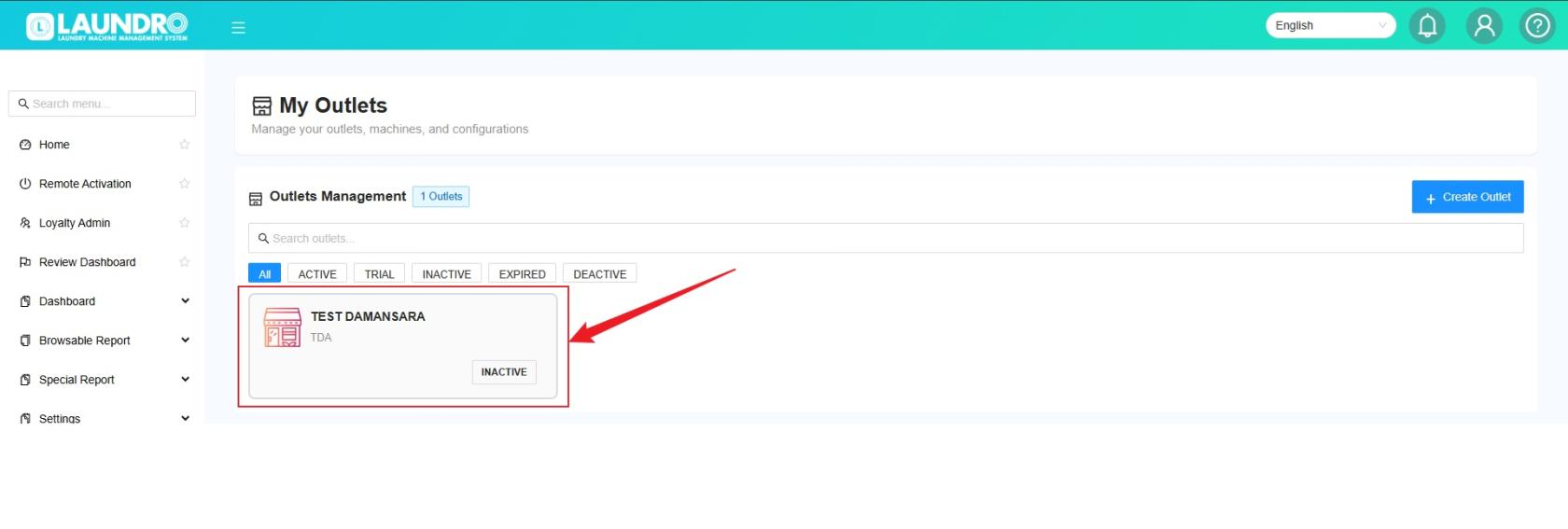](https://docs.antlysis.com/uploads/images/gallery/2026-09/scaled-1680-/CkrZ0yupV0nlmbB5-op-14.jpg)
**⚠️ Attention:** Please make sure all outlet and machine details are correct before completing the setup.
If you encounter any issues or have any questions, please don’t hesitate to contact us.