# ➕ Add Machines to an Existing Operator
### 🎯 Purpose
Use this guide to add new machines to an existing outlet without creating a new operator account.
## 🧭 Quick Navigation
1. 🔐 Log in to Laundro Portal
2. 📍 Go to My Outlet
3. 🏪 Select The Outlet
4. ⚙️ Open Machines
5. ➕ Add Washer or Dryer
6. 📝 Enter Details & Save
# 📍 How to Access
### 🔐 Step 1 — Login to Laundro Portal
Log in using your **Username** and **Password**. [https://v2.thelaundro.com/operator\_login](https://v2.thelaundro.com/operator_login)
---
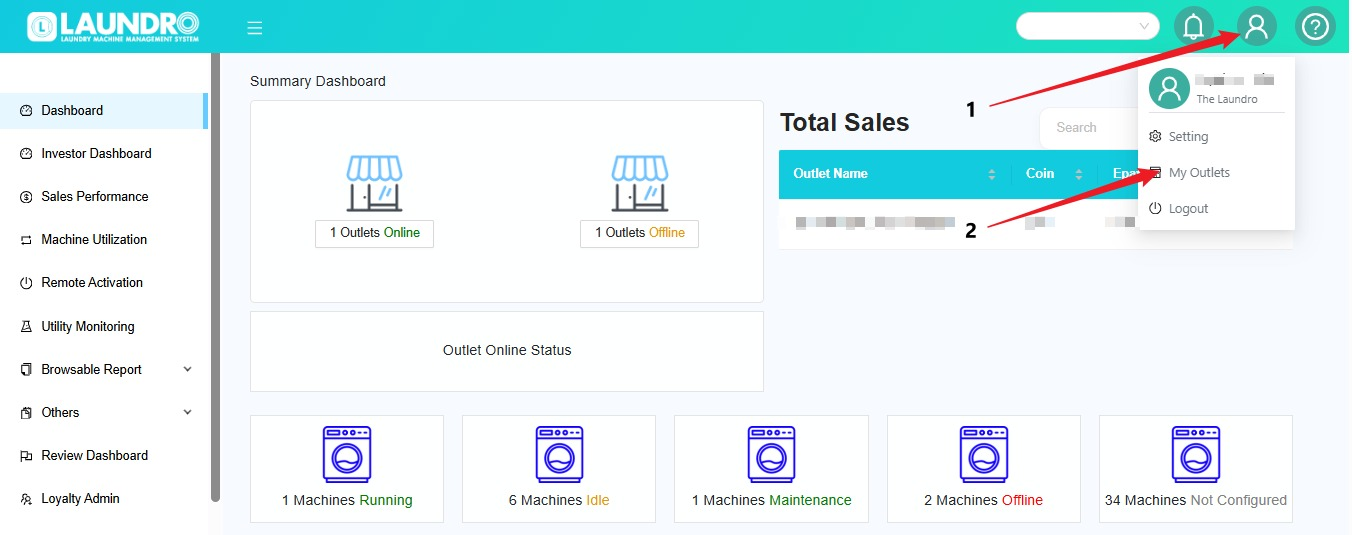
### 📍 Step 2 — Go to My Outlets
- Click the **👤 Profile** icon.
- Select **My Outlets**.
- The list of your outlets will be displayed.
1. [](https://docs.antlysis.com/uploads/images/gallery/2026-10/KoPzWphgBlIVk1xr-image.png)
---
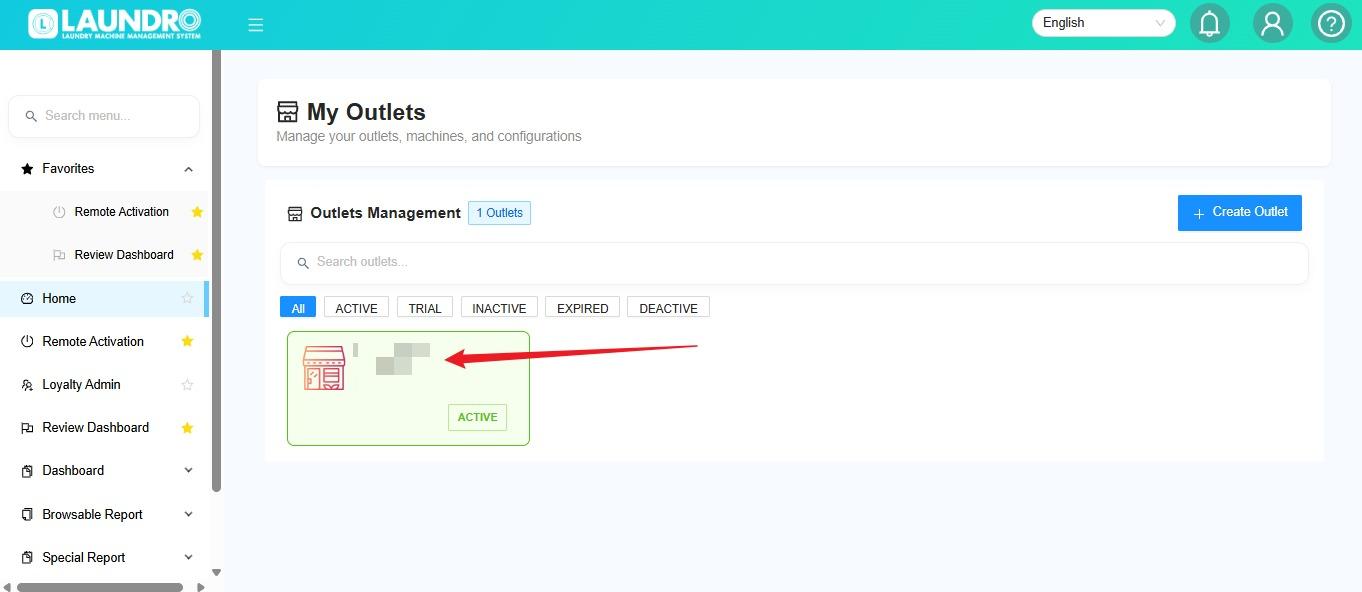
### 🏪 Step 3 — Select the Outlet
Click the **outlet** where you want to add the machine.
[](https://docs.antlysis.com/uploads/images/gallery/2026-10/scaled-1680-/xb445VAOVygi5Jxi-whatsapp-image-2026-10-01-at-8-19-13-pm.jpeg)
---
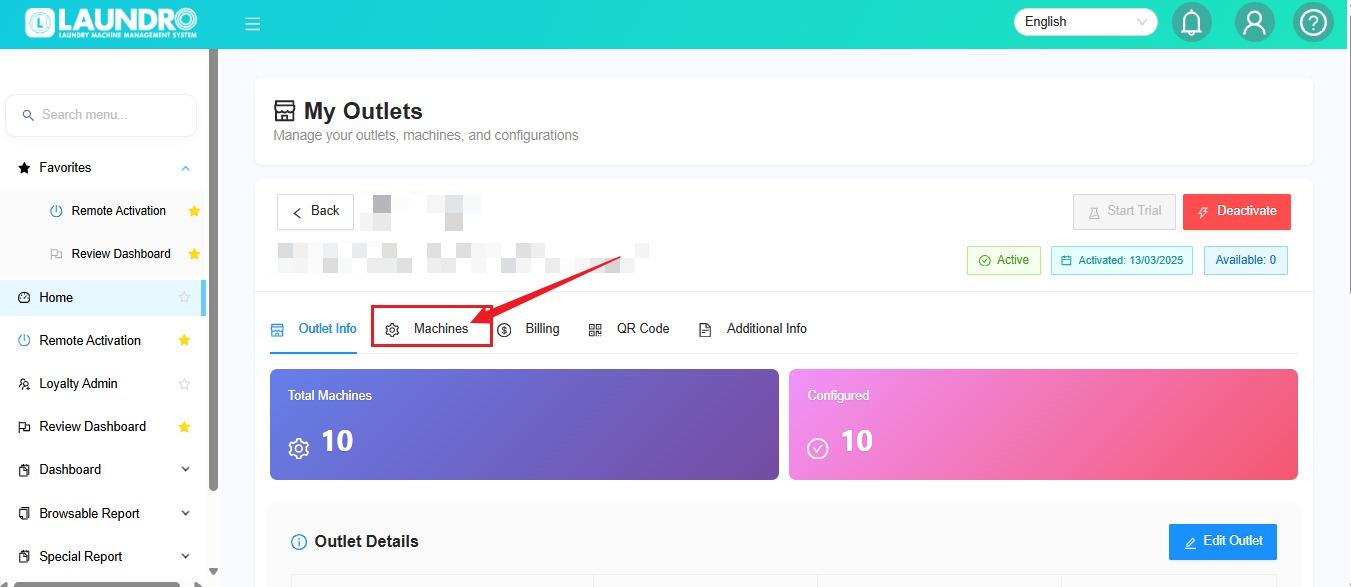
## ⚙️ Step 4 — Open Machines
Click Machines to manage the machines under the selected outlet.
[](https://docs.antlysis.com/uploads/images/gallery/2026-10/scaled-1680-/yJaL3pYslqAhdLoz-whatsapp-image-2026-10-01-at-8-24-06-pm.jpeg)
---
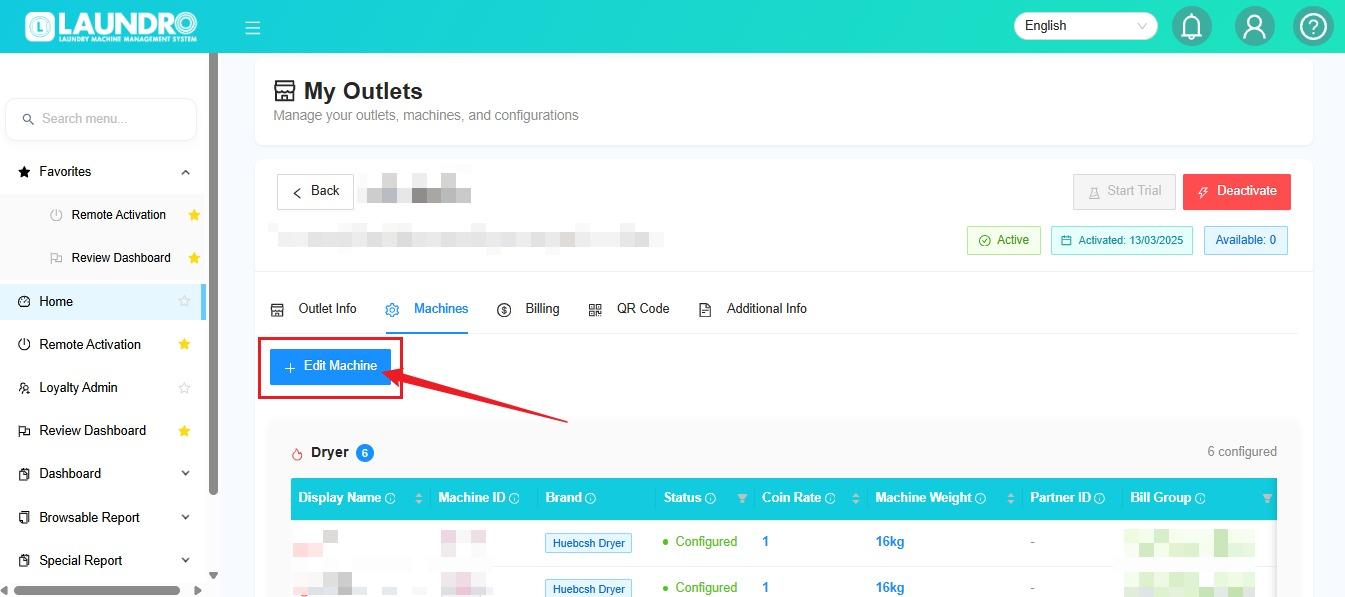
## ➕ Step 5 — Add a Washer or Dryer
1. Click **Edit Machine.**
2. Select the machine type:
- 🧺 **Washer**
- **🔥 Dryer**
3. Repeat the process if you need to add more machines.
[](https://docs.antlysis.com/uploads/images/gallery/2026-10/scaled-1680-/UxTWPsSXPVgPf2Q4-whatsapp-image-2026-10-01-at-8-27-06-pm.jpeg)
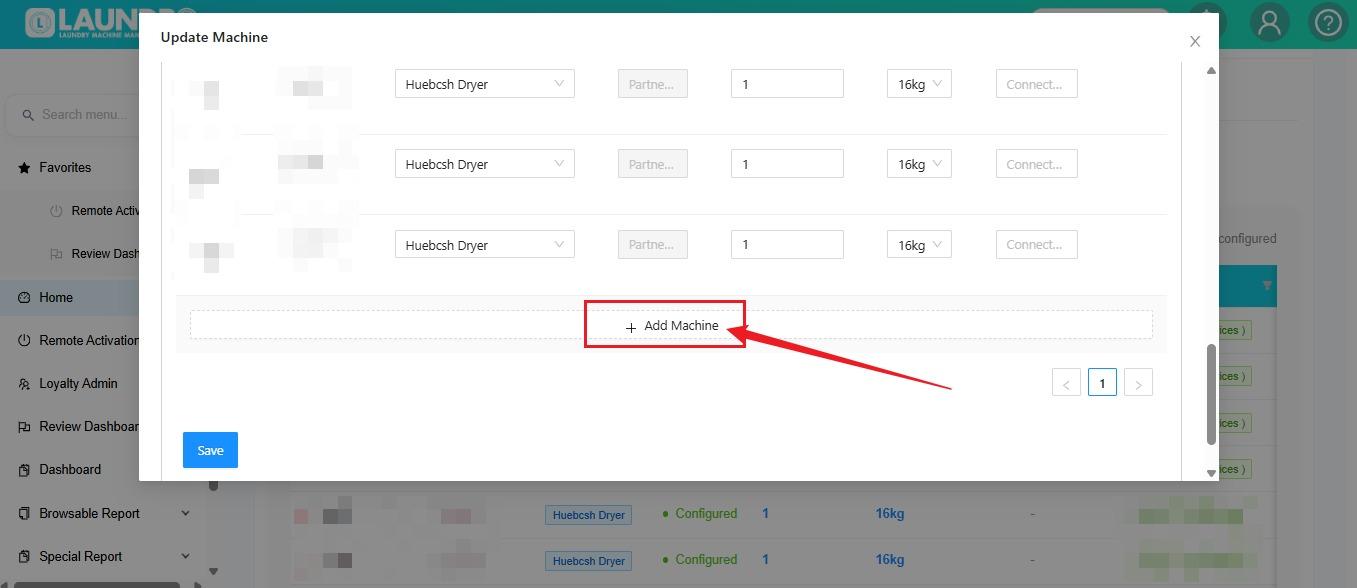
Quick Tip : You can click Add Machine repeatedly to add multiple units. Scroll up or down to view the additional machine entries.
---
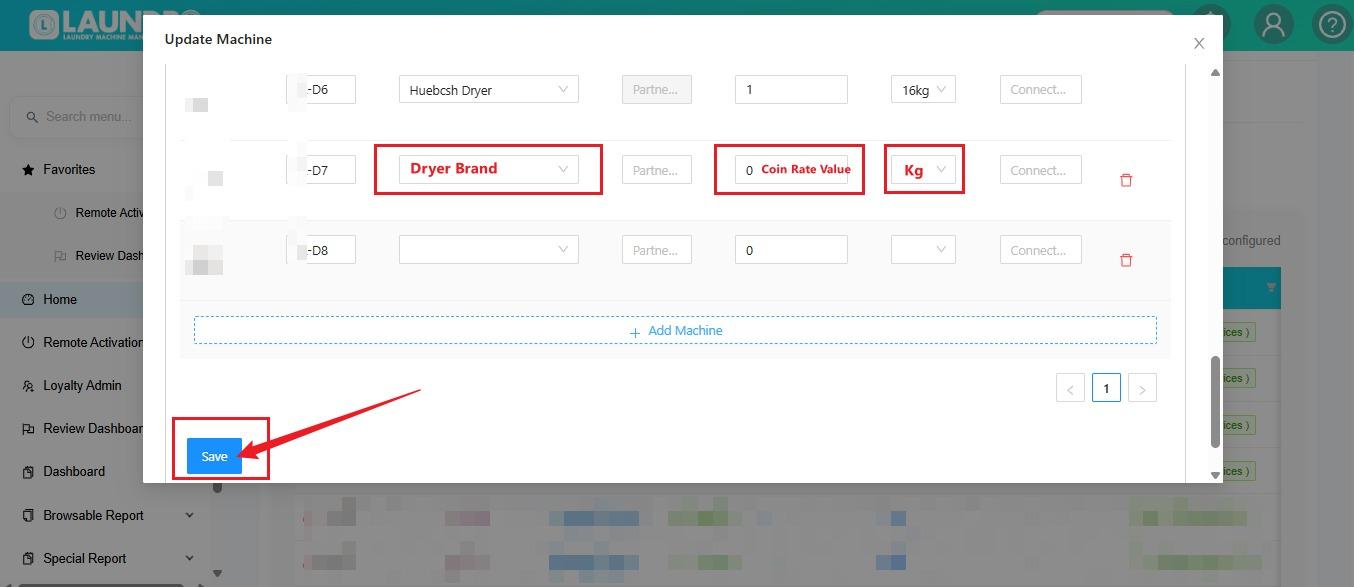
## 📝 Step 6 — Fill in Machine Information
Enter all required information for each machine.
1. Check that the machine details are correct.
2. Repeat for every additional machine.
3. Click **Save** when finished.
[](https://docs.antlysis.com/uploads/images/gallery/2026-10/scaled-1680-/UIocz8SPOa4QRAuv-whatsapp-image-2026-10-01-at-8-49-06-pm.jpeg)
💡 Important Note : **Before clicking Save, make sure all machine information is correct.**
---
### 🔢 Step 6 — Add More Machines
Need to add more than one machine?
↕️ **Scroll up or down** to add additional machines.
➕ You can also click **Add Machine** repeatedly to add multiple units.
Click **Add Machine**, then select whether you want to add a **Washer** or **Dryer**.
[](https://docs.antlysis.com/uploads/images/gallery/2026-10/scaled-1680-/3rmjI4uyeXPjbSCz-whatsapp-image-2026-10-01-at-8-34-14-pm.jpeg)
---
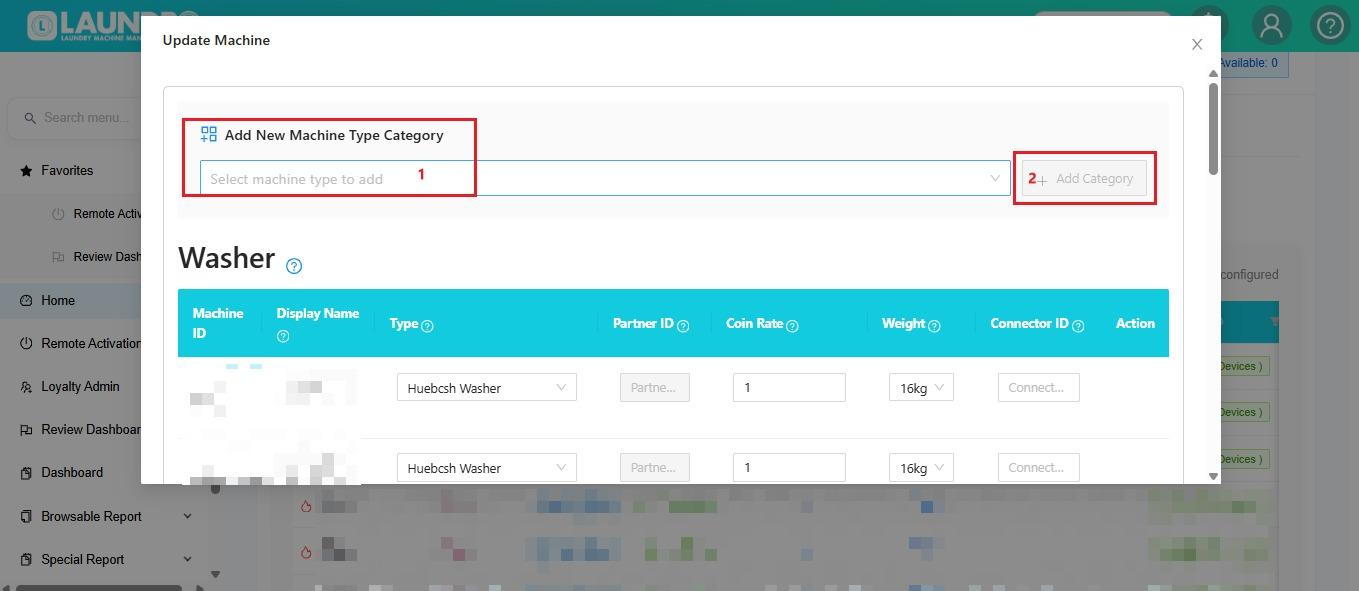
## 🗂️ Need to Add Another Machine Category?
If the machine is not a Washer or Dryer:
1. **Open** the Machine Type dropdown.
2. Select the required category.
3. Click **Add Category.**
[](https://docs.antlysis.com/uploads/images/gallery/2026-10/scaled-1680-/M8K4jFTqXEQqB487-whatsapp-image-2026-10-02-at-9-16-39-am.jpeg)
---
## ✅ Final Check
Before leaving the page, confirm that all machines have been entered correctly and saved.