# Laundro FAQ

All frequently asked questions

# How To Check SMS Credit

1\. Go to the **Operator Login**<span style="white-space: pre-wrap;">, then enter the </span>**username and password**<span style="white-space: pre-wrap;"> and </span>**log in.**

[![WhatsApp Image 2026-05-25 at 9.57.46 AM.jpeg](https://docs.antlysis.com/uploads/images/gallery/2026-05/scaled-1680-/A1ENQTwpk2KCPSEx-whatsapp-image-2026-05-25-at-9-57-46-am.jpeg)](https://docs.antlysis.com/uploads/images/gallery/2026-05/scaled-1680-/A1ENQTwpk2KCPSEx-whatsapp-image-2026-05-25-at-9-57-46-am.jpeg)

---

<span style="white-space: pre-wrap;">2. </span>

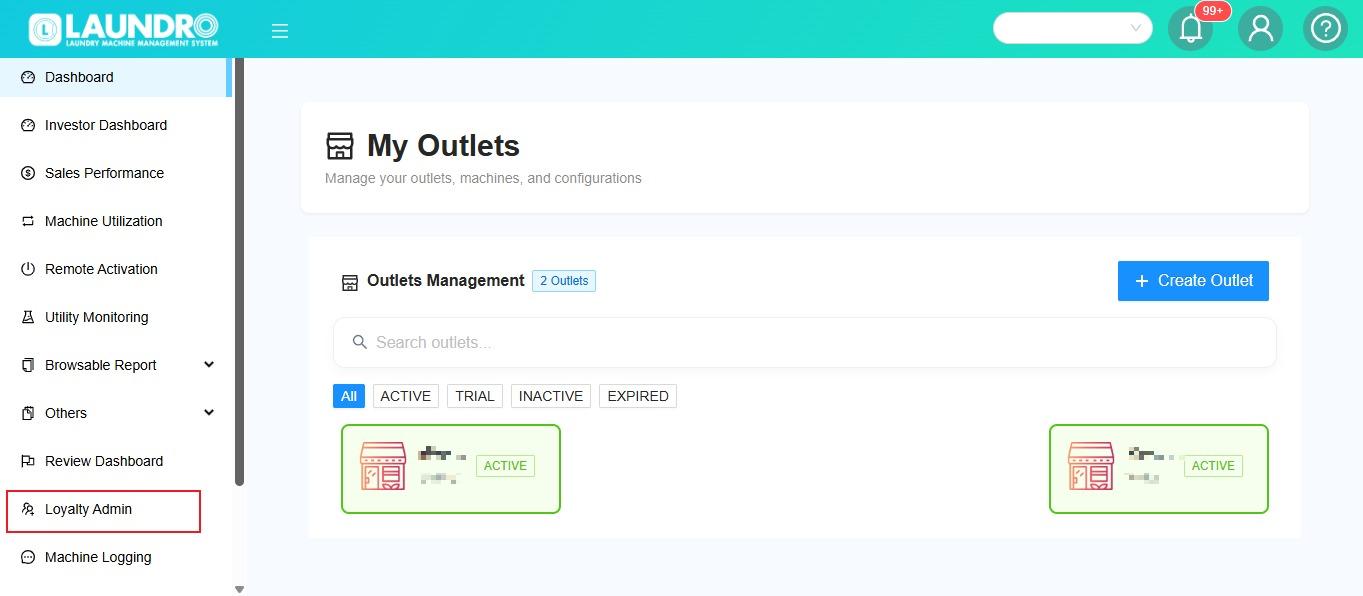
<span style="white-space: pre-wrap;">click into </span>**Loyalty Admin. Leave this page**<span style="white-space: pre-wrap;"> for now and go to </span>**Freedcam.**

[![WhatsApp Image 2026-05-25 at 9.59.12 AM.jpeg](https://docs.antlysis.com/uploads/images/gallery/2026-05/scaled-1680-/KJJOZK1WVrtELJO4-whatsapp-image-2026-05-25-at-9-59-12-am.jpeg)](https://docs.antlysis.com/uploads/images/gallery/2026-05/scaled-1680-/KJJOZK1WVrtELJO4-whatsapp-image-2026-05-25-at-9-59-12-am.jpeg)

---

1. <span style="white-space: pre-wrap;">Click on </span>**Report.**

[![WhatsApp Image 2026-05-25 at 10.01.22 AM.jpeg](https://docs.antlysis.com/uploads/images/gallery/2026-05/scaled-1680-/MQzVNl6M4hNhgsRw-whatsapp-image-2026-05-25-at-10-01-22-am.jpeg)](https://docs.antlysis.com/uploads/images/gallery/2026-05/scaled-1680-/MQzVNl6M4hNhgsRw-whatsapp-image-2026-05-25-at-10-01-22-am.jpeg)

---

8\.

1. <span style="white-space: pre-wrap;">Click on </span>**SMS Report.**

[![WhatsApp Image 2026-05-25 at 10.02.15 AM.jpeg](https://docs.antlysis.com/uploads/images/gallery/2026-05/scaled-1680-/U6jlwho7GufFguju-whatsapp-image-2026-05-25-at-10-02-15-am.jpeg)](https://docs.antlysis.com/uploads/images/gallery/2026-05/scaled-1680-/U6jlwho7GufFguju-whatsapp-image-2026-05-25-at-10-02-15-am.jpeg)

---

<span style="white-space: pre-wrap;">9. </span>**Remaining SMS Credit Balance.**

[![WhatsApp Image 2026-05-25 at 10.03.16 AM.jpeg](https://docs.antlysis.com/uploads/images/gallery/2026-05/scaled-1680-/U8w4vuYXwpeFq9mQ-whatsapp-image-2026-05-25-at-10-03-16-am.jpeg)](https://docs.antlysis.com/uploads/images/gallery/2026-05/scaled-1680-/U8w4vuYXwpeFq9mQ-whatsapp-image-2026-05-25-at-10-03-16-am.jpeg)

# How to top-up SMS Credit

1. <span style="white-space: pre-wrap;">Click on </span>**Laundro Loyalty**.

[![WhatsApp Image 2026-05-25 at 11.52.12 AM.jpeg](https://docs.antlysis.com/uploads/images/gallery/2026-05/scaled-1680-/e34ma224Sm2KwAVw-whatsapp-image-2026-05-25-at-11-52-12-am.jpeg)](https://docs.antlysis.com/uploads/images/gallery/2026-05/scaled-1680-/e34ma224Sm2KwAVw-whatsapp-image-2026-05-25-at-11-52-12-am.jpeg)

---

2\.

1. <span style="white-space: pre-wrap;">Click </span>**Discussions**.
2. <span style="white-space: pre-wrap;">Click </span>**Loyalty Developer Portal Login**.

[![WhatsApp Image 2026-05-25 at 9.49.11 AM.jpeg](https://docs.antlysis.com/uploads/images/gallery/2026-05/scaled-1680-/BItUvuHmbdb22Dt3-whatsapp-image-2026-05-25-at-9-49-11-am.jpeg)](https://docs.antlysis.com/uploads/images/gallery/2026-05/scaled-1680-/BItUvuHmbdb22Dt3-whatsapp-image-2026-05-25-at-9-49-11-am.jpeg)

---

3\. Click on Laundro link.

[![WhatsApp Image 2026-05-25 at 12.09.01 PM.jpeg](https://docs.antlysis.com/uploads/images/gallery/2026-05/scaled-1680-/yB1GR4uu1oa7YC8T-whatsapp-image-2026-05-25-at-12-09-01-pm.jpeg)](https://docs.antlysis.com/uploads/images/gallery/2026-05/scaled-1680-/yB1GR4uu1oa7YC8T-whatsapp-image-2026-05-25-at-12-09-01-pm.jpeg)

---

4\.

- <span style="white-space: pre-wrap;">Click </span>**Update Operator**.
- Select the operator.
- Check the email address.
- Check the username.
- Enter the SMS credit amount.
- <span style="white-space: pre-wrap;">Click </span>**Submit**.

[![WhatsApp Image 2026-05-25 at 9.45.52 AM.jpeg](https://docs.antlysis.com/uploads/images/gallery/2026-05/scaled-1680-/RgSmYrB3SunBijQs-whatsapp-image-2026-05-25-at-9-45-52-am.jpeg)](https://docs.antlysis.com/uploads/images/gallery/2026-05/scaled-1680-/RgSmYrB3SunBijQs-whatsapp-image-2026-05-25-at-9-45-52-am.jpeg)

# Check Fiuu Payment Records

(ENG)

👉**Step 1:**<span style="white-space: pre-wrap;"> Log in to the FIUU portal using your existing ID and password.</span>

👉**Step 2:**<span style="white-space: pre-wrap;"> Click on </span>**"Transactions"**.

[![FIUU-1.jpg](https://docs.antlysis.com/uploads/images/gallery/2025-10/scaled-1680-/fhNB5t20yfRQgNuI-fiuu-1.jpg)](https://docs.antlysis.com/uploads/images/gallery/2025-10/scaled-1680-/fhNB5t20yfRQgNuI-fiuu-1.jpg)

👉**Step 3:**<span style="white-space: pre-wrap;"> Click on </span>**"Main Accounts"**.

[![FIUU-2.jpg](https://docs.antlysis.com/uploads/images/gallery/2025-10/scaled-1680-/sFlXtZAuV4osMdhn-fiuu-2.jpg)](https://docs.antlysis.com/uploads/images/gallery/2025-10/scaled-1680-/sFlXtZAuV4osMdhn-fiuu-2.jpg)

👉Step 4: Now you can view the transaction date and time.

[![FIUU-3.jpg](https://docs.antlysis.com/uploads/images/gallery/2025-10/scaled-1680-/ucQsvyDWIL8DSaHZ-fiuu-3.jpg)](https://docs.antlysis.com/uploads/images/gallery/2025-10/scaled-1680-/ucQsvyDWIL8DSaHZ-fiuu-3.jpg)

👉Step 5: Scroll to the right to view the machine details and the transaction amount.

[![FIUU-4.jpg](https://docs.antlysis.com/uploads/images/gallery/2025-10/scaled-1680-/y9fJlvm8RWShc9BT-fiuu-4.jpg)](https://docs.antlysis.com/uploads/images/gallery/2025-10/scaled-1680-/y9fJlvm8RWShc9BT-fiuu-4.jpg)

👉**Step 6:**<span style="white-space: pre-wrap;"> Click on the </span>**"Transaction ID"**<span style="white-space: pre-wrap;"> to view the transaction details.</span>

[![fiuu-5.jpg](https://docs.antlysis.com/uploads/images/gallery/2025-10/scaled-1680-/FNK5oy53hCvUToIV-fiuu-5.jpg)](https://docs.antlysis.com/uploads/images/gallery/2025-10/scaled-1680-/FNK5oy53hCvUToIV-fiuu-5.jpg)

👉**Step 7:**<span style="white-space: pre-wrap;"> Click on "Integration End Points".</span>

[![FIUU-6.jpg](https://docs.antlysis.com/uploads/images/gallery/2025-10/scaled-1680-/9MCU8yNljAfk5rIm-fiuu-6.jpg)](https://docs.antlysis.com/uploads/images/gallery/2025-10/scaled-1680-/9MCU8yNljAfk5rIm-fiuu-6.jpg)

**Step 8:**<span style="white-space: pre-wrap;"> You will see the transaction details. From there, look for the green icon with </span>[**https://v2loyalty.thelaundro.com**](https://v2loyalty.thelaundro.com)<span style="white-space: pre-wrap;"> — this indicates that LAUNDRO has received the transaction.</span>

[![FIUU-7.jpg](https://docs.antlysis.com/uploads/images/gallery/2025-10/scaled-1680-/8YhlzTj9glILbeKe-fiuu-7.jpg)](https://docs.antlysis.com/uploads/images/gallery/2025-10/scaled-1680-/8YhlzTj9glILbeKe-fiuu-7.jpg)

(BM)

<span style="white-space: pre-wrap;">👉 </span>**Langkah 1:**<span style="white-space: pre-wrap;"> Log masuk ke portal FIUU menggunakan ID dan kata laluan sedia ada anda.</span>

<span style="white-space: pre-wrap;">👉 </span>**Langkah 2:**<span style="white-space: pre-wrap;"> Klik pada </span>**"Transactions"**.

[![FIUU-1.jpg](https://docs.antlysis.com/uploads/images/gallery/2025-10/scaled-1680-/fhNB5t20yfRQgNuI-fiuu-1.jpg)](https://docs.antlysis.com/uploads/images/gallery/2025-10/scaled-1680-/fhNB5t20yfRQgNuI-fiuu-1.jpg)

<span style="white-space: pre-wrap;">👉 </span>**Langkah 3:**<span style="white-space: pre-wrap;"> Klik pada </span>**"Main Accounts"**.

[![FIUU-2.jpg](https://docs.antlysis.com/uploads/images/gallery/2025-10/scaled-1680-/sFlXtZAuV4osMdhn-fiuu-2.jpg)](https://docs.antlysis.com/uploads/images/gallery/2025-10/scaled-1680-/sFlXtZAuV4osMdhn-fiuu-2.jpg)

👉 Sekarang anda boleh melihat tarikh dan masa transaksi.

[![FIUU-3.jpg](https://docs.antlysis.com/uploads/images/gallery/2025-10/scaled-1680-/ucQsvyDWIL8DSaHZ-fiuu-3.jpg)](https://docs.antlysis.com/uploads/images/gallery/2025-10/scaled-1680-/ucQsvyDWIL8DSaHZ-fiuu-3.jpg)

👉 Tatal ke kanan untuk melihat butiran mesin dan jumlah transaksi.

![FIUU-4.jpg](https://docs.antlysis.com/uploads/images/gallery/2025-10/scaled-1680-/y9fJlvm8RWShc9BT-fiuu-4.jpg)👉**Langkah 6:**<span style="white-space: pre-wrap;"> Klik pada </span>**"Transaction ID"**.

[![fiuu-5.jpg](https://docs.antlysis.com/uploads/images/gallery/2025-10/scaled-1680-/FNK5oy53hCvUToIV-fiuu-5.jpg)](https://docs.antlysis.com/uploads/images/gallery/2025-10/scaled-1680-/FNK5oy53hCvUToIV-fiuu-5.jpg)

👉**Langkah 7:**<span style="white-space: pre-wrap;"> Klik pada </span>**"Integration End Points"**.

[![FIUU-6.jpg](https://docs.antlysis.com/uploads/images/gallery/2025-10/scaled-1680-/9MCU8yNljAfk5rIm-fiuu-6.jpg)](https://docs.antlysis.com/uploads/images/gallery/2025-10/scaled-1680-/9MCU8yNljAfk5rIm-fiuu-6.jpg)

**Langkah 8:**<span style="white-space: pre-wrap;"> Anda akan melihat </span>**butiran transaksi**<span style="white-space: pre-wrap;">. Dari situ, cari ikon berwarna </span>**hijau**<span style="white-space: pre-wrap;"> dengan pautan </span>[**https://v2loyalty.thelaundro.com**](https://v2loyalty.thelaundro.com)<span style="white-space: pre-wrap;"> — ini menunjukkan bahawa </span>**Laundro telah menerima transaksi**.

[![FIUU-7.jpg](https://docs.antlysis.com/uploads/images/gallery/2025-10/scaled-1680-/8YhlzTj9glILbeKe-fiuu-7.jpg)](https://docs.antlysis.com/uploads/images/gallery/2025-10/scaled-1680-/8YhlzTj9glILbeKe-fiuu-7.jpg)

# Activation Outlet

<span style="text-decoration: underline;"><span style="color: rgb(0, 0, 0); text-decoration: underline;">**How To Activate Outlet :**</span></span>

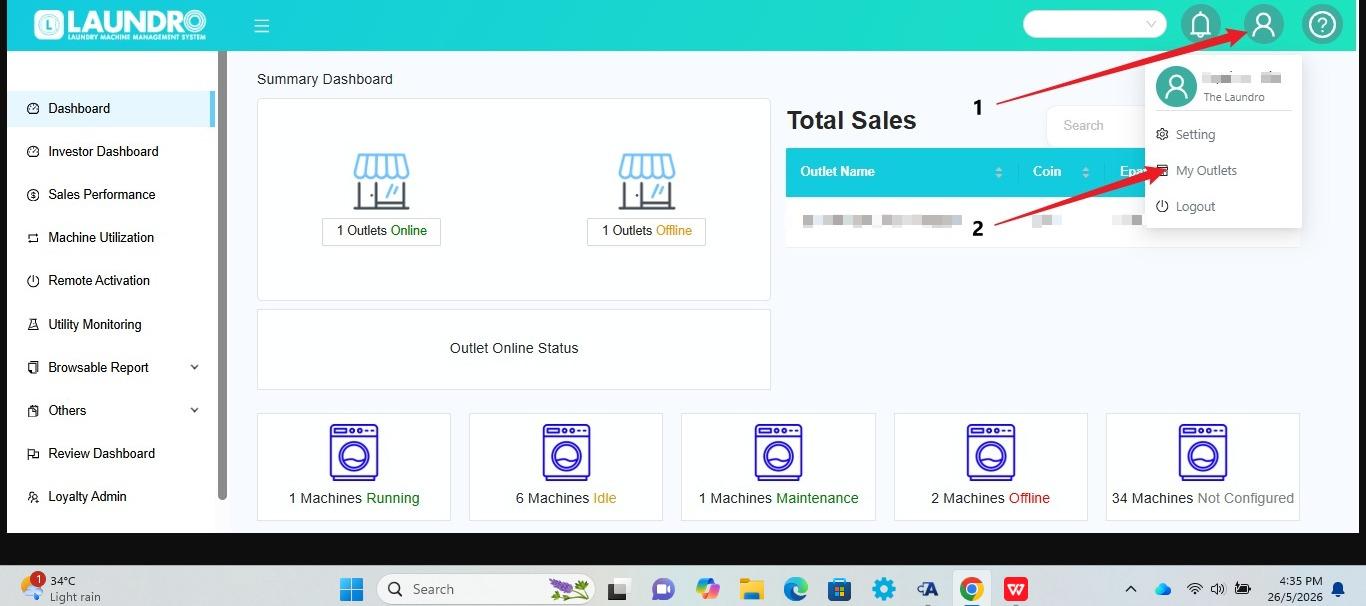
1. Click the **Profile** icon at the top-right corner of the screen.
2. Select **My Outlets** from the dropdown menu.
3. The system will open the **My Outlets** page where you can view your outlets.

[![WhatsApp Image 2026-05-21 at 12.32.05 PM.jpeg](https://docs.antlysis.com/uploads/images/gallery/2026-05/scaled-1680-/d40JlYbGJBDAijeG-whatsapp-image-2026-05-21-at-12-32-05-pm.jpeg)](https://docs.antlysis.com/uploads/images/gallery/2026-05/d40JlYbGJBDAijeG-whatsapp-image-2026-05-21-at-12-32-05-pm.jpeg)

---

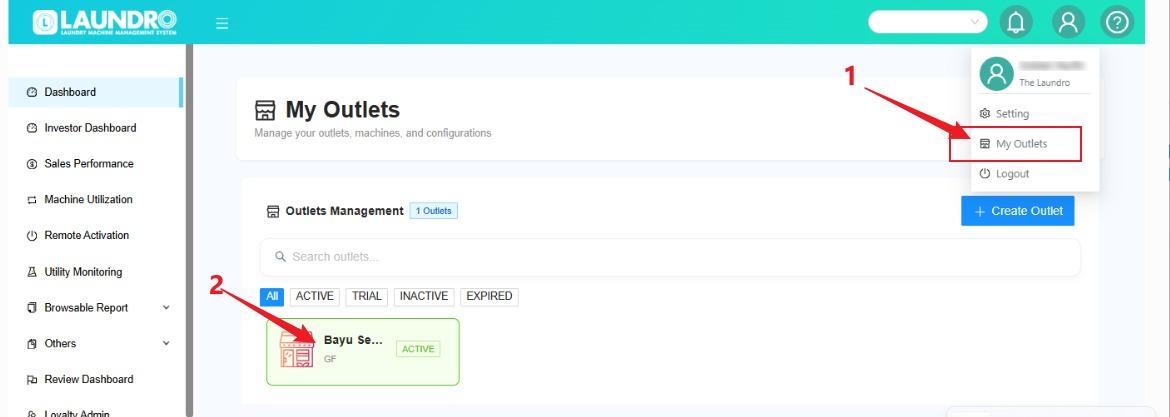
1. Outlet **Activated**
2. Outlet **Inactive**. Click into **Inactive Outlet.**

[![WhatsApp Image 2026-05-21 at 10.14.27 AM.jpeg](https://docs.antlysis.com/uploads/images/gallery/2026-05/scaled-1680-/D2tbnsGa7bSuLPDG-whatsapp-image-2026-05-21-at-10-14-27-am.jpeg)](https://docs.antlysis.com/uploads/images/gallery/2026-05/D2tbnsGa7bSuLPDG-whatsapp-image-2026-05-21-at-10-14-27-am.jpeg)

<div class="qMYqUG_convSearchResultHighlightRoot" id="bkmrk-%C2%A0-click-the%C2%A0billing-"><div class="" data-is-intersecting="true" data-turn-id-container="request-WEB:26ef9b91-50d3-4fca-b225-fa9e04556771-0"><section class="text-token-text-primary w-full focus:outline-none has-data-writing-block:pointer-events-none [&:has([data-writing-block])>*]:pointer-events-auto R6Vx5W_threadScrollVars scroll-mb-[calc(var(--scroll-root-safe-area-inset-bottom,0px)+var(--thread-response-height))] scroll-mt-[calc(var(--header-height)+min(200px,max(70px,20svh)))]" data-scroll-anchor="false" data-testid="conversation-turn-2" data-turn="assistant" data-turn-id="request-WEB:26ef9b91-50d3-4fca-b225-fa9e04556771-0" data-turn-id-container="request-WEB:26ef9b91-50d3-4fca-b225-fa9e04556771-0" dir="auto">---

<div class="text-base my-auto mx-auto pb-10 [--thread-content-margin:var(--thread-content-margin-xs,calc(var(--spacing)*4))] @w-sm/main:[--thread-content-margin:var(--thread-content-margin-sm,calc(var(--spacing)*6))] @w-lg/main:[--thread-content-margin:var(--thread-content-margin-lg,calc(var(--spacing)*16))] px-(--thread-content-margin)"><div class="[--thread-content-max-width:40rem] @w-lg/main:[--thread-content-max-width:48rem] mx-auto max-w-(--thread-content-max-width) flex-1 group/turn-messages focus-visible:outline-hidden relative flex w-full min-w-0 flex-col agent-turn"><div class="flex max-w-full flex-col gap-4 grow"><div class="min-h-8 text-message relative flex w-full flex-col items-end gap-2 text-start break-words whitespace-normal outline-none keyboard-focused:focus-ring [.text-message+&]:mt-1" data-message-author-role="assistant" data-message-id="d9aec6de-6379-49c4-8910-67ee6f2ba59f" data-message-model-slug="gpt-5-5" data-turn-start-message="true" dir="auto" tabindex="0"><div class="flex w-full flex-col gap-1 empty:hidden"><div class="markdown prose dark:prose-invert wrap-break-word w-full light markdown-new-styling">1. Click the **Billing** tab.
2. Click the **+ Add Bill Group** button.

</div></div></div></div></div></div>[![WhatsApp Image 2026-05-21 at 10.24.02 AM.jpeg](https://docs.antlysis.com/uploads/images/gallery/2026-05/scaled-1680-/hHyAgI2zpI0c7LyY-whatsapp-image-2026-05-21-at-10-24-02-am.jpeg)](https://docs.antlysis.com/uploads/images/gallery/2026-05/hHyAgI2zpI0c7LyY-whatsapp-image-2026-05-21-at-10-24-02-am.jpeg)

<div class="text-base my-auto mx-auto pb-10 [--thread-content-margin:var(--thread-content-margin-xs,calc(var(--spacing)*4))] @w-sm/main:[--thread-content-margin:var(--thread-content-margin-sm,calc(var(--spacing)*6))] @w-lg/main:[--thread-content-margin:var(--thread-content-margin-lg,calc(var(--spacing)*16))] px-(--thread-content-margin)"><div class="[--thread-content-max-width:40rem] @w-lg/main:[--thread-content-max-width:48rem] mx-auto max-w-(--thread-content-max-width) flex-1 group/turn-messages focus-visible:outline-hidden relative flex w-full min-w-0 flex-col agent-turn"><div class="flex max-w-full flex-col gap-4 grow"><div class="min-h-8 text-message relative flex w-full flex-col items-end gap-2 text-start break-words whitespace-normal outline-none keyboard-focused:focus-ring [.text-message+&]:mt-1" data-message-author-role="assistant" data-message-id="d9aec6de-6379-49c4-8910-67ee6f2ba59f" data-message-model-slug="gpt-5-5" data-turn-start-message="true" dir="auto" tabindex="0"><div class="flex w-full flex-col gap-1 empty:hidden"><div class="markdown prose dark:prose-invert wrap-break-word w-full light markdown-new-styling">---

</div></div><div class="markdown prose dark:prose-invert wrap-break-word w-full light markdown-new-styling">1. **Click on Select All**
2. **Click Submit**

</div></div></div></div></div>[![image.png](https://docs.antlysis.com/uploads/images/gallery/2026-05/scaled-1680-/GE0oGq0kPdjS0yvl-image.png)](https://docs.antlysis.com/uploads/images/gallery/2026-05/GE0oGq0kPdjS0yvl-image.png)

<div class="text-base my-auto mx-auto pb-10 [--thread-content-margin:var(--thread-content-margin-xs,calc(var(--spacing)*4))] @w-sm/main:[--thread-content-margin:var(--thread-content-margin-sm,calc(var(--spacing)*6))] @w-lg/main:[--thread-content-margin:var(--thread-content-margin-lg,calc(var(--spacing)*16))] px-(--thread-content-margin)"><div class="[--thread-content-max-width:40rem] @w-lg/main:[--thread-content-max-width:48rem] mx-auto max-w-(--thread-content-max-width) flex-1 group/turn-messages focus-visible:outline-hidden relative flex w-full min-w-0 flex-col agent-turn"><div class="flex max-w-full flex-col gap-4 grow"><div class="min-h-8 text-message relative flex w-full flex-col items-end gap-2 text-start break-words whitespace-normal outline-none keyboard-focused:focus-ring [.text-message+&]:mt-1" data-message-author-role="assistant" data-message-id="d9aec6de-6379-49c4-8910-67ee6f2ba59f" data-message-model-slug="gpt-5-5" data-turn-start-message="true" dir="auto" tabindex="0"><div class="markdown prose dark:prose-invert wrap-break-word w-full light markdown-new-styling">---

</div></div></div></div></div><div class="text-base my-auto mx-auto pb-10 [--thread-content-margin:var(--thread-content-margin-xs,calc(var(--spacing)*4))] @w-sm/main:[--thread-content-margin:var(--thread-content-margin-sm,calc(var(--spacing)*6))] @w-lg/main:[--thread-content-margin:var(--thread-content-margin-lg,calc(var(--spacing)*16))] px-(--thread-content-margin)"><div class="[--thread-content-max-width:40rem] @w-lg/main:[--thread-content-max-width:48rem] mx-auto max-w-(--thread-content-max-width) flex-1 group/turn-messages focus-visible:outline-hidden relative flex w-full min-w-0 flex-col agent-turn"><div class="flex max-w-full flex-col gap-4 grow"><div class="min-h-8 text-message relative flex w-full flex-col items-end gap-2 text-start break-words whitespace-normal outline-none keyboard-focused:focus-ring [.text-message+&]:mt-1" data-message-author-role="assistant" data-message-id="d9aec6de-6379-49c4-8910-67ee6f2ba59f" data-message-model-slug="gpt-5-5" data-turn-start-message="true" dir="auto" tabindex="0">  
</div></div><div class="z-0 flex min-h-[46px] justify-start">Click into **Activate.**</div><div class="z-0 flex min-h-[46px] justify-start">  
</div><div class="z-0 flex min-h-[46px] justify-start">[![WhatsApp Image 2026-05-21 at 10.41.51 AM.jpeg](https://docs.antlysis.com/uploads/images/gallery/2026-05/scaled-1680-/BpgYKtSjCRfZLSYm-whatsapp-image-2026-05-21-at-10-41-51-am.jpeg)](https://docs.antlysis.com/uploads/images/gallery/2026-05/BpgYKtSjCRfZLSYm-whatsapp-image-2026-05-21-at-10-41-51-am.jpeg)</div></div></div><div class="text-base my-auto mx-auto pb-10 [--thread-content-margin:var(--thread-content-margin-xs,calc(var(--spacing)*4))] @w-sm/main:[--thread-content-margin:var(--thread-content-margin-sm,calc(var(--spacing)*6))] @w-lg/main:[--thread-content-margin:var(--thread-content-margin-lg,calc(var(--spacing)*16))] px-(--thread-content-margin)"><div class="[--thread-content-max-width:40rem] @w-lg/main:[--thread-content-max-width:48rem] mx-auto max-w-(--thread-content-max-width) flex-1 group/turn-messages focus-visible:outline-hidden relative flex w-full min-w-0 flex-col agent-turn"><div class="mt-3 w-full empty:hidden"><div class="text-center">---

</div></div></div></div><div class="text-base my-auto mx-auto pb-10 [--thread-content-margin:var(--thread-content-margin-xs,calc(var(--spacing)*4))] @w-sm/main:[--thread-content-margin:var(--thread-content-margin-sm,calc(var(--spacing)*6))] @w-lg/main:[--thread-content-margin:var(--thread-content-margin-lg,calc(var(--spacing)*16))] px-(--thread-content-margin)"><div class="[--thread-content-max-width:40rem] @w-lg/main:[--thread-content-max-width:48rem] mx-auto max-w-(--thread-content-max-width) flex-1 group/turn-messages focus-visible:outline-hidden relative flex w-full min-w-0 flex-col agent-turn">  
</div></div><p class="callout info">**Quality Note:** Please make sure you have configured all devices for the washers and dryers before activating the outlet.</p>

<div class="text-base my-auto mx-auto pb-10 [--thread-content-margin:var(--thread-content-margin-xs,calc(var(--spacing)*4))] @w-sm/main:[--thread-content-margin:var(--thread-content-margin-sm,calc(var(--spacing)*6))] @w-lg/main:[--thread-content-margin:var(--thread-content-margin-lg,calc(var(--spacing)*16))] px-(--thread-content-margin)"><div class="[--thread-content-max-width:40rem] @w-lg/main:[--thread-content-max-width:48rem] mx-auto max-w-(--thread-content-max-width) flex-1 group/turn-messages focus-visible:outline-hidden relative flex w-full min-w-0 flex-col agent-turn"><div class="mt-3 w-full empty:hidden"><div class="text-center">  
</div></div></div></div></section></div></div>

# Change connected WiFi

**1)**<span style="white-space: pre-wrap;"> Follow the steps below to connect the device to a Wi-Fi network. Ensure that the Wi-Fi network is available and that you have the correct Wi-Fi ID/Name and password before proceeding.</span>

<p class="callout info">Device support only 2.4gh.</p>

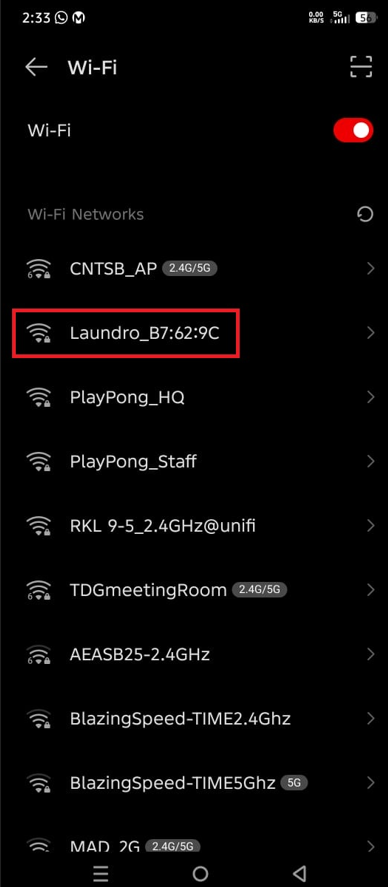
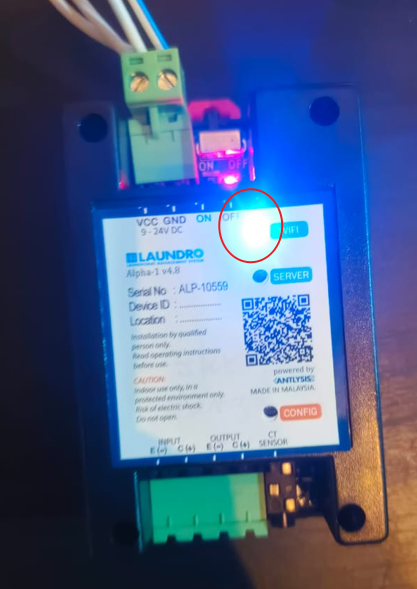
<span style="white-space: pre-wrap;">Step 1- To connect the device to a new Wi-Fi network, first ensure the device is in </span>**Configuration Mode**. The blue LED indicator should be blinking.

[![image.png](https://docs.antlysis.com/uploads/images/gallery/2026-05/scaled-1680-/NAIjdBl50p1jX2uL-image.png)](https://docs.antlysis.com/uploads/images/gallery/2026-05/NAIjdBl50p1jX2uL-image.png)
<span style="white-space: pre-wrap;">Step 2- Open the </span>**Wi-Fi Settings**<span style="white-space: pre-wrap;"> page on your mobile phone and search for available Wi-Fi name </span>**Example:**<span style="white-space: pre-wrap;">'' </span>**Laundro\_##:##:##**''.

[![image.png](https://docs.antlysis.com/uploads/images/gallery/2026-05/scaled-1680-/AfgJBq3XCDoCW8oA-image.png)](https://docs.antlysis.com/uploads/images/gallery/2026-05/AfgJBq3XCDoCW8oA-image.png)

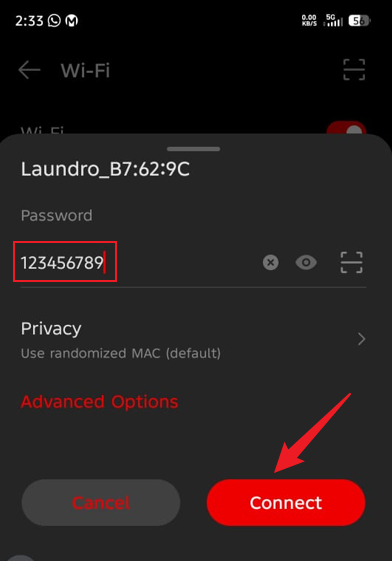
<span style="white-space: pre-wrap;"> </span>**Step 3:**<span style="white-space: pre-wrap;"> Select the </span>**Laundro**<span style="white-space: pre-wrap;"> Wi-Fi network from the list of available networks. When prompted, enter the password:</span>

<span style="white-space: pre-wrap;">Step4 - Once the correct password has been entered, tap </span>**Connect**<span style="white-space: pre-wrap;"> to proceed.</span>

**Password:**<span style="white-space: pre-wrap;"> </span>`<span class="editor-theme-code">123456789</span>`

[![image.png](https://docs.antlysis.com/uploads/images/gallery/2026-05/scaled-1680-/x8wOJVpTgNdeH90s-image.png)](https://docs.antlysis.com/uploads/images/gallery/2026-05/x8wOJVpTgNdeH90s-image.png)

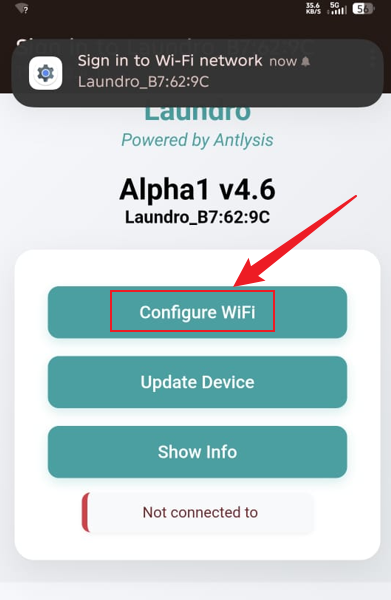
**Step 5:**<span style="white-space: pre-wrap;"> After connecting to the Wi-Fi network, you will be redirected to the </span>**Configuration Page**.

**Step 6:**<span style="white-space: pre-wrap;"> Click </span>**Configure Wi-Fi**<span style="white-space: pre-wrap;"> to open the </span>**Wi-Fi Configuration**<span style="white-space: pre-wrap;"> page.</span>

[![image.png](https://docs.antlysis.com/uploads/images/gallery/2026-05/scaled-1680-/cyAAkB0l7Ym3R3BX-image.png)](https://docs.antlysis.com/uploads/images/gallery/2026-05/cyAAkB0l7Ym3R3BX-image.png)<span style="white-space: pre-wrap;"> </span>

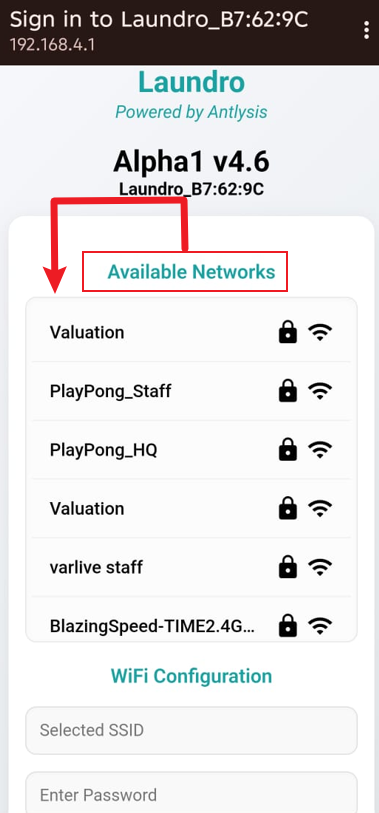
**Step 7:**<span style="white-space: pre-wrap;"> From the list of available networks, choose the Wi-Fi network you want to connect to, then scroll down the page.</span>

[![image.png](https://docs.antlysis.com/uploads/images/gallery/2026-05/scaled-1680-/x0Lrv4pe1rKD4nYR-image.png)](https://docs.antlysis.com/uploads/images/gallery/2026-05/x0Lrv4pe1rKD4nYR-image.png)

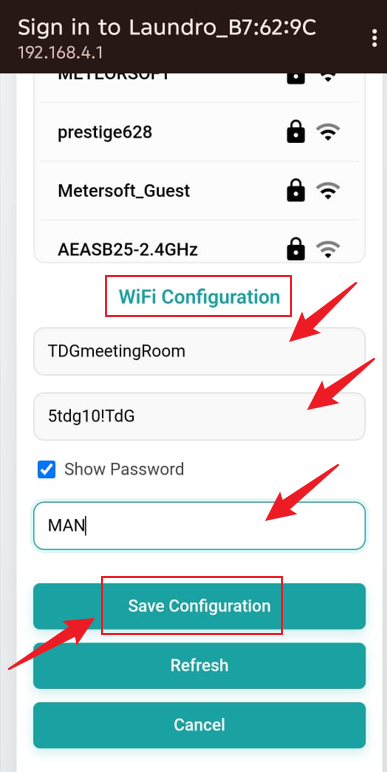
**Step 8:**<span style="white-space: pre-wrap;"> Under </span>**Wi-Fi Configuration**<span style="white-space: pre-wrap;">, confirm the selected </span>**SSID (Wi-Fi Name)**<span style="white-space: pre-wrap;">, enter the Wi-Fi password, and then enter the provided </span>**Outlet ID**<span style="white-space: pre-wrap;">. Ensure all information is correct click on </span>**Save Configuration**<span style="white-space: pre-wrap;"> .</span>

<p class="callout warning"><span style="white-space: pre-wrap;">Before selecting </span>**Save Configuration**<span style="white-space: pre-wrap;">, double-check the </span>**Wi-Fi password**<span style="white-space: pre-wrap;"> and </span>**Outlet ID**. Ensure all information is correct and that no hidden spaces have been entered.</p>

[![image.png](https://docs.antlysis.com/uploads/images/gallery/2026-05/scaled-1680-/K1dbm18Td6GNxTlV-image.png)](https://docs.antlysis.com/uploads/images/gallery/2026-05/K1dbm18Td6GNxTlV-image.png)

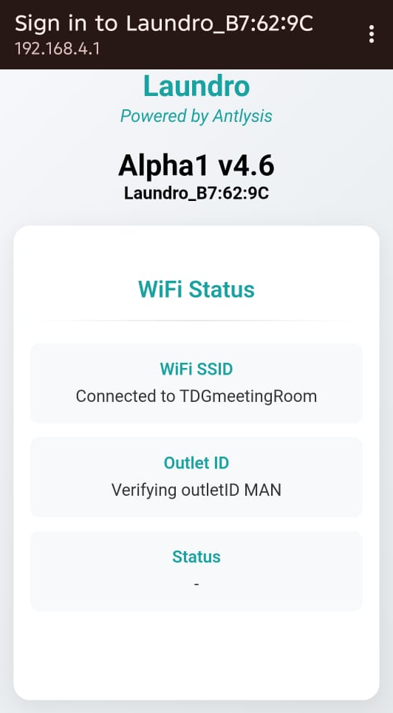
**Step 9:**<span style="white-space: pre-wrap;">The </span>**Wi-Fi Status**<span style="white-space: pre-wrap;"> page will be displayed, and the device will start configuring automatically. Please wait until the status message reads </span>**"Device Ready for Configuration"**.

[![image.png](https://docs.antlysis.com/uploads/images/gallery/2026-05/scaled-1680-/HvoCN9NBYRp8PYuS-image.png)](https://docs.antlysis.com/uploads/images/gallery/2026-05/HvoCN9NBYRp8PYuS-image.png)

[![image.png](https://docs.antlysis.com/uploads/images/gallery/2026-05/scaled-1680-/f2S9kbQWUbAOk3tA-image.png)](https://docs.antlysis.com/uploads/images/gallery/2026-05/f2S9kbQWUbAOk3tA-image.png)
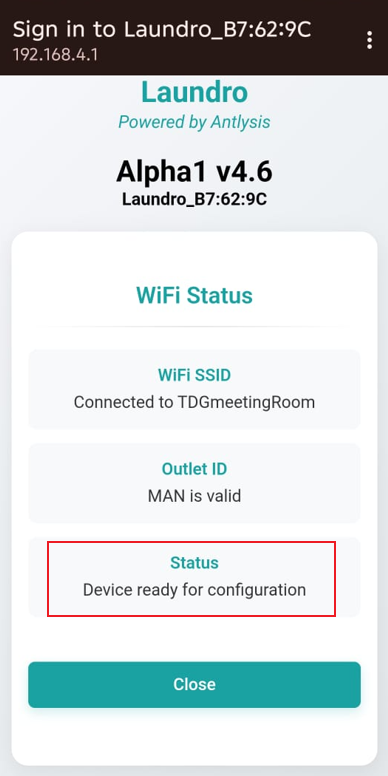
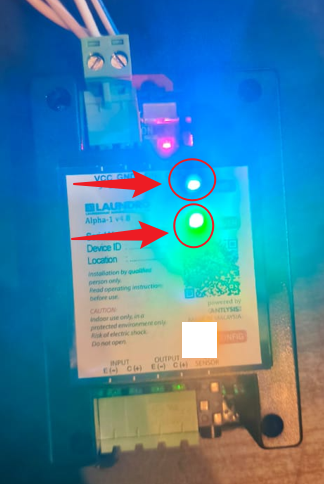
**Step10:**<span style="white-space: pre-wrap;"> Once the configuration process has been completed successfully, the </span>**Wi-Fi (Blue)**<span style="white-space: pre-wrap;"> and </span>**Internet (Green)**<span style="white-space: pre-wrap;"> indicator lights on the device will turn on.</span>

[![image.png](https://docs.antlysis.com/uploads/images/gallery/2026-05/scaled-1680-/ZSdhaXsc2GRN8bQn-image.png)](https://docs.antlysis.com/uploads/images/gallery/2026-05/ZSdhaXsc2GRN8bQn-image.png)

**2)** <span style="white-space: pre-wrap;">It is all done now. You can check the dashboard page to ensure the machine shows as </span>**Online**. For confirmation, you can also try testing a remote activation on the machine.

# Reset Alpha device for New Outlet

<u>**Step how to reset device**</u>

1. **Open the casing for Alpha-1 by unscrew the four point using philips head (PH1)**

[![WhatsApp Image 2026-05-22 at 3.29.07 PM.jpeg](https://docs.antlysis.com/uploads/images/gallery/2026-05/scaled-1680-/BKKLyTGzF6UkiIFt-whatsapp-image-2026-05-22-at-3-29-07-pm.jpeg)](https://docs.antlysis.com/uploads/images/gallery/2026-05/scaled-1680-/BKKLyTGzF6UkiIFt-whatsapp-image-2026-05-22-at-3-29-07-pm.jpeg)
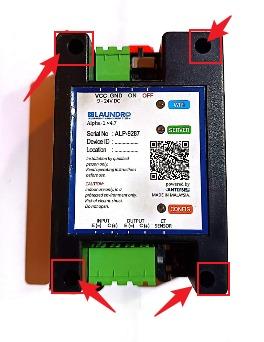
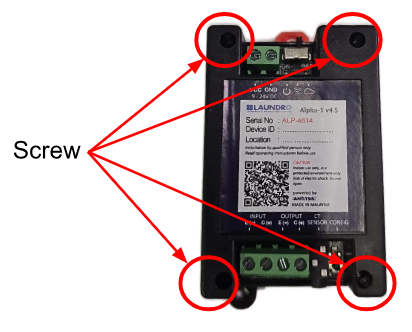
![image.png](https://docs.antlysis.com/uploads/images/gallery/2026-05/scaled-1680-/N5bsOSujMAjjHi0j-image.png)<span style="color: rgb(0, 0, 0);">2.</span> **Turn on**<span style="color: rgb(0, 0, 0); white-space: pre-wrap;"> the power supply to Alpha-1</span>

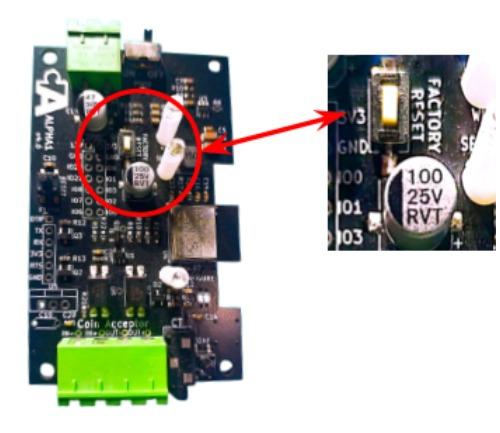
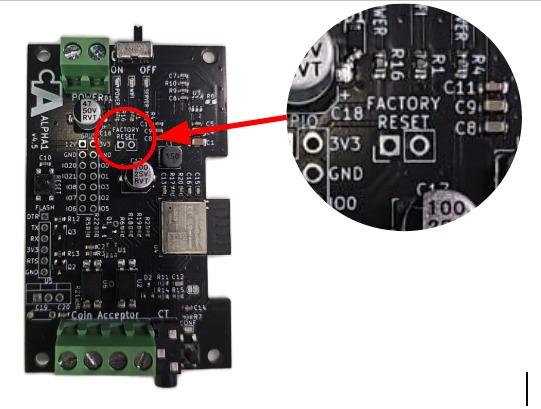
<span style="color: rgb(0, 0, 0); white-space: pre-wrap;">3. </span>**Short the 2 points (Factory Reset) / Long Press Factory Reset.**

[![WhatsApp Image 2026-05-26 at 10.17.39 AM.jpeg](https://docs.antlysis.com/uploads/images/gallery/2026-05/scaled-1680-/JHRFOYe2C9BBg4mc-whatsapp-image-2026-05-26-at-10-17-39-am.jpeg)](https://docs.antlysis.com/uploads/images/gallery/2026-05/scaled-1680-/JHRFOYe2C9BBg4mc-whatsapp-image-2026-05-26-at-10-17-39-am.jpeg)
<span style="white-space: pre-wrap;"> </span>[![WhatsApp Image 2026-05-26 at 10.34.00 AM.jpeg](https://docs.antlysis.com/uploads/images/gallery/2026-05/scaled-1680-/0p9B6EwO2SKlaYba-whatsapp-image-2026-05-26-at-10-34-00-am.jpeg)](https://docs.antlysis.com/uploads/images/gallery/2026-05/scaled-1680-/0p9B6EwO2SKlaYba-whatsapp-image-2026-05-26-at-10-34-00-am.jpeg)

<span style="color: rgb(0, 0, 0);">4. All LED will blink once indicate machine is reset</span>

<span style="color: rgb(0, 0, 0);">5. Alpha-1 will go into AP mode after factory reset</span>

# How to get Kiosk URL

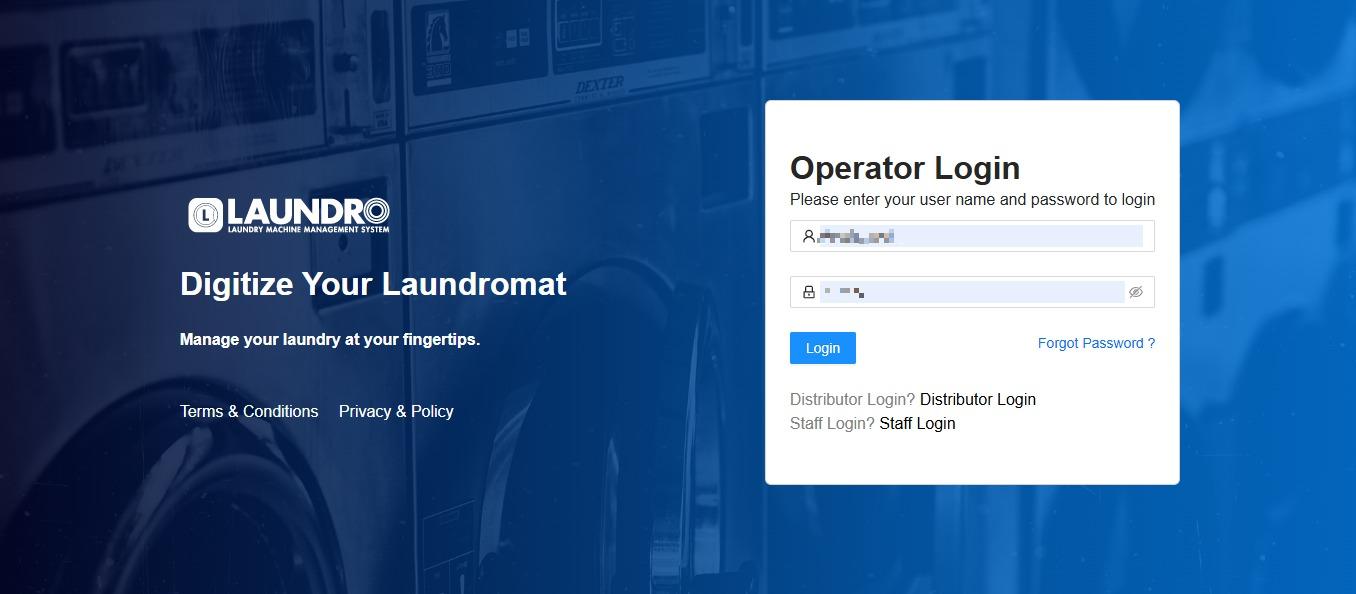
1. Login into Laundro Portal &amp; put-in Username / Password : [https://v2.thelaundro.com/operator\_login](https://v2.thelaundro.com/operator_login)

[![WhatsApp Image 2026-05-26 at 11.30.20 AM.jpeg](https://docs.antlysis.com/uploads/images/gallery/2026-05/scaled-1680-/9zPBOmcccSQaMI94-whatsapp-image-2026-05-26-at-11-30-20-am.jpeg)](https://docs.antlysis.com/uploads/images/gallery/2026-05/9zPBOmcccSQaMI94-whatsapp-image-2026-05-26-at-11-30-20-am.jpeg)
---

2\.

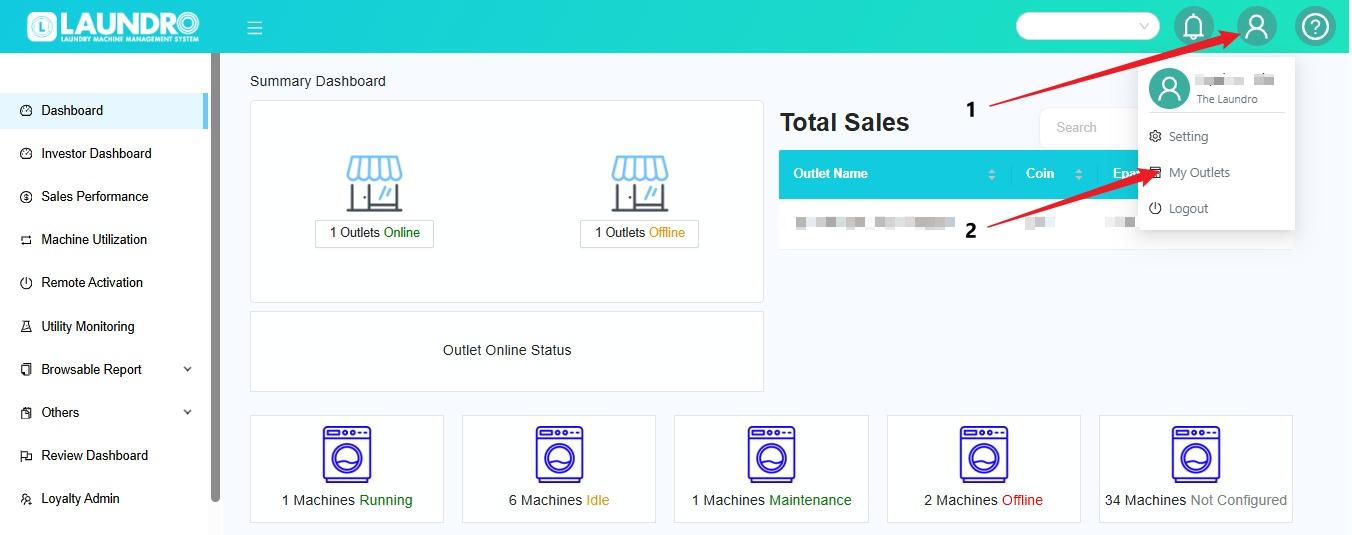
1. Click the **Profile** icon at the top-right corner of the screen.
2. Select **My Outlets** from the dropdown menu.
3. The system will open the **My Outlets** page where you can view your outlets.

[![WhatsApp Image 2026-05-21 at 12.32.05 PM.jpeg](https://docs.antlysis.com/uploads/images/gallery/2026-05/scaled-1680-/d40JlYbGJBDAijeG-whatsapp-image-2026-05-21-at-12-32-05-pm.jpeg)](https://docs.antlysis.com/uploads/images/gallery/2026-05/d40JlYbGJBDAijeG-whatsapp-image-2026-05-21-at-12-32-05-pm.jpeg)
---

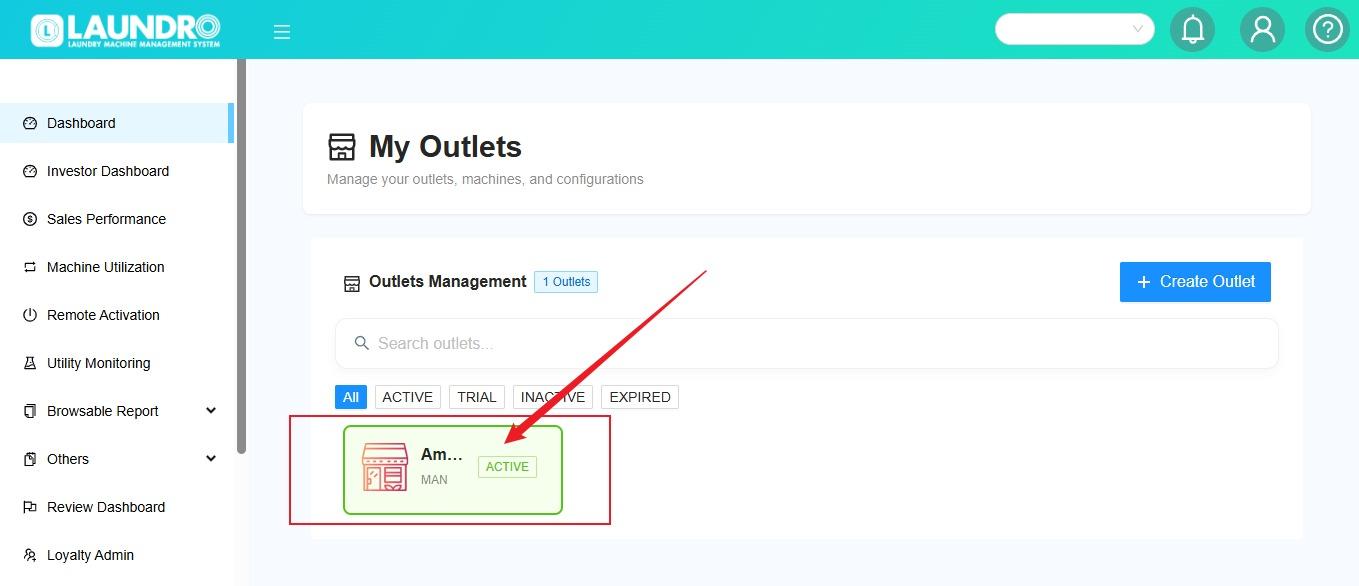
3\. Click **Outlet.**

[![WhatsApp Image 2026-05-26 at 11.41.25 AM.jpeg](https://docs.antlysis.com/uploads/images/gallery/2026-05/scaled-1680-/pRytG3tud14nUFwk-whatsapp-image-2026-05-26-at-11-41-25-am.jpeg)](https://docs.antlysis.com/uploads/images/gallery/2026-05/pRytG3tud14nUFwk-whatsapp-image-2026-05-26-at-11-41-25-am.jpeg)
---

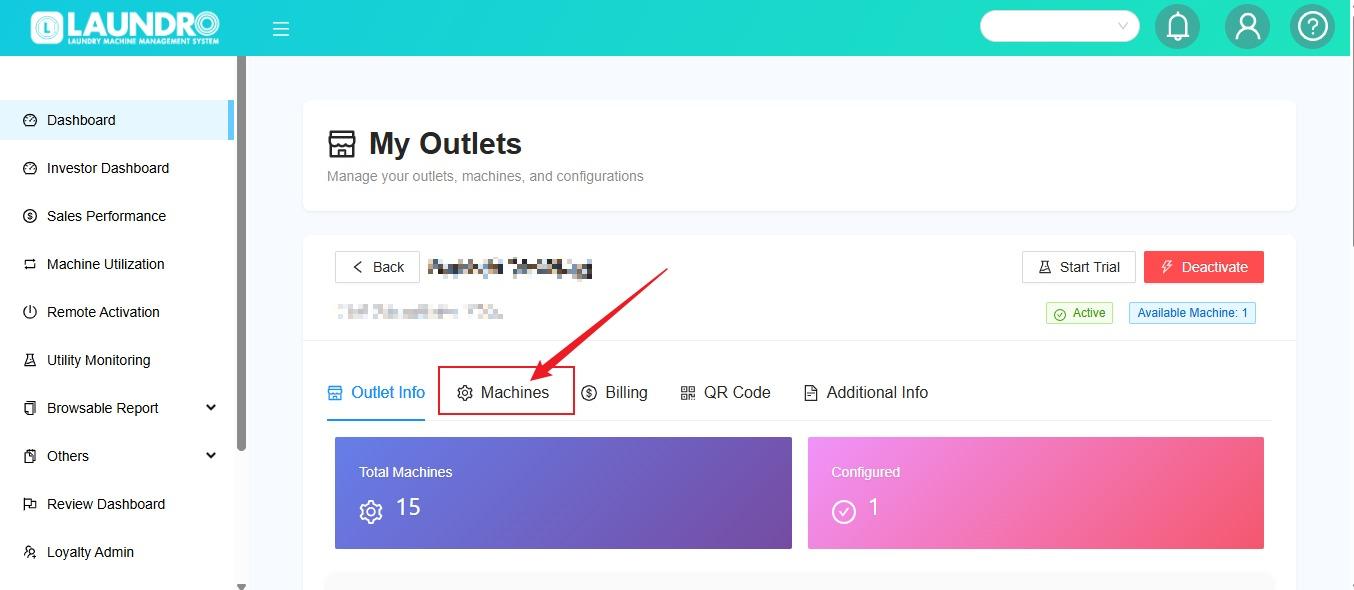
4\. Click **Machines**

[![WhatsApp Image 2026-05-26 at 11.40.18 AM.jpeg](https://docs.antlysis.com/uploads/images/gallery/2026-05/scaled-1680-/oQVDuK0rrMQkPr5Q-whatsapp-image-2026-05-26-at-11-40-18-am.jpeg)](https://docs.antlysis.com/uploads/images/gallery/2026-05/oQVDuK0rrMQkPr5Q-whatsapp-image-2026-05-26-at-11-40-18-am.jpeg)
---

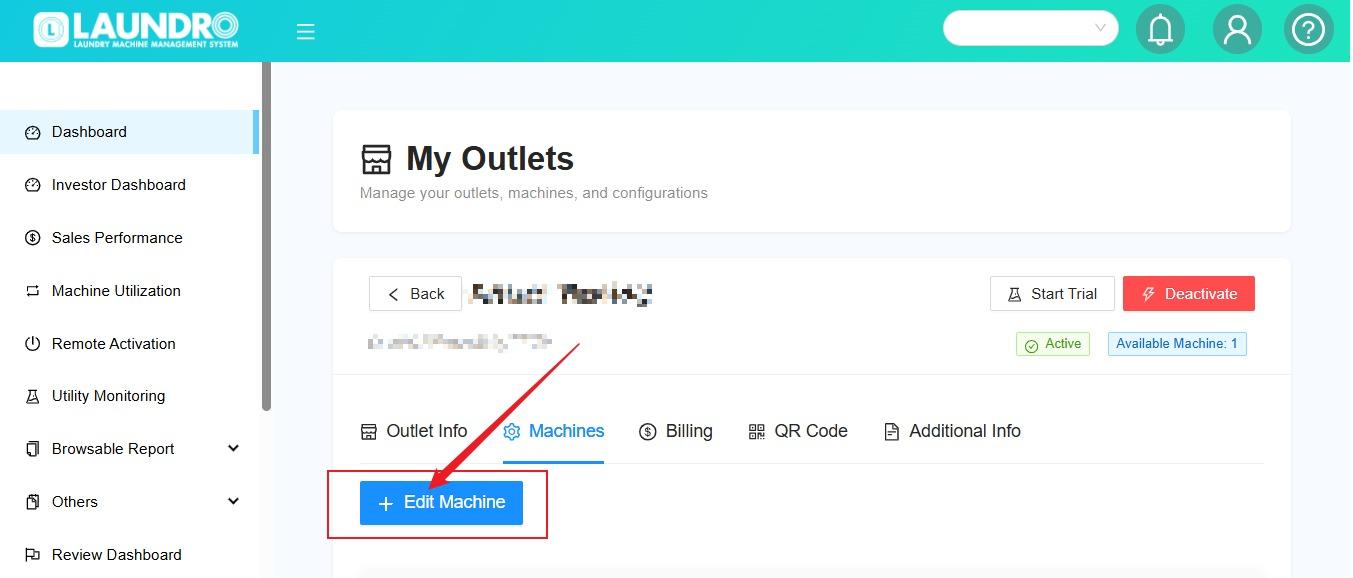
5\. Click **+Edit Machine.**

[![WhatsApp Image 2026-05-26 at 11.42.37 AM.jpeg](https://docs.antlysis.com/uploads/images/gallery/2026-05/scaled-1680-/59ScADoEqZDkyBQn-whatsapp-image-2026-05-26-at-11-42-37-am.jpeg)](https://docs.antlysis.com/uploads/images/gallery/2026-05/59ScADoEqZDkyBQn-whatsapp-image-2026-05-26-at-11-42-37-am.jpeg)
---

6\.

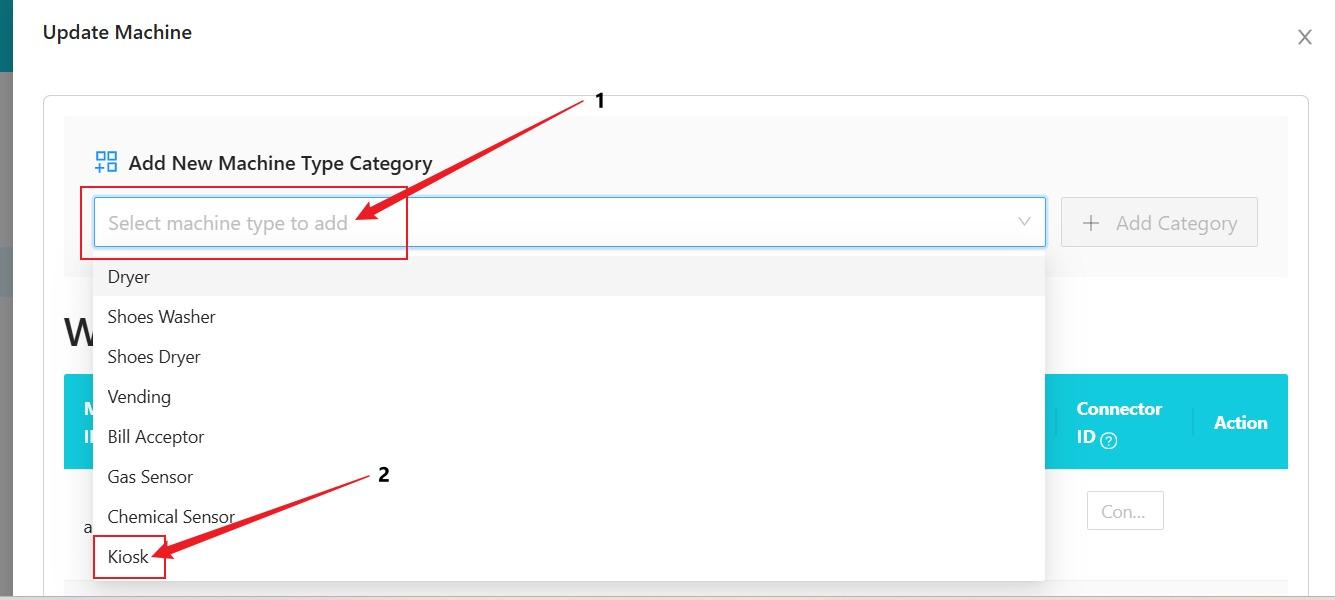
1. Click **"Select machine type to add."**
2. Click **Kiosk.**

[![WhatsApp Image 2026-05-26 at 11.47.03 AM.jpeg](https://docs.antlysis.com/uploads/images/gallery/2026-05/scaled-1680-/17rpLwcSSk2b9wdR-whatsapp-image-2026-05-26-at-11-47-03-am.jpeg)](https://docs.antlysis.com/uploads/images/gallery/2026-05/17rpLwcSSk2b9wdR-whatsapp-image-2026-05-26-at-11-47-03-am.jpeg)
---

7\.

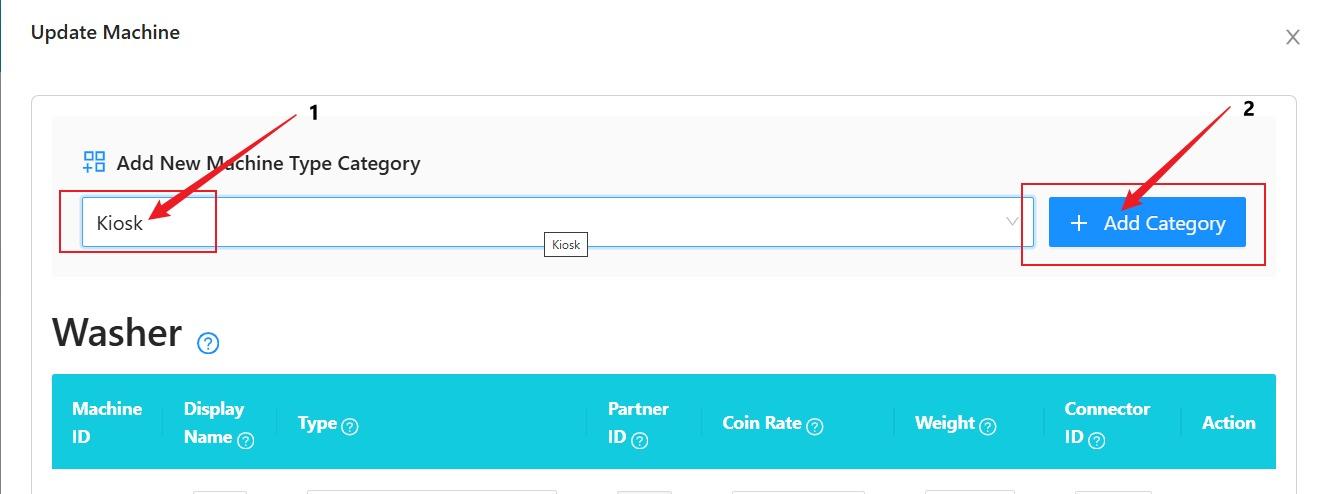
1. Kiosk will appear on that column.
2. Click **+ Add Category.**

[![WhatsApp Image 2026-05-26 at 11.49.22 AM.jpeg](https://docs.antlysis.com/uploads/images/gallery/2026-05/scaled-1680-/wUmAVbsyhjIlUm30-whatsapp-image-2026-05-26-at-11-49-22-am.jpeg)](https://docs.antlysis.com/uploads/images/gallery/2026-05/wUmAVbsyhjIlUm30-whatsapp-image-2026-05-26-at-11-49-22-am.jpeg)
---

8\.

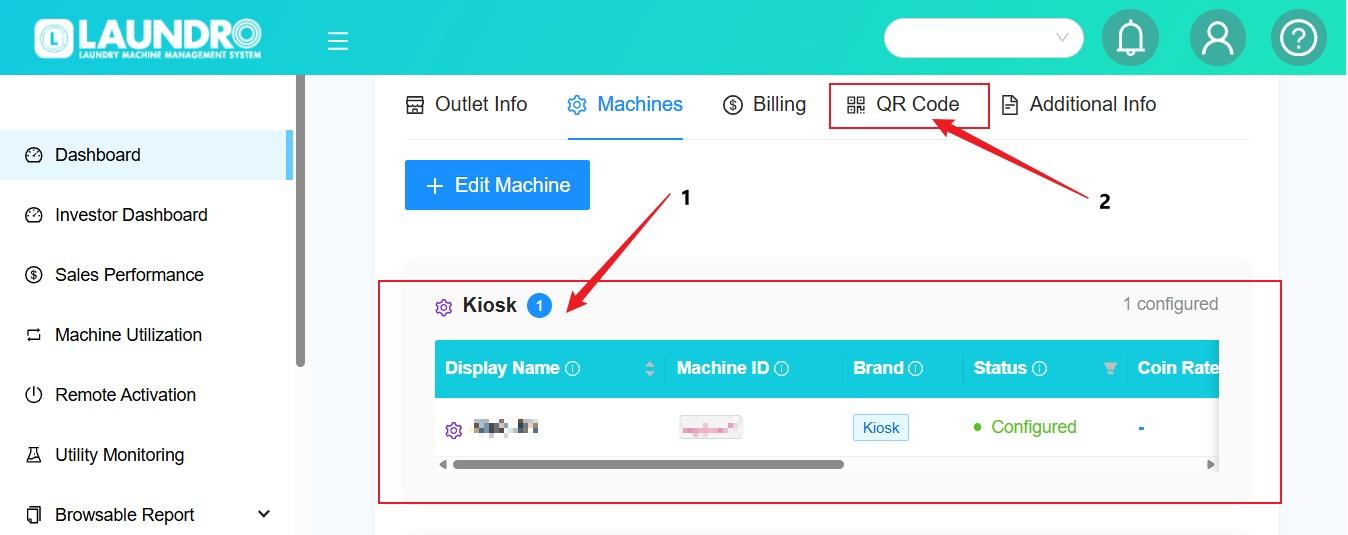
1. Kiosk Added.
2. Click **QR Code.**

[![WhatsApp Image 2026-05-26 at 11.52.46 AM.jpeg](https://docs.antlysis.com/uploads/images/gallery/2026-05/scaled-1680-/SZy8A3mHIMM6tJS9-whatsapp-image-2026-05-26-at-11-52-46-am.jpeg)](https://docs.antlysis.com/uploads/images/gallery/2026-05/SZy8A3mHIMM6tJS9-whatsapp-image-2026-05-26-at-11-52-46-am.jpeg)
---

9\.

1. Click **Kiosk QR Code.**
2. Kiosk QR Code will appear. **Scan QR Code &amp; Kiosk Link appear. Click URL Link.**

[![WhatsApp Image 2026-05-26 at 12.27.56 PM.jpeg](https://docs.antlysis.com/uploads/images/gallery/2026-05/scaled-1680-/UpOnCAEn98BnxyNB-whatsapp-image-2026-05-26-at-12-27-56-pm.jpeg)](https://docs.antlysis.com/uploads/images/gallery/2026-05/UpOnCAEn98BnxyNB-whatsapp-image-2026-05-26-at-12-27-56-pm.jpeg)

---

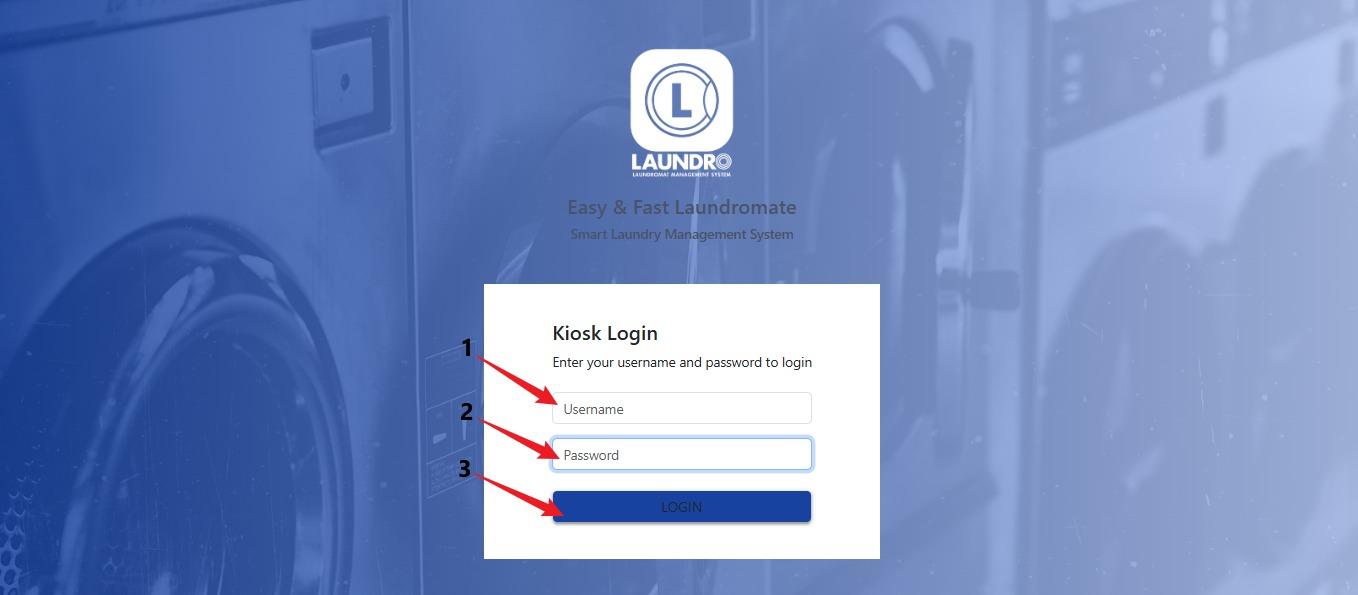
10\.

1. **Fill-in Username**
2. **Password**
3. **Click Login.**

[![WhatsApp Image 2026-05-26 at 12.04.59 PM (1).jpeg](https://docs.antlysis.com/uploads/images/gallery/2026-05/scaled-1680-/03m7eW4mMMYPkKA9-whatsapp-image-2026-05-26-at-12-04-59-pm-1.jpeg)](https://docs.antlysis.com/uploads/images/gallery/2026-05/03m7eW4mMMYPkKA9-whatsapp-image-2026-05-26-at-12-04-59-pm-1.jpeg)
---

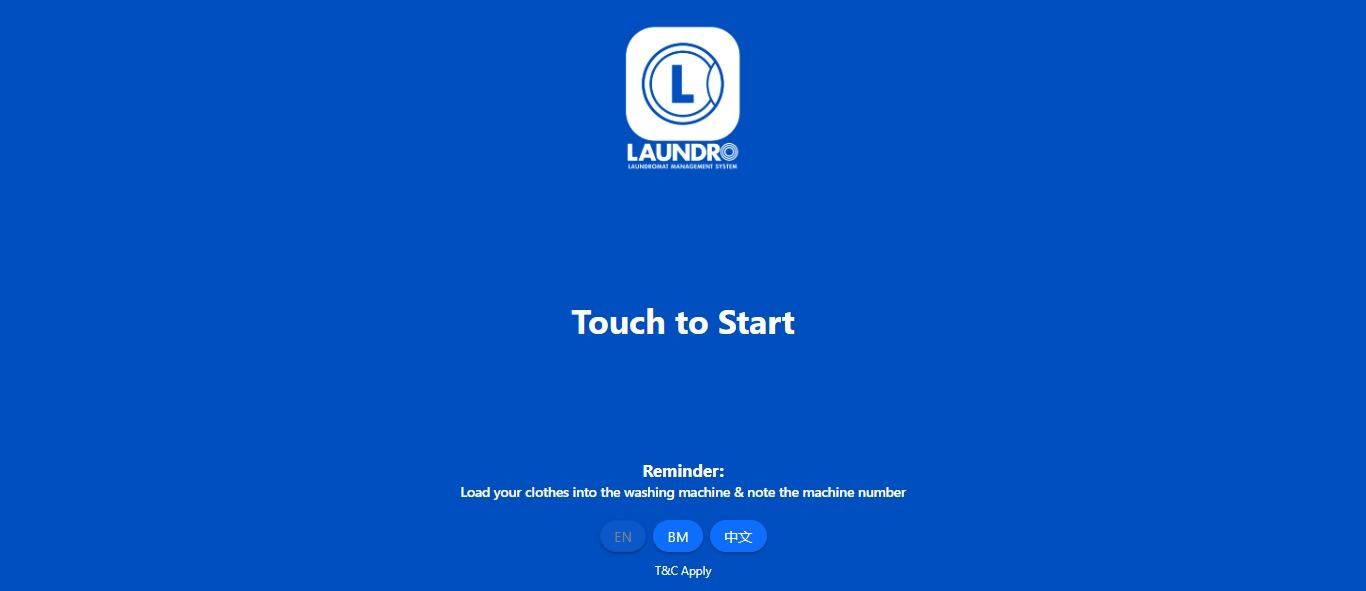
11\. Ready to use.

[![WhatsApp Image 2026-05-26 at 12.06.15 PM.jpeg](https://docs.antlysis.com/uploads/images/gallery/2026-05/scaled-1680-/gUzmwAAIfbkAcRCM-whatsapp-image-2026-05-26-at-12-06-15-pm.jpeg)](https://docs.antlysis.com/uploads/images/gallery/2026-05/gUzmwAAIfbkAcRCM-whatsapp-image-2026-05-26-at-12-06-15-pm.jpeg)
# How to Cancel Voucher / Remove Credit or Stamp

### **A)** How To Chancel Voucher

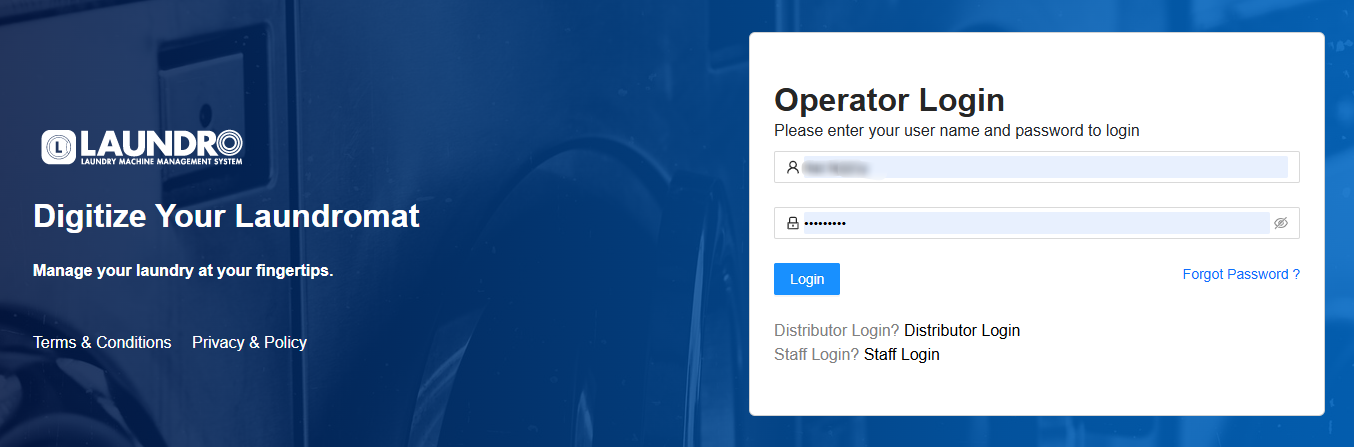
**1)** Log in to your Laundro Operator account.

[![image.png](https://docs.antlysis.com/uploads/images/gallery/2026-06/scaled-1680-/5Lox6xEr0ZIGcrIV-image.png)](https://docs.antlysis.com/uploads/images/gallery/2026-06/5Lox6xEr0ZIGcrIV-image.png)
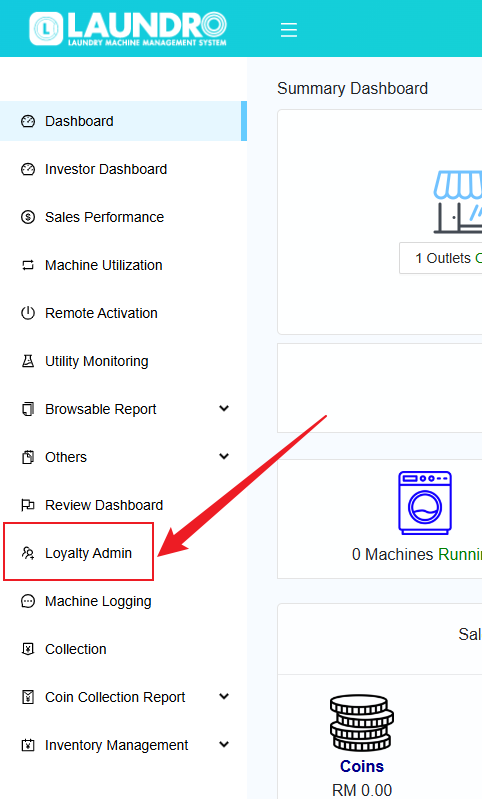
**2)**<span style="white-space: pre-wrap;"> On the page, click on </span>**"Loyalty Admin"**<span style="white-space: pre-wrap;"> in the left-hand column.</span>

[![image.png](https://docs.antlysis.com/uploads/images/gallery/2026-06/scaled-1680-/DLWDJU09GB1jaq0W-image.png)](https://docs.antlysis.com/uploads/images/gallery/2026-06/DLWDJU09GB1jaq0W-image.png)

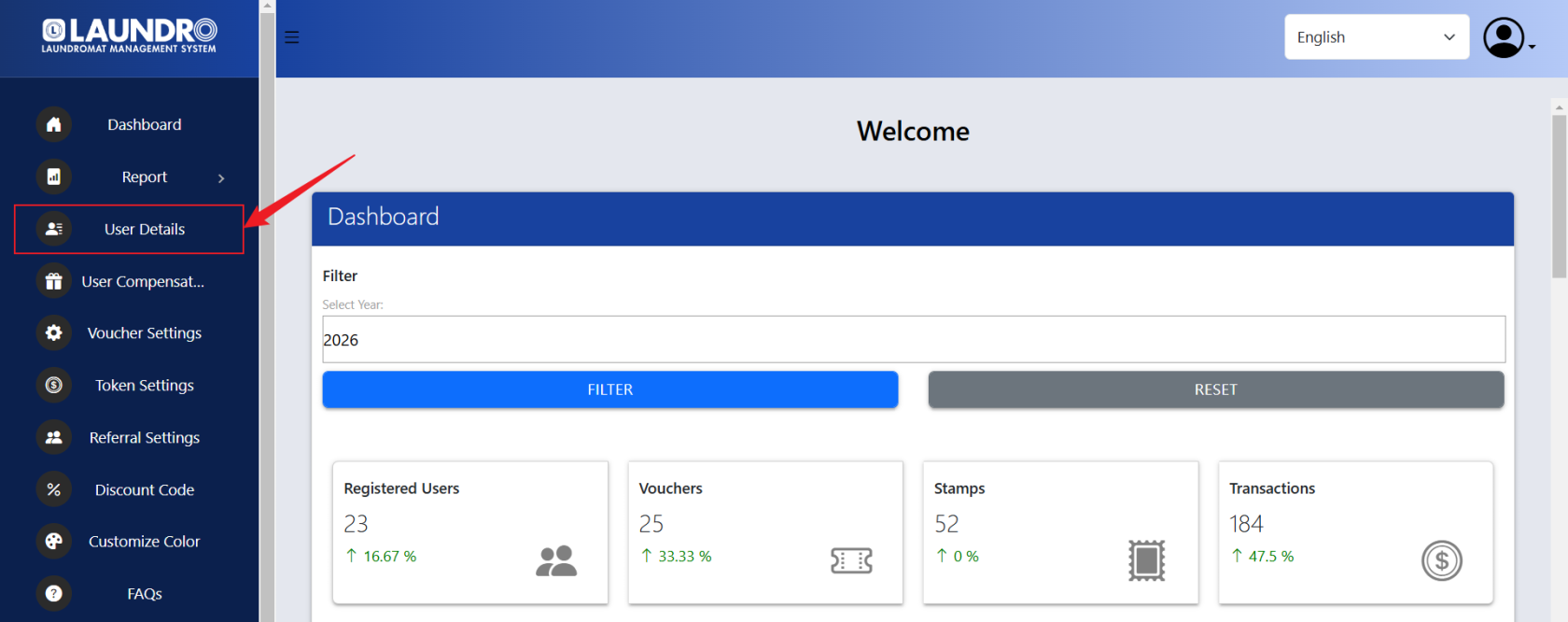
**3)**<span style="white-space: pre-wrap;"> On the Loyalty Admin page, click on "User Details".</span>

[![image.png](https://docs.antlysis.com/uploads/images/gallery/2026-06/scaled-1680-/iXrPsksX8f2HbYR7-image.png)](https://docs.antlysis.com/uploads/images/gallery/2026-06/iXrPsksX8f2HbYR7-image.png)

**4)**<span style="white-space: pre-wrap;"> Under </span>**"User Details"**<span style="white-space: pre-wrap;">, you can search for a user using their </span>**Phone Number**<span style="white-space: pre-wrap;">, </span>**Member ID**<span style="white-space: pre-wrap;">, or </span>**Email Address.**

[![image.png](https://docs.antlysis.com/uploads/images/gallery/2026-06/scaled-1680-/wY2wIub0Gq9yAEZd-image.png)](https://docs.antlysis.com/uploads/images/gallery/2026-06/wY2wIub0Gq9yAEZd-image.png)

**5)** <span style="white-space: pre-wrap;">Under </span>**"Member Details Report"**<span style="white-space: pre-wrap;">, click on </span>**"REPORT"**.

[![image.png](https://docs.antlysis.com/uploads/images/gallery/2026-06/scaled-1680-/aHqqtYMj2dj8660B-image.png)](https://docs.antlysis.com/uploads/images/gallery/2026-06/aHqqtYMj2dj8660B-image.png)

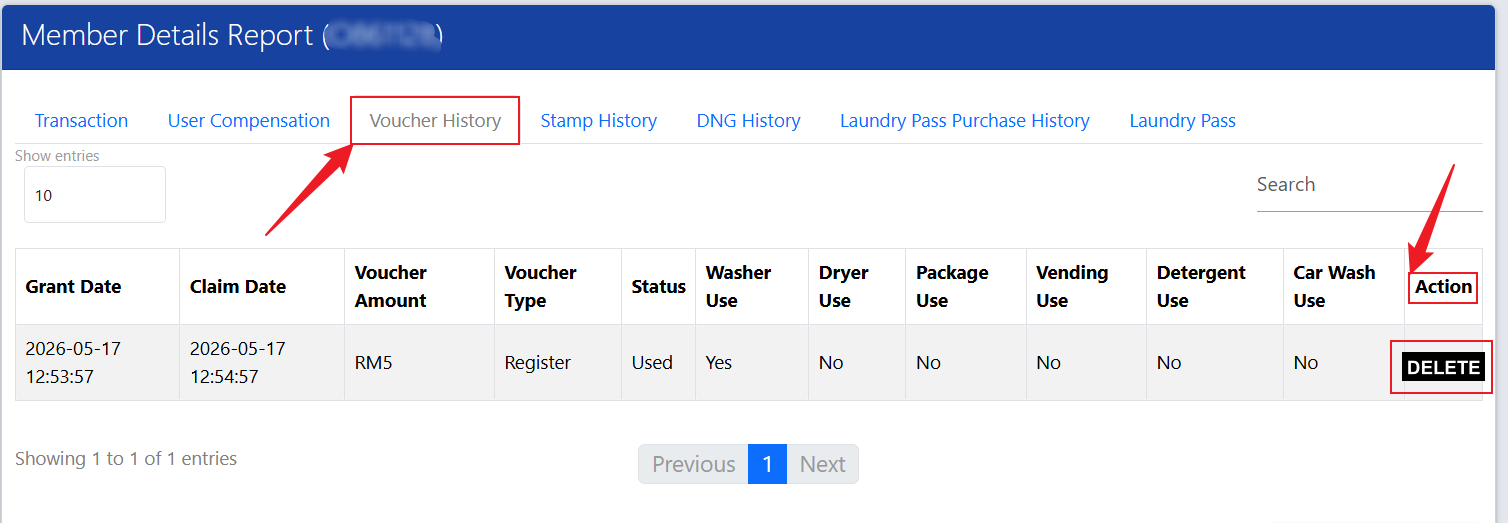
**6)** <span style="white-space: pre-wrap;">Click on </span>**"Voucher History"**<span style="white-space: pre-wrap;">. Under the </span>**"Action"**<span style="white-space: pre-wrap;"> column, click the Delete icon to remove the voucher.</span>

[![image.png](https://docs.antlysis.com/uploads/images/gallery/2026-06/scaled-1680-/eMSm7ZnkFGu7OB9w-image.png)](https://docs.antlysis.com/uploads/images/gallery/2026-06/eMSm7ZnkFGu7OB9w-image.png)

---

### **B)** Remove Credit Or Stamp

**1)** Log in to your Laundro Operator account.

[![image.png](https://docs.antlysis.com/uploads/images/gallery/2026-06/scaled-1680-/5Lox6xEr0ZIGcrIV-image.png)](https://docs.antlysis.com/uploads/images/gallery/2026-06/5Lox6xEr0ZIGcrIV-image.png)

**2)**<span style="white-space: pre-wrap;"> On the page, click on </span>**"Loyalty Admin"**<span style="white-space: pre-wrap;"> in the left-hand column.</span>

[![image.png](https://docs.antlysis.com/uploads/images/gallery/2026-06/scaled-1680-/DLWDJU09GB1jaq0W-image.png)](https://docs.antlysis.com/uploads/images/gallery/2026-06/DLWDJU09GB1jaq0W-image.png)

**3)**<span style="white-space: pre-wrap;"> On the Loyalty Admin page, click on "User Details".</span>

[![image.png](https://docs.antlysis.com/uploads/images/gallery/2026-06/scaled-1680-/iXrPsksX8f2HbYR7-image.png)](https://docs.antlysis.com/uploads/images/gallery/2026-06/iXrPsksX8f2HbYR7-image.png)

**4)**<span style="white-space: pre-wrap;"> Under </span>**"User Details"**<span style="white-space: pre-wrap;">, you can search for a user using their </span>**Phone Number**<span style="white-space: pre-wrap;">, </span>**Member ID**<span style="white-space: pre-wrap;">, or </span>**Email Address.**

[![image.png](https://docs.antlysis.com/uploads/images/gallery/2026-06/scaled-1680-/wY2wIub0Gq9yAEZd-image.png)](https://docs.antlysis.com/uploads/images/gallery/2026-06/wY2wIub0Gq9yAEZd-image.png)

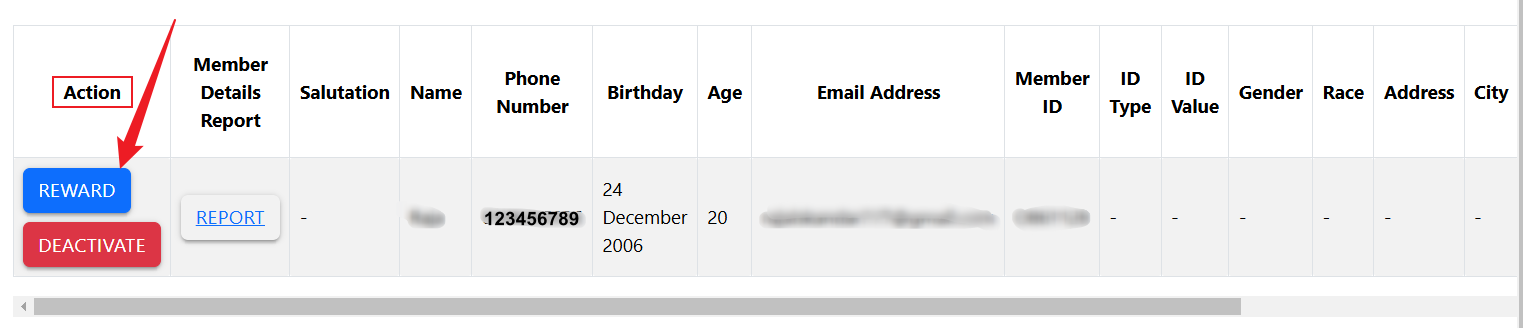
**5)**<span style="white-space: pre-wrap;"> Under the "</span>**Action**" column, click on "**REWARD**".

[![image.png](https://docs.antlysis.com/uploads/images/gallery/2026-06/scaled-1680-/MaV4zWnvxXy8UjPD-image.png)](https://docs.antlysis.com/uploads/images/gallery/2026-06/MaV4zWnvxXy8UjPD-image.png)
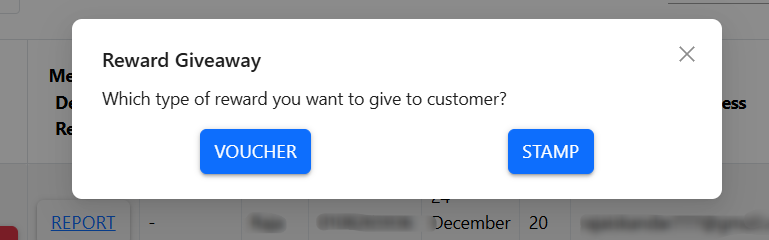
**6)**<span style="white-space: pre-wrap;"> Click on prefer reward VOUCHER or STAMP.</span>

[![image.png](https://docs.antlysis.com/uploads/images/gallery/2026-06/scaled-1680-/SGkrMfdD92G54mSy-image.png)](https://docs.antlysis.com/uploads/images/gallery/2026-06/SGkrMfdD92G54mSy-image.png)

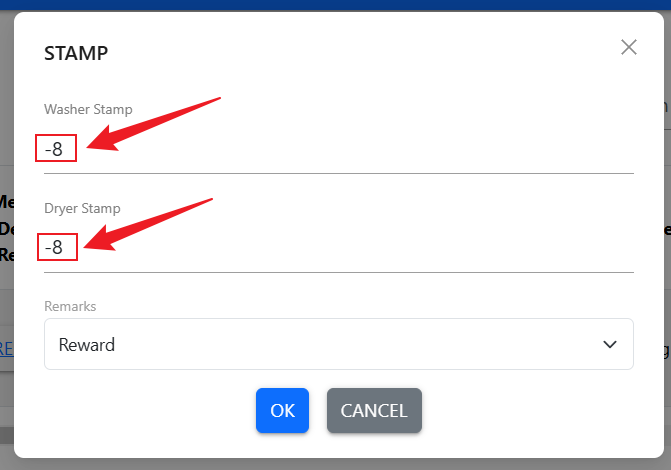
**7)**<span style="white-space: pre-wrap;"> To remove credit, enter a negative </span>**(-)**<span style="white-space: pre-wrap;"> sign before the amount shown, then click </span>**"OK"**.

[![image.png](https://docs.antlysis.com/uploads/images/gallery/2026-06/scaled-1680-/3CO0mBmwok2xvfYW-image.png)](https://docs.antlysis.com/uploads/images/gallery/2026-06/3CO0mBmwok2xvfYW-image.png)

**8)**<span style="white-space: pre-wrap;"> Once the process is completed, the credit will be removed.</span>

# How to get QR Code

1. <span style="white-space: pre-wrap;">Login into Laundro Portal &amp; put-in Username / Password : </span>[https://v2.thelaundro.com/operator\_login](https://v2.thelaundro.com/operator_login)

[![WhatsApp Image 2026-05-26 at 11.30.20 AM.jpeg](https://docs.antlysis.com/uploads/images/gallery/2026-05/scaled-1680-/9zPBOmcccSQaMI94-whatsapp-image-2026-05-26-at-11-30-20-am.jpeg)](https://docs.antlysis.com/uploads/images/gallery/2026-05/scaled-1680-/9zPBOmcccSQaMI94-whatsapp-image-2026-05-26-at-11-30-20-am.jpeg)

---

2\.

1. <span style="white-space: pre-wrap;">Click the </span>**Profile**<span style="white-space: pre-wrap;"> icon at the top-right corner of the screen.</span>
2. <span style="white-space: pre-wrap;">Select </span>**My Outlets**<span style="white-space: pre-wrap;"> from the dropdown menu.</span>
3. <span style="white-space: pre-wrap;">The system will open the </span>**My Outlets**<span style="white-space: pre-wrap;"> page where you can view your outlets.</span>

[![WhatsApp Image 2026-05-26 at 4.36.22 PM.jpeg](https://docs.antlysis.com/uploads/images/gallery/2026-05/scaled-1680-/NsI9tNwfVaSliz73-whatsapp-image-2026-05-26-at-4-36-22-pm.jpeg)](https://docs.antlysis.com/uploads/images/gallery/2026-05/scaled-1680-/NsI9tNwfVaSliz73-whatsapp-image-2026-05-26-at-4-36-22-pm.jpeg)

---

3\.

1. <span style="white-space: pre-wrap;">Click the profile icon and select </span>**“My Outlets.”**
2. <span style="white-space: pre-wrap;">Click the </span>**outlet box**<span style="white-space: pre-wrap;"> to open the outlet details.</span>

[![WhatsApp Image 2026-05-12 at 11.55.10 AM (1).jpeg](https://docs.antlysis.com/uploads/images/gallery/2026-05/scaled-1680-/tHgrLT2mWlKV7lgQ-whatsapp-image-2026-05-12-at-11-55-10-am-1.jpeg)](https://docs.antlysis.com/uploads/images/gallery/2026-05/scaled-1680-/tHgrLT2mWlKV7lgQ-whatsapp-image-2026-05-12-at-11-55-10-am-1.jpeg)

---

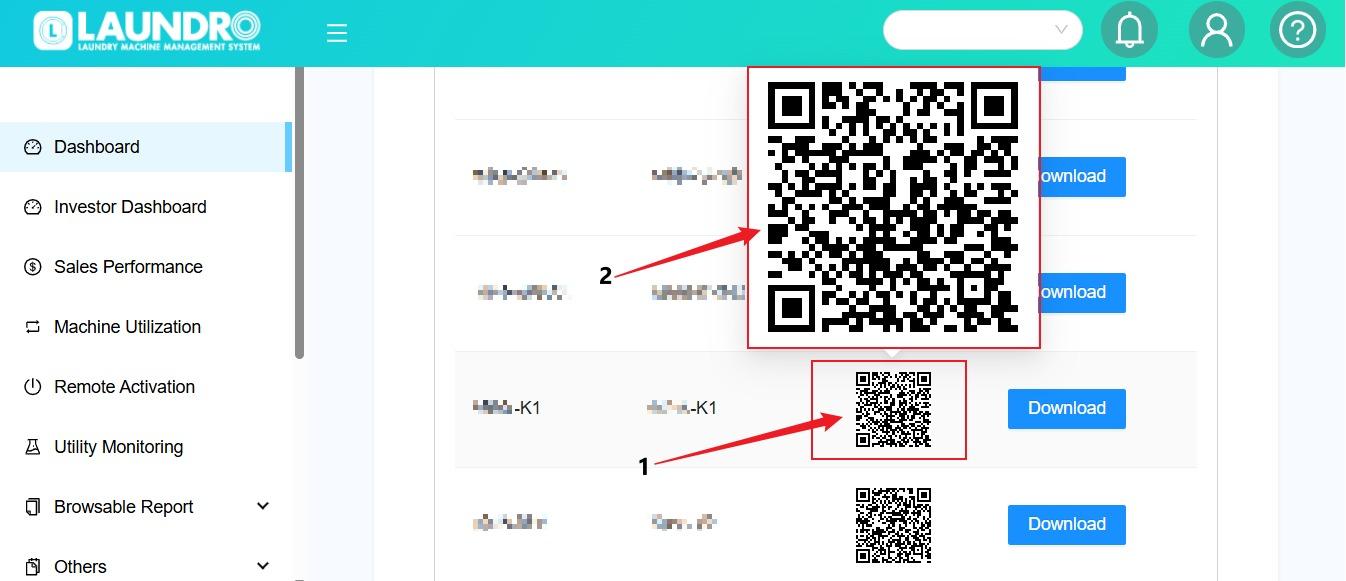
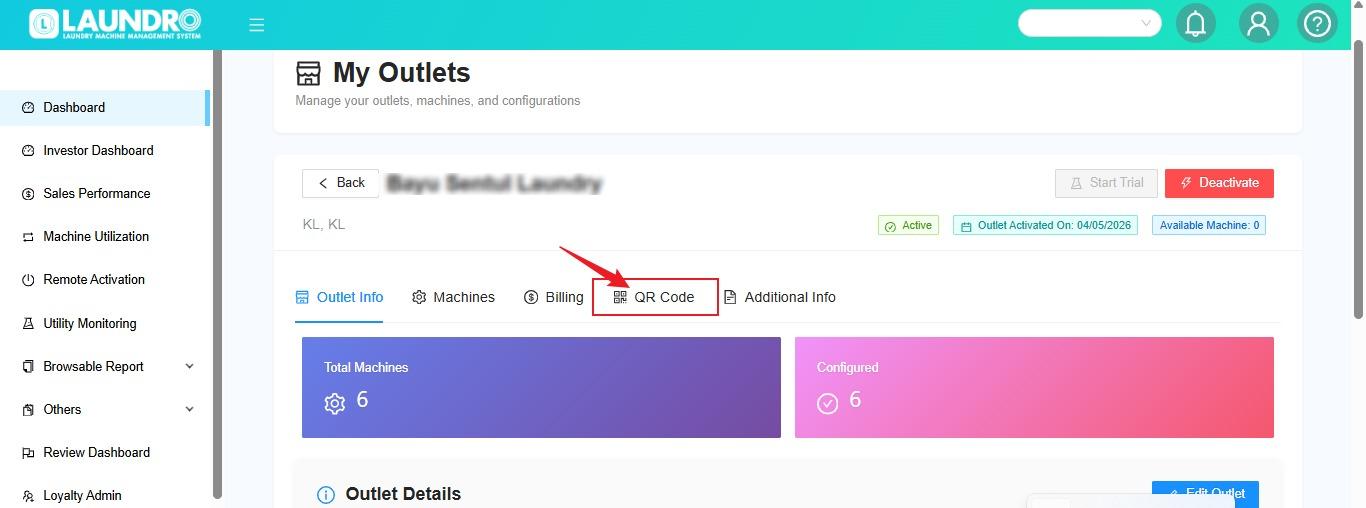
<span style="white-space: pre-wrap;">4. </span><span style="color: rgb(68, 68, 68); background-color: rgb(255, 255, 255);">Click</span> **QR Codes.**

[![WhatsApp Image 2026-05-12 at 11.47.15 AM (1).jpeg](https://docs.antlysis.com/uploads/images/gallery/2026-05/scaled-1680-/exKxH3aqZQtlGt85-whatsapp-image-2026-05-12-at-11-47-15-am-1.jpeg)](https://docs.antlysis.com/uploads/images/gallery/2026-05/scaled-1680-/exKxH3aqZQtlGt85-whatsapp-image-2026-05-12-at-11-47-15-am-1.jpeg)

---

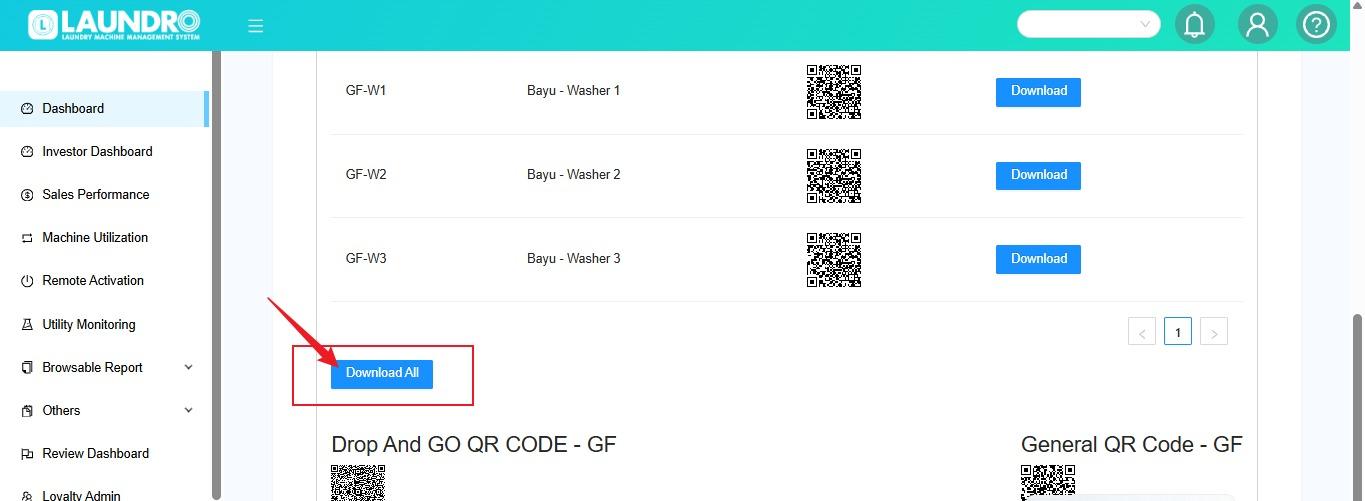
<span style="white-space: pre-wrap;">5. </span><span style="color: rgb(68, 68, 68); background-color: rgb(255, 255, 255);">Click</span> **Download All.**

[![WhatsApp Image 2026-05-12 at 11.49.42 AM (1).jpeg](https://docs.antlysis.com/uploads/images/gallery/2026-05/scaled-1680-/QpCuHvSrmt1xWuvj-whatsapp-image-2026-05-12-at-11-49-42-am-1.jpeg)](https://docs.antlysis.com/uploads/images/gallery/2026-05/scaled-1680-/QpCuHvSrmt1xWuvj-whatsapp-image-2026-05-12-at-11-49-42-am-1.jpeg)

# Top-up but not get token

1. <span style="white-space: pre-wrap;">Login into Laundro Portal &amp; put-in Username / Password : </span>[https://v2.thelaundro.com/operator\_login](https://v2.thelaundro.com/operator_login)

![WhatsApp Image 2026-05-26 at 11.30.20 AM.jpeg](https://docs.antlysis.com/uploads/images/gallery/2026-05/scaled-1680-/9zPBOmcccSQaMI94-whatsapp-image-2026-05-26-at-11-30-20-am.jpeg)---

<span style="white-space: pre-wrap;">2. Click </span>**Loyalty Admin.**

[![WhatsApp Image 2026-05-29 at 12.16.32 PM.jpeg](https://docs.antlysis.com/uploads/images/gallery/2026-05/scaled-1680-/KSGplzHLPGskryxM-whatsapp-image-2026-05-29-at-12-16-32-pm.jpeg)](https://docs.antlysis.com/uploads/images/gallery/2026-05/scaled-1680-/KSGplzHLPGskryxM-whatsapp-image-2026-05-29-at-12-16-32-pm.jpeg)

---

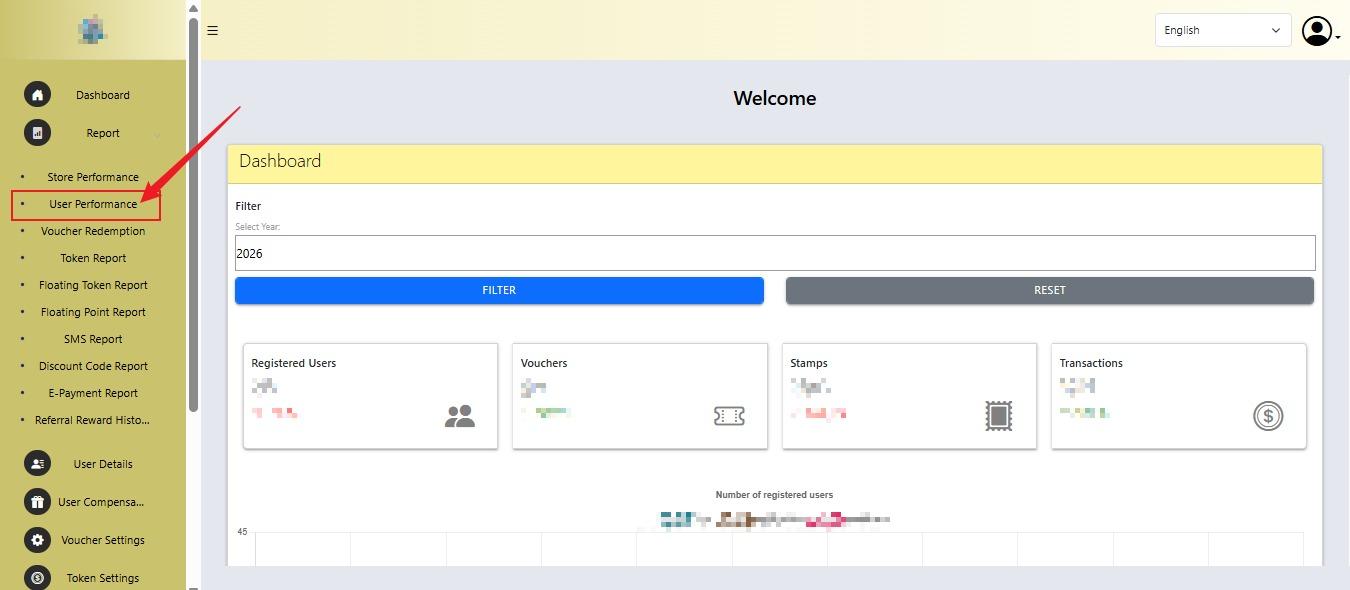
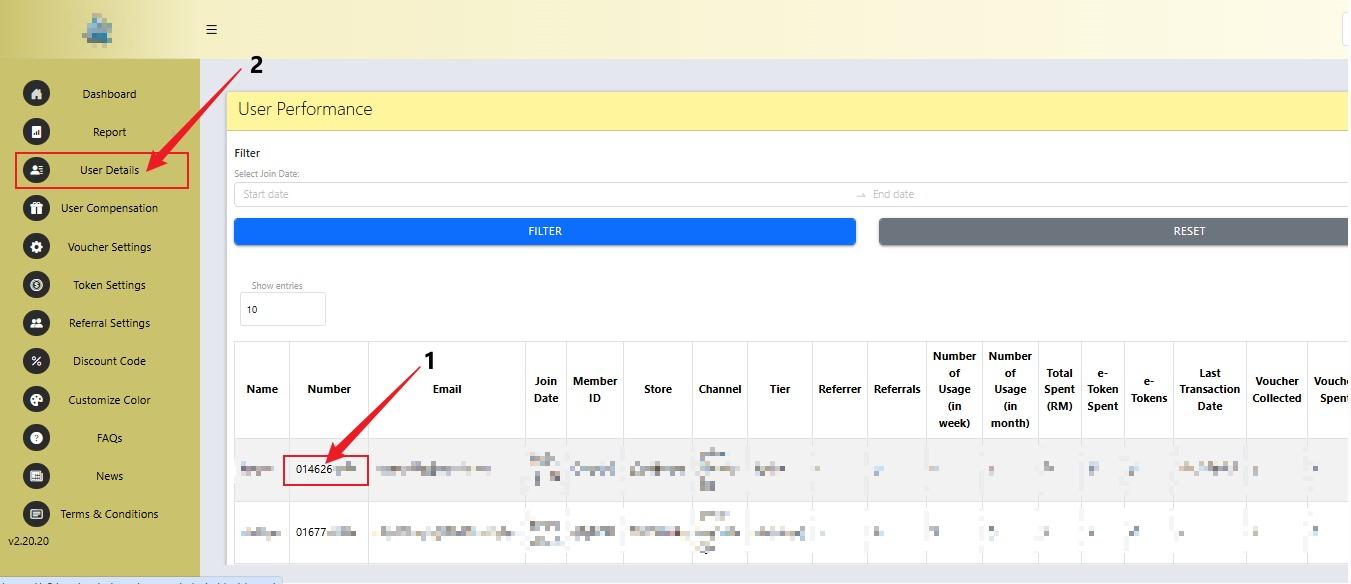
<span style="white-space: pre-wrap;">3. Click </span>**User Performance**<span style="white-space: pre-wrap;"> to find </span>**Member ID.**

[![WhatsApp Image 2026-06-03 at 9.57.22 AM.jpeg](https://docs.antlysis.com/uploads/images/gallery/2026-06/scaled-1680-/LjlPpl7HTskkwjKZ-whatsapp-image-2026-06-03-at-9-57-22-am.jpeg)](https://docs.antlysis.com/uploads/images/gallery/2026-06/scaled-1680-/LjlPpl7HTskkwjKZ-whatsapp-image-2026-06-03-at-9-57-22-am.jpeg)

---

<span style="white-space: pre-wrap;">4. </span>

1. You can get the member ID through the **phone number**<span style="white-space: pre-wrap;"> by entering the member’s phone number.</span>
2. <span style="white-space: pre-wrap;">Click </span>**User Details.**

[![WhatsApp Image 2026-06-03 at 10.02.09 AM.jpeg](https://docs.antlysis.com/uploads/images/gallery/2026-06/scaled-1680-/7swTbbKff4g94YVJ-whatsapp-image-2026-06-03-at-10-02-09-am.jpeg)](https://docs.antlysis.com/uploads/images/gallery/2026-06/scaled-1680-/7swTbbKff4g94YVJ-whatsapp-image-2026-06-03-at-10-02-09-am.jpeg)

---

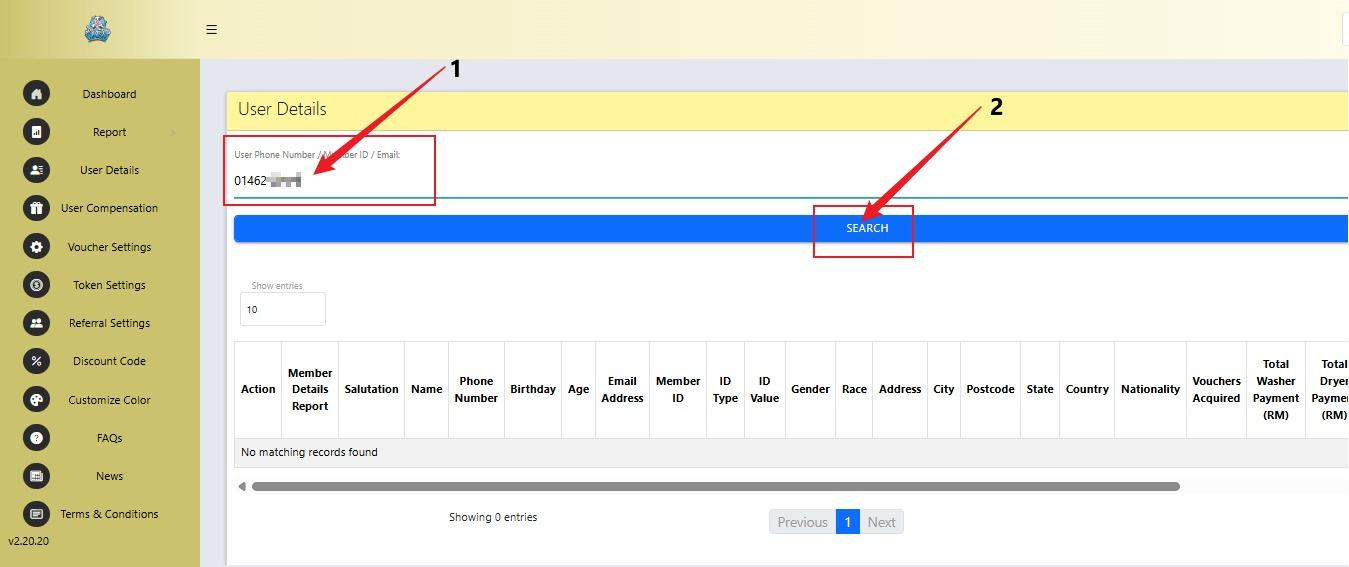
5\.

1. <span style="white-space: pre-wrap;">Fill in </span>**User Phone Number.**
2. Click **Search.**

[![WhatsApp Image 2026-06-03 at 10.04.08 AM.jpeg](https://docs.antlysis.com/uploads/images/gallery/2026-06/scaled-1680-/5VPwFqzFYVApBxEP-whatsapp-image-2026-06-03-at-10-04-08-am.jpeg)](https://docs.antlysis.com/uploads/images/gallery/2026-06/scaled-1680-/5VPwFqzFYVApBxEP-whatsapp-image-2026-06-03-at-10-04-08-am.jpeg)
---

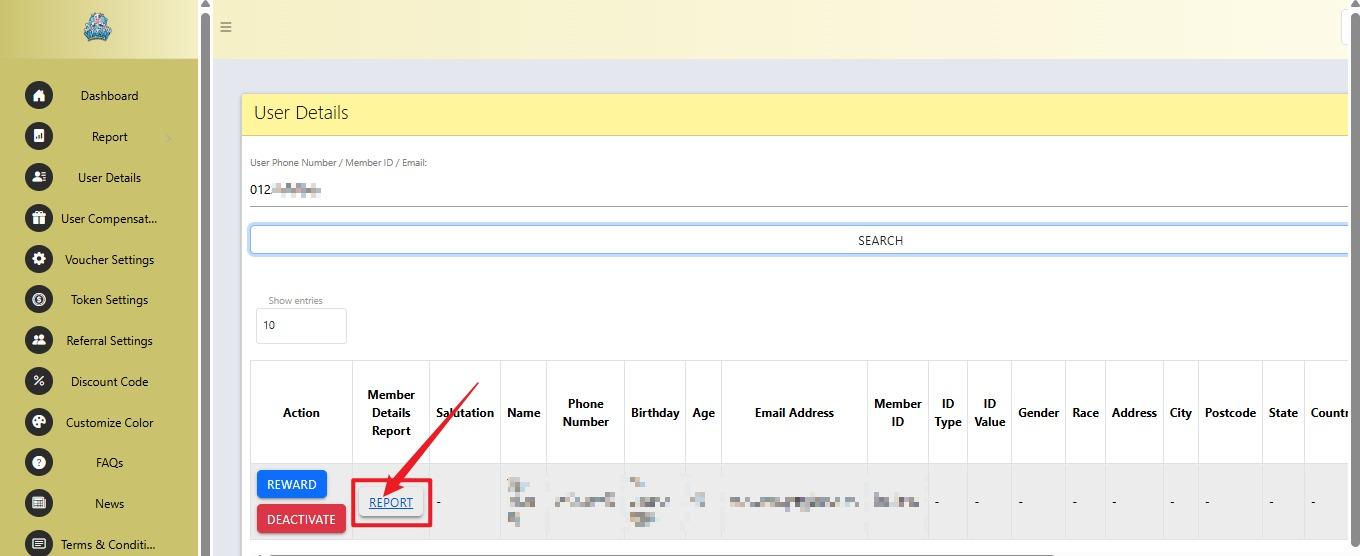
<span style="white-space: pre-wrap;">6. Click </span>**Report.**

[![WhatsApp Image 2026-06-04 at 10.51.23 AM.jpeg](https://docs.antlysis.com/uploads/images/gallery/2026-06/scaled-1680-/xVDYCwzk135RQSrf-whatsapp-image-2026-06-04-at-10-51-23-am.jpeg)](https://docs.antlysis.com/uploads/images/gallery/2026-06/scaled-1680-/xVDYCwzk135RQSrf-whatsapp-image-2026-06-04-at-10-51-23-am.jpeg)

---

7\.

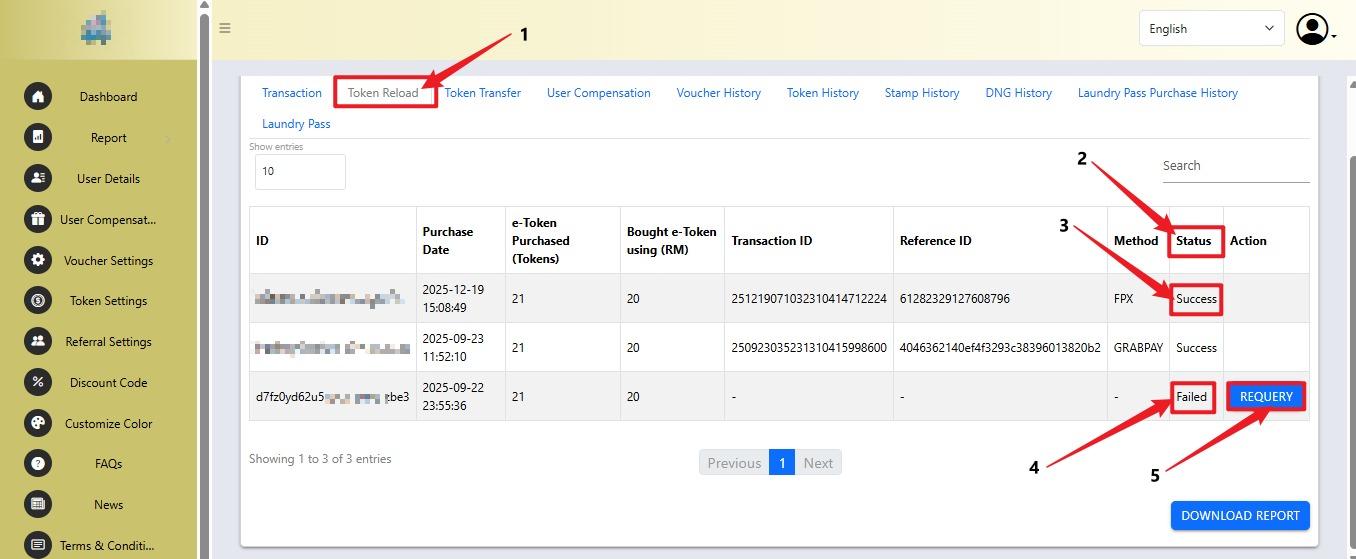
1. <span style="white-space: pre-wrap;">Click the </span>**Token Reload**<span style="white-space: pre-wrap;"> tab.</span>
2. <span style="white-space: pre-wrap;">Check the transaction </span>**Status**.
3. <span style="white-space: pre-wrap;">If the status shows </span>**Success**, the reload is successful.
4. <span style="white-space: pre-wrap;">If the status shows </span>**Failed**, the reload was not successful.
5. <span style="white-space: pre-wrap;">Click </span>**REQUERY**<span style="white-space: pre-wrap;"> to check the transaction again.</span>

[![WhatsApp Image 2026-06-04 at 10.23.49 AM.jpeg](https://docs.antlysis.com/uploads/images/gallery/2026-06/scaled-1680-/BILeDOvcWjY7a8BQ-whatsapp-image-2026-06-04-at-10-23-49-am.jpeg)](https://docs.antlysis.com/uploads/images/gallery/2026-06/scaled-1680-/BILeDOvcWjY7a8BQ-whatsapp-image-2026-06-04-at-10-23-49-am.jpeg)

---