# Firmware Update Procedure for Alpha3
### Steps:
1. Log into your node cloud account
[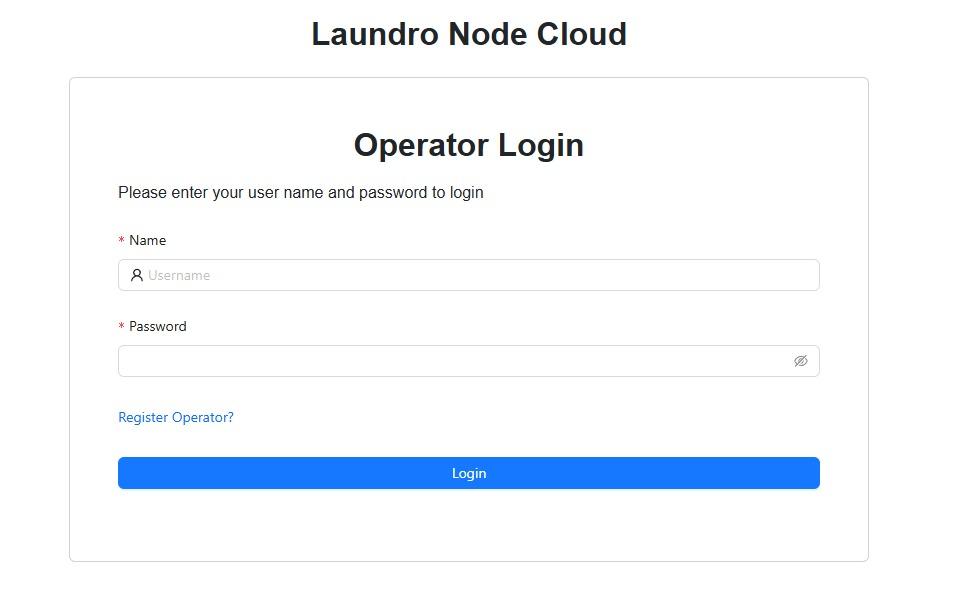](https://docs.antlysis.com/uploads/images/gallery/2026-01/FNKtLTqskwAFuhMm-whatsapp-image-2026-01-06-at-5-34-46-pm.jpeg)
2. Navigate to the device that you intend to update and select **"latest"** in the release dropdown menu
[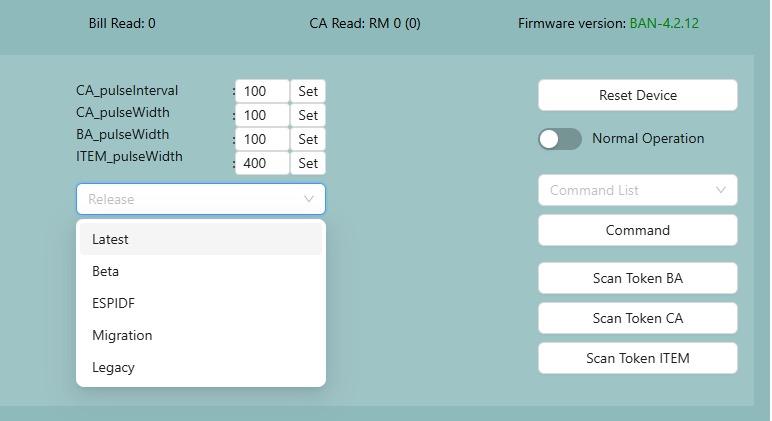](https://docs.antlysis.com/uploads/images/gallery/2026-01/KGsvgLL25oZuXvOX-whatsapp-image-2026-01-06-at-5-37-37-pm.jpeg)
3. Once you have selected "latest", click on **"Check update"** and you will see a message saying update is available beside the firmware version.
4. If update is available, click on **"Update"** and the device will update.
TAKE NOTE: Device will become offline for up to 1-3 minutes during the update process before coming back online
5. If update is successful, you will see a change in **Firmware version** and the device will come back online.
6. If update fails, try again when device comes back online for a few times until it is successful. If update still fails, report the issue.
Sometimes, restarting your router may help to fix update issues